Braintree Payment
Braintree lets your store accept credit and debit cards using a PCI-compliant form that never sends raw card numbers to your server. Because the card data is tokenized in the customer's browser by the Braintree JavaScript SDK, your server only ever sees a short-lived payment nonce.
You can choose between two form styles: Hosted Fields (a customizable card form that blends into your checkout design) or Drop-in UI (a ready-made form with multiple payment method tabs that Braintree builds for you automatically). Both styles support 3D Secure 2 (3DS2) authentication, which is required for European stores under PSD2/SCA rules.
This plugin is a separate add-on available from the J2Commerce Extensions Store. It is not included with the core J2Commerce 6 component.
Supported Features
- Credit and debit cards — Visa, Mastercard, American Express, Discover
- Hosted Fields (customizable card inputs, matches your site design)
- Drop-in UI (Braintree-managed multi-method form, includes wallets where available)
- 3D Secure 2 / SCA authentication (enforced automatically)
- Multi-currency via Braintree merchant account routing (currency matched automatically)
- Subscriptions — initial charge + stored customer token for manual-confirm renewal
- Parameterized SQL and proper order-status-change events throughout
Prerequisites
Before installing the plugin, confirm the following:
- J2Commerce 6 is installed and active on your Joomla site
- PHP extensions are available: curl, openssl, dom, hash, xmlwriter — the installer checks these and blocks installation if any are missing
- You have a Braintree merchant account (both a Sandbox account for testing and a Production account for real payments)
- Your server can reach
api.braintreegateway.com(production) andapi.sandbox.braintreegateway.com(sandbox) outbound on port 443
Get Your Braintree Credentials
You need three values from Braintree: Merchant ID, Public Key, and Private Key. These are different for Sandbox and Production environments, so collect both sets.
Sandbox (Testing) Credentials
- Go to sandbox.braintreegateway.com and sign in (or create a free sandbox account — no credit card required).
- In the left sidebar, click Settings -> API Keys.
- Click Generate New API Key if you have none, or use an existing one.
- Click View next to the key you want to use.
- Copy the three values shown: Merchant ID, Public Key, and Private Key.
Production (Live) Credentials
- Go to www.braintreegateway.com and sign in to your live Braintree Control Panel.
- In the left sidebar, click Settings -> API Keys.
- Click Generate New API Key or use an existing one.
- Click View next to the key you want.
- Copy the Merchant ID, Public Key, and Private Key for the live environment.
Never share your Private Key publicly. Treat it like a password — it authorizes real charges on your account.
Purchase and download
This plugin is a separate add-on available from the J2Commerce Extensions Store. It is not included with the core J2Commerce 6 component.
- Go to the J2Commerce website and locate Braintree Payment.
- Add it to your cart and complete checkout.
- Go to My Downloads under your account profile and find the plugin.
- Click Available Versions -> View Files -> Download Now to download the ZIP file.
Install the plugin
In the Joomla Administrator, go to System -> Install -> Extensions.
Upload the payment_braintree.zip file.

Enable the Plugin
Once you have installed the App, you will need to enable it. There are two ways you can access the App.
Option A: Go to the J2Commerce icon at the top right corner -> Setup -> Payment Methods
Option B: Go to Components on the left sidebar -> J2Commerce -> Dashboard -> Setup -> Payment Methods

To help you narrow down the list, you can do a search for Braintree Payment, click the X, and it will turn into a green checkmark. It is now enabled and ready for setup.
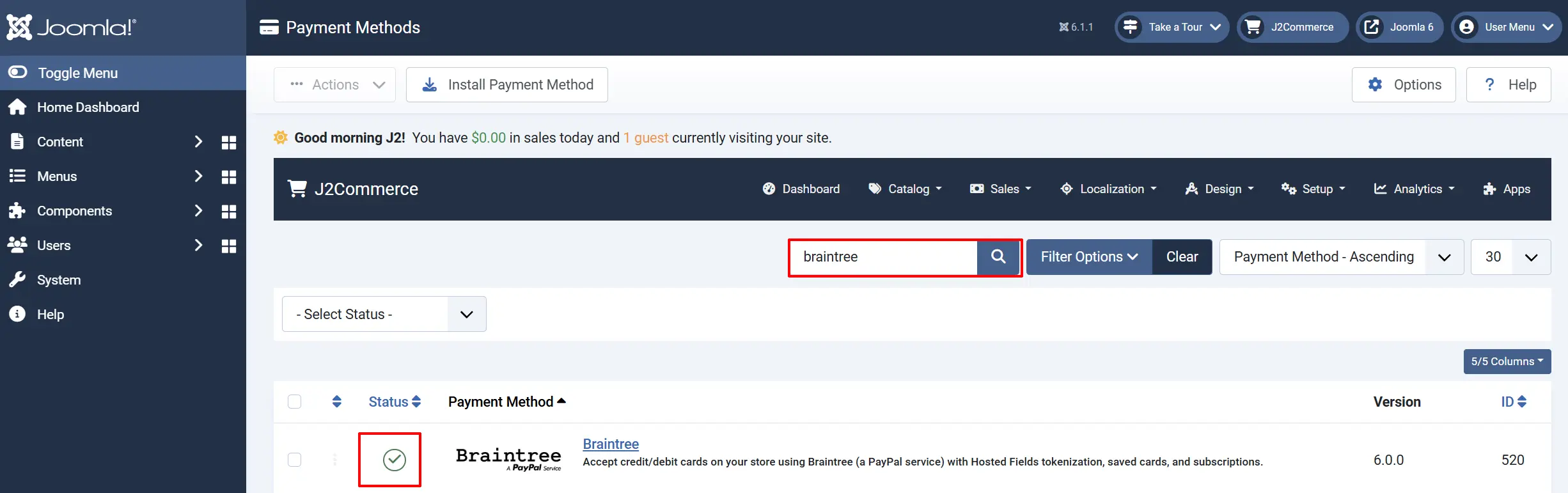
Configure the plugin
Click the Toggle Inline Help button in the toolbar and the app will show a description below each field as you configure it.

Basic Settings
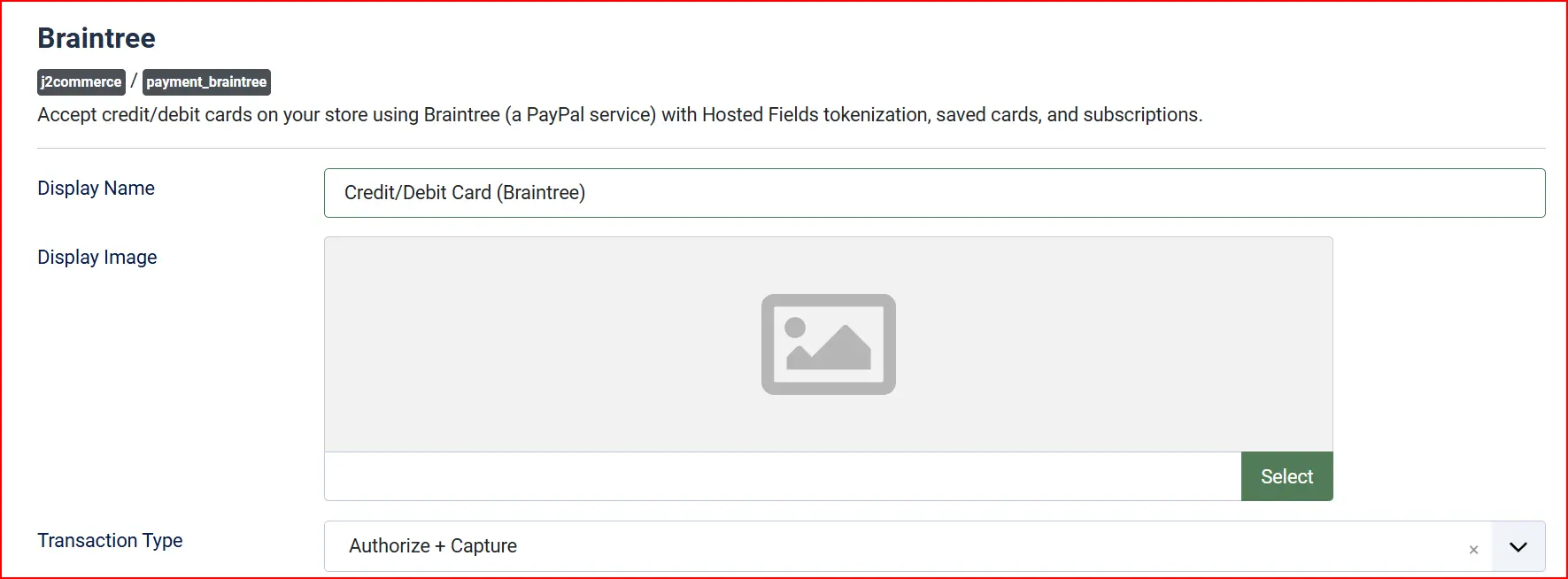
Display Name: The label shown to customers on the checkout page — for example, "Credit / Debit Card". Change this to whatever makes sense for your store.
Display Image: An optional logo or card-brand image to show next to the payment method name at checkout.
Capture Method: Controls when funds are actually collected from the customer's card.
- Authorize & Capture — funds are collected immediately when the payment is authorized. This is the right choice for most stores.
- Authorize Only — the payment is authorized (the amount is reserved on the card) but funds are not collected until you click Capture Payment from the order screen. This is useful when you want to confirm stock availability or review the order before charging the customer.
Live Credentials
When Sandbox is set to Yes, the plugin reads the Sandbox credentials tab. When set to No, it reads the Live credentials tab. Make sure each set of credentials is filled in before switching modes.
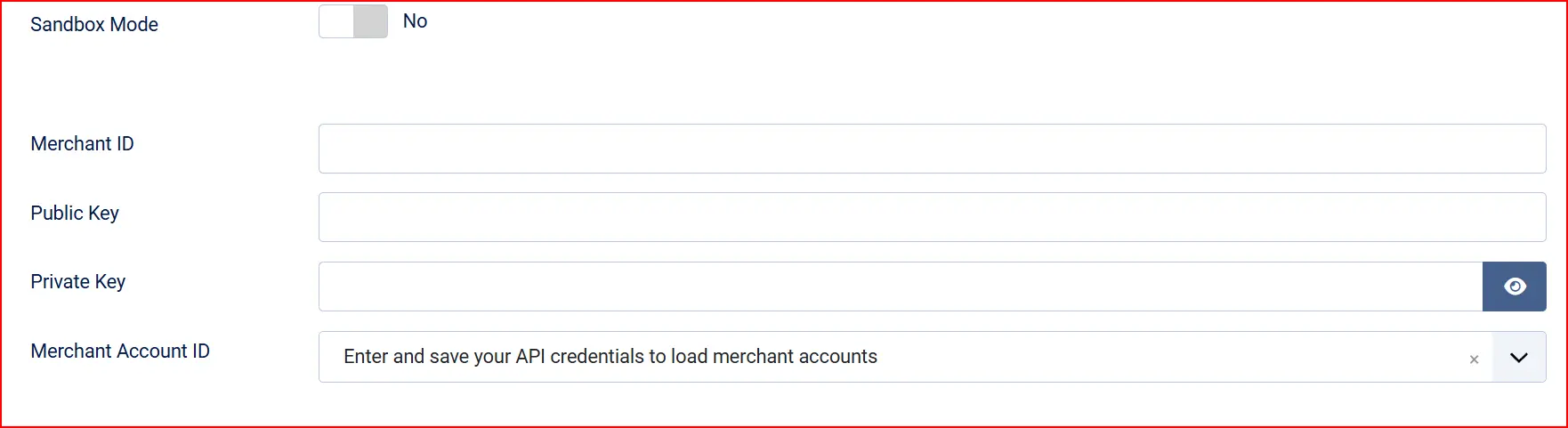
These settings are used when Sandbox is set to No.
Live Merchant ID: Your production Merchant ID from the Braintree Control Panel
Live Public Key: Your production Public Key
Live Private Key: Your production Private Key (stored encrypted)
Live Merchant Account ID: Auto-populated list of merchant accounts on your live Braintree account — select which account to charge for each currency
- The Live Merchant Account ID field queries the Braintree API using your live credentials and shows a table of your configured merchant accounts. If your account has only one currency, you can leave this on the default. If you process multiple currencies, see Multi-Currency Merchant Accounts below.
Sandbox Credentials
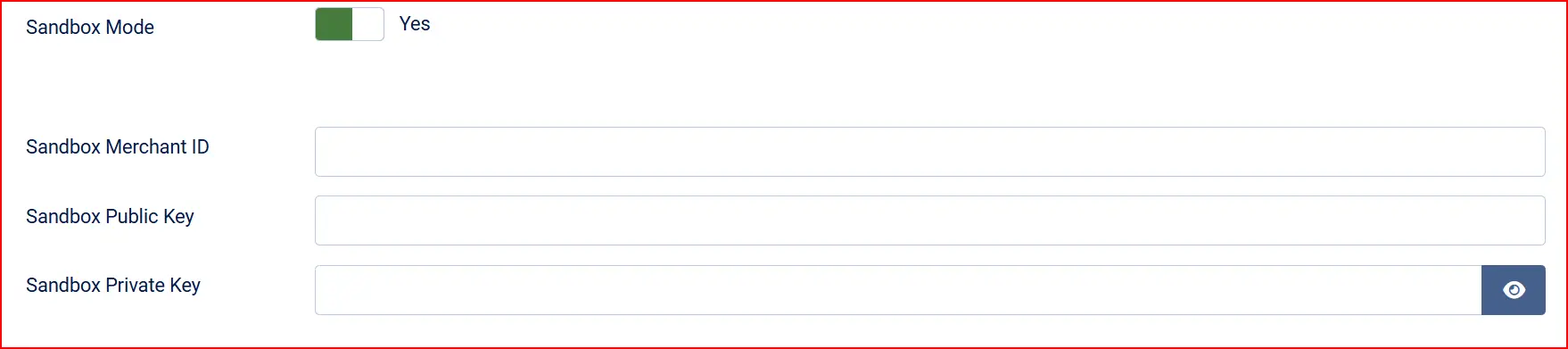
These settings are used when Sandbox is set to Yes.
Test Merchant ID: Your sandbox Merchant ID from sandbox.braintreegateway.com
Test Public Key: Your sandbox Public Key
Test Private Key: Your sandbox Private Key
Test Merchant Account ID: Auto-populated list of merchant accounts on your sandbox — works the same way as the live version
Payments

Payment Type: Choose the checkout UI style — see Hosted Fields vs Drop-in UI below
Hosted Fields for design-consistent stores
Accepted Card Types: Cards shown as accepted icons during payment method selection
Select all cards your Braintree account accepts
Allow Saved Cards: When turned on, logged-in customers can save their card at checkout for faster purchases in the future. Saved cards are also required for automatic subscription renewals.
Template Style: Choose a visual style for the checkout card form. Options depend on which layout plugins you have enabled (Bootstrap 5 or UIkit). Leave blank to use the default layout.
Order Statuses
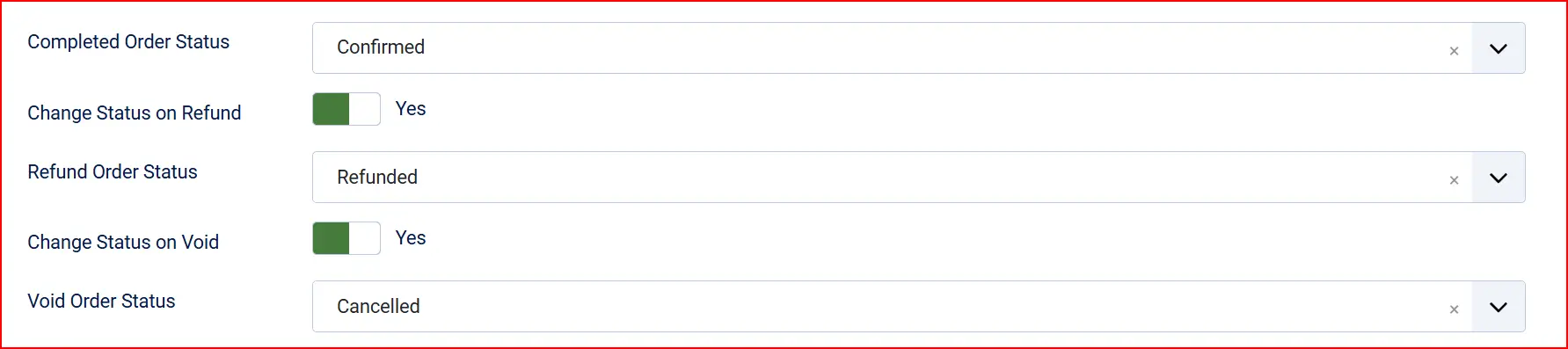
These settings control which J2Commerce order status is applied when specific payment events occur.
Order Status (Payment Success)
Status applied when a payment is captured successfully
Order Status: Status applied when a payment is authorized but not yet captured — only visible when Capture Method is set to Manual
Change Order Status on Refund: When turned on, automatically updates the order status after a refund is processed
- Refund Order Status: The status to apply after a refund — only shown when Change Order Status on Refund is enabled
Change Order Status on Void: When turned on, automatically updates the order status when an authorized payment is voided
- Void Order Status: The status to apply after a void — only shown when Change Order Status on Void is enabled
If you do not see the order status you prefer, then it needs to be created. Go to J2Commerce Setup Order Status

Surcharge

Add an optional handling fee when a customer chooses to pay with Finix.
Surcharge Name: The label shown to the customer (for example, "Card processing fee")
Surcharge Percent: A percentage of the order total added as a fee (for example, 1.5 for 1.5%)
Surcharge Fixed: A fixed amount added regardless of order size
Surcharge Tax Class: A tax profile to apply to the surcharge — leave blank if no tax applies
Leave both Surcharge Percent and Surcharge Fixed empty to charge no surcharge.
Geozone and Order Value Restrictions

Geozone Restriction: Limit Finix to customers in a specific geozone — leave blank to allow all locations
Minimum Order Subtotal: Hide Finix as a payment option when the cart subtotal is below this amount
Maximum Order Subtotal: Hide Finix when the cart subtotal is above this amount
Custom HTML Messages
These optional fields let you inject custom text or HTML at different points in the payment flow.
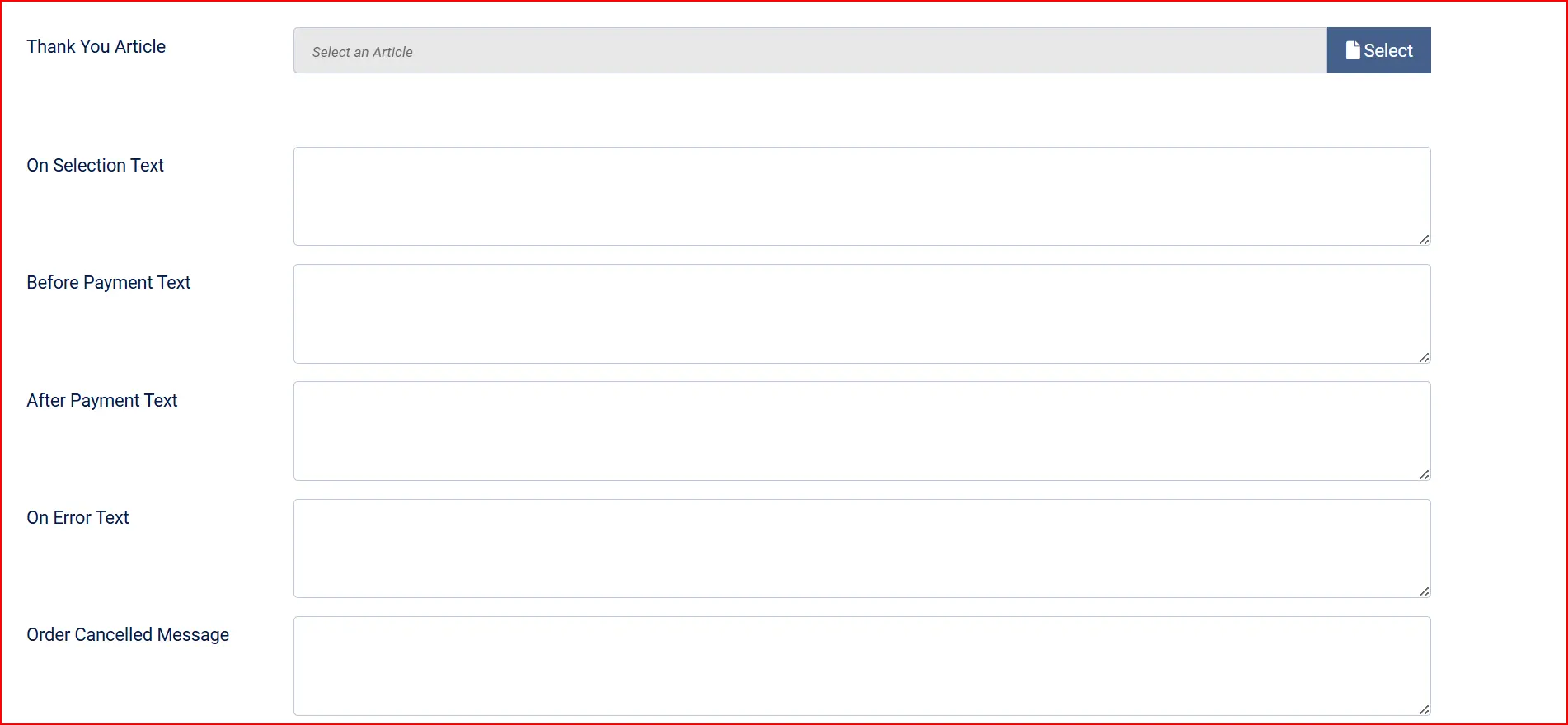
Thank-You Article: Optional Joomla article shown on the order confirmation page after a successful payment
On Selection Text: Displayed when the customer selects Finix as their payment method
Before Payment Text: Displayed just above the card form, before the customer enters card details
After Payment Text: Displayed on the confirmation page after a successful payment
On Error Text: Displayed when a payment attempt fails
On Cancel Payment Text: Displayed when the customer cancels or navigates away from the payment step
Dashboard Icon and Debug

Show Dashboard Icon: Add a quick-access shortcut for this plugin to the J2Commerce dashboard.
- Icon Label: The label for the shortcut icon.
Debug Mode: Records detailed API request and response data in the Joomla log.
Enable Debug only while troubleshooting. The log file can grow quickly in a busy store. Always disable it before going live. Write detailed Braintree API activity to administrator/logs/payment_braintree.php
Hosted Fields vs Drop-in UI
The Payment Type setting controls which checkout experience customers see.
Hosted Fields (Recommended)
Hosted Fields renders individual card number, expiry date, and CVV inputs that are iframes hosted on Braintree's servers. From the customer's perspective the form looks like part of your site and you can style it to match your colors and fonts. Card data never touches your PHP — only a short-lived nonce is submitted.
Choose Hosted Fields when:
- You want the card form to match your site's design closely
- You need consistent branding across all screen sizes
- You want the most control over layout and styling
Drop-in UI
Drop-in UI is a pre-built form widget that Braintree injects into your checkout page. It automatically displays relevant payment methods based on what Braintree has enabled for your account and the customer's region. This can include saved cards (for returning customers) and additional wallet options.
Choose Drop-in UI when:
- You want a zero-configuration payment UI with no CSS work
- You want Braintree to handle showing saved payment methods to returning customers automatically
- Speed of setup is more important than design consistency
Multi-Currency Merchant Accounts
Braintree supports accepting payments in multiple currencies by routing each charge to the merchant account that matches the order currency. The plugin handles this automatically.
When you enter your API credentials and save the settings, the Merchant Account ID field queries the Braintree API and populates a table showing all merchant accounts on your Braintree account, each with its currency. The plugin automatically matches the order currency to the correct merchant account at charge time.
To set this up:
- In your Braintree Control Panel, create a separate merchant account for each currency you want to accept (e.g., USD, EUR, GBP). Braintree's support team can help with this.
- Enter your API credentials in the J2Commerce plugin and save.
- Open the plugin settings again — the Merchant Account ID table now shows your accounts.
- If you process charges in a currency that has no matching merchant account, the default merchant account is used (which may cause a currency mismatch error depending on your Braintree configuration).
The same auto-routing applies to Sandbox — add sandbox merchant accounts with different currencies in the Braintree sandbox to test multi-currency flows.
Sandbox Testing
Test Cards
Braintree provides standard test card numbers for sandbox testing. These cards are only accepted in sandbox mode and never process real charges.
| Card Number | Type | Result |
|---|---|---|
4111 1111 1111 1111 | Visa | Successful payment |
5431 1111 1111 1111 | Mastercard | Successful payment |
3782 822463 10005 | American Express | Successful payment |
6011 1111 1111 1117 | Discover | Successful payment |
4000 0000 0000 0002 | Visa | Declined — do not honor |
4000 0000 0000 0077 | Visa | Processor declined — insufficient funds |
Use any future expiry date and any 3-digit CVV (4-digit for Amex). Braintree also provides a full list of test cards on its developer documentation site for testing 3DS challenges, processor-specific declines, and settlement failures.
Sandbox Testing Checklist
Before switching to live mode, verify each of these flows in your sandbox:
- Hosted Fields form loads and accepts a test card number
- Drop-in UI loads (if you plan to use it)
- A successful payment updates the order status to your configured Order Status
- A declined card (use
4000 0000 0000 0002) updates the order status to your configured Failed Status - The order confirmation page displays the On After Payment message you configured
- A 3DS challenge test card triggers the verification step (see Braintree docs for test 3DS card numbers)
- If you sell subscriptions, a subscription product checkout stores the customer token and the order status updates correctly
Going Live Checklist
Before switching Sandbox to No and accepting real payments:
- Sandbox field is set to No
- Your live Merchant ID, Public Key, and Private Key are entered in the Live tab
- You have completed Braintree's merchant verification and your live account is approved
- The Merchant Account ID table has loaded and shows your production merchant accounts
- You have placed one real transaction with a small amount (e.g., $1.00) and verified it appears in your Braintree Control Panel
- You have confirmed the order status in J2Commerce matches the configured Order Status
- Debug mode is set to No
- You have tested a declined card in live mode (use a card with insufficient funds, then cancel in your Braintree Control Panel)
- If selling subscriptions, you have confirmed the renewal manual-confirm flow works as expected
Subscriptions
When a customer purchases a subscription product, the plugin:
- Creates a Braintree Customer record on your Braintree account using the payment nonce from checkout.
- Saves the Customer ID and Payment Token to the
#__j2commerce_paymentprofilestable in your database (linked to the customer's Joomla user account). - Charges the initial order amount immediately.
For subscription renewals, the plugin uses the stored payment token to attempt a charge without requiring the customer to re-enter card details. The renewal is triggered by the J2Commerce subscription system.
Phase 1 limitation: In J2Commerce 6.0.0, subscription renewal requires manual confirmation — a store admin reviews and triggers each renewal charge. Fully automatic (unattended) renewal is planned for a future release.
If the stored payment token is no longer valid (expired card, account closed), the renewal fails and the subscription status is updated to Failed. The customer receives an email notification and must update their payment details.
What Is New in J2Commerce 6
The J2Commerce 6 version of this plugin includes the following improvements over the original J2Store version:
| Area | Change |
|---|---|
| Order status events | Status changes now route through OrderModel::updateOrderStatus() so the onJ2CommerceOrderStatusChange event fires correctly — enabling email notifications, webhooks, and third-party listeners |
| Parameterized SQL | All database queries use bound parameters — no string concatenation of user values |
| Vanilla JavaScript | The card form and Drop-in UI JavaScript has been rewritten without jQuery — works independently of any jQuery version on your site |
| 3DS2 enforced | The original J2Store plugin did not send 3DS options in its charge requests. The J2Commerce 6 version enforces threeDSecure: required for both Hosted Fields and Drop-in UI |
byReference typo fixed | The original plugin had a method named byRefference (double-f typo) that caused fatal errors on subscription renewals. This is corrected in J2Commerce 6 |
| Shared payment profiles table | Customer tokens are stored in #__j2commerce_paymentprofiles (shared with other payment plugins) instead of the metafields blob — cleaner and queryable |
| SDK pinned to current LTS | The vendored Braintree PHP SDK is pinned to a specific LTS release. The original J2Store plugin shipped an unknown SDK commit with no version pin |
| CSRF refresh after AJAX login | If a customer logs in during checkout via an AJAX call, the plugin refreshes the CSRF token in the JS context before the next request — prevents 403 errors on the payment submission |
Troubleshooting
Payment form does not appear at checkout
Cause: Missing or incorrect API credentials, or a PHP extension is unavailable.
Solution:
- Go to J2Commerce -> Setup -> Payment Methods and confirm Braintree is enabled.
- Open the plugin settings and check that the Merchant ID, Public Key, and Private Key are entered in the correct tab (Sandbox or Live) for your current mode.
- Enable Debug and check
administrator/logs/payment_braintree.phpfor a gateway initialization error. - Check your server's PHP info to confirm the curl, openssl, dom, hash, and xmlwriter extensions are loaded.
"Invalid token" error when submitting payment
Cause: The client token generated by Braintree has expired (tokens are short-lived) or the gateway credentials are wrong.
Solution:
- Verify you are using the correct credential set — Sandbox credentials when Sandbox is Yes, live credentials when Sandbox is No.
- Reload the checkout page to get a fresh client token.
- If the error persists, enable Debug and check the log for the specific Braintree exception message.
3DS challenge page does not appear for EU customers
Cause: 3DS2 is enforced by the plugin but your Braintree account may need 3DS enabled at the account level.
Solution:
- Log in to your Braintree Control Panel and confirm that 3D Secure is enabled for your merchant account (go to Settings -> Processing).
- Contact Braintree support if the option is not visible — some account types require manual activation.
Order stays in "Pending" after a card is charged
Cause: The transaction status returned by Braintree is settlement_pending, which means the charge is authorized but not yet settled. The plugin sets the order to your configured Pending Status in this case.
Solution:
This is normal behavior for some card types and regions. The order will automatically move to Confirmed (or your configured Order Status) once Braintree settles the transaction, provided the order status is updated again — either by re-running the payment check or via a future webhook integration (webhooks are planned for a future release).
Wrong credentials error in Sandbox mode
Cause: Live credentials are entered in the Sandbox tab (or vice versa).
Solution:
Braintree Sandbox and Production use completely separate credential sets. The Sandbox Merchant ID, Public Key, and Private Key from sandbox.braintreegateway.com will not work against the live API, and vice versa. Double-check which environment each key belongs to.
PHP extension missing — installer blocked
Cause: One or more of the required PHP extensions (curl, openssl, dom, hash, xmlwriter) is not enabled on your server.
Solution:
- Contact your hosting provider and ask them to enable the missing extension(s).
- After enabling, re-upload the
payment_braintree.zipin Joomla's Extension Installer.
Support
- J2Commerce documentation: docs.j2commerce.com
- J2Commerce support: www.j2commerce.com
- Braintree Control Panel: www.braintreegateway.com
- Braintree developer documentation: developer.paypal.com/braintree/docs
- Braintree sandbox: sandbox.braintreegateway.com