USAePay
USAePay is a US-based payment gateway that processes credit and debit cards directly on your store. Customers enter their card details in a form on your checkout page — they never leave your site. The card data is sent from your server to the USAePay gateway over an encrypted connection.
What You Need Before You Start
- A USAePay merchant account (apply at usaepay.com)
- A Source Key generated in the USAePay merchant console under Settings -> Source Keys
- Optionally, a Hash PIN (also called a PIN Key) from the same Source Keys section — adds an extra layer of request signing
Purchase and download
This plugin is a separate add-on available from the J2Commerce Extensions Store. It is not included with the core J2Commerce 6 component.
- Go to the J2Commerce website and locate USAePay.
- Add it to your cart and complete checkout.
- Go to My Downloads under your account profile and find the plugin.
- Click Available Versions -> View Files -> Download Now to download the ZIP file.
Install the plugin
In the Joomla Administrator, go to System -> Install -> Extensions.
Upload the plg_j2commerce_payment_usaepay.zip file.

Enable the Plugin
Once you have installed the App, you will need to enable it. There are two ways you can access the App.
Option A: Go to the J2Commerce icon at the top right corner -> Setup -> Payment Methods
Option B: Go to Components on the left sidebar -> J2Commerce -> Dashboard -> Setup -> Payment Methods

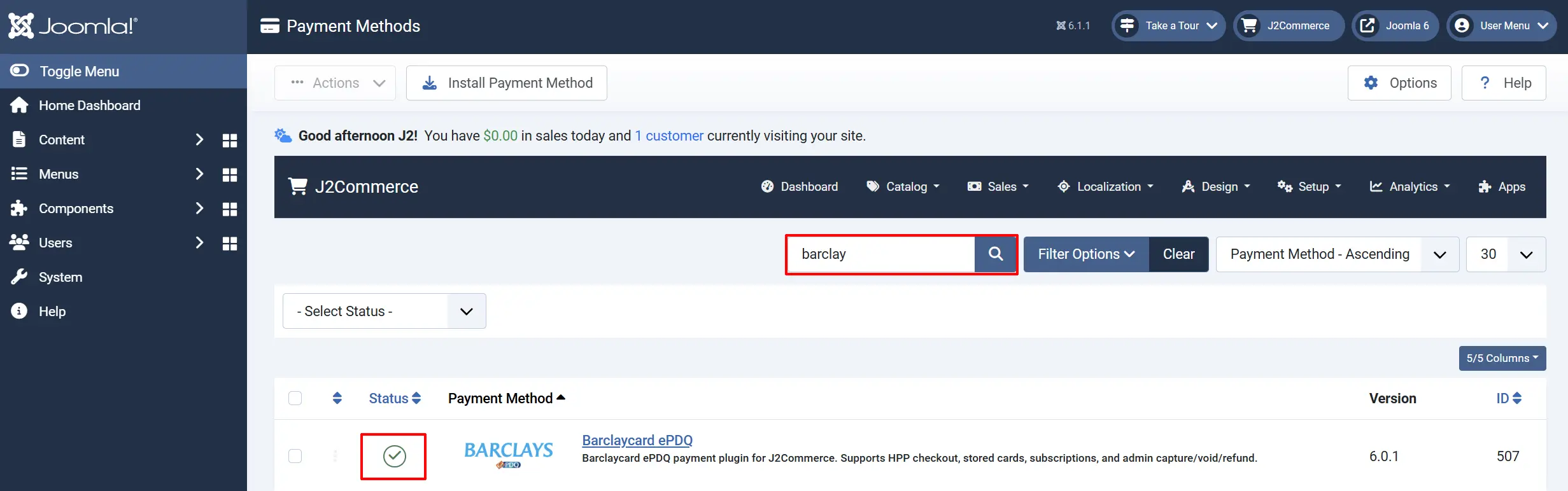
To help you narrow down the list, you can do a search for USAePay, click the X, and it will turn into a green checkmark. It is now enabled and ready for setup.
Configure the plugin
Click the USAePay title next to the green checkmark to open the configuration screen.
Click the Toggle Inline Help button at the top of any plugin configuration page to show a short description beneath each field.

Display Settings
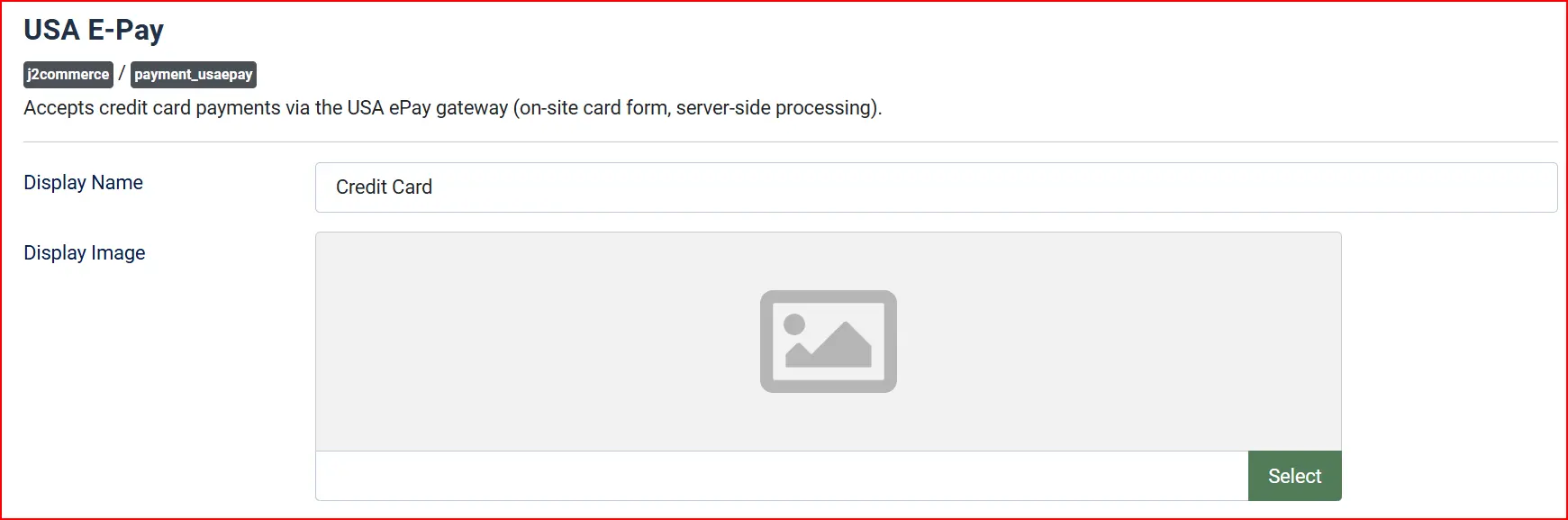
Display Name: The label shown to customers at checkout, such as "Credit Card" or "Secure Card Payment."
Display Image: A logo shown next to the payment method name. Upload your preferred image via the Joomla Media Manager.
API Credentials

In the API Key field, paste your live Source Key from the USAePay console.
If your Source Key has a Hash PIN configured, paste it in the PIN / Hash PIN field. If you did not set a PIN on the Source Key, leave this blank.
API Key: Your live USAePay Source Key. Found in USAePay merchant console under Settings -> Source Keys.
PIN / Hash PIN: Optional. The PIN associated with your Source Key. Adds transaction-level hash verification.
Configure Sandbox Mode for Testing
Enable Sandbox Mode before running test transactions. When sandbox is on, two additional fields appear:
Test API Key: Your sandbox Source Key from the USAePay sandbox console.
Test PIN / Hash PIN: Your sandbox PIN, if any.
The sandbox gateway is at sandbox.usaepay.com. Test transactions process against that host automatically — you do not need to change any URL.
Turn sandbox off when you are ready to go live.
Transaction Type

The Transaction Type setting controls what happens when a card is submitted at checkout.
Sale (Authorize and Capture): Charges the card immediately. Money is captured right away. This is the default and the most common choice.
Auth Only (Authorize): Places a hold on the funds without capturing. You must manually capture the payment later from the USAePay merchant console. Use this if you need to verify stock before charging.
Select Accepted Card Types
The Accepted Card Types field controls which card brand icons are shown on the checkout form. Select from Visa, Mastercard, American Express, and Discover. Leaving this empty hides all card icons but does not prevent any card from being submitted — USAePay itself determines which cards your account accepts.
Restrictions (Optional)

Geozone Restriction: Limits this payment method to customers in a specific geozone. Leave at "All" to show it everywhere.
Min Subtotal: Hide this method when the cart total is below this amount.
Max Subtotal: Hide this method when the cart total is above this amount. Leave blank for no upper limit.
Customer Messages
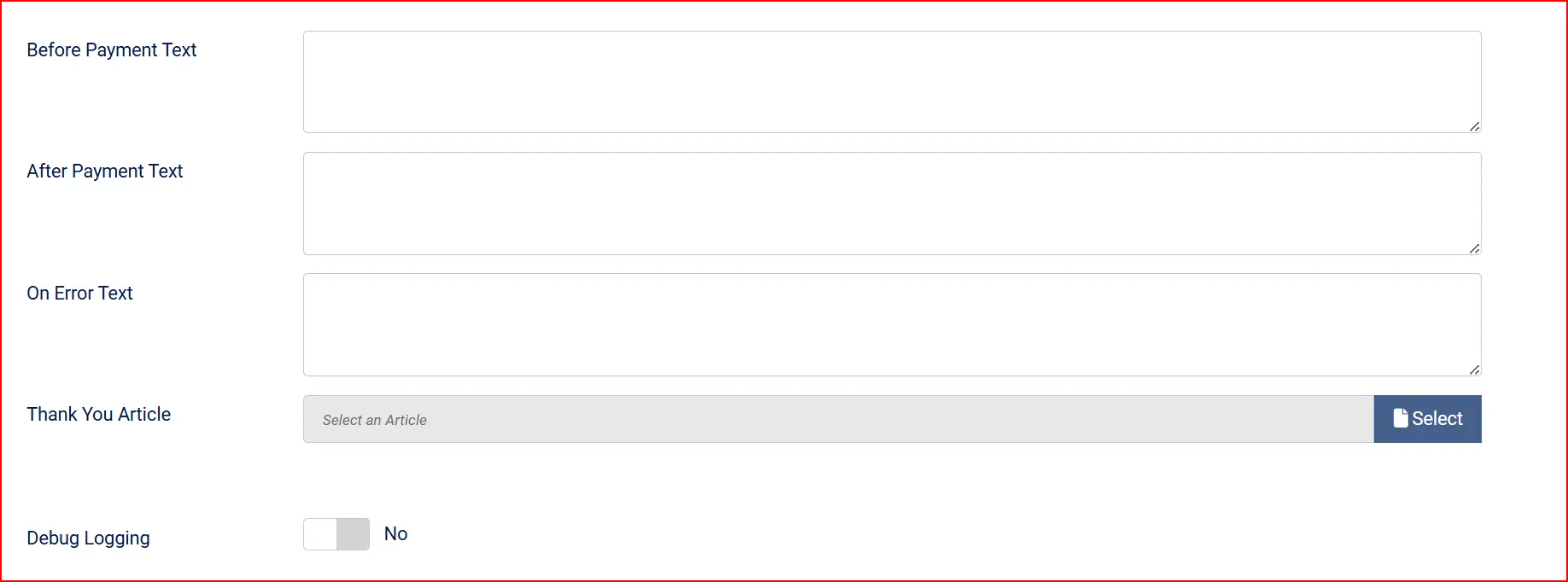
Before Payment Message: Text displayed above the card form before the customer submits. Useful for notes about accepted cards or security.
After Payment Message: Text shown on the confirmation screen after a successful payment.
Error Payment Message: Text shown when a payment fails. If left blank, a default error message is used.
Thank You Message: The field links to a Joomla article. If set, the article content is displayed below the after-payment message on the confirmation screen. Use this for order instructions, download links, or anything else you want to show after a successful purchase.
Debug Logging: Turn Debug on during initial testing to write gateway request and response data to the Joomla log. Logs appear under System -> System Information -> Joomla Logs, in the plg_j2commerce_payment_usaepay category.
Turn debug off on a live store. Debug logs include masked card numbers but should not be left active in production.
How Checkout Looks to Your Customers
When a customer reaches the payment step at checkout and selects USAePay, they see an on-site card form with four fields:
- Cardholder Name — full name as printed on the card
- Card Number — up to 19 digits
- Expiry Date — in MM/YY format
- CVV — 3 or 4 digit security code
After they click Place Order, a spinner appears while the card is sent to USAePay. On success, they land on the order confirmation page. On decline, an error message is shown and they can re-enter their card without losing their cart.
Testing in Sandbox Mode
- Set Sandbox Mode to Yes and enter your sandbox Source Key in Test API Key.
- Save the plugin.
- Place a test order on the front end.
- Use a USAePay test card number such as
4111111111111111(Visa) with any future expiry and any CVV. - Verify the order status changes to Confirmed in J2Commerce -> Orders.
- Check the USAePay sandbox merchant console to confirm the transaction record.
- When testing is complete, set Sandbox Mode back to No before accepting real payments.
PCI Compliance Note
Because this plugin collects card details in a form on your server and posts them to USAePay, your store handles raw card data in transit. This means your site falls under SAQ-D (Self-Assessment Questionnaire D) — the most comprehensive PCI DSS self-assessment. This is a standard consideration for any on-site card form that is not a hosted iframe or JavaScript tokenizer.
If you want a lighter PCI footprint, consider a payment method that uses hosted fields or redirects, such as PayPal or Stripe.
Multi-Currency
J2Commerce stores your orders in your base currency and tracks the exchange rate at the time of order. When charging through USAePay, the plugin automatically converts the order total to the correct charged amount using CurrencyHelper::gatewayAmount(). The currency is sent to USAePay as its ISO 4217 numeric code (for example, 840 for USD, 826 for GBP). This means multi-currency stores charge the correct converted amount — not the base-currency raw total.
Troubleshooting
Payment form does not appear at checkout
Cause: The plugin may be disabled, or no API key has been entered.
Solution:
- Go to J2Commerce -> Setup -> Payment Methods and confirm USAePay shows as enabled.
- Open the plugin settings and check that the API Key field is not empty. An admin notice warns you if the key is missing.
- If you have a Geozone Restriction set, confirm the customer's address matches that zone.
- Check the Min Subtotal and Max Subtotal values to ensure the cart total is within range.
Card declined in sandbox
Cause: Sandbox Source Key may be incorrect, or you may be using a card number that triggers a decline simulation.
Solution:
- Confirm the key in Test API Key matches the Source Key you created in the USAePay sandbox console — not the live console.
- Use the test card
4111111111111111with a future expiry date. - Turn on Debug and check the Joomla logs for the raw gateway response code and error message.
"No response from gateway" error
Cause: Your server cannot reach sandbox.usaepay.com (in sandbox mode) or www.usaepay.com (in live mode).
Solution:
- Check that outbound HTTPS connections are allowed on your hosting account.
- Ask your host to confirm
www.usaepay.comandsandbox.usaepay.comare reachable on port 443. - Enable Debug and review the Joomla error log for the specific network error.
Orders are Pending after a successful card charge
Cause: The order status update may have failed after the transaction was recorded.
Solution:
- Enable Debug and retry a test transaction. Look for entries in the Joomla log starting with
USAePay: failed to update order status. - Confirm that the
J2COMMERCE_CONFIRMEDorder status exists in J2Commerce -> Setup -> Order Statuses. - If the transaction went through but the status did not update, you can manually change the order status from the order detail screen.
Auth Only transactions are not settling
Cause: When Transaction Type is set to Auth Only, J2Commerce does not automatically capture the funds. The authorization hold on the customer's card typically expires after a few days.
Solution: Log in to the USAePay merchant console and capture (settle) the authorized transaction before the hold expires. Switch Transaction Type to Sale if you want automatic capture on every order.
What's New in J2Commerce vs the Old J2Store Version
If you previously used a USAePay plugin with J2Store, here is what changed in J2Commerce 6:
| Area | J2Store version | J2Commerce 6 |
|---|---|---|
| Framework | FOF 2 (non-namespaced) | Native Joomla 6 MVC with full PHP 8.3 namespaces |
| JavaScript | jQuery-dependent form handling | Vanilla ES6+ with no jQuery dependency |
| Frontend templates | Single template | Bootstrap 5 and UIkit layouts, selectable per site |
| Multi-currency charging | Used raw order total (could undercharge in multi-currency stores) | Uses CurrencyHelper::gatewayAmount() — always charges the correct converted amount |
| Order status updates | Direct database write | Goes through OrderModel::updateOrderStatus(), which fires events and sends customer notifications |
| Debug logging | Basic error_log output | Structured Joomla log entries with masked card numbers, category plg_j2commerce_payment_usaepay |
| PHP compatibility | PHP 7.x era | PHP 8.3+ with strict types, constructor promotion, and nullsafe operators |