Lemon Squeezy Payment
Lemon Squeezy is a Merchant of Record — which means Lemon Squeezy is legally the seller for every transaction that goes through it. Your customers pay on a Lemon Squeezy-hosted checkout page; Lemon Squeezy collects the money, handles all sales tax and VAT, manages fraud screening, and meets PCI security compliance on your behalf. Card numbers never touch your server.
For your store this means:
- Simplest possible PCI compliance — your server is not involved in card processing at all.
- Built-in global tax handling — Lemon Squeezy calculates and remits tax for you in every country.
- Gateway-managed subscriptions — Lemon Squeezy owns the billing schedule and auto-retries failed renewals; you do not set up a cron job or stored-card vault.
The plugin supports one-time orders and subscription products, full and partial refunds, and admin actions to cancel, pause, or resume subscriptions.
Requirements
- Joomla 6.x
- J2Commerce 6.x
- PHP 8.3 or later
- A Lemon Squeezy store account (free to create at lemonsqueezy.com)
- Your site must be publicly accessible over HTTPS so Lemon Squeezy can deliver webhook notifications
Connect Your Lemon Squeezy Account
Before the plugin can process payments you need three pieces of information from your Lemon Squeezy dashboard: an API key, your Store ID, and a webhook signing secret. Gather these before opening the plugin settings.
Get Your API Key
- Log in to your Lemon Squeezy account at app.lemonsqueezy.com.
- Click your profile avatar at the top right -> Settings -> API.
- Click + New API Key, give it a name (for example, "J2Commerce"), and click Create.
- Copy the key immediately — it is shown only once.
Lemon Squeezy uses a single set of servers for both test and live modes. The key you generate determines the mode: keys created in a test account only see test data. If you have a separate test store, generate the key there. If you are using your live store throughout, you can skip the test key and go straight to a live key.
Find Your Store ID
- In the Lemon Squeezy dashboard, go to Settings -> Stores.
- Each store has a numeric ID shown in the URL or the store details panel. Copy this number.
Create a Webhook and Get the Signing Secret
-
In the Lemon Squeezy dashboard, go to Settings -> Webhooks.
-
Click + Add endpoint.
-
Paste the Webhook URL from the plugin settings screen into the URL field. (You will find this URL after saving the plugin with your API key and Store ID — see the Configure the Plugin section.)
-
Under Events, subscribe to all of these:
order_createdorder_refundedsubscription_createdsubscription_updatedsubscription_cancelledsubscription_resumedsubscription_pausedsubscription_expiredsubscription_payment_successsubscription_payment_failedsubscription_payment_recoveredsubscription_payment_refunded
-
Create a Signing Secret (any random string, 6–40 characters). Copy it now — Lemon Squeezy only shows it at creation time.
-
Save the webhook endpoint.
The webhook is how Lemon Squeezy confirms payment to your store. If it is missing or the signing secret does not match, orders will sit in a pending state and never reach Confirmed. This step is not optional.
If your site runs on a local development address (for example, localhost or a .local domain), Lemon Squeezy cannot reach your webhook URL. Use a tunnelling service such as ngrok to expose your local site publicly while you test. The plugin settings screen shows a warning when it detects a local address.
Set Up Your Products in the Lemon Squeezy Dashboard
This is the most important configuration step. Because Lemon Squeezy owns the checkout, every product and pricing plan must exist in your Lemon Squeezy dashboard before a customer can pay. The plugin links your J2Commerce store to those Lemon Squeezy products automatically.
Create the General (Catch-All) Product for One-Time Orders
All standard (non-subscription) J2Commerce orders are routed through a single Lemon Squeezy product. You only need one product for your entire one-time catalog because the plugin overrides the price at checkout to match each order's actual total (when Use Cart Total as Price is enabled).
- In the Lemon Squeezy dashboard, go to Products -> + New Product.
- Set the Product Name to exactly Store Order (this must match the Catch-all Product Name setting in the plugin — the default is "Store Order").
- Set the pricing type to One-time and enter any placeholder price. The plugin replaces it with the real order total at checkout.
- Publish the product (it must not be in Draft status).
- Note the Variant ID shown on the product's variant detail page — you will see it in the plugin's Sync Catalog panel after saving your credentials.
You only need this one "Store Order" product to cover your entire J2Commerce catalog of one-time products. The plugin sends the customer's real cart total to Lemon Squeezy at checkout, so the placeholder price you set here does not matter as long as the product is published.
If you prefer to skip the name-matching and point directly to a specific variant, you can enter its numeric ID in the Variant ID (optional override) field in the plugin settings. This bypasses the catch-all name lookup entirely.
Create Each Subscription Product
Subscriptions work differently from one-time orders. Because Lemon Squeezy owns the subscription billing schedule — not J2Commerce — you must create a separate subscription product in Lemon Squeezy for every subscription product in your J2Commerce store. The billing interval you set in Lemon Squeezy (for example, monthly or yearly) must match the interval configured on the J2Commerce subscription product.
For each subscription product in J2Commerce:
- In the Lemon Squeezy dashboard, go to Products -> + New Product.
- Set the pricing type to Subscription.
- Configure the billing interval (daily, weekly, monthly, yearly) and the number of billing periods to match your J2Commerce subscription product exactly.
- Set the price to match your J2Commerce product price. (For subscriptions, the price comes from Lemon Squeezy's own variant — the custom price override applies to one-time orders only.)
- Publish the product.
The plugin matches the J2Commerce subscription product to the correct Lemon Squeezy variant by billing interval automatically. If no matching variant is found, the Sync Catalog panel in the plugin settings will show a warning.
A single catch-all one-time product will not work for subscriptions. If a customer buys a subscription product and no matching Lemon Squeezy subscription variant exists, the checkout cannot be created and the customer will see an error. Always create a dedicated Lemon Squeezy subscription product for each subscription you sell.
Purchase and Download
This plugin is a separate add-on available from the J2Commerce Extensions Store. It is not included with the core J2Commerce 6 component.
Step 1: Go to the J2Commerce website -> Payment Plugins
Step 2: Locate Lemon Squeezy Payment -> click View Details -> Add to Cart -> Checkout
Step 3: Go to My Downloads under your profile button at the top right corner. Click Available Versions -> View Files -> Download Now
Install the Plugin
In the Joomla Administrator, go to System -> Install -> Extensions.
Upload the payment_lemonsqueezy.zip file or use the Install from URL option.

Enable the Plugin
Once you have installed the App, you will need to enable it. There are two ways you can access the App.
Option A: Go to the J2Commerce icon at the top right corner -> Setup -> Payment Methods
Option B: Go to Components on the left sidebar -> J2Commerce -> Dashboard -> Setup -> Payment Methods

To help you narrow down the list, you can do a search for Lemon Squeezy Payment, click the X, and it will turn into a green checkmark. It is now enabled and ready for setup.
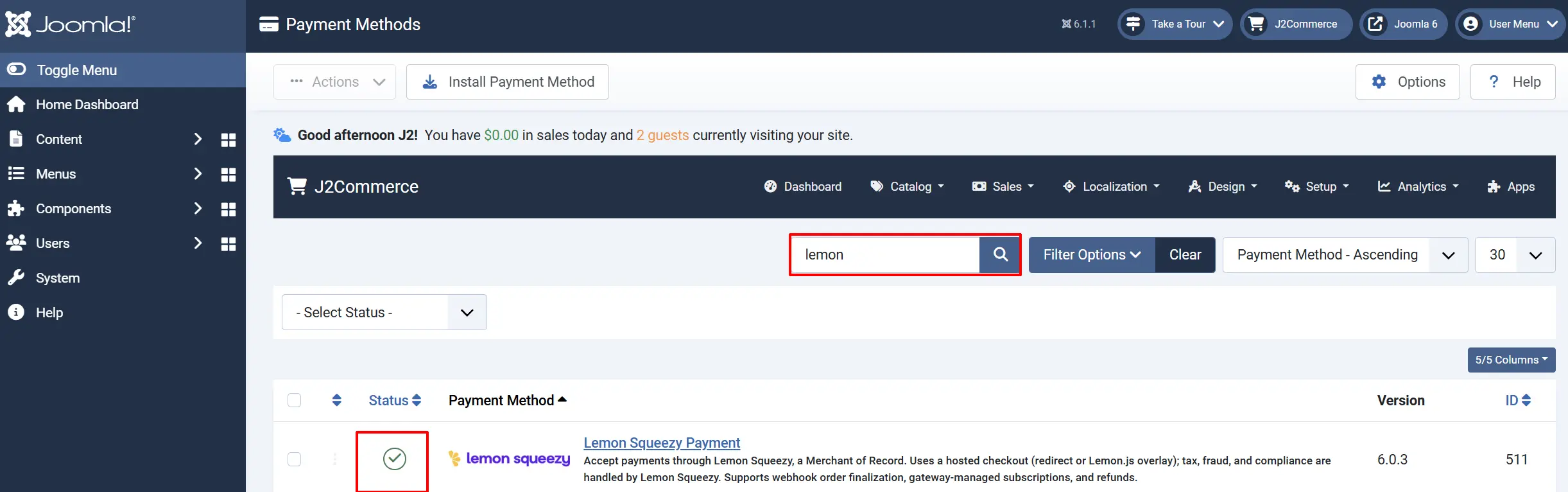
Configure the Plugin
Click the Lemon Squeezy Payment title in J2Commerce -> Payments to open the settings screen.
Click the Toggle Inline Help button in the toolbar to show a description beneath every field while you configure the plugin.
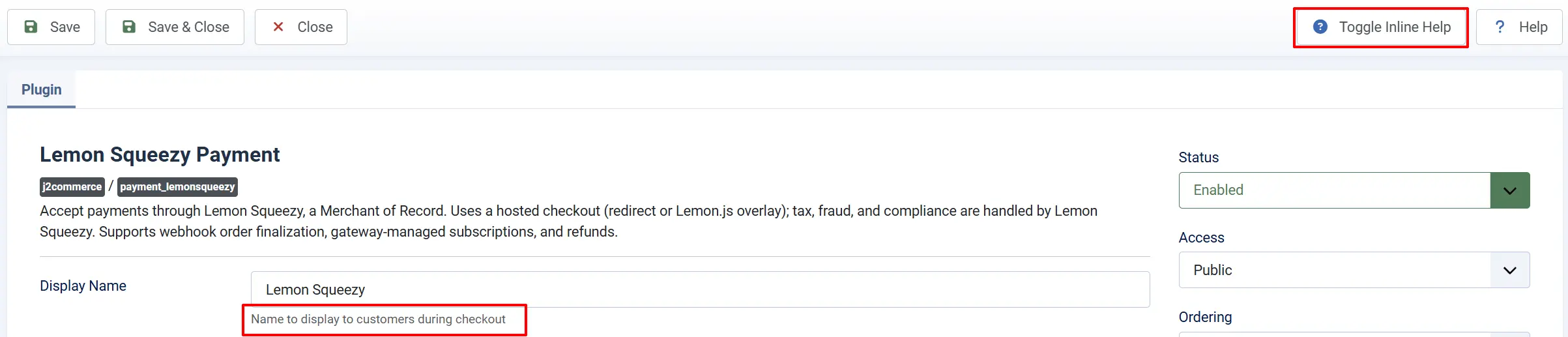
Display Settings
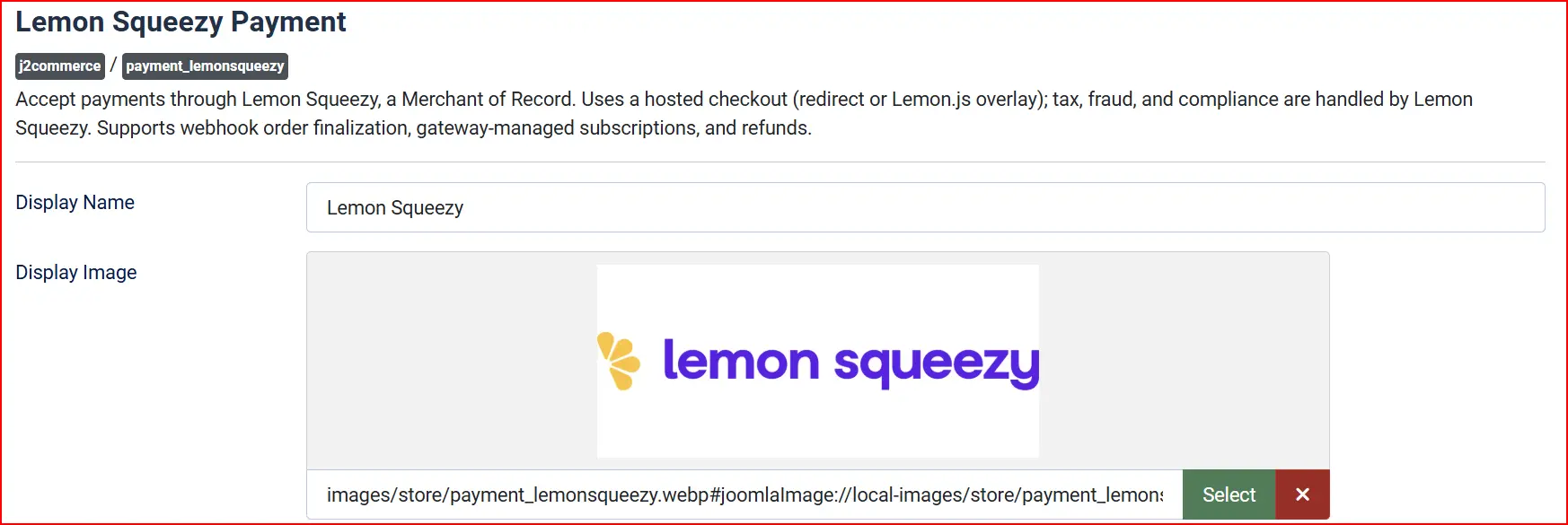
Display Name: The label shown to customers at checkout
Display Image: An optional logo shown next to the payment option
Mode and Credentials
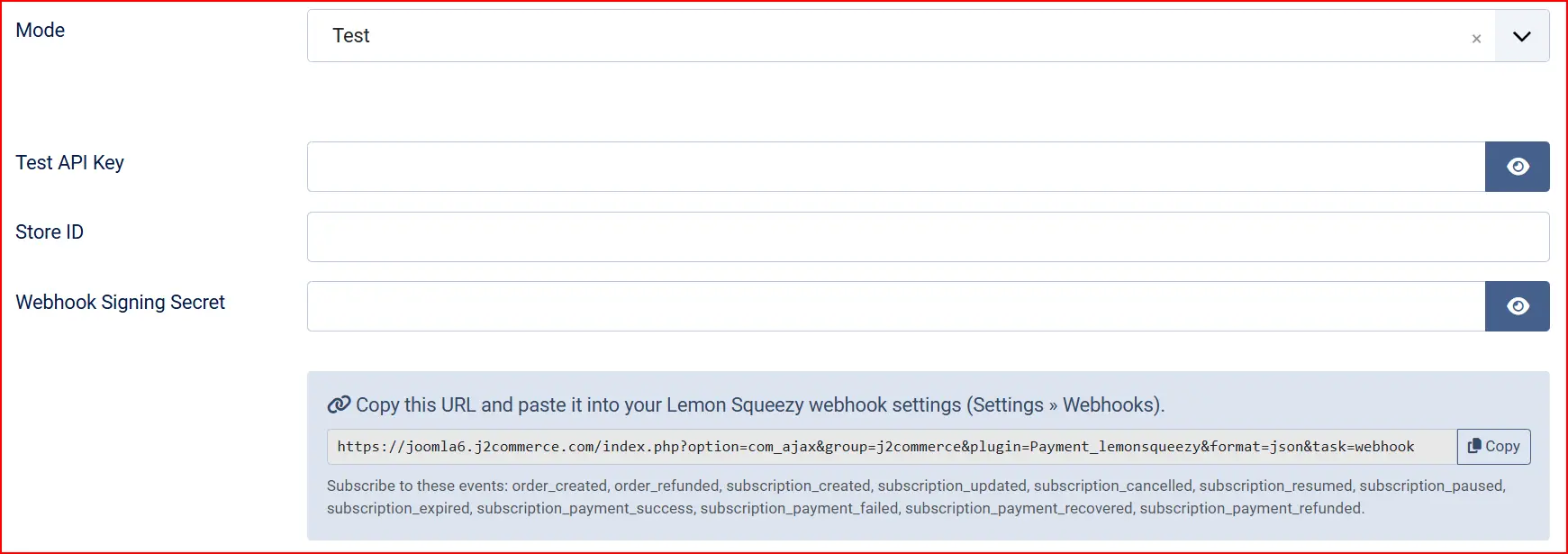
Mode: Choose Test while setting up, then switch to Live when ready to accept real payments. Lemon Squeezy uses a single host for both modes — the key you enter determines which environment is active.
Test API Key: Your Lemon Squeezy API key for test mode. Shown only when Mode is set to Test.
Live API Key: Your Lemon Squeezy API key for live mode. Shown only when Mode is set to Live.
Store ID: The numeric ID of your Lemon Squeezy store. A single API key can access multiple stores on one account, so this tells the plugin which store to use.
Webhook Signing Secret: The signing secret you created when setting up the webhook in Lemon Squeezy (6–40 characters). Copy the exact same value from Lemon Squeezy into this field.
Webhook URL: A read-only field that displays the URL you must register in your Lemon Squeezy webhook settings. Click Copy to copy it to your clipboard.
Test Connection: After entering your API key and Store ID, click this button to verify the connection. The plugin calls the Lemon Squeezy API and reports the account name and mode on success.

Checkout Experience
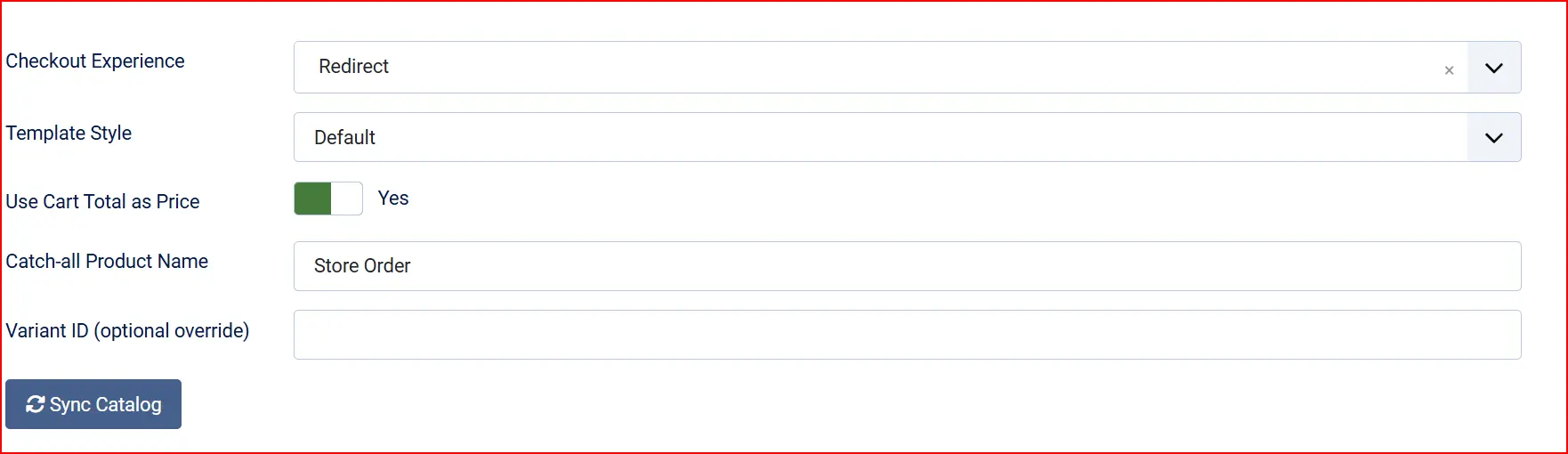
Checkout Experience:
-
Redirect sends the customer to the Lemon Squeezy-hosted checkout page in a new browser tab.
-
Overlay (Lemon.js) opens the same Lemon Squeezy checkout as a popup overlay on your site without navigating away.
Template Style: Choose the visual style for the card form at checkout: Match this setting to the template framework your site uses.
-
(blank): Default layout
-
bootstrap5: Bootstrap 5-based J2Commerce templates
-
uikit: UIkit-based J2Commerce templates
Use Cart Total as Price: When enabled, the J2Commerce order total is sent to Lemon Squeezy as the checkout price, overriding the variant's own price. Keep this enabled for one-time orders so customers pay the correct amount.
Catch-all Product Name: The exact name of the Lemon Squeezy product or variant that handles all one-time orders (case-insensitive). This must match the name you gave the product in the Lemon Squeezy dashboard.
Variant ID (optional override): Enter a numeric Lemon Squeezy variant ID to force all one-time checkouts through a specific variant, bypassing the name lookup entirely. Leave blank to use the Catch-all Name above.
Sync Catalog: Clicking this panel fetches your current Lemon Squeezy product catalog and displays it as a table showing each variant, its type (one-time or subscription), and its billing interval. Any warnings about missing variants appear here.
Order Statuses

These settings control which J2Commerce order status is applied at each stage. If the status you need does not appear in a dropdown, create it first at J2Commerce -> Setup -> Order Statuses.
Order Status: Status set after a successful payment is confirmed by webhook. Default: Confirmed
Refunded Order Status: Status set after a full refund is confirmed.
Failed Order Status: Status set when a payment fails.
NOTE: If the status you want isn't listed in the dropdown menu, you can create a new one by going to J2Commerce -> Setup -> Order Statuses

Surcharge
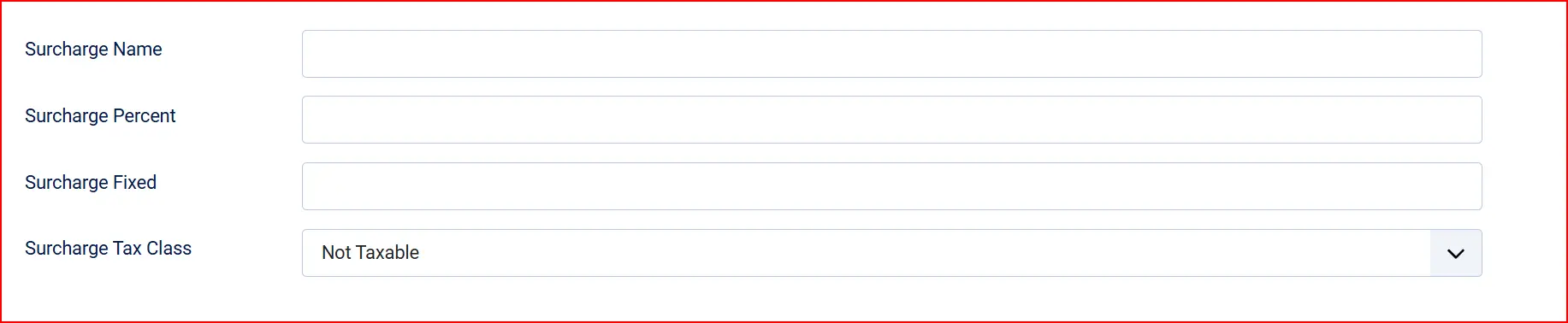
Add an optional extra fee for customers who pay via Lemon Squeezy. You can combine a percentage and a fixed amount — both are added together.
Surcharge Name: Label shown to customers (for example, "Processing Fee")
Surcharge Percent: Percentage of the order subtotal to add
Surcharge Fixed: Fixed amount to add in your store currency
Surcharge Tax Class: Tax profile to apply to the surcharge
Restrictions

Control which customers see Lemon Squeezy at checkout.
Geo-Zone Restriction: Only show Lemon Squeezy to customers in a specific geo-zone. Leave empty for all customers.
Minimum Subtotal: Hide Lemon Squeezy if the cart subtotal is below this amount. Leave blank for no minimum.
Maximum Subtotal: Hide Lemon Squeezy if the cart subtotal exceeds this amount. Leave blank for no maximum.
Custom Messages and Thank-You Page
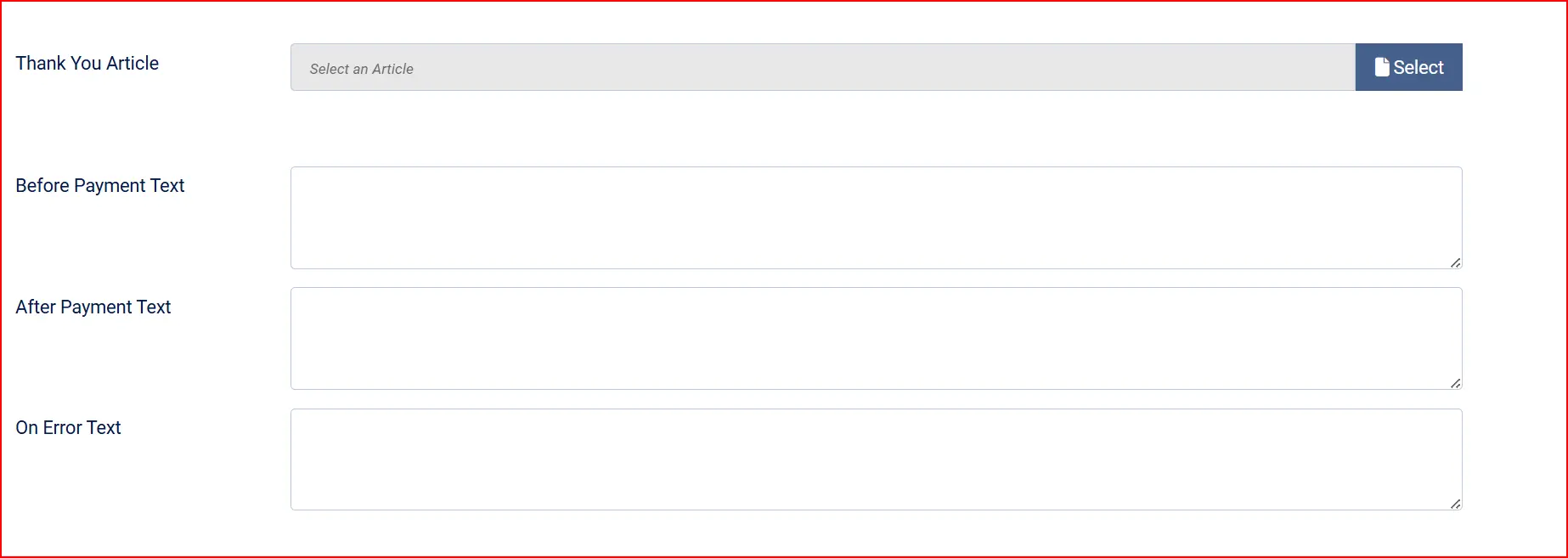
Thank-You Article: A Joomla article shown on the order confirmation page after a successful payment
On Before Payment: Custom text or HTML shown before the customer clicks the pay button
On After Payment: Custom text or HTML shown on the confirmation screen after a successful payment
On Error Payment: Custom text or HTML shown when a payment error occurs
Debug Logging

Debug Logging: Writes API requests and responses to the Joomla log directory for troubleshooting. API keys and the webhook secret are never logged. Disable this in production.
How It Works
Here is what happens when a customer pays with Lemon Squeezy:
The customer adds items to the cart and proceeds to checkout.
At the payment step, Lemon Squeezy (or your custom Display Name) appears as an option.
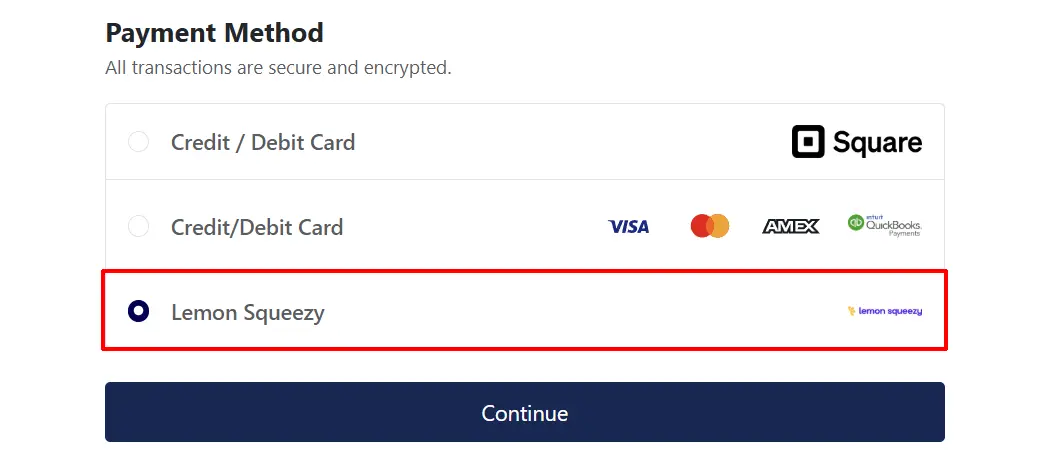
The customer selects it and clicks the pay button.
J2Commerce creates a checkout session at Lemon Squeezy and either redirects the customer to the Lemon Squeezy-hosted checkout page or opens it as an overlay, depending on your Checkout Experience setting.
The customer enters their card details on Lemon Squeezy's secure page.
Lemon Squeezy processes the payment, collects any applicable tax, and sends a webhook notification to your store.
J2Commerce verifies the webhook signature, updates the order to Confirmed (or your configured status), and shows the customer the confirmation page.
The order is finalized by the webhook, not by the browser redirect. This means even if the customer closes their browser after paying, the order will still be confirmed automatically once Lemon Squeezy delivers the notification.
Managing Orders as an Admin
Every order paid through Lemon Squeezy — including subscription renewal orders — shows payment details and actions directly on the order screen in J2Commerce -> Sales -> Orders.
Open any Lemon Squeezy order to see:
- Transaction ID — the Lemon Squeezy order reference for this specific payment
- Card on file — the card brand and last four digits used for the payment
- Details button — opens the full transaction record from Lemon Squeezy
The Actions dropdown provides:
| Action | What It Does |
|---|---|
| Manage | Opens the Lemon Squeezy customer portal for this customer, where they can update their payment method or view their billing history |
| Cancel Subscription | Cancels the customer's subscription. The customer keeps access until the end of the current billing period |
| Pause Subscription | Pauses payment collection on the subscription. The customer's billing is suspended |
| Resume Subscription | Resumes a paused subscription and restarts billing |
| Refund | Issues a full or partial refund for the order directly from your admin screen |
Each renewal order for a subscription has its own order record in J2Commerce with its own Transaction ID and Actions dropdown. You can refund or cancel directly from the latest renewal order without needing to find the original order.
Issuing a Refund
- Go to J2Commerce -> Sales -> Orders and open the order.
- In the payment panel, click Actions -> Refund.
- To refund the full amount, select Full refund. To refund a partial amount, enter the amount in the Refund Amount field.
- Click Process Refund.
After the refund is processed at Lemon Squeezy, the order status updates to your configured Refunded Order Status.
Going Live Checklist
Before accepting real payments, confirm each item:
- Mode is set to Live
- Your Live API Key is entered and saved
- Test Connection confirms "Connected" with your account name
- The Webhook URL is registered in your Lemon Squeezy dashboard under Settings -> Webhooks
- The Webhook Signing Secret in the plugin matches exactly what you set in Lemon Squeezy
- The correct events are subscribed to in the Lemon Squeezy webhook (see the list in Create a Webhook and Get the Signing Secret)
- Your catch-all product named Store Order (or your custom name) is published in Lemon Squeezy
- A matching subscription product exists in Lemon Squeezy for every subscription product in J2Commerce
- Sync Catalog in the plugin settings shows no warnings
- Debug Logging is set to No
Troubleshooting
Lemon Squeezy does not appear as a payment option at checkout
Cause: The plugin is disabled, a geo-zone restriction is excluding the customer, or a minimum or maximum subtotal is hiding it.
Solution:
- Go to J2Commerce -> Payments and confirm Lemon Squeezy Payment shows a green checkmark.
- Open the plugin settings and check Geo-Zone Restriction — if a zone is selected, only customers in that zone see the option.
- Check Minimum Subtotal and Maximum Subtotal — if set, orders outside that range will not show the option. Leave both blank to remove limits.
Orders are stuck in Pending and never reach Confirmed
Cause: The webhook is not set up in Lemon Squeezy, the signing secret does not match, or Lemon Squeezy cannot reach your site's webhook URL.
Solution:
- Log in to your Lemon Squeezy dashboard -> Settings -> Webhooks and verify the webhook endpoint URL matches the one shown in the plugin settings.
- Verify that the Webhook Signing Secret in the plugin settings is character-for-character identical to the signing secret you set in Lemon Squeezy.
- Make sure your site is publicly accessible over HTTPS. If your site is on a local or staging domain, Lemon Squeezy cannot reach it.
- Enable Debug Logging in the plugin settings and attempt a test order to see whether the webhook arrives and what response the plugin sends.
Subscriptions are not billing / renewal orders are not being created
Cause: No matching subscription product exists in Lemon Squeezy with the correct billing interval.
Solution:
- Open the plugin settings and click Sync Catalog. If the panel shows a warning about missing subscription variants, a subscription product with a matching billing interval has not been created in Lemon Squeezy.
- In your Lemon Squeezy dashboard, create a subscription product with the exact billing interval (monthly, yearly, etc.) that matches the J2Commerce subscription product the customer purchased. See Create Each Subscription Product for step-by-step instructions.
- After creating and publishing the product in Lemon Squeezy, click Sync Catalog again to confirm the warning is gone.
Lemon Squeezy, not J2Commerce, manages the renewal billing schedule. If a subscription variant never existed in Lemon Squeezy, Lemon Squeezy cannot bill for it.
The Sync Catalog panel shows a warning about "Store Order" not being found
Cause: The catch-all product is missing from Lemon Squeezy, is still in Draft status, or its name does not exactly match the Catch-all Product Name setting in the plugin.
Solution:
- Check that a product or variant named exactly Store Order (case-insensitive) exists in your Lemon Squeezy store and is Published (not Draft).
- If you named it something different, update the Catch-all Product Name field in the plugin settings to match the name in Lemon Squeezy exactly.
- Alternatively, enter the variant's numeric ID in the Variant ID (optional override) field to bypass name matching entirely.
Test Connection fails
Cause: The API key is incorrect, was entered in the wrong mode field, or has been revoked.
Solution:
- Confirm the Mode dropdown matches the type of key you have. A test-mode key must be used with Mode = Test; a live key with Mode = Live.
- Re-copy the key from the Lemon Squeezy dashboard -> Settings -> API and paste it fresh into the correct field.
- Click Save before clicking Test Connection — the button uses the key currently saved in the database.
The order shows Refunded but the original order did not change
Cause: Refunds processed on renewal orders update the renewal order's status, not the original subscription order.
Solution: This is expected behavior. Each renewal creates its own order record. To refund a specific payment, open that payment's order and use Actions -> Refund on that order.