Payeezy (First Data)
Payeezy is a direct card payment gateway operated by First Data (now Fiserv). With this plugin, customers enter their card details directly on your checkout page — no redirect to a third-party hosted page occurs. The card number and CVV travel from the customer's browser to your server and then on to the Payeezy API.
Because raw card numbers pass through your web server, this integration is classified as SAQ-D under PCI DSS. This is the most demanding PCI self-assessment questionnaire. Before using this plugin on a live store, ensure your hosting environment and business practices meet PCI SAQ-D requirements or work with your acquiring bank to understand your obligations.
If you prefer a lower-compliance integration, consider a gateway that uses a hosted payment page or a client-side tokenizer (such as Stripe, Adyen, or NMI with Collect.js), which reduce your scope to SAQ-A or SAQ-A-EP.
Requirements
- J2Commerce 6 installed and active
- PHP 8.1 or higher with the
curlextension enabled - A Payeezy developer account with API credentials (API Key, API Secret, Merchant Token)
- SSL/HTTPS enabled on your store — required for any card-collecting page
- PCI SAQ-D compliance for your server environment
Getting Your Payeezy Credentials
You need three credentials from the Payeezy developer portal. Separate sets are required for sandbox (testing) and live (production) environments.
-
Log in to the Payeezy Developer Portal.
-
Create or select your project.
-
Under your project settings, locate:
- API Key — identifies your integration
- API Secret — used server-side to sign each request (never share this)
- Merchant Token — identifies your merchant account on the gateway
-
Keep separate credentials for your sandbox and live environments.
The Payeezy developer portal provides sandbox credentials that work against the certification environment at api-cert.payeezy.com. These allow you to run test transactions without real charges. Never use live credentials in a development or staging environment.
Purchase and download
This plugin is a separate add-on available from the J2Commerce Extensions Store. It is not included with the core J2Commerce 6 component.
- Go to the J2Commerce website and locate Payeesy.
- Add it to your cart and complete checkout.
- Go to My Downloads under your account profile and find the plugin.
- Click Available Versions -> View Files -> Download Now to download the ZIP file.
Install the plugin
In the Joomla Administrator, go to System -> Install -> Extensions.
Upload the plg_j2commerce_payment_payeezy.zip file.

Enable the Plugin
Once you have installed the App, you will need to enable it. There are two ways you can access the App.
Option A: Go to the J2Commerce icon at the top right corner -> Setup -> Payment Methods
Option B: Go to Components on the left sidebar -> J2Commerce -> Dashboard -> Setup -> Payment Methods

To help you narrow down the list, you can do a search for Payeesy, click the X, and it will turn into a green checkmark. It is now enabled and ready for setup.
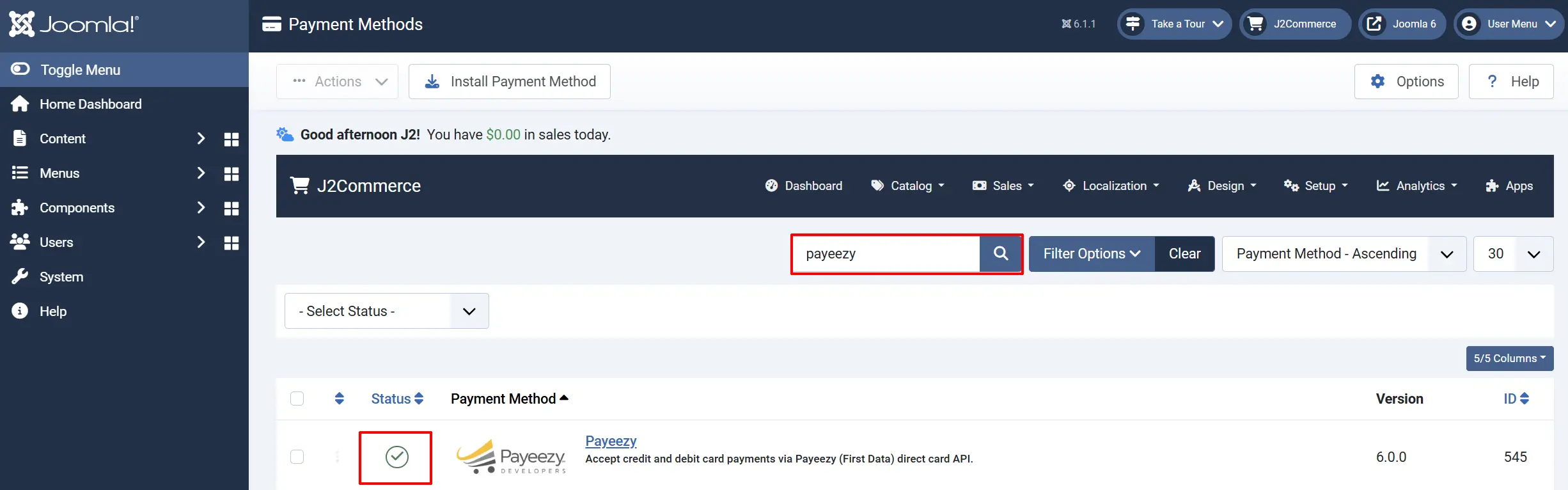
Configure the plugin
Click the Payeesy title next to the green checkmark to open the configuration screen.
Click the Toggle Inline Help button at the top of any plugin configuration page to show a short description beneath each field.

Display Settings
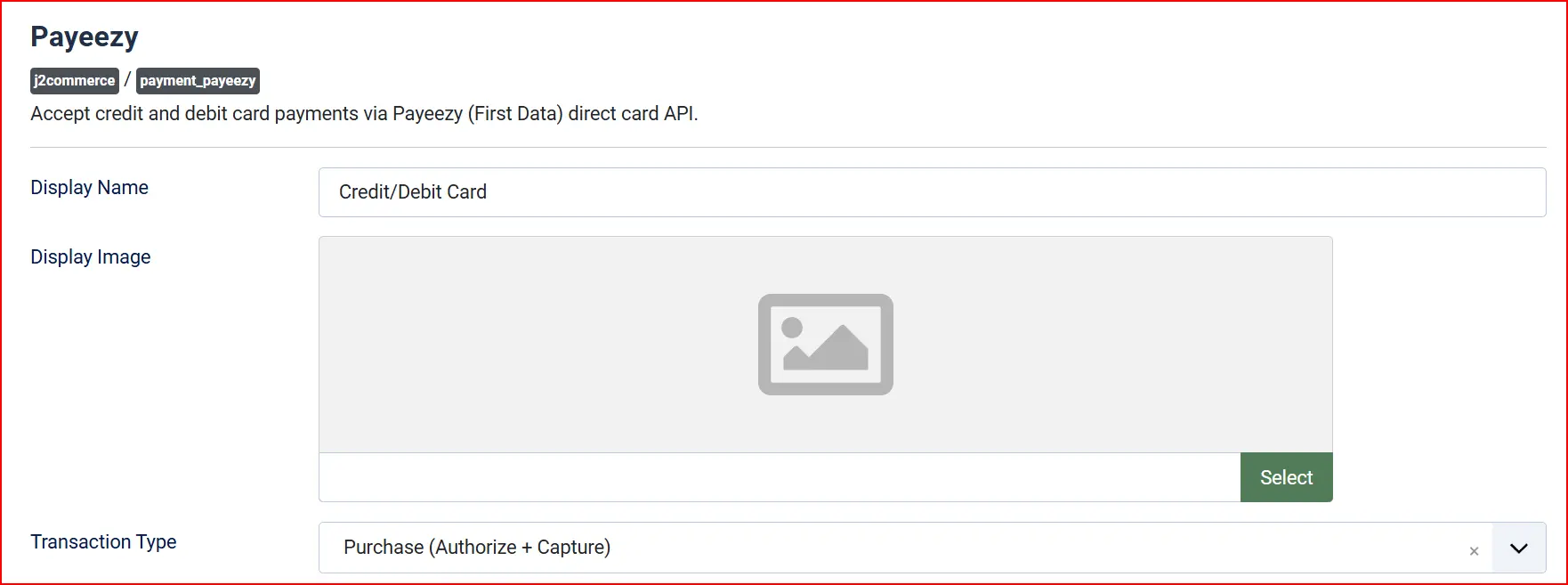
Display Name: The payment method name shown to customers at checkout
Display Image: Optional logo or card brand image displayed at checkout
Transaction Type options
- Purchase (Authorize + Capture) — The card is charged immediately when the order is placed. Use this for most stores.
- Authorize Only — Funds are reserved on the card but not captured. You capture manually later (for example, when you ship the goods). When this mode is active, an additional Authorized Status field appears so you can choose which order status to assign to authorized-but-not-captured orders.
Credentials
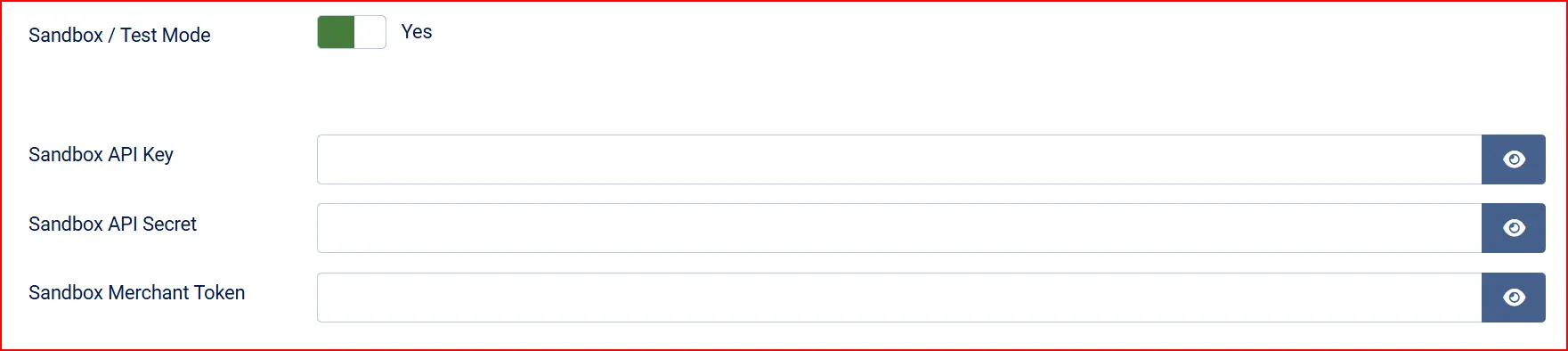
The plugin shows either sandbox or live credential fields depending on the Sandbox / Test Mode toggle. Fields for the inactive mode are hidden automatically.
Live Credentials (shown when Sandbox is off)
Live API Key: Your Payeezy live API key from the developer portal
Live API Secret: Your Payeezy live API secret. Used server-side to sign each HMAC-SHA256 request. Never exposed to the browser.
Live Merchant Token: Your Payeezy live merchant token (the token field in API calls)
Sandbox Credentials (shown when Sandbox is on)
Sandbox API Key: Your Payeezy sandbox API key
Sandbox API Secret: Your Payeezy sandbox API secret
Sandbox Merchant Token: Your Payeezy sandbox merchant token
API Key, API Secret, and Merchant Token are stored encrypted in the Joomla database. Do not store them in config files, version control, or environment files accessible from the web root.
Order Statuses

Payment Status: Order status assigned when a Purchase transaction succeeds
Authorized Status: Order status assigned when an Authorize Only transaction succeeds. Only visible in Authorize Only mode.
Set Payment Status to whichever order status represents a paid, confirmed order in your workflow. A common choice is "Confirmed" or "Processing."
If the order status you want is not listed, create it first under J2Commerce -> Setup -> Order Statuses.

Surcharge

Apply an optional surcharge when customers pay by card. Leave all three fields empty to disable.
Surcharge Name: Label shown to the customer in the order total
Surcharge Percent: Percentage of the order subtotal + shipping to add
Surcharge Fixed: Fixed amount to add to every card order
Surcharge Tax Class: Tax profile to apply to the surcharge amount (optional)
If both a percentage and a fixed amount are set, both are added together.
Availability Restrictions

Control which customers see this payment method at checkout.
Geozone Restriction: Limit this payment method to customers whose billing address is within a specific geozone. Leave blank to allow all countries.
Minimum Subtotal: Hide this payment method if the order subtotal is below this amount. Leave blank for no minimum.
Maximum Subtotal: Hide this payment method if the order subtotal is above this amount. Leave blank for no maximum.
Custom Messages
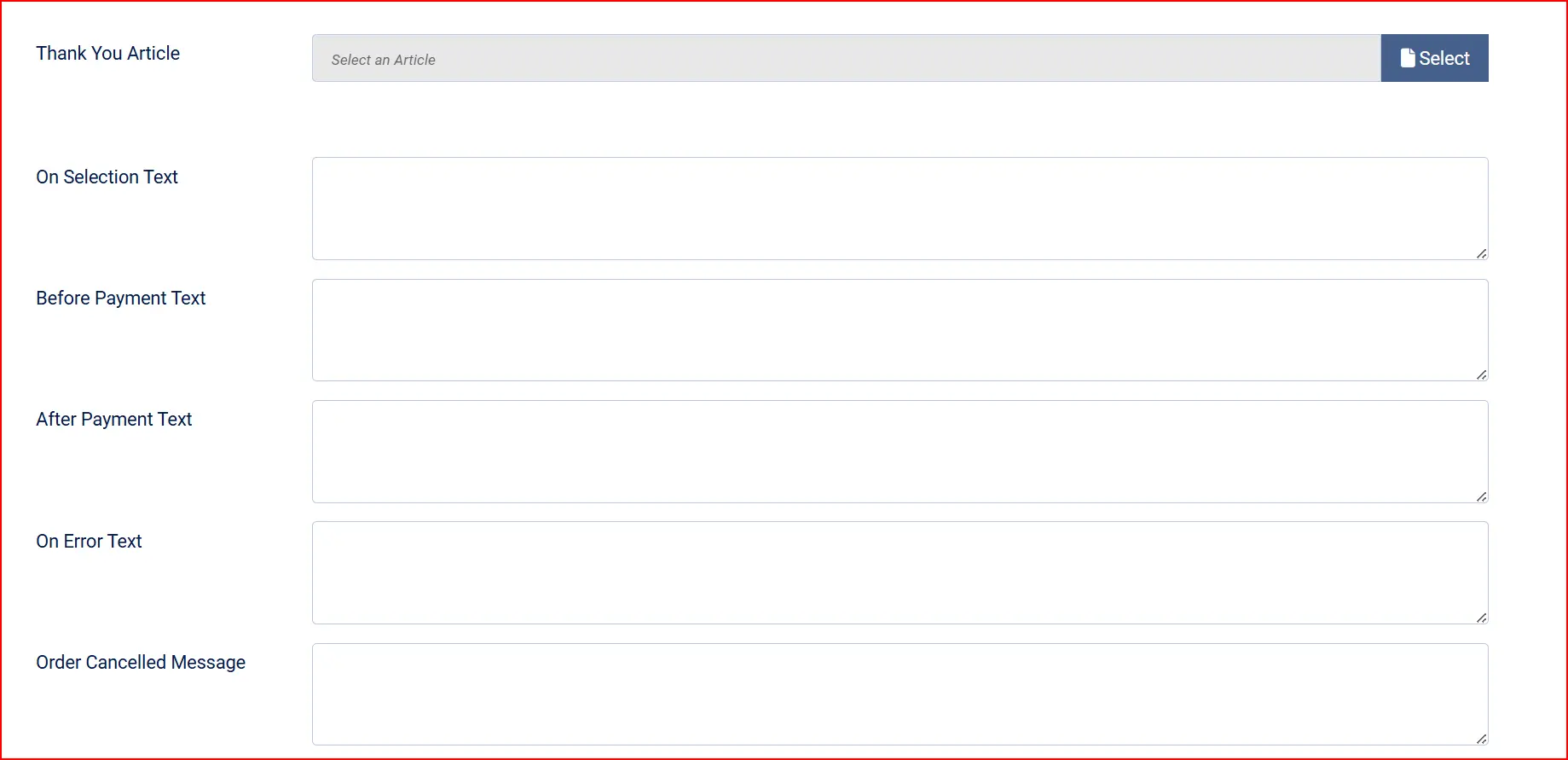
These optional fields let you add custom HTML or plain text at key points in the checkout process.
Thank You Message — Select a Joomla article to display on the order confirmation page. Leave blank to show the default J2Commerce confirmation view.
On Selection: When the customer selects Payeezy as their payment method
Before Payment: In the card entry form, above the card fields
After Payment: On the order confirmation page after a successful payment
On Error: Replaces the default error message if payment fails
On Cancel: Shown if the customer cancels the payment
Advanced Settings
Show Dashboard Icon: Add a quick-access icon to the J2Commerce dashboard for this payment method
- Icon Label: Custom label for the dashboard icon. Only visible when Show Dashboard Icon is enabled.
Debug Mode: Log API requests and gateway responses to payment_payeezy.php in the Joomla log directory
Debug logs contain transaction metadata such as transaction IDs, amounts, and gateway responses. While the plugin never logs card numbers or CVV, debug logging should only be used in a development or staging environment.
Checkout Flow
When a customer selects Payeezy at checkout, this is the sequence of events:
-
The customer reaches the payment step and selects Credit/Debit Card (or your configured display name).
-
A card entry form appears on your checkout page with fields for:
- Cardholder Name
- Card Number (up to 19 digits; auto-detects Visa, Mastercard, Amex, Discover)
- Expiry Date (MM/YY format)
- CVV (3 or 4 digits)
-
A sandbox warning banner appears if test mode is active.
-
The customer clicks Place Order. A loading spinner replaces the form while the payment processes.
-
Your server sends the card data over HTTPS to the Payeezy API (
api.payeezy.com/v1/transactionsfor live,api-cert.payeezy.com/v1/transactionsfor sandbox). Each request is signed with an HMAC-SHA256 authorization header using your API Secret. -
If the gateway returns
transaction_status: approved:- For Purchase mode — the order is marked with your configured Payment Status and the customer sees the confirmation page.
- For Authorize Only mode — the order is marked with your configured Authorized Status. You must manually capture the funds later through the Payeezy dashboard or merchant portal.
-
If the gateway declines the transaction, the customer is redirected back to checkout with an error message. No order is finalized.
Sandbox Testing
Sandbox mode uses the Payeezy certification environment. Test transactions are real API calls to First Data's certification servers — they behave identically to live transactions but no real money changes hands.
Setting Up Sandbox
- In the plugin configuration, set Sandbox / Test Mode to Yes.
- Enter your sandbox API Key, API Secret, and Merchant Token in the sandbox credential fields.
- Save the plugin.
Test Card Numbers
First Data publishes test card numbers in the Payeezy developer portal under your sandbox project. Common test values include:
| Card Brand | Number | Expiry | CVV |
|---|---|---|---|
| Visa | 4111111111111111 | Any future date | Any 3 digits |
| Mastercard | 5424000000000015 | Any future date | Any 3 digits |
| American Express | 378282246310005 | Any future date | Any 4 digits |
| Discover | 6011000000000012 | Any future date | Any 3 digits |
Check the Payeezy developer portal for the full list of test cards and specific decline scenarios.
Verifying a Test Transaction
After a test order, log in to the Payeezy developer portal and check the transaction log under your sandbox project. You should see the transaction ID and status. You can also enable Debug Mode temporarily to see the full API response in the Joomla log at [joomla-root]/logs/payment_payeezy.php.
Going Live
When you are ready to accept real payments:
- In the plugin configuration, set Sandbox / Test Mode to No.
- Enter your Live API Key, Live API Secret, and Live Merchant Token in the live credential fields.
- Verify that your store is running on HTTPS.
- Confirm your PCI SAQ-D compliance with your acquiring bank.
- Save the plugin and place a low-value test order with a real card to confirm end-to-end.
Supported Card Types
The plugin supports all card types accepted by your Payeezy merchant account. Common types include:
- Visa
- Mastercard
- American Express
- Discover
- JCB
- Diners Club
The exact cards accepted depend on your merchant account configuration with First Data.
Multi-Currency
The plugin is multi-currency aware. The transaction amount is automatically converted to the integer minor unit (cents) required by the Payeezy API using J2Commerce's currency conversion helper. The currency_code sent to the gateway matches the active currency selected by the customer.
Troubleshooting
The payment method does not appear at checkout
Possible causes and fixes:
- The plugin is disabled. Go to System -> Manage -> Extensions, search for Payeezy, and enable it.
- A Geozone Restriction is set and the customer's billing country is not within that geozone.
- A Minimum Subtotal or Maximum Subtotal limit is excluding the order. Check the configured limits.
"Payeezy credentials are not configured" appears on the dashboard
The API Key for the active environment (sandbox or live) is empty. Enter all three credentials — API Key, API Secret, and Merchant Token — and save.
Payment fails with "Payment could not be processed"
This means the Payeezy gateway returned a decline. Common causes:
- Incorrect test card number, expiry, or CVV in sandbox
- Sandbox credentials used with the live environment toggle (or vice versa)
- The card number fails the Luhn check (the plugin validates that the card number has at least 13 digits and expiry is 4 digits, but does not perform Luhn checking client-side)
- The card was declined by the issuing bank
Enable Debug Mode and check logs/payment_payeezy.php for the exact gateway response. Disable Debug Mode immediately after diagnosing.
"Invalid order. Please try again."
The order ID could not be found or verified. This can happen if the session expired between the checkout page loading and the form submission. Ask the customer to refresh the checkout page and try again.
The card form shows but clicking Place Order does nothing
JavaScript may not be loading. Check your browser console for errors. Ensure the plg_j2commerce_payment_payeezy media files are published and accessible. Clear the Joomla cache (System -> Clear Cache) and try again.
Sandbox transactions fail with an authentication error
Verify that you have entered all three sandbox credentials (API Key, API Secret, and Merchant Token) correctly. The API Secret is case-sensitive. Copy and paste directly from the Payeezy developer portal rather than typing.