Order Statuses
Order statuses define the stages an order passes through in your store. Each status represents a step in the order lifecycle, from initial placement through processing, shipping, and completion. J2Commerce includes core statuses that are required by the system, and you can add custom statuses to match your specific workflow.
Requirements
- PHP 8.3.0+
- Joomla 6.x
- J2Commerce 6.x
Locating Order Statuses
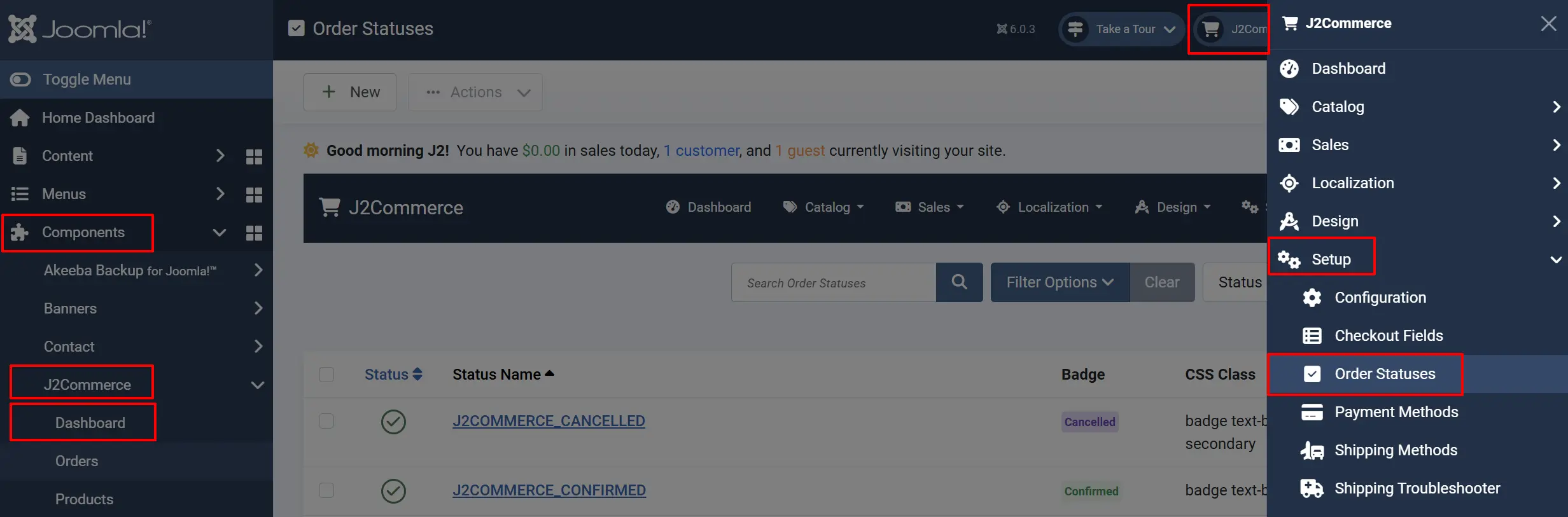
Order Statuses are managed from the J2Commerce Dashboard.
There are two ways you can access the Order Statuses.
Option A: Go to the J2Commerce icon at the top right corner -> Setup -> Order Statuses
Option B: Go to Components on the left sidebar -> J2Commerce -> Dashboard -> Setup -> Order Statuses
Order Status List
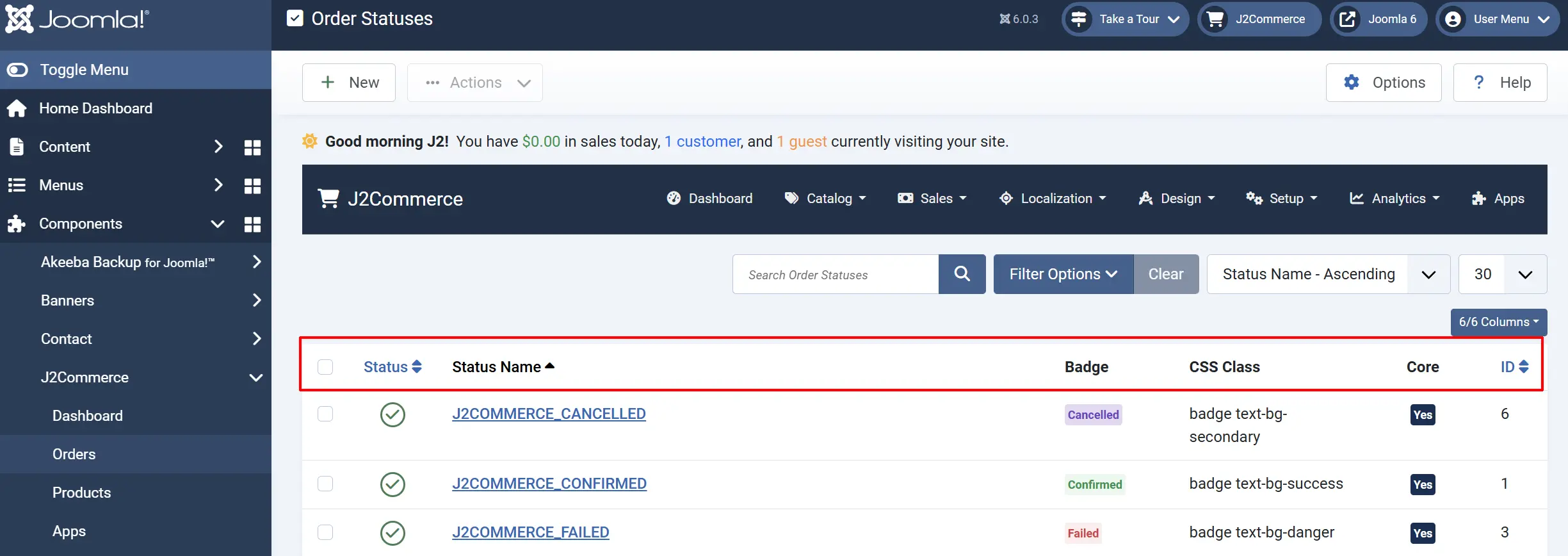
The Order Statuses list displays all statuses configured in your store. Each status shows:
Checkbox: Select statuses for batch actions.
Status: Set to Published to make the status available for use.
Status Name: The display name shown to customers and in admin lists. Example: On Hold
Badge: Displays the badge name and color
CSS Class: Bootstrap badge class controlling the visual appearance of the status badge. Example: badge text-bg-warning
Core: Indicates if this is a system-required status. Core statuses cannot be edited or deleted. Example: No (read-only)
ID: Displays the individual ID number.
Core Order Statuses
J2Commerce includes the following core statuses that cannot be deleted:
Pending: Initial status for new orders. Order received, awaiting payment or processing.
Confirmed: Order ready for processing. Payment received, order confirmed.
Processed: Items picked and packed. Order prepared and ready for shipment.
Shipped: Shipping carrier has collected the order. Order dispatched to customer.
Completed: Final successful status. Order fulfilled and transaction complete.
Cancelled: Customer changed mind, fraud, or admin intervention. Order cancelled by customer or admin.
Failed: Payment declined, out of stock, etc. Payment or processing failed.
These core statuses are essential for J2Commerce's order processing and cannot be removed.
Adding an Order Status
- Click the New button in the toolbar.
- Fill in the status details (see Configuration below).
- Click Save or Save & Close.
CSS Class Options
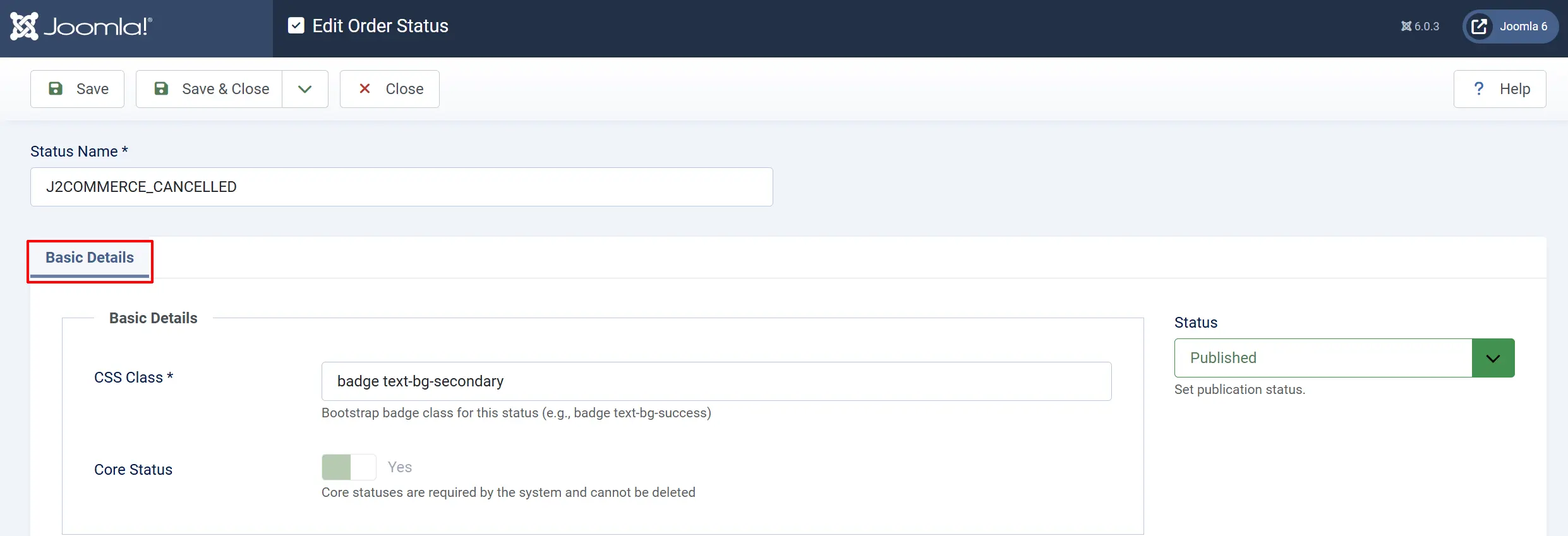
The CSS Class field uses Bootstrap 5 badge classes. Common combinations:
| CSS Class | Appearance | Use Case |
|---|---|---|
badge text-bg-primary | Blue badge | Informational statuses |
badge text-bg-secondary | Grey badge | Neutral statuses |
badge text-bg-success | Green badge | Positive/completed statuses |
badge text-bg-danger | Red badge | Error/failure statuses |
badge text-bg-warning | Yellow badge | Pending/caution statuses |
badge text-bg-info | Light blue badge | Informational statuses |
badge text-bg-light | Light badge | Neutral/pending statuses |
badge text-bg-dark | Dark badge | Serious/processed statuses |
You can also create custom CSS classes in your template for unique styling.
How Order Statuses Are Used
Order statuses control the order workflow throughout J2Commerce:
Order Placement
- New orders start with Pending status.
- Payment methods may automatically change status (e.g., to Confirmed after successful payment).
Payment Processing
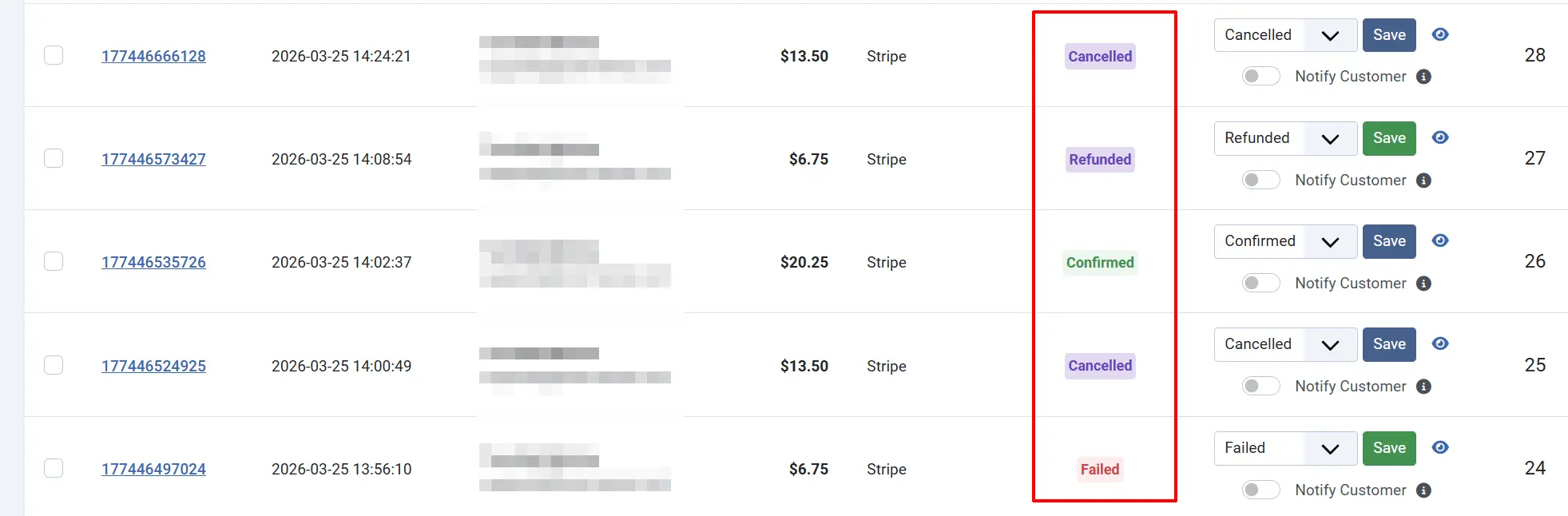
- Successful payments change status to Confirmed.
- Failed payments change status to Failed.
- Some payment gateways may use additional statuses for pending payments.
Order Processing
- Admins can manually change status to Processed when preparing the order.
- Inventory may be reserved at certain statuses depending on configuration.
Shipping
- When an order ships, status changes to Shipped.
- Shipping plugins may automatically update order status.
- Customers receive email notifications when status changes.
Completion
- Delivered orders may automatically change to Completed.
- Admins can manually mark orders as Completed.
Cancellation
- Customers or admins can cancel orders (status: Cancelled).
- Cancellation may trigger refunds depending on payment gateway.
Order Status Workflow
A typical order status progression:
Orders can move between statuses in various ways:
- Manual changes — Admin changes the status in the order detail page.
- Automatic updates — Payment gateways update status on payment success/failure.
- Plugin triggers — Shipping, inventory, or custom plugins update status based on events.
- Customer actions — Some systems allow customers to cancel orders (changes to Cancelled).
Tips
- Create statuses for your workflow — Add custom statuses for stages unique to your business (e.g., "Awaiting Stock", "Quality Check", "Partial Shipment").
- Use consistent colours — Apply Bootstrap classes consistently so statuses are visually clear in the admin.
- Consider customer visibility — Some statuses may be visible to customers in order history; use clear, customer-friendly names.
- Plan transitions — Document which status transitions are allowed and who can trigger them.
- Don't delete core statuses — Core statuses are required by J2Commerce; unpublish them instead of trying to delete.
Common Custom Order Statuses
| Status Name | CSS Class | Use Case |
|---|---|---|
| On Hold | badge text-bg-warning | Awaiting payment clarification or manual review |
| Awaiting Stock | badge text-bg-info | Items out of stock, will ship when available |
| Quality Check | badge text-bg-secondary | Order being verified before shipment |
| Partial Shipment | badge text-bg-primary | Some items shipped, others pending |
| Return Requested | badge text-bg-danger | Customer has requested a return |
| Refunded | badge text-bg-dark | Order refunded to customer |
Troubleshooting
Order Status Not Changing After Payment
Cause: Payment gateway not configured to update order status automatically.
Solution:
- Check your payment method plugin configuration.
- Verify the "Order Status After Payment" setting is set to Confirmed or your preferred status.
- Check the payment gateway logs for errors.
Cannot Delete Order Status
Cause: Core statuses cannot be deleted as they are required by the system.
Solution:
- Core statuses (Pending, Confirmed, Processed, Shipped, Completed, Cancelled, Failed) are protected.
- Unpublish the status if you don't want it available for use.
- Create custom statuses for your specific needs.
Order Status Badge Not Displaying Correctly
Cause: CSS class is incorrect or custom CSS conflicts.
Solution:
- Edit the order status.
- Verify the CSS Class uses valid Bootstrap 5 badge classes.
- Common format:
badge text-bg-success(note the space betweenbadgeandtext-bg-*). - Clear the browser cache and Joomla cache.
Customers Not Receiving Status Update Emails
Cause: Email notifications are not configured for status changes.
Solution:
- Go to J2Commerce -> Setup -> Configuration -> Email Templates.
- Verify email templates exist for order status updates.
- Check that the Email on Status Change option is enabled.
- Verify your Joomla mail settings are working.