Payment Method Restrictions
The Payment Method Restrictions app lets you control which payment methods your customers can use at checkout. You can restrict methods on a per-product basis — so that some products only allow bank transfer, for example — and you can also set store-wide rules that always keep or always remove specific methods.
Purchase and Download
The Payment Method Restrictions app is a separate add-on available from the J2Commerce Extensions Store. It is not included with the core J2Commerce 6 component.
Step 1: Go to the J2Commerce website -> Apps.
Step 2: Locate Payment Method Restrictions -> click View Details -> Add to cart -> Checkout.
Step 3: Go to My Downloads under your profile menu at the top right corner and search for the app. Click Available Versions -> View Files -> Download.
Install the App
Install using the standard Joomla installer.
In the Joomla admin, go to System -> Install -> Extensions.
Upload the app_restrictpayment.zip package file. The plugin installs and enables automatically.

Enable the App
Once installed, verify the app is enabled. There are two ways to reach it.
Option A: Click the J2Commerce icon at the top right corner -> Apps.
Option B: Go to Components on the left sidebar -> J2Commerce -> Apps.

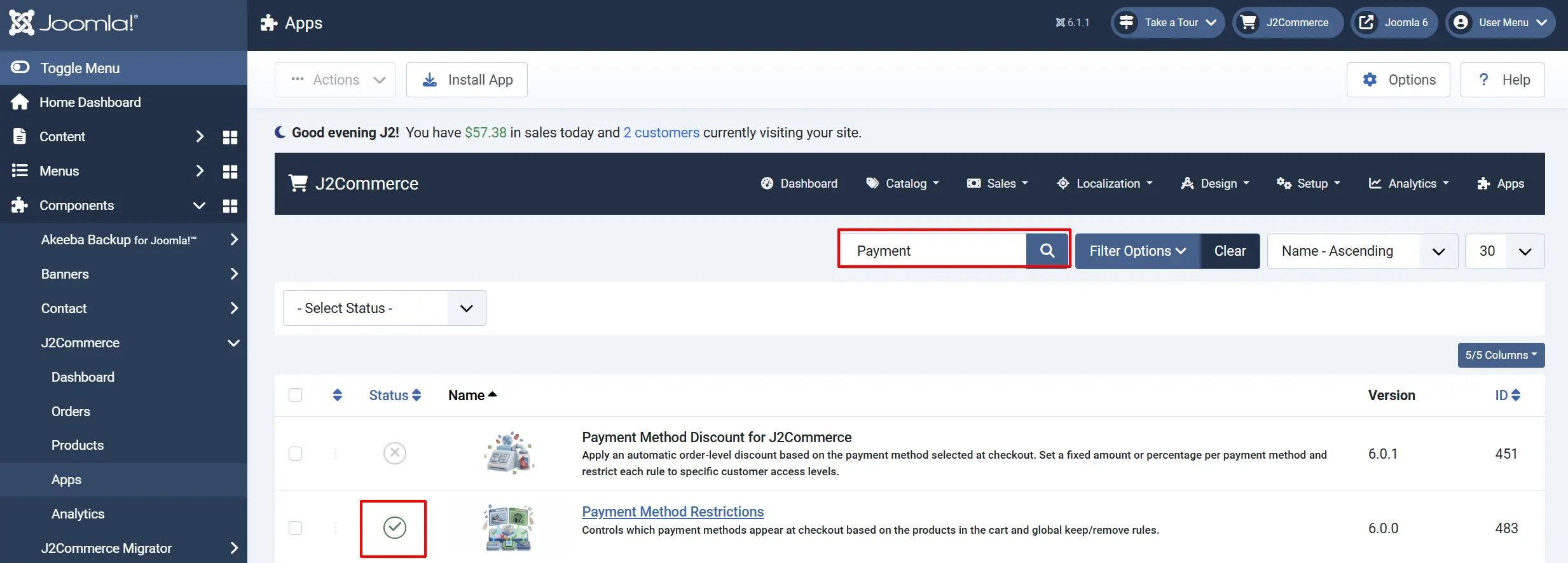
Search for Payment Method Restrictions. If it shows a red X, click it to enable it. It turns into a green checkmark when active.
Configure the App
Click the Payment Method Restrictions title (next to the green checkmark) to open the settings screen.
Click the Toggle Inline Help button on any app you install to see a description below each field directly in the admin panel.

Payment Restrictions Tab
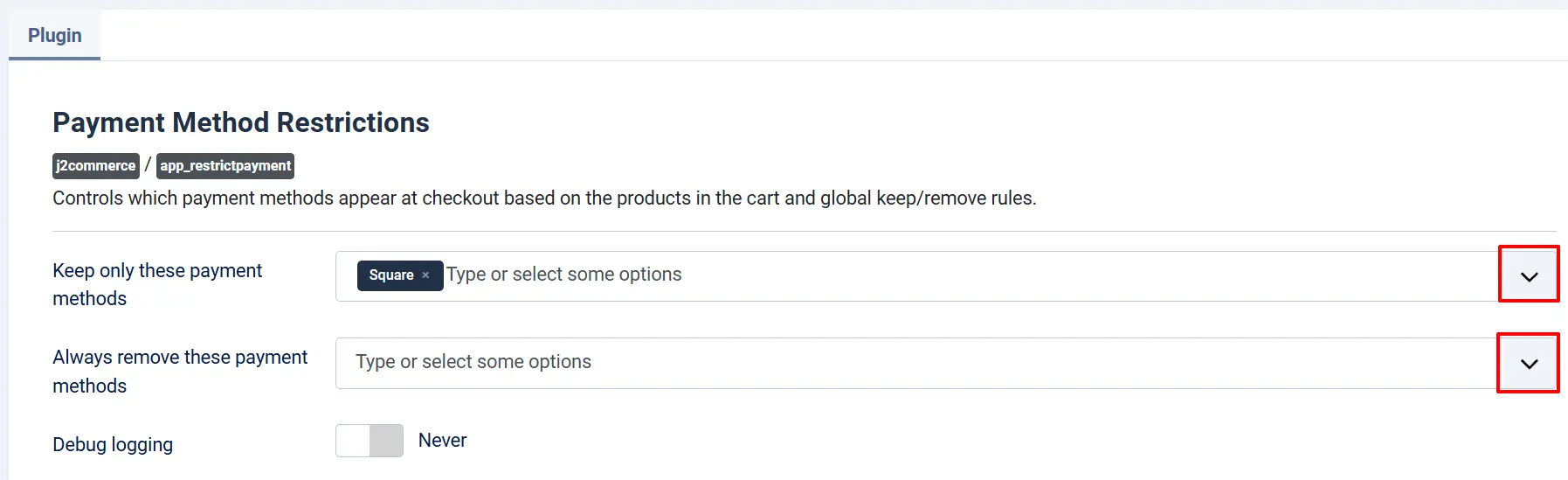
The global settings apply to every checkout in your store. They work on top of any per-product restriction you set on individual products.
Keep only these payment methods: If one or more methods are selected, only those methods ever appear at checkout. Leave empty to allow all methods (subject to the other rules).
Always remove these payment methods: The selected methods are always hidden at checkout, regardless of product settings or the keep list.
Debug logging: Writes diagnostic messages to administrator/logs/plg_j2commerce_app_restrictpayment.log.php. Disable on production sites.
Both the Keep and Remove fields show only the payment method plugins that are currently enabled in your store. If a gateway is not listed, publish it first under J2Commerce -> Payments -> Payment Methods.
Set Allowed Payment Methods Per Product

The per-product restriction is the most targeted control available. When a cart contains multiple products, the plugin calculates the union of all allowed methods across those products and removes anything outside that set.
- Go to Content -> Articles and open the article for the product you want to restrict.
- Click the J2Commerce tab, then the Apps sub-tab.
- Under Payment Restrictions, find the Allowed payment methods field.
- Select the payment methods you want to allow for this product. To apply no restriction, select All payment methods.
When a customer adds more than one product to the cart, the plugin merges all per-product allowed lists together. For example, if Product A allows only Bank Transfer and Product B allows Bank Transfer and Cash on Delivery, both methods remain available because both appear in at least one product's list.
If all products in the cart have the default "All payment methods" selection, no per-product restriction is applied.
How the Filtering Works at Checkout
When a customer reaches the payment step, the plugin evaluates three layers of rules in order:
- Per-product whitelist — collected from every item in the cart. If any product limits methods to a specific set, only those methods are candidates.
- Global remove list — any method in the Always Remove list is stripped regardless of what products allow.
- Global keep list — if you have set a Keep list, only methods on that list survive.
A method must pass all three layers to appear at checkout. The final list is shown to the customer.
Frontend View

If your rules are too restrictive — for example, a product allows only Bank Transfer but you have also added Bank Transfer to the Always Remove list — the customer will see no payment methods at checkout and will be unable to complete the order. Test your configuration after making changes.
Use Cases
Allow only bank transfer for a specific product
- Open the product article and go to J2Commerce -> Apps.
- In Allowed payment methods, select Bank Transfer only.
- Click Save.
Any cart containing this product will show only Bank Transfer at checkout.
Hide a test gateway on live orders
- Open the app settings under J2Commerce -> Apps -> Payment Method Restrictions.
- In Always remove these payment methods, select your test gateway.
- Click Save.
The gateway is now hidden for all customers across all orders, without needing to unpublish it.
Restrict your entire store to a single payment method
- In Keep only these payment methods, select the single method you want.
- Click Save.
All other methods are hidden store-wide, regardless of product settings.
What's New in J2Commerce 6
If you are upgrading from J2Store 4, here is what changed:
- Price-band restrictions removed. The J2Store 4 version included a per-payment-method minimum/maximum order total gate. This feature is now built directly into J2Commerce core — configure
min_subtotal,max_subtotal, andgeo_zoneon each payment plugin's own settings page under J2Commerce -> Payments -> Payment Methods. You do not need this app for price-based payment filtering. - Global keep and remove fields carry over with the same purpose. If you previously configured
keep_pluginandremove_plugin, re-enter those selections in the new plugin settings. - Per-product restrictions carry over. The
payment_restrictionsvalue stored in each product's params is compatible. Verify each product after upgrading. - Admin configuration screen is now the standard Joomla Plugin Manager interface instead of a custom FOF screen.
Troubleshooting
All payment methods still appear at checkout
Cause: One of the following:
- The plugin is not enabled. Go to J2Commerce -> Apps and confirm the green checkmark is showing for Payment Method Restrictions.
- The product in the cart has All payment methods selected (or no restriction set), and the global Keep and Remove lists are both empty. No filtering is applied when all three layers have no active rules.
- You saved settings but cleared the Joomla cache without refreshing. Go to System -> Clear Cache and try again.
Solution:
- Confirm the plugin is enabled.
- Open the product and verify a specific method is selected (not "All payment methods").
- Save the product and test with an empty browser cache.
A payment method I expected has disappeared
Cause: The method is present on the global Always remove list, or the per-product allowed list for one of the cart items does not include it.
Solution:
- Open the app settings and check the Always remove field.
- Open each product in the cart and review the Allowed payment methods field.
- Enable Debug logging and inspect
administrator/logs/plg_j2commerce_app_restrictpayment.log.php. Each checkout logs a line showing how many methods were present before and after filtering, and counts for the per-product, keep, and remove lists.
The payment method picker on the product form is empty
Cause: No payment plugins with element names starting with payment_ are currently published.
Solution: Go to J2Commerce -> Payments -> Payment Methods and ensure at least one payment gateway is published. The picker in the product form shows only enabled payment plugins.
Debug logging
Enable Debug logging in the plugin settings. Log entries are written to:
administrator/logs/plg_j2commerce_app_restrictpayment.log.php
Each entry records the number of payment methods before and after filtering, along with the size of the per-product, keep, and remove sets. Disable debug logging on production sites once troubleshooting is complete.