

The HikaShop Migration Adapter is the source connector for the J2Commerce Migrator. It moves a HikaShop store into J2Commerce 6: catalog, customers, orders, coupons, shipping methods and more. Your HikaShop tables are read, never changed.
It is for store owners switching from HikaShop 5.x or 6.x to J2Commerce.
Requirements
- PHP 8.3 or later
- Joomla 6.0 or later
- J2Commerce 6.0.0 or later, installed and enabled
- J2Commerce Migrator 6.1.10 or later, installed and enabled
- HikaShop 5.x or 6.x, installed and enabled, with products in its product table
- A writable
imagesfolder. Images are copied toimages/j2commerce/.
Tip
Run the migration on a staging copy of your site first. Check the products, orders and customers there before you migrate the live store.
Get the Adapter
The HikaShop adapter is a separate add-on available from the J2Commerce Extensions Store. It does not ship with J2Commerce 6.
Install the Adapter
- Update J2Commerce Migrator to 6.1.10 or later.
- Go to System -> Install -> Extensions and upload the adapter zip.
- Open Components -> J2Commerce Migrator and confirm the HikaShop adapter is enabled in the adapter list. Only one migrator adapter can be enabled at a time, so finish any running migration and disable the other adapter first.
Open the Migration Wizard
On the J2Commerce Migrator dashboard, click Start Migration on the HikaShop card.

The Migration Wizard shows the connection status, one progress card per section, and the buttons that run the migration. Click Configure Connection to set where the HikaShop tables are: this site's database, another database on the same server, or a remote server.
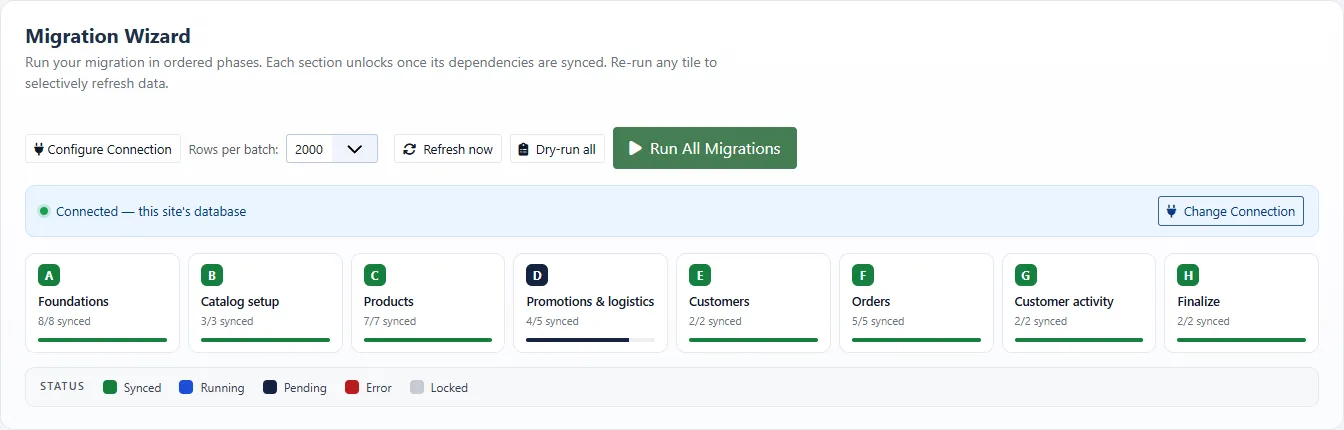
| Control | What It Does |
|---|---|
| Rows Per Batch | Sets how many rows each request processes: 500, 1000, 2000 or 5000. Lower it if requests time out. |
| Dry-Run All | Previews the whole migration without writing data. |
| Run All Migrations | Runs every section in order. |
| Sync All | Runs every step in one section. |
| Re-Sync | Runs one step again. |
If J2Commerce already holds data, the wizard shows This site already contains store data and lists the affected tables. Review the list and click I Understand, Allow Runs to continue.
What Gets Migrated
The steps are grouped into eight sections. A section unlocks once the sections it depends on are synced.
| Section | Steps |
|---|---|
| A: Foundations | Sync Currencies, Sync Countries & Zones, Sync Geozones & Tax, Sync Order Statuses, Sync Address Custom Fields, Sync Product Filters, Order Status Mapping, Tax Category Mapping |
| B: Catalog Setup | Sync Manufacturers, Sync Product Categories, Sync Product Options |
| C: Products | Sync Products, Sync Variants, Sync Product Prices, Sync Product Images, Sync Related Products, Sync Downloadable Files, Category Tags |
| D: Promotions & Logistics | Sync Coupons, Payment Methods Checklist, Sync Shipping Methods, Payment Method Mapping, Shipping Method Mapping |
| E: Customers | Sync Users, Sync Addresses |
| F: Orders | Sync Orders, Sync Order Infos, Sync Order Items, Sync Order Breakdown, Sync Order Histories |
| G: Customer Activity | Sync Carts (optional), Sync Reviews (optional) |
| H: Finalize | Apply Component Config Patches, Multilingual Flatten (runs only when the store has multilingual data) |
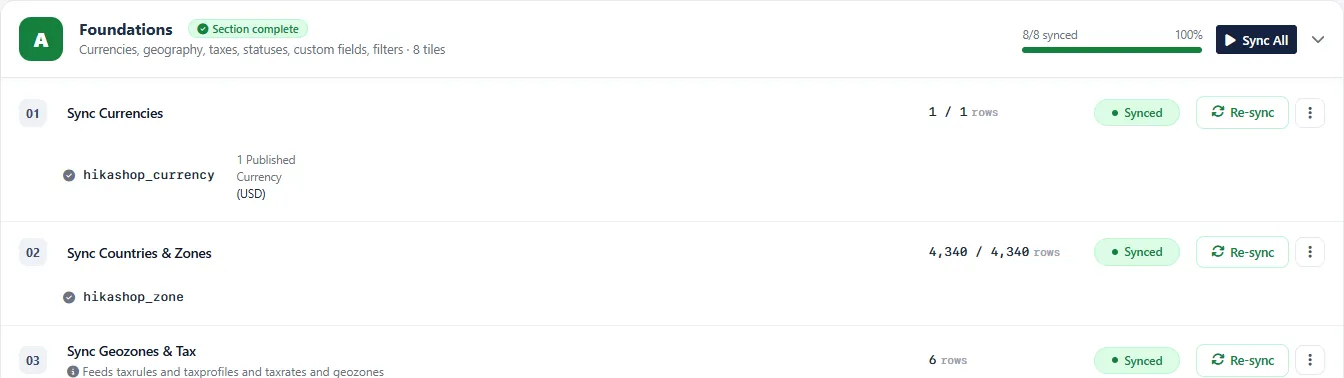
Open a section to see its steps. Each step shows its row count, status and Re-Sync button.
What Is Not Migrated
- Automatic discounts without a coupon code. Recreate them as J2Commerce sale prices.
- Payment methods. The Payment Methods Checklist lists each one with its settings so you can set up the matching J2Commerce plugin.
- Affiliate and partner data on users and orders.
- Guest baskets. They cannot be resumed in J2Commerce, so only baskets of registered customers are migrated.
- Reviews, unless Product Reviews is installed. Get it from J2Commerce Product Reviews, then run Sync Reviews.
Mapping Screens
Four mapping steps set where HikaShop values go. Click Sync or Re-Sync on a mapping step to open its screen.
| Mapping | Section | Maps | To |
|---|---|---|---|
| Order Status Mapping | Foundations | HikaShop order statuses | J2Commerce order statuses |
| Tax Category Mapping | Foundations | HikaShop tax categories | J2Commerce tax profiles |
| Payment Method Mapping | Promotions & Logistics | Payment labels on orders | Installed J2Commerce payment plugins |
| Shipping Method Mapping | Promotions & Logistics | Shipping labels on orders | Installed J2Commerce shipping plugins |
Choose a value for each row and click Save Mapping. Saving also updates orders that were already migrated.
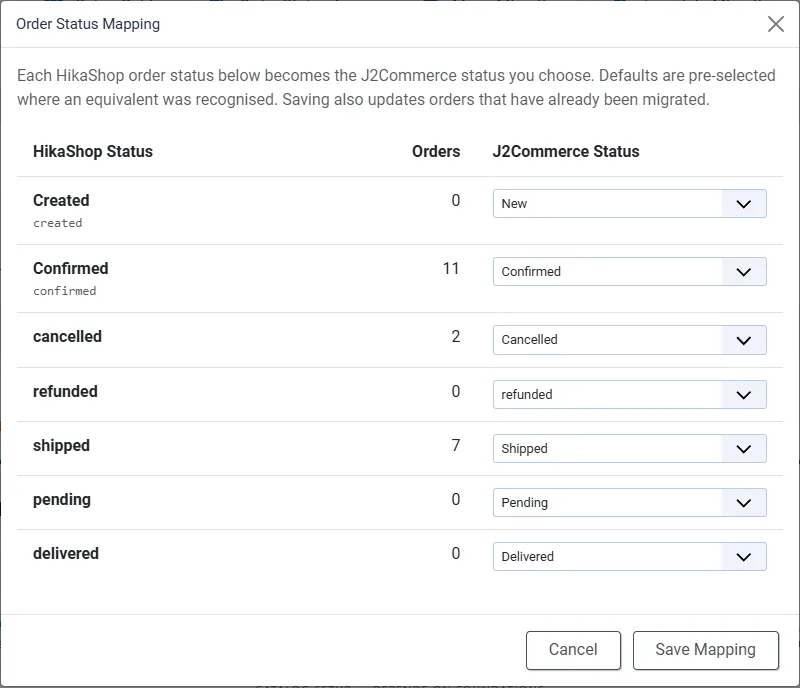
A payment or shipping label left unmapped keeps its HikaShop text.
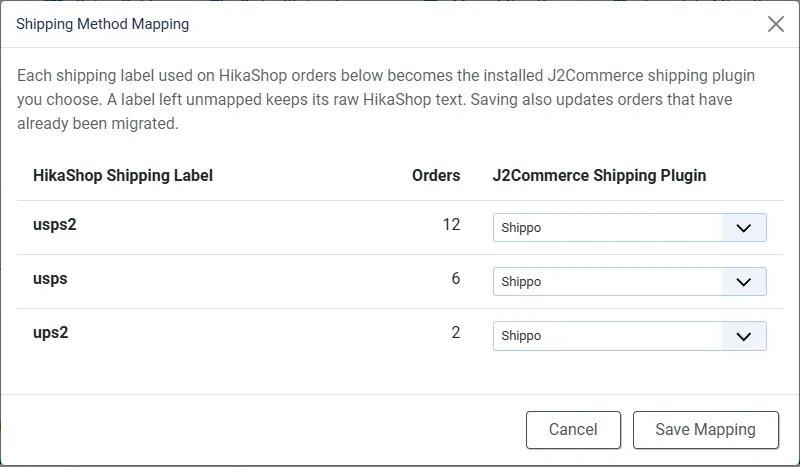
When you run Sync All or Run All Migrations, the mapping screens open one after another. The sync continues in the background while you review them.
Step-by-Step Migration
- Back up your site and database. Backup Now is in the wizard toolbar.
- Click Start Migration on the HikaShop card and confirm the connection.
- Click Dry-Run All and read the results.
- Click Run All Migrations, or click Sync All on each section from A to H.
- Choose values on each mapping screen and save.
- Check products, customers and orders in J2Commerce.
How Data Is Stored
- Product, category and manufacturer images are copied to
images/j2commerce/, a public folder. Each migrated category gets its image from the HikaShop category image. - Images that HikaShop saved with only a file name get the product title as alt text.
- Order lines are stored as quantity x price, the same as orders placed in J2Commerce.
- HikaShop states are matched to existing J2Commerce zones by name as well as by code.
- Migrated orders show the store's shipping method and service name.
Conflict Mode and Run Options
Open the three-dot menu on a step to choose how it treats records that already exist.
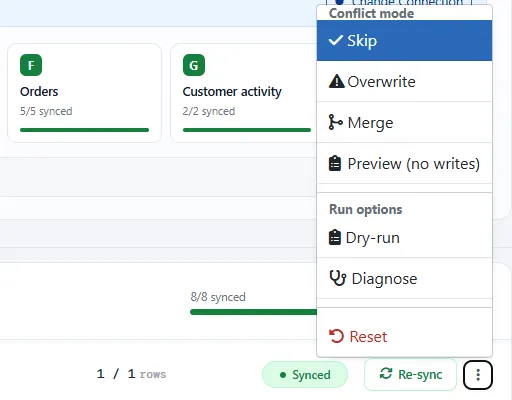
| Option | What It Does |
|---|---|
| Skip | Links the HikaShop row to the existing row. |
| Overwrite | Replaces the existing row. |
| Merge | Fills in the existing row. |
| Preview (No Writes) | Reports what would change and writes nothing. |
| Dry-Run | Previews this one step. |
| Diagnose | Checks this one step for problems. |
| Reset | Clears this step's status so it can run again. |
After an Earlier Run
If you ran an adapter version older than 6.0.7, set Sync Order Items and Sync Product Images to Overwrite and run them again. This replaces the old order lines and image records with the corrected ones.
Troubleshooting
The Adapter Will Not Install
Cause: J2Commerce Migrator is older than 6.1.10, or is not installed.
Solution: Update J2Commerce Migrator, then install the adapter again.
Image Directory Is Not Writable
Cause: The server does not let Joomla write to images/j2commerce/, or to images when the folder does not exist yet.
Solution: Fix the folder permissions, then run Sync Product Images again.
An Order or Address Says the User Has Not Been Migrated
Solution: Run Sync Users, then run Sync Addresses or Sync Orders again.
An Order Has No Matching Status
Cause: Its HikaShop status has no J2Commerce equivalent.
Solution: Open Order Status Mapping, choose a status for each row still set to Choose, and save.