Print Templates
Print Templates allow you to design professional documents for your customers, including standard invoices, packing slips, and receipts.
Prerequisites
- J2Commerce 6.x installed.
Accessing Print Templates
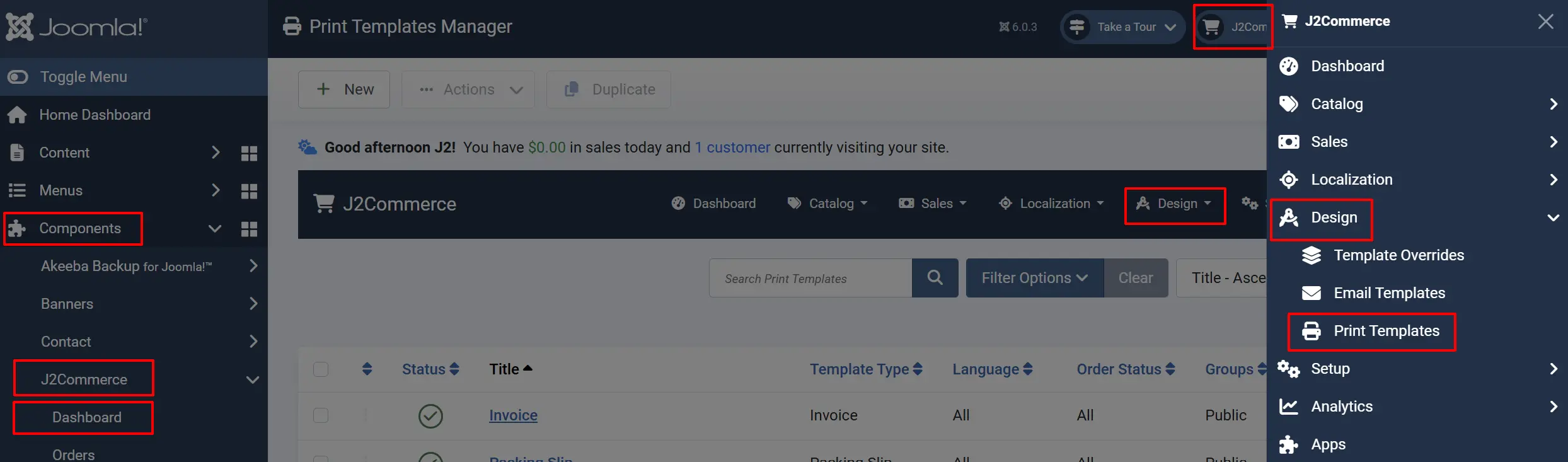
There are two ways you can access the templates.
Option A: Go to the J2Commerce icon at the top right corner -> Design -> Print Template
Option B: Go to Components on the left sidebar -> J2Commerce -> Dashboard -> Design -> Print Template
Creating and Managing Invoice Templates
You can create multiple templates and assign them based on the customer's group, payment method, or order status.
Click New and configure the basic settings:
Details tab
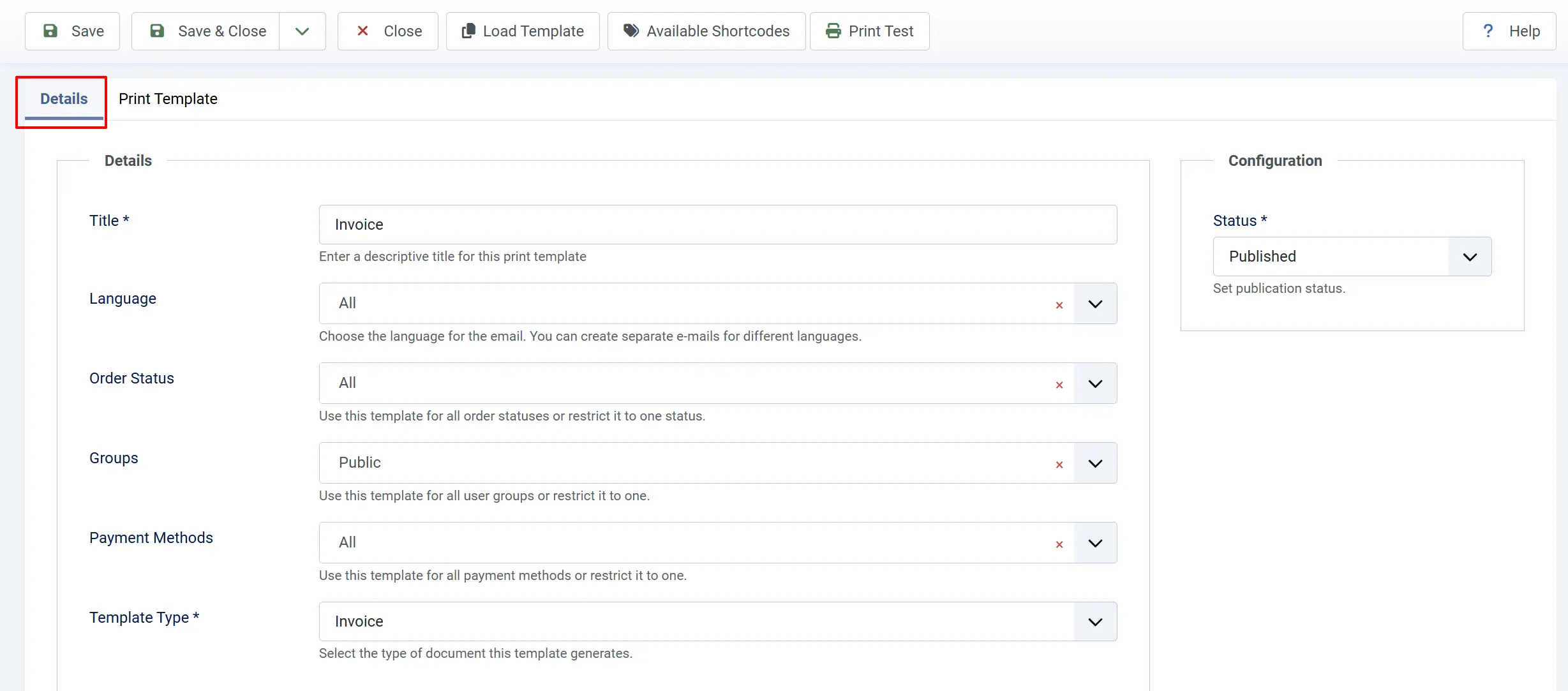
Invoice Type: The type of document this template generates. Example: Invoice, Packing Slip, Receipt
Title: Internal name for the template. Example:Standard Professional Invoice
Language: The language the document will be printed in. Example: English (US)
Order Status: The status that triggers this document. Example: Completed
Print Template tab
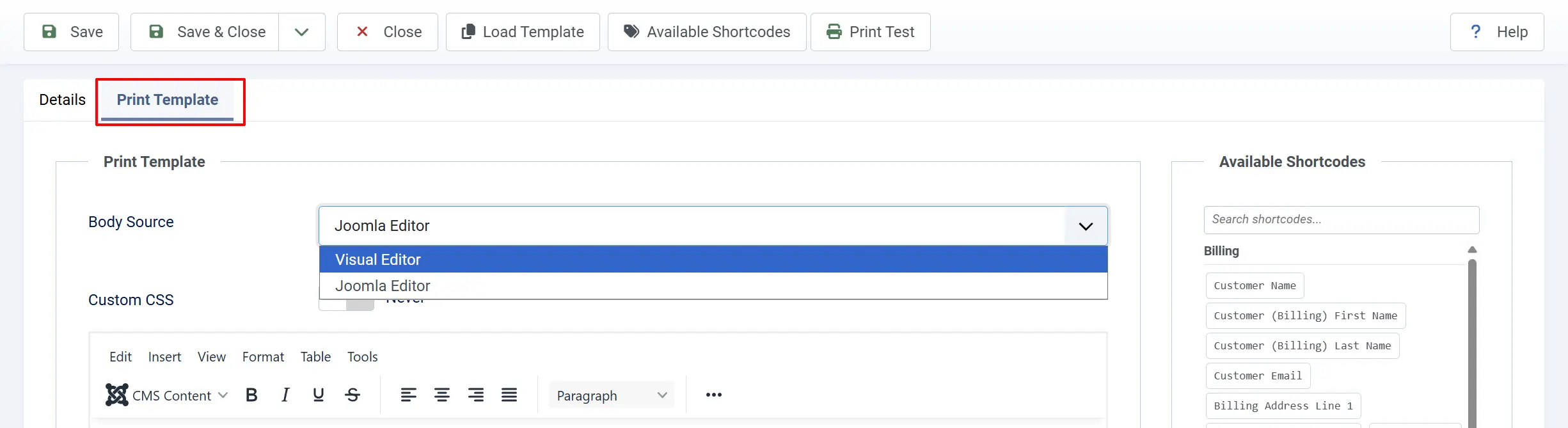
In the Print Template tab, you can customize the look and feel:
Body Source: How the document layout is defined. Options: Visual (Preview), Editor (HTML/CSS)
Body: The HTML structure of the invoice. Options: Visual Builder or HTML editor
Custom CSS: Styles to make the invoice look professional. Options: CSS rules
Using the Visual Builder
When Visual is selected as the Body Source, you can use the Visual Builder to design your invoices and packing slips.
- Adding Elements: Drag layout blocks from the component panel onto the canvas to build your header, item table, and footer.
- Editing Properties: Click any element to open its settings panel. Here you can change text labels, adjust borders, and set alignment.
- Arranging Content: Drag and drop elements to reorganize the document layout.
- Saving Changes: Once you are satisfied with the layout, click Save to store the design.
How It Works
When an order reaches a specific state or is requested for printing:
- J2Commerce checks for a Print Template that matches the Language, User Group, and Payment Method.
- If multiple matches exist, it uses the one with the highest priority (ordering).
- The template is rendered into a PDF or HTML page for the customer.
Tips
- Branding: Use the Custom CSS field to add your brand colors and logo styling.
- Packing Slips: Create a separate "Packing Slip" template that excludes pricing but includes item quantities and descriptions.
- Language Support: Create separate templates for different languages to ensure a localized experience for international customers.
Troubleshooting
The layout looks broken when printing
Cause: Some CSS styles (like complex Flexbox or Grid) may not be fully supported by PDF generators or browser print drivers.
Solution:
- Use standard HTML tables for layout structures in invoices.
- Use simple, web-safe fonts.
- Use the
printmedia query in your Custom CSS to optimize for paper.