Customers Also Bought
The Customers Also Bought app adds a product recommendation section to your J2Commerce product detail pages. You choose which products appear for each item, customers check the ones they want, and a single button adds everything to the cart at once. The section only shows products that are currently in stock, so customers never encounter unavailable items.
This is a practical way to increase average order value by surfacing complementary products at the exact moment a shopper is already engaged with a purchase.
Requirements
- PHP 8.3+
- Joomla! 6.x
- J2Commerce 6.x
Purchase and Download
Step 1: Go to our J2Commerce website -> Apps
Step 2: Locate the Customers Also Bought App -> click View Details -> Add to cart -> Checkout.
Step 3: Go to your My Downloads under your profile button at the top right corner and search for the app. Click Available Versions -> View Files -> Download
Install the App
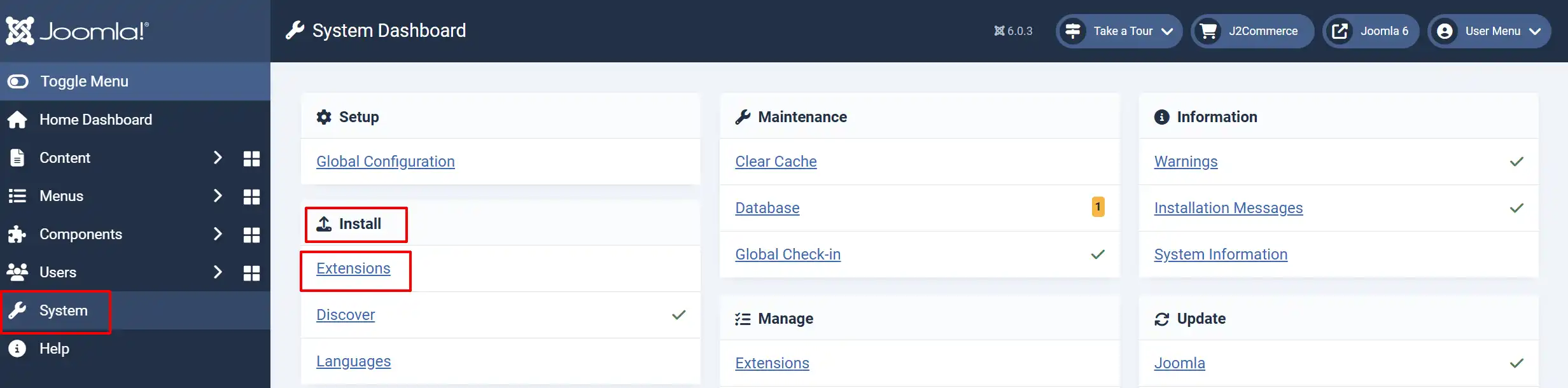
Go to System -> Install -> Extensions
Upload the plugin ZIP file or use the Install from URL option.
Enable the App
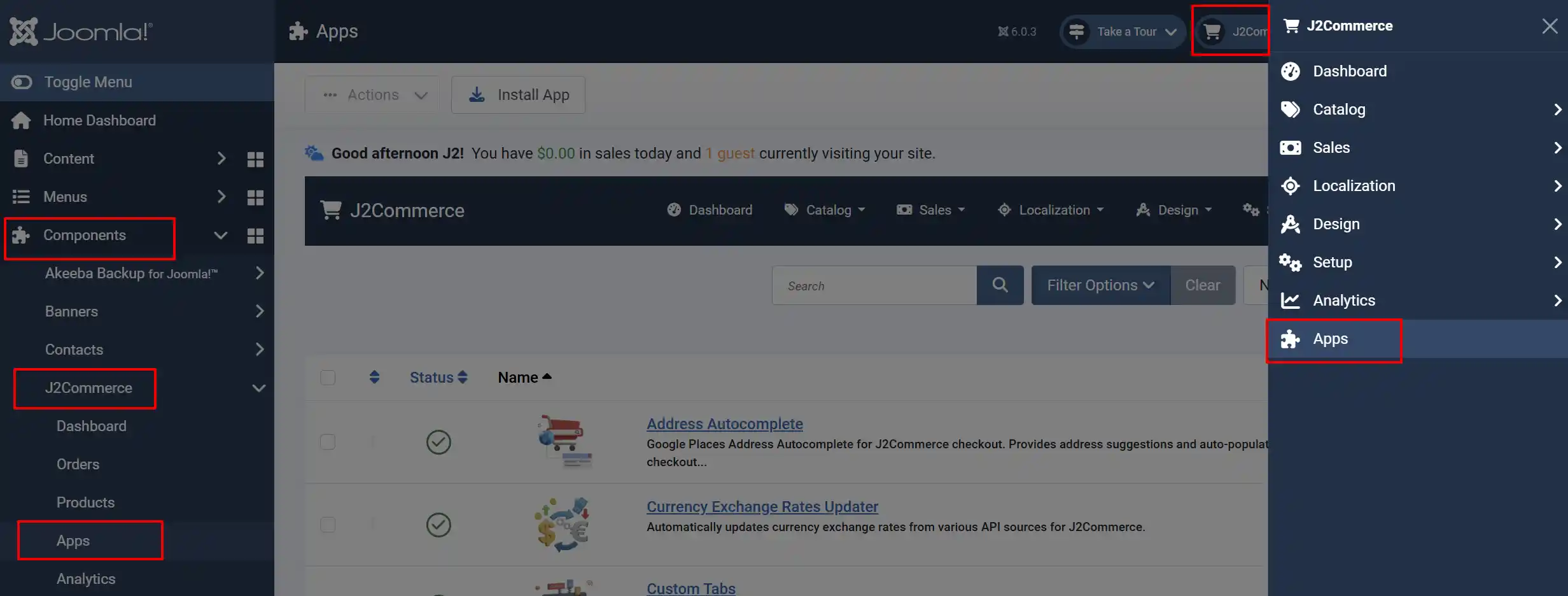
Once you have installed the App, you will need to enable it. There are two ways you can access the App.
Option A: Go to the J2Commerce icon at the top right corner -> Apps
Option B: Go to Components on the left sidebar -> J2Commerce -> Apps
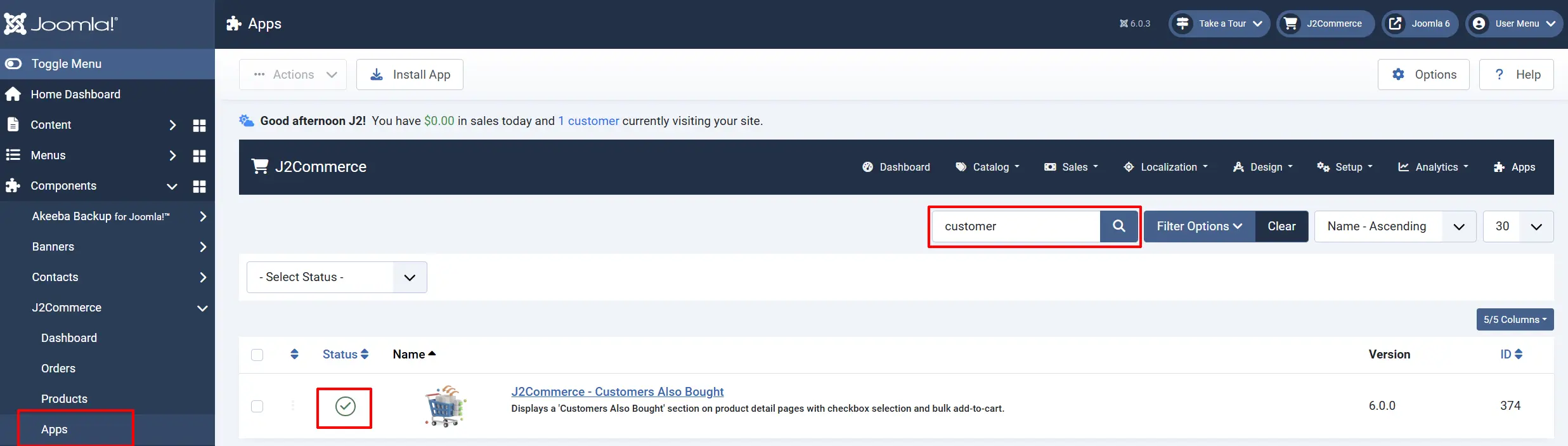
To help you narrow down the list, you can do a search for the J2Commerce - Customers Also Bought app, click the X, and it will turn into a green checkmark. It is now enabled and ready for setup.
Configure the App
Click on the Customers Also Bought title to open the plugin settings.
Plugin Tab
The Plugin tab controls the global behaviour and appearance of the section across all product pages.
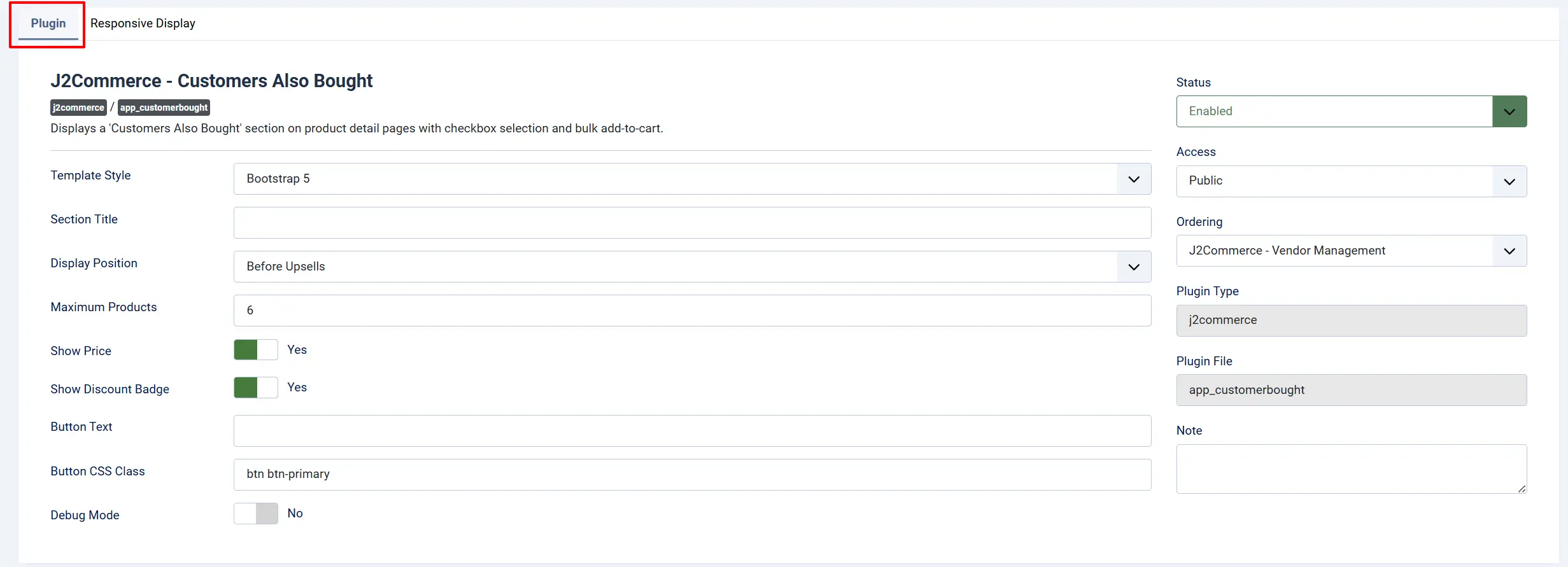
Template Style: Choose between bootstrap5 or uikit to match your front-end theme
Section Title: Heading displayed above the product row. Leave blank to use the default "Customers Also Bought" label
Display Position: Where on the product page the section appears — Before Upsells, Before Cross-sells, or After Add to Cart
Maximum Products: The most associated products to show at once (1–20)
Show Price: Display the price on each product card
Show Discount Badge: Show a discount percentage badge when a product has a special price
Button Text: Label for the bulk add-to-cart button. Leave blank for the default "Purchase Together" label
Button CSS Class: CSS classes applied to the purchase button. Change this to match your theme's button style
Debug Mode: Write detailed diagnostic messages to logs/app_customerbought.php. Turn off in production
Responsive Display Tab
The Responsive Display tab controls how many product cards appear in each row depending on the visitor's screen width. The section uses a responsive grid that automatically switches to a Swiper.js slider when there are more products than can fit in a single row.
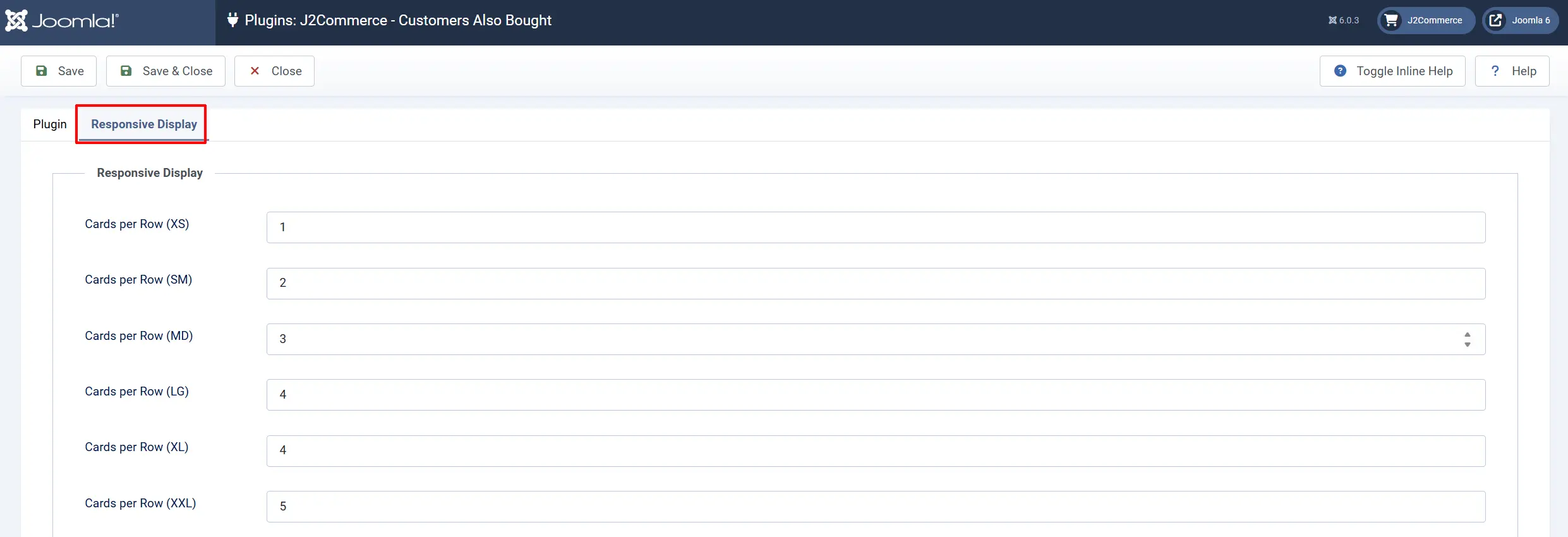
Cards per Row (XS): Below 576 px
Cards per Row (SM): 576 px and above
Cards per Row (MD): 768 px and above
Cards per Row (LG): 992 px and above
Cards per Row (XL): 1200 px and above
Cards per Row (XXL): 1400 px and above
Click Save or Save & Close to apply your changes.
Assign Products to Each Product Page
The global settings above apply site-wide. You then assign specific associated products to each individual product. This is done inside the product editing form.
Go to J2Commerce -> Catalog -> Products.

Click on the product you want to configure.
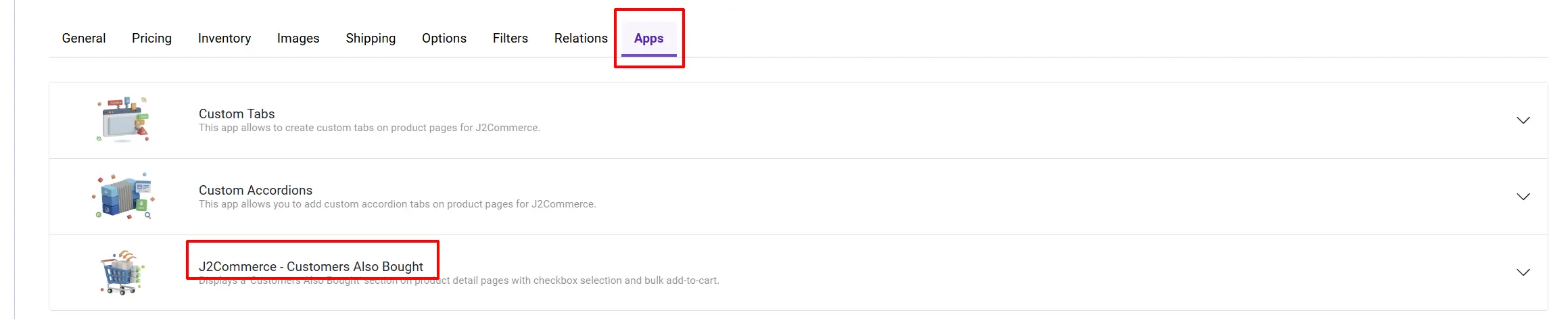
Click on the J2Commerce tab -> Apps. Scroll down to find the Customers Also Bought tab in the product form.
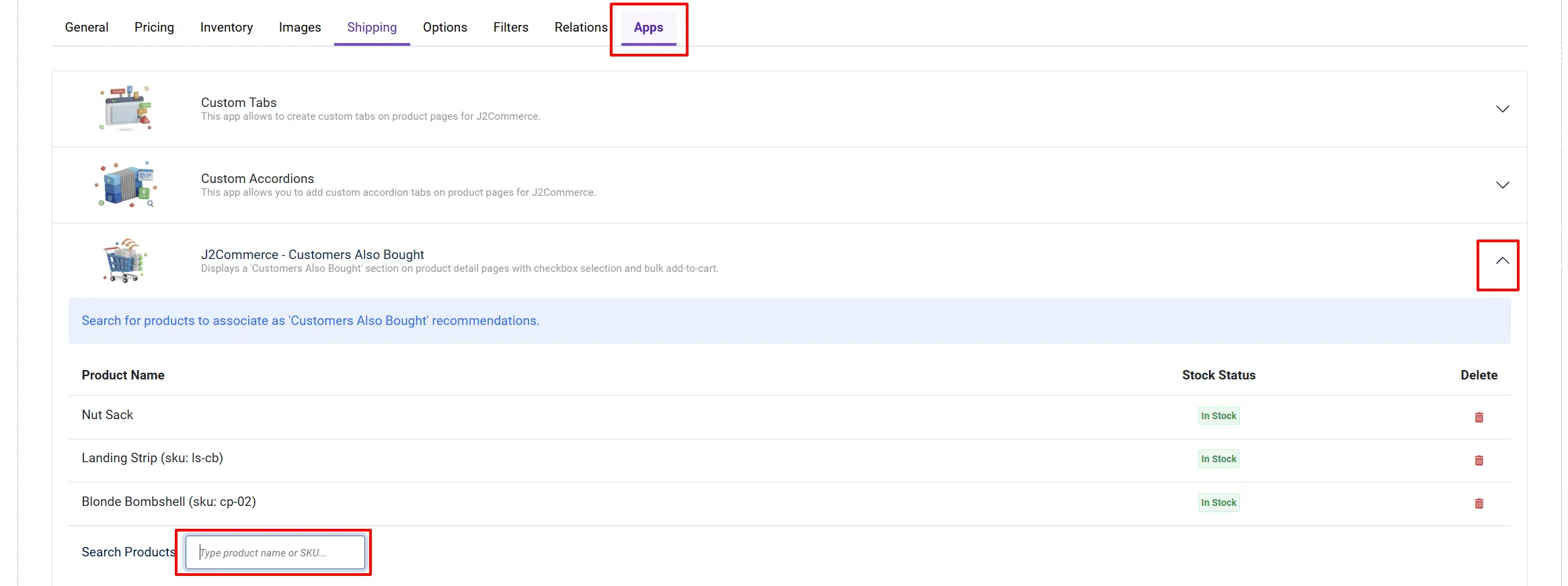
In the Search Products field, type a product name or SKU. A dropdown appears as you type (minimum 2 characters).
Select a product from the suggestions. It is added to the table immediately with a live stock status badge — In Stock (green) or Out of Stock (amber).
-
Repeat for each additional product you want to associate.
-
To remove a product, click the red trash icon in its row.
-
Click Save on the product.
Out-of-stock products show a warning in the table to let you know they will not appear on the front end until stock is restored.
Frontend View
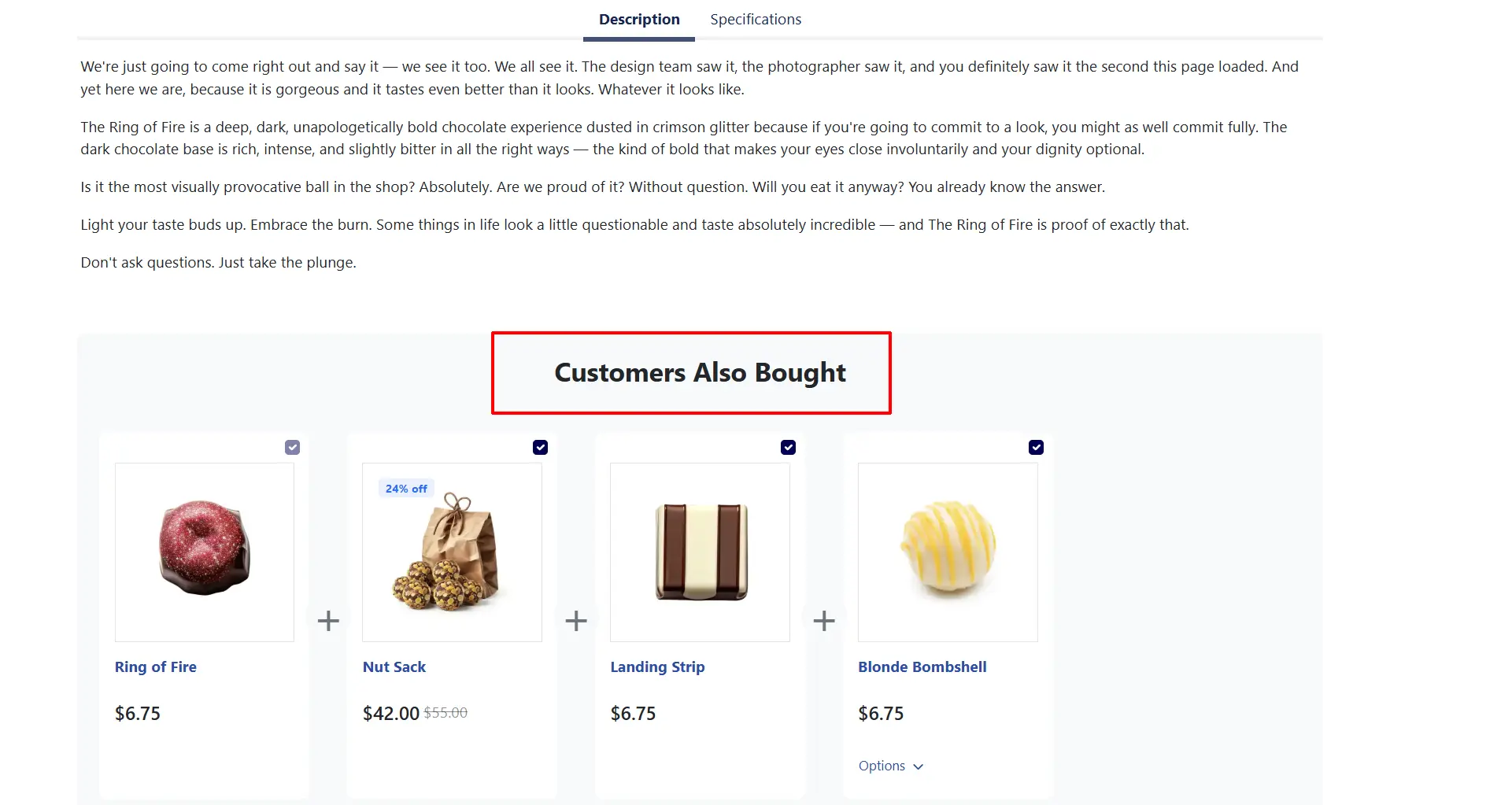
How It Works on the Front End
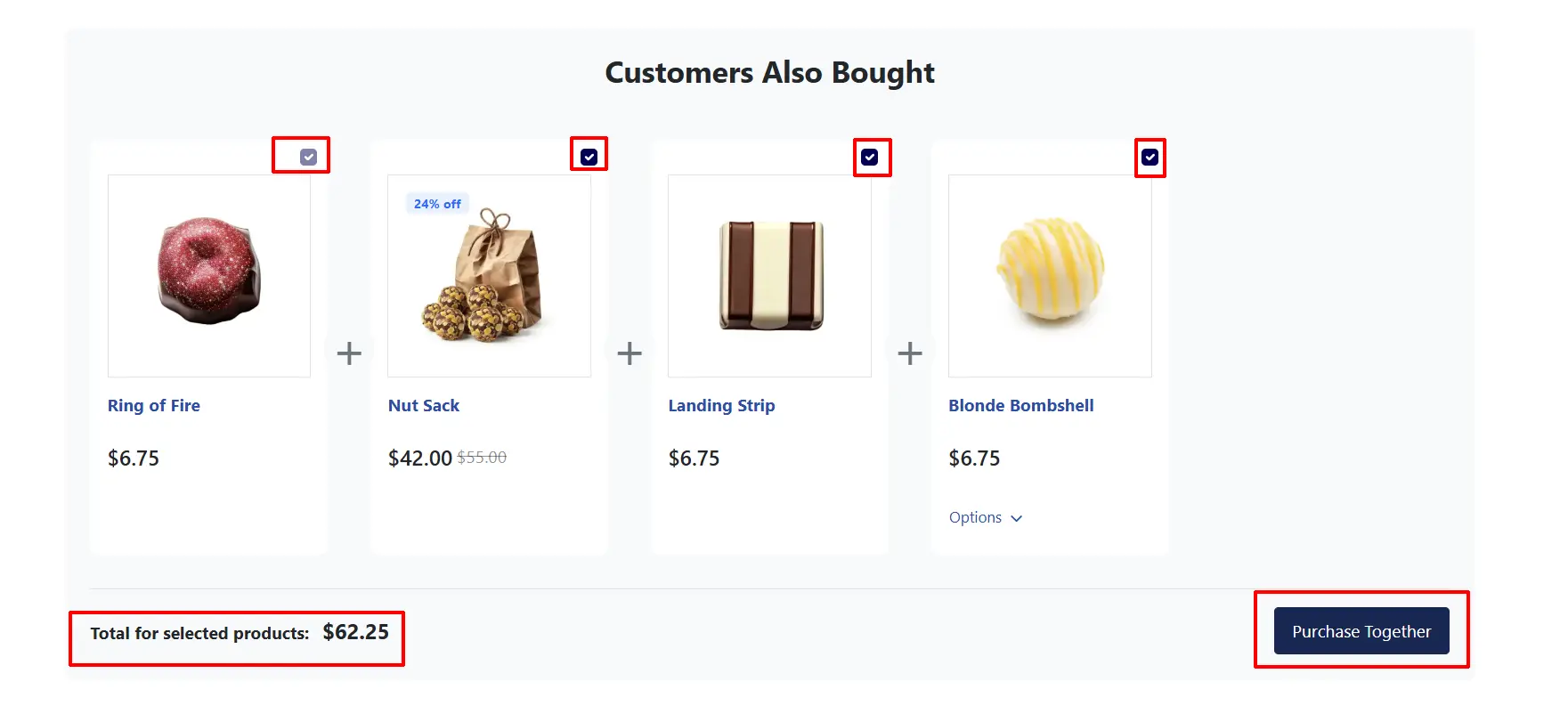
When a shopper visits a product page where you have configured associated products:
- The Customers Also Bought section appears in the position you selected (before upsells, before cross-sells, or after the add-to-cart button).
- The current product card appears first with its checkbox pre-checked and locked — it is always included.
- Associated in-stock products appear alongside it, each with their own checkbox pre-checked.
- Shoppers can uncheck any product they do not want.
- A running total updates in real time as checkboxes are toggled.
- Clicking Purchase Together (or your custom button label) adds all checked products to the cart in a single action.
Products that are out of stock are filtered out automatically and never shown to shoppers. If all associated products for a given product page happen to be out of stock, the entire section is hidden.
Frontend View
Display Conditions
The section appears on a product page only when all of the following are true:
- The plugin is enabled.
- The current product has at least one associated product configured in its Customers Also Bought tab.
- At least one of those associated products is currently in stock.
Tips
- Assign 4–6 complementary products per product page for the best experience. Too many choices can be overwhelming.
- Use the Maximum Products setting as a safety limit — if you assign 10 products but set the maximum to 6, only the first 6 eligible in-stock products are shown.
- Adjust the Display Position to suit your page layout. Before Upsells works well when upsells are visually prominent, so the "Also Bought" section leads into them naturally.
- Keep the Button CSS Class consistent with your theme's primary action buttons for a polished look.
Troubleshooting
The Section Does Not Appear on the Product Page
Cause: One or more configuration steps have been missed.
Solution:
- Confirm the plugin is enabled in J2Commerce -> Apps.
- Open the product in J2Commerce -> Catalog -> Products and verify that at least one product has been added to the Customers Also Bought tab.
- Confirm that the associated product(s) are published and in stock. Out-of-stock products are automatically hidden.
- Check that Display Position in the plugin settings matches a position that your current template renders.
All Associated Products Show as Out of Stock in the Admin
Cause: The products have stock management enabled and their availability count is zero (and backorders are not allowed).
Solution:
- Go to J2Commerce -> Catalog -> Products and open each affected associated product.
- Check the product's stock settings — either increase the stock quantity or allow backorders.
- Alternatively, disable stock management for that product if stock tracking is not required.
The Purchase Together Button Does Not Add Products to the Cart
Cause: A JavaScript error on the page is preventing the click handler from running.
Solution:
- Open your browser's developer tools (F12) and check the Console tab for errors.
- Clear your browser cache and reload the page.
- Enable Debug Mode in the plugin settings, reproduce the issue, then check
logs/app_customerbought.phpfor any server-side messages.
The Section Appears in the Wrong Location
Cause: The Display Position setting does not match the desired position.
Solution:
- Go to J2Commerce -> Apps -> Customers Also Bought.
- Change Display Position to the desired value.
- Click Save, then reload the product page to verify the new position.
Stock Badges Are Not Updating After Adding a Product in Admin
Cause: The stock check runs via an AJAX call immediately after you select a product. A network issue or JavaScript error may have interrupted it.
Solution:
- Save the product form and reopen it. The stock status is re-evaluated fresh each time the form loads.
- If a product consistently fails to show a stock badge, verify the product has a master variant in the database and is published.