Additional Terms
J2Commerce includes a built-in primary terms and conditions acknowledgement at checkout. The Additional Terms app adds a second, independent agreement on top of that — useful when a single catch-all T&C is not enough.
Common use cases: a 14-day cancellation policy, a returns policy that differs from your general terms, a GDPR data processing addendum, an age-verification gate, or an NDA layered on top of a standard purchase agreement. The app lets you choose whether customers must actively tick a checkbox before they can place an order, or whether the terms appear as a passive disclosure link they can read without being required to acknowledge.
Requirements
- PHP 8.3+
- Joomla! 6.x
- J2Commerce 6.x
Purchase and Download
The Additional Terms for J2Commerce is a separate add-on available from the J2Commerce Extensions Store. It is not included with the core J2Commerce 6 component.
Step 1: Go to www.j2commerce.com -> Apps.
Step 2: Locate the Additional Terms for J2Commerce app, click View Details, then Add to Cart -> Checkout.
Step 3: After purchase, go to My Downloads under your profile menu and find the app. Click Available Versions -> View Files -> Download Now.
Install the App
In the Joomla Administrator, go to System -> Install -> Extensions.
Upload the plugin plg_j2commerce_app_additionalterms.zip file or use the Install from URL option.

Enable the App
The plugin installs and enables itself automatically. No separate enable step is needed. However, it's important to know where to go to enable or disable it in the future .
There are two ways to reach the Apps list.
Option A: Go to the J2Commerce icon at the top right corner -> Apps
Option B: Go to Components on the left sidebar -> J2Commerce -> Apps

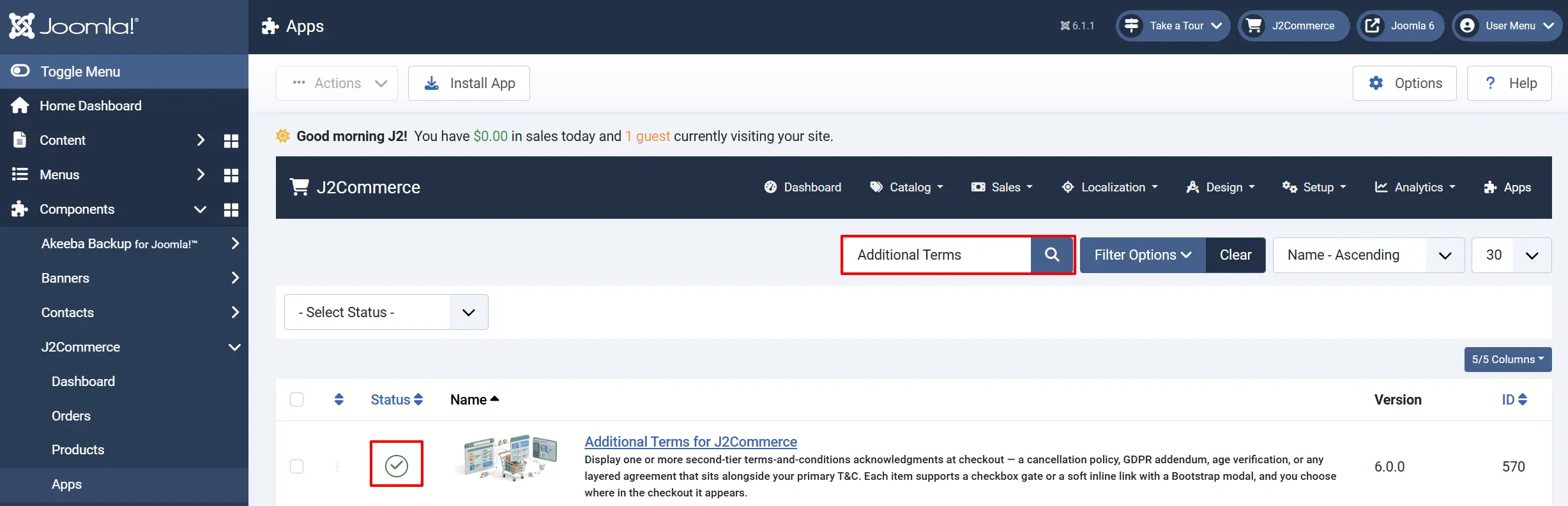
To help you narrow down the list, you can do a search for Additional Terms for J2Commerce, click the X, and it will turn into a green checkmark. It is now enabled and ready for setup.
Before You Configure: Create the Terms Article
The plugin pulls the full text of your additional terms from a standard Joomla article. You need to create that article before you configure the plugin.
- Go to Content -> Articles -> New.
- Write the full text of your additional policy — for example, your cancellation terms or a GDPR data processing notice.
- Set the article Status to Published.
- Click Save & Close.
- Note the article's ID — you will see it in the Articles list under the ID column. You will need this number in the next step.
The article can belong to any category. It does not need to appear in a menu — the plugin loads it directly by ID and displays the body in a Bootstrap modal at checkout.
Configure the App
Click the Additional Terms for J2Commerce title (next to the green checkmark) to open the settings screen.
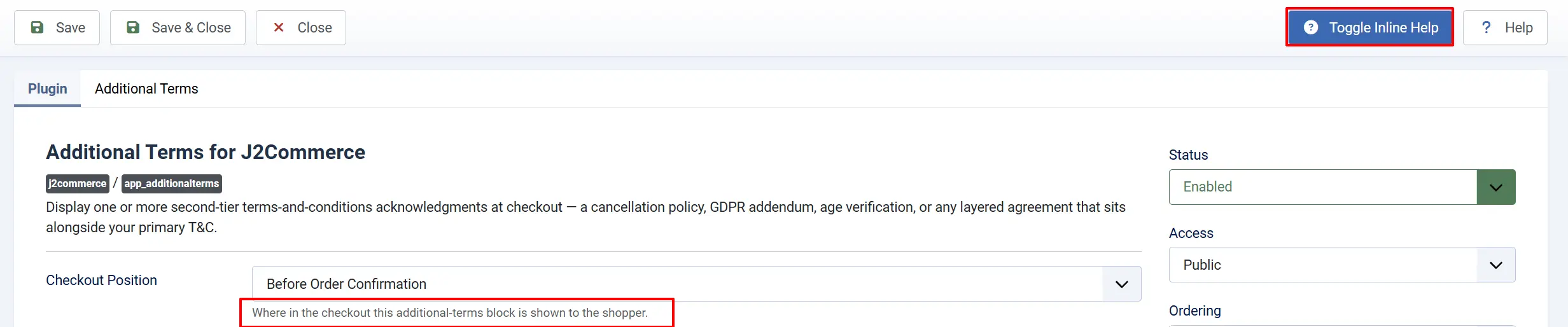
Click the Toggle Inline Help button on any app you install to see a description below each field directly in the admin panel.
General tab
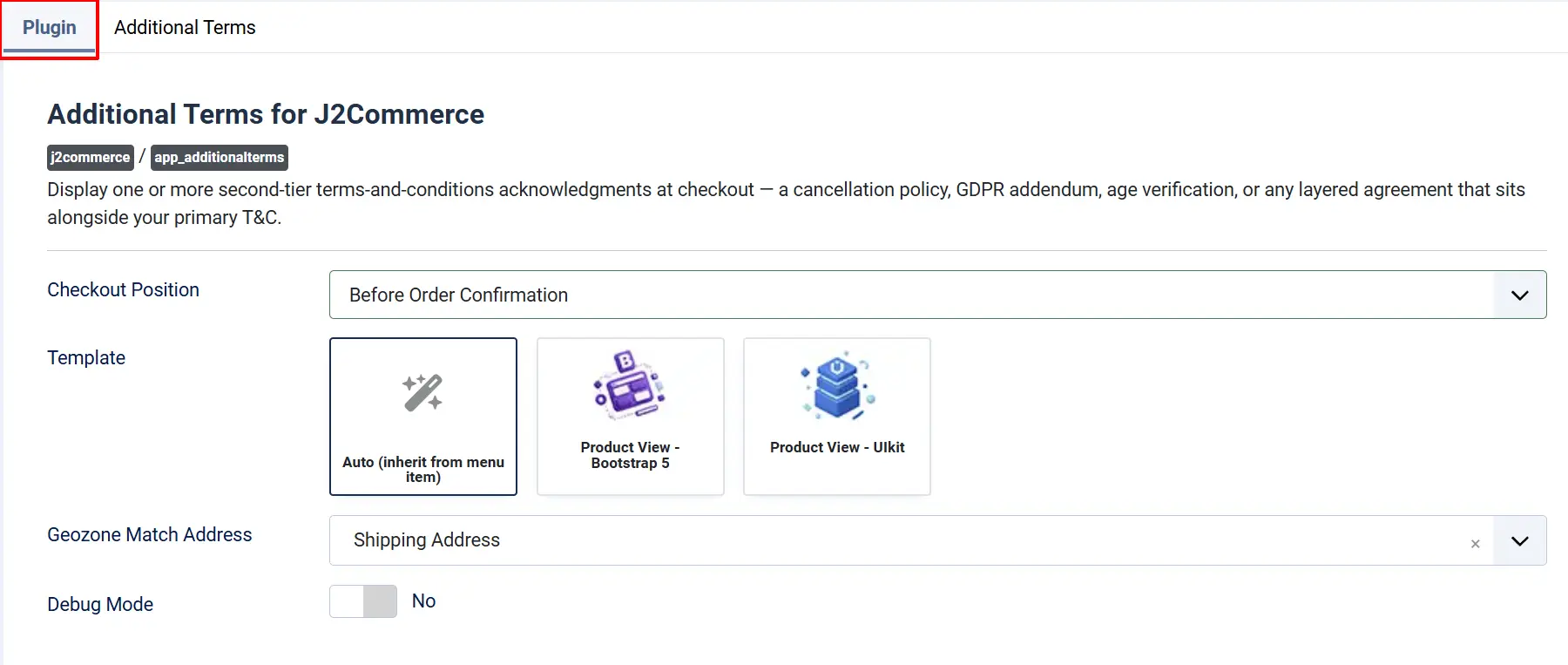
Checkout Position: Where in the checkout this additional-terms block is shown to the shopper.
Template: Choose the CSS framework used to render this step's checkbox/link markup (Bootstrap 5 or UIkit), or leave on Automatic to match the current menu item's checkout template.
Geozone Match Address: Which checkout address is used to resolve the customer's geozone when a terms item below is restricted to a specific geozone.
Debug Mode: Writes validation decisions to the Joomla log file at administrator/logs/plg_j2commerce_app_additionalterms.php. Useful when testing. Disable this in a live store.
Additional Term tab
Here is where you can add as many additional terms as you need and designate each one to a different geozone so the terms appear depending on each customer's location.
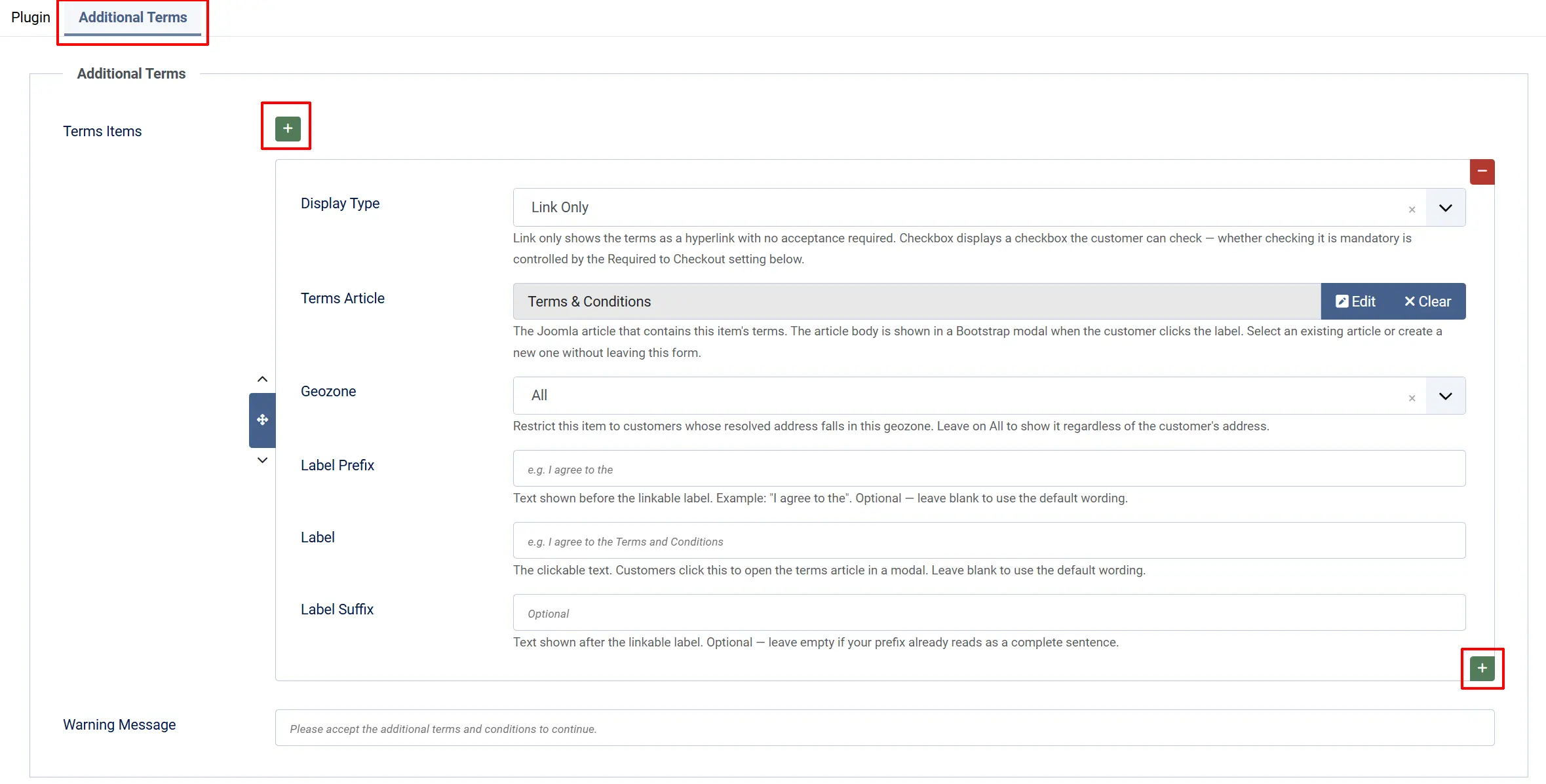
Terms Items: Master on/off switch. When set to No, the entire feature is disabled and nothing appears at checkout.
Display Type: How the terms are shown. See the next section for guidance on which mode to choose.
- Link only (display): The terms appear as a hyperlink inline at the confirm step of checkout. When the customer clicks the link, a Bootstrap modal opens showing the full article body. The customer is not required to do anything — this is a passive legal disclosure.
Use this mode when you want to make your cancellation policy or returns terms visible without creating friction, or when your legal counsel says awareness is sufficient without active consent.
- Checkbox (required to checkout): A checkbox appears just above the confirm button. The label is a clickable link that opens the modal. The customer must tick the box before checkout proceeds. If they try to submit without ticking, a red error message appears above the form and the order is blocked.
Use this mode when active consent is required — for example, an age-verification gate ("I confirm I am 18 or older"), a GDPR processing agreement, or a policy with significant financial implications such as a no-refund clause.
Terms Article: The Joomla article that contains your additional policy text. Click Select to pick the article by title, or type the article ID directly.
Geozone: Restrict this item to customers whose resolved address falls in this geozone. Leave on All to show it regardless of the customer's address.
Label Prefix: Text shown before the clickable link label. For example: I agree to the
Label: The clickable text customers see. This text opens the modal when clicked.
Label Suffix: Optional text shown after the label. Leave blank if the prefix reads as a complete sentence on its own.
Warning Message: The error message shown when a customer tries to complete checkout without ticking the box. Only visible when Display Type is set to Checkbox.
Customising the Wording
The three text fields — Label Prefix, Label, and Label Suffix — assemble into a single sentence at checkout. The Label portion is always a clickable link (or plain text if no article is selected).
Example 1 — Cancellation policy checkbox:
| Field | Value |
|---|---|
| Label Prefix | I have read and agree to the |
| Label | cancellation policy |
| Label Suffix | , including the 14-day return window |
| Result | I have read and agree to the cancellation policy, including the 14-day return window |
Example 2 — Age verification:
| Field | Value |
|---|---|
| Label Prefix | I confirm that I am |
| Label | 18 years of age or older |
| Label Suffix | (empty) |
| Result | I confirm that I am 18 years of age or older |
Example 3 — GDPR data processing addendum:
| Field | Value |
|---|---|
| Label Prefix | I accept the |
| Label | data processing addendum |
| Label Suffix | required under GDPR |
| Result | I accept the data processing addendum required under GDPR |
The prefix and suffix fields accept plain text. If you type a language key (for example MY_CUSTOM_KEY), Joomla's translation system will resolve it — otherwise the text is shown as-is. Most store owners simply type plain sentences directly into these fields.
How It Appears at Checkout
The terms block renders just above the order confirmation form at the final checkout step. In Link mode, it appears as a single paragraph with a hyperlink. In Checkbox mode, it appears as a checkbox with a labelled link beside it.
When the customer clicks the link (in either mode), a scrollable Bootstrap modal opens containing the full article body. The modal has a Close button and an X in the corner.
Difference from J2Commerce's Built-in Primary Terms
J2Commerce includes a Primary Terms and Conditions setting in J2Commerce -> Configuration -> Checkout. That setting handles the first, main T&C agreement your customers sign.
The Additional Terms app is for everything else — a second, third, or specialised agreement that sits alongside the primary terms. Both can be active at the same time. Customers see the primary T&C and the additional terms as separate, independent acknowledgements.
Troubleshooting
The terms block does not appear at checkout
Check 1: Confirm the plugin is enabled. Go to System -> Manage -> Plugins, search for Additional Terms, and verify the status is Enabled.
Check 2: Open the plugin configuration and confirm Show Additional Terms is set to Yes.
Check 3: Confirm the Terms Article field has an article selected. If no article ID is set, the modal has no content — but the block itself should still render. If the block is missing entirely, the plugin may not be enabled.
Check 4: Enable Debug Mode in the plugin's Advanced tab. Then reproduce the checkout and check the log file at administrator/logs/plg_j2commerce_app_additionalterms.php for entries that explain why the block was skipped.
The modal opens but is empty
The article you linked may not be published, or the article ID may be incorrect. Go to Content -> Articles, confirm the article exists, its Status is Published, and that the ID in the plugin matches the ID shown in the Articles list.
The checkbox validation error does not appear
Confirm Display Type is set to Checkbox (required to checkout) — not Link only (display). Link mode never blocks checkout regardless of whether the customer clicks the link.
Error message at checkout reads a raw language key instead of text
If the Warning Message field is blank and the default has been cleared, the plugin falls back to the internal language key. Open the plugin configuration, clear the Warning Message field completely, and type your own message in plain English. Save the plugin.
Debug log shows "Checkout halted" but the error does not appear on screen
This can happen if a caching plugin is serving a stale page. Clear the Joomla cache via System -> Clear Cache and retry.
What Changed from the J2Store Version
| Area | Old (J2Store 4) | New (J2Commerce 6) |
|---|---|---|
| Modal | Fancybox (jQuery) | Native Bootstrap 5 modal, no jQuery dependency |
| Validation | Custom return-value pattern | RuntimeException thrown inside onJ2CommerceAfterOrderValidate — the checkout controller catches it and surfaces a styled alert-danger automatically |
| Error display | Inconsistent placement | Always rendered as a red alert above the confirm form |
| JavaScript | jQuery required | No JavaScript required — modal is pure Bootstrap 5 CSS/HTML |
| Queries | String-concatenated SQL | Parameterised queries throughout |
| Architecture | FOF 2 plugin | Native Joomla 6 plugin with SubscriberInterface, strict types, PHP 8.3+ |