Donation
The Donation app adds a Donation product option type to J2Commerce. Once the app is active, you create a Donation option and assign it to any product. On the product page, customers see a currency-symbol text field where they type any amount they choose. That amount is added to the product price and carries through the cart, order confirmation, and admin order detail — no extra configuration required.
This app suits charities, non-profits, community stores, or any seller who wants to give customers an easy way to add a contribution at the product level.
Requirements
- PHP 8.3 or later
- Joomla 6.x
- J2Commerce 6.x
Purchase and Download
Step 1: Go to our J2Commerce website -> Apps
Step 2: Locate the Donation app -> click View Details -> Add to cart -> Checkout.
Step 3: Go to your My Downloads under your profile button at the top right corner and search for the app. Click Available Versions -> View Files -> Download Now
Install the App
In the Joomla Administrator, go to System -> Install -> Extensions.
Upload the app_donation.zip file or use the Install from URL option.

Enable the App
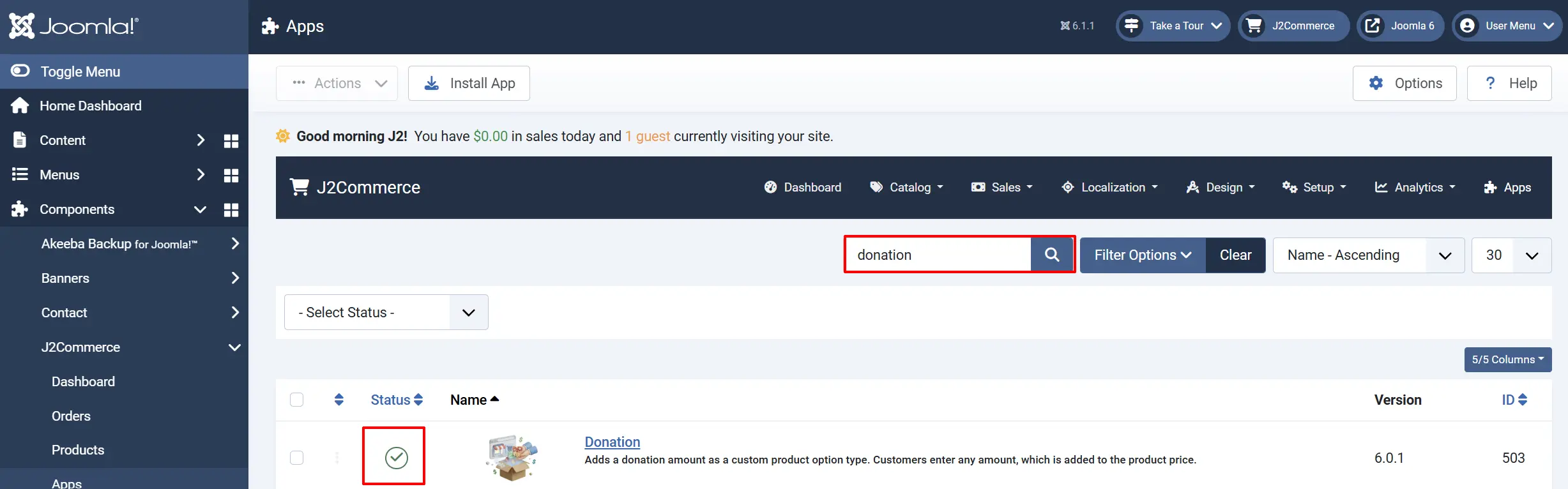
Once you have installed the app, you will need to enable it. There are two ways you can access the extension.
Option A: Go to the J2Commerce icon at the top right corner -> Apps
Option B: Go to Components on the left sidebar -> J2Commerce -> Apps

Look for Donation, click the X, and it will turn into a green checkmark. It is now enabled and ready for setup.
Adding a Donation Option to a Product
The Donation app works through J2Commerce's standard product options system. You create an option with type Donation and then assign it to one or more products.
Create a Donation option
Go to J2Commerce -> Catalog -> Options.
Click New in the toolbar.

Fill in the form
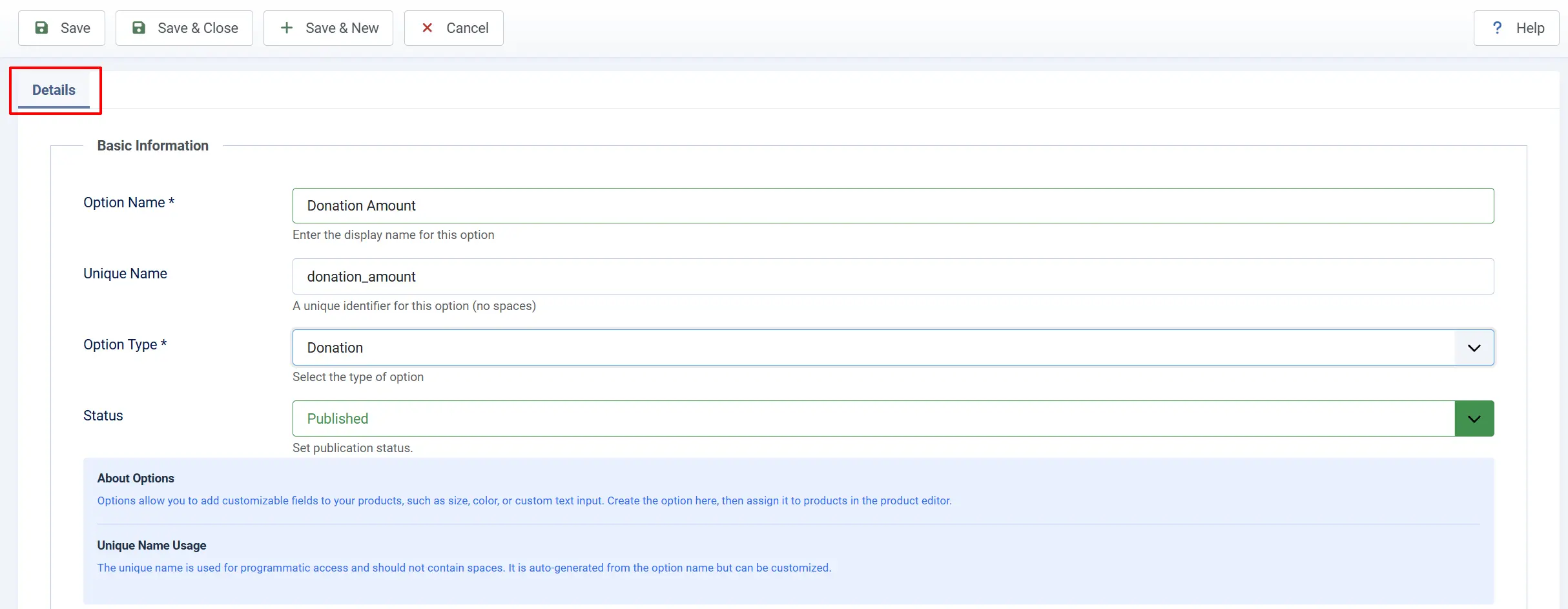
Option Name: The label shown to customers above the input field.
Type: Select Donation from the dropdown. This option type is registered by the Donation app and only appears when the app is enabled.
Status: Set to Published.
Assign the option to a product
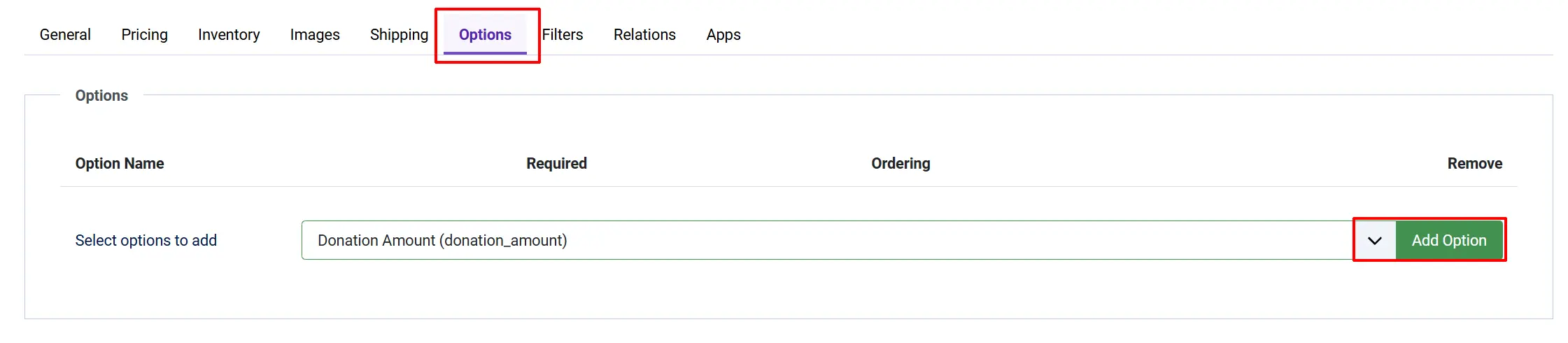
Go to J2Commerce -> Catalog -> Products and open the product you want to accept donations for.
Click the Options tab.
Click Add Option and select the Donation option you just created.
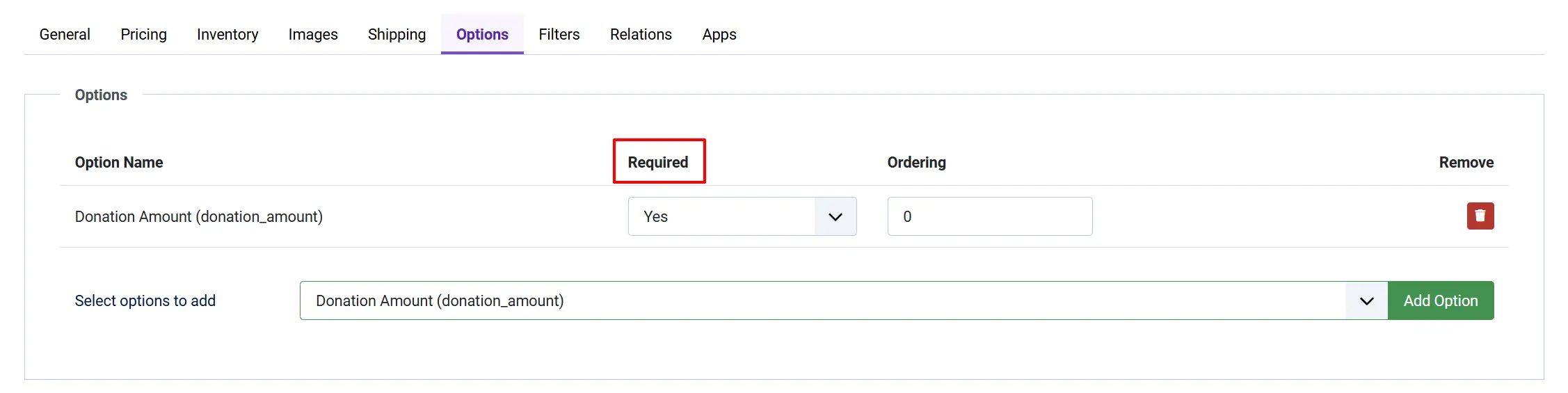
Required: When enabled, a red asterisk appears next to the label on the product page, signaling to customers that a donation amount is expected before adding the item to the cart.
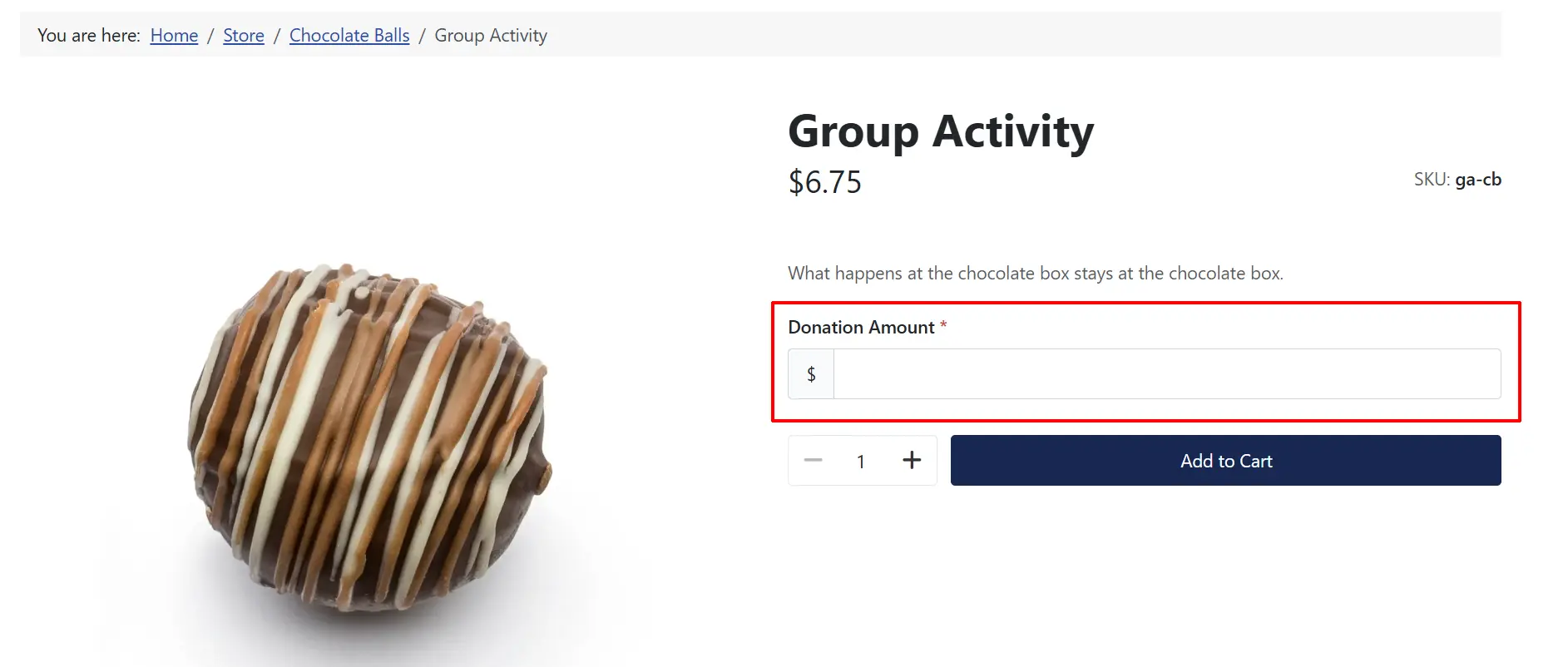
- When the customer tries to add the product to the cart without entering a donation amount, they receive a Donation Amount is required message

Verify on the product page
Visit the product on the frontend. The donation input appears below any other product options. It shows your store's active currency symbol on the left and accepts a numeric amount.
What the Customer Sees
On the product page, the customer sees:
- The option name as a label (for example, "Donation Amount").
- A currency-symbol prefix (for example,
$or€) followed by a text input. - If the option is marked Required, a red asterisk next to the label.
When the customer enters an amount and clicks Add to Cart:
J2Commerce checks that the value is a positive number. If it is not — for example, if the customer typed letters or left the field at zero — an error message appears and the item is not added to the cart.
If the amount is valid, it is added to the product's unit price for that line item.
The cart shows a donation line alongside any other option details, so the customer can see exactly what they contributed.
The donation line carries through to the order confirmation page and the admin order detail view.

How Donated Amounts Appear in Orders
The donated amount appears in the order detail alongside standard option data:
- Name — the option name followed by the currency symbol in parentheses, for example
Donation Amount ($). - Value — the number the customer entered.
- Price — the same amount shown as a
+adjustment to the line-item price.
This entry is visible in:
- The cart summary while the customer is shopping.
- The order confirmation page after checkout.
- The admin order detail screen (J2Commerce -> Sales -> Orders -> open an order -> Items tab).
- Order confirmation emails sent to the customer and store admin.
Plugin Settings

To access plugin settings, go to J2Commerce -> Apps, find Donation, and click the plugin name to open its configuration.
Debug Mode
When enabled, the plugin writes diagnostic messages to administrator/logs/app_donation.php. Useful for troubleshooting setup issues. Disable in production.
What's New in J2Commerce 6
If you previously used the Donation app for J2Store, here is what changed in the J2Commerce 6 version:
- No separate admin screen. The J2Store version had an admin settings view under the Apps section. In J2Commerce 6 that screen is gone — there are no plugin-specific settings beyond Debug Mode, which is accessible from the standard plugin parameters.
- Option type injection. In J2Store, the Donation type was registered via a dedicated event. In J2Commerce 6, the app injects the Donation entry into the standard option Type dropdown at form-load time using Joomla's content form event. The result is the same: the Donation type appears in the dropdown only when the app is enabled.
- Price application. The donated amount is applied to the cart item's price at the cart-resolution stage rather than at the option-price lookup stage, because J2Commerce resolves option prices differently from J2Store. The customer-facing result is identical.
- No database tables. The plugin owns no tables. Donation amounts are stored as part of the standard option value data on the order item.
Troubleshooting
"Donation" does not appear in the option Type dropdown
Cause: The Donation app is not installed or is not enabled.
Solution:
- Go to J2Commerce -> Apps and check whether the Donation plugin is listed and enabled (green check).
- If it is not listed, reinstall the
app_donation.zippackage via System -> Install -> Extensions. - If it is listed but disabled, click the status toggle to enable it, then reload the option edit form.
The donation input does not appear on the product page
Cause: The Donation option has not been assigned to the product, or the option is disabled.
Solution:
- Open the product in J2Commerce -> Catalog -> Products.
- Click the Options tab and confirm the Donation option is listed.
- If it is missing, follow the steps in Adding a Donation Option to a Product.
- If the option is present but disabled, enable it from J2Commerce -> Catalog -> Options.
Validation error when entering a donation amount
Cause: The amount field contains a currency symbol, comma, space, or other non-numeric character (for example, $10 or 1,000).
Solution: Enter only digits and a decimal point, for example 10 or 10.50. The currency symbol is displayed by the app automatically and must not be typed into the input.
Donation amount not visible on an existing order
Cause: The order was placed before the Donation option was assigned to the product, or the option type was not set to Donation when the cart item was created.
Solution: This only affects historical orders. New orders placed after the option is correctly configured will include the donation line. No data was lost — the order was simply placed before the option existed.