Customising App Plugin Templates
App plugins decide what your product pages look like — the list grid, the detail page, the cart view. J2Commerce 6 includes two of them, both enabled out of the box.
- Bootstrap 5 (
app_bootstrap5) - Modern Bootstrap 5 styling with responsive grid - Uikit (
app_uikit) - UIkit 3 framework styling
The good news is that you never need to edit plugin files directly. J2Commerce app plugins use Joomla's standard template override system, so your customisations live in your own template folder and are never touched by plugin updates.
How App Templates Are Organised
Each app plugin has two types of template files:
| Type | Location in plugin | What it controls |
|---|---|---|
View templates (tmpl/) | plugins/j2commerce/app_bootstrap5/tmpl/bootstrap5/ | Product list page, product detail page, cart display |
Layout partials (layouts/) | components/com_j2commerce/layouts/app_bootstrap5/ | Individual product card sections (price, image, title, add-to-cart button, etc.) |
View templates are the entry points. They pull in partials to assemble each product card piece by piece. Overriding a single partial — say item_price.php or item_cart.php — is usually enough and far easier to maintain than replacing a whole page template.
Template folders by context
app_bootstrap5 has three tmpl sub-folders, each serving a different page context:
| Folder | Used on |
|---|---|
bootstrap5/ | Category/product list pages |
tag_bootstrap5/ | Tag-based product pages |
categories_bootstrap5/ | Category landing page |
app_uikit follows the same pattern with uikit/, tag_uikit/, and categories_uikit/.
Creating a Template Override
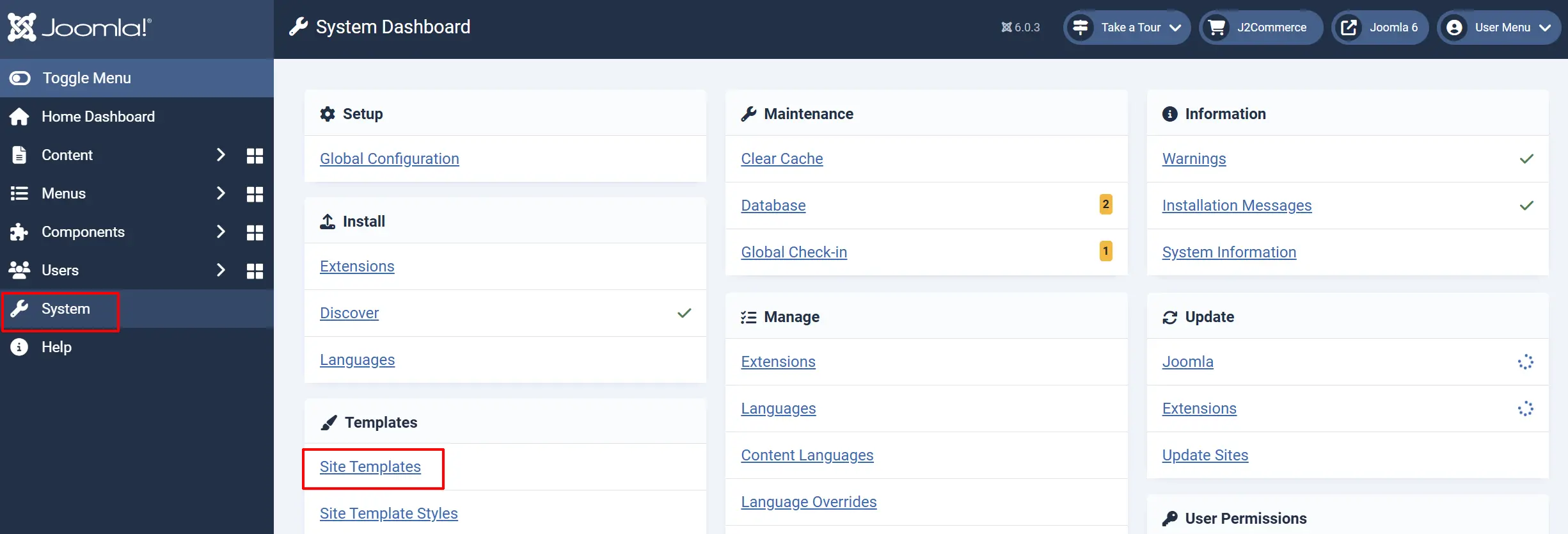
Step 1: Go to Systems -> Templates -> Site Templates
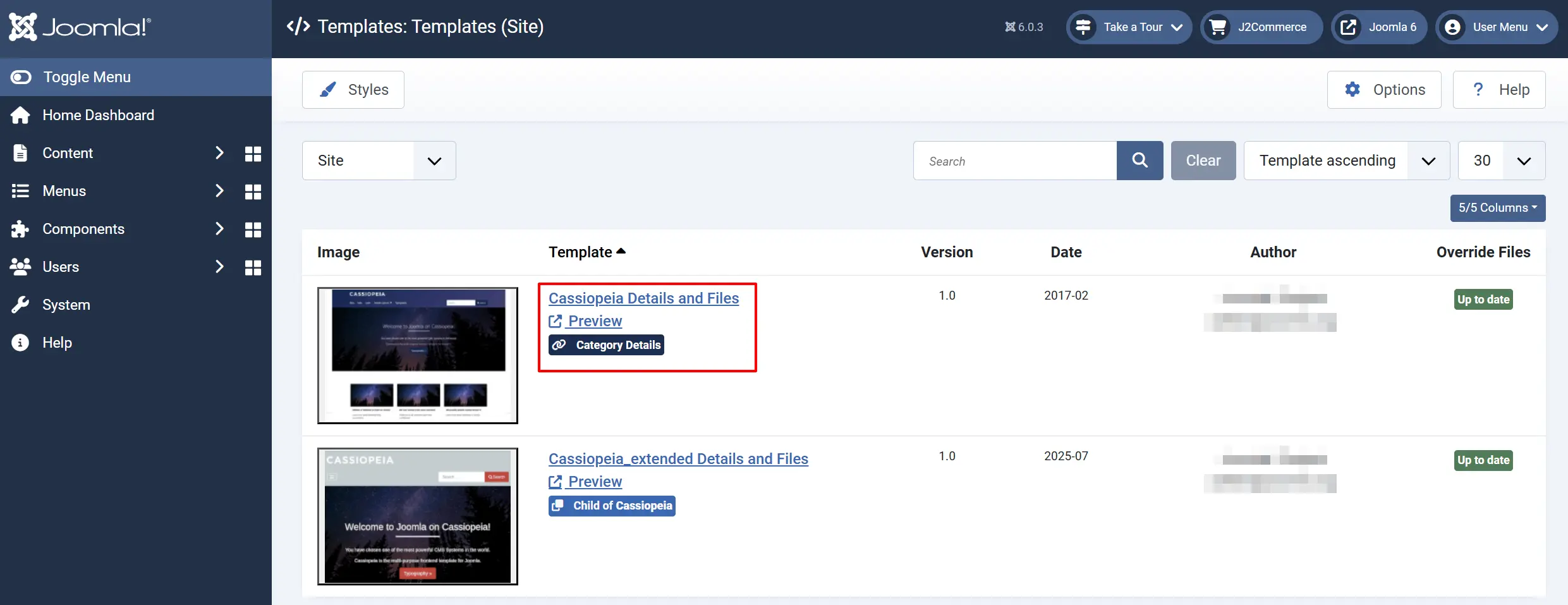
Step 2: Click on the first option, Cassiopeia Details and Files
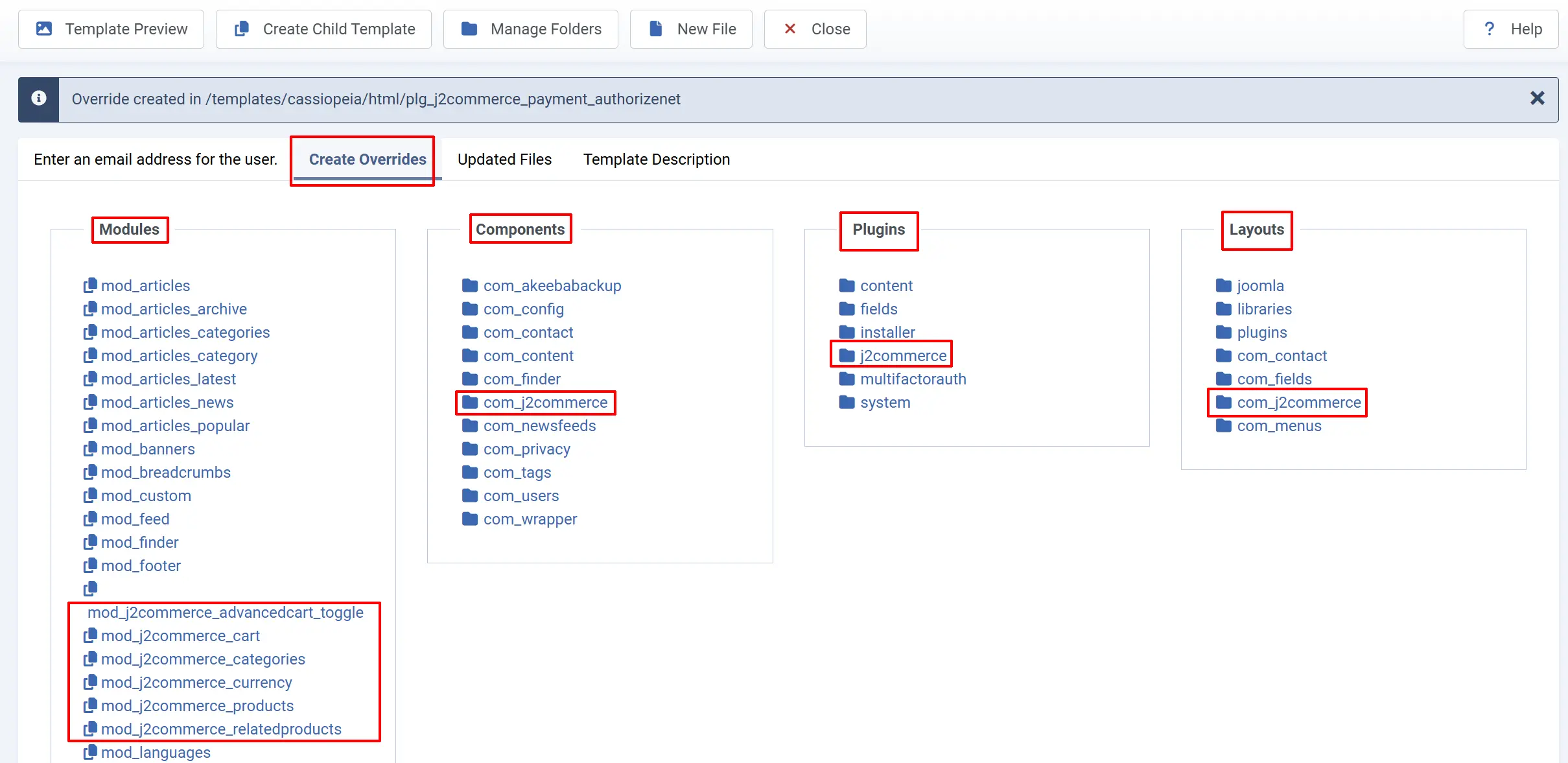
Step 3: Click on the Create Overrides tab. Look for the appropriate category (ie, Modules, Plugins, etc). Click on the J2Commerce override
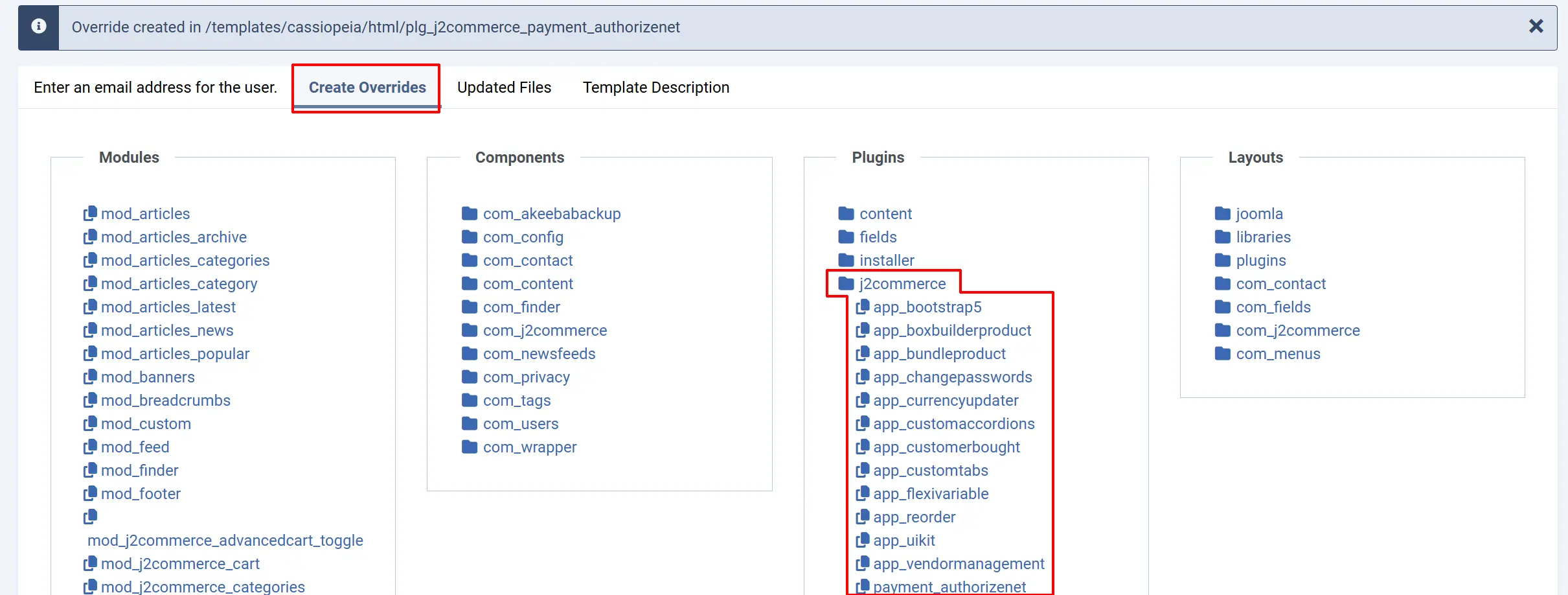
Step 4: In the dropdown menu, choose which one you want to create the override for
Step 5: Click on the Enter and Email Address for the User tab. Open the html folder
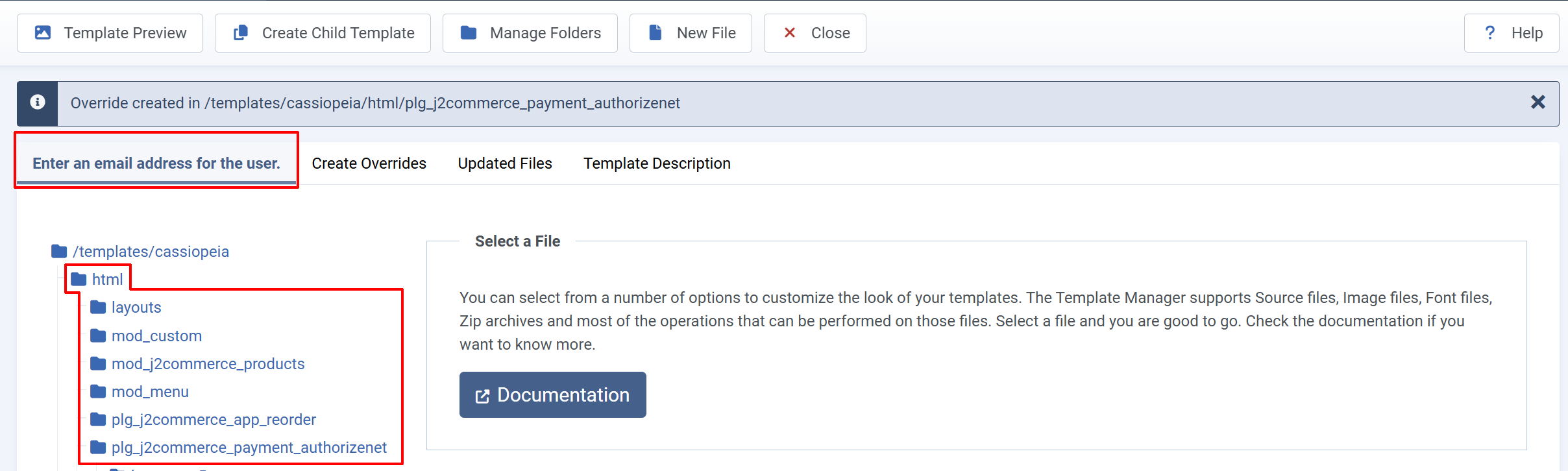
Step 6: Open the extension you want to create. Open either Bootstrap or Uikit
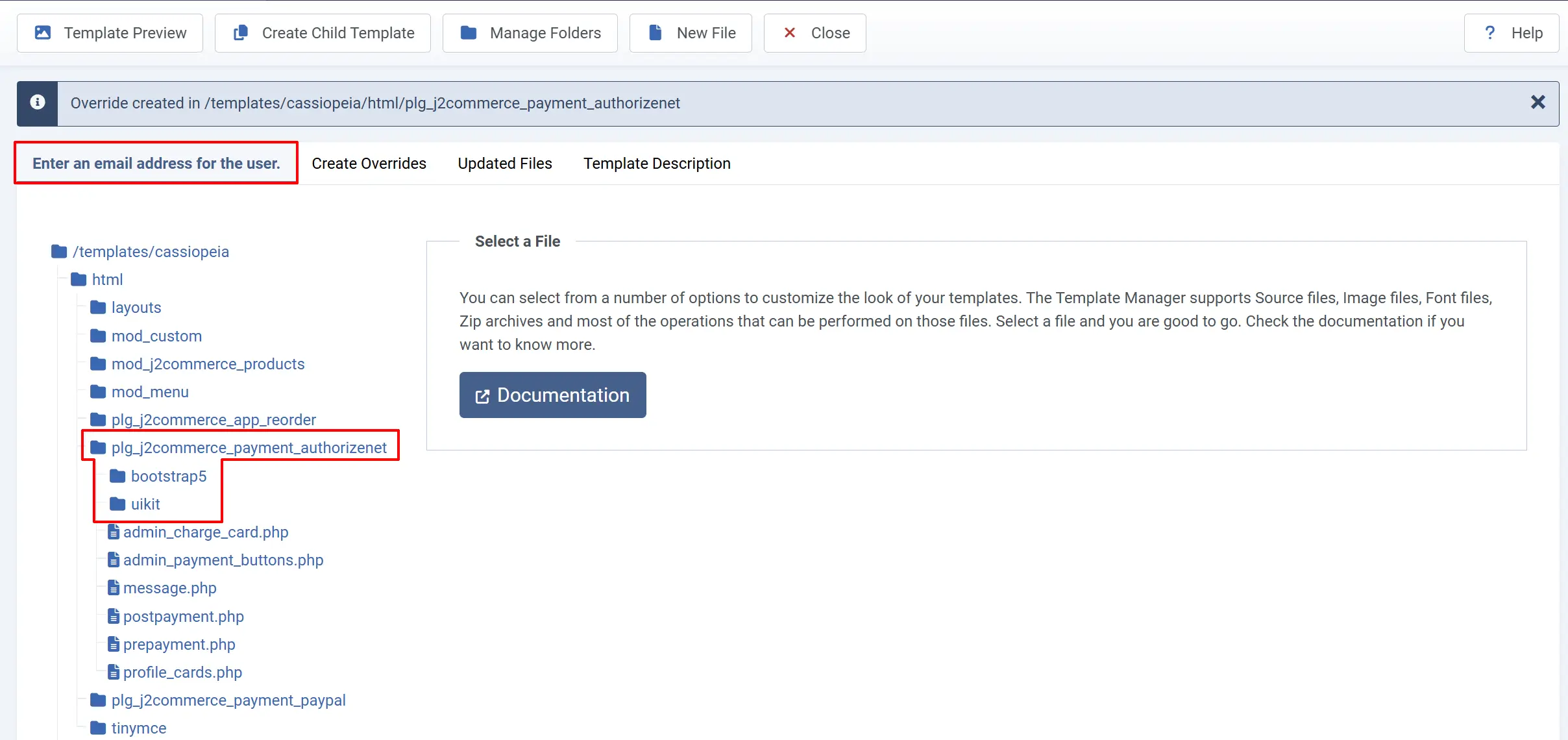
Step 7: Click on the file you want to customize.
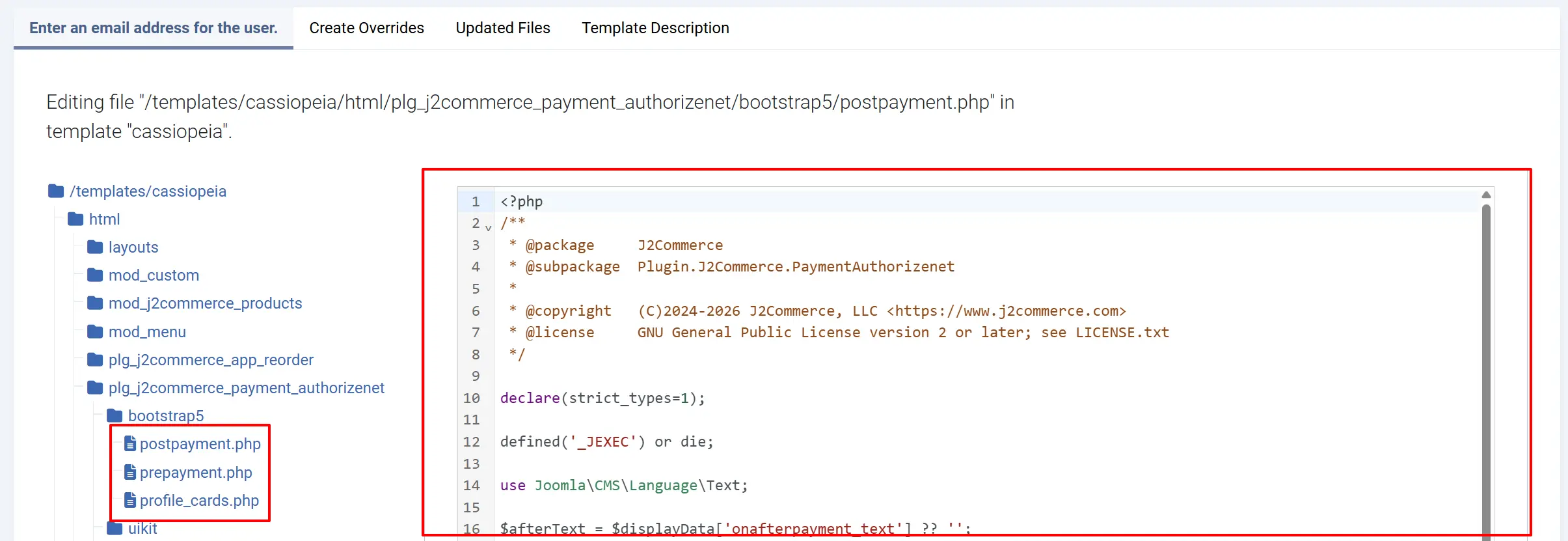
When J2Commerce loads a template file, it checks your active Joomla template's html/ directory first. If a matching file exists there, that version wins. If not, it falls back to the original plugin. The folder name follows a simple rule: take the plugin element name and add a plg_ prefix.
Override path structure
templates/{your-template}/html/plg_j2commerce_app_bootstrap5/
  bootstrap5/          ← overrides for category/product list
  tag_bootstrap5/      ← overrides for tag views
  categories_bootstrap5/ ← overrides for categories view

templates/{your-template}/html/com_j2commerce/
  layouts/app_bootstrap5/
    list/category/     ← overrides for list layout partials
    list/tag/          ← overrides for tag layout partials
    product/           ← overrides for product detail partials
Step 1: Find the file you want to change
Decide what you want to customise and find the source file.
Example goal: Change how product prices display in the category list.
The price partial for the category list is at:
components/com_j2commerce/layouts/app_bootstrap5/list/category/item_price.php
Step 2: Create the override directory
In your active template's folder, create the matching directory path. Replace cassiopeia with your template name:
templates/cassiopeia/html/com_j2commerce/layouts/app_bootstrap5/list/category/
You can create this through FTP, cPanel File Manager, or directly on your server. Joomla will not create it for you automatically.
Step 3: Copy the source file
Copy item_price.php from the source location into your new override directory:
Source:
  components/com_j2commerce/layouts/app_bootstrap5/list/category/item_price.php

Destination:
  templates/cassiopeia/html/com_j2commerce/layouts/app_bootstrap5/list/category/item_price.php
Leave the original where it is — do not delete or move it. The override only applies when a copy exists in your template directory.
Step 4: Edit your copy
Open the copy in templates/cassiopeia/html/... and make your changes. J2Commerce will automatically use your version instead of the plugin's original.
Example: Hiding the SKU from the Product List
The SKU partial for the category list is item_sku.php. To hide the SKU entirely:
- Copy
components/com_j2commerce/layouts/app_bootstrap5/list/category/item_sku.phptotemplates/cassiopeia/html/com_j2commerce/layouts/app_bootstrap5/list/category/item_sku.php. - Open your copy and replace all the content after the PHP opening tag with:
<?php defined('_JEXEC') or die; ?>
- Save the file. The SKU no longer appears in the product list. No other pages or contexts are affected.
Overriding View Templates (Full Page Templates)
For larger changes — such as restructuring the entire product list layout — override a view template from the plugin's tmpl/ directory instead.
Example: Override the main product list template for app_bootstrap5.
Source file:
plugins/j2commerce/app_bootstrap5/tmpl/bootstrap5/default.php
Override destination:
templates/cassiopeia/html/plg_j2commerce_app_bootstrap5/bootstrap5/default.php
The same principle applies to app_uikit — just replace app_bootstrap5 with app_uikit and bootstrap5 with uikit throughout.
Template Override Priority
When J2Commerce resolves a template file, it checks in this order:
- Your active Joomla template's
html/directory (your override) - The plugin's own
tmpl/directory (plugin original) - The component's
layouts/directory (layout partials original)
Your overrides always win. If you have an override file in place, the plugin's original is never loaded for that file.
Surviving Plugin Updates
Plugin updates only replace files inside plugins/j2commerce/app_bootstrap5/ — they never touch your templates/ folder. Your overrides stay exactly as you left them.
That said, it is worth a quick check after major updates. Compare your override with the updated original to see if anything important changed that you should merge in.
Tips
- Start with the smallest targeted partial rather than the full view template. Overriding
item_price.phpis much easier to maintain than overridingdefault.php. - Use your browser's developer tools to identify which partial produces the HTML you want to change.
- Keep overrides minimal — copy only the files you actually need to change, so there is less to review after each update.
- The same layout partials are used in both category and tag views. Create overrides in both
list/category/andlist/tag/if you want changes to appear consistently everywhere.
Troubleshooting
My override file is not being used
Cause: The directory path or filename does not exactly match the expected override path.
Solution:
- Double-check the path. For layout partials the base path is
html/com_j2commerce/layouts/app_bootstrap5/.... For view templates it ishtml/plg_j2commerce_app_bootstrap5/bootstrap5/.... - Confirm the file name is spelled identically to the source file (including underscores).
- Clear the Joomla cache: go to System -> Maintenance -> Clear Cache and clear all cache groups.
- Check that your active template in System -> Site Templates matches the template folder where you created the override.
Changes appear in one view but not another (e.g., category page but not tag page)
Cause: Category list and tag list use separate tmpl sub-folders (bootstrap5/ vs tag_bootstrap5/) and separate layout partial folders (list/category/ vs list/tag/).
Solution: Create parallel overrides in both locations.