Email Templates
Email Templates allow you to customize the subject lines and content of the automated emails sent by J2Commerce, such as order confirmations and status updates.
Prerequisites
- J2Commerce 6.x installed.
- An active email configuration in Joomla Global Configuration.
Accessing Email Templates
There are two ways you can access the plugin.
Option A: Go to the J2Commerce icon at the top right corner -> Design -> Email Templates
Option B: Go to Components on the left sidebar -> J2Commerce -> Dashboard -> Design -> Email Templates
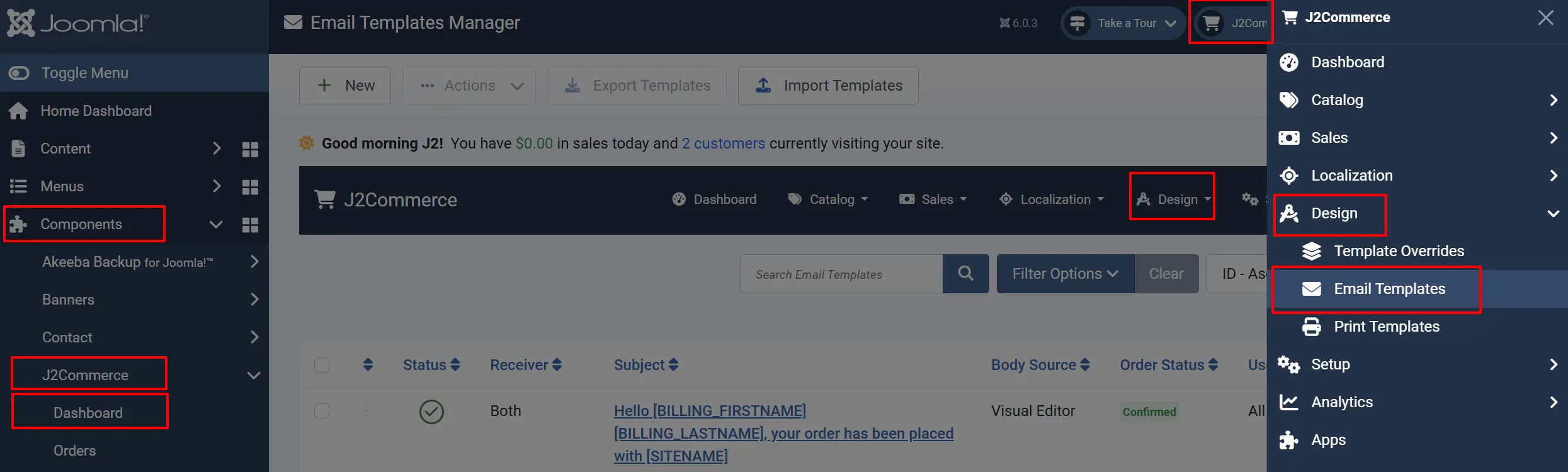
Creating and Managing Templates
You can create new templates or edit existing ones to fit your brand's voice and requirements.
General tab
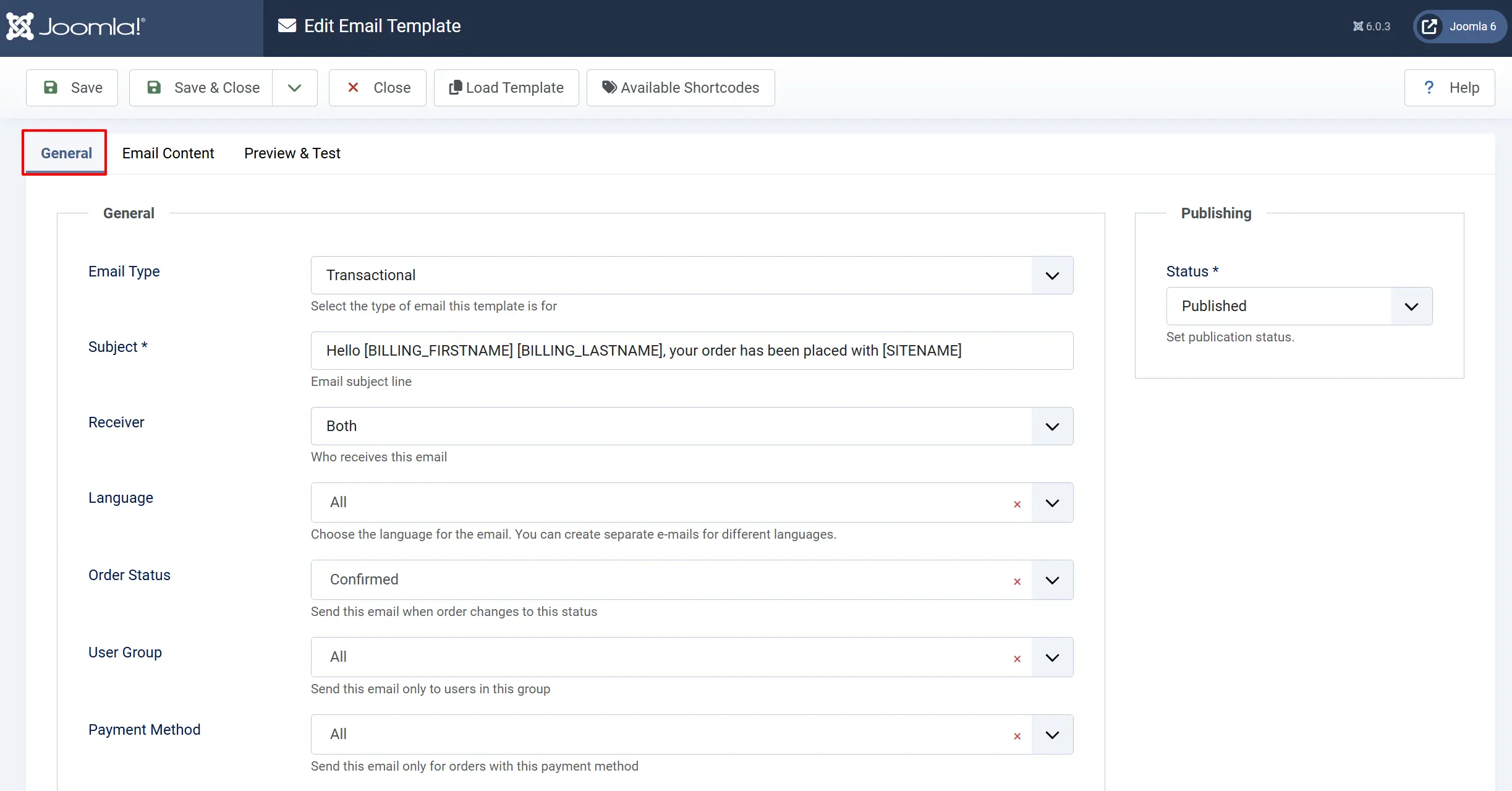
Email Type: The trigger for this email (e.g., Transactional). Example: Transactional
Subject: The subject line the recipient will see. Example: Your Order #[order_id] has been shipped! or Hello [BILLING_FIRSTNAME] [BILLING_LASTNAME], your order has been placed with [SITENAME]
Receiver Type: Who receives the email. Example: Customer, Admin, or Both
Language: The language of the email content. English (US)
Email Content tab
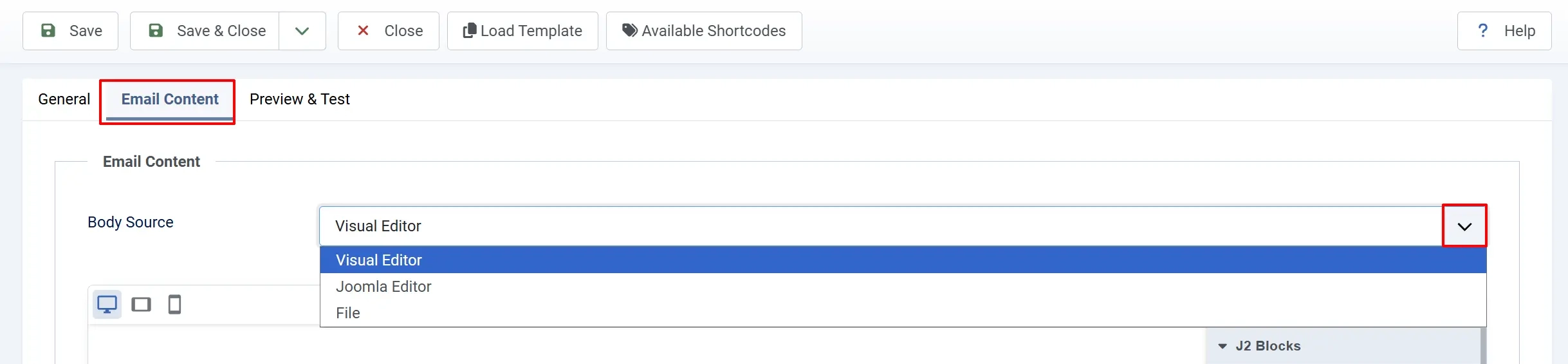
In the Content tab, define how the email body is generated:
Body Source: How the email body is created. Options: Visual, Editor, File
Body: The actual content of the email. Options: Visual Builder or HTML/Text editor
Custom CSS: Optional CSS to style the email. Options: CSS rules
Using the Visual Builder
If you select Visual as the Body Source, you can use the Visual Builder to design your email.
- Add Elements: Drag components (like text blocks or images) from the side panel onto the canvas.
- Customize Styles: Click an element on the canvas and use the style panel to adjust colors, fonts, and spacing.
- Rearrange: Drag and drop elements within the canvas to change the email structure.
- Preview: Use the preview tools to ensure the email looks professional across different email clients.
- Save: Click Save in the toolbar to apply your design.
Publishing
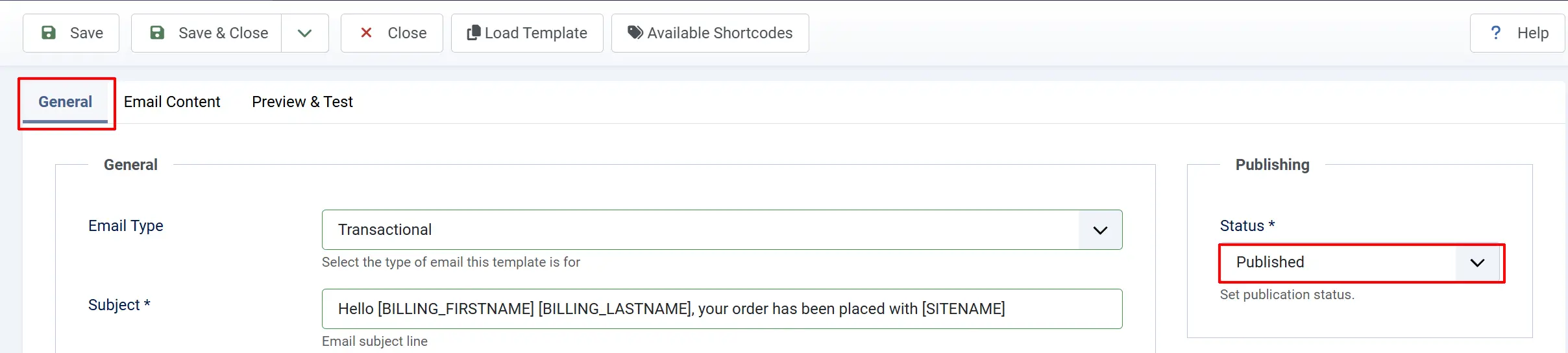
In the General tab, ensure the template is set to Published. If a template is unpublished, J2Commerce will fall back to the default system email.
Filtering Templates
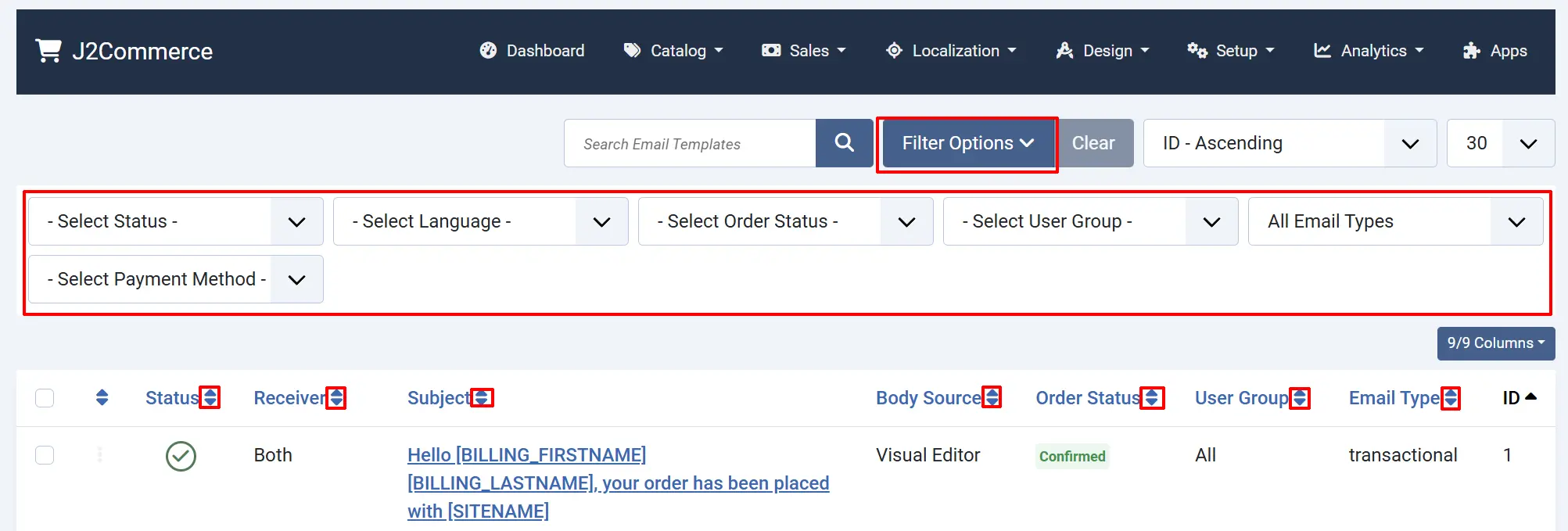
Use the filter bar to quickly find templates based on:
- Status: Published or Unpublished.
- Language: Filter by specific customer languages.
- Order Status: Find emails triggered by specific order states (e.g., "Pending").
- User Group: Find templates tailored for specific customer groups.
Tip: You can rearrange the order of the email templates by clicking on the arrows next to the categories. See screenshot above
Tips
- Use Placeholders: Use the available tags (e.g.,
[order_id],[customer_name]) to personalize emails. - Test Frequently: Always send a test email to yourself to ensure the layout looks correct in different email clients (Gmail, Outlook, etc.).
- Consistency: Keep your subject lines consistent across different order statuses to help customers organize their inboxes.
Troubleshooting
Emails are not being sent
Cause: The Joomla mail server settings might be incorrect, or the template is set to "Unpublished".
Solution:
- Verify that the template is Published.
- Go to System -> Global Configuration -> Server and test the Mail settings.
- Check if your hosting provider blocks outgoing mail on port 25.