Tax Profiles
Tax profiles (also called tax classes) group tax rules together and are assigned to products. When a customer purchases a product, J2Commerce calculates tax based on the product's tax profile, the customer's location (geozone), and the applicable tax rates. This allows different products to have different tax rates—essential for stores selling both taxable and tax-exempt items, or items with reduced tax rates.
IMPORTANT: You have to create a Tax Rate and the Geozones before you can create a Tax Profile. If you haven't set up your tax rates or need help, go to the Tax Rate and Geozone Documentations
Requirements
- PHP 8.3.0+
- Joomla 6.x
- J2Commerce 6.x
Locating Tax Profiles
Tax Profiles are managed from the J2Commerce Dashboard.
There are two ways you can access the Tax Profiles.
Option A: Go to the J2Commerce icon at the top right corner -> Localization -> Tax Profiles
Option B: Go to Components on the left sidebar -> J2Commerce -> Dashboard -> Localization -> Tax Profiles
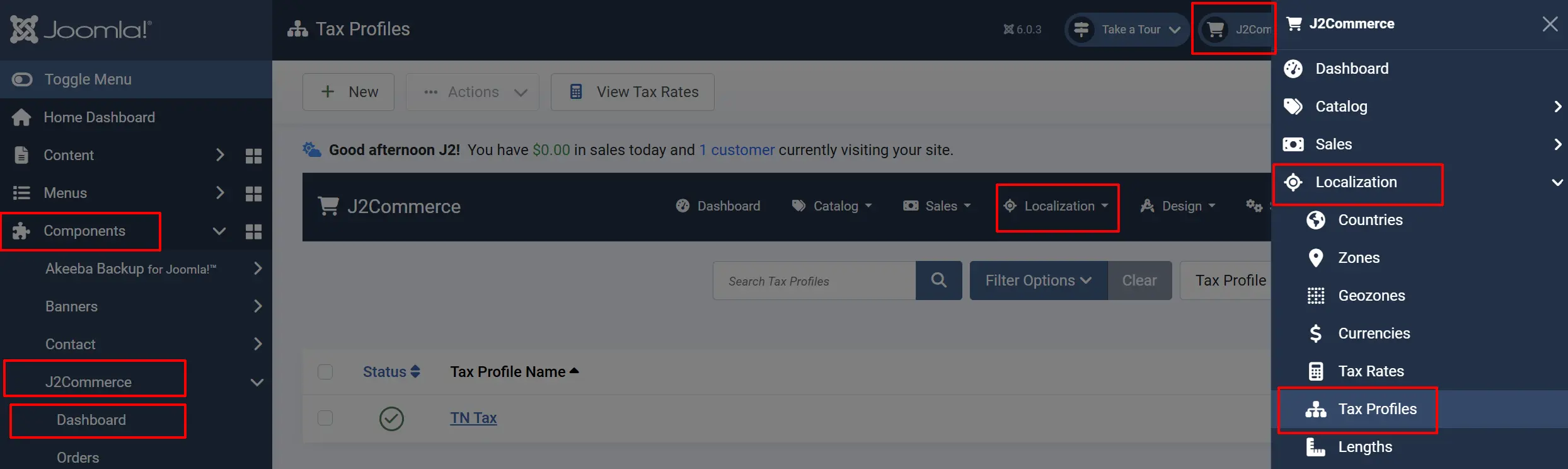
Tax Profile List
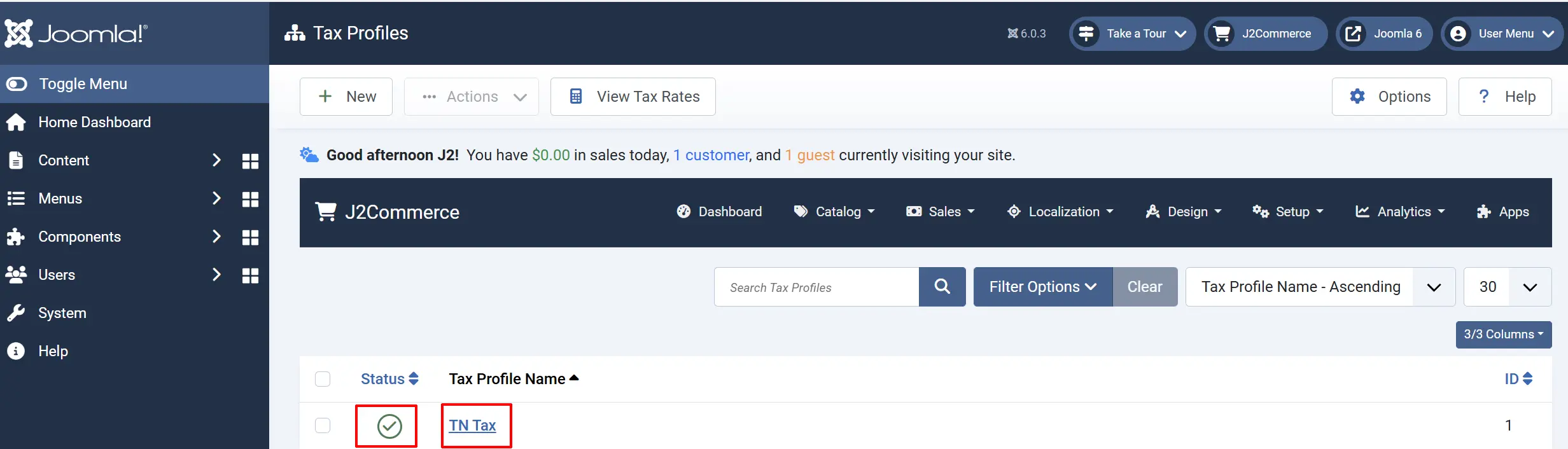
The Tax Profiles list displays all tax profiles configured in your store. Each profile shows:
Checkbox: Select rates to activate the batch actions button.
Tax Profile Name: The display name of the tax profile.
Description: A brief description of the tax profile's purpose.
Status: Published (green check) or Unpublished (red X).
ID: The individual ID number
Adding a New Tax Profile
- Click the New button in the toolbar.
- Fill in the tax profile details (see Configuration below).
- Click Save or Save & Close.
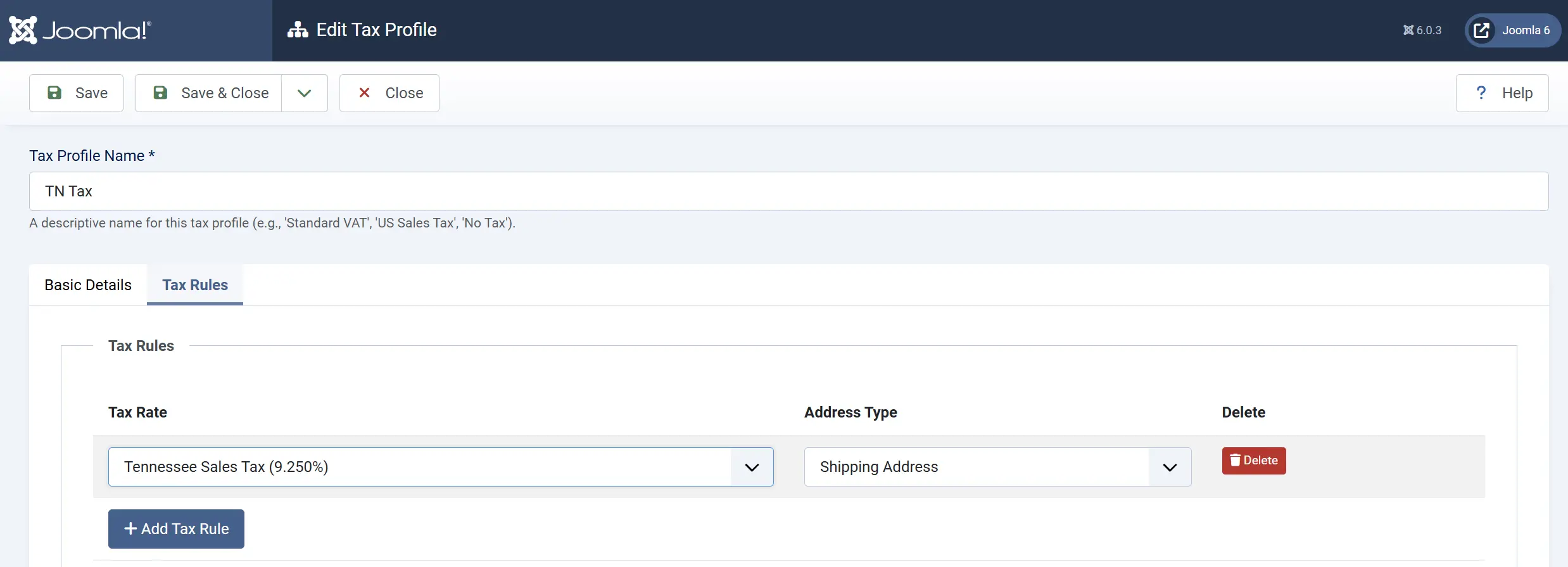
Configuration
Tax Profile Name: A descriptive name for this tax profile. Example: Standard VAT or TN Tax
Status: Set to Published to make the profile available for use.
How Tax Profiles Work
Tax profiles act as a bridge between products and tax rates:
- Create Tax Profiles — Define profiles for different product categories (e.g., "Standard VAT", "Reduced VAT", "Zero Rate", "Exempt").
- Create Geozones — Define geographic zones for tax jurisdictions (e.g., "UK", "EU", "California").
- Create Tax Rates — Define tax percentage rates for each geozone/profile combination.
- Assign to Products — Products are assigned a tax profile; when purchased, the correct tax rate is calculated.
Tax Profile Hierarchy
Common Tax Profiles
Most stores need a few standard tax profiles:
| Tax Profile | Description | Use Case |
|---|---|---|
| Standard VAT/GST | Standard rate tax for most products. | General merchandise, electronics, clothing. |
| Reduced VAT | Lower rate for essential items. | Food, books, children's clothing. |
| Zero Rate | Zero tax rate but still tracked. | Exports, certain medical supplies. |
| Exempt | No tax applied, not tracked. | Educational materials, charities. |
| Not Taxable | No tax applied. | Digital downloads in some jurisdictions. |
Assigning Tax Profiles to Products
After creating tax profiles, assign them to products:
- Go to J2Commerce -> Products.
- Edit a product.
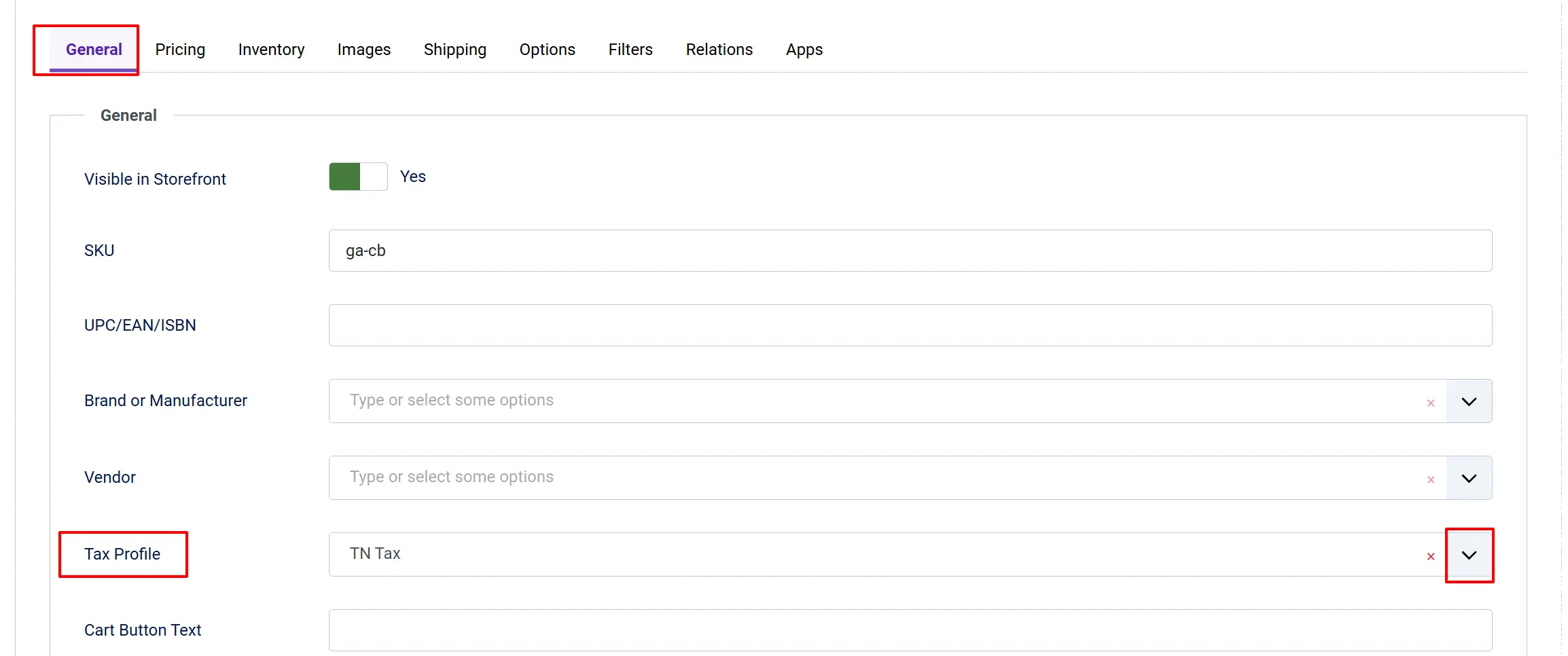
- J2Commerce tab -> General tab
- In the product settings, find the Tax Profile field.
- Select the appropriate tax profile from the dropdown.
- Save the product.
Frontend View
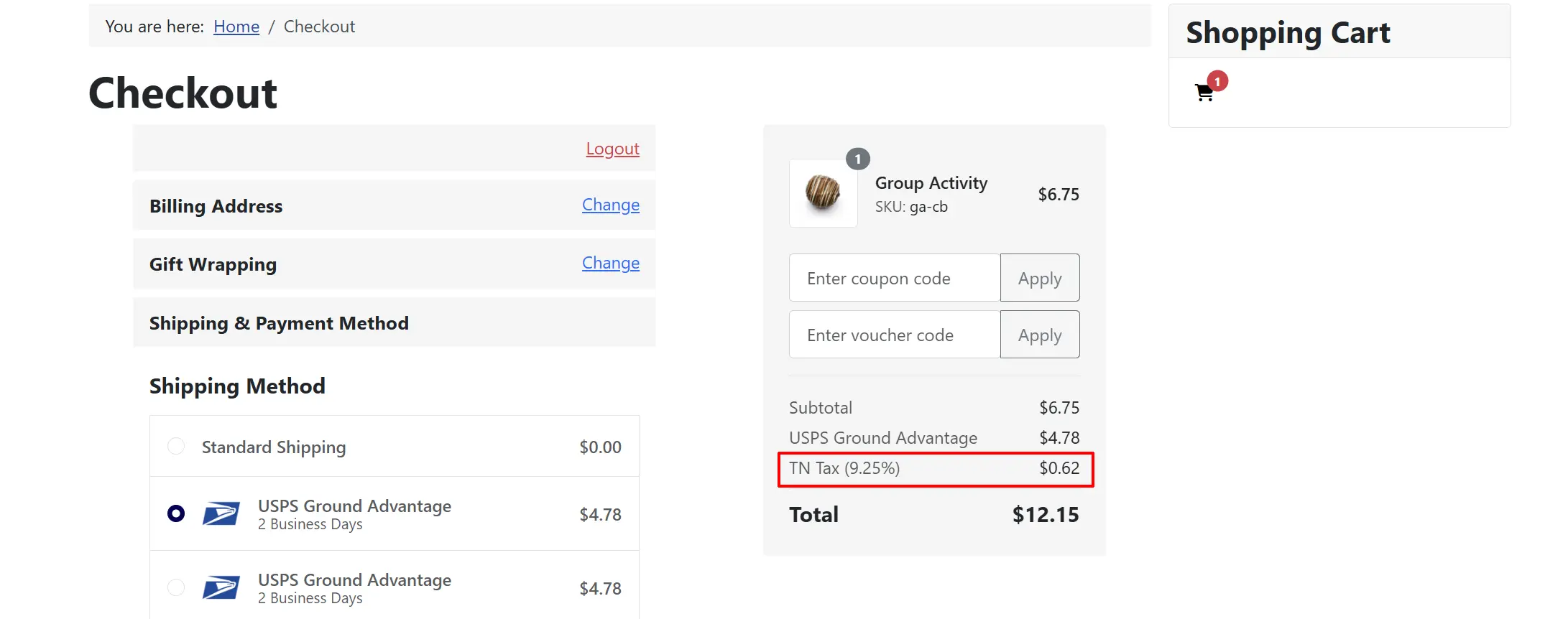
Tax Rate Assignment
Tax profiles themselves don't contain rates. Instead, you create tax rates that link:
- A Tax Profile (e.g., "Standard VAT")
- A Geozone (e.g., "UK")
- A Tax Percentage (e.g., 20%)
See Tax Rates for detailed configuration.
Tips
- Create meaningful names — Use names that clearly indicate the tax category (e.g., "Standard Rate", "Reduced Rate", "Digital Goods").
- Document your setup — Keep notes on which products use which profiles and why.
- Consider future changes — Tax rates may change; having profiles means you only update rates, not products.
- Create an "Exempt" profile — Useful for customers with tax exemption certificates.
- Sync with geozones — Ensure your tax profiles have corresponding tax rates for each geozone you sell to.
Example Configuration
A UK-based store selling internationally:
Tax Profiles
Standard VAT: Standard 20% VAT rate for most products
Reduced VAT: Reduced 5% VAT rate for books, children's clothing
Zero Rate: 0% for exports and exempt items
Not Taxable: No tax for digital services outside EU
Tax Rates (per profile)
For Standard VAT: Below shows the Geozone and its rate
-
United Kingdom: 20%
-
EU Member States: Varies by country
-
Rest of World: 0%
For Reduced VAT: Below shows the Geozone and its rate
-
United Kingdom: 5%
-
EU Member States: Varies (often 5-7%)
For Zero Rate:Below shows the Geozone and its rate
- All Geozones: 0%
Troubleshooting
Tax Not Calculating on Checkout
Cause: Product has no tax profile assigned, or the tax profile has no tax rates for the customer's geozone.
Solution:
- Edit the product and verify a Tax Profile is assigned.
- Go to J2Commerce -> Localisation -> Tax Rates.
- Check that tax rates exist for the product's tax profile and the customer's geozone.
- Verify the geozone includes the customer's country/zone.
Wrong Tax Rate Applied
Cause: Multiple tax rates matching the customer's location, or incorrect geozone assignment.
Solution:
- Review your geozones to ensure no overlap in country/zone rules.
- Check tax rates for the applicable tax profile.
- Verify each tax rate is linked to the correct geozone.
- Ensure only one tax rate per profile/geozone combination.
Products Missing Tax Profile
Cause: Products created without a tax profile assignment.
Solution:
- Go to J2Commerce -> Products.
- Use the filter to find products without a tax profile.
- Bulk edit products to assign the default tax profile.
- Set a default tax profile in the configuration for new products.
Tax Profile Not Appearing in Product Edit
Cause: Tax profile is unpublished or does not exist.
Solution:
- Go to J2Commerce -> Localisation -> Tax Profiles.
- Verify the tax profile exists and is published (green check).
- Create a new tax profile if needed.