Action Log Plugin
The J2Commerce Action Log plugin records store activity in Joomla's built-in action log. Every time a shopper adds something to their basket, steps through checkout, or completes an order, a timestamped entry is written to the log. Administrators can review this activity from a single screen and receive email alerts when important events — such as a failed payment — occur.
The plugin works alongside Joomla's own action log system, so you see J2Commerce events together with any other Joomla events you already track.
Enable the Plugin
-
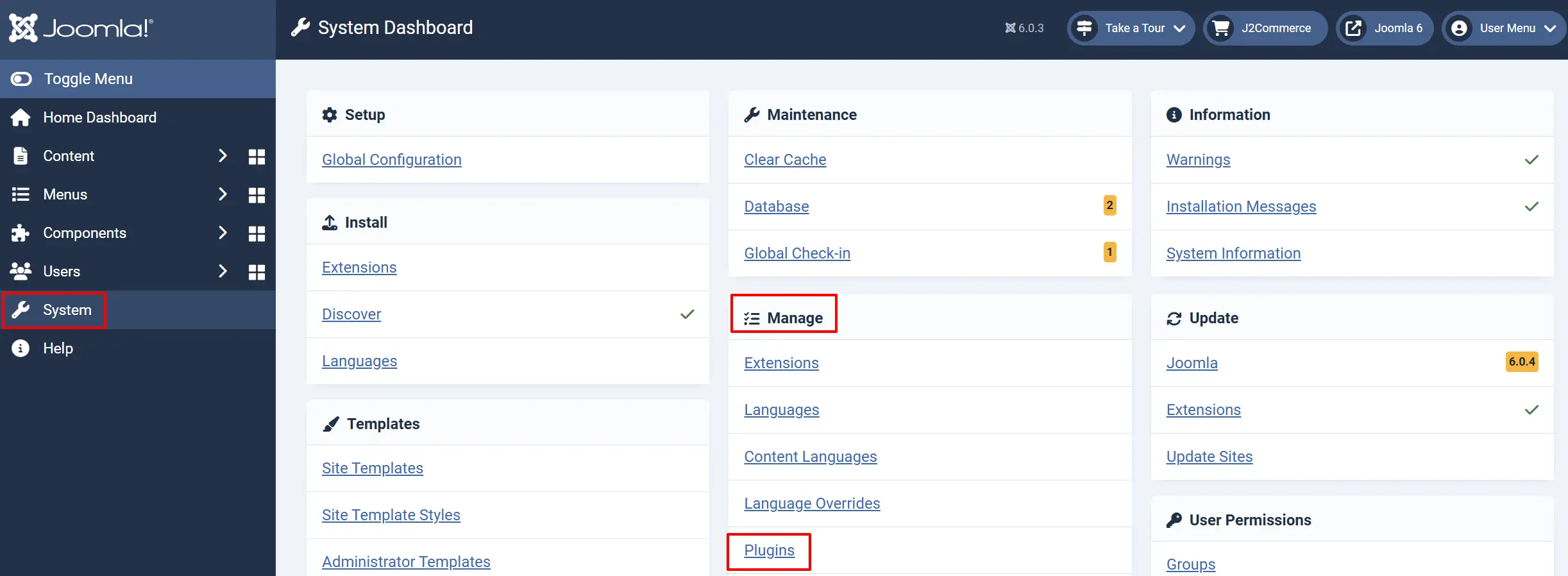
Go to System -> Manage -> Plugins.
-
Search for J2Commerce - Action Log.
-
Click the checkbox next to it and then click Enable in the toolbar.
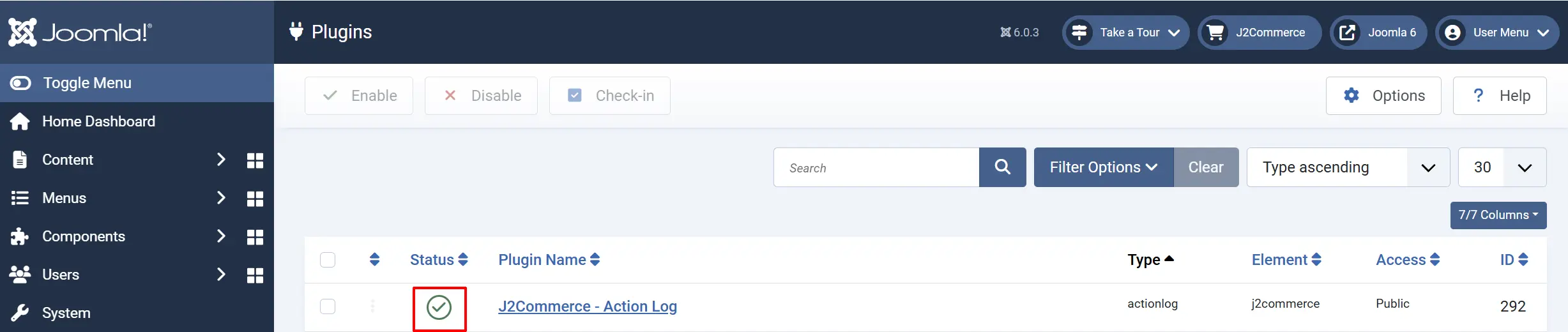
After enabling, the plugin starts recording store events immediately. No further action is needed unless you want to adjust which events are logged or set up email notifications.
To change settings, click the plugin name to open its configuration screen, make your changes, and click Save & Close.
Configure the Plugin
Go to System -> Manage -> Plugins, search for J2Commerce - Action Log, and click the plugin name.
Helpful tip: If you click on the Toggle Inline Help icon, it will explain each section
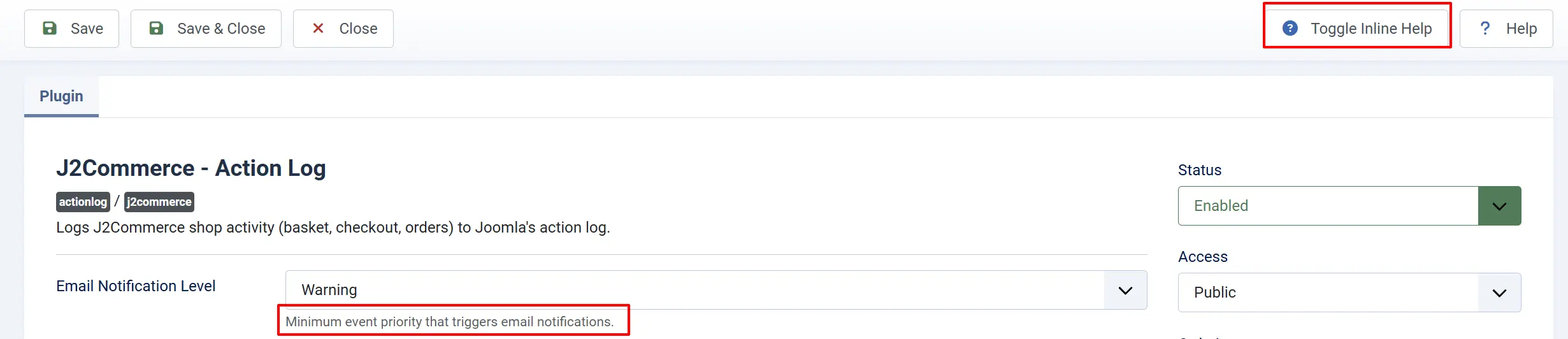
Basic Settings tab
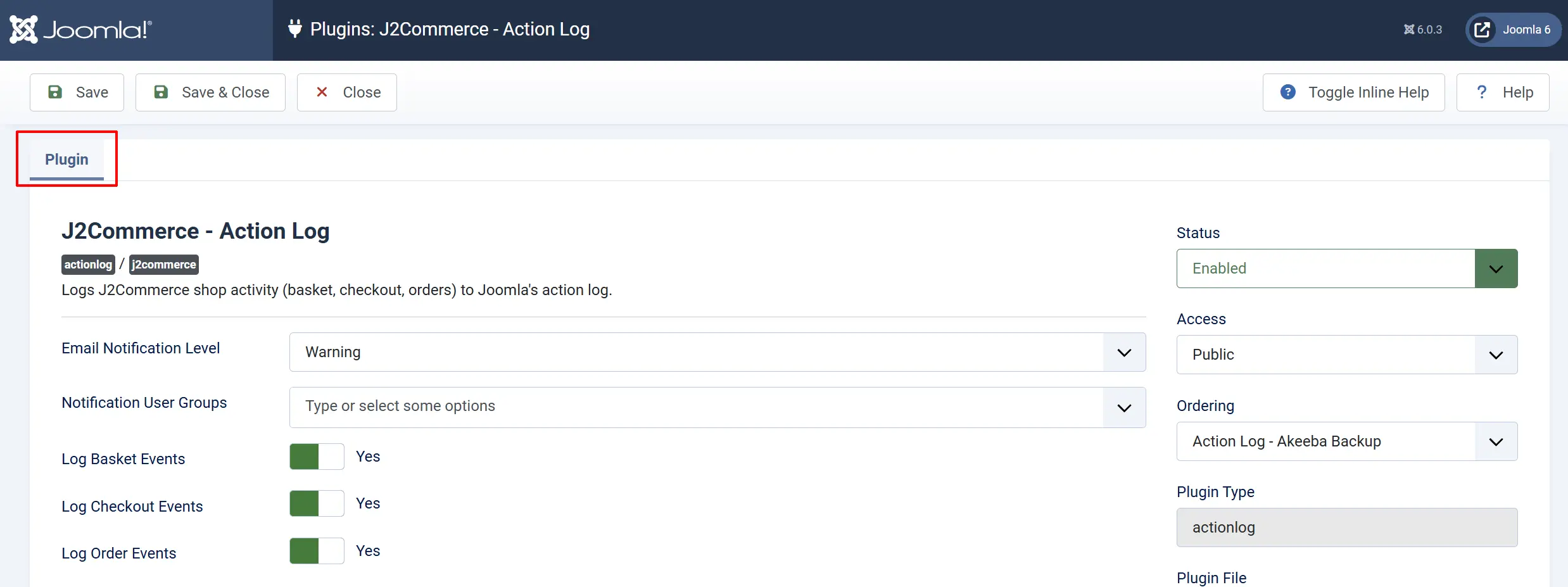
Email Notification Level
Email Notification Level: The minimum event priority that triggers an email alert. Events with a lower priority than the selected level are logged silently without sending an email.
The five priority levels, from lowest to highest, are:
| Level | Description | Typical events |
|---|---|---|
| Browse | Low-priority browsing activity | Basket add, remove, update, clear |
| Action | Moderate shopper or admin actions | Checkout steps, order status changes |
| Success | Successful completions | Order confirmed, payment received |
| Warning | Failures or attention-needed events | Failed payment, cancelled order |
| Critical | Highest severity | (Reserved for future use) |
Setting the level to Warning (the default) means you only receive email when a payment fails, an order is cancelled, or a similarly serious event occurs. Choosing Browse would send an email for every basket interaction, which would be noisy for most stores.
Notification User Groups
Notification User Groups: The Joomla user groups whose members receive email alerts. You can select multiple groups.
Leave this field empty if you do not want email alerts at all. No email is sent unless at least one user group is selected here.
The plugin collects the email addresses of all active (non-blocked) users in the selected groups and sends each of them a plain-text email when a qualifying event occurs.
Event Categories
Three toggles control which categories of events are recorded in the log:
Log Basket Events: Records when shoppers add items to the basket, remove items, update quantities, or clear the entire basket.
- These are logged when Log Basket Events is enabled.
| Event | Priority | What is recorded |
|---|---|---|
| Item added to basket | Browse | Product name, product ID, quantity added |
| Item removed from basket | Browse | Product name, product ID |
| Item quantity updated | Browse | Product name, old quantity, new quantity |
| Basket cleared | Browse | (No additional data) |
Log Checkout Events: Records each step of the checkout funnel — start, login, billing address, shipping address, payment step, and order review.
- These are logged when Log Checkout Events is enabled.
| Event | Priority | What is recorded |
|---|---|---|
| Checkout started | Action | (No additional data) |
| Logged in during checkout | Action | (No additional data) |
| Billing address completed | Action | (No additional data) |
| Shipping address completed | Action | (No additional data) |
| Payment step reached | Action | (Logged once per page load) |
| Order review reached | Success | (No additional data) |
Log Order Events: Records when a payment is completed (with its result) and when an administrator changes an order status.
- These are logged when Log Order Events is enabled.
| Event | Priority | What is recorded |
|---|---|---|
| Payment completed — confirmed, processed, or shipped | Success | Order ID, status name |
| Payment completed — new status | Warning | Order ID, status name |
| Payment completed — failed or cancelled | Warning | Order ID, status name |
| Order status changed by admin | Action (Warning if changed to failed/cancelled) | Order ID, old status, new status |
Disabling a category stops new entries for those events from being written. Existing log entries are not deleted.
How It Works
Once enabled, the plugin listens for events fired by J2Commerce during normal shop operation. When a matching event occurs, the plugin:
- Identifies the current user (or records "Guest" for shoppers who are not logged in).
- Detects the visitor's device type — Desktop, Mobile, or Tablet — from the browser's user-agent string.
- Writes a human-readable entry to Joomla's action log table.
- Checks whether the event's priority meets the configured notification threshold and, if so, sends an email to the members of the selected user groups.
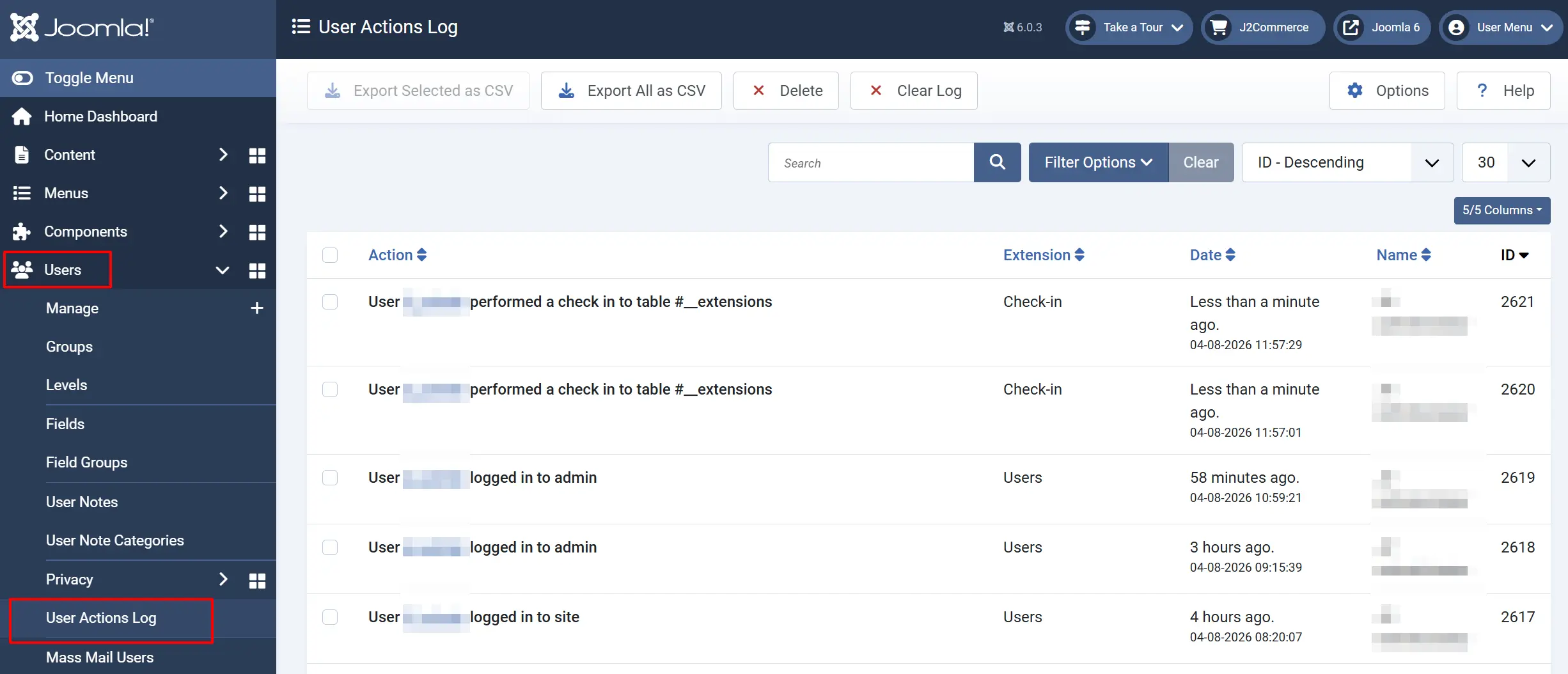
Entries appear immediately in Users -> User Action Logs. Each row shows the date and time, the username (linked to their user record), and a description of what happened.
The priority for the payment event depends on the resulting order status. A payment that results in a "Confirmed" or "Processed" status is logged at Success priority. A payment that results in "Failed" or "Cancelled" is logged at Warning priority, which triggers an email if your threshold is set to Warning or lower.
Tips
- To receive an alert only when payments fail, keep Email Notification Level set to Warning and add your administrators to Notification User Groups.
- If you want a complete picture of where shoppers drop off during checkout, keep all three event categories enabled and review the action log weekly.
- The log is stored in Joomla's standard
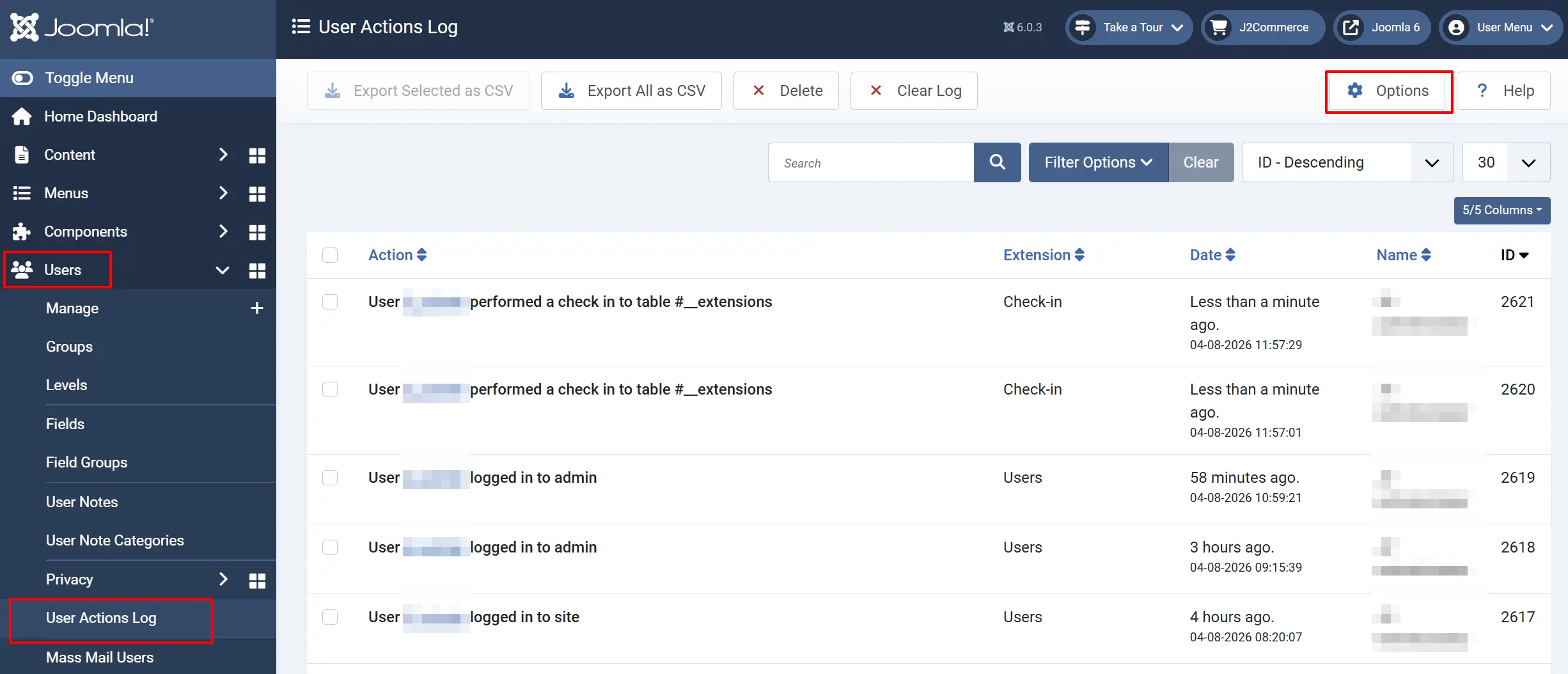
#__action_logstable. You can use Joomla's built-in log management tools to set retention periods and purge old entries at Users -> Action Logs -> Options.
- Guest shoppers show as "Guest" in the log. The device type column helps you understand whether mobile visitors are experiencing more issues than desktop visitors.
Troubleshooting
No entries appear in the action log
Cause: The plugin may be disabled or a conflicting plugin is preventing events from firing.
Solution:
- Go to System -> Manage -> Plugins and confirm the plugin status shows as Enabled.
- Make sure the relevant event category toggle (Log Basket Events, Log Checkout Events, or Log Order Events) is set to Yes.
- Navigate to Users -> User Action Logs and check that the log is not filtered to a date range that excludes today.
- Verify that Joomla's own Action Logs plugin (
plg_system_actionlogs) is also enabled in System -> Manage -> Plugins.
Email notifications are not being sent
Cause: The notification threshold may be set too high, no user group is selected, or outgoing mail is not configured in Joomla.
Solution:
- Open the plugin settings and confirm at least one group is selected in Notification User Groups.
- Check that the Email Notification Level threshold is at or below the priority of the events you want to trigger emails. For example, if you want to receive alerts for failed payments, the threshold must be Warning or lower.
- Go to System -> Global Configuration -> Server and verify that the mail settings are correct. Use the Send Test Mail button to confirm outgoing mail works.
- Check that at least one active (non-blocked) user account is a member of the selected user group and has a valid email address.
The log shows "Guest" for shoppers who are logged in
Cause: This can happen if the checkout page is configured to bypass Joomla's user session for certain guest checkout flows.
Solution: This is expected behaviour for shoppers who complete a purchase without creating an account. If you see "Guest" for shoppers you expect to be logged in, check whether the Log Checkout Events -> checkout login entry shows up before the order event. If not, the shopper may have used the guest checkout path.