YOOtheme Pro Integration
The YOOtheme - J2Commerce plugin connects your product catalog to the YOOtheme Pro page builder. Once installed, you can drop J2Commerce product data — price, images, stock, and a working Add to Cart button — directly into any layout you design in the YOOtheme Pro builder, without writing a single line of code.
This is different from an App: it has no settings screen. Once it is enabled, it quietly makes J2Commerce data available inside the YOOtheme Pro Customizer whenever you are building a page for a product.
Requirements
- PHP 8.3.0 +
- Joomla! 6.x
- J2Commerce 6.x
- YOOtheme Pro (the premium YOOtheme Pro template/page builder) installed and active
YOOtheme Pro is a separate, premium product from YOOtheme. This plugin does nothing without it — if YOOtheme Pro is not installed and active, the plugin stays completely dormant and no product fields will appear anywhere.
Purchase and Download
This plugin is a separate add-on available from the J2Commerce Extensions Store. It is not included with the core J2Commerce 6 component.
Step 1: Go to our J2Commerce website -> Plugins.
Step 2: Locate YOOtheme - J2Commerce -> click View Details -> Add to cart -> Checkout.
Step 3: Go to your My Downloads under your profile button at the top right corner and search for the plugin. Click Available Versions -> View Files -> Download Now.
Install the Plugin
You can install this plugin using the Joomla installer. The following steps help you with a successful installation.
In the Joomla admin, go to System -> Install -> Extensions.
Upload the plg_system_yootheme_j2commerce.zip file or use the Install from URL option.
 (1)-a6689f12b23b8e992f5c2a169737672f.webp)
J2Commerce must already be installed and enabled before you install this plugin. If it is not, the installer stops with an error message and the plugin will not install.
Enable the Plugin
This is a system plugin, not an App. You will not find it under J2Commerce -> Apps. It lives in the standard Joomla Plugin Manager instead.
- Go to System -> Manage -> Plugins.
- Search for YOOtheme.
- Find YOOtheme - J2Commerce and verify it shows a green checkmark (enabled). If not, click the status icon to enable it.
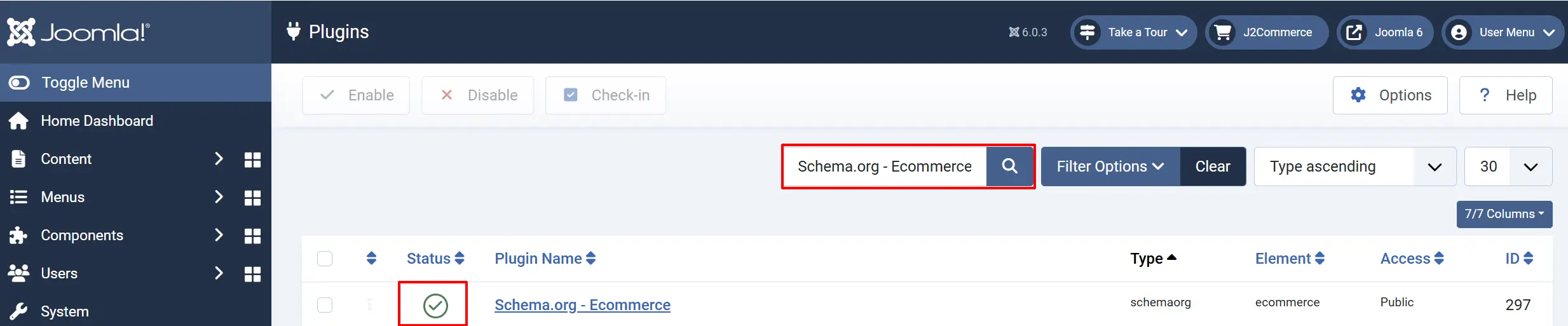
There is nothing else to configure. Click on the plugin title only if you want to see its description — there are no settings fields to fill in.
Using It in YOOtheme Pro
Once the plugin is enabled and YOOtheme Pro is active, product data becomes available inside the YOOtheme Pro builder as Dynamic Content.
Step 1: Open a product page in the builder
Open the YOOtheme Pro Customizer for a page whose content source is a Joomla article — specifically, an article that is linked to a J2Commerce product. This is typically your product detail layout.
Step 2: Add or select an element
Add any element (a heading, an image, a button, a text block) or click an existing one you want to fill with live product data.
Step 3: Open Dynamic Content
Look for the Dynamic Content option on the element's settings panel (usually a small database or lightning-bolt icon next to a text or image field). Click it to open the source picker.
Step 4: Choose the J2Commerce Product field
In the Dynamic Content picker, select the Product field under the J2Commerce group on the Page/Article source. From there you can drill into any of the following fields:
| Field | What it shows |
|---|---|
| ID | The product's internal ID |
| SKU | The SKU of the current product/variant |
| UPC | The barcode/UPC of the variant |
| Link | The URL of the product page |
| Price | The price formatted with your store's currency symbol |
| Price (Raw) | The plain price number, with no currency formatting |
| Stock Quantity | The current stock level |
| Thumbnail Image / Thumbnail Image Alt | The product thumbnail and its alt text |
| Main Image / Main Image Alt | The product's main image and its alt text |
| Add to Cart | A fully working Add to Cart control — quantity field, options, and button — styled to match YOOtheme's UIkit design |
| Product Images | The full list of additional product images, each with its own URL and Alt Text |
Step 5: Bind the field to your element
Select a field to bind it. For example:
- Bind an image element to Main Image to show the product photo.
- Bind a text element to Price to show the formatted price.
- Bind a button or content area to Add to Cart to drop a working cart control into your custom layout.
- Loop over Product Images to build a custom gallery or slider.
If you are editing a single-article page template rather than a card inside a list, look for a Product field grouped under Page instead of J2Commerce. It resolves to "the current J2Commerce Product" for whichever article the page is displaying — use it when building the product page template itself.
How It Works
In plain terms, here is what happens behind the scenes:
- The plugin runs quietly on every page load, but it only wakes up when both J2Commerce is enabled and YOOtheme Pro is installed and active. If either is missing, nothing happens.
- J2Commerce products are linked to Joomla articles. When you are building a page whose source article is tied to a J2Commerce product, the builder can pull that product's live data.
- Product data reaches YOOtheme Pro in three places: a Product field added to the Article Dynamic Content source (grouped under J2Commerce), a Product field on single-article Page templates (grouped under Page), and dedicated Product and Product Image source object types you can query directly.
Display Conditions
Product data appears in the YOOtheme Pro builder and on the live page when all of the following are true:
- The plugin YOOtheme - J2Commerce is enabled.
- YOOtheme Pro is installed and active on the site.
- The article being viewed or edited is linked to a J2Commerce product.
- The product is published and visible.
Tips
- Use Price (Raw) instead of Price when you want full control over the currency symbol, font, or styling — apply your own formatting around the raw number.
- Bind your layout's cart control to the Add to Cart field so the cart keeps working correctly even inside a fully custom YOOtheme layout.
- The Product Images list is ideal for building a custom image gallery or slider beyond the default thumbnail and main image.
- Always bind the Alt fields (Thumbnail Image Alt, Main Image Alt, and each image's Alt Text) for better accessibility and SEO — don't leave image elements without alt text.
Troubleshooting
J2Commerce fields don't appear in the YOOtheme Pro Dynamic Content picker
Cause: YOOtheme Pro is not installed or not active, the plugin is disabled, or J2Commerce itself is disabled.
Solution:
- Confirm YOOtheme Pro is installed and active on the site.
- Go to System -> Manage -> Plugins, search for YOOtheme, and verify YOOtheme - J2Commerce shows a green checkmark.
- Go to System -> Manage -> Extensions, and confirm the J2Commerce component itself is enabled.
- Reopen the YOOtheme Pro Customizer after making any changes.
Product data is blank on the page
Cause: The article you are viewing is not linked to a J2Commerce product, or the linked product is unpublished.
Solution:
- Confirm the article's associated product exists and is published in J2Commerce -> Catalog -> Products.
- Verify the article-to-product link on the product's edit screen.
- Preview the page again after saving.
The Add to Cart control does not work on the page
Cause: Required J2Commerce frontend assets did not load, usually because the component is disabled or the page is being previewed outside the normal frontend rendering flow.
Solution:
- Confirm J2Commerce is enabled in System -> Manage -> Extensions.
- View the page on the live frontend (not just inside the builder preview) to confirm assets load correctly.
- Clear the site cache and try again.
Changes are not showing on the frontend
Cause: Joomla or YOOtheme Pro cached an older version of the page.
Solution:
- Go to Home Dashboard -> Cache -> Delete All.
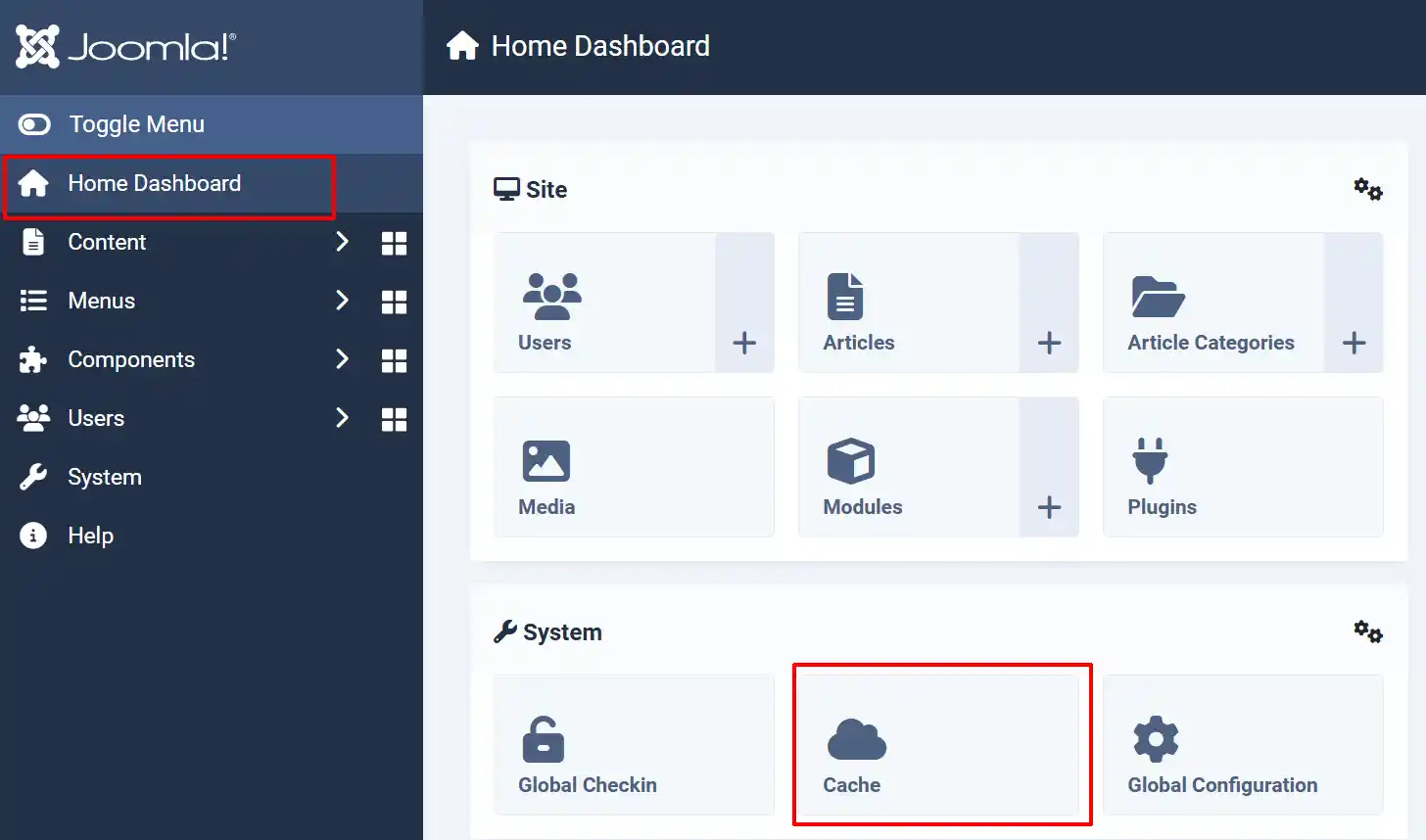
- If you still don't see your changes, also clear the YOOtheme Pro cache from within the Customizer.