Scheduled Tasks
The J2Commerce Scheduled Tasks plugin connects your store to Joomla's built-in Task Scheduler. It runs maintenance jobs automatically on a schedule you choose — no manual clicks required. The plugin handles four essential housekeeping routines: removing abandoned orders, processing background queues, cleaning up old log entries, and updating currency exchange rates.
Without these tasks running, incomplete orders accumulate, background jobs stall, and log tables grow indefinitely. Setting them up takes a few minutes and keeps your store running smoothly.
Requirements
- PHP 8.3.0+
- Joomla! 6.x
- J2Commerce 6.x
Enable the Plugin
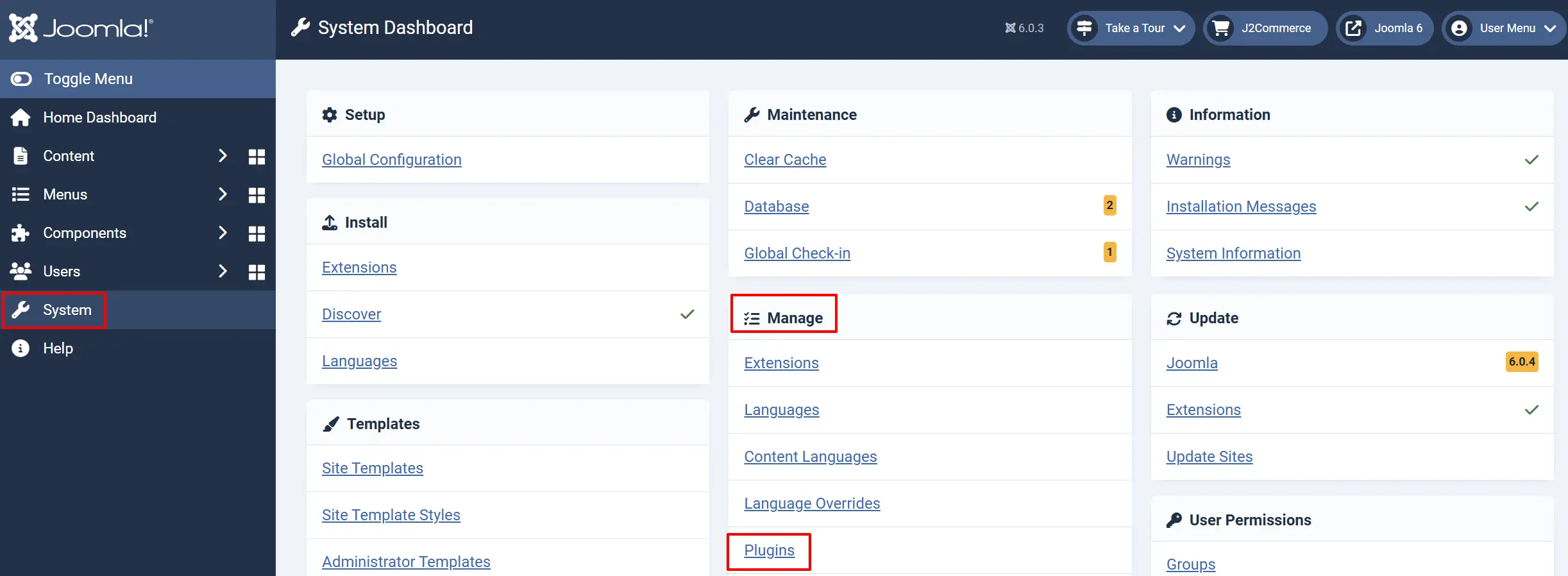
-
Go to System -> Manage -> Plugins.
-
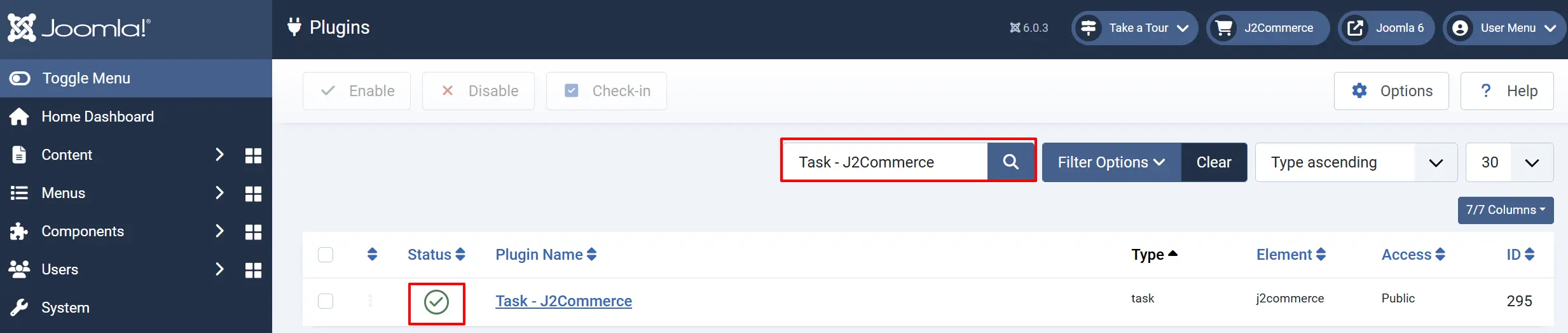
Search for Task - J2Commerce.
-
Click the checkbox next to it and then click Enable in the toolbar.
Before You Start
The Joomla Task Scheduler needs a trigger to run your scheduled tasks. Without this trigger, tasks will never execute — even if you create and enable them.
You have two options:
- Server cron job (recommended): Set up a cron job on your hosting that calls Joomla's scheduler. This is the most reliable method.
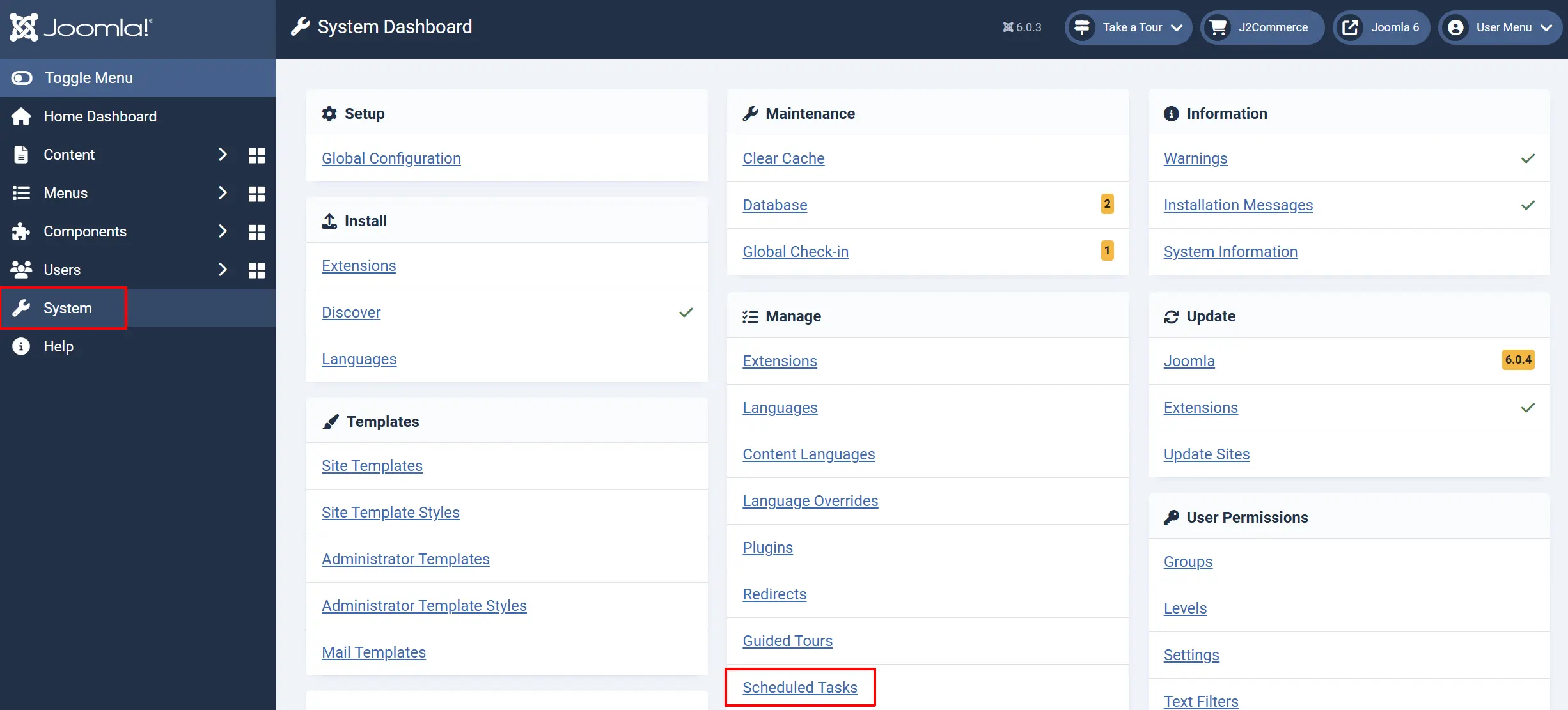
- Scheduled Tasks: Go to Systems -> Manage -> Scheduled Tasks. This runs tasks when visitors load your site, but tasks may be delayed during low-traffic periods.
For server cron job setup, add this command to your hosting control panel's cron jobs (run every minute or every 5 minutes):
php /path/to/your/joomla/cli/joomla.php scheduler:run
See the Joomla documentation on Task Scheduler for detailed setup instructions.
Creating a Scheduled Task
- Go to System -> Scheduled Tasks.
-
Click the New button.
-
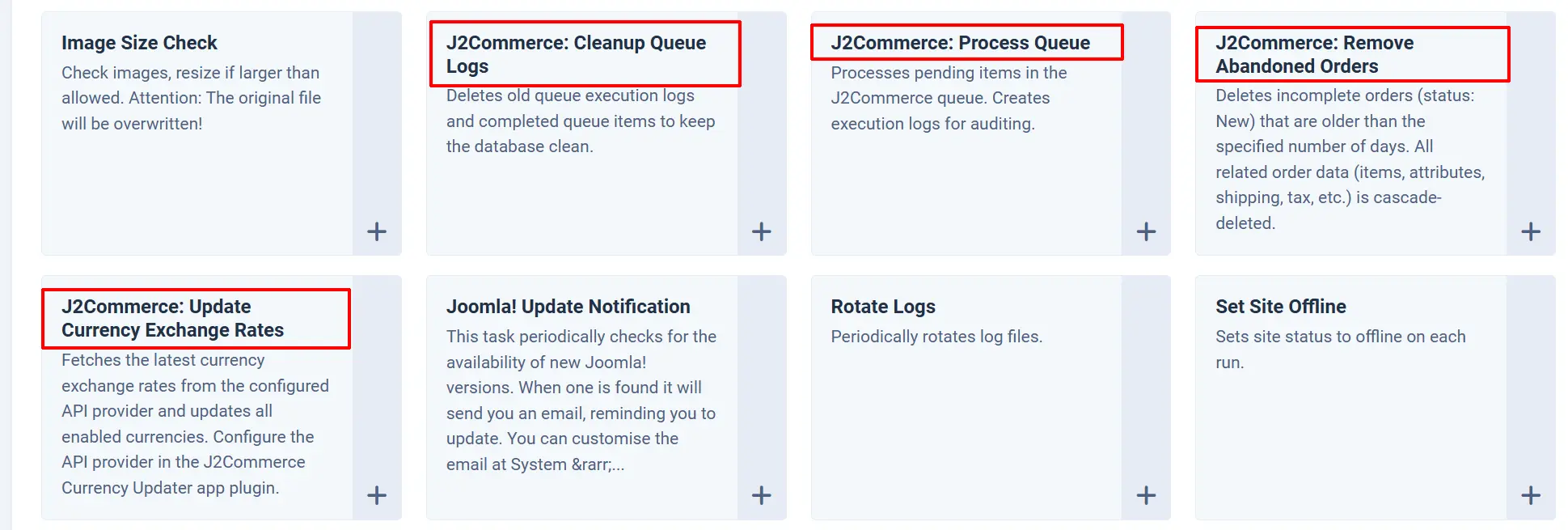
From the task type list, select one of the J2Commerce tasks (each one is described below).
-
Give the task a Title (e.g., "Remove Abandoned Orders - Daily").
-
Set the Execution Interval using the schedule fields (e.g., once daily, every 15 minutes).
-
Configure the task-specific parameters in the form below.
-
Click Save & Close.
The task runs automatically at the interval you set. You can also click Run on any task to execute it immediately.
Task 1: Remove Abandoned Orders
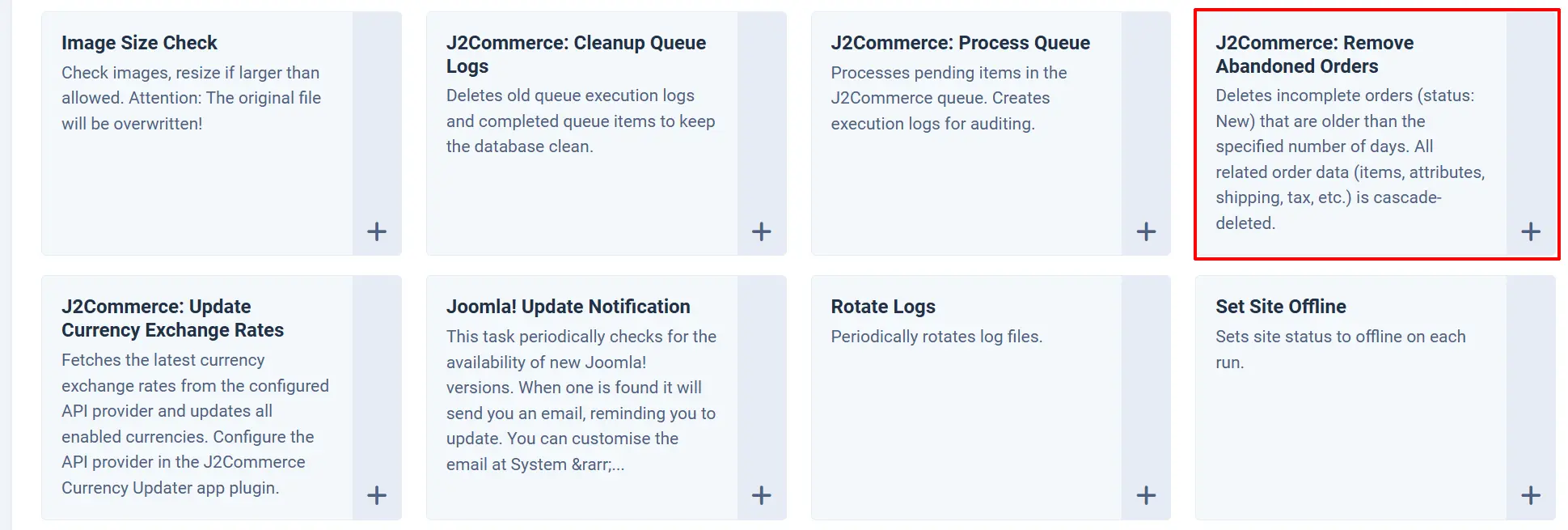
Task type: J2Commerce: Remove Abandoned Orders
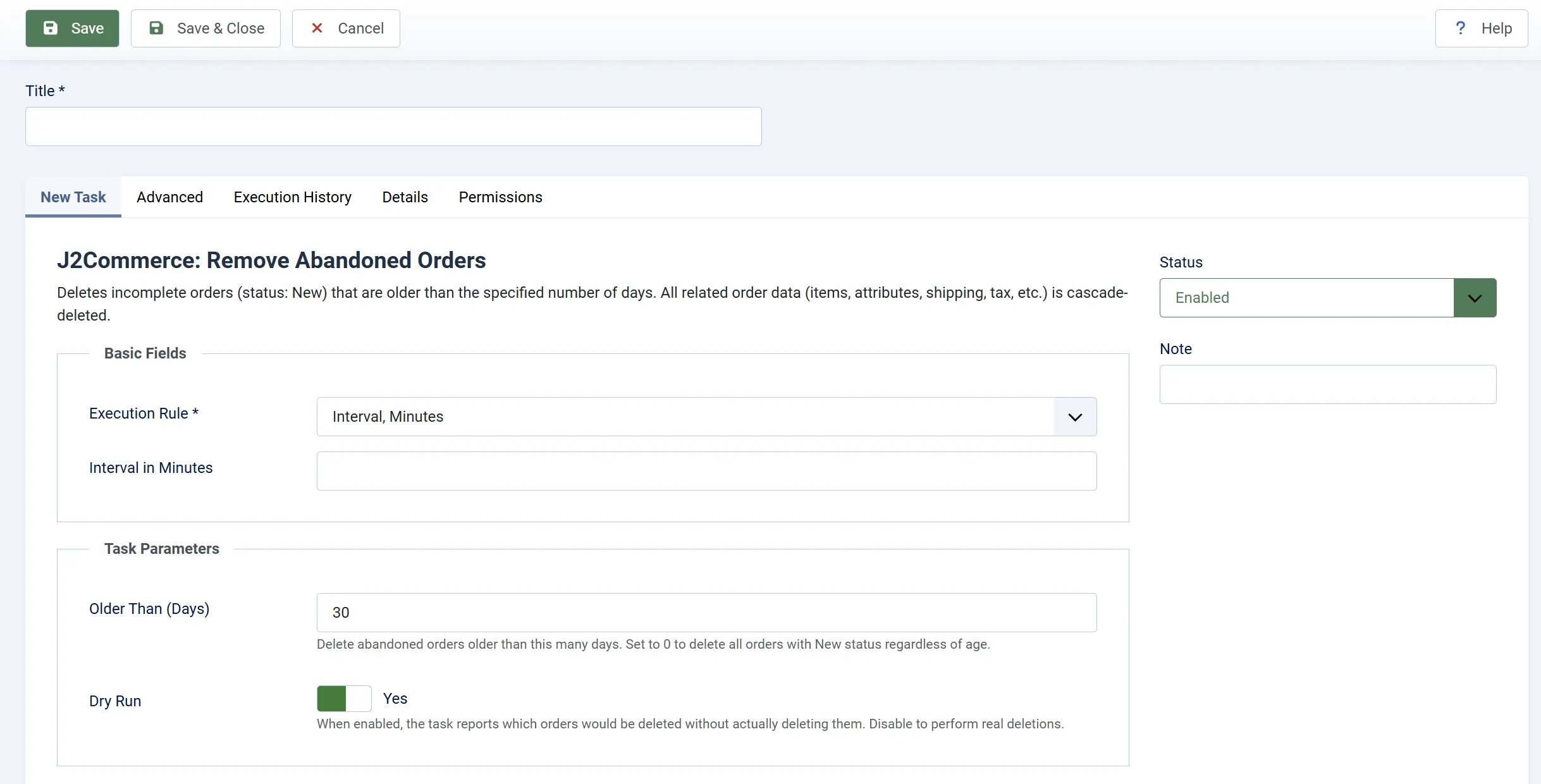
This task deletes incomplete orders that have a "New" status and are older than a number of days you specify. When a customer starts checkout but never completes payment, the order stays in the system with a "New" status. Over time, these abandoned orders clutter your order list and waste database space.
When an order is deleted, all related data is removed along with it — order items, shipping details, billing information, tax records, discount codes, and download links.
Configuration
Older Than (Days): Delete abandoned orders older than this many days. Set to 0 to delete all orders with "New" status regardless of age.
Dry Run: When set to Yes, the task reports which orders would be deleted without actually deleting them. Set to No to perform real deletions.
Recommended Setup
Execution Interval: Once daily (e.g., 3:00 AM)
Older Than (Days): 30
Dry Run: Start with Yes to preview, then switch to No once you are comfortable
Always run this task with Dry Run set to Yes first. Check the task log in System -> Scheduled Tasks to see which orders would be removed. Once you are satisfied, switch Dry Run to No to enable real deletions.
Task 2: Process Queue
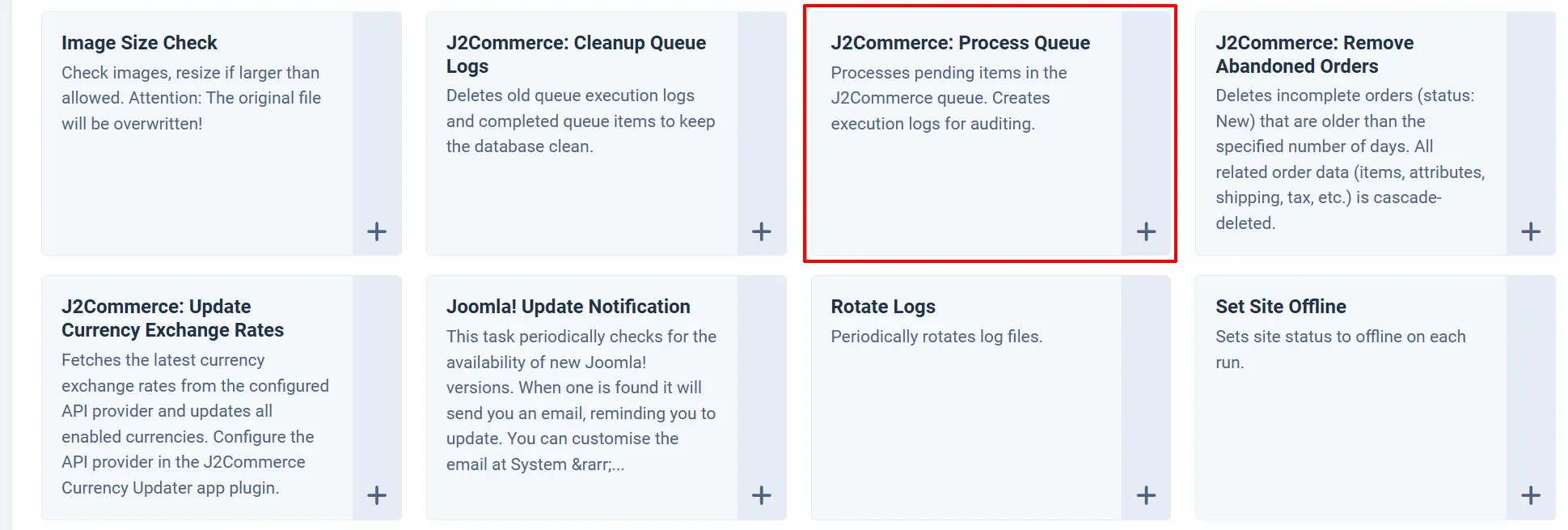
Task type: J2Commerce: Process Queue
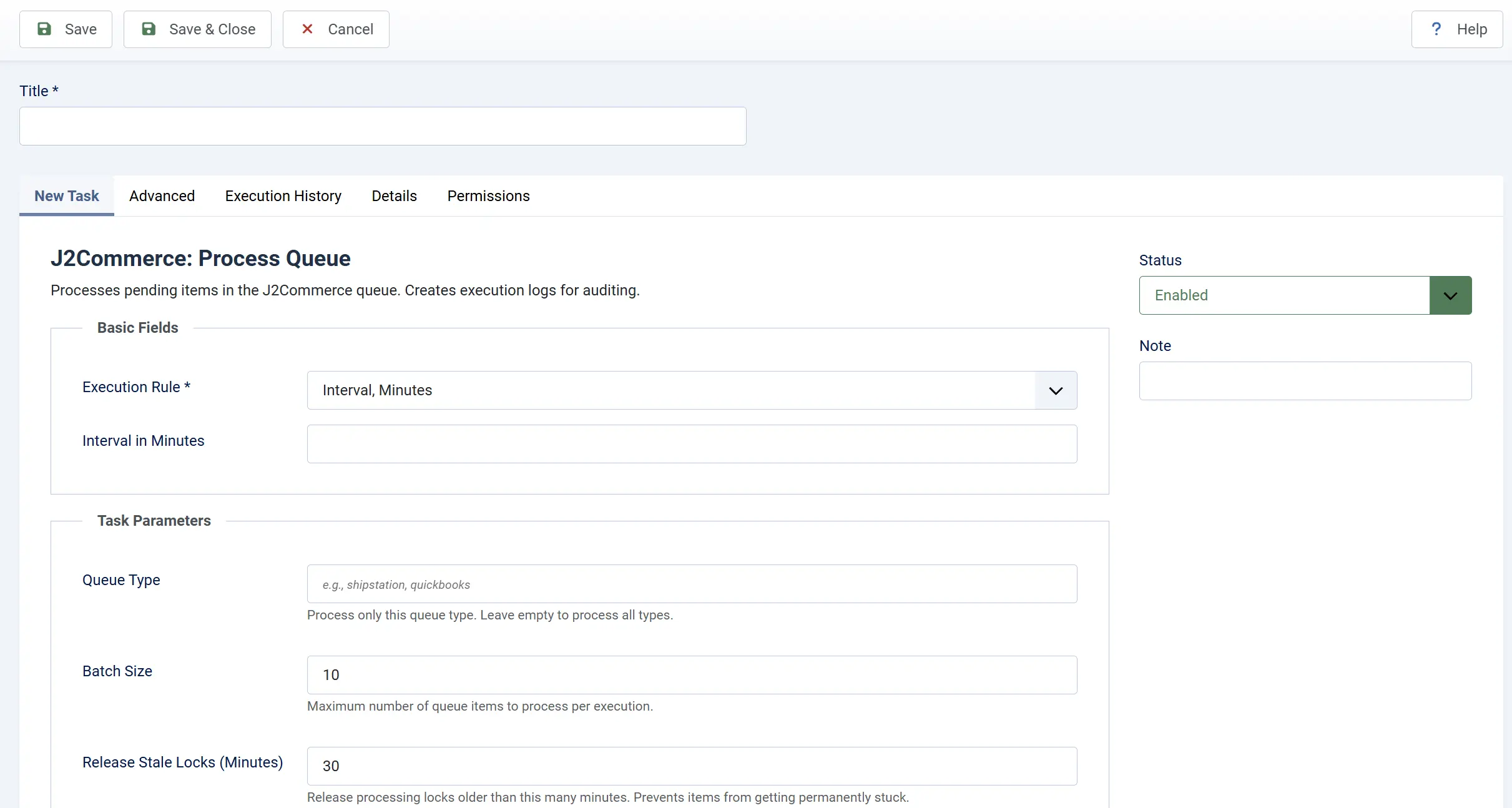
J2Commerce uses a background queue system for jobs that should not block a customer's checkout — for example, syncing order data with third-party services like ShipStation or QuickBooks. This task picks up pending queue items and processes them in batches.
The task also releases "stale locks" — items that were being processed when a previous task run crashed or timed out. Without this, stuck items would never be retried.
Every run creates a detailed log entry so you can audit what was processed, what succeeded, and what failed.
Configuration
Queue Type: Process only items of this type (e.g., shipstation, quickbooks). Leave empty to process all queue types.
Batch Size: Maximum number of queue items to process per run. Higher values process more items but use more server resources.
Release Stale Locks (Minutes): Release processing locks older than this many minutes. Prevents items from getting permanently stuck if a previous run crashed.
Recommended Setup
Execution Interval: Every 5 minutes
Queue Type: (leave empty to process all)
Batch Size: 10 (increase to 25-50 if you have high queue volume)
Release Stale Locks: 30 minutes
This task only does something when there are items in the queue. If your store does not use any integrations that add items to the queue, the task finishes each run instantly with nothing to process. It is safe to leave it enabled regardless.
Task 3: Cleanup Queue Logs
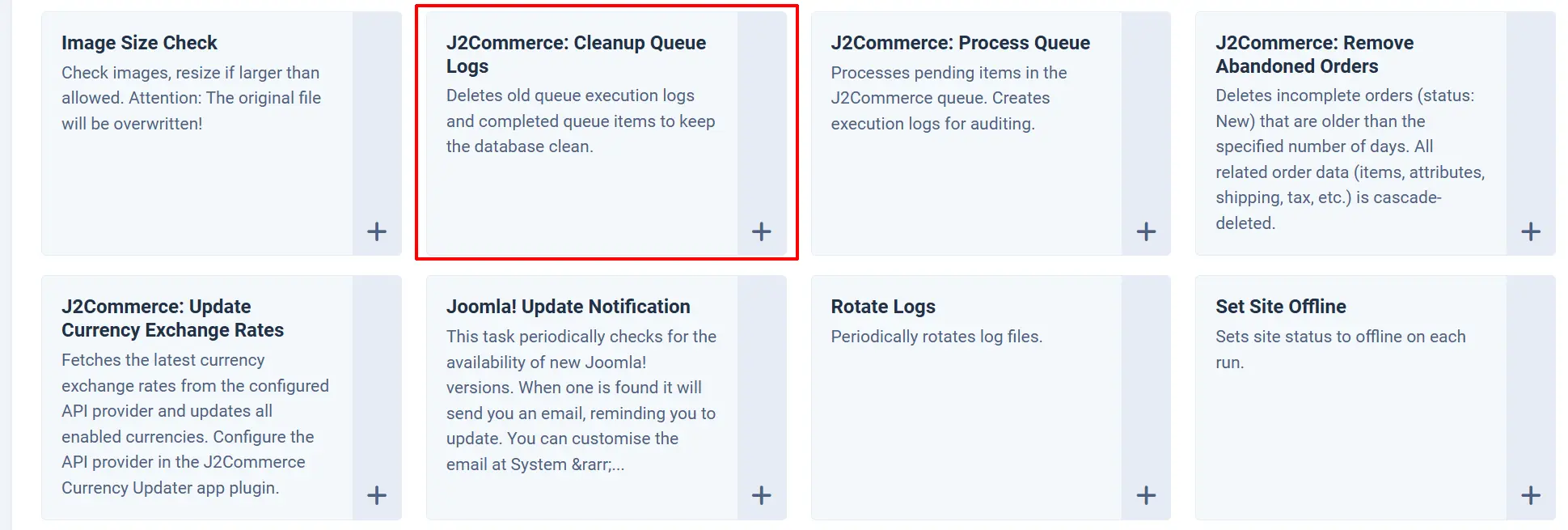
Task type: J2Commerce: Cleanup Queue Logs
Each time the Process Queue task runs, it creates a log entry in the database. Over months, these logs accumulate. This cleanup task deletes old log entries and completed queue items to keep your database lean.
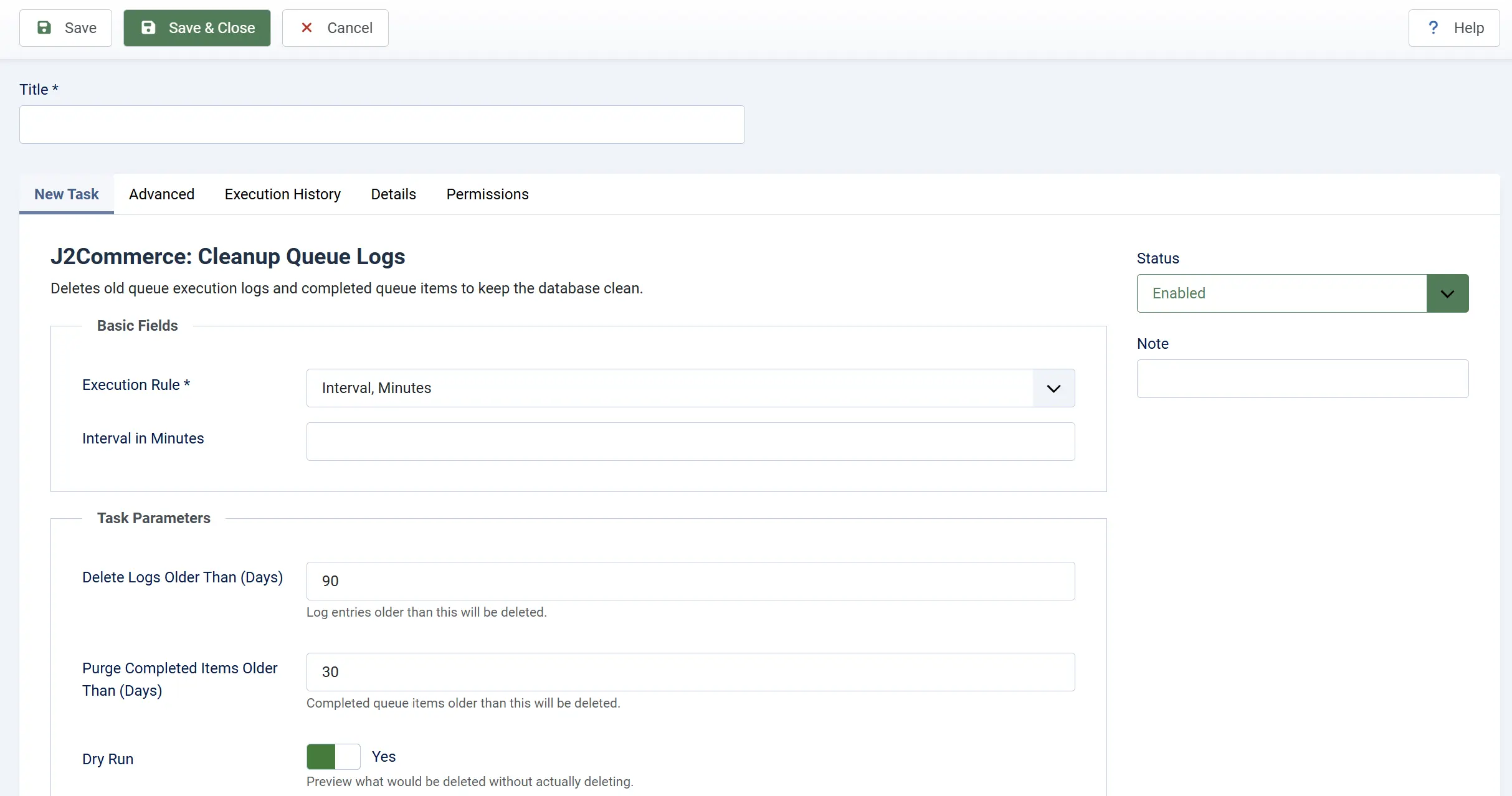
Configuration
Delete Logs Older Than (Days): Delete queue execution logs older than this many days.
Purge Completed Items Older Than (Days): Delete completed queue items older than this many days.
Dry Run: When set to Yes, the task reports what would be deleted without actually deleting. Set to No to perform real deletions.
Recommended Setup
Execution Interval: Once weekly
Delete Logs Older Than: 90 days
Purge Completed Items: 30 days
Dry Run: Start with Yes, then switch to No
Task 4: Update Currency Exchange Rates
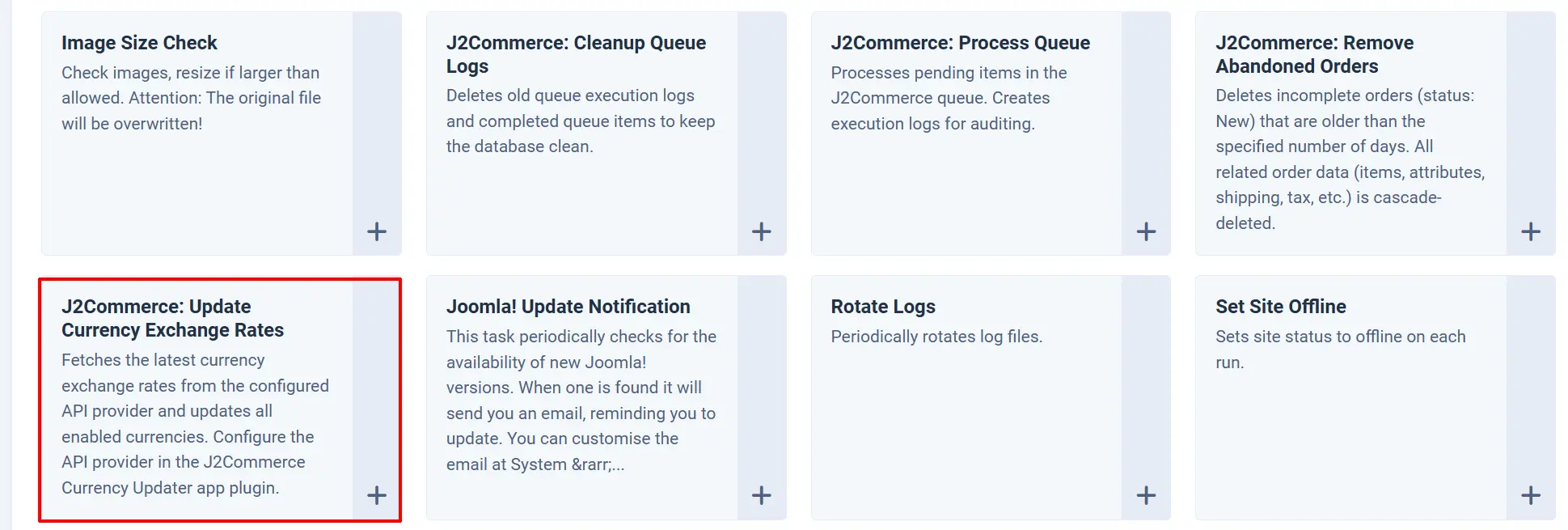
Task type: J2Commerce: Update Currency Exchange Rates
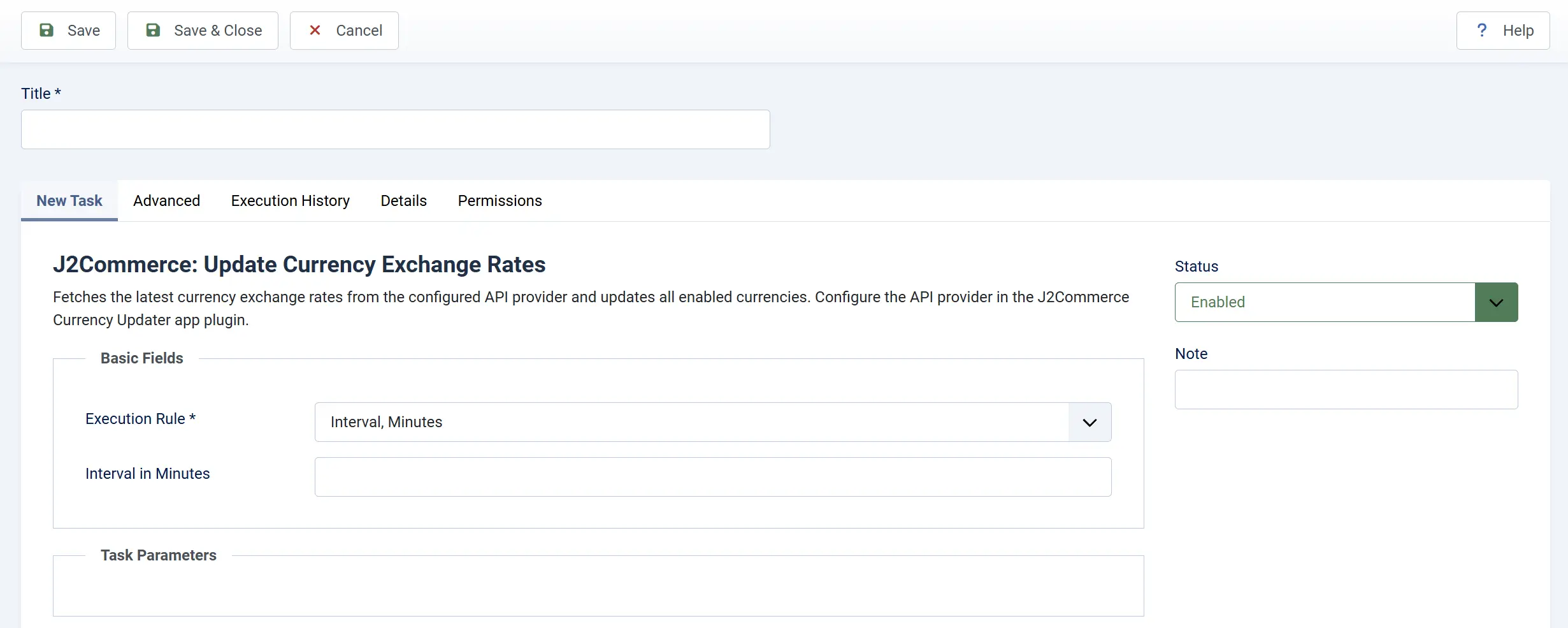
If your store accepts multiple currencies, exchange rates need to stay current. This task fetches the latest rates from your configured API provider and updates all enabled currencies in J2Commerce automatically.
This task has no parameters of its own. It relies on the Currency Updater app plugin for API provider configuration (API key, base currency, etc.).
Prerequisites
Before this task can run, you must:
- Enable the Currency Updater app plugin at J2Commerce -> Apps.
- Configure the API provider and API key in the Currency Updater settings.
- Have at least two currencies enabled in J2Commerce -> Localisation -> Currencies.
If no currency updater plugin is enabled, the task skips execution and reports "No Run" in the task log.
Recommended Setup
Execution Interval: Once daily or twice daily
Checking Task Results
After a task runs, you can review what happened:
- Go to System -> Scheduled Tasks.
- Find your task in the list.
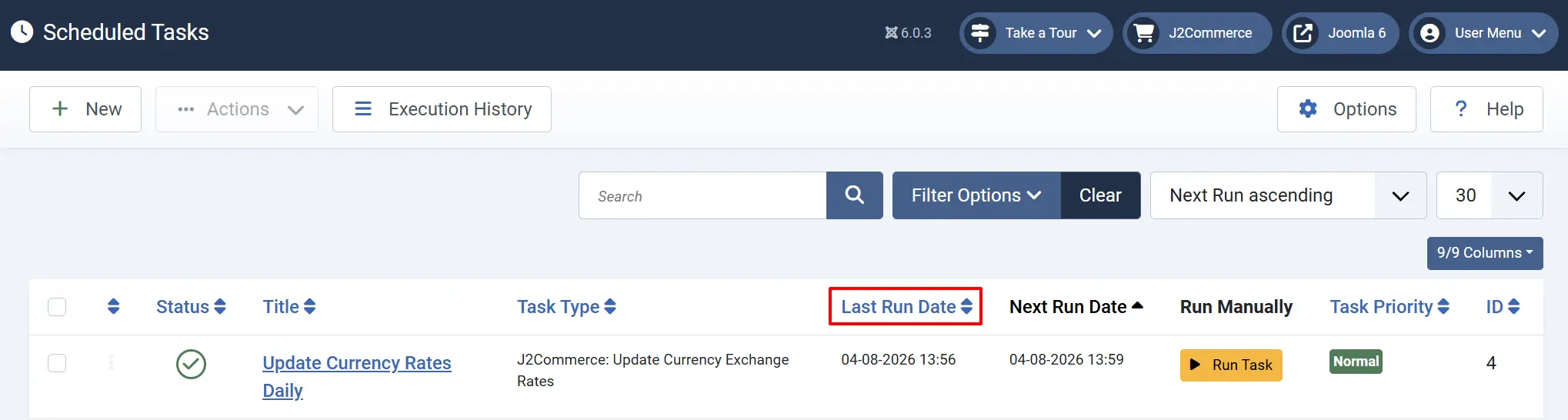
- The Last Run Date column shows when the task last ran
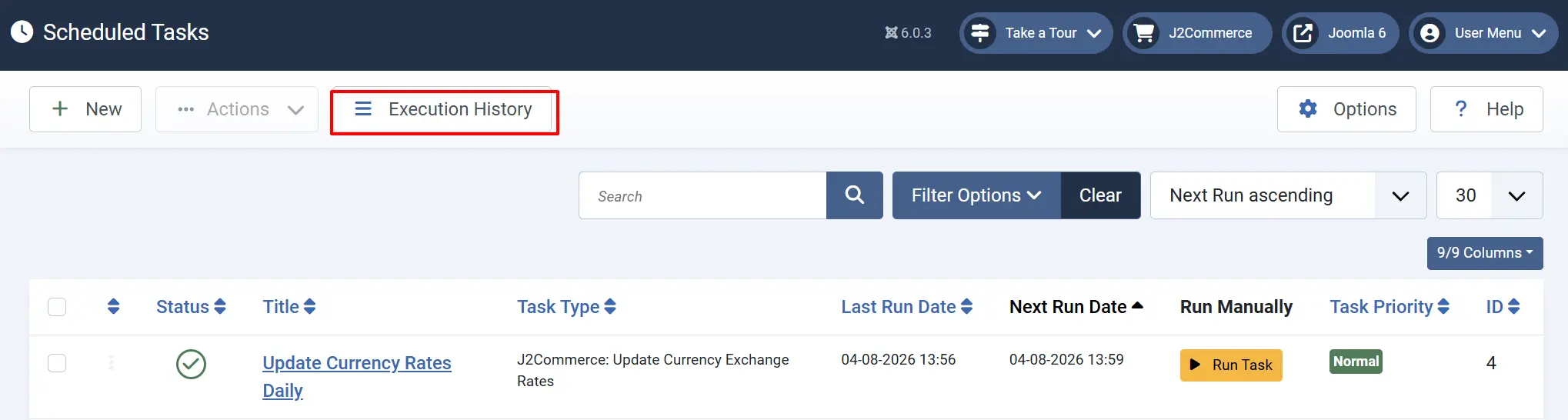
Click the Execution History button to see detailed execution logs.
You can organise the results by clicking on Filter options and the Exit Code dropdown:
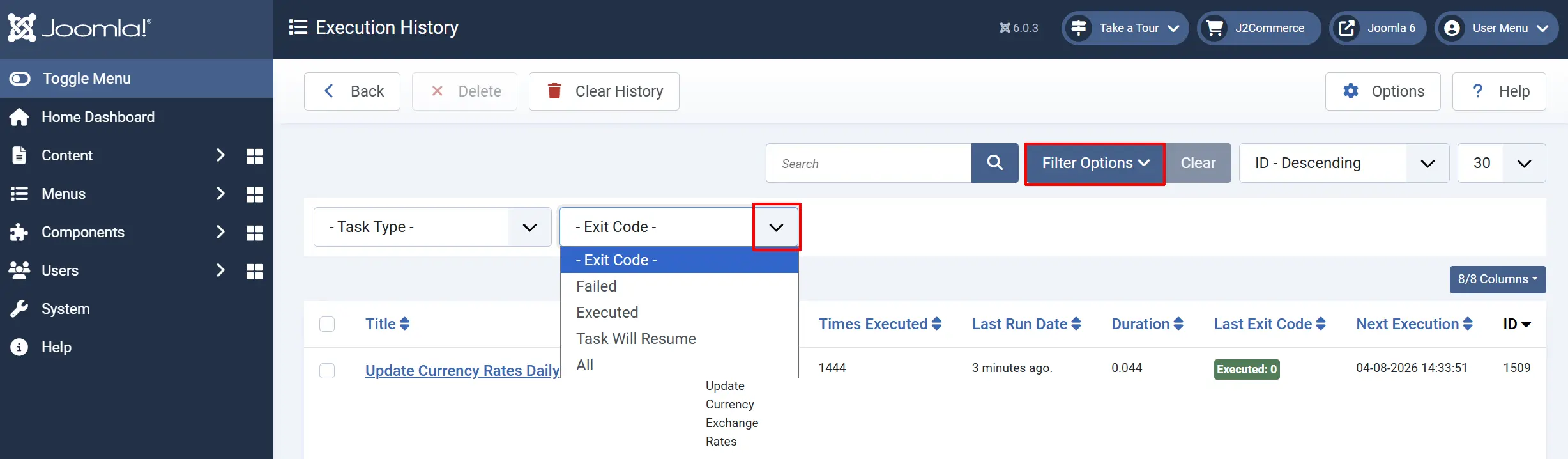
Executed: The task completed successfully.
Task Will Resume: Something occurred that prevented it from being completed, but it didn't fail. It will try again automatically the next scheduled run
Failed: The task encountered an error. Check the log details for the error message.
Recommended Schedule Summary
For a typical store, create these four scheduled tasks:
| Task | Interval | Priority |
|---|---|---|
| Remove Abandoned Orders | Once daily | High — prevents order list clutter |
| Process Queue | Every 5 minutes | High — keeps integrations flowing |
| Cleanup Queue Logs | Once weekly | Low — housekeeping only |
| Update Currency Rates | Once or twice daily | Medium — only if you sell in multiple currencies |
Tips
- Start with Dry Run enabled. Both the Remove Abandoned Orders and Cleanup Queue Logs tasks support Dry Run mode. Use it to preview what would be deleted before committing.
- Check the Last Execution column regularly. If a task shows "Knockout" status, something went wrong. Click through to the task log for details.
- Adjust the batch size for queue processing. If your server is modest (shared hosting), keep the batch size at
10. On a dedicated server with many integrations, increase it to25or50. - Do not set "Older Than" to 0 unless you mean it. Setting the Remove Abandoned Orders threshold to
0deletes all "New" orders immediately, including orders from customers who are still in the middle of checkout. - Currency rates need the Currency Updater app. The scheduled task only triggers the update — the actual API connection and rate fetching is handled by the Currency Updater app plugin. Make sure it is enabled and configured first.
Troubleshooting
Tasks are created but never run
Cause: The Joomla Task Scheduler itself is not being triggered.
Solution:
- Verify that either a server cron job is calling
cli/joomla.php scheduler:runor the Lazy scheduler option is enabled in System -> Global Configuration -> System tab. - Check your hosting control panel's cron job list to confirm the scheduler cron is active and running.
- Try clicking the Run button on a task in System -> Scheduled Tasks to execute it manually. If it runs successfully, the issue is with the scheduler trigger, not the task itself.
"Remove Abandoned Orders" deletes nothing
Cause: No orders match the criteria (status "New" and older than the configured days).
Solution:
- Go to J2Commerce -> Sales -> Orders and filter by status "New" to see if any incomplete orders exist.
- Check the Older Than (Days) setting. If set to
30, only orders older than 30 days are deleted. - Make sure Dry Run is set to No. When Dry Run is Yes, the task only reports what it would delete.
"Process Queue" shows no items processed
Cause: The queue is empty because no integrations are adding items to it.
Solution: This is normal if your store does not use queue-based integrations (ShipStation, QuickBooks, etc.). The task runs but finds nothing to process. You can safely leave it enabled or disable it if you know you do not need it.
"Update Currency Rates" shows "No Run"
Cause: The Currency Updater app plugin is not enabled.
Solution:
- Go to J2Commerce -> Apps.
- Find Currency Updater and enable it (click the status icon so it shows a green checkmark).
- Click the plugin name to configure the API provider and enter your API key.
- Run the scheduled task again.
Task shows "Knockout" status
Cause: An error occurred during task execution — typically a database issue or an API failure.
Solution:
- Go to System -> Scheduled Tasks and click the task name.
- Review the execution log for error details.
- Common causes include database connection timeouts (increase your PHP
max_execution_time) or API rate limits (reduce the task frequency).