Smart Search Plugin for J2Commerce
Joomla includes a built-in search engine called Smart Search. It indexes your site content — articles, categories, and other items — so visitors can find what they need quickly using a search box. The J2Commerce Smart Search plugin extends this to your product catalogue.
Once the plugin is enabled and your products are indexed, customers can search for a product by its name, description, SKU code, UPC code, or brand name and be taken directly to the product page. Products that are unpublished or in an unpublished category are automatically excluded from search results.
Prerequisites
- J2Commerce 6 is installed and active
- At least one product created
- Joomla's Smart Search component enabled (
com_finder) - The Joomla system plugin Quick Icons — Smart Search Indexing or the Smart Search (
plg_system_finder) system plugin enabled so the index stays current - A Smart Search module (
mod_finder) or a Smart Search menu item set up so customers have a search box to use on the frontend
The J2Commerce Content plugin (plg_content_j2commerce) should also be enabled. It triggers automatic re-indexing when you save, publish, or delete a product, keeping search results up to date without manual intervention.
Enable the Plugin
-
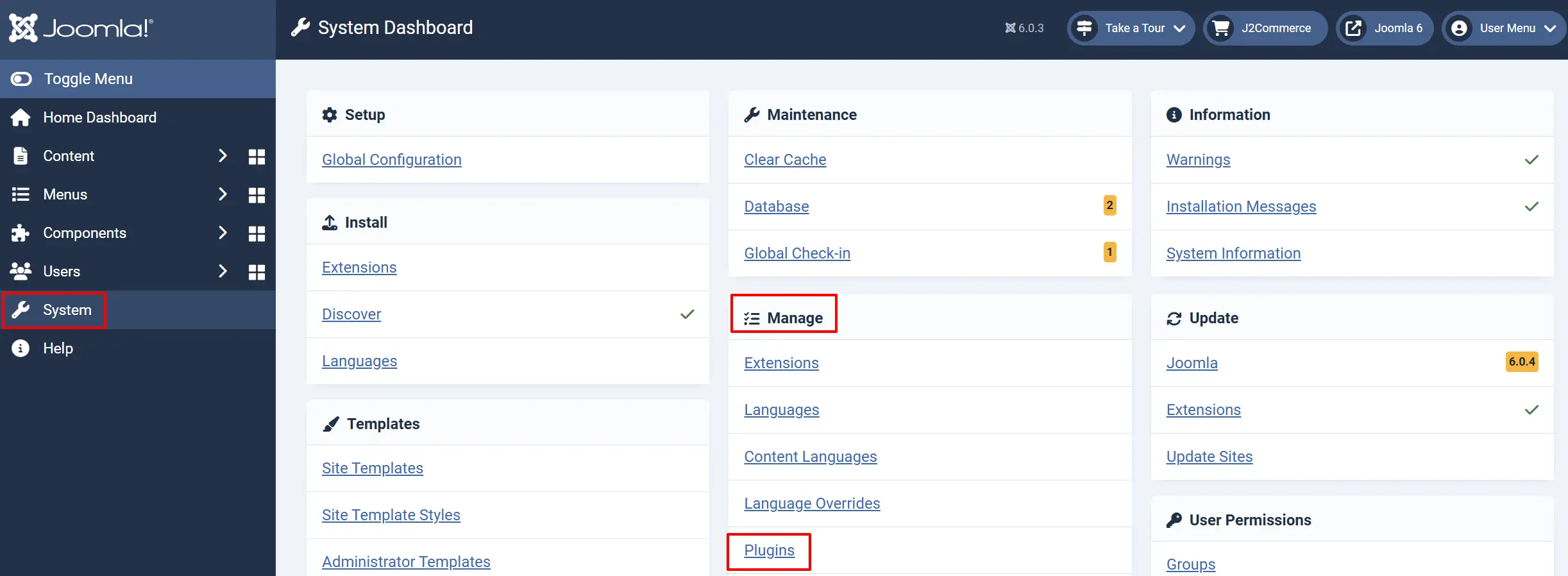
Go to System -> Manage -> Plugins.
-
Search for Smart Search - J2Commerce.
-
Click the checkbox next to it and then click Enable in the toolbar.
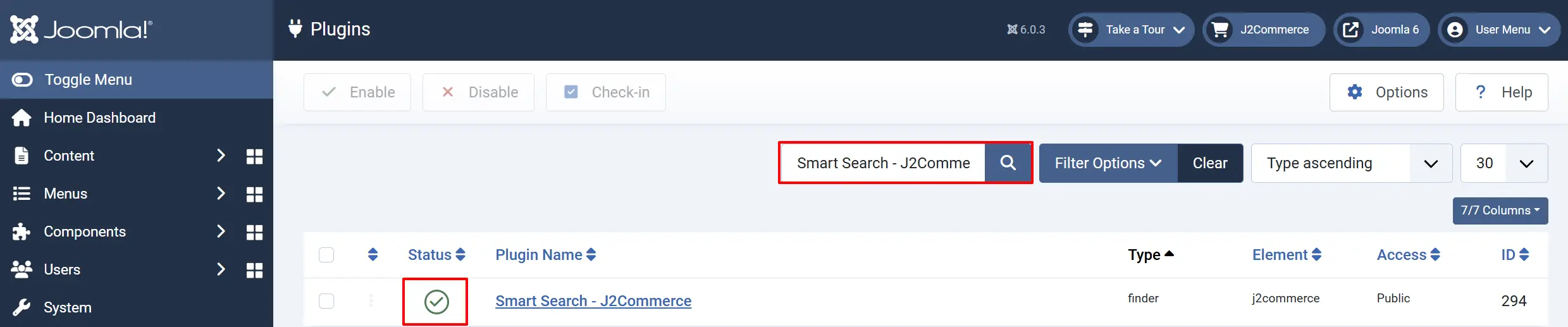
After clicking Enable, the plugin is active but the index is still empty. You must run the indexer at least once before products appear in search results. See Running the Indexer below.
Configure the Plugin
Go to System -> Manage -> Plugins, search for Smart Search - J2Commerce, and click the plugin name.
Helpful tip: If you click on the Toggle Inline Help icon, it will explain each section
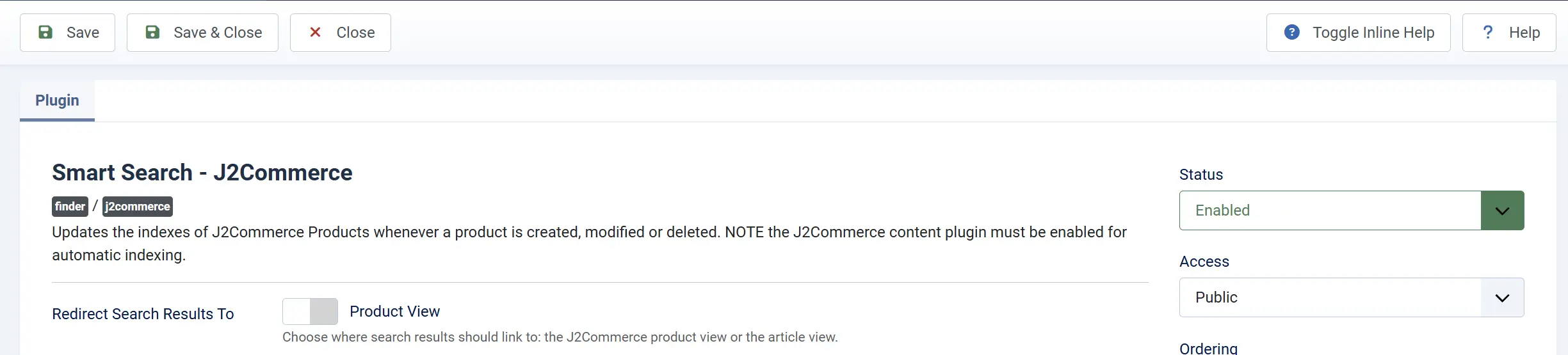
Basic Settings tab
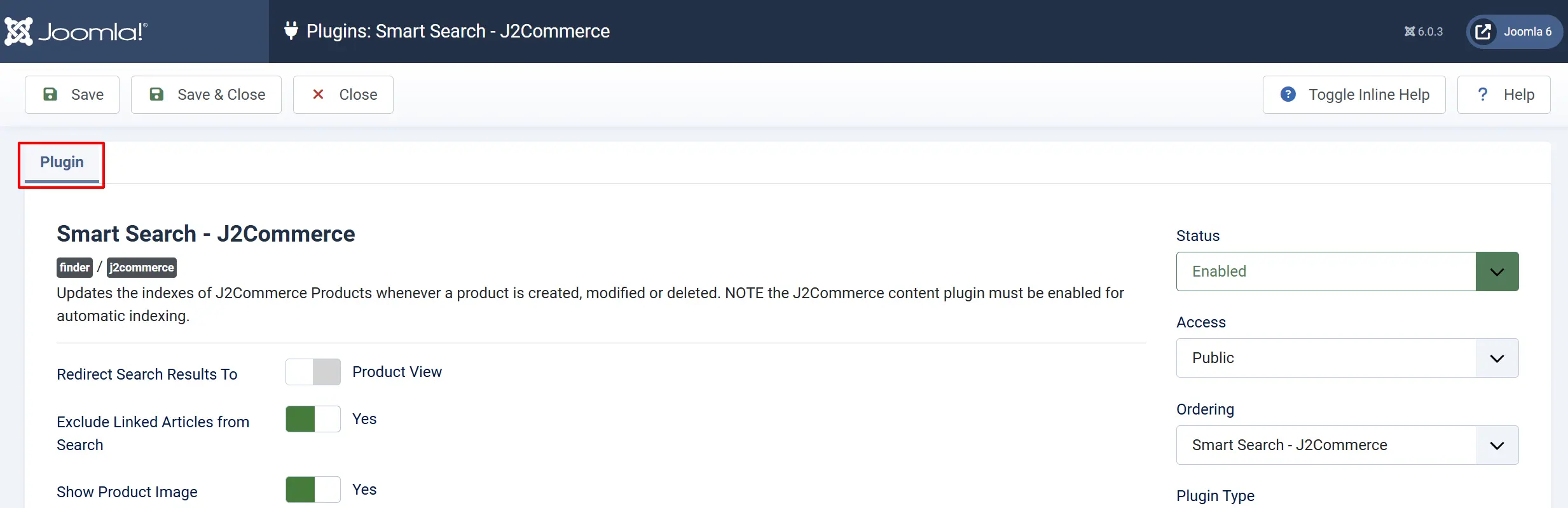
The plugin has three configuration options:
Redirect Search Results To: Where search result links point when a customer clicks a product. Choose Product View to link to the J2Commerce product page, or Article View to link to the standard Joomla article.
-
Most stores should leave this set to Product View. This sends customers directly to the J2Commerce product page, where they can select options and add the item to their cart.
-
Choose Article View only if your product pages are primarily Joomla articles and the J2Commerce product view is not your main storefront destination.
Exclude Linked Articles from Search: When set to Yes, articles that have an associated J2Commerce product are removed from the Smart Search index. This prevents the same product from appearing twice in search results — once as a product and once as an article.
- Leave this set to Yes in almost all cases. When J2Commerce products are backed by Joomla articles (which is the standard setup), both the article and the product would otherwise appear as separate results for the same product. Enabling exclusion keeps the results clean and prevents customer confusion.
If you have articles that discuss a product without being linked to a J2Commerce product record, those articles are unaffected by this setting. Only articles with a direct product link are excluded.
Show Product Image: Displays the product's thumbnail image alongside its result in Smart Search. The plugin uses the smallest available image version (tiny, then thumbnail, then main) to keep result pages fast.
How It Works
Smart Search works by building an index — a database of searchable terms extracted from your content. When a visitor types in the search box, Joomla queries this index rather than scanning every article and product record from scratch. This makes searches very fast even on large catalogues.
The J2Commerce Smart Search plugin teaches Smart Search how to read your product catalogue. When the indexer runs, it reads every enabled J2Commerce product and extracts the following information:
| What is indexed | What customers can search for |
|---|---|
| Product title | The product name |
| Product description | Words in the intro text and full description |
| SKU codes | The exact SKU of any variant |
| UPC codes | The exact UPC barcode of any variant |
| Brand / manufacturer name | The company name assigned to the product |
| Category name | The product category, usable as a filter |
| Author | The Joomla user who created the article |
| Meta keywords and description | Hidden SEO fields on the article |
| Product image | Shown in results (when enabled) |
Automatic Re-indexing
You do not need to run the indexer manually every time you make a change. The plugin listens for the following events and updates the index automatically:
- Product saved: The product entry in the index is refreshed.
- Product published or unpublished: The product is shown or hidden in search results immediately.
- Product deleted: The product is removed from the index.
- Category published or unpublished: All products in that category are updated at once.
Manual re-indexing is only required the first time (after enabling the plugin) and after a full site restore or migration.
Running the Indexer
The first time you enable the plugin, you must run the Smart Search indexer to build the initial index. Without this step, no products appear in search results.
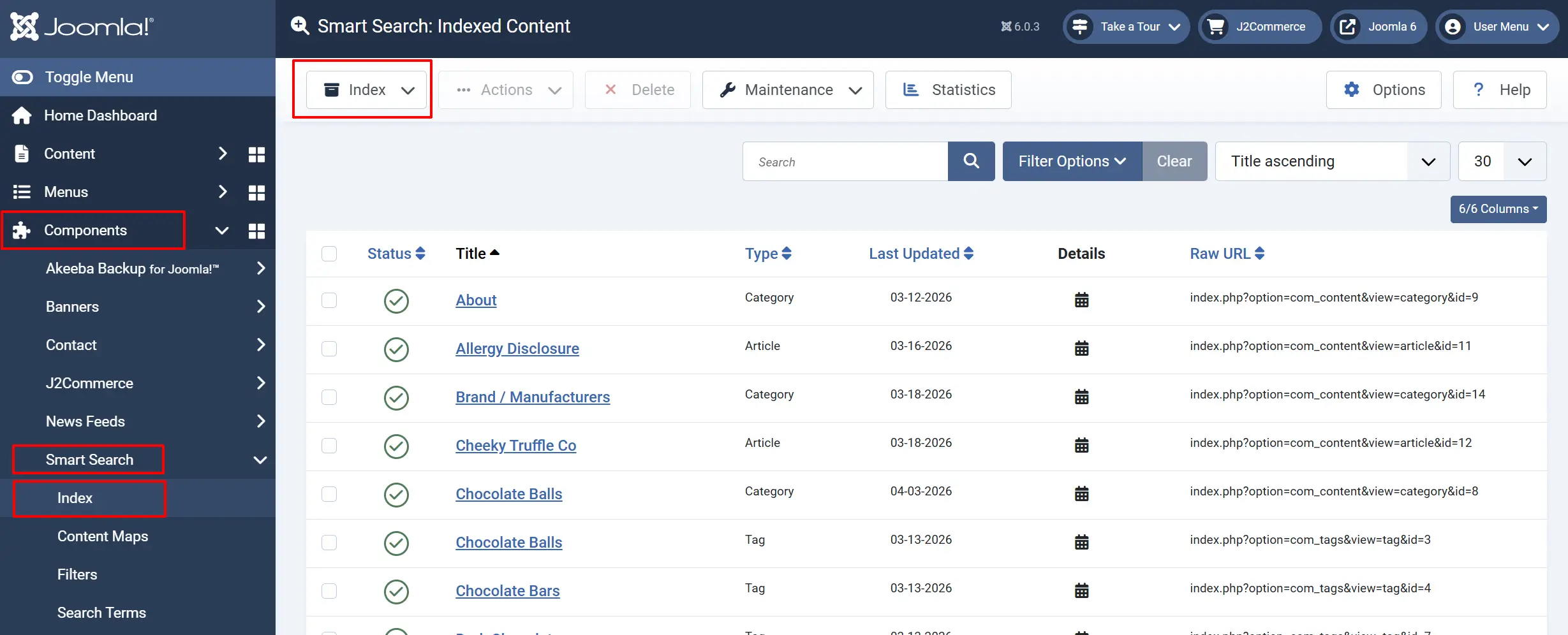
- Go to Components -> Smart Search -> Index
- Click the Index button in the top toolbar.
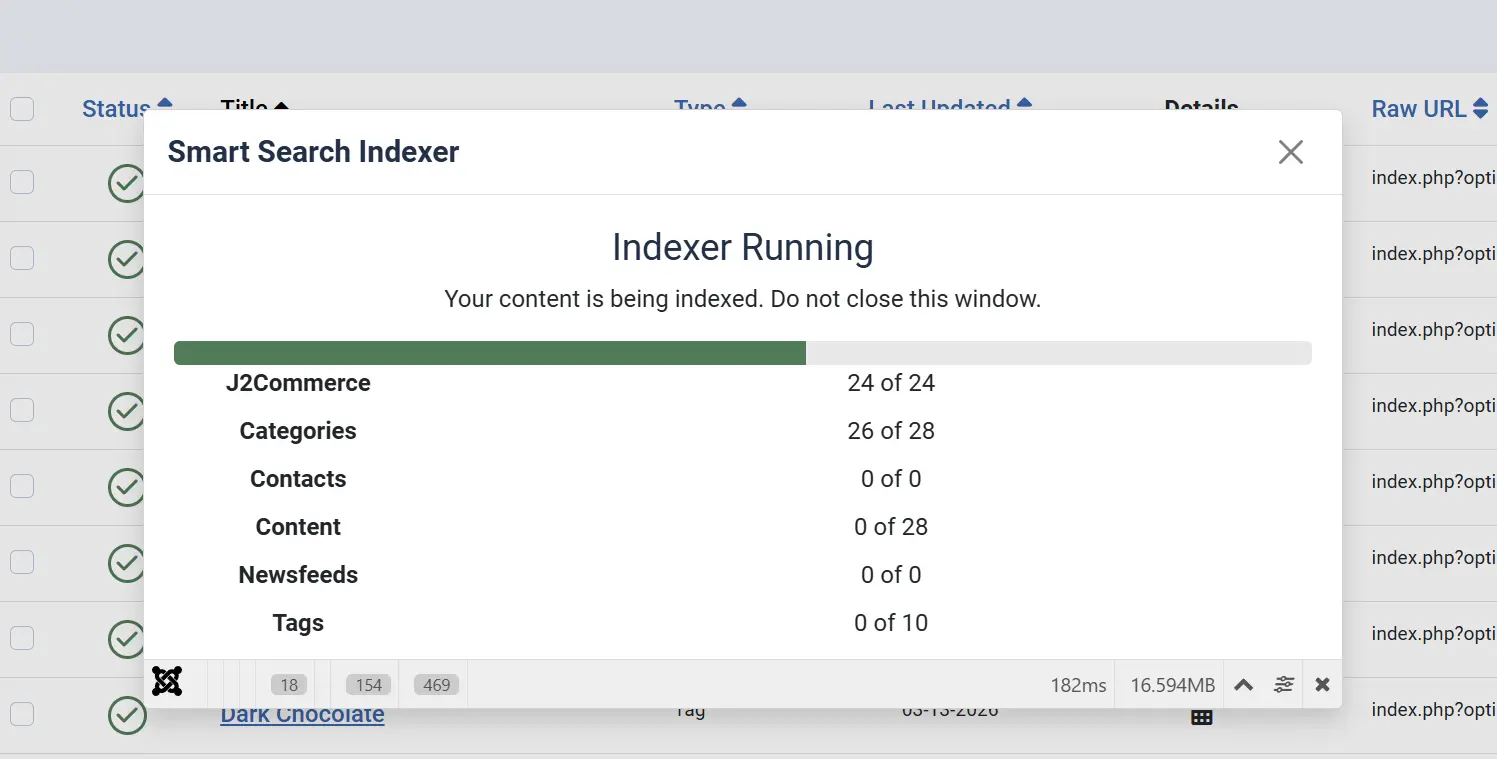
- Wait for the indexing process to complete. A progress indicator appears. The time required depends on the number of products and articles on your site.
- When the progress bar reaches 100%, the index is ready. Close the progress dialog.
Assigning the Search bar to the Side Main Menu
Create a Menu Item
In order for the search bar to show on the frontend, you need to create a menu item or a module, but in the example below, we will show you how to customise the Menu Item only.
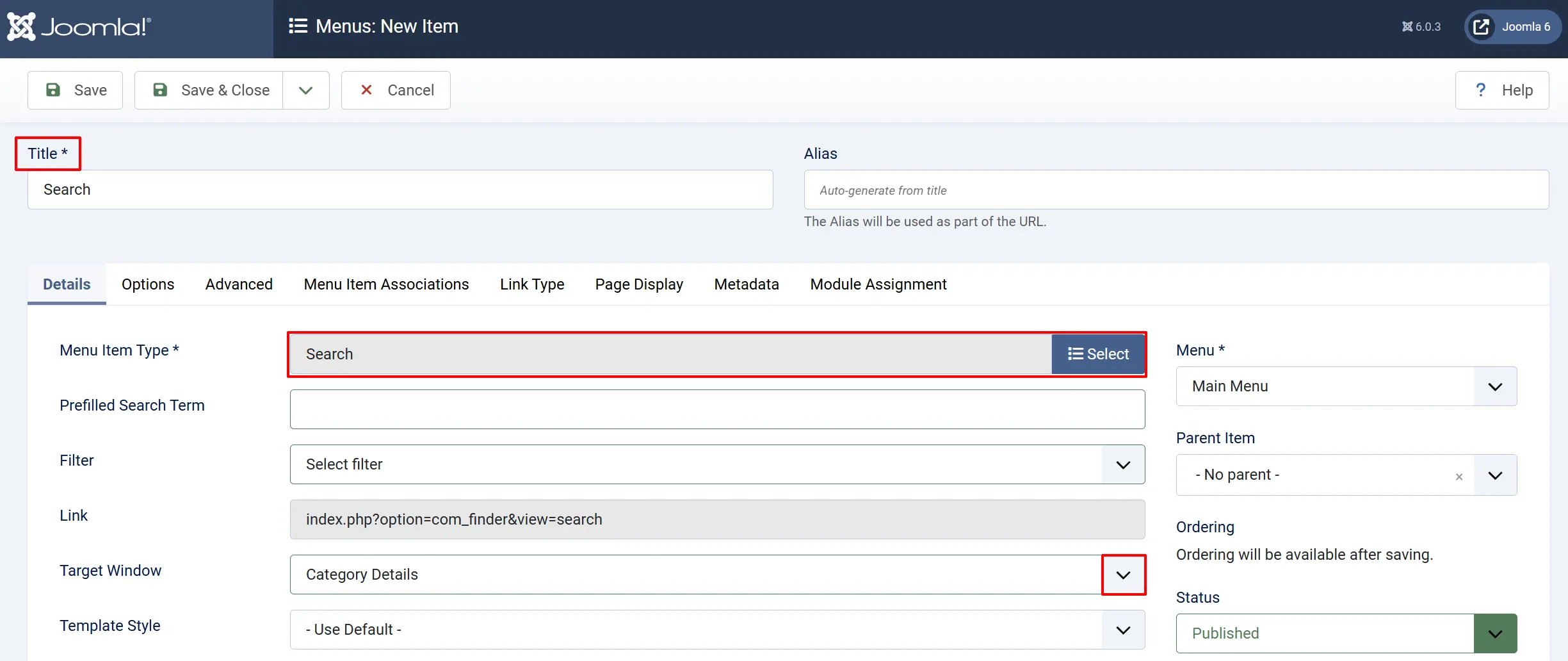
Go to Menu -> Main Menu -> New
Title: Name the Search bar
Menu Item Type: Select the Smarch Search -> Search
Target Window: Select what you want the Search bar to appear after the customer clicks it.
When creating a new menu item, it will automatically appear at the bottom of the list on the frontend.
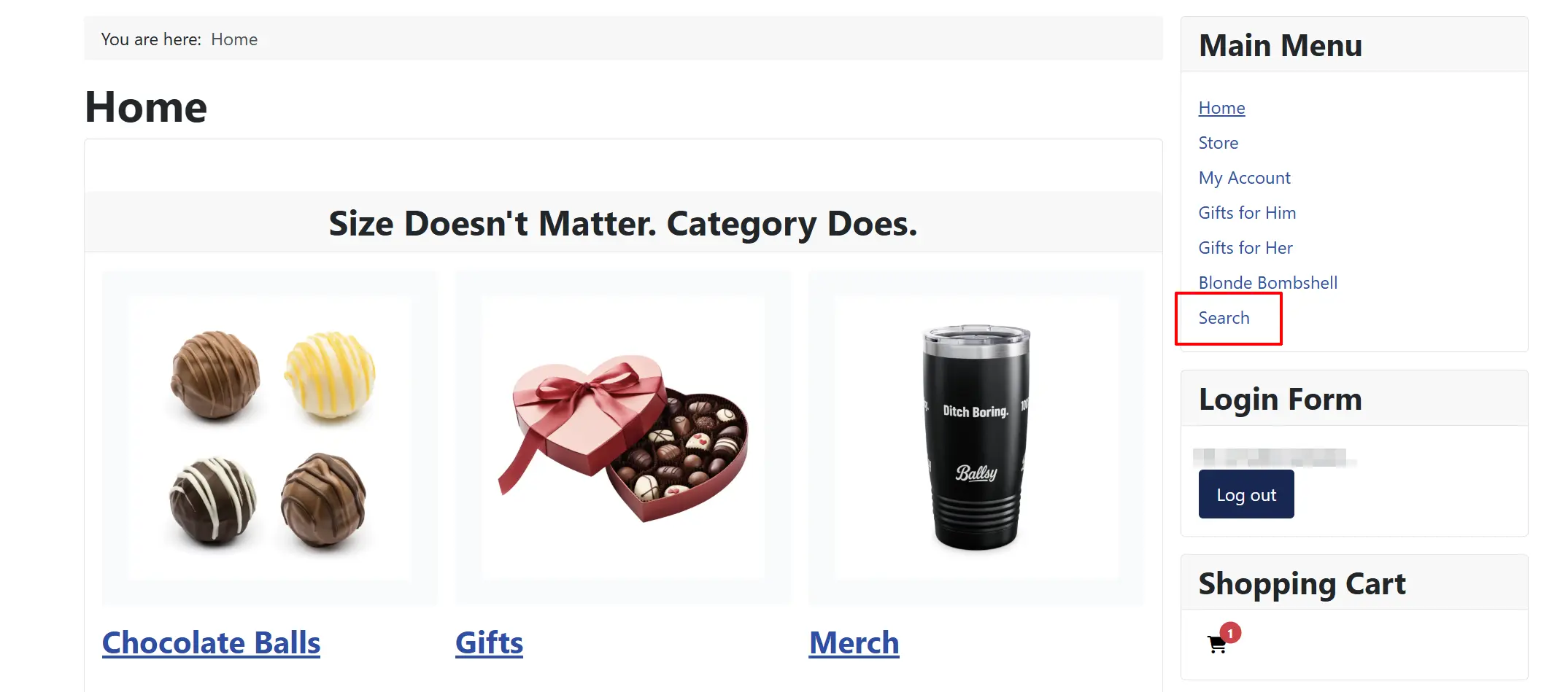
If you wish to move the search bar to the top, go to the Menu item and drag it to the top
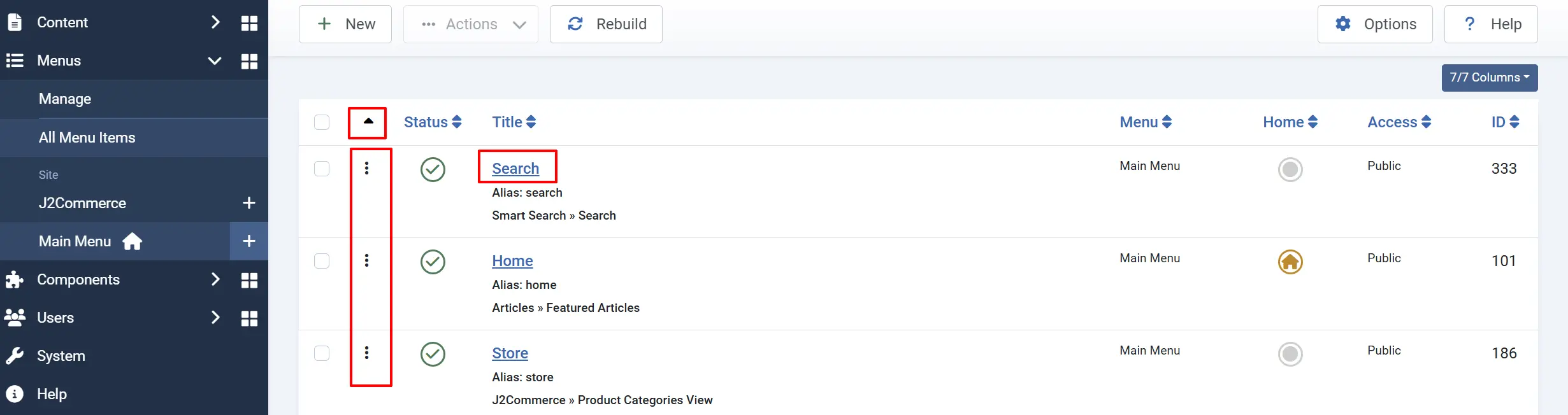
Products now appear in Smart Search results. You can confirm this by using the search box on the front end of your site.
If you run the indexer and your products do not appear, check that the plugin is enabled and that the products themselves are published. Unpublished products are intentionally excluded from the index.
Customising the Search View
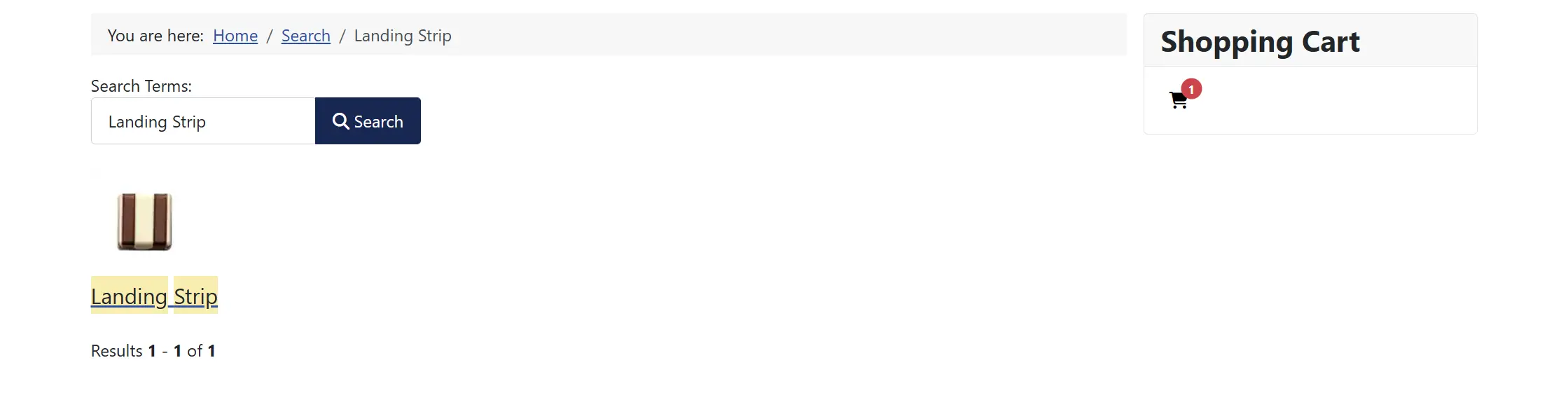
Search results include the product title, a description excerpt, and (when enabled) the product image. The default settings will make your search bar and results show all of the product information and hide the product image. See image below.
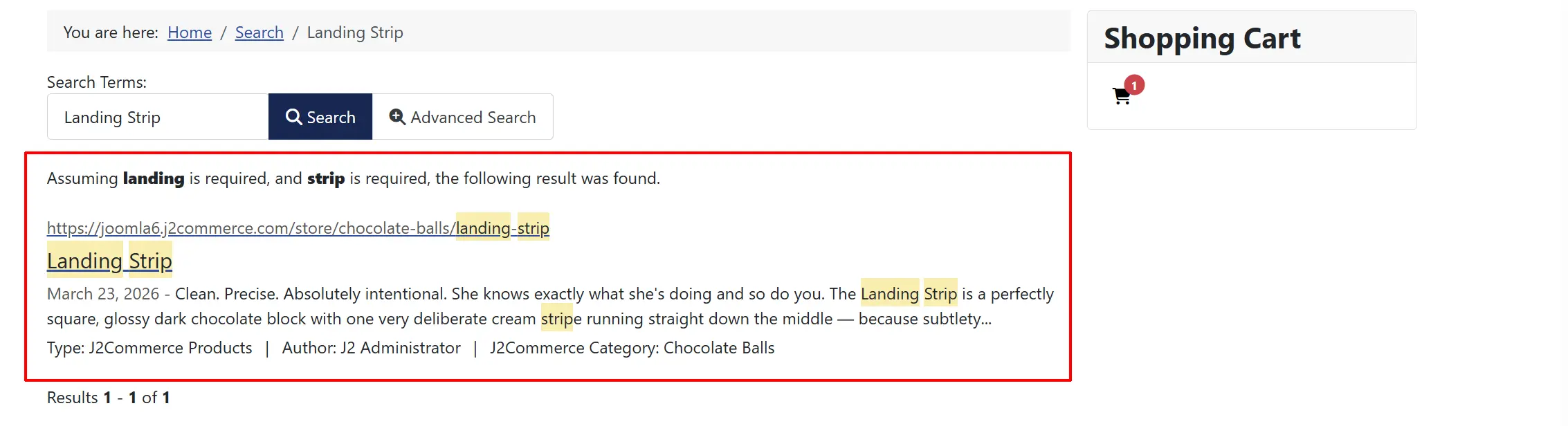
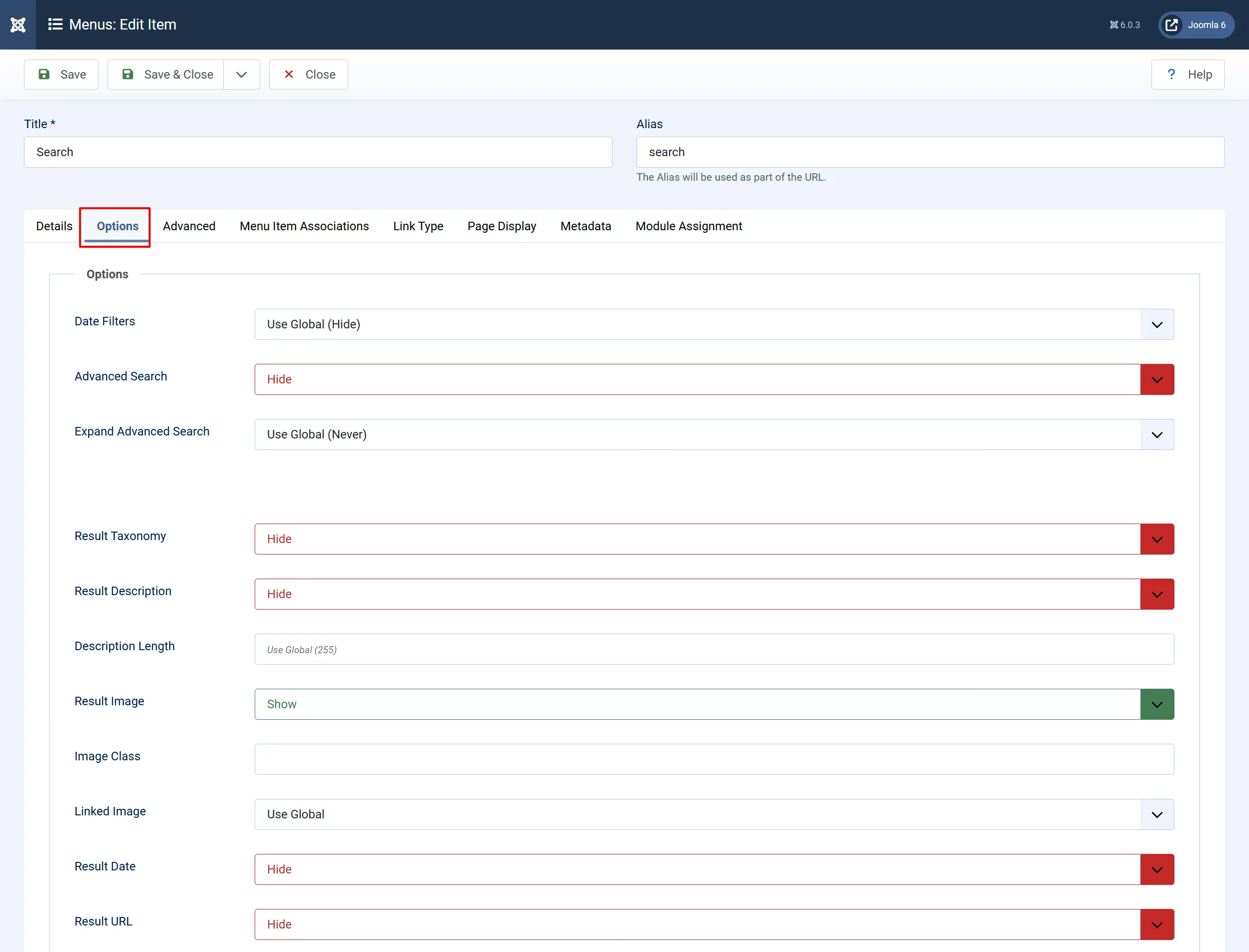
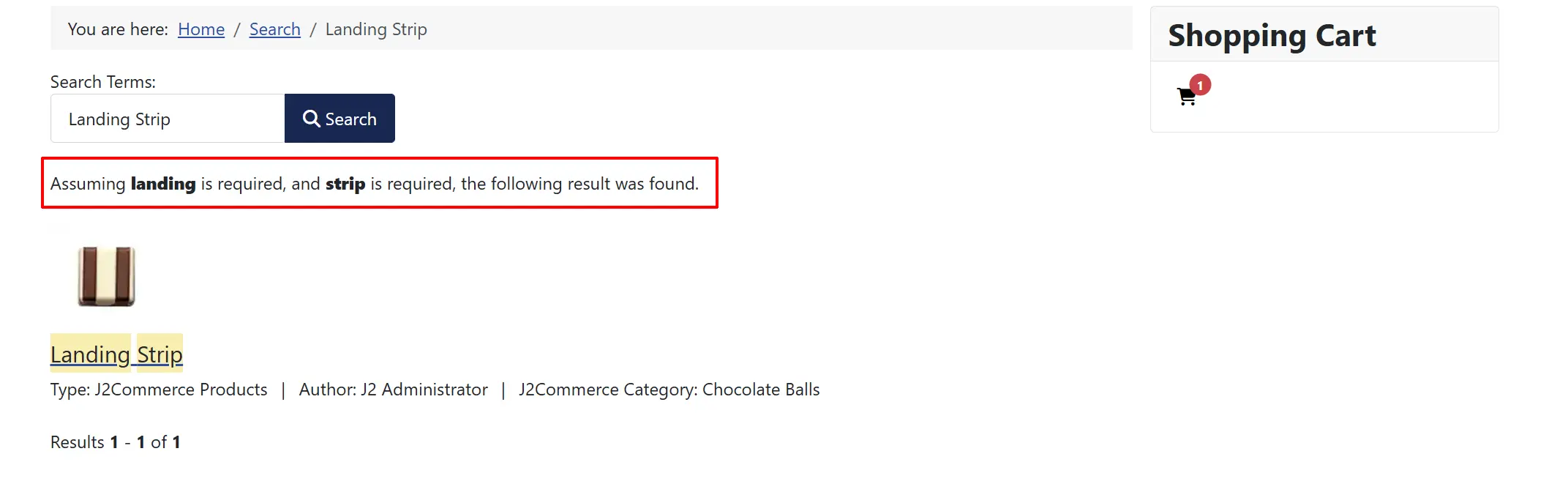
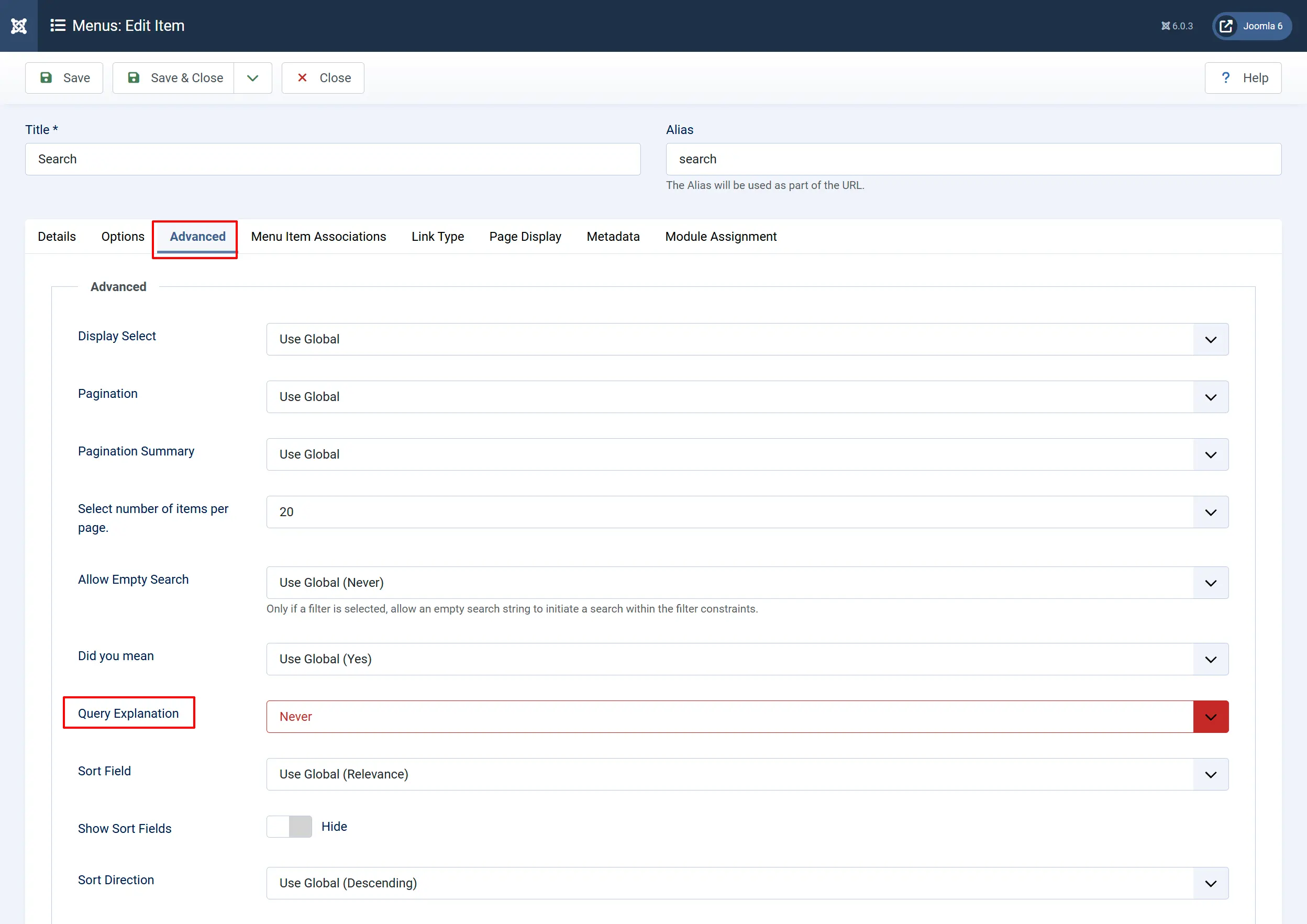
If you want to remove any of the information, go back to the Search Menu Item and click on the Options tab to customise which information you want shown on the frontend. In the example below, we have turned off all product information except for the Title and enabled the Image. The Query Explanation can be turned off in the Advanced tab. See below
To remove the Query Explanation, click on the Advanced tab -> Query Explanation -> select Never
Searching for Products
Once the index is built, customers can use any Smart Search box on your site to find products. The search respects the following:
- Full text search — customers can search any word that appears in the product title or description.
- SKU and UPC search — entering an exact SKU or UPC returns the matching product. This is useful for customers who already know the product code.
- Brand search — searching a manufacturer or brand name returns all products from that brand.
- Category filters — Smart Search supports filtering by "J2Commerce Category" and "J2Commerce Brand" taxonomy facets if your Smart Search module or menu item is configured to show filters.
Frontend View
Tips
- After enabling the plugin for the first time, always run the indexer from Components -> Smart Search before testing.
- If your catalogue is large, consider scheduling the Joomla Smart Search cron task to re-index automatically overnight. This ensures the index stays current without any manual steps.
- The Exclude Linked Articles from Search setting is especially important if you also have the Joomla Content (
plg_finder_content) Smart Search plugin enabled. Without exclusion, every product appears twice. - You can add a Smart Search module to a sidebar or header position via Content -> Site Modules -> New and selecting Smart Search. Set it to search only within "J2Commerce Products" to give customers a product-specific search experience.
- Product images in search results use a small version of the image. Make sure your products have images uploaded for the best-looking search results.
Troubleshooting
Products do not appear in Smart Search results
Cause: The indexer has not been run since the plugin was enabled, or the plugin is disabled.
Solution:
- Go to System -> Manage -> Plugins and confirm the plugin shows as Enabled.
- Go to Components -> Smart Search and click the Index button to run the indexer.
- Confirm that the products you are searching for are published and that their category is also published.
- Try purging the Smart Search index first (Components -> Smart Search -> Options -> Purge Index) and then re-running the indexer.
The same product appears twice in search results
Cause: The Exclude Linked Articles from Search setting is set to No, and the Joomla Content finder plugin is also indexing the same articles as products.
Solution:
- Open the plugin settings (System -> Manage -> Plugins -> Smart Search - J2Commerce).
- Set Exclude Linked Articles from Search to Yes.
- Save the plugin settings.
- Run the indexer again from Components -> Smart Search -> Index to rebuild the index with the exclusion applied.
Search results link to the article page instead of the product page
Cause: The Redirect Search Results To setting is set to Article View.
Solution:
- Open the plugin settings.
- Set Redirect Search Results To to Product View.
- Save the settings.
- Run the indexer again to update the stored URLs in the index.
Products do not update in search results after I save changes
Cause: The J2Commerce Content plugin (plg_content_j2commerce) may be disabled, preventing the automatic re-index trigger from firing.
Solution:
- Go to System -> Manage -> Plugins and search for J2Commerce - Content.
- Confirm it is Enabled.
- If it was disabled, re-enable it, then save a product to confirm the automatic re-indexing resumes.
- As a fallback, you can always run the indexer manually from Components -> Smart Search to rebuild the full index.