Article Shortcodes
The Content - J2Commerce plugin lets you embed live product information directly inside any Joomla article. By placing a short tag in your article text, you can display a product's price, image, add-to-cart button, stock status, or even a full product card — without leaving the article editor.
The plugin uses the same rendering pipeline as J2Commerce category pages and product modules, so your articles automatically match the look and feel of the rest of your store.
Prerequisites
- J2Commerce 6 is installed and enabled
- At least one product was created in your store
Installation
This plugin ships with J2Commerce 6 and is available immediately after installation. To enable it:
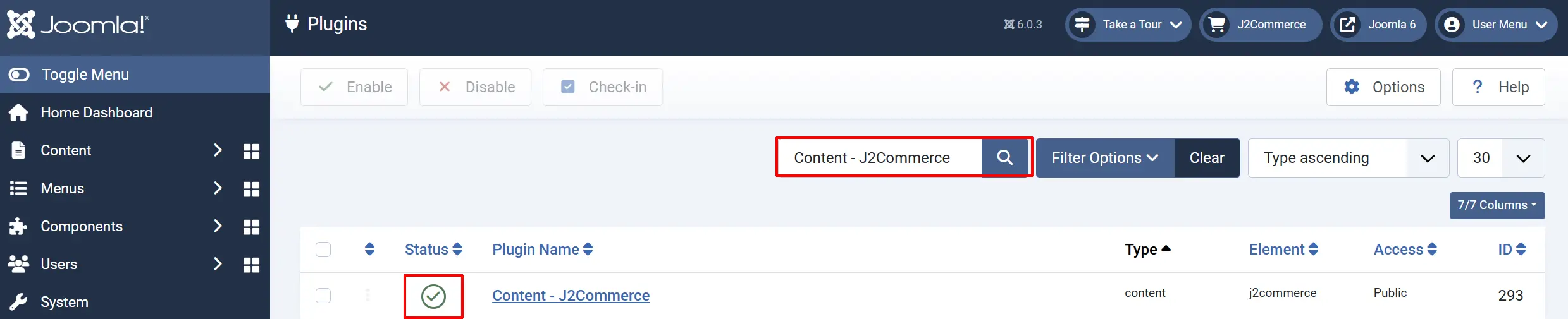
- Go to System -> Manage -> Plugins.
- Search for Content - J2Commerce.
- Click the plugin name to open it, then set Status to Enabled.
- Click Save & Close.
How Shortcodes Work
Place a shortcode tag anywhere in your article body. The plugin replaces the tag with rendered product HTML when the article is displayed on the frontend. Two syntax forms are supported.
Paired Form (recommended)
{j2commerce}PRODUCT_ID|option1|option2{/j2commerce}
The first value is always the numeric product ID. Everything after the first pipe character is a list of display options. You can combine as many options as you need.
Inline Form
{j2commerce PRODUCT_ID|option1|option2}
A convenience shorthand when you only need a single shortcode on a line. No closing tag is required.
Finding Your Product ID
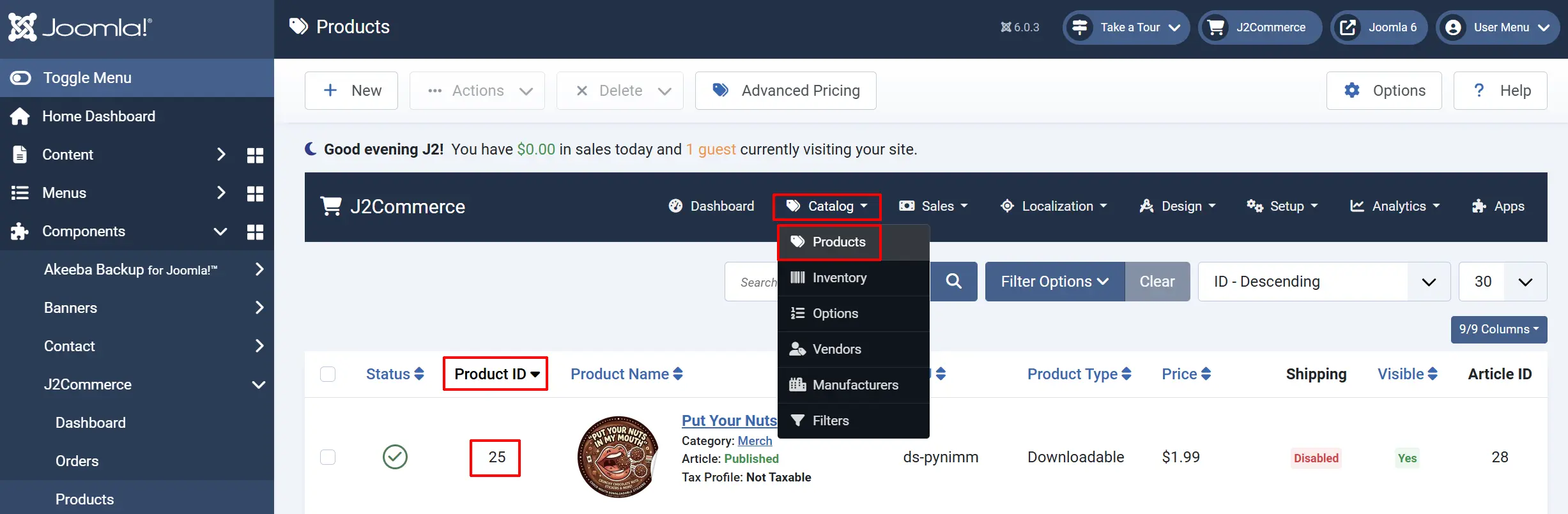
Go to J2Commerce -> Catalog -> Products. The product ID is shown in the ID column on the right side of the list.
Shortcode Options Reference
Full Product Card — full / card
Renders a complete product card identical to the one shown on a J2Commerce category page. Includes the image, title, price, and add-to-cart form.
{j2commerce}25|full{/j2commerce}
Example: Add a featured product card inside a blog post.
{j2commerce}25|card{/j2commerce}
card is an alias for full — both produce the same output.
Product Details
Displays the entire product detail
{j2commerce}25|detail{/j2commerce}
Price — price
Displays the product's current price. If the product has a sale price active, the sale price is shown.
{j2commerce}25|price{/j2commerce}
Example: Show a price inline inside a sentence — "Get it today for {j2commerce}25|price{/j2commerce}."
Sale Price — saleprice
Displays only the sale/special price. If no sale is active, the output will be empty.
{j2commerce}25|saleprice{/j2commerce}
Regular Price — regularprice
Displays only the regular (non-sale) price regardless of whether a sale is active.
{j2commerce}25|regularprice{/j2commerce}
Title — title
Displays the product name as a linked heading.
{j2commerce}25|title{/j2commerce}
SKU — sku
Displays the product's SKU (Stock Keeping Unit) identifier.
{j2commerce}25|sku{/j2commerce}
Stock Status — stock
Displays the stock or availability indicator (for example, "In Stock" or "Out of Stock").
{j2commerce}25|stock{/j2commerce}
Short Description — description / desc
Displays the product's short description. desc is an alias for description.
{j2commerce}25|description{/j2commerce}
Short Description (Detail Style) — sdesc
Displays the short description using the detail-view layout style rather than the list-card style.
{j2commerce}25|sdesc{/j2commerce}
Long Description — ldesc
Displays the product's full long description in the detail-view layout style.
{j2commerce}25|ldesc{/j2commerce}
Specifications — specs
Displays the product specifications block.
{j2commerce}25|specs{/j2commerce}
Images — images / gallery
Displays all product images as a gallery. gallery is an alias for images.
{j2commerce}25|images{/j2commerce}
Main Image — mainimage
Displays only the main product image.
{j2commerce}25|mainimage{/j2commerce}
Thumbnail Image — thumbnail
Displays the product thumbnail image.
{j2commerce}25|thumbnail{/j2commerce}
Main and Additional Images — mainadditional
Displays the main image followed by any additional images.
{j2commerce}25|mainadditional{/j2commerce}
Add to Cart — cart
Displays the add-to-cart form including product option selectors (colour, size, etc. if configured).
{j2commerce}25|cart{/j2commerce}
Add to Cart (Button Only) — cartonly
Displays only the add-to-cart button without option selectors. Useful for simple products with no variants.
{j2commerce}25|cartonly{/j2commerce}
Product Options — options
Displays the product option selectors (dropdowns, radio buttons, etc.) without the cart button.
{j2commerce}25|options{/j2commerce}
Quick View Trigger — quickview
Displays a Quick View button that opens the product in a modal overlay.
{j2commerce}42|quickview{/j2commerce}
Full Detail View — detail
Renders the complete product detail page layout inline inside the article.
{j2commerce}25|detail{/j2commerce}
Brand / Manufacturer — brand / manufacturer
Displays the brand or manufacturer information block. manufacturer is an alias for brand.
{j2commerce}25|brand{/j2commerce}
Upsells — upsells
Displays a row of upsell products configured for this product.
{j2commerce}25|upsells{/j2commerce}
Cross-sells — crosssells
Displays a row of cross-sell products configured for this product.
{j2commerce}25|crosssells{/j2commerce}
Combining Multiple Options
You can combine several options in a single shortcode. The plugin renders each option in the order listed, wrapping them all in one container.
{j2commerce}25|title|price|cart{/j2commerce}
This renders the product title, then the price, then the add-to-cart form — in that order.
Another example — show a thumbnail image with the price and a buy button:
{j2commerce}25|thumbnail|price|cart{/j2commerce}
Plugin Settings
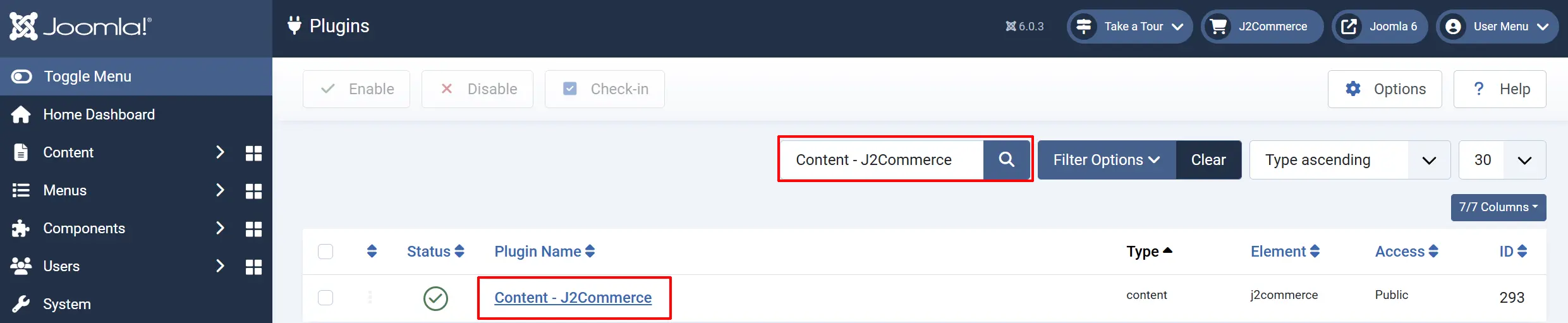
Open the plugin by going to System -> Manage -> Plugins and clicking Content - J2Commerce.
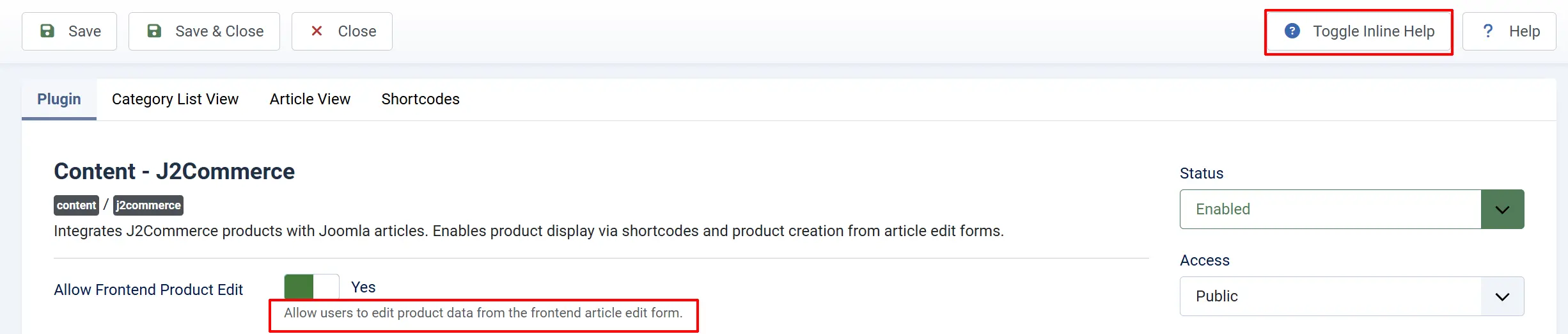
Tip: Click on the Toggle Inline Help button on any app/plugin you install and it will show a description below each section. See image below
Basic Settings
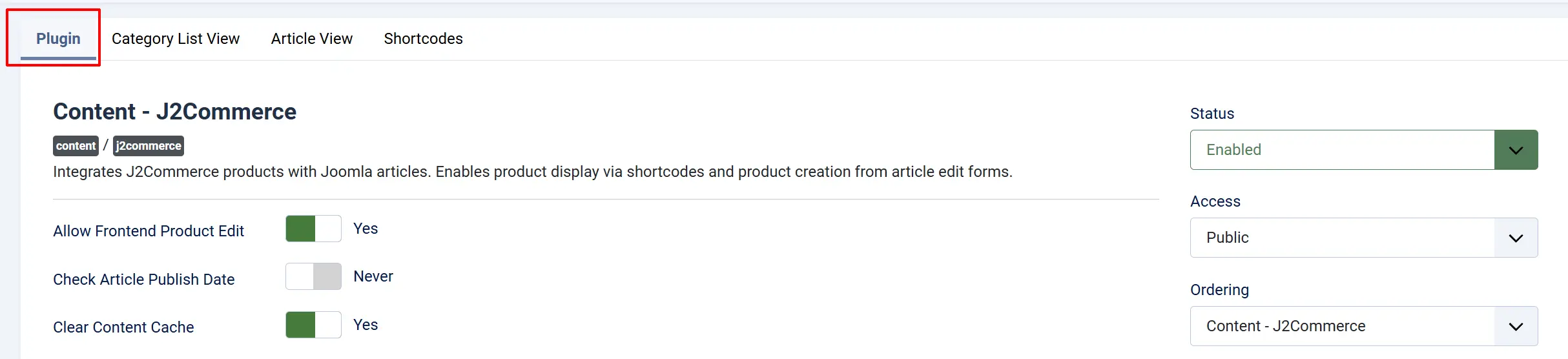
Allow Frontend Product Edit: Allow users to edit product data from the frontend article edit form.
Check Article Publish Date: Only display products for articles that are within their publish date range.
Clear Content Cache: Automatically clear content and J2Commerce caches when displaying products.
Category List View
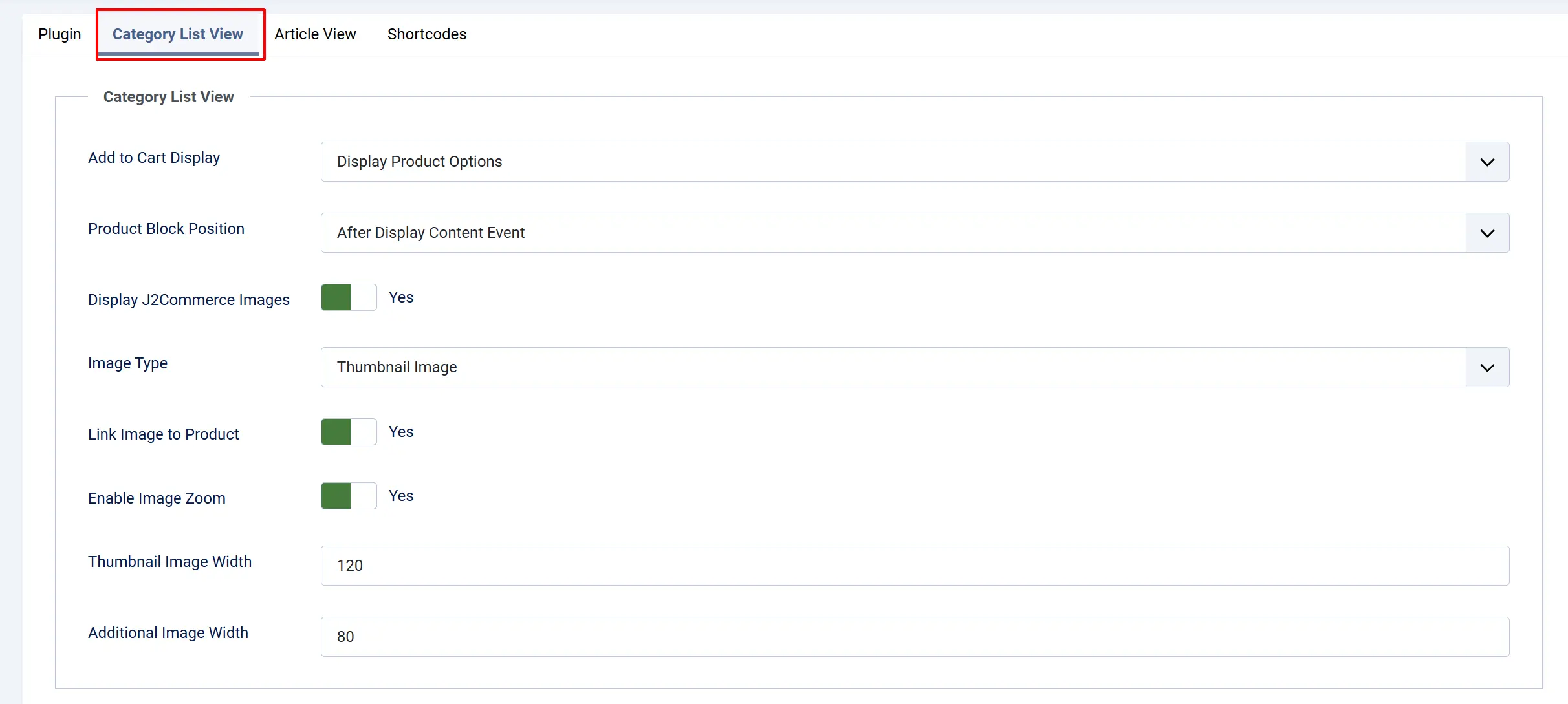
These settings control how the plugin automatically displays product blocks on Joomla category blog pages (not shortcodes).
Add to Basket Display: How to display the add-to-basket block in category list views.
Product Block Position: Position of the product block relative to the article content.
Display J2Commerce Images: Display product images from J2Commerce in category list views.
Image Type: Which type of product images to display (Thumbnail, Main, or Main and Additional).
Link Image to Product: Make product images clickable links to the product detail page.
Enable Image Zoom: Enable zoom effects on product images.
Thumbnail Image Width: Width in pixels for thumbnail images in category list views.
Additional Image Width: Width in pixels for additional product images.
Article View
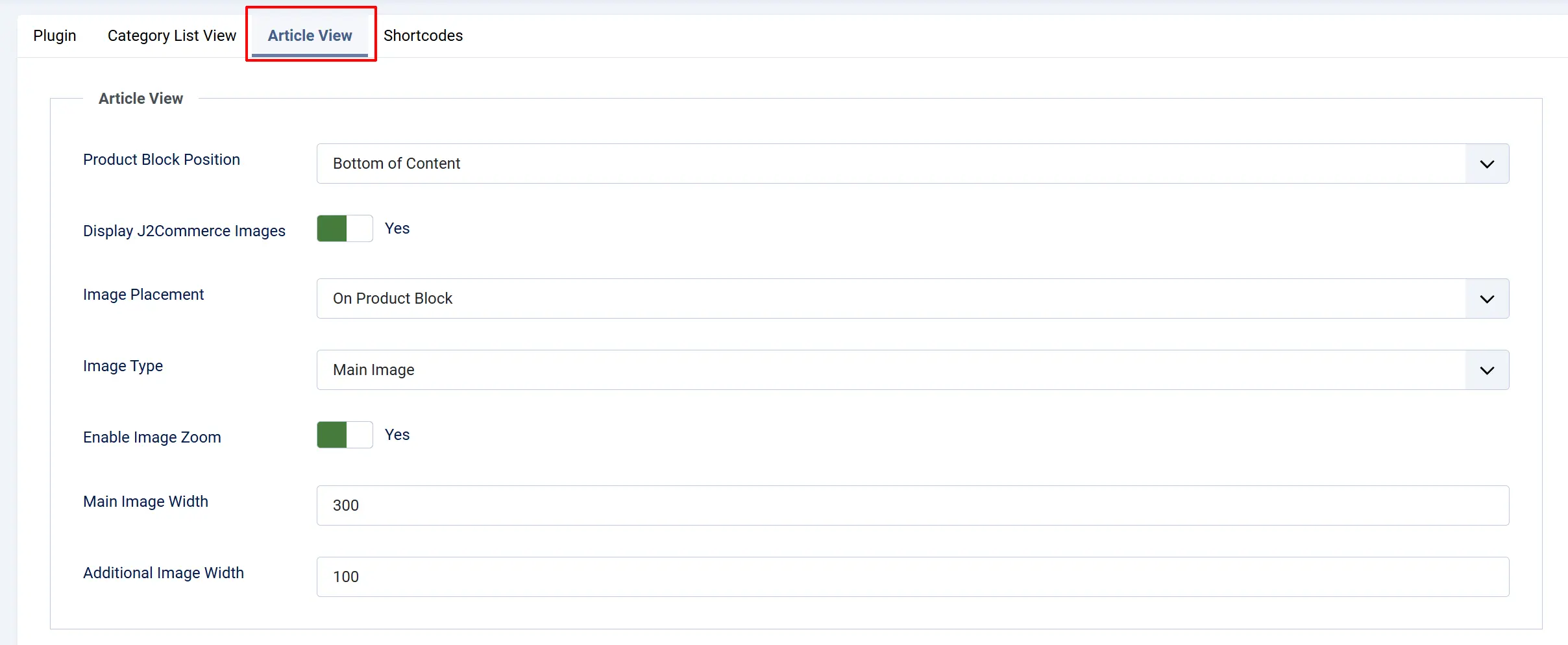
These settings control how the plugin displays product blocks on individual Joomla article pages (not shortcodes).
Product Block Position: Position of the product block relative to the article content.
Display J2Commerce Images: Display product images from J2Commerce in article view.
Image Placement: Where to display product images — on the product block, before content, or after content.
Image Type: Which type of product images to display (Main or Main and Additional).
Enable Image Zoom: Enable zoom effects on product images.
Main Image Width: Width in pixels for the main product image in article view.
Additional Image Width: Width in pixels for additional product images in article view.
Shortcodes
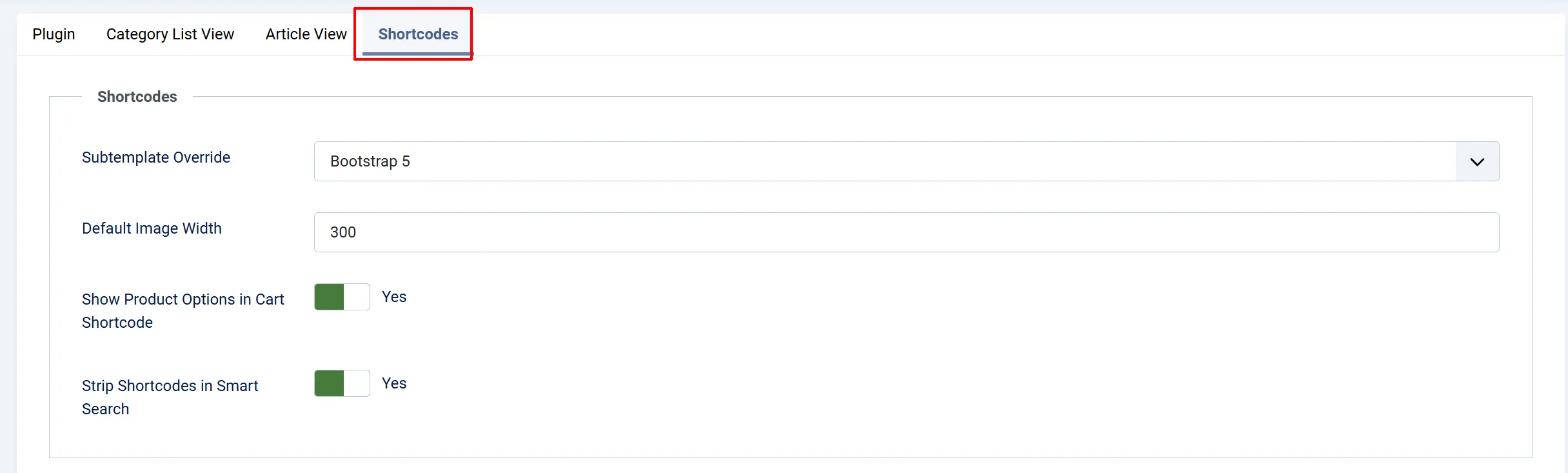
Subtemplate Override: Choose which J2Commerce subtemplate (Bootstrap 5 or UIkit 3) to use when rendering article shortcodes. Leave as Use Global to follow the site-wide default.
Default Image Width: Maximum width in pixels for images rendered inside article shortcodes.
Show Product Options in Cart Shortcode: When enabled, the cart shortcode displays product option selectors alongside the add-to-cart button.
Strip Shortcodes in Smart Search: When enabled, shortcode tags are removed during Smart Search indexing so product HTML does not pollute the search index.
J2Commerce Tab in the Article Editor
When the plugin is enabled, a J2Commerce tab appears in the Joomla article editor. This tab lets you configure product settings (type, price, SKU, stock, shipping, and more) for the article directly — without opening the product separately in J2Commerce.
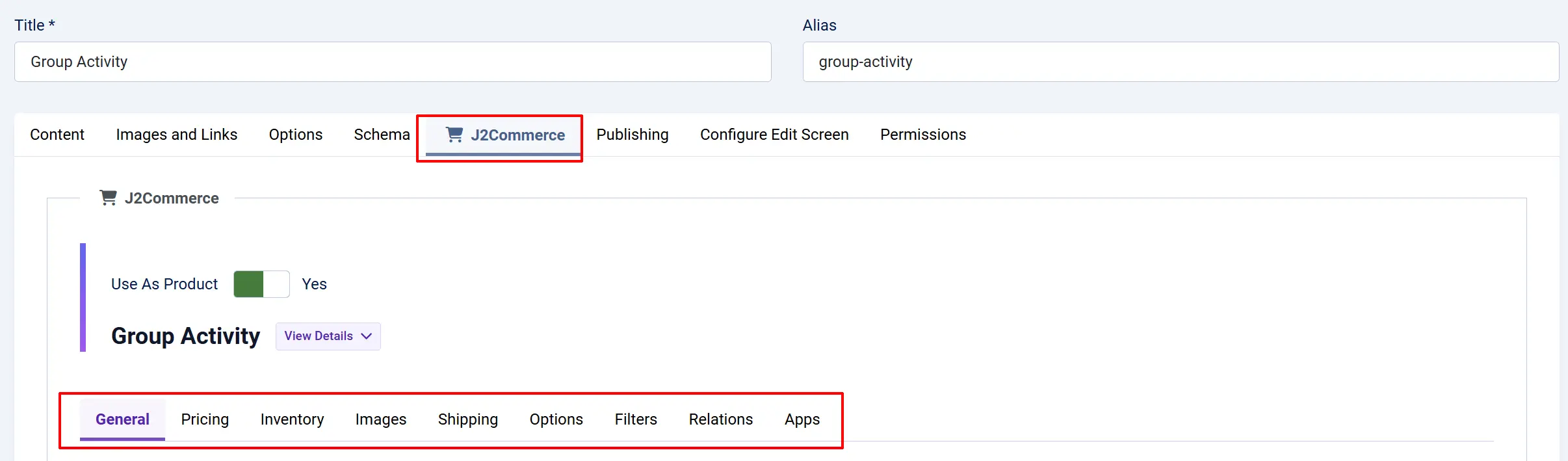
The J2Commerce tab only appears if the plugin is enabled. If the tab is missing, go to Settings -> Plugins -> search for Content - J2Commerce and enable it.
Tips
- Use
fullorcardwhen you want a self-contained product block that matches your store's category page appearance. - Use individual options like
priceandcartwhen you want fine-grained control over placement within your article layout. - The Subtemplate Override setting is useful if your article pages use a different framework from your product catalog. For example, set it to Bootstrap 5 to ensure consistent rendering on a UIkit-based site.
- The inline form
{j2commerce 42|price}is handy for embedding a price inside a sentence without the visual weight of the paired form. - You can use the same product in multiple places in one article. The plugin handles duplicate shortcodes correctly.
Troubleshooting
Shortcodes appear as raw text on the frontend
Cause: The plugin is disabled.
Solution:
- Go to System -> Manage -> Plugins.
- Search for Content - J2Commerce.
- Ensure the status is Enabled.
- Click Save & Close and reload the article.
No product output — the shortcode is replaced with nothing
Cause: The product ID in the shortcode does not match a published product.
Solution:
- Go to J2Commerce -> Catalog -> Products and confirm the product ID.
- Verify the product is published (not unpublished or trashed).
- Update the shortcode with the correct ID.
The product block appears but looks different from the category page
Cause: The Subtemplate Override may be set to a different framework than your category pages use.
Solution:
- Open the plugin settings.
- Set Subtemplate Override to Use Global to follow the site-wide subtemplate.
- Save and clear the Joomla cache: Home Dashboard -> Cache -> Delete All.
The J2Commerce tab is missing from the article editor
Cause: The Content - J2Commerce Plugin is disabled, which hides all article tabs.
Solution:
- Go to Settings -> Manage -> Plugins. Search for Content - J2Commerce
- Enable the Plugin
Stale product data appears in articles (old price, old image)
Cause: Joomla's content cache has stored the rendered article HTML.
Solution:
- Go to Home Dashboard -> Cache -> Delete All to clear all caches.
- If the problem recurs, enable Clear Content Cache in the plugin's Basic Settings. This automatically clears caches whenever product data is refreshed.