Orders
The Orders page displays all customer orders with comprehensive filtering and management capabilities. Track orders from placement through delivery, update statuses, and communicate with customers about their purchases.
Requirements
- PHP 8.3.0+
- Joomla 6.x
- J2Commerce 6.x
Locating Orders
Orders are managed from the J2Commerce Dashboard.
There are three ways you can access the orders.
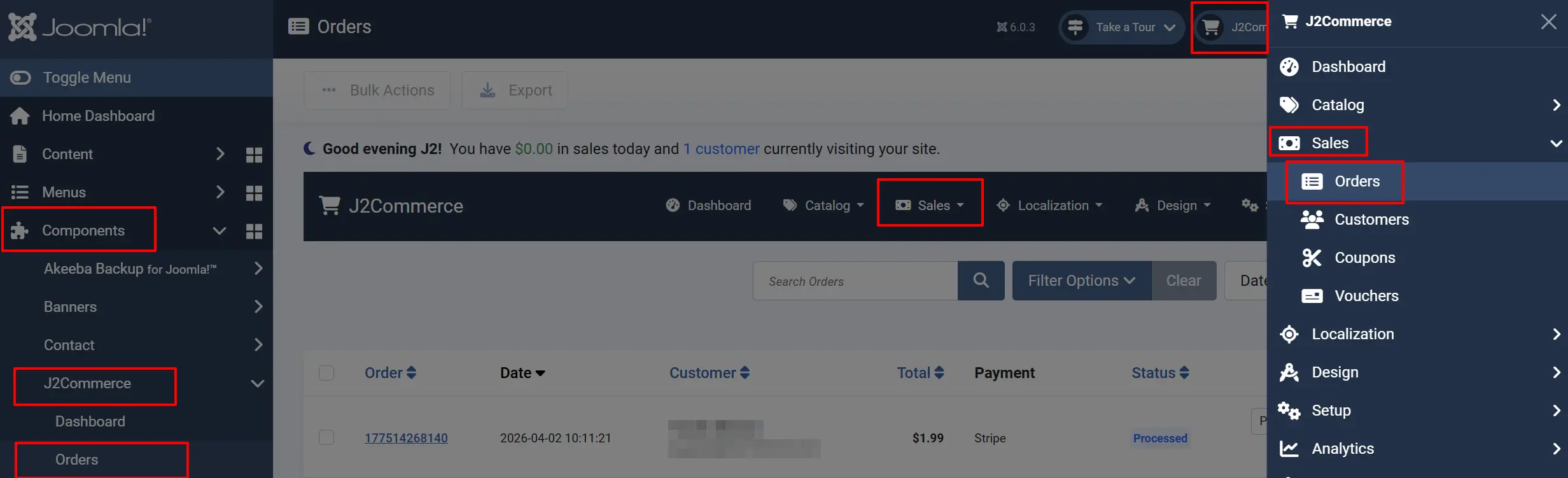
Option A: Go to the J2Commerce icon at the top right corner -> Sales -> Orders
Option B: Go to Components on the left sidebar -> J2Commerce -> Dashboard -> Sales -> Orders
Option C: Go to Components on the left sidebar -> J2Commerce -> Orders
Orders List View
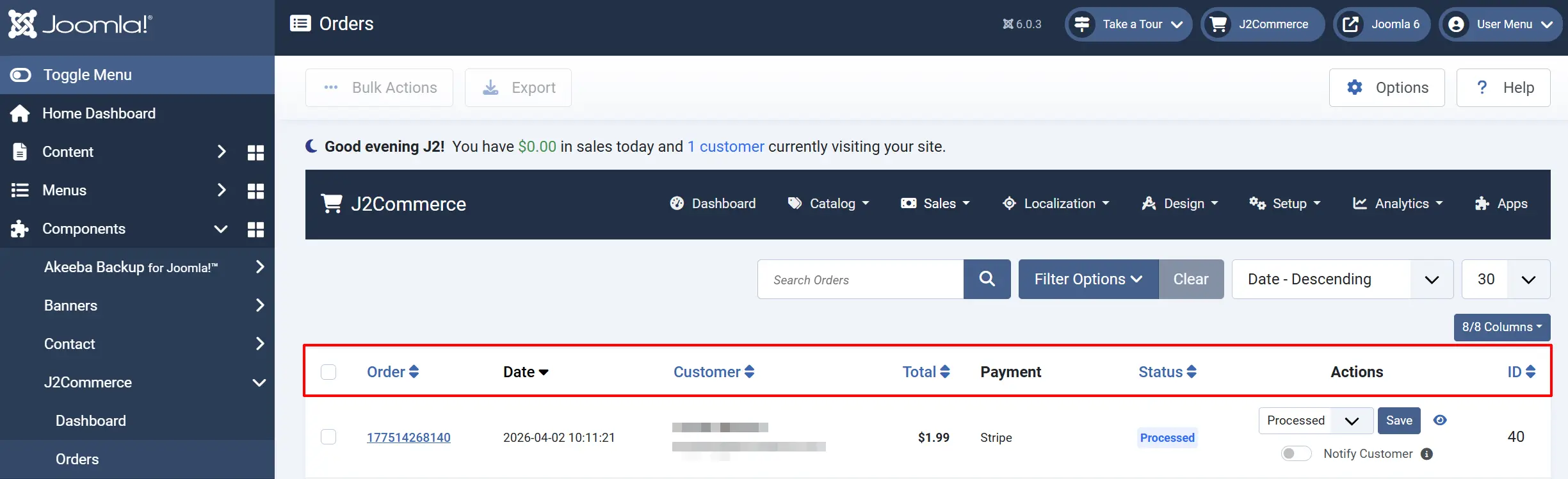
The orders list displays all orders with the following columns:
Order: Unique order identifier (e.g., 1774713249236)
Date: Order creation date and time
Customer: Billing name (first name + last name) and email address
Total: Order total amount in the transaction currency
Payment: Payment method used
Status: Current order status with colour badge
Actions: you can change the status and notify customer of the change without opening the order
Filter Options
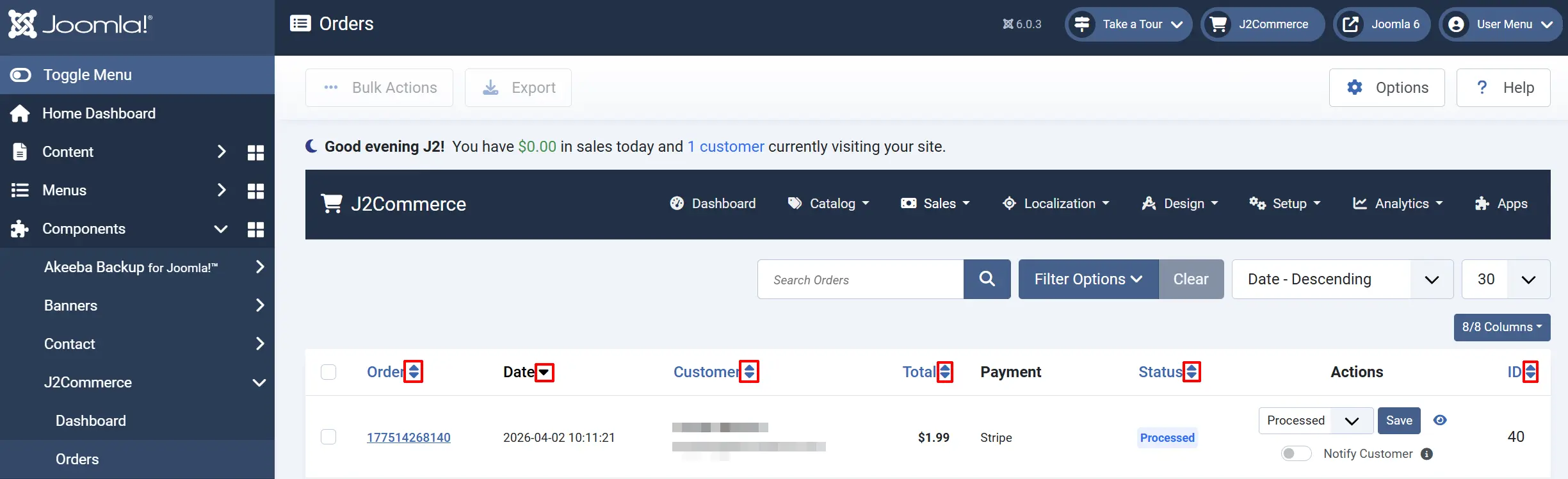
Use the filter bar to narrow down orders:
Search: Search by order ID, customer name, email, or product name
Status: Filter by order status (Confirmed, Pending, Shipped, etc.)
Payment Method: Filter by payment plugin (Cash, PayPal, Stripe, etc.)
User: Filter by registered customer
Coupon Code: Find orders that used a specific coupon
Amount Range: Filter by order total (minimum/maximum)
Order ID Range: Filter by order ID range
Date Range: Filter by order date (From/To)
Order Statuses

J2Commerce includes default order statuses that represent the order lifecycle:
Confirmed: Order payment confirmed, ready for processing
Processed: Order being prepared for shipment
Failed: Payment failed or order could not be completed
Pending: Order placed, awaiting payment confirmation
New: New order, not yet processed
Cancelled: Order cancelled
Shipped: Order shipped to customer
Delivered: Order delivered to customer
NOTE: To create a new Order Status, go to J2Commerce -> Setup -> Order Statuses
Status Workflow
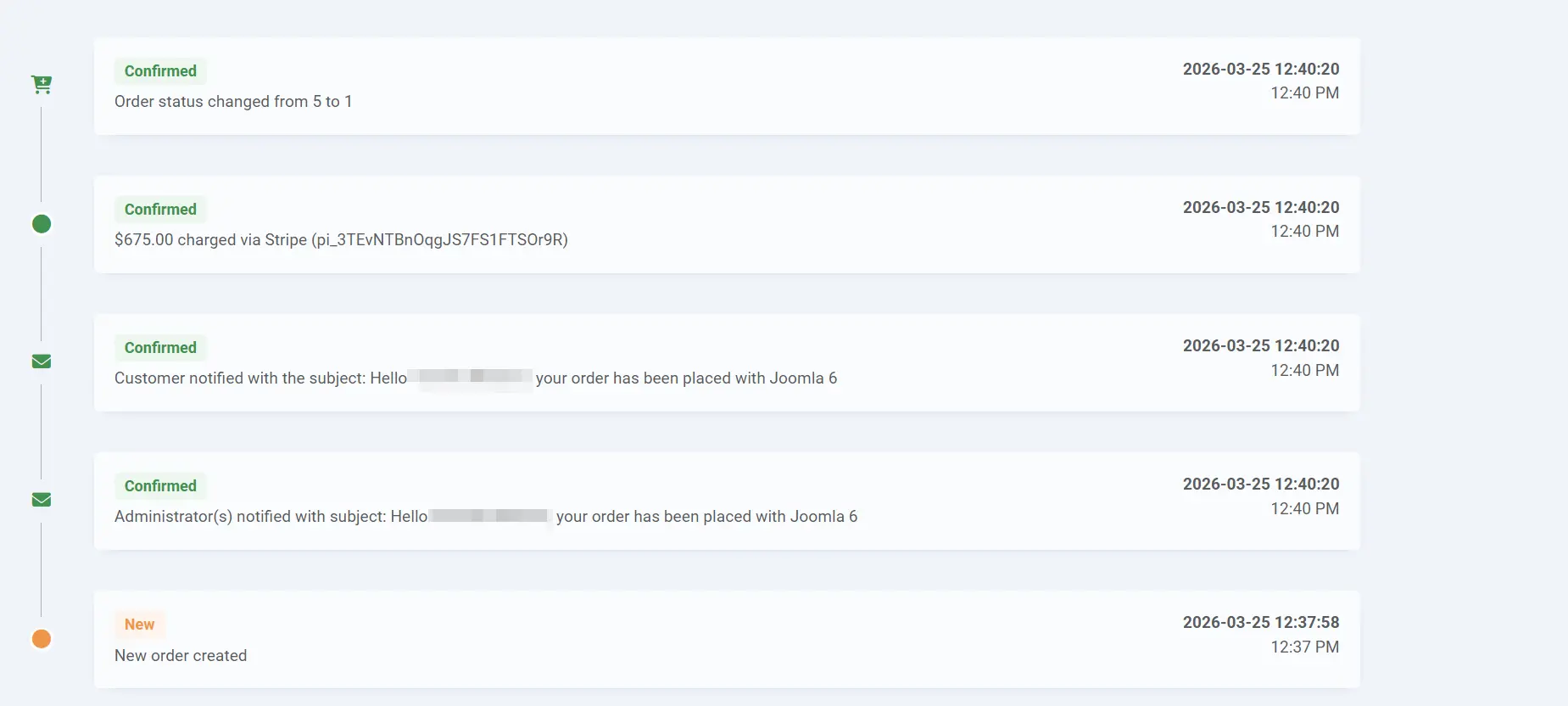
A typical order follows this progression: The progression is shown inside the order
- New → Customer places order
- Pending → Awaiting payment (for offline payments)
- Confirmed → Payment received
- Processed → Order being prepared
- Shipped → Order dispatched
- Delivered → Customer received order
Orders may also transition to Cancelled at any stage.
Order Detail View
Click an order ID to view the full order details:
Order Information
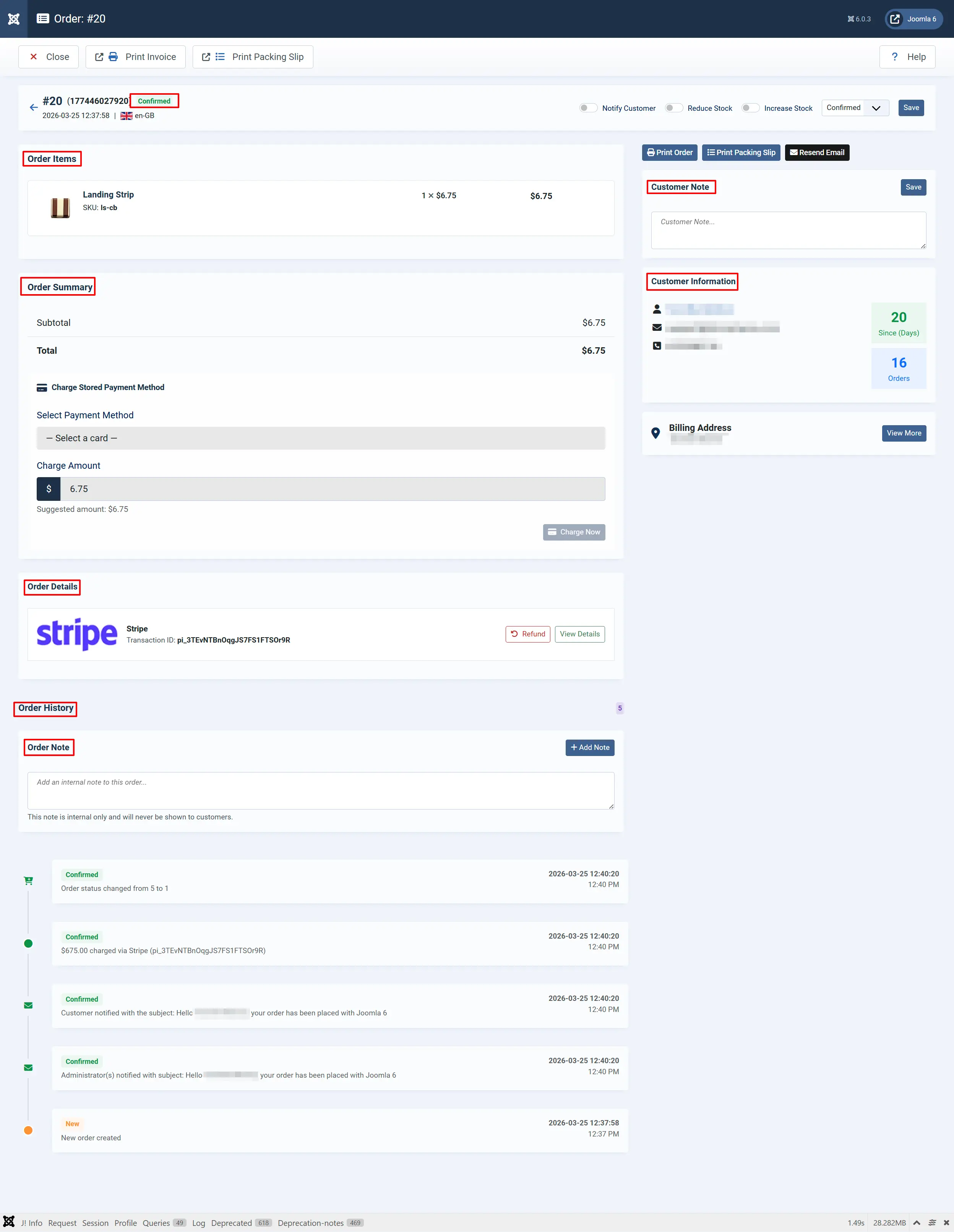
The order detail page shows:
Order Summary: Order ID, invoice number, status, date, totals
Billing Address: Name, company, address, phone, tax number
Shipping Address: Name, company, address, phone
Products: Item name, SKU, quantity, price, tax, total
Order Totals: Subtotal, shipping, taxes, discounts, grand total
Payment: Payment method, transaction ID, status
Customer Note: Note provided by customer at checkout
Order Actions
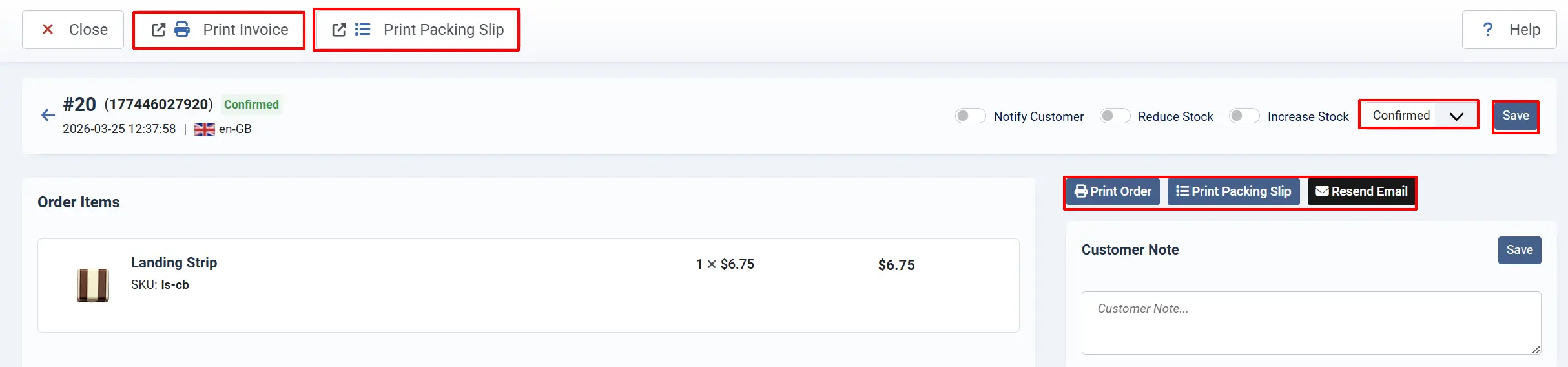
From the order detail view:
Update Status: Change order status with optional notification
Print Invoice: Generate a printable invoice
Print Packing Slip: Generate packing slip for fulfilment
Resend Email: Resend order confirmation to customer
Updating Order Status
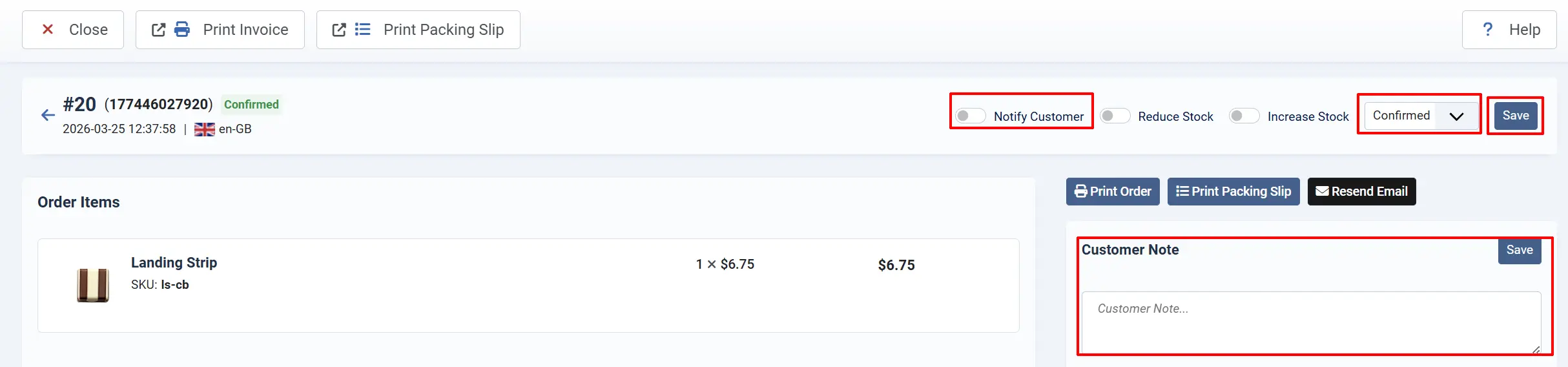
- Open the order you want to update.
- Click Update Status in the toolbar.
- Select the new Order Status.
- Add a Comment (optional).
- Check Notify Customer to send an email notification.
- Click Save.
- You can also change the order status and notify the customer from the main order list

Order History
Each order maintains a history of status changes and notes. The History tab shows:
- Date and time of each status change
- The user who made the change
- Previous and new status
- Any comments added
Bulk Actions
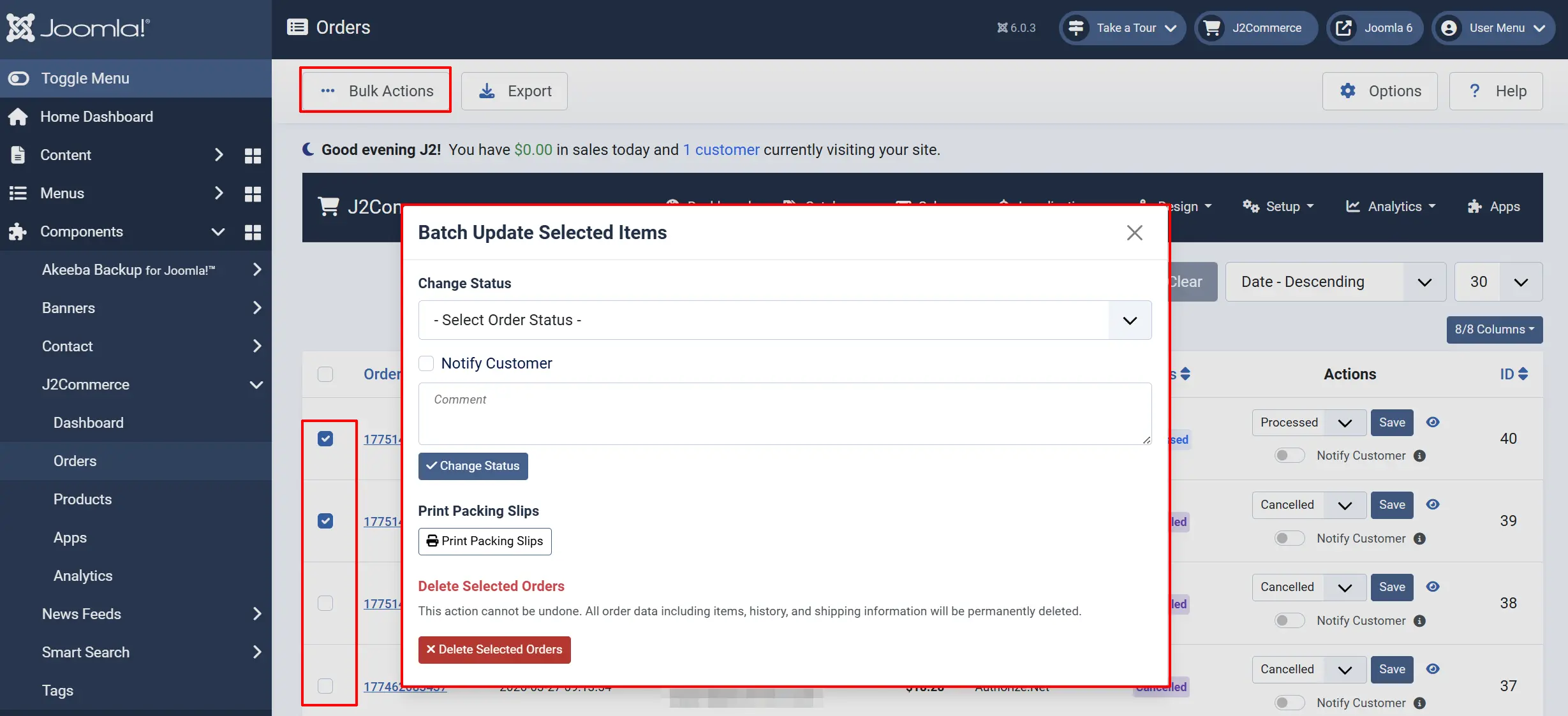
The Bulk Actions button will be hidden until at least one order is chosen. From the orders list, select multiple orders to:
- Change Status — Update status for selected orders
- Delete — Remove selected orders (use with caution)
Tips
- Use filters to find orders quickly — filter by date range, status, or customer
- Enable email notifications when updating the status to keep customers informed
- Check order history before making changes to understand the order's journey
- Use the search to find orders by product name, SKU, or customer email
- Export orders using the Reports feature for accounting purposes
Troubleshooting
Order Shows Wrong Total
Cause: Tax configuration or rounding issues.
Solution:
- Go to J2Commerce → Localisation → Tax Rules.
- Verify the tax rules are configured correctly for the customer's location.
- Check that tax rates have the correct percentage values.
- Review the order items in the order detail view to see per-item totals.
Customer Not Receiving Status Emails
Cause: Email settings or spam filters.
Solution:
- Go to J2Commerce → Setup → Configuration → Email tab.
- Verify the sender email address is valid.
- Go to Settings → Global Configuration → Server tab → Mail Settings.
- Ask the customer to check their spam/junk folder.
- Test by resending the confirmation email from the order detail page.
Order Stuck in Pending Status
Cause: Payment not confirmed for offline payment methods.
Solution:
- Open the order and check the payment method.
- For offline payments (bank transfer, cash), manually update the status.
- Click Edit → Update status to Confirmed → Save.
- Notify the customer that their order is being processed.
Cannot Find an Order by Email
Cause: Order placed as a guest with a different email, or search filter issue.
Solution:
- Clear all filters by clicking Reset.
- Search using just the email address without additional filters.
- Check if the order is filtered by status — select "All" statuses.
- Use the User filter to search for registered customers by username.