Free Shipping
The Free Shipping plugin lets you offer customers a zero-cost shipping option at checkout. You can keep it simple — always free for everyone — or add conditions such as a minimum order total, a geographic restriction, a coupon code requirement, or exclusions for specific user groups.
This plugin is ideal for stores that want to reward customers who spend above a threshold, run free-shipping promotions, or offer free shipping only within a specific country or region.
Requirements
- PHP 8.3.0+
- Joomla! 6.x
- J2Commerce 6.x
Installation
This plugin ships with J2Commerce 6 and is available immediately after installation.
Enable the Plugin
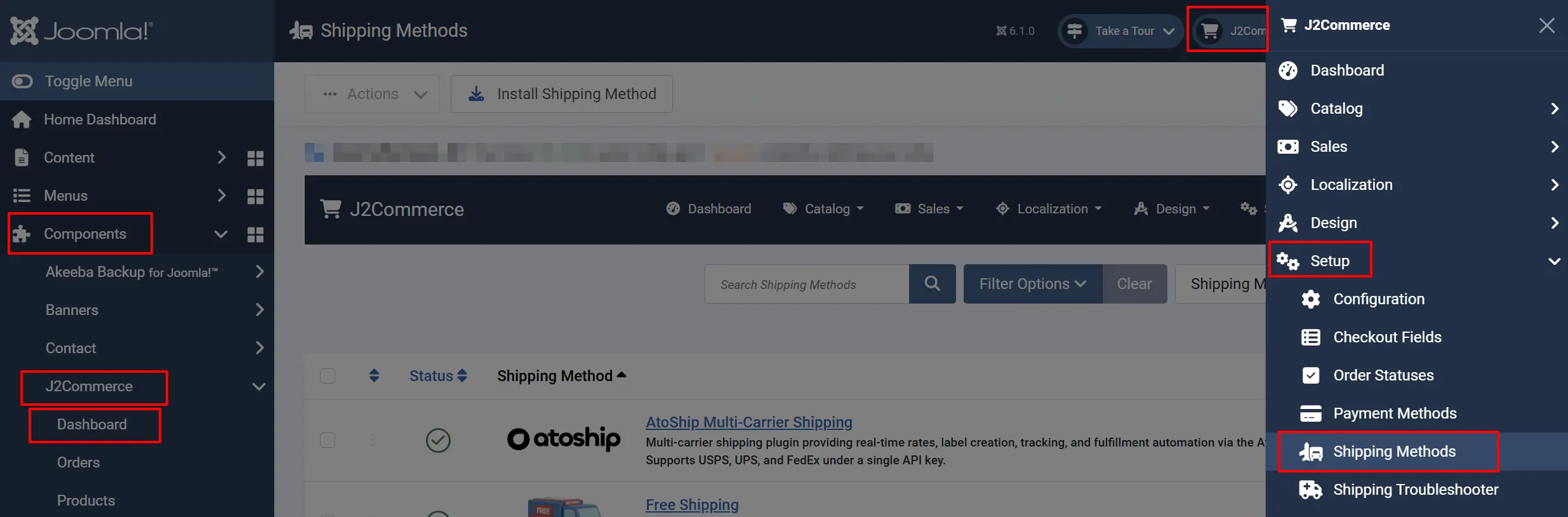
There are two ways to reach the shipping methods screen.
Option A: Click the J2Commerce icon at the top right corner -> Setup -> Shipping Methods.
Option B: Go to Components on the left sidebar -> J2Commerce -> Dashboard -> Setup -> Shipping Methods.
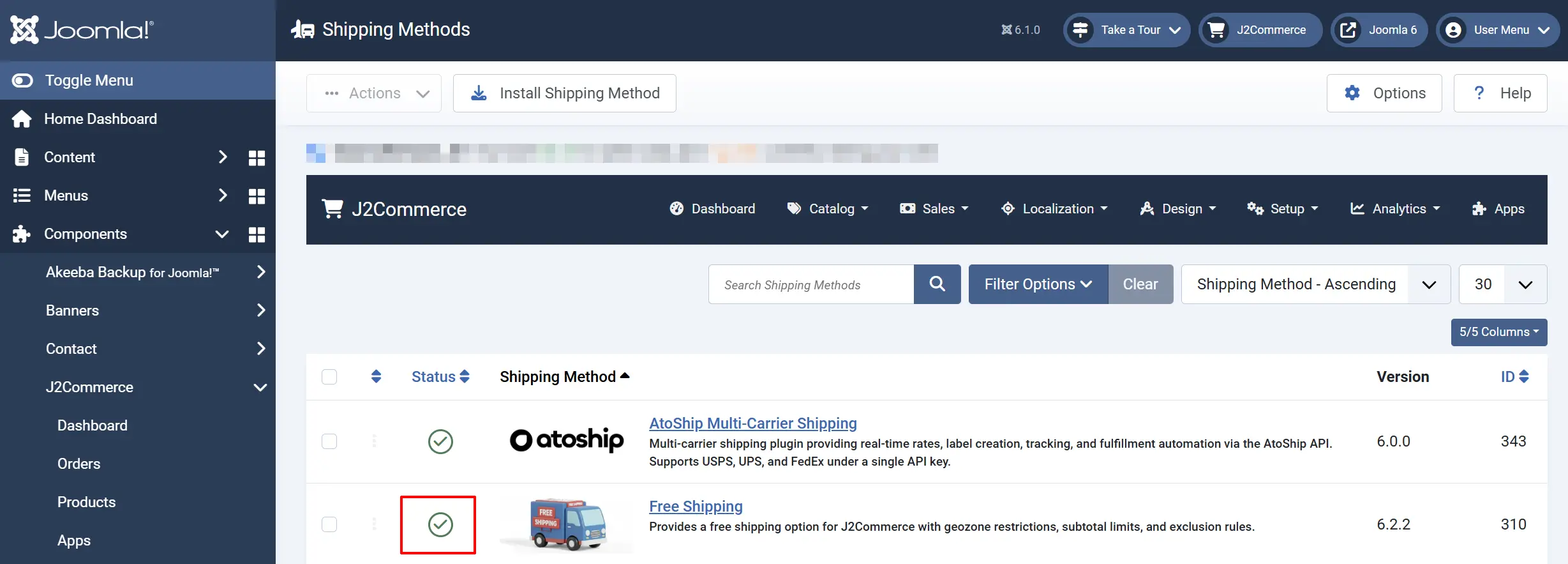
Find Free Shipping in the list, click the X icon, and it will turn into a green checkmark. The plugin is now enabled and ready to configure.
Configure the Plugin
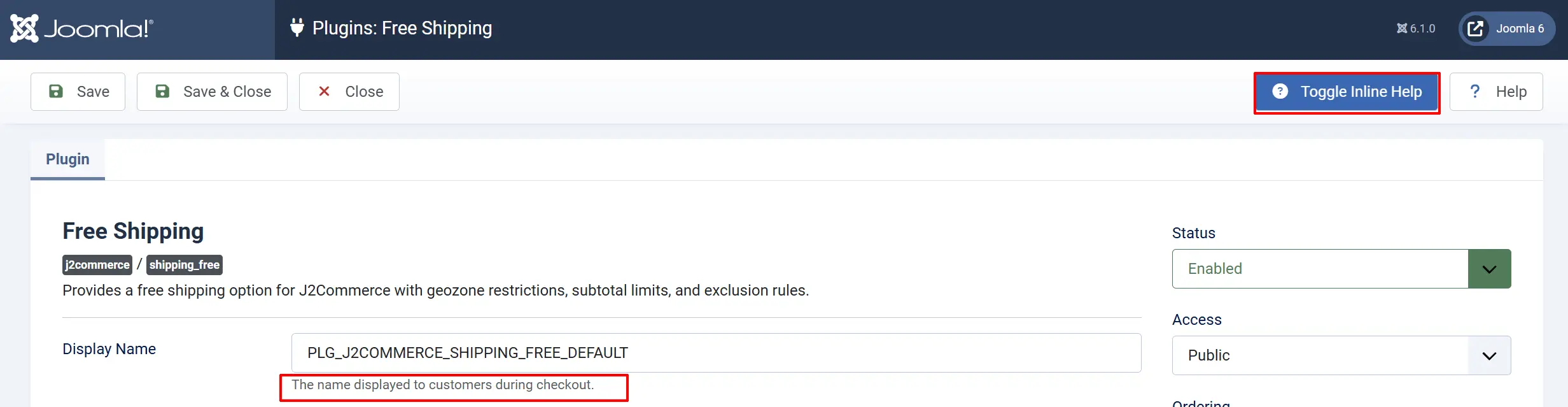
Click the Free Shipping title (next to the green checkmark) to open the settings.
Click the Toggle Inline Help button at the top of the plugin settings page to show a short description beneath each field.
Display Settings
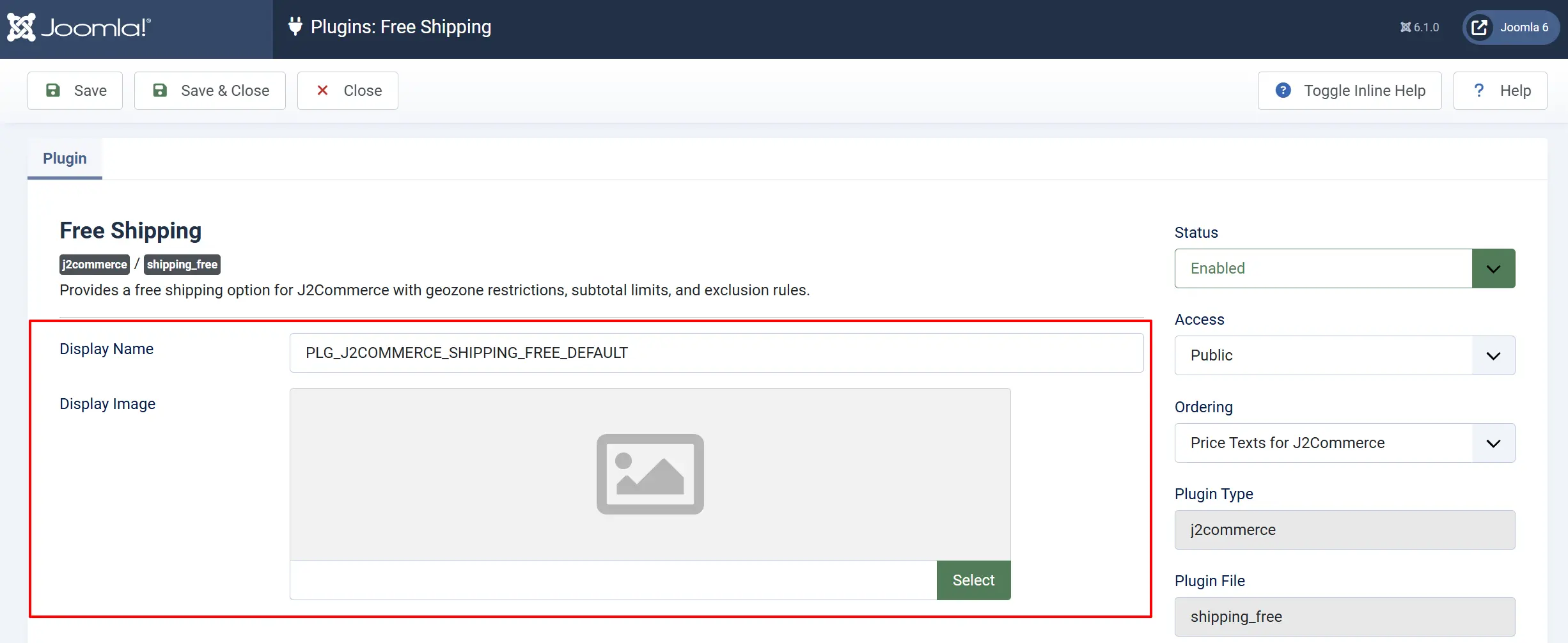
Display Name — The shipping option label shown to customers at checkout. The default is "Free Shipping". You can change this to anything you like, such as "Free Delivery" or "Complimentary Shipping".
Display Image — An optional image that appears next to the shipping option at checkout. Upload an image using the media picker.
Geozone Restriction

Geozone Restriction — Limit free shipping to customers in specific geographic zones. Select one or more geozones from the list. Leave this field empty to make free shipping available to customers in all locations.
Geozones are configured under J2Commerce -> Setup -> Geozones. Each geozone defines a set of countries and states. If the customer's shipping address does not match any of the selected geozones, the free shipping option will not appear at checkout.
Order Subtotal Limits

Use these two fields to set a spending window for free shipping. Both fields are optional.
Minimum Subtotal — The lowest cart subtotal that qualifies for free shipping. Set to 0 to disable this check. For example, set to 50 to offer free shipping on orders of $50 or more.
Maximum Subtotal — The highest cart subtotal that still qualifies for free shipping. Set to -1 to disable this check. For example, set to 200 if you want to restrict free shipping to orders under $200.
The most common use case is setting a minimum subtotal only — for example, free shipping on orders over $49. Leave the maximum at -1 unless you have a specific reason to cap it.
Coupon and Product Options

Requires Free Shipping Coupon — When set to Yes, free shipping only appears at checkout if the customer has applied a coupon that grants free shipping. This lets you run targeted promotions without making free shipping available to everyone. Default is Never.
Check Shipping Products Only — When set to Yes, the subtotal thresholds (minimum and maximum) are calculated using only the products in the cart that require shipping. Digital or download products are excluded from the calculation. Default is Never.
Enable Check Shipping Products Only if your store sells a mix of physical and digital products. Without it, the subtotal includes digital items, which could incorrectly qualify orders for free shipping based on non-shippable products.
Exclusions

Exclude When These Methods Available — Select other shipping methods from the list. If any of the selected methods are available in the customer's current rate set, free shipping will be hidden. This is useful if you want to prevent free shipping from appearing alongside premium options like express delivery.
Exclude User Groups — Select one or more Joomla user groups. Members of these groups will not see the free shipping option at checkout. Use this to exclude wholesale customers, staff, or any group you do not want to receive free shipping.
Template Style

Template Style — Select a custom layout template for how free shipping appears at checkout. Leave blank to use the default layout. This option is for stores that have created custom plugin subtemplates.
Configuration Reference
Display Name: Label shown at checkout. The name displayed to customers during checkout.
Display Image: Optional checkout image. Image to display alongside the payment method
Geozone Restriction: Restrict to selected geozones. Only show this payment method for customers in the selected geo zone
Minimum Subtotal: Cart must be at or above this amount. Minimum basket subtotal required for free shipping. Set to 0 to disable.
Maximum Subtotal: Cart must be below this amount. Maximum basket subtotal for free shipping. Set to -1 to disable.
Requires Free Shipping Coupon: Only show when a free shipping coupon is applied. Only show free shipping if a free shipping coupon has been applied.
Check Shipping Products Only: Apply subtotal limits to shippable items only. Calculate subtotal from only products that require shipping.
Exclude When These Methods Available: Hide free shipping when selected methods are present. Remove free shipping when any of these shipping methods are available.
Exclude User Groups: Hide free shipping for members of these groups. Remove free shipping for users in these groups.
Template Style: Custom layout override. Select the CSS framework for this plugin's customer-facing templates
How It Works at Checkout
When a customer reaches the shipping step, J2Commerce checks whether free shipping should appear. The checks happen in this order:
- Geozone — If geozones are configured, the customer's shipping address must match at least one. If not, free shipping is skipped.
- Coupon requirement — If Requires Free Shipping Coupon is enabled, the order must have a valid free shipping coupon applied.
- Subtotal — The cart subtotal (or shippable-only subtotal, if enabled) must be within the minimum and maximum range.
- User group exclusion — If the customer belongs to an excluded user group, free shipping is removed from the rate list.
- Method exclusion — If any of the excluded shipping methods are also available, free shipping is removed from the rate list.
Frontend Checkout View
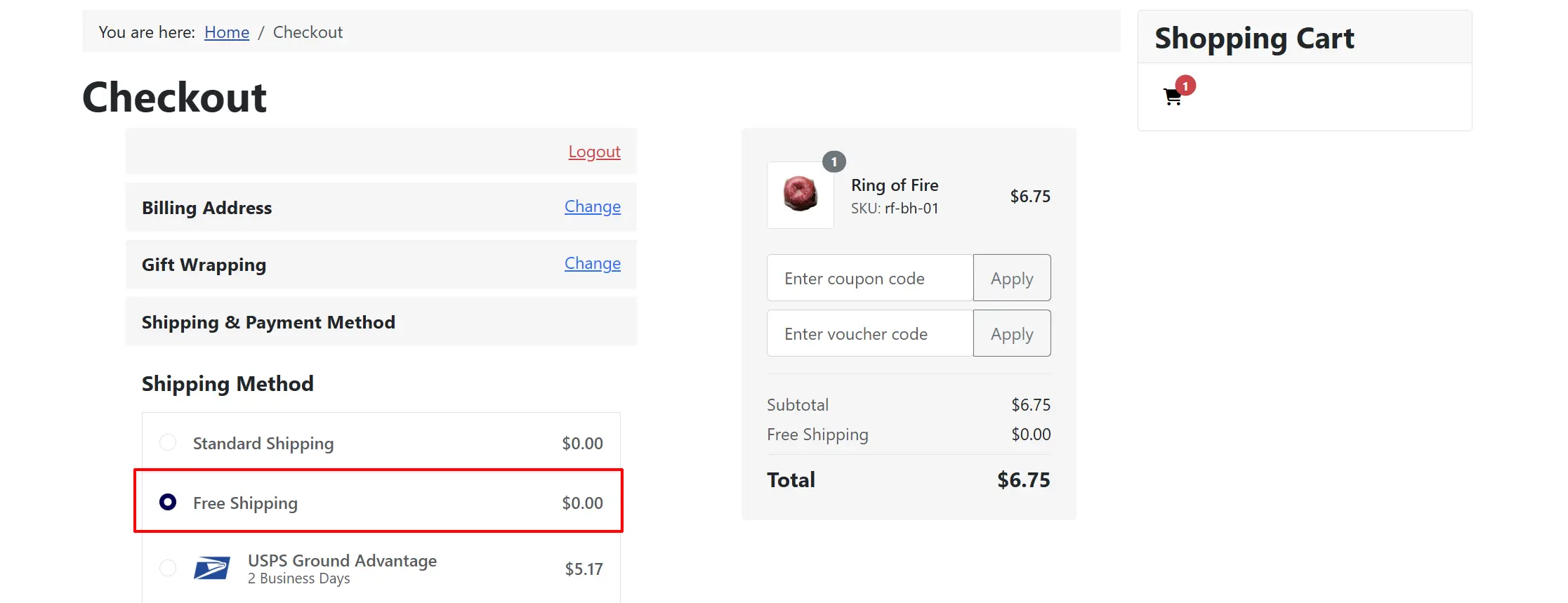
If all checks pass, Free Shipping appears as a selectable option with a price of $0.00. The customer can choose it just like any other shipping method.
Common Setups
Free shipping on all orders
Leave all restriction fields at their defaults. Enable the plugin and every customer will see Free Shipping at checkout regardless of order size or location.
Free shipping above a spend threshold
Set Minimum Subtotal to your target amount (for example, 50) and leave Maximum Subtotal at -1. Customers spending $50 or more will see the free shipping option.
Free shipping for a promotion using a coupon
- Set Requires Free Shipping Coupon to Yes.

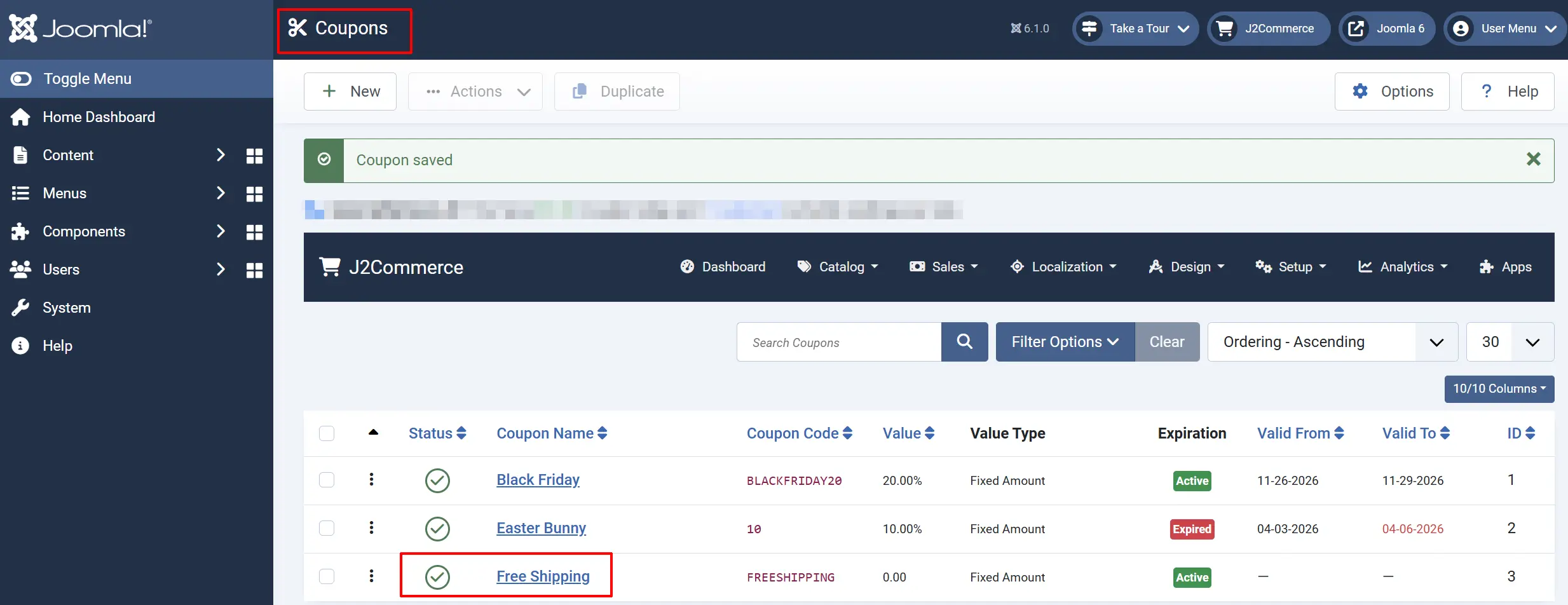
- Create a coupon in J2Commerce -> Sales -> Coupons with the free shipping option enabled. Customers must enter the coupon code before free shipping appears.
Free shipping only within one country
Create a geozone for that country/state under J2Commerce -> Localization -> Geozones, then select it in the Geozone Restriction field. Customers with a shipping address outside the zone will not see the free shipping option.

Hide free shipping when express delivery is available
Select your express shipping method (for example, shipping_standard with an express rate) in the Exclude When These Methods Available field. When that method is available at checkout, free shipping is automatically hidden.

Tips
- Set a minimum subtotal to encourage larger orders. A threshold like $49 or $75 is a common and effective strategy.
- Use the coupon requirement to run time-limited free shipping promotions without permanently changing your settings.
- Combine geozone restrictions with a minimum subtotal to create different free shipping rules for different regions.
- The Exclude User Groups feature is useful for wholesale stores where retail free shipping should not apply to trade accounts.
- You can have multiple shipping plugins enabled at once. Free Shipping will appear alongside other options at checkout, so customers can still choose a paid service if they prefer faster delivery.
Troubleshooting
Free Shipping does not appear at checkout
Cause: One or more of the eligibility conditions is not met.
Solution:
- Confirm the plugin is enabled. Go to J2Commerce -> Setup -> Shipping Methods and check for the green checkmark next to Free Shipping.
- If Geozone Restriction is set, verify the customer's shipping address falls within one of the selected geozones.
- Check the Minimum Subtotal. If set, the cart must meet or exceed that amount.
- If Requires Free Shipping Coupon is Yes, ensure the customer has applied a valid free shipping coupon.
- Check Exclude User Groups. If the logged-in user belongs to an excluded group, free shipping will not appear.
- Check Exclude When These Methods Available. If another shipping method in that list is returning rates, free shipping is suppressed.
Free Shipping appears for users who should be excluded
Cause: The user group exclusion may not be configured, or the user is not in the correct group.
Solution:
- Go to the Free Shipping plugin settings.
- In Exclude User Groups, select the user groups that should not see free shipping.
- Verify the customer's Joomla user account is a member of that group under Users -> Manage.
- Click Save.
The minimum subtotal is met but free shipping still does not appear
Cause: The Check Shipping Products Only option is enabled and the shippable-product subtotal is below the minimum.
Solution:
- Open the Free Shipping plugin settings.
- If Check Shipping Products Only is Yes, the threshold applies only to products with shipping enabled.
- Go to J2Commerce -> Catalog -> Products and verify that the relevant products have Enable Shipping set to Yes under the J2Commerce tab -> Shipping tab.
- If you want the full cart subtotal to count, set Check Shipping Products Only to Never.
Free Shipping appears even when a coupon has not been applied
Cause: The Requires Free Shipping Coupon setting is set to Never.
Solution:
- Go to the Free Shipping plugin settings.
- Set Requires Free Shipping Coupon to Yes.
- Click Save.
Customers must now apply a coupon that grants free shipping before the option appears.
Free Shipping does not disappear when it should based on other methods
Cause: The shipping method element name or label may not match what is configured in the exclusion field.
Solution:
- Go to J2Commerce -> Setup -> Shipping Methods and note the exact element name or display name of the method you want to use as the exclusion trigger.
- Open the Free Shipping plugin settings.
- In Exclude When These Methods Available, select that method from the list.
- Click Save and test at checkout.