Additional Fees
The Additional Fees app lets you add one or more configurable charges to the checkout process — handling fees, environmental levies, surcharges, gratuities, and more. Each fee can be scoped to the entire order or to specific products, restricted to certain geozones, user groups, or Joomla content categories, and displayed as a customer-selectable option or applied silently. Fees support fixed amounts, percentages, and a per-item multiplier, and can carry tax through J2Commerce's standard tax engine.
This app suits any store that needs to recover costs not handled by shipping rates alone or that wants to give customers an optional upgrade at checkout.
Requirements
- PHP 8.3 or later
- Joomla 6.x
- J2Commerce 6.x
What's New in J2Commerce 6
The J2Commerce version is a complete rewrite of the original J2Store app. Key improvements:
- Checkout step API — fees appear as a proper checkout step (no jQuery-injected HTML). The step position is configurable via the plugin settings.
- Vanilla JavaScript — all admin and checkout scripts use ES6 fetch/async-await and event delegation. No jQuery dependency.
- Parameterized SQL — every database query uses bound parameters; no raw string interpolation.
- ACL-gated admin — the Fees management screen requires
core.manageoncom_j2commerce. - Currency display toggle — optionally show the fee amount next to its name in the checkout step.
- Tax integration — assign a J2Commerce tax profile to fees; tax is computed against the customer's billing geozone using the standard tax engine.
- Four checkout positions —
After Billing,After Shipping,Before Payment, andBefore Confirmation(the original app had two). enable_admin_uiparam — hide the standalone Fees admin route without disabling the plugin.
Purchase and Download
The Additional Fees app is a separate add-on available from the J2Commerce Extensions Store. It is not included with the core J2Commerce 6 component.
Step 1: Go to the J2Commerce website -> Apps.
Step 2: Locate the Additional Fees app -> click View Details -> Add to cart -> Checkout.
Step 3: Go to My Downloads under your profile menu at the top right corner and search for the app. Click Available Versions -> View Files -> Download.
Install the App
You can install this Additional Fees App using the Joomla installer. The following steps help you with a successful installation.
In the Joomla admin, go to System -> Install -> Extensions
Upload the app_extrafee.zip ZIP file or use the Install from URL option.
 (1)-a6689f12b23b8e992f5c2a169737672f.webp)
Enable the App
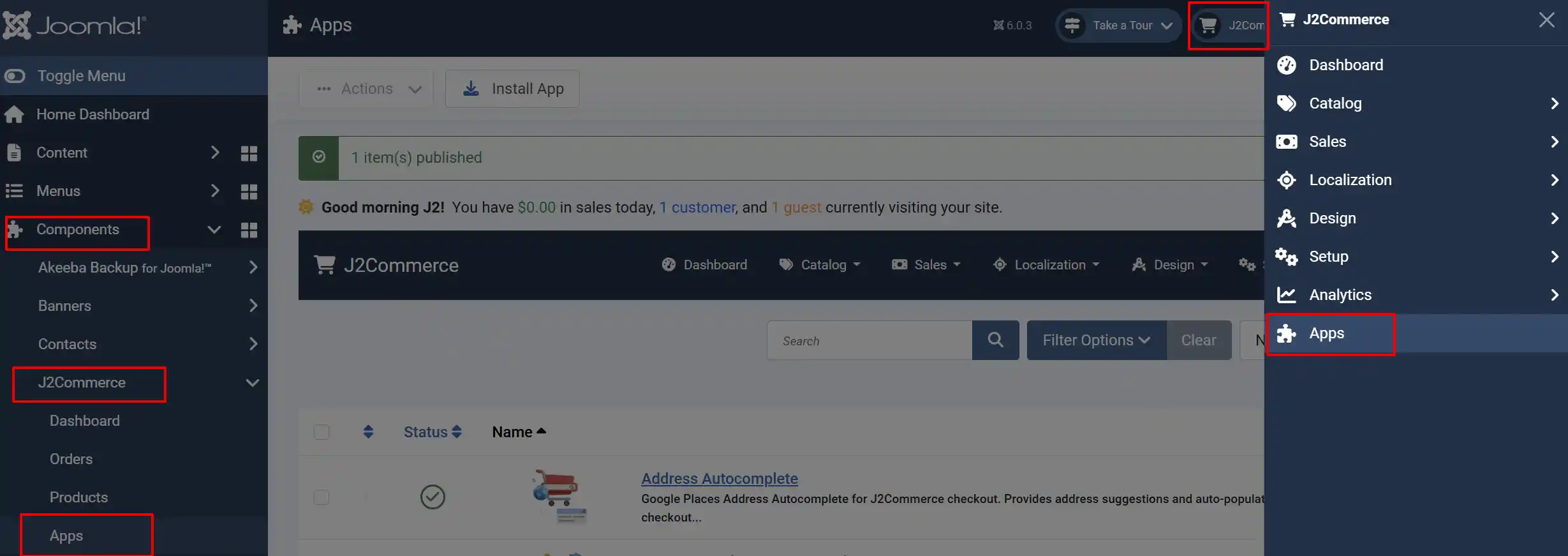
Once you have installed the App, you will need to enable it. There are two ways you can access the extension.
Option A: Go to the J2Commerce icon at the top right corner -> Apps
Option B: Go to Components on the left sidebar -> J2Commerce -> Apps
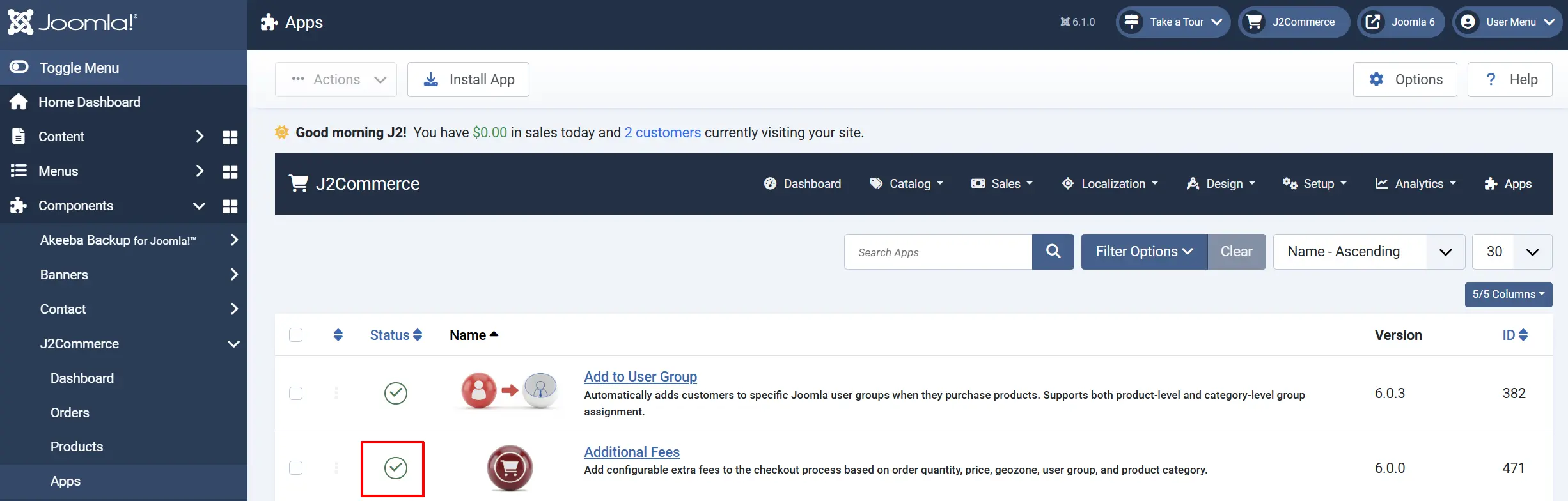
Look for Additional Fees, click the X, and it will turn into a green checkmark. It is now enabled and ready for setup.
Configuring the App
Click the Toggle Inline Help button in the toolbar and the app will show a description below each field as you configure it.

Plugin tab
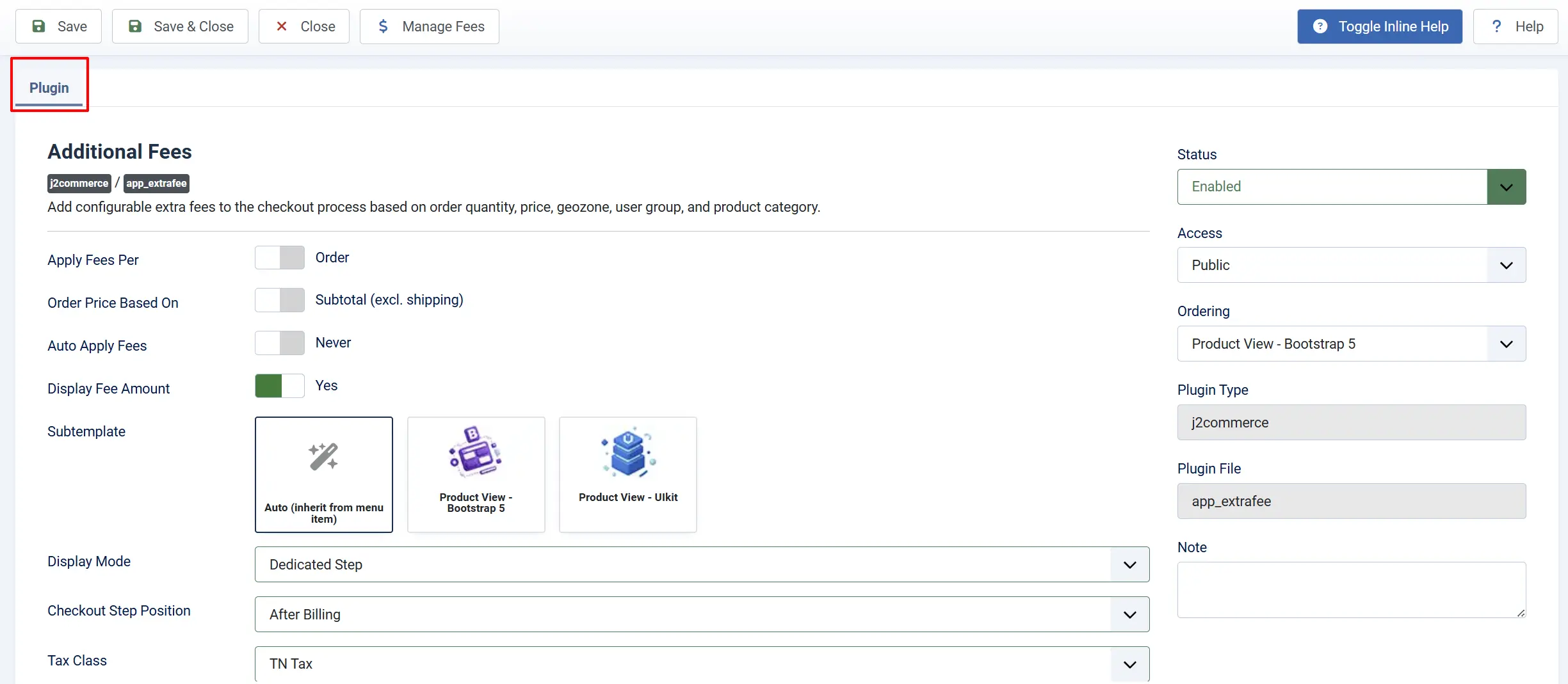
Apply Fees Per: Controls whether fees are evaluated at the order level (one set of fees for the whole cart) or the product level (fees configured per product in the product's Apps tab).
Order Price Based On: Which subtotal to use when evaluating price-range conditions or calculating percentage fees. The options are Subtotal (excl. shipping) or Subtotal + Shipping
Auto Apply Fees: When enabled, all applicable fees are added to the order total without asking the customer. When disabled, the customer sees a checklist and chooses which fees to accept.
Display Fee Amount: Show the fee amount next to the fee name in the checkout step. Useful when customers are choosing between multiple optional fees.
Checkout Step Position: Where the fee selection step appears in the checkout flow.
-
After Billing
-
After Shipping
-
Before Payment
-
Before Confirmation
| Use case | Apply Fees Per | Auto Apply | Step Position |
|---|---|---|---|
| Flat handling fee on every order | Order | Yes | After Billing |
| Optional gift message surcharge | Order | No | After Shipping |
| Per-product heavy-item fee | Product | Yes | After Shipping |
| Express handling upgrade at checkout | Order | No | Before Payment |
| Volume discount (negative percentage fee) | Order | Yes | After Billing |
Tax Class: Apply this J2Commerce tax profile to all extra fees. Tax is calculated against the customer's billing geozone using the standard tax engine. Leave blank for no tax on fees.
Enable Admin UI: Show the standalone Fees management screen in the J2Commerce admin panel. Disable this only if you manage all fees at the product level and do not want the admin route.
Managing Fees (Order-Level)

When Apply Fees Per is set to Order, all fees are managed from the central Fees list.
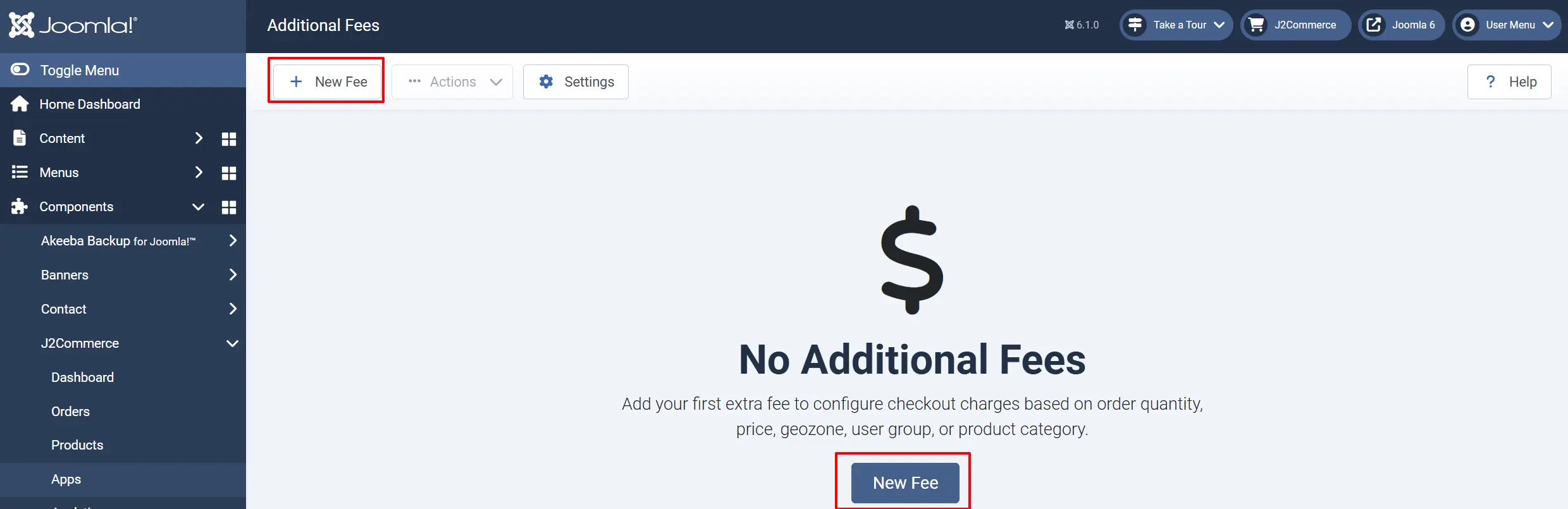
Adding a new fee
In the Fees list, click New Fee in the toolbar.
Fee Details tab
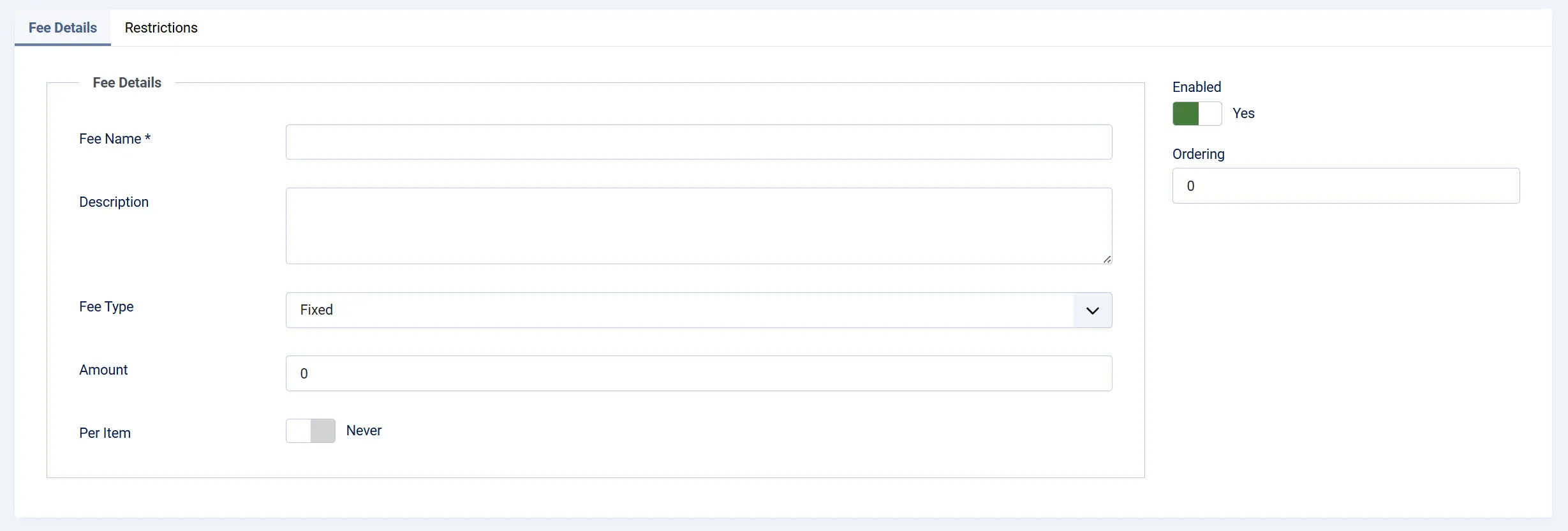
Fee Name: The label shown to customers (e.g., "Environmental Levy", "Handling Fee").
Description: Optional text displayed below the fee name in the checkout step.
Fee Type: Fixed — a flat dollar amount. Percentage — a percentage of the order subtotal (or subtotal plus shipping, depending on Order Price Based On).
Amount: The numeric value. For a percentage fee, enter 5 for 5 %.
Per Item: When enabled, a fixed fee is multiplied by the total quantity of items in the cart. A $2 per-item fee on a cart with 3 items totals $6.
Restrictions tab
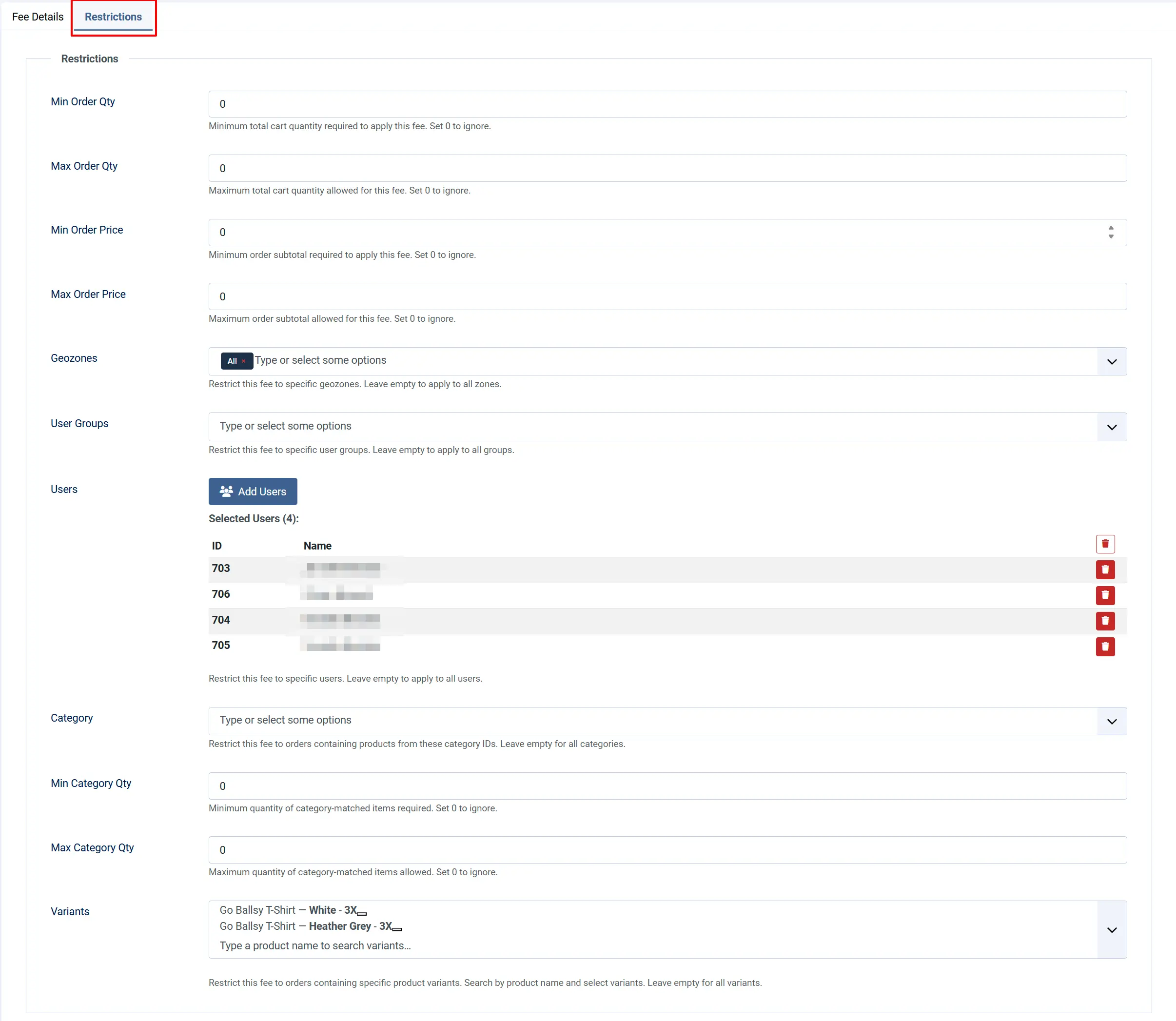
Min Order Qty: Only apply this fee when the cart contains at least this many items. Leave 0 to ignore.
Max Order Qty: Only apply this fee when the cart contains no more than this many items. Leave 0 to ignore.
Min Order Price: Only apply this fee when the order subtotal is at or above this value. Leave 0 to ignore.
Max Order Price: Only apply this fee when the order subtotal is at or below this value. Leave 0 to ignore.
Geo Zone: Restrict this fee to one or more geozones. The fee applies only when the customer's billing address falls within the selected geozone(s). Leave blank to apply to all locations.
User Groups: Restrict this fee to customers in specific Joomla user groups (e.g., "Wholesale", "VIP"). Leave blank for all groups.
Users: Comma-separated Joomla user IDs. The fee applies only to those specific accounts. Leave blank for all users.
Category: Restrict this fee to orders that contain a product linked to one of these Joomla content categories. Leave blank to apply regardless of category.
Min Category Qty: Minimum quantity of category-matched items required. Set 0 to ignore.
Max Category Qty: Maximum quantity of category-matched items allowed. Set 0 to ignore.
Editing an existing fee

Click the fee name in the list to open the edit form. Make changes and click Save.
Enabling and disabling fees
Use the enabled toggle in the Fees list to activate or deactivate individual fees without deleting them. Disabled fees are never shown at checkout.
Deleting fees
Check the box next to one or more fees and click Delete in the toolbar. Confirm the prompt. This action cannot be undone.
Managing Fees (Product-Level)
When Apply Fees Per is set to Product in the plugin settings, fees are assigned individually to each product rather than applying store-wide. The fee records are still created in the central Fees list (see above), but each product controls which fees can apply to it.
-
Go to J2Commerce -> Catalog -> Products and open the product you want to configure.
-
Click the Apps tab.
-
Expand the Additional Fees accordion.
-
Set Enable Product-Level Fees to Yes.
-
In the Applicable Fees field, select all fees that should apply to this product. The dropdown shows all enabled fees from the central Fees list.
-
Click Save or Save & Close.
When a customer adds this product to their cart, only the fees selected here are evaluated for this product. Fees not in the list are ignored for that product even if they would otherwise match the geozone, user group, or quantity rules.
Important: The Apps tab must remain expanded when you save the product. If you collapse the accordion before saving, the settings for that accordion are not submitted and the previous values are retained.
Checkout Behavior
Auto-apply mode
When Auto Apply Fees is set to Yes, all applicable fees are added to the order total without any customer interaction. The fee step is still inserted into the checkout flow, but it is transparent — customers see the fee reflected in the order summary without a selection prompt.
Customer-selectable mode
When Auto Apply Fees is set to No, the checkout step presents a checklist of applicable fees. Each row shows the fee name, optional description, and — when Display Fee Amount is Yes — the calculated amount.
- The customer checks the fees they want to add.
- Unchecked fees are not applied.
- The step validates silently; no mandatory selection is required.
Step positions explained
| Position | Where in checkout |
|---|---|
| After Billing | Immediately after the billing address step — earliest possible. Useful for fees that apply regardless of shipping. |
| After Shipping | After the shipping method step — the fee can react to shipping totals if Order Price Based On is set to Subtotal + Shipping. |
| Before Payment | After shipping, before the payment method step — good for upgrade fees the customer decides on before paying. |
| Before Confirmation | The last step before the customer places the order — maximum visibility for optional add-ons. |
Tax Handling
When a tax profile is selected in Tax Class, J2Commerce calculates tax on each fee amount using the same engine as product tax:
- The customer's billing country and state (zone) are read from the order.
- The tax engine looks up the assigned tax profile's rates and finds the rate whose geozone matches the customer's address.
- The tax amount is added to the fee's contribution in the order totals.
If no matching geozone rule is found for the customer's location, no tax is applied to the fee.
Tip: The tax profile you assign here applies to all fees managed by this plugin. If you need different tax rates for different fees, the current version does not support per-fee tax profiles — set up a combined tax profile that covers the relevant rates.
The fee amount and any tax are stored in the order session under the key order_fees with the prefix extrafee_. Both values appear in the order confirmation email and in the order detail screen in the admin.
Use Cases
Environmental handling fee (auto-apply, fixed, EU geozone only)
A store selling electronics wants to add a €3.00 environmental recycling levy to orders shipped within the EU.
- In Plugin Settings, set Apply Fees Per to Order, Auto Apply Fees to Yes.
- Create a fee: Name = "Environmental Levy", Type = Fixed, Amount = 3.00, Geo Zone = EU Geozone.
- Leave all quantity and price ranges at
0.
The fee applies automatically when the billing address resolves to the EU geozone and is invisible to customers as a selection — it appears as a line in the order total.
Optional gift message surcharge (selectable, per-item)
A gift shop wants to offer customers a $1.50 per-item gift card option at checkout.
- In Plugin Settings, set Auto Apply Fees to No, Display Fee Amount to Yes, Step Position to After Shipping.
- Create a fee: Name = "Gift Card & Message", Type = Fixed, Amount = 1.50, Per Item = Yes.
Customers see a checkbox at checkout. A cart with 4 items shows "$6.00" next to the option.
Heavy-item surcharge (product-level, auto-apply)
A store selling outdoor furniture assigns a $15 delivery surcharge to products in the "Heavy Items" category.
- In Plugin Settings, set Apply Fees Per to Product, Auto Apply Fees to Yes.
- Create a fee: Name = "Heavy Item Handling", Type = Fixed, Amount = 15.00.
- On each heavy-item product, open the Apps tab, enable product-level fees, and select "Heavy Item Handling" in the Applicable Fees field.
Volume discount as a negative fee (percentage, quantity threshold)
A wholesale store wants to give a 5 % discount automatically when the cart contains 10 or more items.
- Create a fee: Name = "Volume Discount", Type = Percentage, Amount = -5, Min Order Qty = 10.
- Set Auto Apply Fees to Yes.
The negative percentage reduces the order subtotal for qualifying orders.
Express handling upgrade at checkout (selectable, Before Payment)
A store offers an optional $9.99 express packing upgrade that ensures same-day dispatch.
- In Plugin Settings, set Auto Apply Fees to No, Display Fee Amount to Yes, Step Position to Before Payment.
- Create a fee: Name = "Express Handling", Type = Fixed, Amount = 9.99.
The upgrade appears as an optional checkbox just before the customer selects a payment method.
Troubleshooting
Fee does not appear at checkout
Cause: One or more restriction conditions are not met, or the fee is disabled.
Solution:
- Confirm the fee is enabled in the Fees list (green indicator).
- Check the Geo Zone setting. The customer's billing address must fall within the assigned geozone. If you want the fee to apply globally, leave the Geo Zone field blank.
- Check User IDs and User Groups. If either is populated, the current customer must match. A guest customer never matches a User IDs restriction.
- Check the quantity and price ranges. If Min Order Qty is set to
10and the cart has3items, the fee will not trigger. - If Apply Fees Per is set to Product, confirm the product has the Additional Fees accordion enabled and the fee is selected in the Applicable Fees field on the product's Apps tab.
Tax not applied to fee
Cause: The tax profile is not assigned or the customer's geozone does not match any tax rule.
Solution:
- Open the plugin settings and verify a Tax Class is selected.
- Go to J2Commerce -> Taxes -> Tax Profiles and confirm the selected profile has at least one active tax rate.
- Go to J2Commerce -> Taxes -> Tax Rates and verify the rate's geozone includes the customer's country and state. A rate with no geozone assigned applies globally.
Two fees appear with the same name in the order
Cause: Multiple fee records share the same fee name. Each fee generates a separate session key using the pattern extrafee_[id], so they are stored as distinct entries — but if they share a label, both appear with identical names in the order summary.
Solution: Give each fee a unique, descriptive name. The fee name is the label shown to customers and used in order emails, so clear names also improve customer communication.
Fees disappeared after upgrading from J2Store
Cause: The install script migrates legacy data from #__j2store_appextrafees to #__j2commerce_appextrafees on first install. If this migration did not run (e.g., the source table was absent or empty), the fees list will be empty.
Solution:
- Go to System -> Install -> Extensions and reinstall the
app_extrafee.zippackage (use the Update method). - If fees still do not appear, check whether
#__j2store_appextrafeesexists in your database and contains rows. - If the J2Store plugin is still installed alongside the J2Commerce version, disable the J2Store plugin first (
plg_j2store_app_extrafee) to prevent session key conflicts.
Product-level fee settings reset after saving the product
Cause: The Additional Fees accordion on the Apps tab was collapsed before the product was saved. Joomla only submits accordion form data when the accordion is open.
Solution: Expand the Additional Fees accordion, re-select the desired fees, then click Save while the accordion remains open.
Developer Notes
This section is a quick reference for developers integrating with or extending the Additional Fees app.
Events subscribed
| Event | When fired | What the handler does |
|---|---|---|
onJ2CommerceBeforeDisplayCart | Cart view loads | Clears the extrafee_selected session key and removes all extrafee_* entries from order_fees. |
onJ2CommerceAfterDisplayProductForm | Product edit form renders | Injects the Additional Fees fieldset into the product Apps tab via $event->addResult(). |
onJ2CommerceCheckoutStart | Checkout page initializes | Registers checkout.css and checkout.js via the Web Asset Manager. |
onJ2CommerceGetCheckoutSteps | Checkout step list built | Registers $this (the plugin) as a CheckoutStepInterface step. |
onJ2CommerceCheckoutCleanup | Checkout controller cleans up after order placement | Removes all extrafee_* session keys. |
onJ2CommerceAfterUpdateCart | Cart model updates the cart | When auto-apply is on, rebuilds applicable fees and calls CartOrder::addFee() for each. |
CheckoutStepInterface
The plugin implements J2Commerce\Component\J2commerce\Site\Event\CheckoutStepInterface. The step ID is extrafee. Step position is read from the step_position plugin parameter.
Fee session storage
Fees are stored in the Joomla session under namespace j2commerce, key order_fees. Each fee entry uses the key prefix extrafee_ followed by the j2commerce_appextrafee_id (e.g., extrafee_3). Tax is stored alongside the fee amount via CartOrder::addFee(string $key, float $amount, string $label, float $tax).
To read all active extrafee entries in a downstream plugin or custom code, iterate the order_fees array and filter for keys that start with extrafee_.