TrackingMore Integration
The TrackingMore app connects J2Commerce to TrackingMore, a multi-carrier parcel tracking platform that supports over 1,200 carriers worldwide. When you add a tracking number to a J2Commerce order, the app automatically registers the shipment with TrackingMore and detects the carrier. From that point on, TrackingMore sends real-time updates back to your store whenever the parcel status changes — moving the order to the right status and, optionally, emailing the customer — all without any manual action.
Requirements
- PHP 8.3.0 or newer
- Joomla! 6.x
- J2Commerce 6.x
- A TrackingMore account with an active API key
Purchase and Download
This app is a separate add-on available from the J2Commerce Extensions Store. It is not included with the core J2Commerce 6 component.
Step 1: Go to our J2Commerce website -> Apps
Step 2: Locate the TrackingMore App -> click View Details -> Add to cart -> Checkout.
Step 3: Go to your My Downloads under your profile button at the top right corner and search for the app. Click Available Versions -> View Files -> Download Now
Install the App
Install the downloaded ZIP file through the Joomla installer.
In the Joomla admin, go to System -> Install -> Extensions
Upload the plugin app_trackingmore.zip ZIP file or use the Install from URL option.

Enable the App
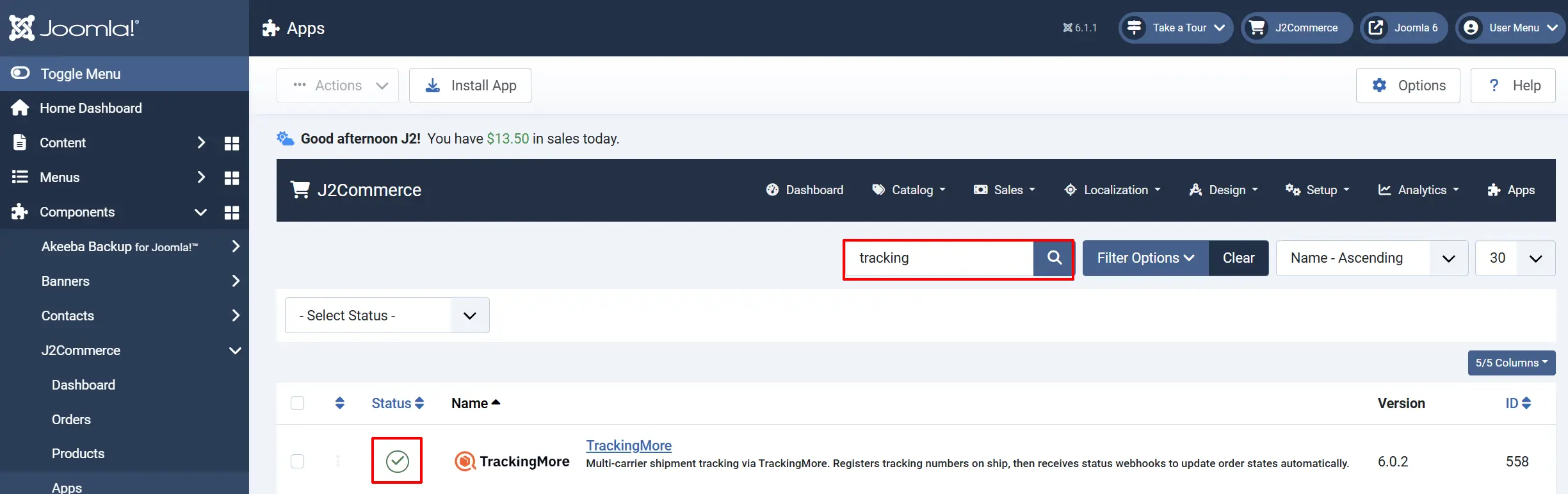
Once the app is installed, you need to enable it. There are two ways to reach the Apps list.
Option A: Go to the J2Commerce icon at the top right corner -> Apps
Option B: Go to Components on the left sidebar -> J2Commerce -> Apps

Find TrackingMore in the list, click the X, and it turns into a green checkmark. The app is now enabled and ready to configure.
Configure the App
Click the TrackingMore title next to the green checkmark to open the configuration screen.
Click the Toggle Inline Help button in the toolbar and the app will show a description below each field as you configure it.

Basic Settings tab
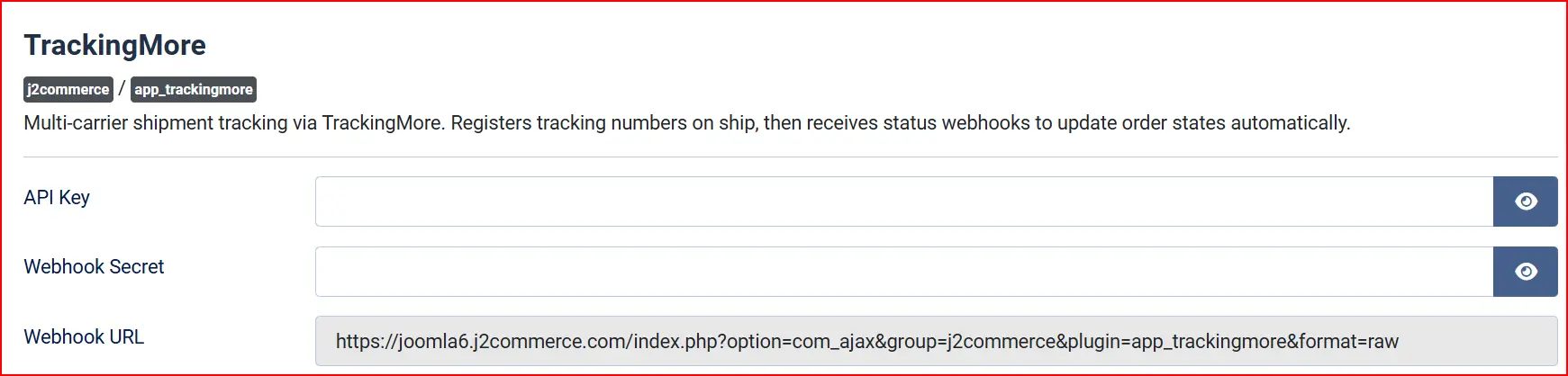
API Key: Paste your TrackingMore API key here. You can find it in the TrackingMore admin portal under Developer -> API Management. The key is a password-style field and is never shown once saved.
Without a valid API key, tracking numbers will not be registered with TrackingMore and no automatic status updates will occur.
Webhook Secret: Paste the webhook signing secret from TrackingMore. J2Commerce uses this value to verify that incoming webhook requests genuinely come from TrackingMore and have not been tampered with.
You will create (or find) this secret in the TrackingMore portal when you set up the webhook — see Setting Up the Webhook in TrackingMore below.
Webhook URL: This is a read-only field that displays the URL TrackingMore must call to send status updates to your store. Copy this URL exactly as shown and paste it into TrackingMore's webhook configuration.
The URL follows this structure:
https://your-site.com/index.php?option=com_ajax&group=j2commerce&plugin=app_trackingmore&format=raw

Default Language: A two-letter language code (for example, en, de, fr, es) sent to TrackingMore when registering a tracking number. TrackingMore uses this code to return checkpoint messages in the requested language. Default is en.
When a customer places an order and J2Commerce knows the customer's language, that language is used automatically and this setting acts as a fallback.
Map Geocoding Contact Email: A real email address sent to the OpenStreetMap Nominatim geocoding service, which is used to plot shipment checkpoints on the tracking map. OpenStreetMap's usage policy requires a genuine contact email — a placeholder address is rejected and the map will not render.
If left blank, the app uses your site's outgoing email address from the Joomla global configuration. You do not need to enter anything here if that address is a real, monitored inbox.
Notify Customer on Status Change: When set to Yes (the default), J2Commerce sends the customer an order status email each time TrackingMore reports a new delivery status via webhook. Set to No to update order statuses silently without sending customer emails.
Order Status Mapping
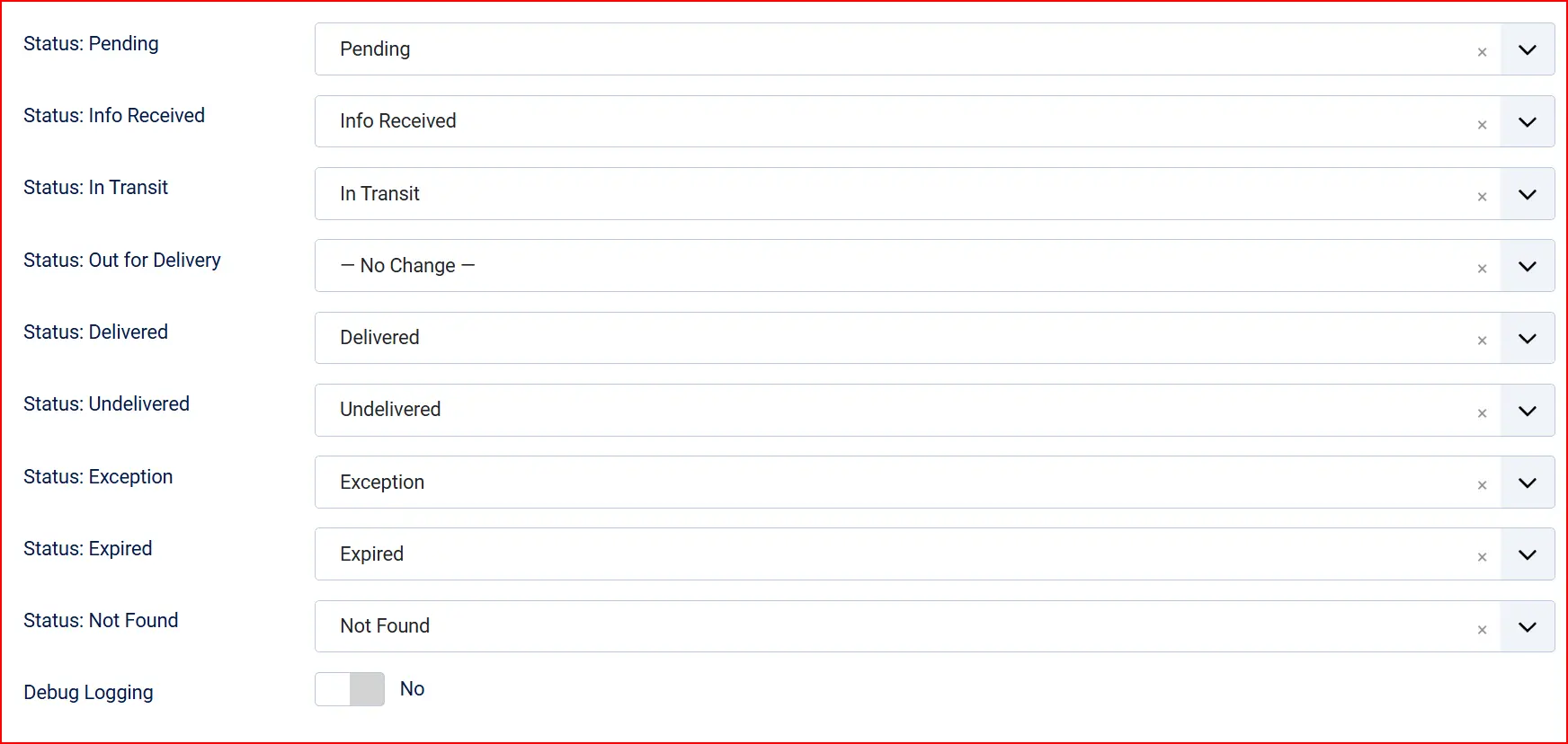
The nine fields below control which J2Commerce order status is applied when TrackingMore reports each delivery state. For every field, you can pick any order status from the dropdown or choose — No Change — to leave the J2Commerce order status untouched for that particular TrackingMore state.
Status: Pending: Label created; parcel not yet scanned by the carrier
Status: Info Received: Label created; carrier has the shipment data but not yet picked up the parcel
Status: In Transit: Parcel is actively moving through the carrier network
Status: Out for Delivery: Parcel is on the delivery vehicle
Status: Delivered: Parcel delivered to the recipient
Status: Undelivered: Delivery was attempted but failed
Status: Exception: Parcel is lost, damaged, returned, or held at customs
Status: Expired: No carrier scan activity for 30 or more days
Status: Not Found: No tracking data found at the carrier yet
The Info Received and In Transit fields come pre-mapped to a "Shipped" order status in J2Commerce, and the Delivered field is pre-mapped to a "Delivered" order status. You may remap any of these to match your own order status workflow.
Debug Logging: When set to Yes, the app writes detailed information about API calls and webhook processing to the J2Commerce log file (j2commerce.trackingmore). Keep this disabled on production stores, as it generates high log volume.
To view logs, go to System -> Logs in Joomla and look for entries tagged j2commerce.trackingmore.
Setting Up the Webhook in TrackingMore
After saving the app configuration, you need to register your store's webhook URL in your TrackingMore account.
- Copy the Webhook URL displayed in the app settings.
- Log in to your TrackingMore admin portal.
- Go to Developer -> Webhooks.
- Click Add Webhook and paste the URL you copied.
- TrackingMore will generate a signing secret — copy it.
- Return to the J2Commerce TrackingMore app settings and paste that secret into the Webhook Secret field.
- Click Save in J2Commerce.
TrackingMore must be able to reach your site's URL from the internet. If your store is on a local development server, webhooks will not work without a public tunnel.
How It Works
The app operates in two directions: outbound (your store pushes tracking numbers to TrackingMore) and inbound (TrackingMore pushes status updates back).
- Outbound — when a tracking number is saved:
- You enter a tracking number on a J2Commerce order (via J2Commerce -> Sales -> Orders -> Edit Order -> Tracking).
- J2Commerce fires an event. The TrackingMore app catches it and calls the TrackingMore API to detect the carrier automatically from the tracking number format.
- The app registers the tracking number with TrackingMore, including the order ID and any available customer language preference.
- TrackingMore begins polling the carrier for status updates.
- Inbound — when TrackingMore sends a webhook:
- The carrier reports a new scan event to TrackingMore.
- TrackingMore sends a signed webhook to your store's Webhook URL.
- The app verifies the HMAC-SHA256 signature using your Webhook Secret and confirms the request is not stale.
- The app maps the TrackingMore delivery status to the J2Commerce order status you configured in the Status Mapping fields.
- If a matching status is configured, the order status is updated and an order history note is added (for example, "In Transit (29 Jun 2026 14:22), Tracking Number: 1Z999AA10123456784").
- If Notify Customer on Status Change is Yes, J2Commerce sends the customer an order status email.
Admin Order View — Shipment Tracking Card
Once at least one webhook has been received for a tracking number, a Shipment Tracking card appears in the J2Commerce admin order detail view. The card shows:
- The carrier code and tracking number
- The current delivery status badge (color-coded: green for Delivered, blue for In Transit, red for Exception, etc.)
- The estimated delivery date, when provided by the carrier
- A "Signed by" note if the recipient's name was captured at delivery
- A chronological list of all checkpoint events, each with date, location, and carrier message
- A Track on carrier site button that links to the carrier's own tracking page
If multiple tracking numbers are associated with the same order, a separate card is shown for each.
Customer Tracking Lookup
The app includes a public AJAX endpoint that lets customers look up their shipment status without logging in. You can embed a simple tracking form on any Joomla article or module that POSTs to the endpoint.
Customers can search in two ways:
- By order number and email address — J2Commerce verifies the email matches the order before returning any tracking data.
- By tracking number alone — useful for return confirmations; the tracking number itself acts as the identifier.
The response includes the delivery status, estimated delivery date, and the full checkpoint timeline with map data when available.
Tips
- Register shipping early — The tracking number must be entered on the order before the first carrier scan; TrackingMore cannot backfill events for a number registered after they occurred.
- Use a monitored email for geocoding — The OpenStreetMap Nominatim service rejects disposable or placeholder email addresses. Use your real store contact email to ensure the map feature works reliably.
- Map only the statuses you care about — If "Not Found" (no data yet from the carrier) causes confusion in your workflow, leave it set to — No Change — to avoid unnecessary status transitions immediately after shipping.
- Test with Debug Logging enabled — Turn on Debug Logging, ship a test order, and check the
j2commerce.trackingmorelog to confirm the API call and webhook signature verification are working before going live. - Carrier auto-detection — TrackingMore identifies the carrier from the tracking number format. If a number is ambiguous (matches multiple carriers), it may not be registered. In that case, check the debug log for a "Could not detect courier" entry.
Troubleshooting
Tracking Number Is Not Registered With TrackingMore
Cause: API key is missing or incorrect, or the carrier could not be auto-detected.
Solution:
- Go to J2Commerce -> Apps -> TrackingMore and verify that the API Key field is filled in.
- Enable Debug Logging and re-save a tracking number on a test order.
- Go to System -> Logs and check the
j2commerce.trackingmorelog for errors. - If the log shows "Could not detect courier," confirm the tracking number format is one that TrackingMore supports. Check the carrier list in your TrackingMore portal.
Order Status Does Not Change When a Webhook Arrives
Cause: Webhook secret is not configured, the wrong secret is entered, or the delivery status is set to — No Change —.
Solution:
- Go to J2Commerce -> Apps -> TrackingMore and confirm the Webhook Secret matches exactly what is shown in your TrackingMore portal under Developer -> Webhooks.
- Check the Status Mapping fields — if the relevant status is set to — No Change —, no update will occur.
- Enable Debug Logging, trigger a test webhook from the TrackingMore portal, and review the log for signature errors.
Customers Are Not Receiving Tracking Emails
Cause: Notify Customer on Status Change is set to No, or your Joomla mail settings are not configured.
Solution:
- Go to J2Commerce -> Apps -> TrackingMore and confirm Notify Customer on Status Change is set to Yes.
- Verify your site's outgoing mail is working: System -> Global Configuration -> Server -> Mail Settings and click Send Test Mail.
The Shipment Tracking Card Does Not Appear in the Admin Order View
Cause: No webhook has been received yet for that order's tracking number.
Solution:
- The card only appears after TrackingMore has sent at least one status update. Immediately after registering a tracking number, the card may not yet be visible.
- In the TrackingMore portal, check that the tracking number appears under Trackings and that at least one event has been recorded.
- Confirm the webhook URL in TrackingMore matches the Webhook URL shown in the app settings exactly.
Map Does Not Appear on the Customer Tracking Page
Cause: The geocoding contact email is invalid or was rejected by OpenStreetMap Nominatim.
Solution:
- Go to J2Commerce -> Apps -> TrackingMore and fill in the Map Geocoding Contact Email field with a real, monitored email address.
- The map is plotted from geo-coordinates attached to checkpoint locations. If a carrier does not provide location data, the map will not appear regardless of the email setting — this is normal.