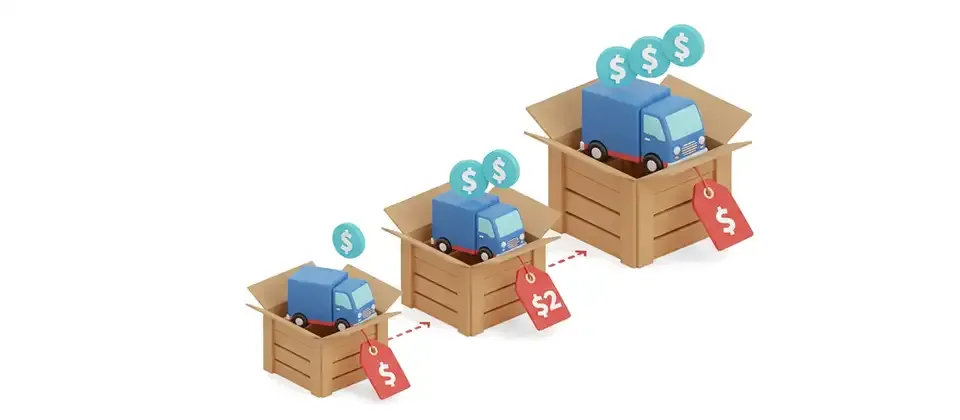

Incremental Pricing for J2Commerce charges a lower per-unit price as the quantity in the cart goes up. The saving is applied to the cart as an automatic discount.
Set the quantity tiers on a product, or on a single variant, and optionally show a "Buy More Save More" message on the product page.
Requirements
- Joomla 6.x
- J2Commerce 6.6.4 or later, installed and enabled
Installation
Incremental Pricing is a separate add-on available from the J2Commerce Extensions Store. It is not included with the core J2Commerce 6 component.
- In the Joomla Administrator, go to System -> Install -> Extensions.
- Upload the Incremental Pricing ZIP file, or use the Install from URL tab.
- Go to Components -> J2Commerce -> Apps, open Incremental Pricing for J2Commerce and make sure it is published.
Settings
Open the app from Components -> J2Commerce -> Apps. The Help button on the settings screen opens this page.
Basic Settings
| Setting | What It Does | Default | Options |
|---|---|---|---|
| Discount Display Text | The label shown for the saving in the order totals. Leave it empty to use the default label, Incremental Pricing. | Empty | Any text |
| Debug Mode | Writes debug entries to the Joomla log directory. Turn it off on a live store. | No | Yes, No |
Product Page Display
| Setting | What It Does | Default | Options |
|---|---|---|---|
| Show Message on Product Page | Shows a "Buy More Save More" message on the product detail page, for example "Buy More Save More: Save $1.00 for every item over 10!". It is built from the product-level tiers and the default variant price. | No | Yes, No |
| Message Position | Places the message before or after the Add to Cart button. Shown when the message is on. | After the Add to Cart button | Before the Add to Cart button, After the Add to Cart button |
| Frontend Subtemplate | The framework used to draw the message. Pick the one that matches your storefront theme. Shown when the message is on. | bootstrap5 | Bootstrap 5, UIkit |
Note
Variant-specific tiers are applied correctly in the cart, but the product-page message does not update live as the shopper changes the variant.
Setting Up Tiers
Product Tiers
- Go to Components -> J2Commerce -> Catalog -> Products and open the product.
- Open the Apps tab and find Incremental Pricing.
- Set Enable Incremental Pricing to Yes.
- Under Quantity Tiers, click Add Incremental Price. Enter the quantity (Qty +) where the tier starts and the Price charged per unit from that quantity.
- Add a row for each tier and save the product.
Use Delete on a row to remove it. A deleted row stays deleted after you save.
Variant Tiers
On a variable product, each variant has its own Enable Incremental Pricing switch and Quantity Tiers in the variant price section. Variant tiers replace the product-level tiers for that variant only. A variant without its own tiers uses the product-level tiers.
How the Discount Works
- Units below the first tier are charged at the regular price.
- From each tier quantity upward, every further unit is charged at that tier price.
- The difference from the regular price is applied to the cart line as a discount, using the label from Discount Display Text.
- The discount is not applied while a coupon or voucher is in use on the cart.
Example
A product costs 10.00 with tiers of 5 at 9.00 and 10 at 8.00. An order of 12 units costs 4 x 10.00 + 5 x 9.00 + 3 x 8.00 = 109.00. The cart shows a discount of 11.00.
Price Checks on Save
A tier price may not be higher than the regular price, because that would raise the price instead of discounting it. When you save a product, the app checks:
- the product-level tiers against the product price;
- each variant's tiers against that variant's price;
- the product-level tiers against every variant that uses them.
Tiers on a switched-off product or variant are not checked, so they never block a save.
Troubleshooting
Product Changes Not Saved
The error "Product changes not saved. A tier price may not exceed the regular product price. Please set a regular product price greater than ..." appears at the top of the product screen. Lower the highest tier price, or raise the regular price of the product or variant, then save again. To keep the tiers without the check, set Enable Incremental Pricing to No.
No Discount in the Cart
- Check that Enable Incremental Pricing is Yes on the product or the variant.
- Check that the quantity has reached the first tier quantity.
- Remove any coupon or voucher from the cart. Incremental Pricing does not stack with them.
Uninstalling
Go to System -> Manage -> Extensions, search for Incremental Pricing, select it and click Uninstall.