

Gifter Pro adds a free gift to qualifying carts based on rules you set. A rule can give a gift on a customer's first order, once per customer, or on every qualifying order, and it can add the gift automatically or let the customer choose one.
Gifter Pro checks each customer against earlier orders by account, email, phone and address, so the same person does not collect a first-order gift twice. It also falls back to another gift when the first one is out of stock and keeps a ledger of every gift given.
Requirements
- Joomla 6.0 or later (PHP 8.3 or later)
- J2Commerce 6.6.4 or later, installed and enabled
Info
Gifter Pro needs J2Commerce 6.6.4 or later.
Installation
Purchase and Download
Gifter Pro is a separate add-on available from the J2Commerce Extensions Store. It is not included with the core J2Commerce 6 component.
- Go to Gifter Pro on the J2Commerce Extensions Store -> Apps.
- Find Gifter Pro and click View Details -> Add to Cart -> Checkout.
- Open My Downloads under your profile button, search for Gifter Pro, then click Available Versions -> View Files -> Download Now.
Install the App
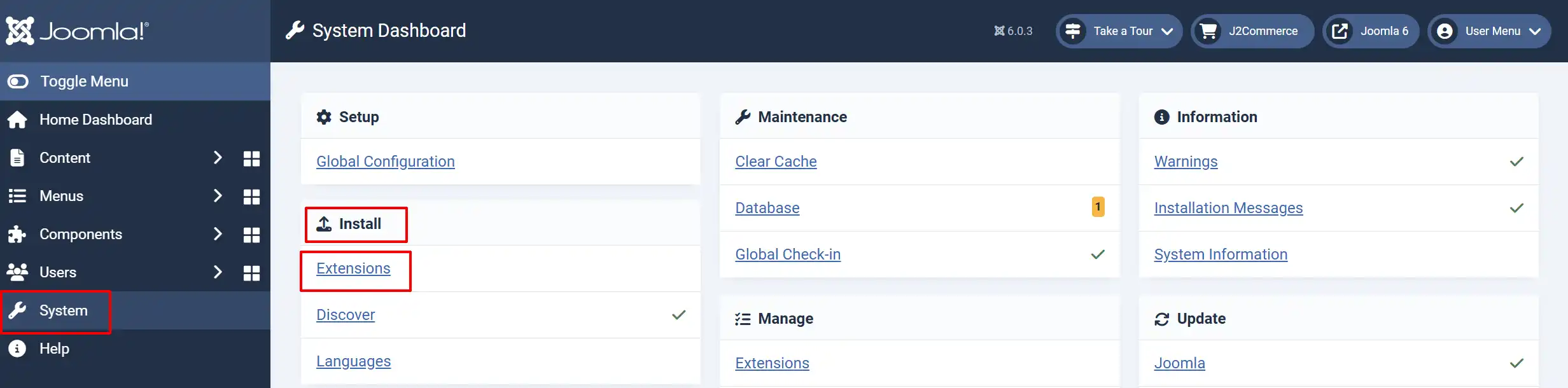
- In the Joomla Administrator, go to System -> Install -> Extensions.
- Upload the Gifter Pro ZIP file, or use the Install from URL tab.
Enable the App
Installing does not enable the app.
- Go to Components -> J2Commerce -> Apps.
- Search for Gifter Pro.
- Click the red X in the status column. It turns into a green checkmark.
Where to Find It
Open J2Commerce -> Apps -> Gifter Pro to reach the plugin settings. The toolbar of that screen has two extra buttons: Dashboard and Manage Gift Rules.
Gifter Pro has four screens, linked from each other's toolbars:
- Gift Rules: create, edit, publish, duplicate and delete rules.
- Dashboard: gift totals for a date range.
- Gift Ledger: every gift reserved, given or recorded by hand.
- Blocked Attempts: customers refused a repeat gift and extra free units that were capped.
The screens need the Access Administration Interface permission for J2Commerce.
Plugin Settings
These settings apply to every rule. They are on the plugin screen, split over five tabs.
General Settings
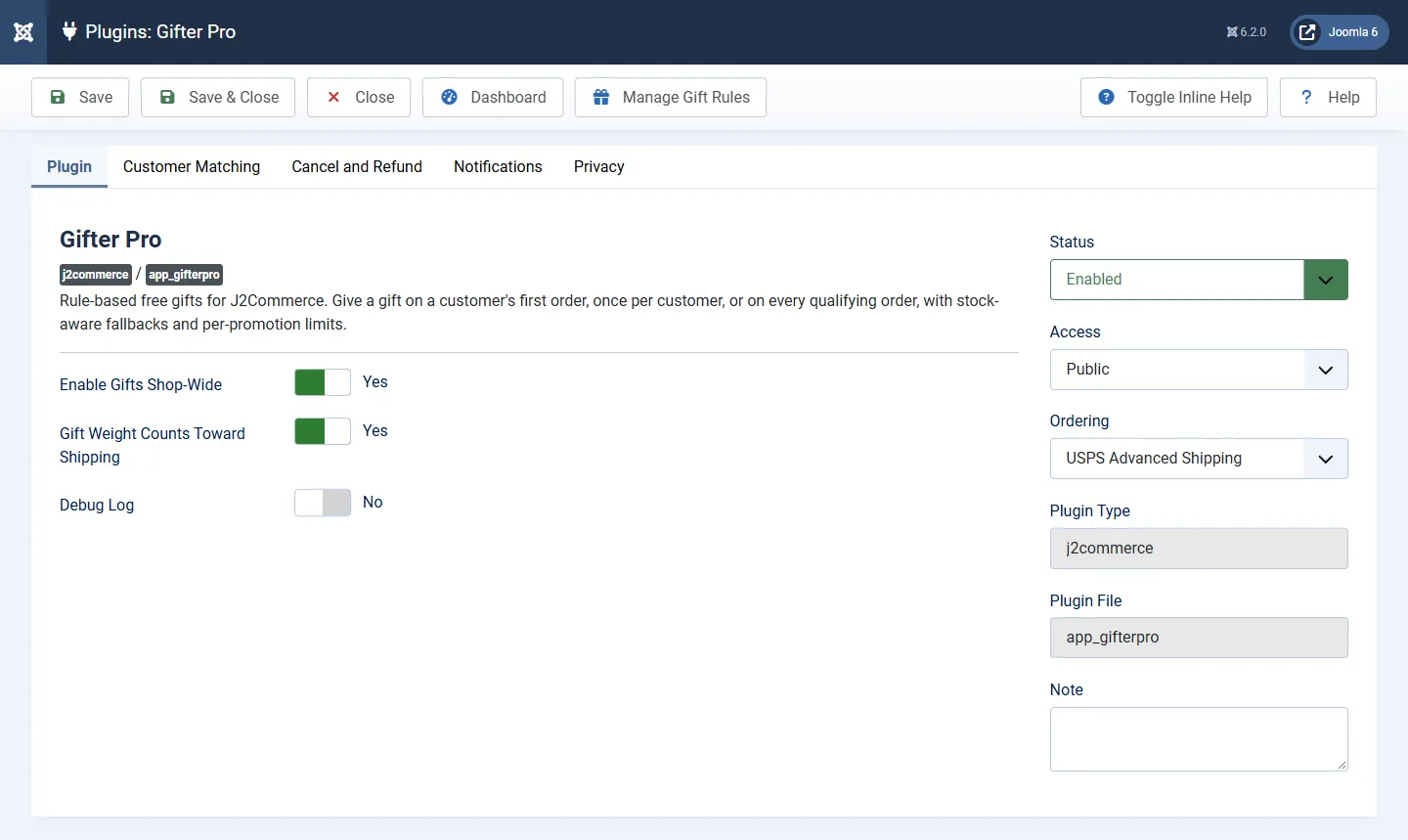
| Setting | What It Does | Default | Options |
|---|---|---|---|
| Enable Gifts Shop-Wide | No stops every rule and removes any gift already in a cart. Rules and the ledger are kept. | Yes | Yes, No |
| Gift Weight Counts Toward Shipping | Yes includes the gift's weight in shipping rates. | Yes | Yes, No |
| Debug Log | Writes extra detail to the plugin log file. | No | Yes, No |
Customer Matching
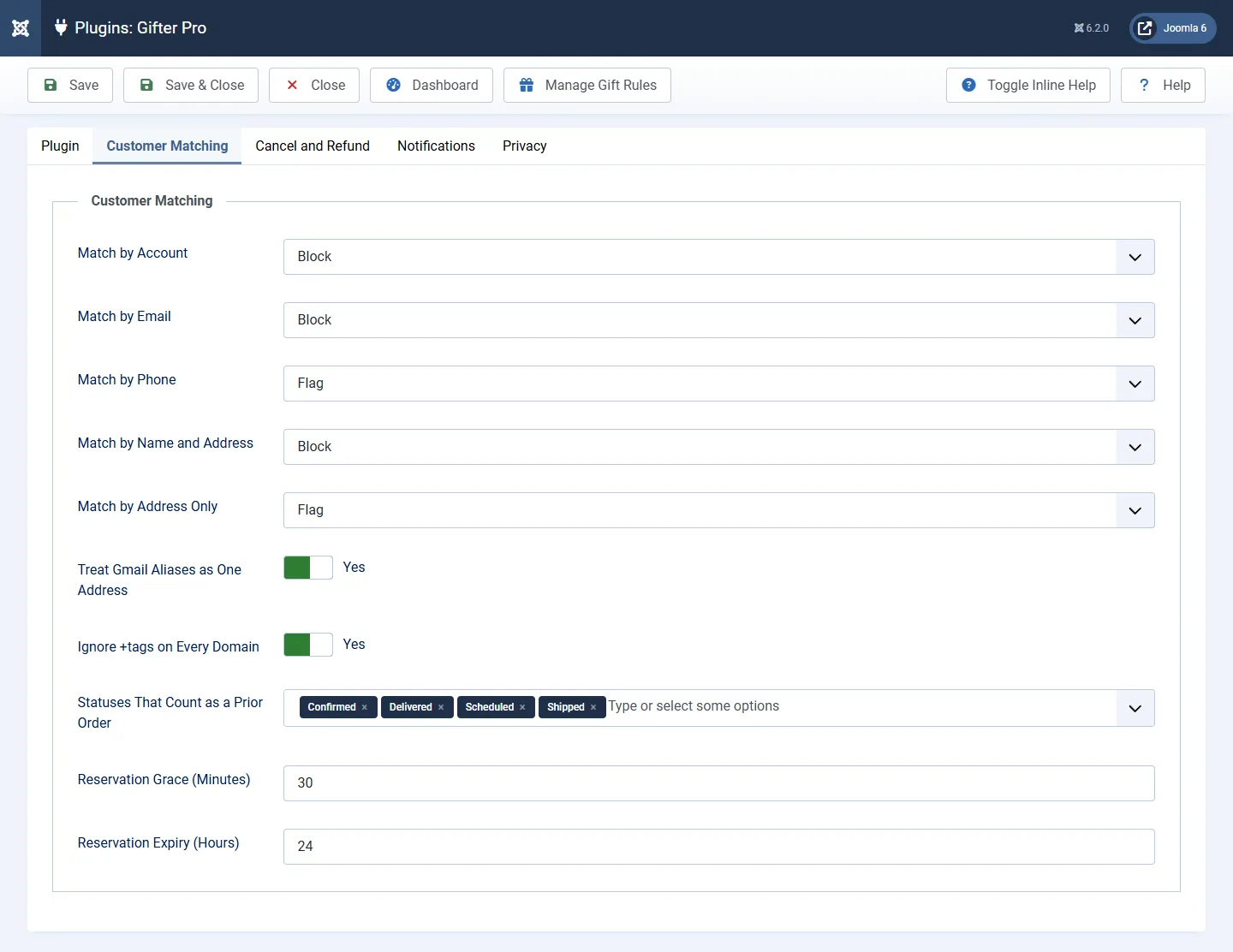
Each match key has its own mode for a customer who matches an earlier order or gift:
- Block: a match stops the gift.
- Flag: a match lets the gift through but marks it for review in the ledger.
- Off: the key is ignored.
| Setting | What It Does | Default | Options |
|---|---|---|---|
| Match by Account | Matches the Joomla user account. | Block | Block, Flag, Off |
| Match by Email | Matches the email address. | Block | Block, Flag, Off |
| Match by Phone | Matches the phone number. | Block | Block, Flag, Off |
| Match by Name and Address | Matches the name together with the address. | Block | Block, Flag, Off |
| Match by Address Only | Matches the address alone. Households and roommates share an address, so the default is Flag. | Flag | Block, Flag, Off |
| Treat Gmail Aliases as One Address | Ignores dots and +tags in Gmail addresses, so | Yes | Yes, No |
| Ignore +tags on Every Domain | Makes | Yes | Yes, No |
| Statuses That Count as a Prior Order | The order statuses that make a customer a returning customer. Leave empty to use every completed, approved, shipped, delivered and open status on the store. | Empty | Your order statuses |
| Reservation Grace (Minutes) | How long a gift reserved on an unpaid order is protected. | 30 | 1 or more |
| Reservation Expiry (Hours) | How long an unpaid reservation lasts before it is released. | 24 | 1 or more |
Cancel and Refund
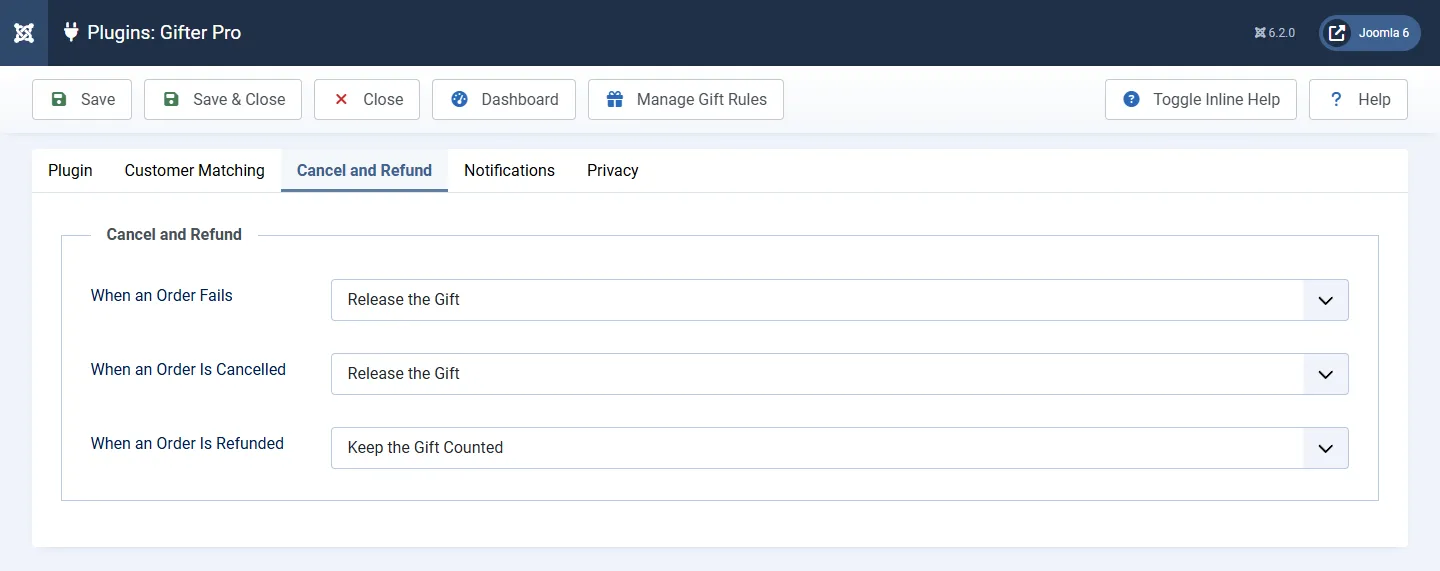
These settings decide what happens to a customer's gift allowance when an order does not complete. Release the Gift lets the customer receive the gift again. Keep the Gift Counted means the customer cannot receive it again.
| Setting | What It Does | Default | Options |
|---|---|---|---|
| When an Order Fails | Applies when the order gets a failed status. | Release the Gift | Release the Gift, Keep the Gift Counted |
| When an Order Is Cancelled | Applies when the order is cancelled. | Release the Gift | Release the Gift, Keep the Gift Counted |
| When an Order Is Refunded | Applies when the order is refunded. | Keep the Gift Counted | Release the Gift, Keep the Gift Counted |
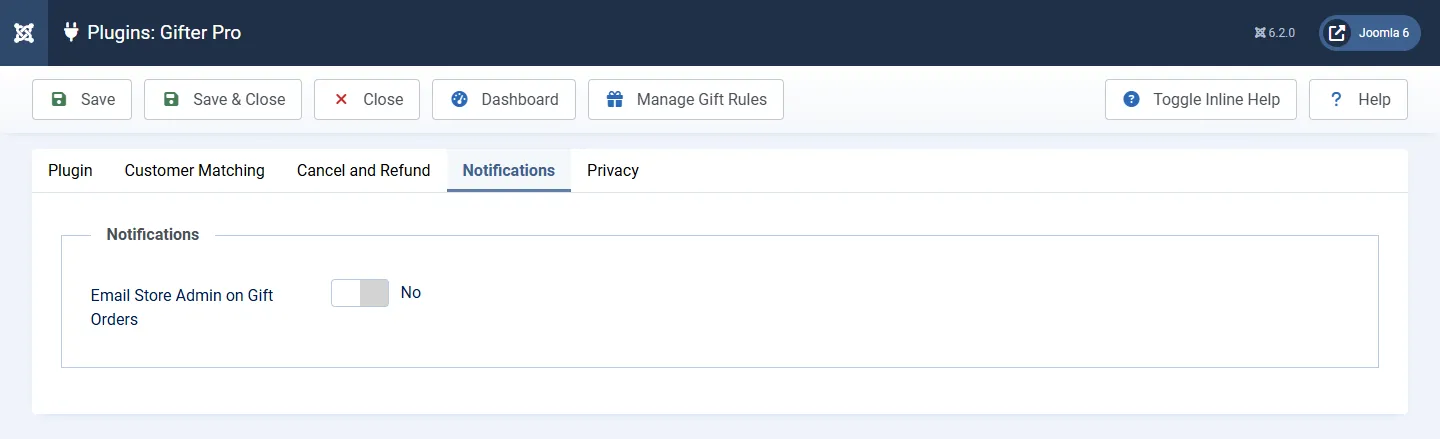
Notifications
| Setting | What It Does | Default | Options |
|---|---|---|---|
| Email Store Admin on Gift Orders | Sends one email per order when the order's free gift is confirmed by a paid or placed order status. Unpaid orders send nothing. | No | Yes, No |
| Notification Recipients | Comma-separated email addresses. Leave empty to use the store's order email addresses. Shown when the setting above is Yes. | Empty | Email addresses |
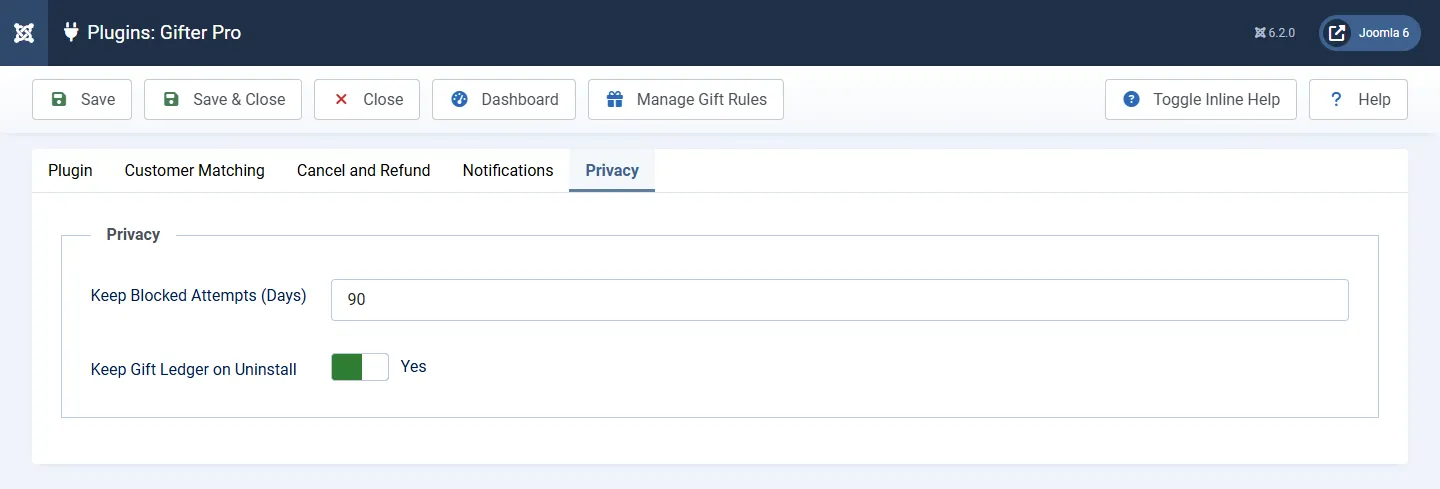
Privacy
| Setting | What It Does | Default | Options |
|---|---|---|---|
| Keep Blocked Attempts (Days) | Blocked attempts older than this are removed automatically. 0 keeps them until you purge them. | 90 | 0 or more |
| Keep Gift Ledger on Uninstall | Yes keeps the rules and gift records in the database when the plugin is uninstalled. No deletes them. | Yes | Yes, No |
Create a Gift Rule
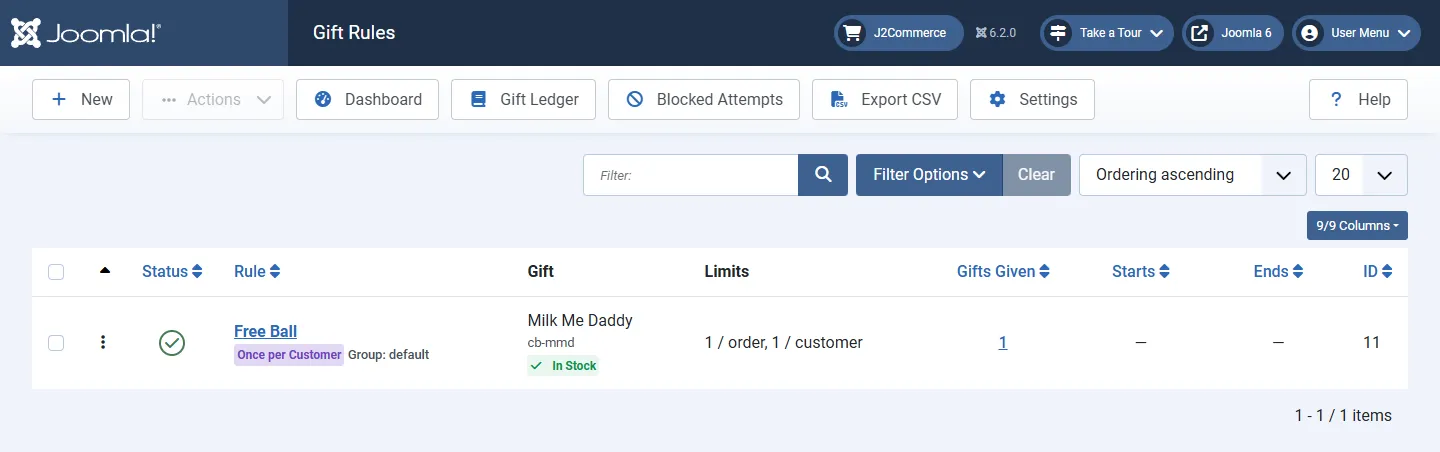
- Open J2Commerce -> Apps -> Gifter Pro and click Manage Gift Rules.
- Click New.
- Enter a Title and choose a Trigger.
- On the Gift tab, choose a Delivery mode and add at least one gift.
- Set any Conditions and Limits.
- Click Save & Close.
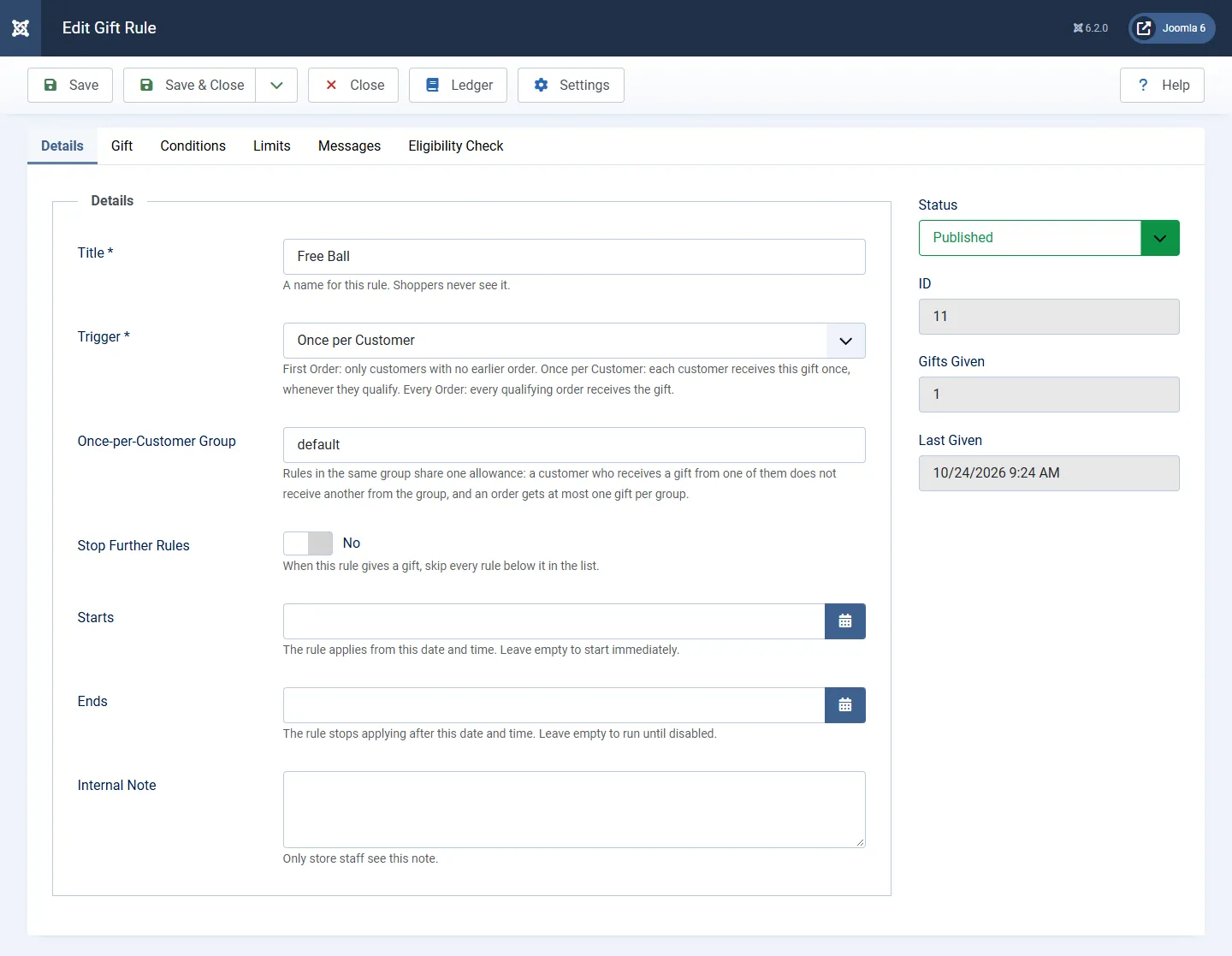
Details Tab
| Setting | What It Does | Default | Options |
|---|---|---|---|
| Title | A name for the rule. Shoppers never see it. | Required | Text |
| Trigger | First Order: only customers with no earlier order. Once per Customer: each customer receives the gift once, whenever they qualify. Every Order: every qualifying order receives the gift. | Required | First Order, Once per Customer, Every Order |
| Once-per-Customer Group | Rules in the same group share one allowance. A customer who receives a gift from one of them does not receive another from the group, and an order gets at most one gift per group. | default | Group name |
| Stop Further Rules | When this rule gives a gift, every rule below it in the list is skipped. | No | Yes, No |
| Starts | The rule applies from this date and time. Leave empty to start immediately. | Empty | Date and time |
| Ends | The rule stops applying after this date and time. Leave empty to run until disabled. | Empty | Date and time |
| Internal Note | A note only store staff see. | Empty | Text |
| Status | Only published rules give gifts. | Published | Published, Unpublished |
Gift Tab
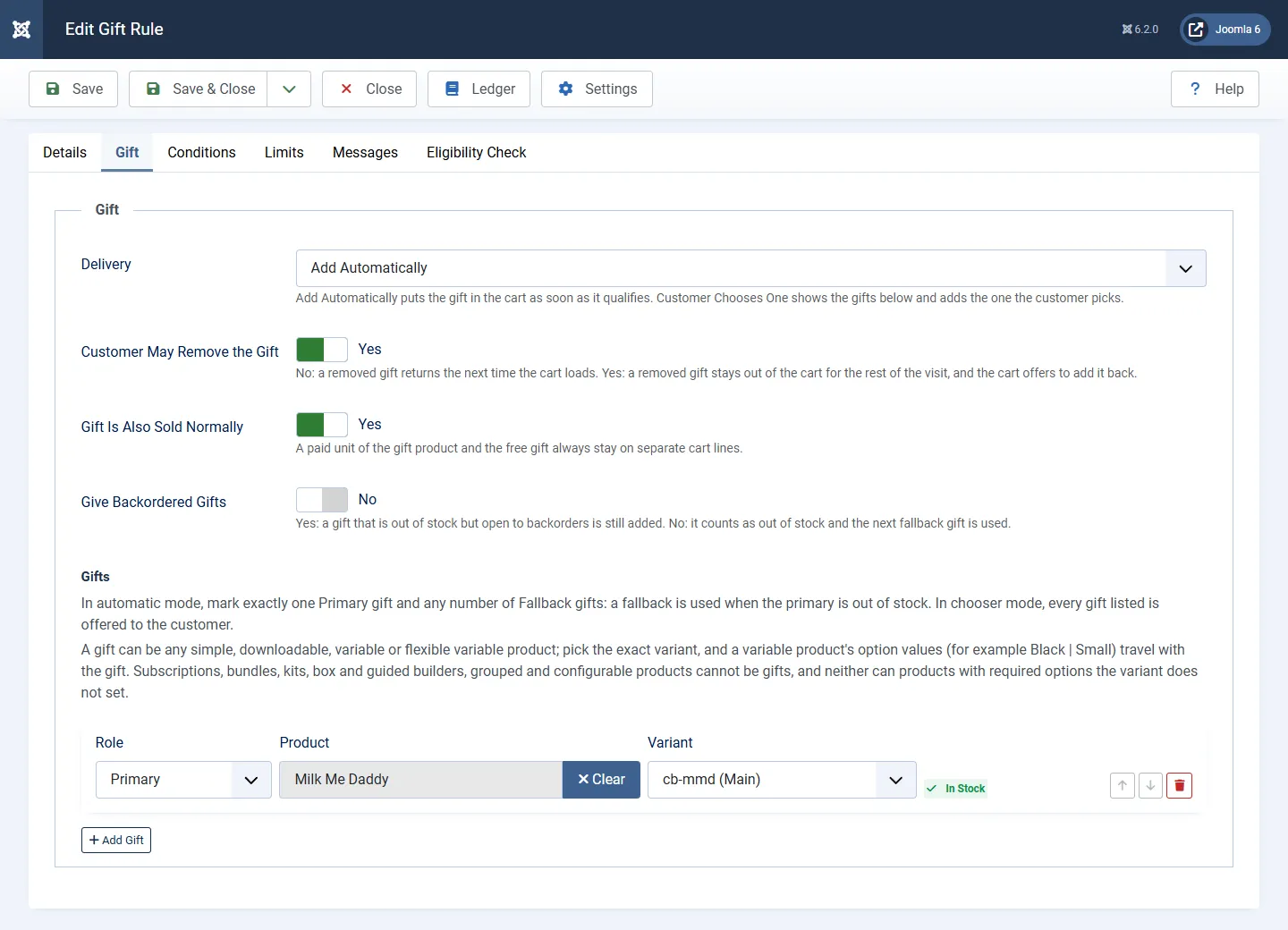
| Setting | What It Does | Default | Options |
|---|---|---|---|
| Delivery | Add Automatically puts the gift in the cart as soon as the cart qualifies. Customer Chooses One shows the gifts in the cart and adds the one the customer picks. | Add Automatically | Add Automatically, Customer Chooses One |
| Customer May Remove the Gift | No: a removed gift returns the next time the cart loads. Yes: a removed gift stays out for the rest of the visit, and the cart shows an Add My Gift Back button. | No | Yes, No |
| Gift Is Also Sold Normally | Use when the gift product is also for sale. A paid unit and the free gift always stay on separate cart lines. | Yes | Yes, No |
| Give Backordered Gifts | Yes: a gift that is out of stock but open to backorders is still added. No: it counts as out of stock and the next fallback gift is used. | No | Yes, No |
Click Add Gift to add a gift row, then choose its Role, Product and Variant. Rows can be moved up and down.
- With Add Automatically, mark exactly one gift as Primary and any number as Fallback. A fallback is used when the primary is out of stock, in the order listed.
- With Customer Chooses One, every gift in the list is offered to the customer.
Note
A gift can be a simple, downloadable, variable or flexible variable product. Choose a specific variant: the main variant of a variable product cannot be a gift. Subscriptions, bundles, kits, box and guided builders, grouped and configurable products cannot be gifts, and neither can products with required options the variant does not set.
Conditions Tab
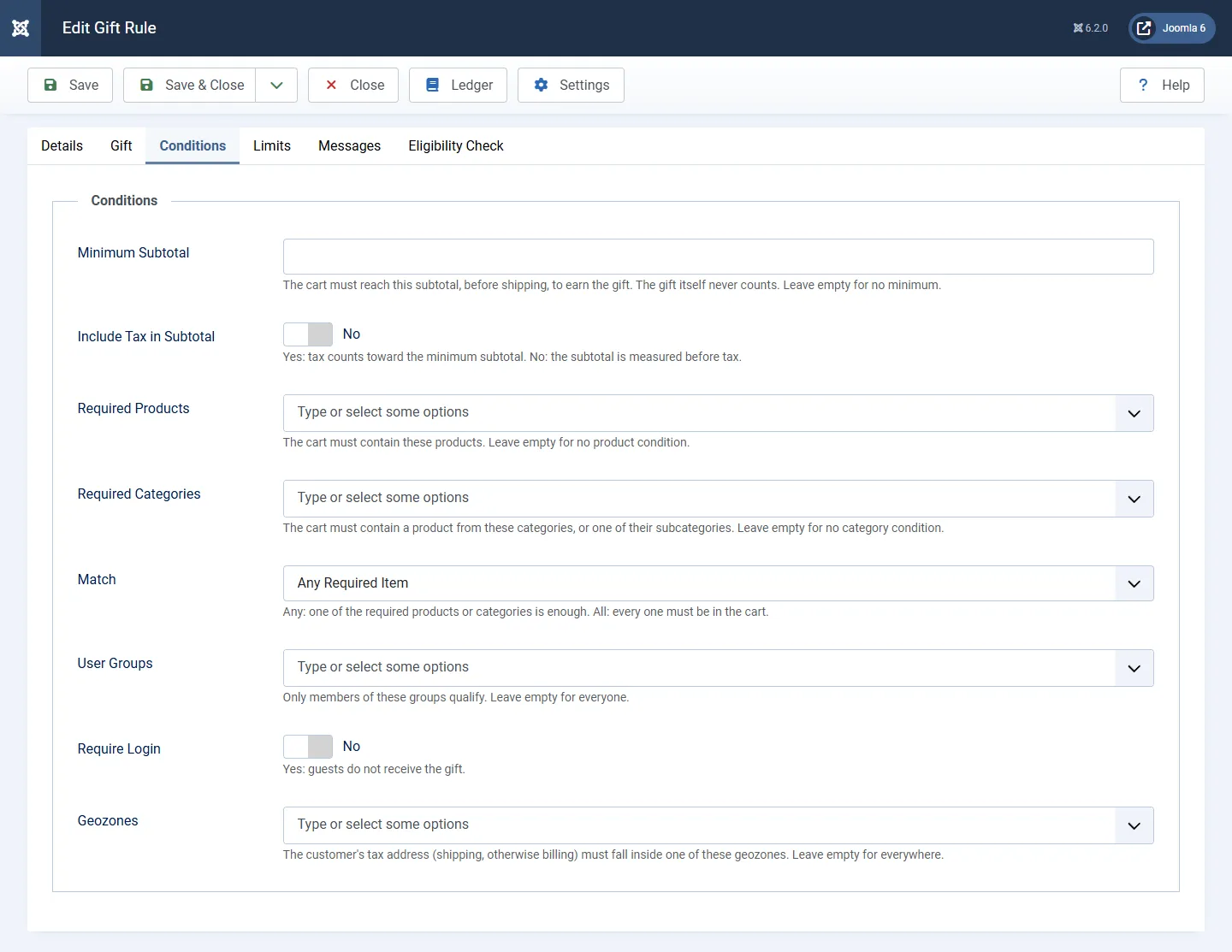
Leave a condition empty to skip it. A cart must meet every condition that is set.
| Setting | What It Does | Default | Options |
|---|---|---|---|
| Minimum Subtotal | The cart subtotal needed to earn the gift, measured after coupon and cart discounts and before shipping. Vouchers do not reduce it. The gift itself never counts. Checked again at checkout. | Empty | Amount |
| Include Tax in Subtotal | Yes: tax counts toward the minimum subtotal. No: the subtotal is measured before tax. | No | Yes, No |
| Required Products | Products the cart must contain. | Empty | Products |
| Required Categories | The cart must contain a product from these categories or their subcategories. | Empty | Categories |
| Match | Any Required Item: one of the required products or categories is enough. All Required Items: every one must be in the cart. | Any Required Item | Any Required Item, All Required Items |
| User Groups | Only members of these groups qualify. | Empty (everyone) | User groups |
| Require Login | Yes: guests do not receive the gift. | No | Yes, No |
| Geozones | The customer's tax address (shipping, otherwise billing) must be inside one of these geozones. | Empty (everywhere) | Geozones |
Limits Tab
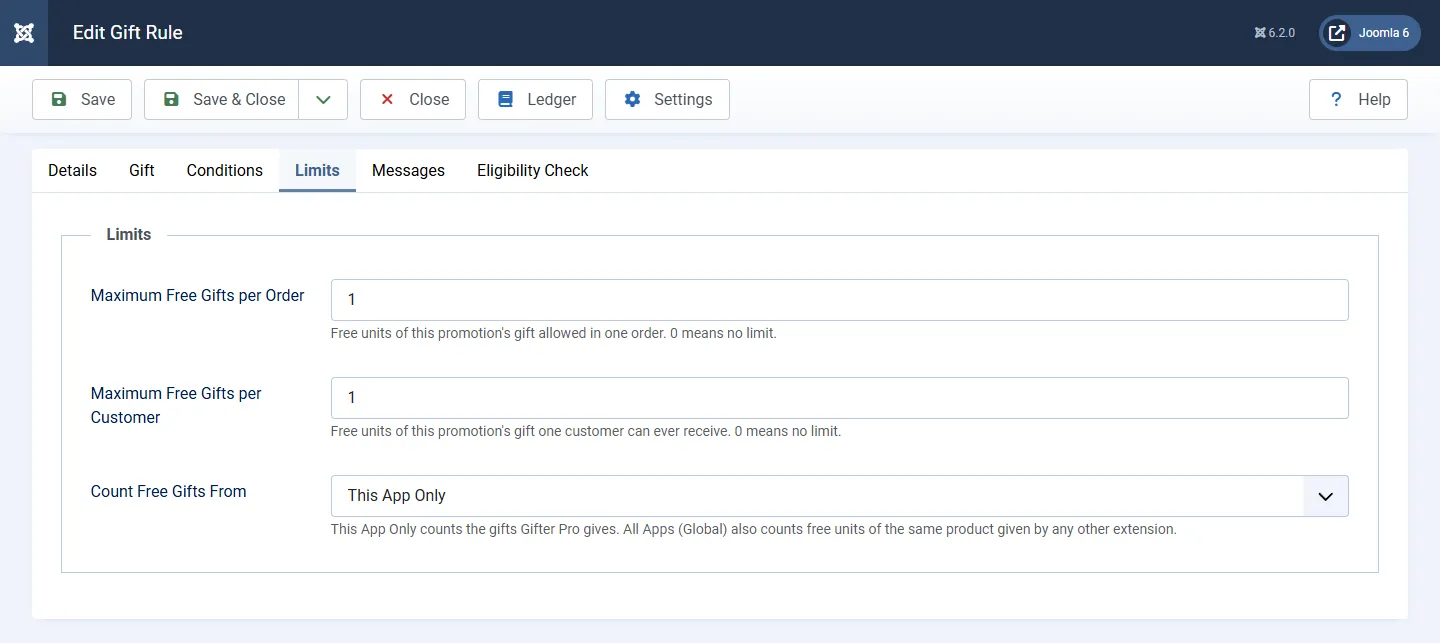
| Setting | What It Does | Default | Options |
|---|---|---|---|
| Maximum Free Gifts per Order | Free units of this rule's gift allowed in one order. 0 means no limit. | 1 | 0 or more |
| Maximum Free Gifts per Customer | Free units of this rule's gift one customer can ever receive. 0 means no limit. | 1 | 0 or more |
| Count Free Gifts From | This App Only counts only the gifts Gifter Pro gives. All Apps (Global) also counts free units of the same product given by other extensions. | This App Only | This App Only, All Apps (Global) |
When a limit is reached, extra units are charged at the regular price and the cart says so, for example "Limit 1 free Tote Bag per order. Extra units are charged at the regular price."
Messages Tab
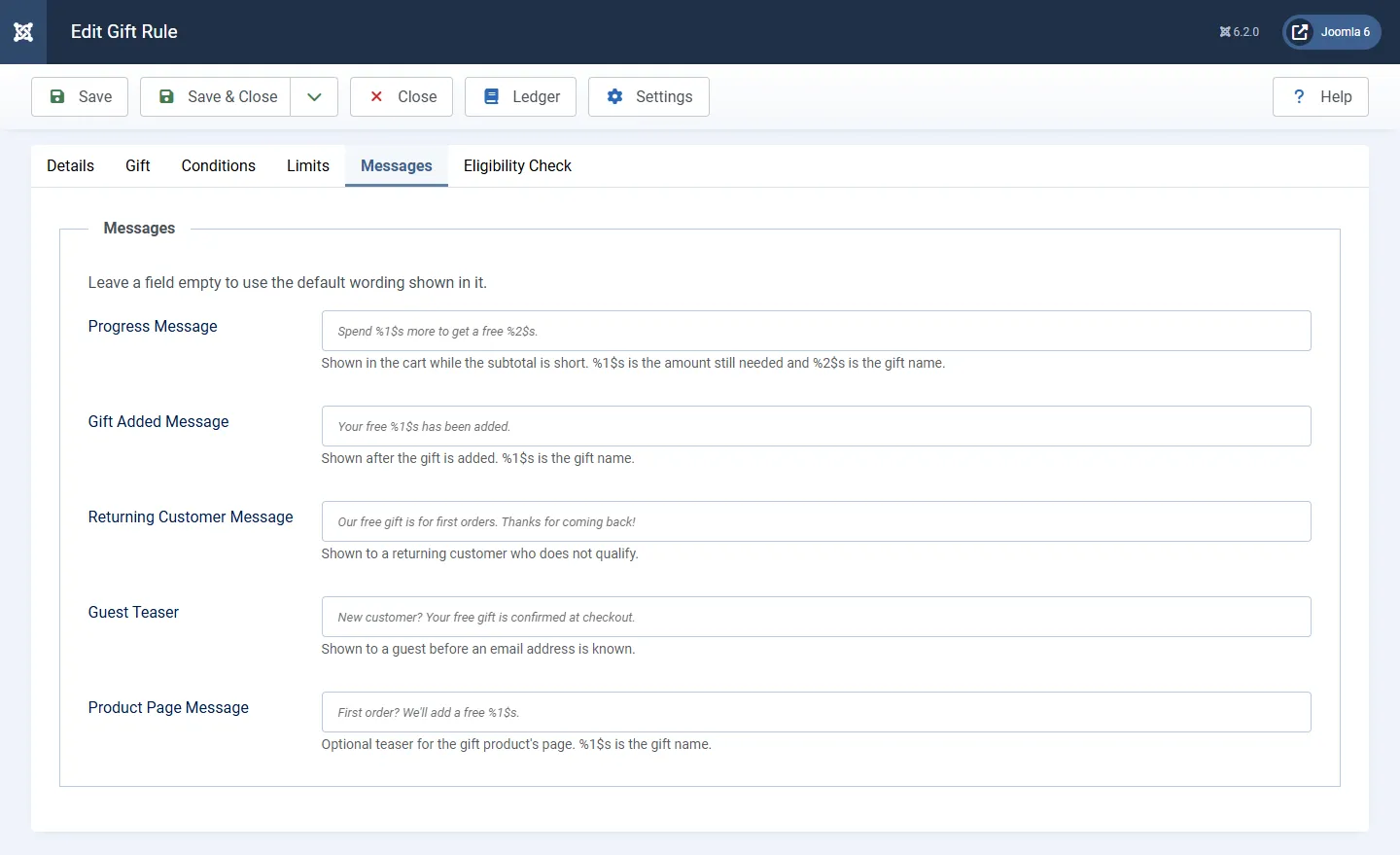
Each message replaces the default wording shown in the field. Leave a field empty to keep the default.
| Setting | What It Does | Default | Options |
|---|---|---|---|
| Progress Message | Shown in the cart while the subtotal is short. %1$s is the amount still needed and %2$s is the gift name. | Spend %1$s more to get a free %2$s. | Text |
| Gift Added Message | Shown after the gift is added. %1$s is the gift name. | Your free %1$s has been added. | Text |
| Returning Customer Message | Shown to a returning customer who does not qualify. | Our free gift is for first orders. Thanks for coming back! | Text |
| Guest Teaser | Shown to a guest before an email address is known. | New customer? Your free gift is confirmed at checkout. | Text |
Eligibility Check Tab
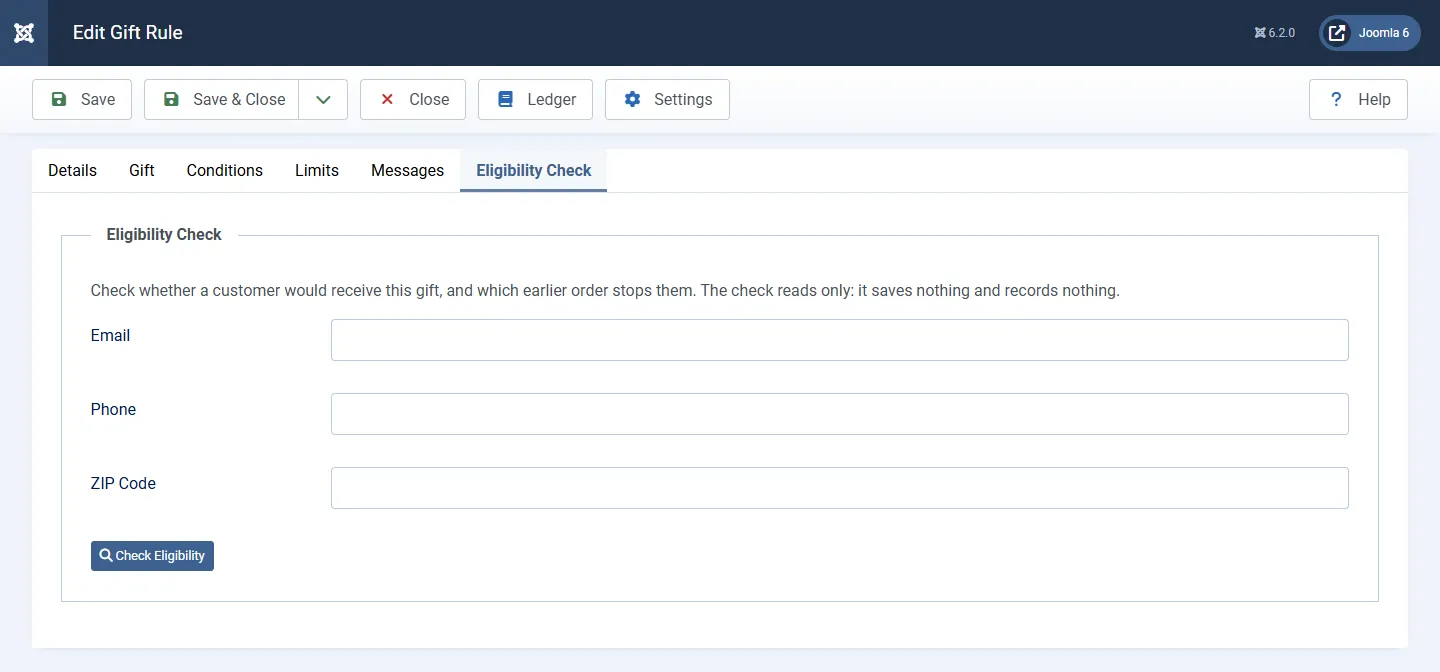
Use this tab to see whether a customer would receive the gift and which earlier order stops them. Enter an Email or Phone (and optionally a ZIP Code), then click Check Eligibility.
Save a new rule before you check a customer.
What Shoppers See
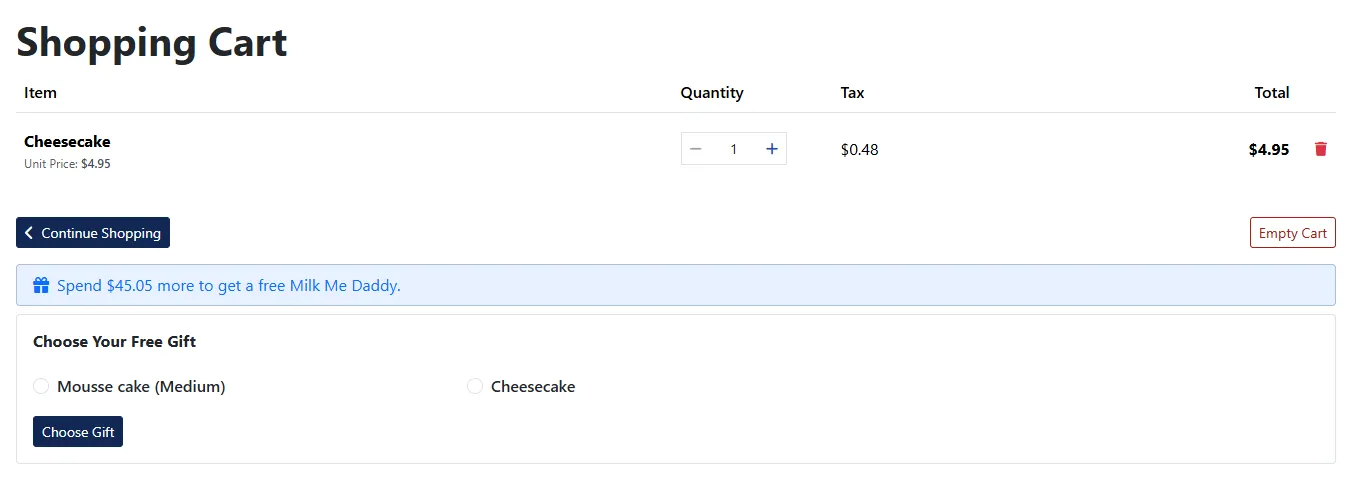
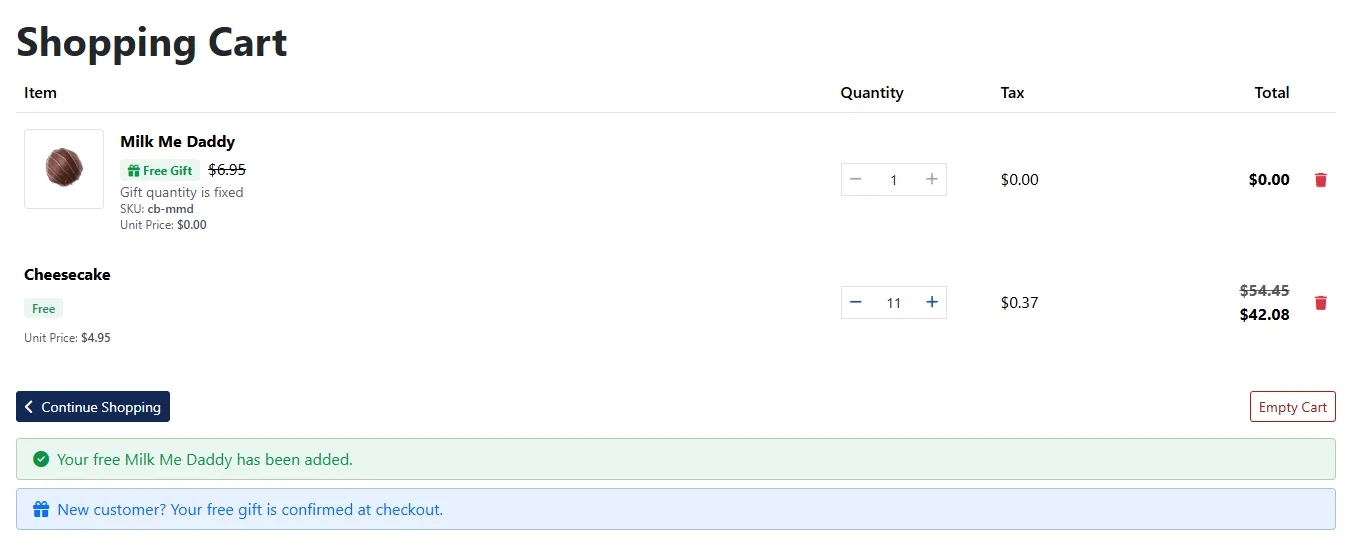
- The gift appears as its own cart line with a Free Gift badge. Its quantity cannot be changed.
- The cart shows the progress, gift added, returning customer or guest message that applies.
- With Customer Chooses One, the cart shows Choose Your Free Gift with the gifts to pick from.
- A backordered gift shows "Ships when back in stock".
- A free gift does not count as the qualifying product for a coupon.
If the email or address entered at checkout matches an earlier gift, the gift is removed and the shopper sees "Your free gift was removed because this email or address has already received one. Please review your order."
If a discount brings the order below a rule's Minimum Subtotal, the gift is removed at checkout and the shopper sees "Your free gift was removed because your order is below the minimum after discounts. Please review your order." The attempt is logged under Blocked Attempts.
Cart layouts are included for both the Bootstrap 5 and UIkit subtemplates. Gifter Pro is translated into 22 languages.
Gift Ledger
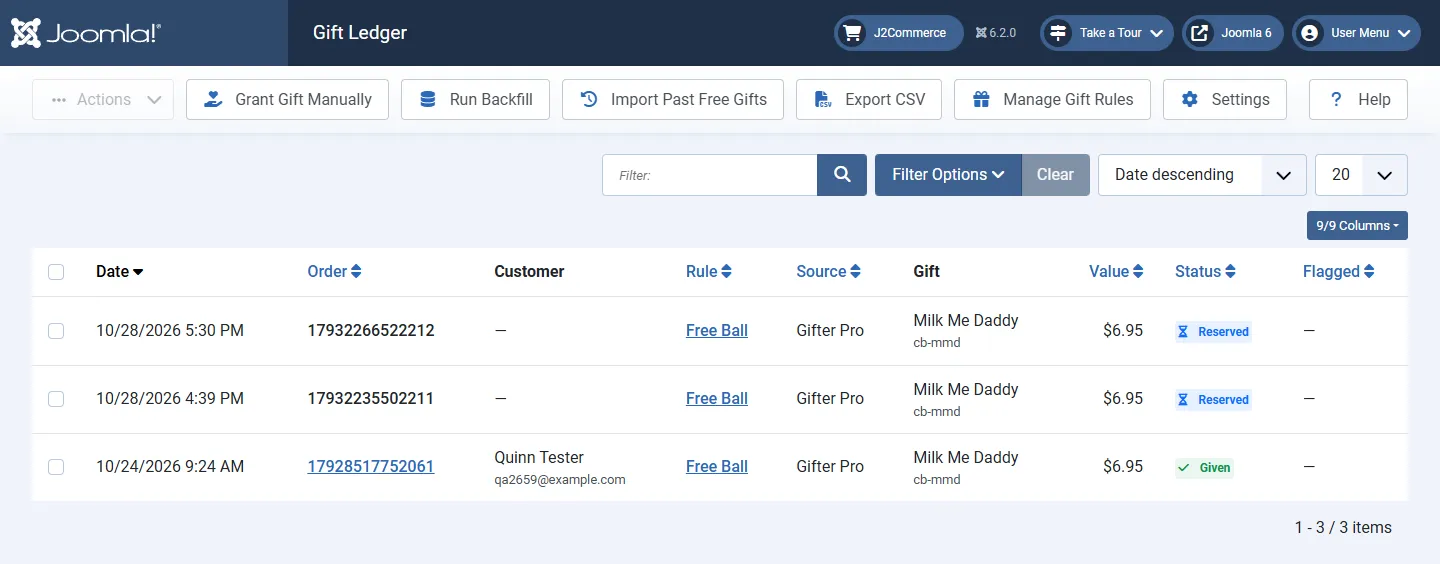
The Gift Ledger lists every gift claim with its date, order, customer, rule, source, value, status and flag. Search by order number, email or name, and filter by status, rule, source, flag or date.
| Status | Meaning |
|---|---|
| Reserved | The gift is held for an order that is not paid yet. |
| Given | The order was confirmed and the gift counts for the customer. |
| Released | The claim was freed, for example by a failed or cancelled order. The customer can receive the gift again. |
| Voided | A store admin voided the claim. It stops counting. |
| Manual | Recorded by hand with Grant Gift Manually. |
| Conflict | The order was paid after the same customer's gift had already been given on another order. |
Toolbar actions:
- Release and Void: select claims first. Both make those customers eligible for the gift again.
- Grant Gift Manually: records that the customer of an order already received a rule's gift, so they are not offered it again. No gift is added to the order.
- Run Backfill: makes orders placed before Gifter Pro was installed count as earlier orders. You can run it more than once.
- Import Past Free Gifts: choose a rule and an Orders Since date. Customers who received that gift free on a past order are recorded as Given, with the source History Import.
- Export CSV: downloads the filtered list.
Tip
On a store that already has orders, run Run Backfill once after installing. Without it, customers who ordered before Gifter Pro was installed can still qualify for a first-order gift.
Blocked Attempts
Blocked Attempts logs each time a customer is refused a repeat gift, a gift is removed at checkout, or extra free units are capped. Each row shows the date, rule, stage (Cart, Discount, Confirm, Payment or Status Change), action, the matched key type and the order or cart.
Purge Older Than permanently deletes attempts older than the number of days you enter (1 to 3650). Use Export CSV first if you need a copy.
Dashboard
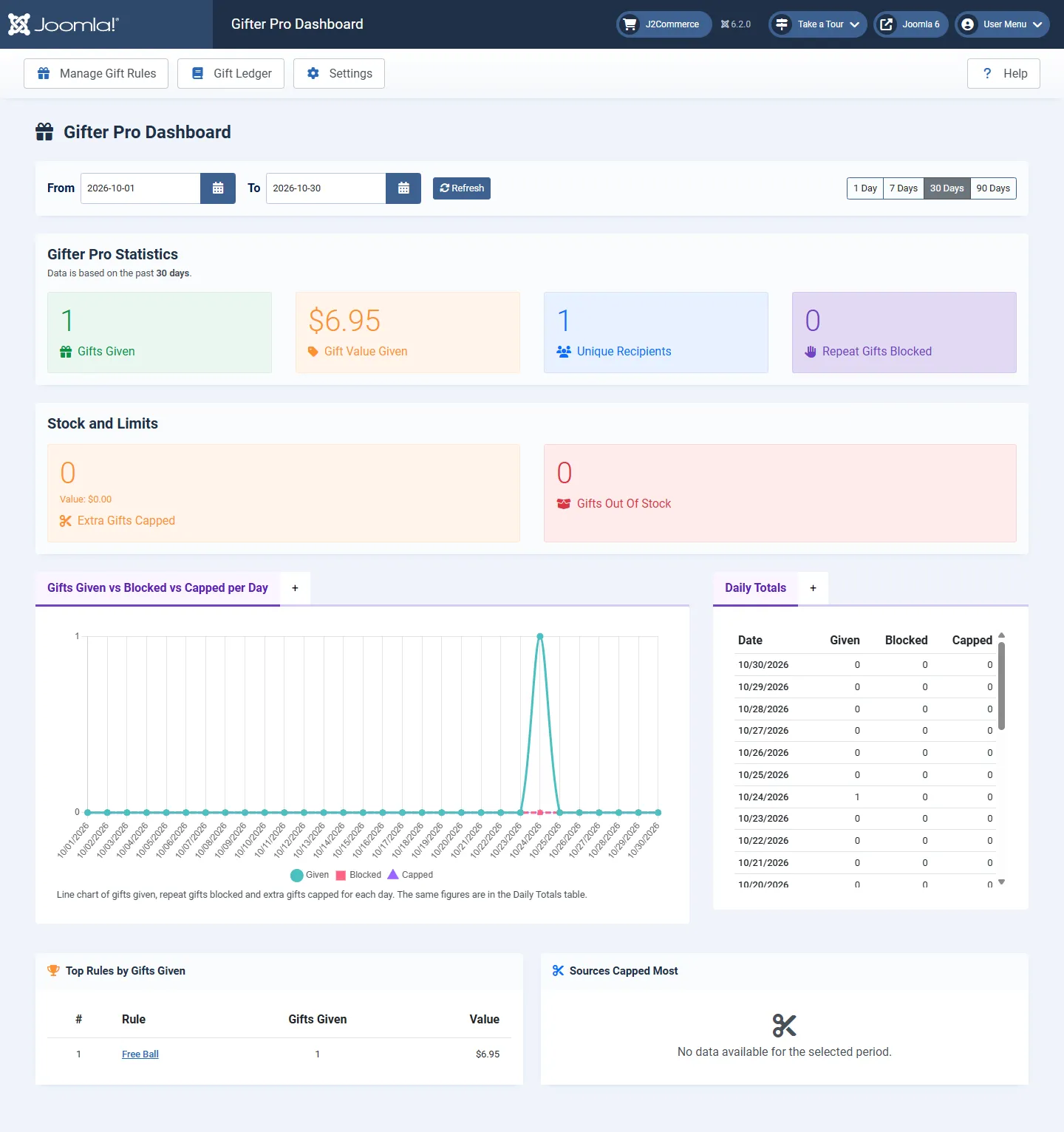
The Dashboard shows, for a date range you choose:
- Gifts Given, Gift Value Given and Unique Recipients
- Repeat Gifts Blocked, Extra Gifts Capped and Gifts Out of Stock
- a daily chart of gifts given, blocked and capped, with the same figures in a Daily Totals table
- Top Rules by Gifts Given and Sources Capped Most
Gift Conflicts
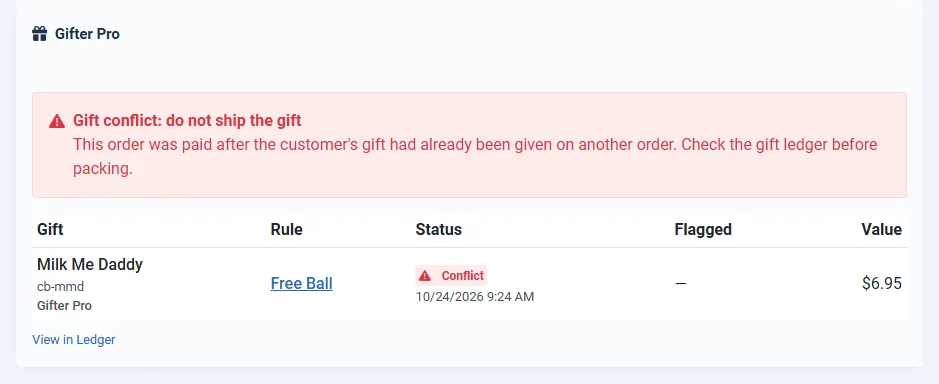
A conflict happens when an order is paid after the same customer's gift was already given on another order. Gifter Pro marks the claim as Conflict and warns you in two places:
- An email titled "Gift conflict on order ...: do not ship the gift" goes to the store's order email addresses.
- The order screen shows a Gifter Pro card: "Gift conflict: do not ship the gift".
Warning
Check the Gift Ledger before you pack an order that shows a conflict. The gift on that order should not ship.
Common Setups
Free Gift on the First Order
- Create a rule with Trigger set to First Order.
- Set Delivery to Add Automatically and add one Primary gift and one or two Fallback gifts.
- Keep the default limits of 1 per order and 1 per customer.
Free Gift Over a Minimum Spend
- Create a rule with Trigger set to Every Order.
- On the Conditions tab, enter a Minimum Subtotal.
- Edit the Progress Message if you want different wording for the "spend more" prompt.
Let Customers Pick a Gift
- Set Delivery to Customer Chooses One.
- Add every gift the customer can choose from.
One Gift Across Several Rules
Put the rules in the same Once-per-Customer Group. A customer then receives one gift from the group, and an order gets at most one gift per group.
Troubleshooting
No Gift in the Cart
- Enable Gifts Shop-Wide is set to No.
- The rule is unpublished, or the date is outside Starts and Ends.
- The cart does not meet a condition, such as the minimum subtotal (after discounts), required products, user groups, login or geozone.
- Every gift in the rule is out of stock, and Give Backordered Gifts is No.
- A rule higher in the list has Stop Further Rules set to Yes.
A New Customer Is Refused the Gift
Open the rule and use the Eligibility Check tab with the customer's email or phone. It names the earlier order and the match key that stopped them. If the match is a shared address, set Match by Address Only to Flag or Off.
A Returning Customer Got the Gift
Their earlier order may predate Gifter Pro. Run Run Backfill on the Gift Ledger screen, and use Import Past Free Gifts for gifts given before Gifter Pro. Also check that the earlier order's status is in Statuses That Count as a Prior Order.
Enable Debug Logging
Set Debug Log to Yes to write extra detail to the plugin log file. Turn it off again when you are done.
Uninstalling
Before you uninstall, decide whether to keep the data. With Keep Gift Ledger on Uninstall set to Yes, the rules and gift records stay in the database and are used again if you reinstall.
Warning
With Keep Gift Ledger on Uninstall set to No, uninstalling deletes every rule, gift record and blocked attempt. This cannot be undone.
- Go to System -> Manage -> Extensions.
- Search for Gifter Pro, select it and click Uninstall.