Quantity Dropdown
The Quantity Dropdown app replaces the standard quantity number field on product and cart pages with a dropdown selector. You control exactly which quantities shoppers can choose — either by typing a comma-separated list or by setting a factor that generates options automatically (for example, factor 5 up to a maximum of 25 creates 5, 10, 15, 20, 25). You can also restrict the dropdown to specific user groups and optionally display the total price as the customer changes their selection.
Prerequisites
- J2Commerce 6 installed and activated.
- At least one published product to test the dropdown.
This app plugin is a separate add-on available from the J2Commerce Extensions Store. It is not included with the core J2Commerce 6 component.
Purchase and Download
The Quantity Dropdown app is a separate add-on available from the J2Commerce Extensions Store. It is not included with the core J2Commerce 6 component.
Step 1: Go to the J2Commerce website -> Apps.
Step 2: Locate the Quantity Dropdown app -> click View Details -> Add to cart -> Checkout.
Step 3: Go to My Downloads under your profile menu at the top right corner and search for the app. Click Available Versions -> View Files -> Download.
Install the App
You can install this Quantity Dropdown App using the Joomla installer. The following steps help you with a successful installation.
In the Joomla admin, go to System -> Install -> Extensions
Upload the app_quantityprice.zip file or use the Install from URL option.
 (1)-a6689f12b23b8e992f5c2a169737672f.webp)
The plugin installs and enables automatically.
Configuration
Once you have installed the App, you will need to configure it. There are two ways you can access the plugin.
Option A: Go to the J2Commerce icon at the top right corner -> Apps
Option B: Go to Components on the left sidebar -> J2Commerce -> Apps
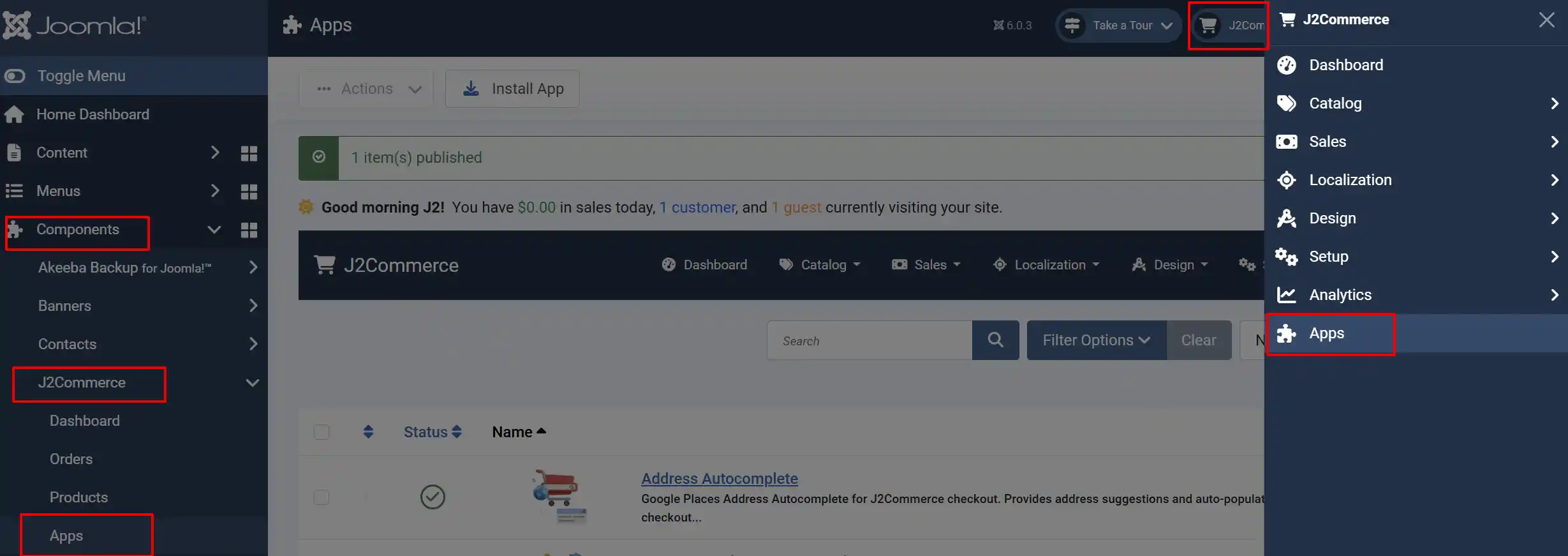
Click on the Quantity Dropdown title to open the plugin configuration screen.
Click the Toggle Inline Help button in the toolbar and the app will show a description below each field as you configure it.
Basic Settings
The Basic Settings tab controls the dropdown behaviour that applies globally across all products.
Enable for all products: Turn on the dropdown for every product in the store. You can still override this per product.
Quantity box type: Choose Dropdown to replace the number input with a select list, or Default Input to keep the standard number field.
Pre-defined quantities (comma-separated): The quantities shown in the dropdown. Enter values separated by commas — for example 1,5,10,25,50. Used when Quantity box type is set to Dropdown and the factor option is off.
Show placeholder option: Adds a --Select-- option at the top of the dropdown. The customer must pick a value before adding to cart.
Restrict to user groups: Limit the dropdown to selected Joomla user groups. Leave empty to show to all visitors.
Tips for the quantity list
- Values are sorted automatically — you can type them in any order.
- Duplicate values are removed.
- Non-numeric entries are ignored.
- If the list is empty and the factor option is off, the standard quantity input renders instead of the dropdown.
Configure Factor Settings (Optional)
Factor mode generates the dropdown list automatically from a step value. Use this instead of typing a manual list when quantities follow a regular pattern.
Use factor to generate quantity list: Enable factor-based generation. When on, the Pre-defined quantities field is ignored.
Quantity factor: The step between each option in the dropdown.
Maximum quantity limit: The largest quantity in the dropdown. Options are generated from the factor up to this value.
-
Example: Factor
5, maximum25generates the list: 5, 10, 15, 20, 25. -
Example: Factor
12, maximum60generates: 12, 24, 36, 48, 60.
Factor mode also enables checkout validation. If a cart item has a quantity that is not a multiple of the factor (for example, a customer bypasses the dropdown), J2Commerce automatically adjusts the quantity to the nearest valid multiple and shows a notice. If any item still has an invalid quantity at the checkout billing step, the customer is redirected back to the cart to review their quantities.
Configure Pricing Settings
Multiply price by quantity: When enabled, the displayed product price updates to show the total (unit price multiplied by the selected quantity) as the customer changes the dropdown.
Enable quantity dropdown in cart: Show the quantity dropdown on the cart page so customers can adjust quantities using the same dropdown instead of a free-text number field.
When Multiply price by quantity is on, the price display updates via AJAX each time the customer selects a different quantity. The unit price itself does not change — only what is shown on the page.
Configure Display Settings
Pre-text: Text to show before each quantity value in the dropdown option label.
Post-text: Text to show after each quantity value in the dropdown option label.
Debug Mode: Write detailed logs to the Joomla log directory for troubleshooting. Disable this in a live store.
- Example: With pre-text
Pack ofand post-textunits, an option for quantity 10 displays as Pack of 10 units.
Save and Test
- Click Save in the toolbar.
- Open a product page on your storefront.
- Confirm that the quantity number field has been replaced by the dropdown.
- Change the selection and confirm the price updates if Multiply price by quantity is enabled.
Per-Product Overrides
You can override the global settings for a specific product. This is useful when most products use the standard dropdown but one product needs a different list of quantities.
- Go to J2Commerce -> Catalog -> Products and open the product you want to configure.
- Click the Apps tab.
- Find the Quantity Dropdown section.
Override global settings: Enable product-level settings. When on, the global plugin configuration is ignored for this product.
Quantity box type: Same as the global setting — choose Dropdown or Default Input for this product only.
Pre-defined quantities (comma-separated): The product-specific quantity list, overrides the global list.
Restrict to user groups: Limit the dropdown to selected groups for this product only.
Use factor to generate quantity list: Use factor mode for this product.
Quantity factor: The step value for this product.
Maximum quantity limit: The maximum quantity for this product's dropdown.
Pre-text: Text before each option label, for this product only.
Post-text: Text after each option label, for this product only.
- Click Save in the toolbar.
When a product has Override global settings turned on, that product uses only its own settings. All other products continue to use the global plugin settings.
How Quantity Validation Works
The plugin enforces valid quantities at several points in the shopping flow:
- Add to cart — If a quantity that is not in the dropdown list is submitted (for example, through a URL manipulation), a warning message is shown.
- Cart page — If factor mode is enabled and a cart item has an invalid quantity, the quantity is automatically corrected to the nearest valid multiple. The customer sees a notice such as "Product name quantity adjusted from 7."
- Checkout billing step — If factor mode is enabled and any cart item still has an invalid quantity, the customer is redirected to the cart page before they can proceed.
Troubleshooting
The dropdown does not appear
Cause: The plugin may be disabled, or the quantity list is empty.
Solution:
- Go to J2Commerce -> Apps and verify the plugin status is Enabled.
- Open the plugin settings and confirm Enable for all products is set to Yes.
- Check that Quantity box type is set to Dropdown.
- Confirm that Pre-defined quantities contains at least one value (for example
1,5,10) or that factor mode is enabled with valid Quantity factor and Maximum quantity limit values.
The dropdown appears but does not show my quantities
Cause: The factor settings may be misconfigured, or the comma-separated list has non-numeric characters.
Solution:
- Open the plugin settings.
- If using the list, verify the Pre-defined quantities field contains only numbers and commas — for example
1,5,10,25. - If using factor mode, check that both Quantity factor and Maximum quantity limit are greater than zero and that the maximum is a multiple of the factor.
The dropdown only shows for some users
Cause: The Restrict to user groups field is limiting visibility.
Solution:
- Open the plugin settings and check the Restrict to user groups field.
- If set, only users who belong to those groups see the dropdown. Clear the field to show the dropdown to everyone.
- If using per-product overrides, check the Apps tab on the product itself for an additional user group restriction.
Factor validation is not redirecting to the cart
Cause: The checkout validation only runs when Use factor to generate quantity list is enabled in the global plugin settings. Product-level factor settings do not trigger checkout validation.
Solution:
- Open the plugin settings and enable Use factor to generate quantity list under Factor Settings.
- Set both Quantity factor and Maximum quantity limit to valid values.
Debug log location
When Debug Mode is on, the plugin writes to logs/app_quantityprice.php inside your Joomla log directory (typically [joomla-root]/logs/). Check this file if a quantity dropdown is not rendering as expected.