Countries
Countries form the foundation of localisation in J2Commerce. They define the geographic options available to customers during checkout, in shipping zones, and for tax calculations. Each country includes ISO standard codes that ensure compatibility with shipping carriers, payment gateways, and address validation services.
Requirements
- PHP 8.3.0+
- Joomla 6.x
- J2Commerce 6.x
Locating Countries
Countries are managed from the J2Commerce Dashboard.
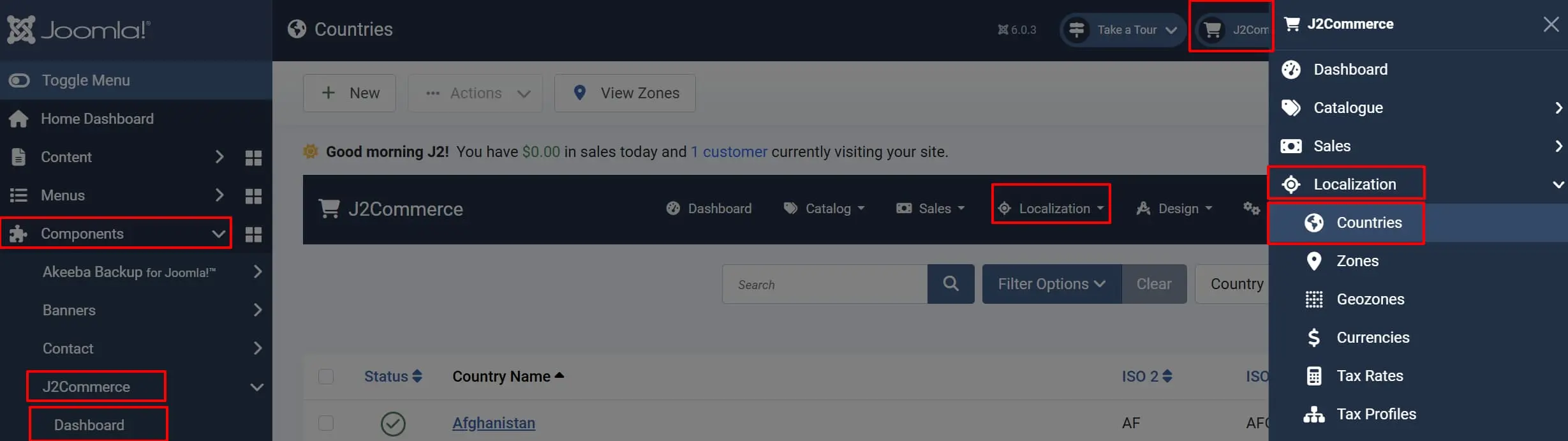
There are two ways you can access the Countries.
Option A: Go to the J2Commerce icon at the top right corner -> Localization -> Countries
Option B: Go to Components on the left sidebar -> J2Commerce -> Dashboard -> Localization -> Countries
Country List
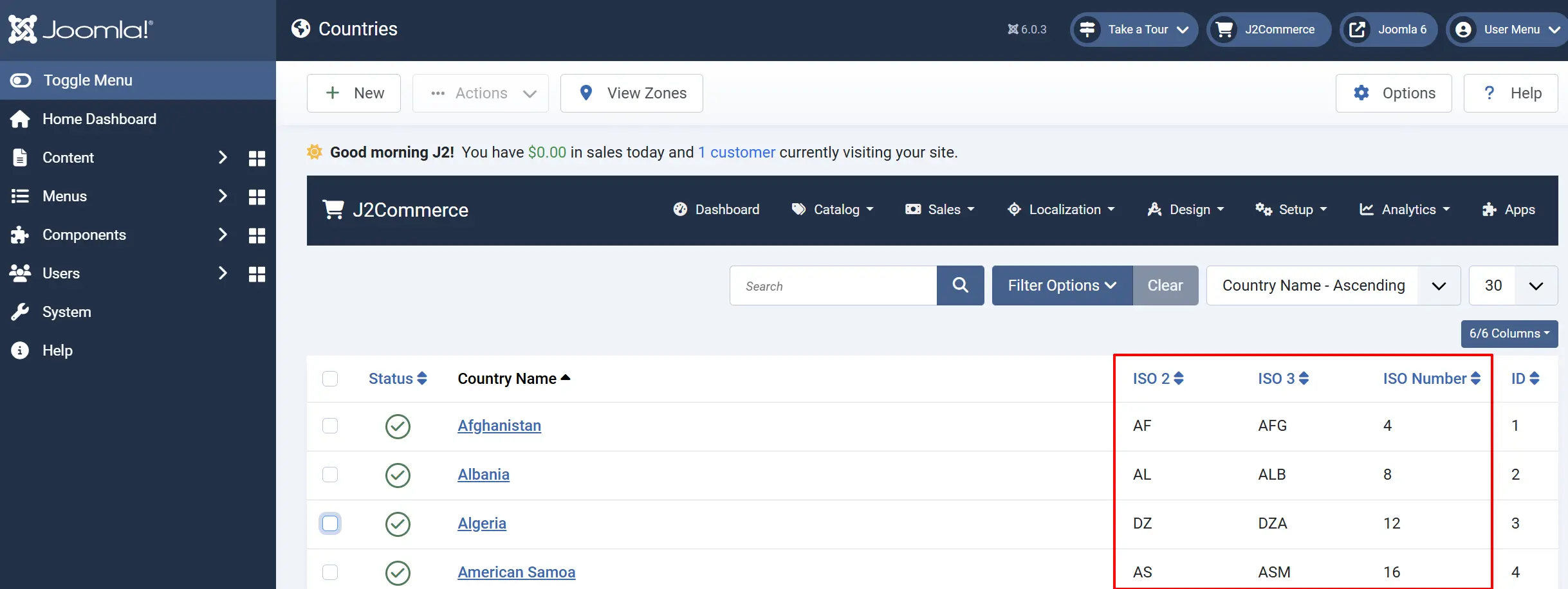
The Countries list displays all countries configured in your store. Each country shows:
Checkbox: Select countries for batch actions.
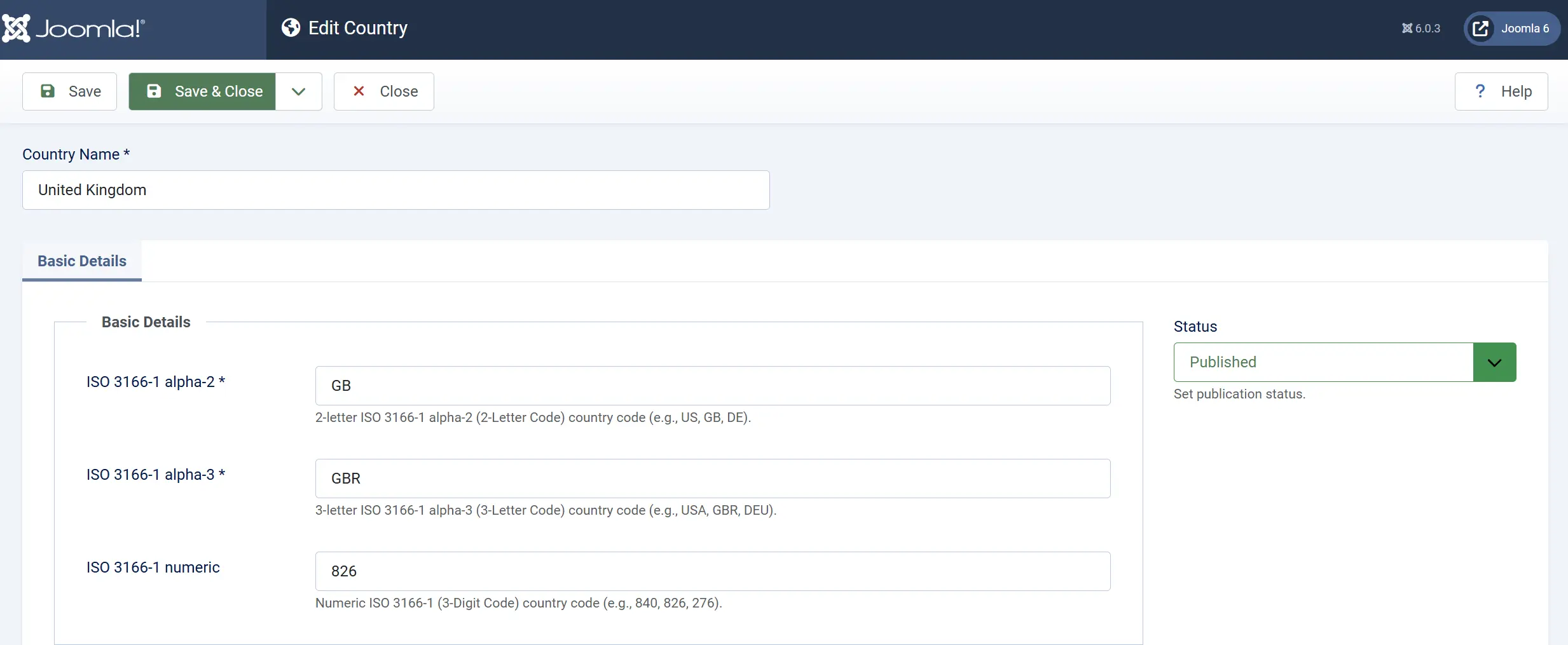
Country Name: The display name of the country. The display name is shown to customers and in admin lists. Example: United Kingdom
ISO Code 2: The 2-letter ISO 3166-1 alpha-2 country code. Must be exactly 2 characters, uppercase. Example: US, GB, DE
ISO Code 3: The 3-letter ISO 3166-1 alpha-3 country code. Must be exactly 3 characters, uppercase. Example: USA, GBR, DEU
ISO Numeric: The 3-digit ISO 3166-1 numeric country code. Optional but recommended for international integrations. Example: 840, 826, 276
Status: Set to Published to make the country available, or Unpublished to hide it.
Ordering: Drag-and-drop to reorder the display sequence.
Adding a New Country
- Click the New button in the toolbar.
- Fill in the country details (see Configuration below).
- Click Save or Save & Close.
ISO Code Standards
The ISO codes follow the ISO 3166-1 international standard:
- ISO Code 2 (alpha-2): Two-letter codes used by most systems for country identification. Examples:
US(United States),CA(Canada),AU(Australia),GB(United Kingdom). - ISO Code 3 (alpha-3): Three-letter codes that provide more clarity. Examples:
USA,CAN,AUS,GBR. - ISO Numeric: Three-digit codes that are language-independent. Examples:
840(US),124(CA),036(AU),826(GB).
These codes ensure compatibility with:
- Shipping carriers (FedEx, UPS, DHL)
- Payment gateways (Stripe, PayPal)
- Address validation services
- Tax calculation services
How Countries Are Used
Countries are referenced throughout J2Commerce:
- Customer Addresses — Customers select their country during checkout or when managing their address book.
- Shipping Zones — Define which countries a shipping method applies to.
- Tax Geozones — Create geographic zones for tax calculations.
- Payment Restrictions — Restrict payment methods to specific countries.
- Zone Configuration — Each zone (state/province) belongs to a country.
Bulk Actions
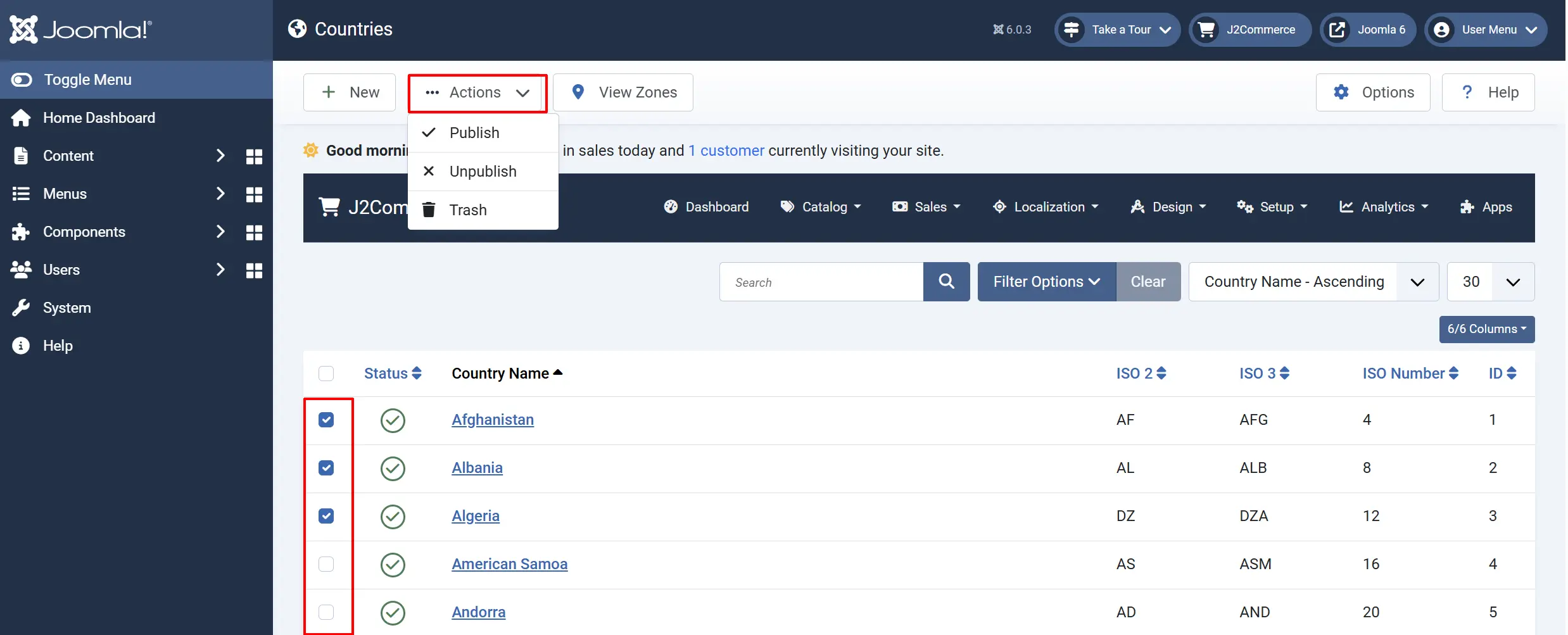
The Actions button will be hidden until at least one country is chosen.
- Publish — Enable selected countries
- Unpublish — Disable selected countries
- Trash — Move selected countries to trash
Search and Filter
Use the search and filter options to find countries:
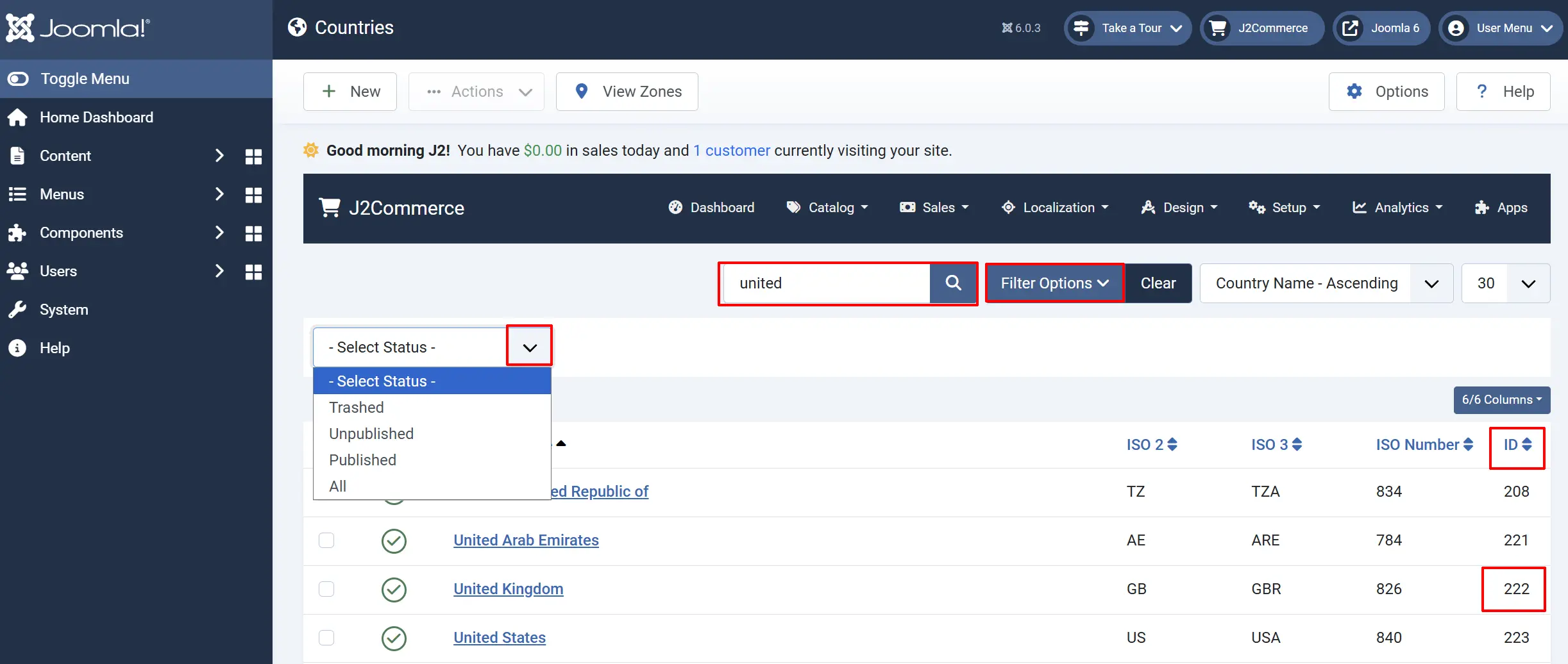
- Search — Type a country Name or ISO code to filter the list.
- ID Search — Type
id:222to find a country by its ID. - Status Filter — Filter by Published, Unpublished, Trashed, or All
Tips
- Use standard ISO codes — Always use official ISO 3166-1 codes. Non-standard codes may cause integration issues with shipping and payment providers.
- Disable unwanted countries — Unpublish countries you do not ship to rather than deleting them. This preserves data integrity if zones are linked to those countries.
- Order matters — Reorder countries to show your primary markets first in dropdown lists.
- Keep ISO codes uppercase — The system automatically converts codes to uppercase, but always enter them in uppercase for consistency.
- Complete all ISO codes — Filling in all three ISO code formats ensures maximum compatibility with third-party integrations.
Troubleshooting
Country Not Appearing in Dropdown
Cause: The country is unpublished or has invalid ISO codes.
Solution:
- Go to J2Commerce -> Localisation -> Countries.
- Search for the country by name or ISO code.
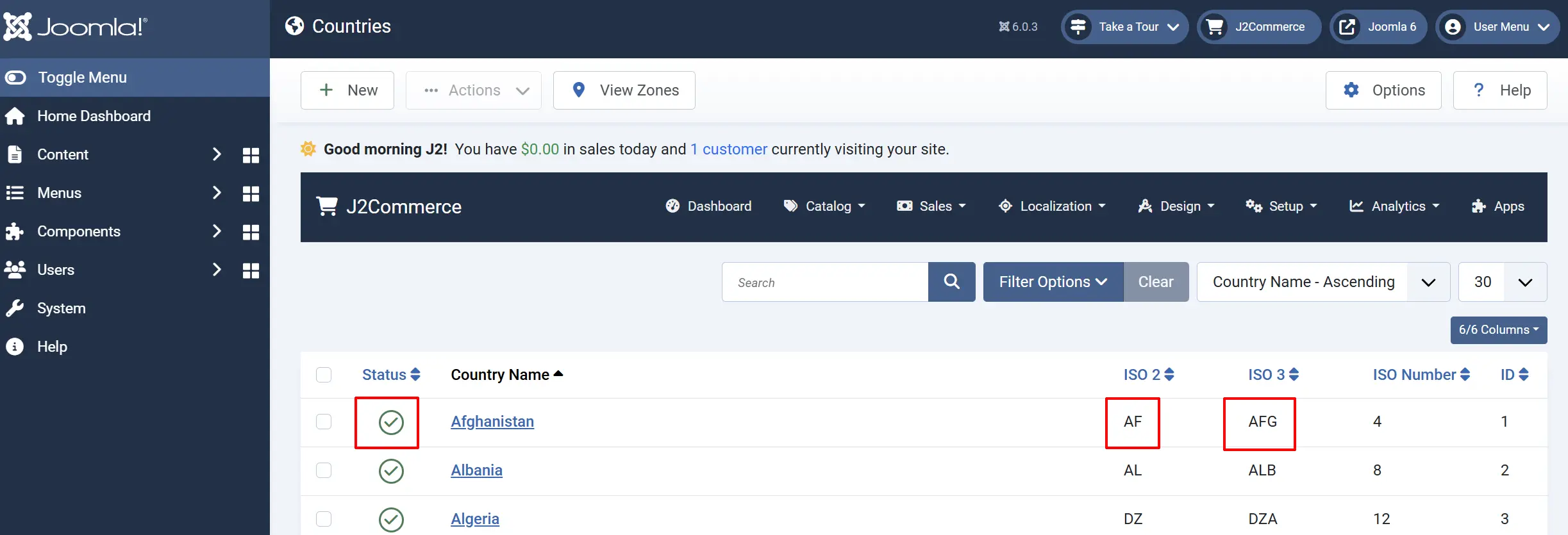
- Check that the Status shows a green checkmark (Published).
- Verify the ISO Code 2 and ISO Code 3 fields contain valid 2 and 3 character codes, respectively.
ISO Code Validation Error
Cause: ISO codes must be exactly 2 or 3 characters and contain only letters.
Solution:
- Edit the country.
- For ISO Code 2, enter exactly 2 uppercase letters (e.g.,
US,GB,FR). - For ISO Code 3, enter exactly 3 uppercase letters (e.g.,
USA,GBR,FRA). - Save the country.
Zones Not Loading for a Country
Cause: No zones are configured for the country, or all zones are unpublished.
Solution:
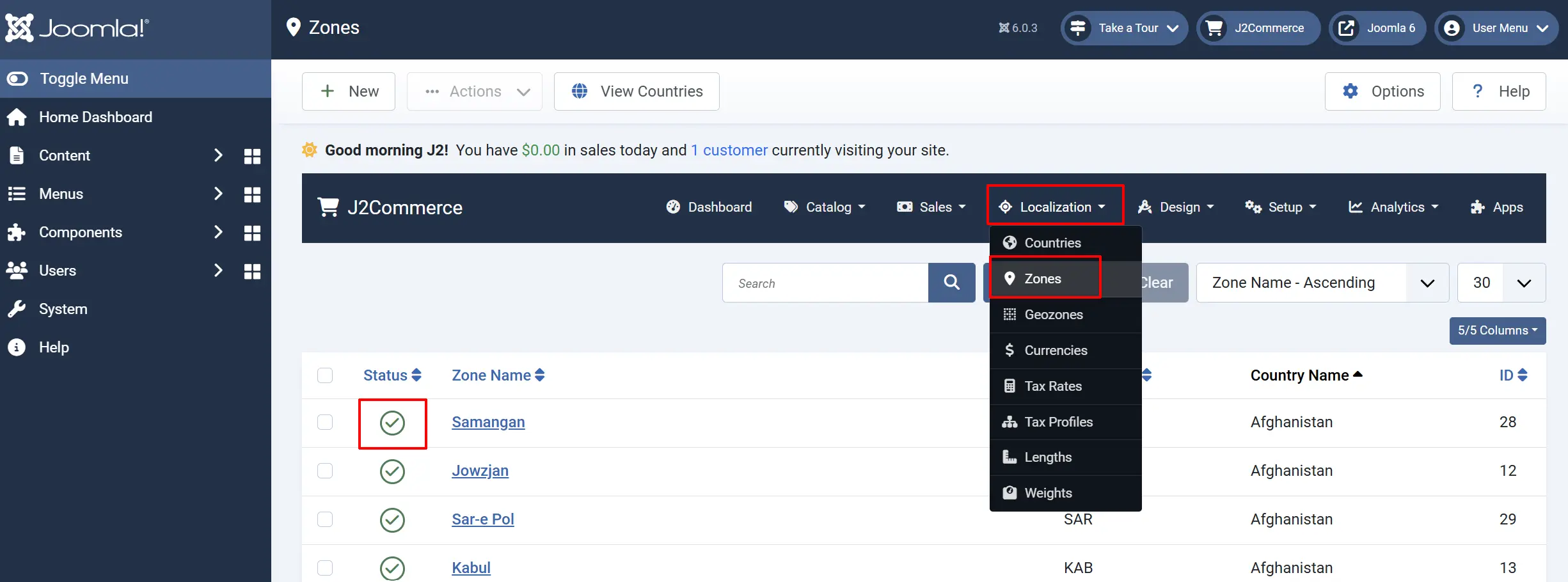
- Go to J2Commerce -> Localisation -> Zones
- Filter by the country using the Country dropdown.
- Verify zones exist and are published.
- If no zones exist, create zones for the country.
Country Already Exists Error
Cause: A country with the same ISO code already exists in the system.
Solution:
- Search for the existing country using the ISO code.
- Either edit the existing country to modify it, or unpublish duplicate entries if created in error.
- Each ISO code must be unique in the system.