Minimum Order Restriction
The Minimum Order Restriction app lets you set rules that must be satisfied before a customer can proceed from the cart to checkout. When any rule is violated, the customer is redirected back to the cart with a plain-English warning message telling them exactly what needs to change. You can enforce a price floor, quantity limits, pack-size requirements, and category-specific spending thresholds — all from a single plugin.
Purchase and Download
The Minimum Order Restriction app is a separate add-on available from the J2Commerce Extensions Store. It is not included with the core J2Commerce 6 component.
Step 1: Go to the J2Commerce website -> Apps.
Step 2: Locate the Minimum Order Restriction app -> click View Details -> Add to cart -> Checkout.
Step 3: Go to My Downloads under your profile menu at the top right corner and search for the app. Click Available Versions -> View Files -> Download.
Install the App
You can install this Minimum Order Restriction App using the Joomla installer. The following steps help you with a successful installation.
In the Joomla admin, go to System -> Install -> Extensions
Upload the plugin plg_j2commerce_app_minimumorder.zip file or use the Install from URL option.
 (1)-a6689f12b23b8e992f5c2a169737672f.webp)
Enable the App
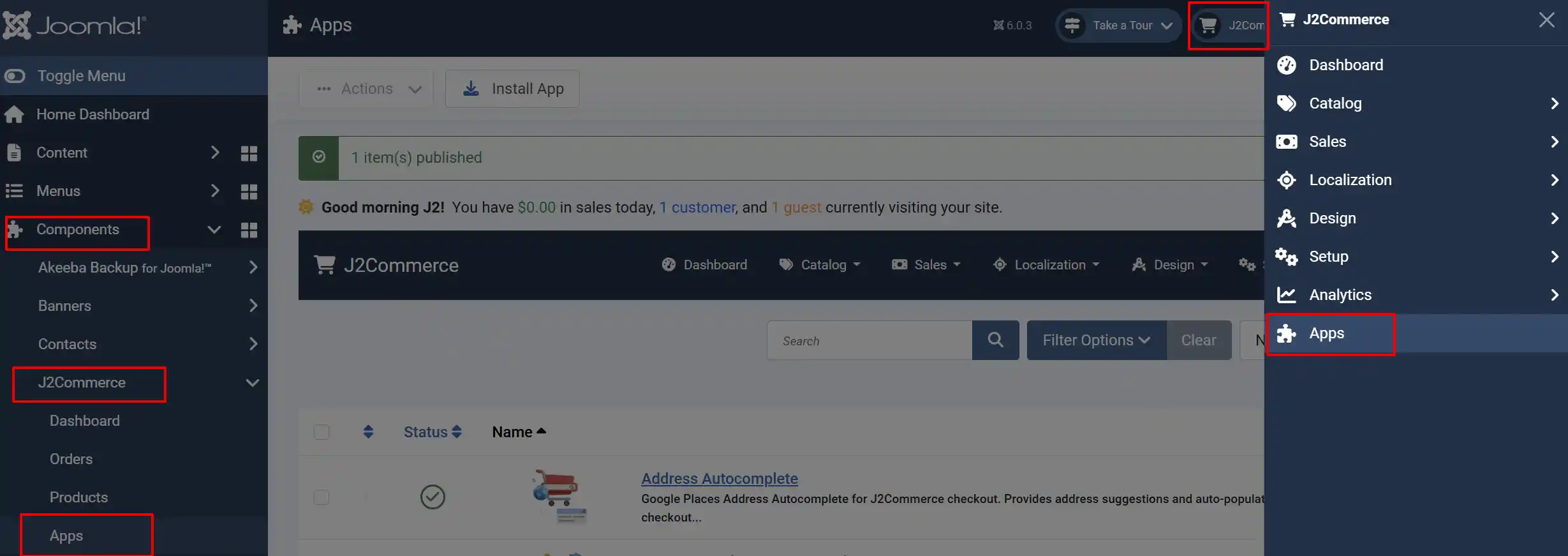
Once you have installed the App, you will need to enable it. There are two ways you can access the extension.
Option A: Go to the J2Commerce icon at the top right corner -> Apps
Option B: Go to Components on the left sidebar -> J2Commerce -> Apps
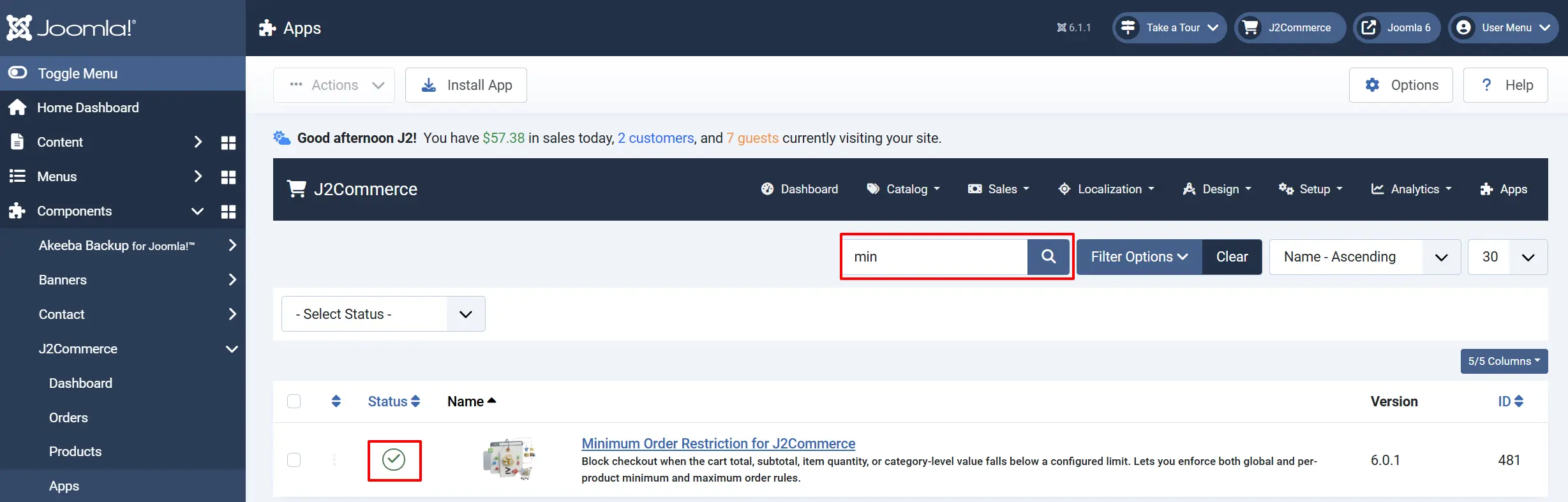
Look for Minimum Order Restriction, click the X, and it will turn into a green checkmark. It is now enabled and ready for setup.
Configure the App
Click the Minimum Order Restriction title (next to the green checkmark) to open the settings screen.
Click the Toggle Inline Help button on any app you install to see a description below each field directly in the admin panel.

Overview of the Three Restriction Modes
The plugin has three independently enabled restriction modes. Each mode has its own on/off toggle, so you can use one, two, or all three at the same time.
-
Price-Based: Cart subtotal or order total versus a minimum amount
-
Quantity-Based: Total cart quantity or per-item quantity versus minimum/maximum values
-
Category-Based: Combined value of items from specific Joomla content categories
Checks run in order: price first, then quantity, then category. The customer is redirected on the first failure — they will not see multiple errors at once.
Price-Based Restriction tab
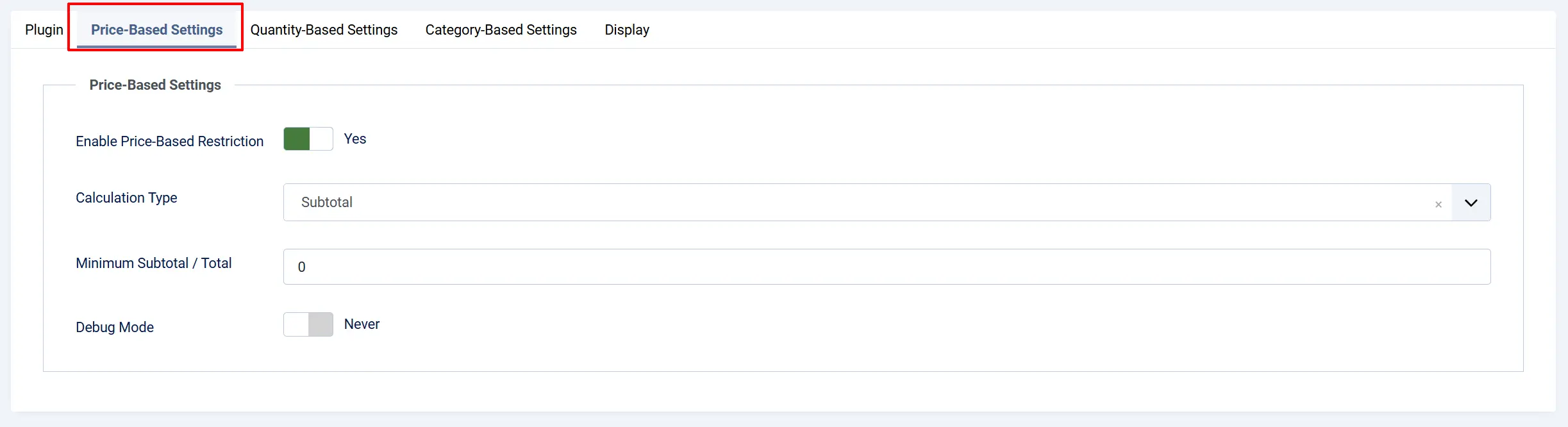
This mode blocks checkout when the cart value is too low.
Enable price-based restriction: Set to Yes.
Calculation Type:
-
Subtotal: The cart subtotal before taxes, shipping, and discounts
-
Total: The final order total (after taxes, shipping, and discounts)
If you choose Total, an extra field appears: Include Discount in Order Total?
-
Include Discount: The minimum is compared against the total after coupons
-
Exclude Discount: The minimum is compared against the total before coupons are subtracted
Minimum Subtotal / Total. Use the same currency your store displays. For example, enter 50 for a $50 minimum.
Debug Mode: Writes every blocking decision to the Joomla log file
Common use cases
- Wholesale store: Set a $100 minimum subtotal so that small retail-quantity orders are automatically blocked.
- Free shipping threshold enforcement: Pair a minimum total with your free shipping rule — if the total is under the free shipping threshold, customers are nudged to add more items before proceeding.
Quantity-Based Restriction tab
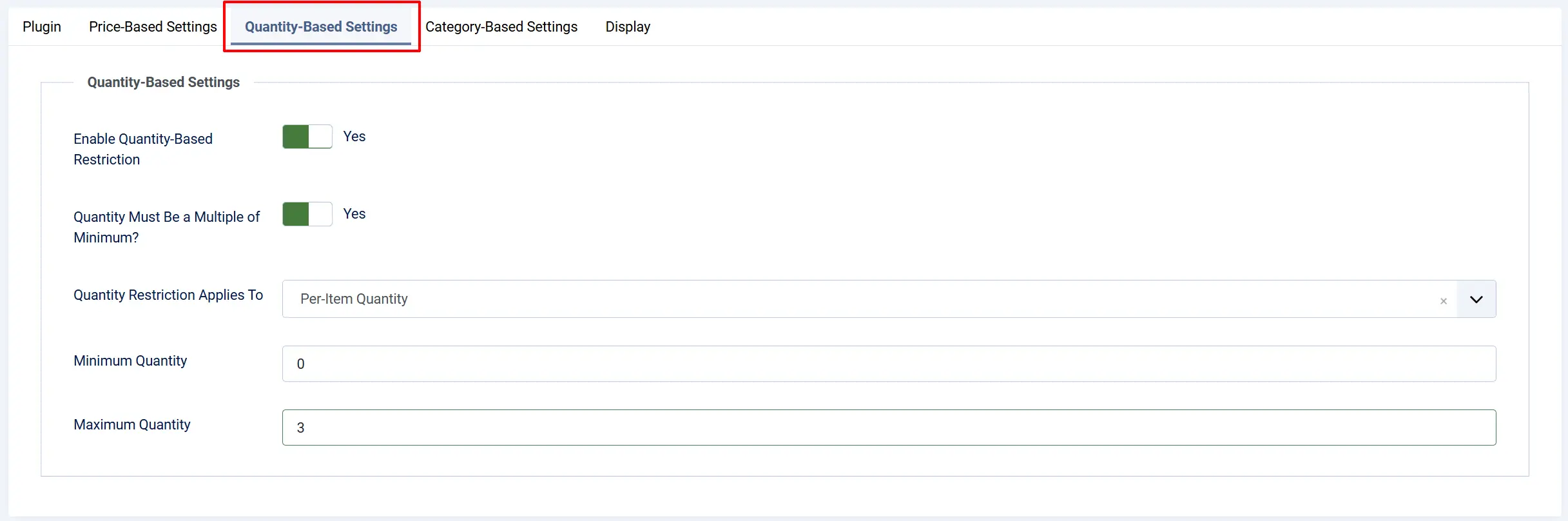
This mode blocks checkout based on how many units are in the cart.
Enable quantity-based restriction: Activates this product's own limits. Must be set to Yes for the fields below to take effect.
Quantity Must Be a Multiple of Minimum? Pack-size enforcement (optional). Set to Yes if you sell in packs. When enabled, the quantity must be an exact multiple of the minimum. For example, with minimum set to 6, allowed quantities are 6, 12, 18, 24, and so on. Any other quantity triggers the warning and redirects to cart. This applies to whichever scope you chose in Step 2 — cart total quantity or per-item quantity.
Quantity Restriction Applies To:
-
Total Cart Quantity: The combined quantity across all line items in the cart
-
Per-Item Quantity: The quantity of each individual line item
Set minimum and maximum quantities:
- Minimum Quantity — the smallest allowed quantity. Leave at
0to skip the minimum check. Minimum units of this product required in the cart at checkout. Set to0to skip. - Maximum Quantity — the largest allowed quantity. Leave at
0to skip the maximum check. Maximum units of this product allowed in the cart at checkout. Set to0to skip.
Common use cases
- Minimum purchase quantity of 2: Set scope to Total Cart Quantity, minimum to
2, maximum to0. - Bulk packs only: Set scope to Per-Item Quantity, minimum to
6, maximum to0, and enable the multiple requirement. - Event ticket cap: Set scope to Total Cart Quantity, minimum to
1, maximum to10to limit large bulk purchases at checkout.
Category-Based Restriction tab

This mode blocks checkout when items from specific Joomla content categories do not reach a minimum combined value. It is useful for stores that carry products across multiple categories and want to require a minimum spend within a particular product range.
Restricted Categories: Select the field and choose one or more Joomla content categories. The check automatically includes products from any descendant categories of those you select — you do not need to list child categories individually. Joomla content categories that count toward the minimum
Minimum Category Order Value: The plugin adds up the line totals (quantity multiplied by unit price) for every item whose article belongs to the selected categories. If that combined value is below the minimum, checkout is blocked. Minimum combined value of items from those categories
How the value is calculated
- Only items from
com_content(Joomla articles) are counted. - The unit price used is the base item price plus any option add-ons.
- If the cart contains no items from the restricted categories at all, the check is skipped — the customer is not blocked.
- Descendant categories are matched by walking up the category tree up to 20 levels deep.
A store sells general merchandise and specialty tools. They want customers to spend at least $50 on specialty tools before checkout. Configure the Specialty Tools category here and set the minimum to 50. Orders with no specialty tool items proceed normally; orders with specialty tools totalling under $50 are blocked.
Per-Product Quantity Override
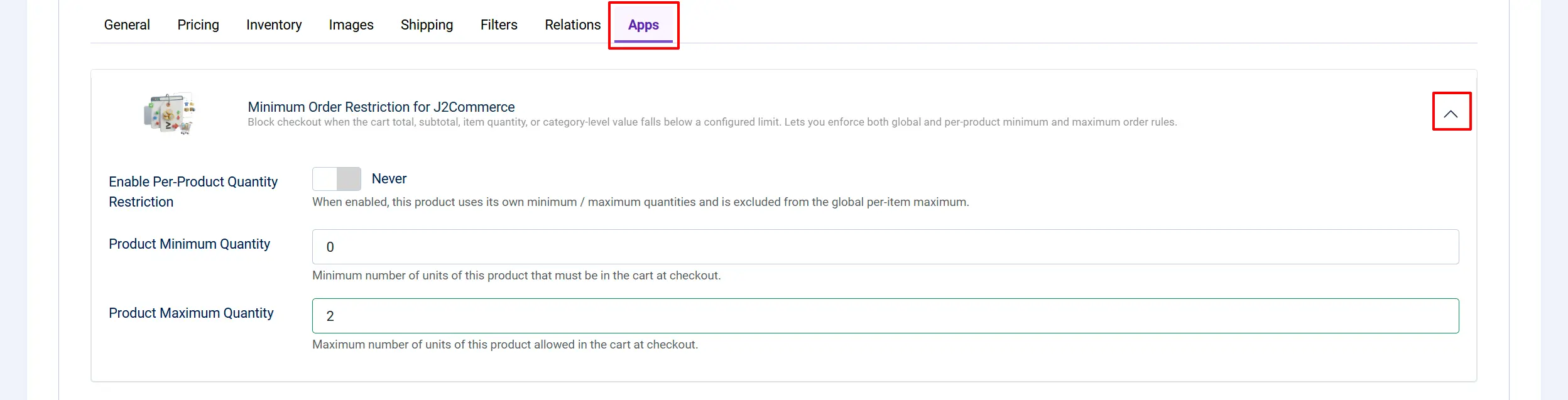
Any individual product can opt into its own minimum and maximum quantity rules. When a product uses its own limits, it is also exempt from the global per-item maximum set in the Quantity-Based Settings tab.
- Go to J2Commerce -> Catalog -> Products.
- Open the product you want to configure.
- Click the Apps tab in the product editor.
- Find the Quantity Restriction section provided by the Minimum Order Restriction plugin.
When to use per-product overrides
- A product is sold individually and cannot be purchased in bulk — set maximum to
1. - A component or part requires purchasing at least 2 units — set minimum to
2. - A limited-edition item should not override general store limits but needs its own cap — enable the override and set only the maximum.
The per-product check runs as part of the quantity restriction phase. If the global quantity restriction is disabled in the plugin settings, per-product overrides are still enforced.
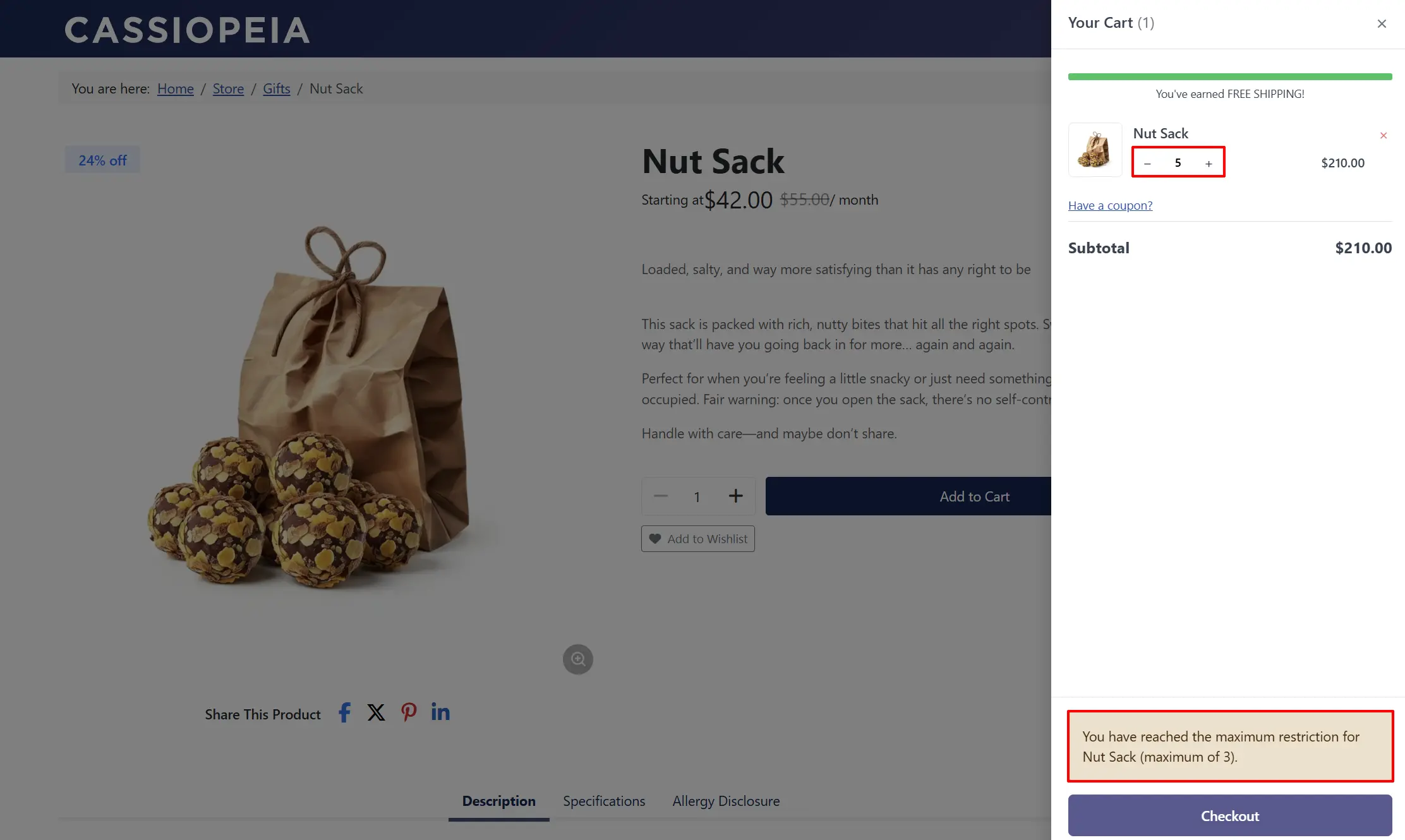
Frontend Checkout View
What Changed from J2Store
If you used Minimum Order Restriction with J2Store v4, here is what is different in J2Commerce 6:
- No legacy Admin Apps view. The plugin no longer adds a tab to the old J2Store backend apps area. Configuration is done entirely through the standard Joomla Plugin Manager or the J2Commerce -> Apps screen.
- XML-based product fields. Per-product minimum/maximum fields are rendered via Joomla's form API. There is no jQuery dependency for displaying these fields in the product editor.
- Parameterised SQL. All database queries use bound parameters — no raw string concatenation.
- Per-product max exemption works correctly. In J2Store v4, enabling a per-product override did not always exempt the product from the global per-item maximum. In J2Commerce 6, enabling Enable Per-Product Quantity Restriction on any product correctly skips the global per-item maximum check for that product, even when the product itself has no maximum set.
Troubleshooting
Customers can still check out below the minimum amount
Possible cause: The plugin is installed but not enabled.
Solution:
- Go to J2Commerce -> App
- Search for Minimum Order Restriction.
- Confirm the status is green (enabled).
- Open the plugin and check that Enable Price-Based Restriction is set to Yes and that Minimum Subtotal / Total is greater than
0.
The amount check passes but the cart total looks correct
Possible cause: You have Calculation Type set to Total and the order total includes taxes or shipping that push it above the threshold, even though the product subtotal is lower.
Solution: Switch Calculation Type to Subtotal if you want the check to run against product prices only, before taxes and shipping are added.
Alternatively, if you are using the Total calculation and coupons apply, check the Include Discount in Order Total? setting. With Include Discount active, a coupon can reduce the total below the threshold. Switch to Exclude Discount if you do not want coupons to affect this check.
The quantity multiple check is not triggering
Possible cause: Quantity Must Be a Multiple of Minimum? is set to Yes, but Minimum Quantity is 0.
Solution: Enter a value greater than 0 in Minimum Quantity. The multiple check requires a non-zero minimum to divide by.
Category restriction never blocks checkout
Possible cause 1: The products in the cart do not use Joomla articles as their source. The category restriction only counts items sourced from com_content.
Possible cause 2: No categories are selected in the Restricted Categories field, or the minimum value is 0.
Solution: Open the plugin, go to Category-Based Settings, confirm that at least one category is selected and that Minimum Category Order Value is greater than 0.
Finding the debug log
When Debug Mode is set to Yes, the plugin writes a log entry every time it blocks a checkout. The log file is located at:
[joomla-root]/administrator/logs/plg_j2commerce_app_minimumorder.php
Each entry includes the reason the checkout was blocked. Review this file if a restriction appears to be firing incorrectly or not firing at all. Disable Debug Mode in production once you have confirmed the rules are working correctly.