Easy Links
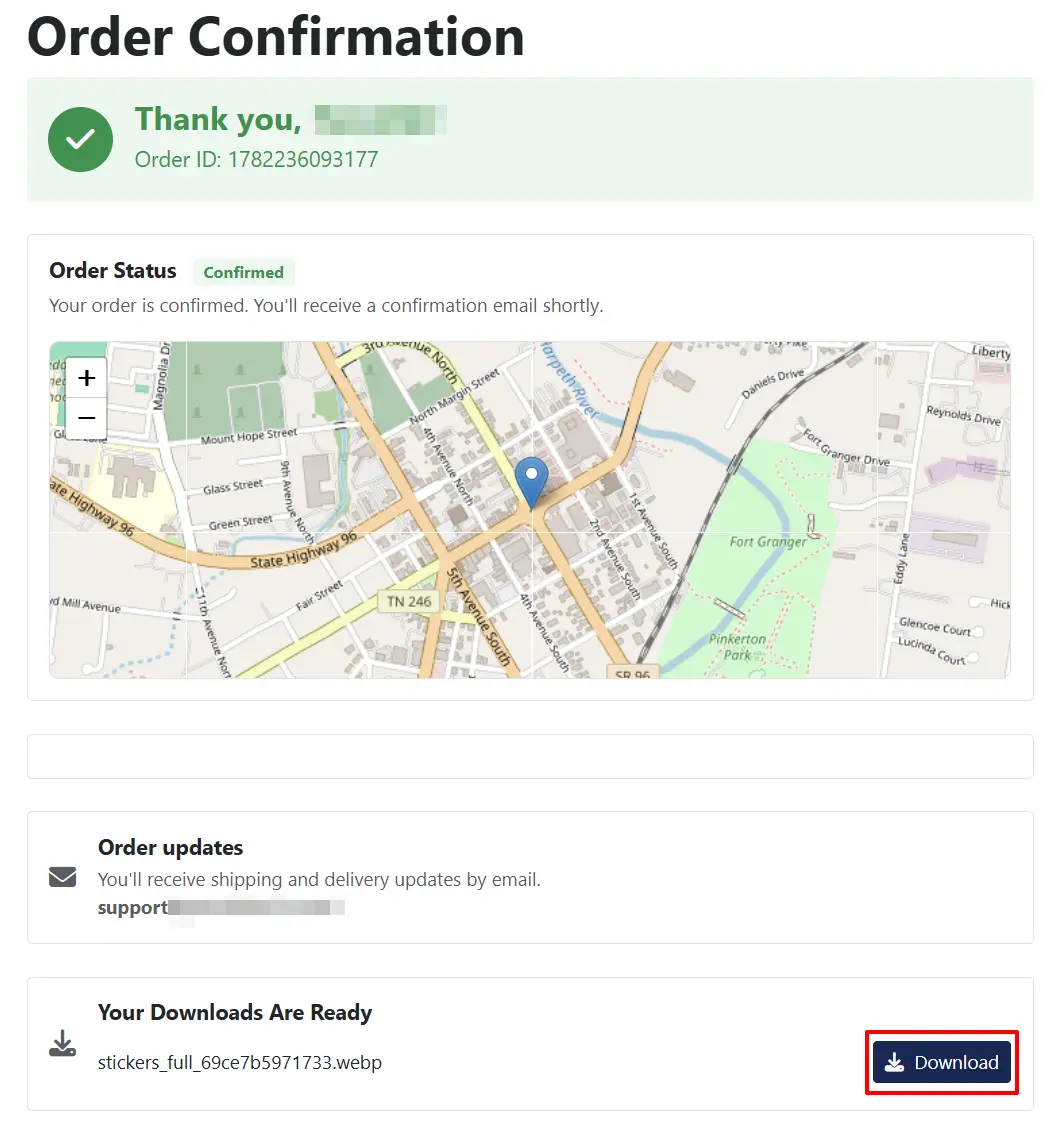
The Easy Links app gives customers instant access to their digital downloads the moment an order is placed. Secure download links appear directly on the order confirmation page and, optionally, inside the transaction email — so buyers never have to hunt through their account to find what they purchased.
Download links are tied to the core J2Commerce download system, which respects the expiry date and download limit set on each product file. Easy Links simply surfaces those links at the right moment.
Requirements
- PHP 8.3.0 or later
- Joomla! 6.x
- J2Commerce 6.x
- At least one product with downloadable files configured
Purchase and Download
This plugin is a separate add-on available from the J2Commerce Extensions Store. It is not included with the core J2Commerce 6 component.
Step 1: Go to the J2Commerce website -> Apps
Step 2: Locate Easy Links -> click View Details -> Add to Cart -> Checkout
Step 3: Go to My Downloads under your profile button at the top-right corner, find Easy Links, and click Available Versions -> View Files -> Download Now
Install the App
Install Easy Links through the standard Joomla extension installer.
In the Joomla admin, go to System -> Install -> Extensions
Upload the plg_j2commerce_app_easylinks.zip package file or use the Install from URL option.
 (1)-a6689f12b23b8e992f5c2a169737672f.webp)
Enable the App
Once installed, the plugin must be enabled before it will work.
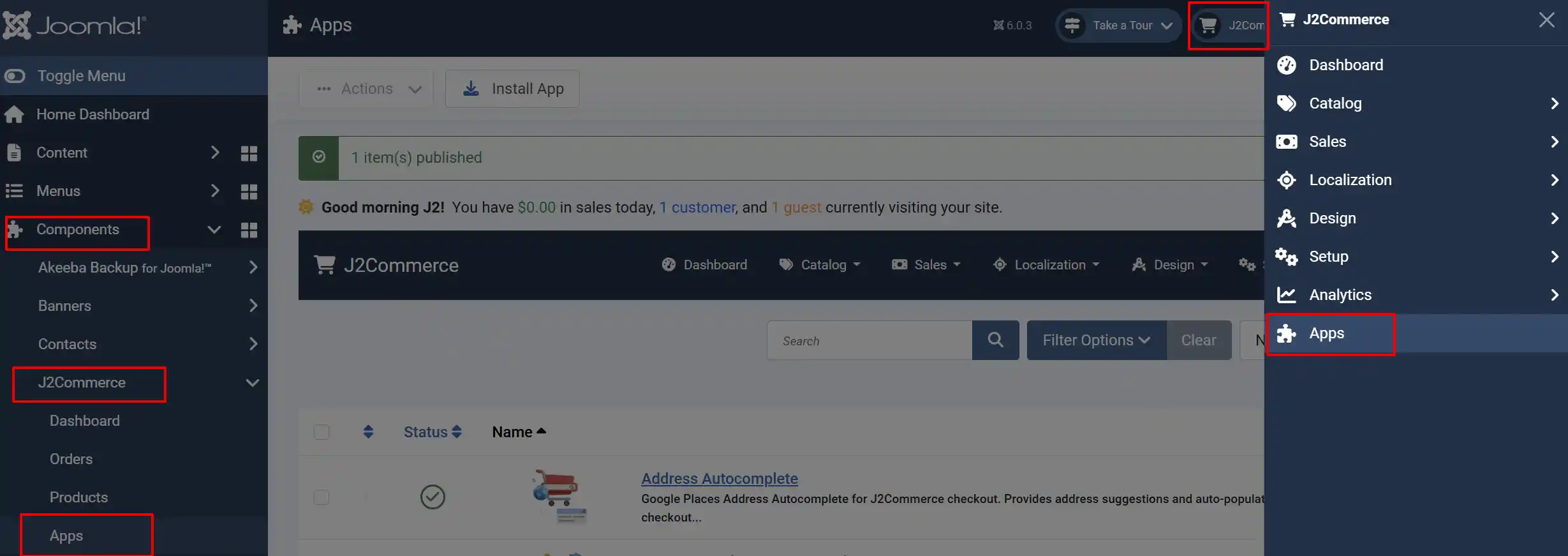
There are two ways to reach the Apps screen:
Option A: Click the J2Commerce icon at the top-right corner -> Apps
Option B: Go to Components on the left sidebar -> J2Commerce -> Apps
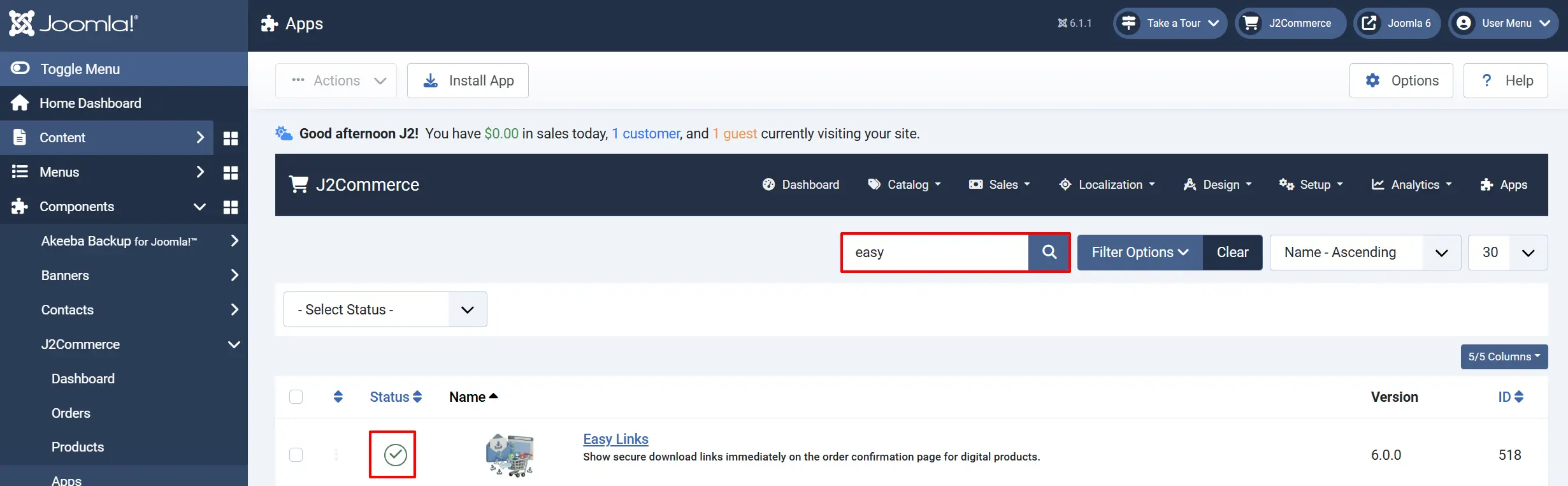
Find Easy Links in the list, click the toggle so it turns green, and the plugin is active.
Configure the App
Click the Easy Links title to open its settings.
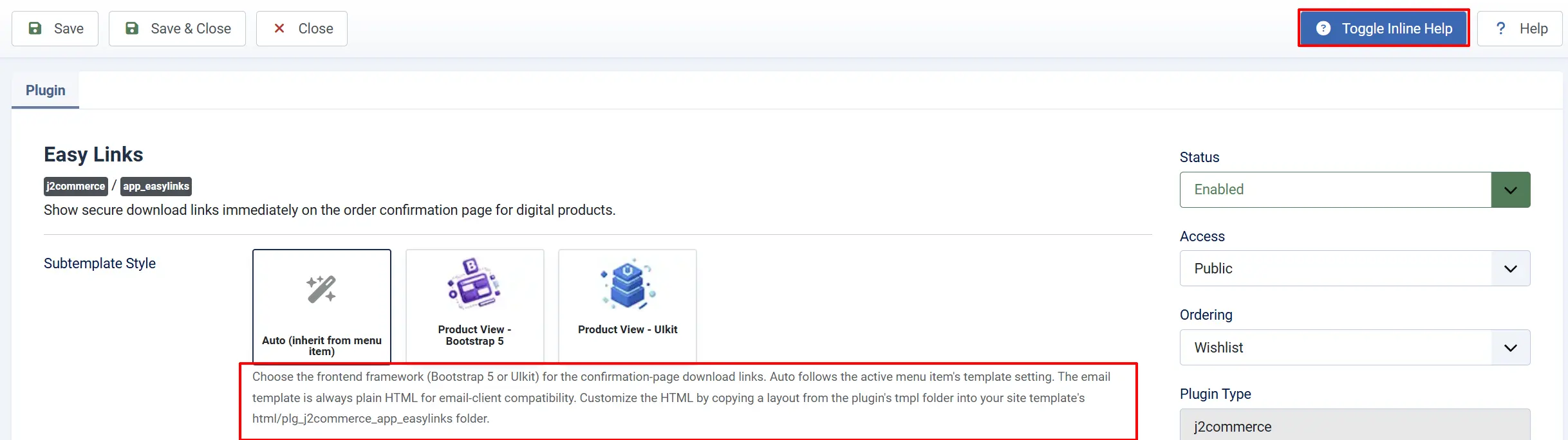
Click the Toggle Inline Help button in the toolbar to reveal a description beneath each setting as you configure it.
Basic Settings tab
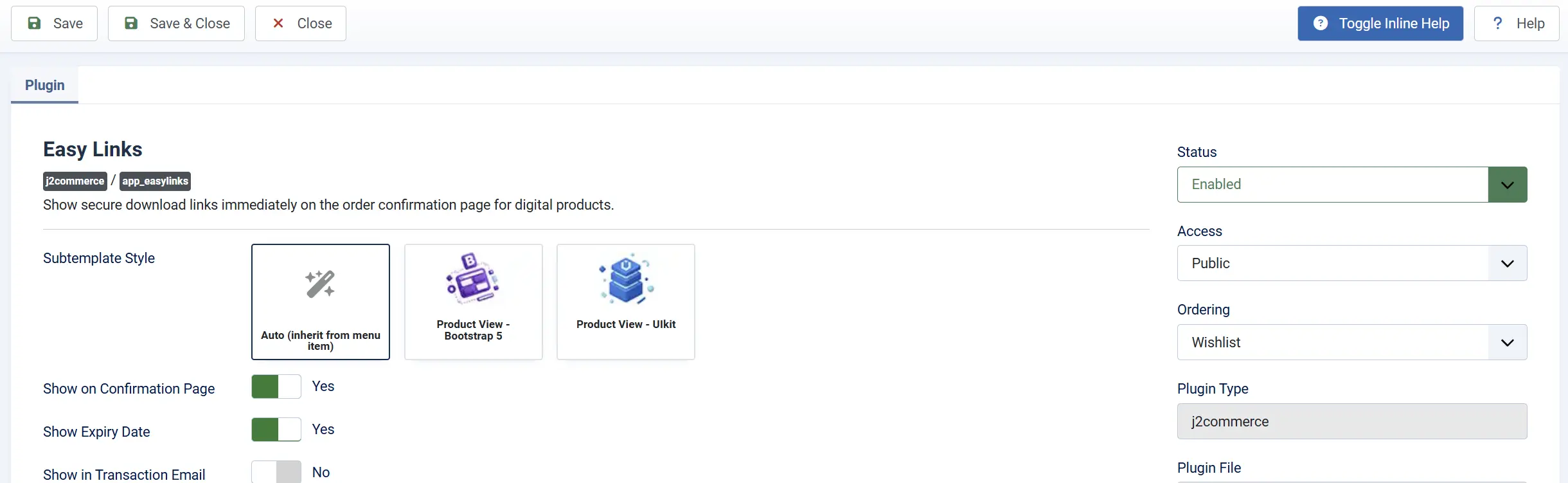
Subtemplate Style: Controls the look of the download section on the confirmation page.
-
Auto: Inherits the frontend framework chosen by the active menu item (Bootstrap 5 or UIkit). This is the recommended setting for most stores.
-
Bootstrap 5: Always renders the Bootstrap 5 card layout regardless of menu settings.
-
UIkit: Always renders the UIkit card layout.
The email layout is always plain HTML regardless of this setting, because email clients strip external stylesheets.
Show on Confirmation Page: When set to Yes, a "Your Downloads Are Ready" section appears on the order confirmation page immediately after the customer completes checkout. Set to No to hide it from the confirmation page entirely.
Show Expiry Date: When set to Yes, each download link shows the date when that link expires, directly beneath the file name. This is drawn from the expiry date configured on the product file. If a file has no expiry date set, nothing is displayed even when this option is on.
Show in Transaction Email: When set to Yes, download links are added to the transaction email sent to the customer.
Email template requirement: For links to appear in emails, your J2Commerce email template must contain the [HOOK:BEFORE_FOOTER] shortcode. Easy Links injects its content at that position. If the shortcode is absent, no links will appear in emails even when this setting is on.
To check: go to J2Commerce -> Setup -> Emails and open the relevant email template to confirm [HOOK:BEFORE_FOOTER] is present.
Email Order Statuses: Visible only when Show in Transaction Email is set to Yes.

Choose which order statuses trigger the inclusion of download links in the email. For example, you might only want to include links when an order has a status of Confirmed or Completed.
If you leave this field empty, Easy Links falls back to a sensible set of confirmed/shipped/processed/complete statuses automatically.
How Download Links Work
When a customer reaches the confirmation page after a successful payment:
Easy Links checks whether the order's status qualifies as a completed purchase.
It looks up any downloadable files attached to the products in that order.
Only files whose access has been granted and whose expiry date (if any) has not yet passed are shown.
Each file appears as a Download button the customer can click immediately.
Links on the confirmation page go through the standard J2Commerce download handler, which enforces the per-file download limit and expiry date.
Links sent in emails use a secure token bridge so the customer does not need to be logged in. The token is unique to the order and cannot be guessed. The core download handler still enforces limits and expiry dates when the link is clicked.
Customising the Layout
If you need to change the appearance of the download section, you can override the plugin's layout files without editing the plugin itself.
Copy the layout file from the plugin's template folder and place it in your site template at:
templates/[your-template]/html/plg_j2commerce_app_easylinks/
The folder structure inside mirrors the plugin:
confirmation/bootstrap5/default.php— Bootstrap 5 confirmation-page layoutconfirmation/uikit3/default.php— UIkit confirmation-page layoutemail/default.php— Email layout (plain HTML, table-based)
Changes in the override folder take effect immediately and will not be lost when the plugin is updated.
Tips
- Test with a live order — Create a test product with a downloadable file attached, complete a checkout, and verify the links appear and the files download correctly.
- Check the email template — If email links are not appearing, verify that
[HOOK:BEFORE_FOOTER]is in your email template (see the note above). - Leave expiry blank for permanent links — If you do not set an expiry date on a product file, the download link remains active indefinitely (subject to the download count limit).
- Combine with download limits — Easy Links respects the download count limit set on each file. If a customer exceeds the limit, the core download handler blocks the download.
Troubleshooting
Download links do not appear on the confirmation page
Cause: The plugin is disabled, the order status does not qualify, or the product has no downloadable files.
Solution:
- Go to J2Commerce -> Apps and verify Easy Links shows a green checkmark (enabled).
- Confirm the order reached a confirmed or completed status. If payment is still pending, links will not appear.
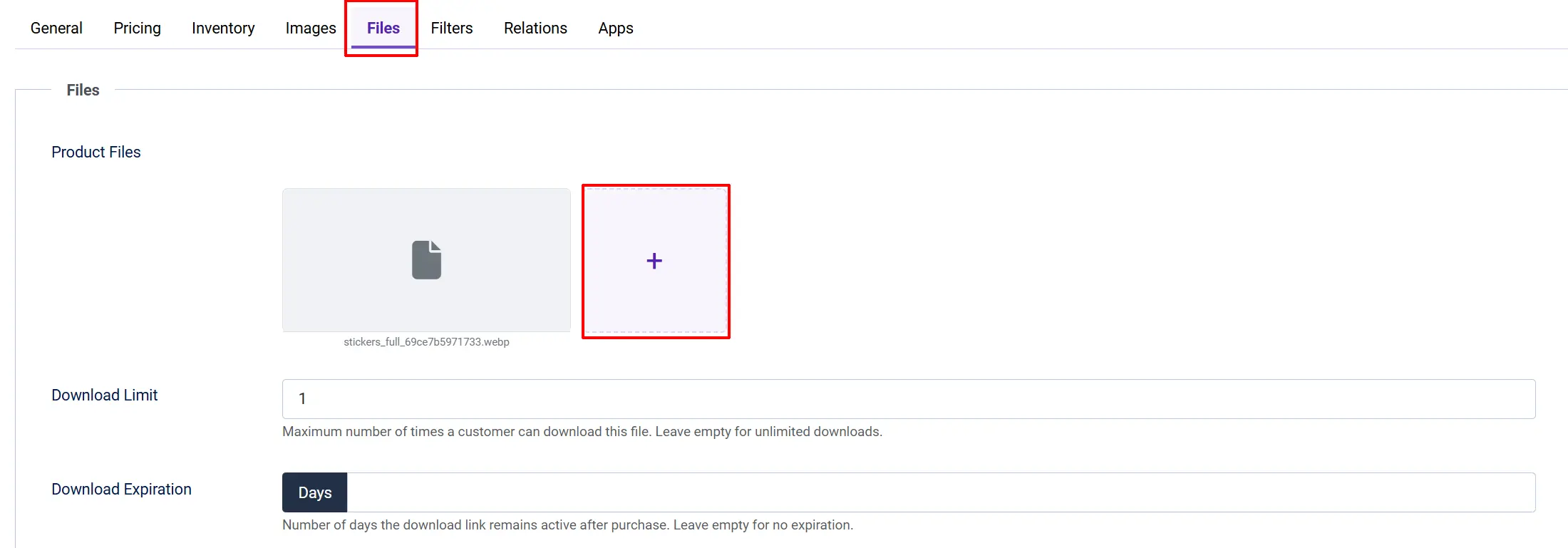
- Go to J2Commerce -> Catalog -> Products, open the product, and check that at least one file is attached in the Files tab.
Download links do not appear in the email
Cause: The email template is missing the [HOOK:BEFORE_FOOTER] shortcode, Show in Transaction Email is off, or the order status is not in the selected list.
Solution:
- Go to the Easy Links settings and confirm Show in Transaction Email is set to Yes.
- Go to J2Commerce -> Setup -> Configuration -> Emails tab, open the relevant email template, and verify it contains
[HOOK:BEFORE_FOOTER]. - Check the Email Order Statuses field. If statuses are selected, make sure the order's current status is in that list.
A download link shows "expired" or refuses to download
Cause: The product file's expiry date has passed or the download count limit has been reached.
Solution:
- Go to J2Commerce -> Catalog -> Products, open the product, and check the Files tab.
- Adjust the Access Expires date or the Download Limit on the relevant file, then save.
- Note that past orders are not automatically updated — you may need to reset the customer's access from the order view.
The expiry date is not showing next to links
Cause: Show Expiry Date is set to No, or the product file has no expiry date configured.
Solution:
- In the Easy Links settings, set Show Expiry Date to Yes.
- Go to the product's Files tab and check that an Access Expires date is set on the file. If the field is empty, no expiry text will be shown even when the setting is on.