ShipStation Integration
ShipStation (by Auctane) is a web-based shipping platform that connects to carriers like FedEx, UPS, USPS, and DHL. Once linked to your J2Commerce store, the plugin automatically sends new orders to ShipStation for fulfillment, and pulls tracking numbers back into your orders when packages ship.
The integration works in three directions:
- Automatic push — orders move to ShipStation when payment is confirmed or when an order reaches a specific status.
- Batch cron — a scheduled task groups orders by customer and address, then sends them as a batch.
- Webhook + on-demand pull — ShipStation notifies your site when a label is created, and you can also request tracking data manually from the order admin panel.
Prerequisites
- J2Commerce 6.0 or later
- Joomla 6.0 or later with the Joomla Task Scheduler enabled
- An active ShipStation account (trial accounts work during setup)
- HTTPS on your site (required for ShipStation webhooks)
Get Your ShipStation API Credentials
Before configuring the plugin, retrieve your API key and secret from ShipStation:
- Log in to your ShipStation account at app.shipstation.com.
- Click your account name in the top-right corner -> Account Settings.
- In the left sidebar, click API Settings.
- Copy the API Key and API Secret shown on that page.
Keep this browser tab open — you will need both values in the next step.
Purchase and Download
The ShipStation Integration is a separate add-on available from the J2Commerce Extensions Store. It is not included with the core J2Commerce 6 component.
- Go to www.j2commerce.com and find ShipStation Integration in the Apps section.
- Add it to your cart, complete checkout, and go to My Downloads in your account.
- Click Available Versions -> View Files -> Download to get the zip file.
Install the App
In the Joomla Administrator, go to System -> Install -> Extensions.
Upload the plg_j2commerce_app_shipstation.zip ZIP file or use the Install from URL option.

Enable the App
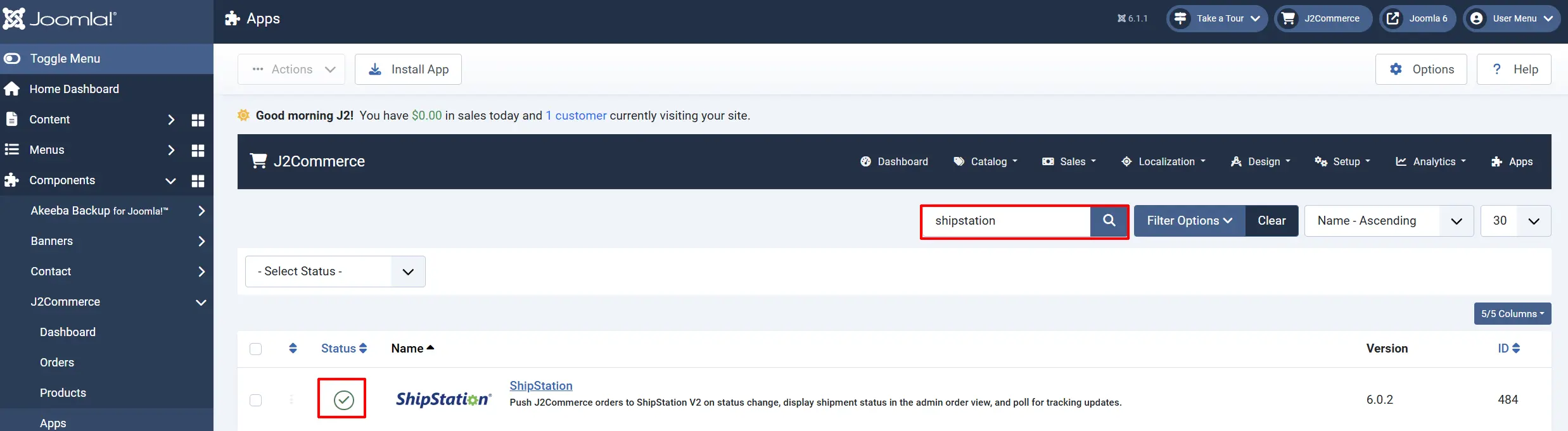
The plugin installs and enables itself automatically. No separate enable step is needed. However, it's important to know where to go to enable or disable it in the future .
There are two ways to reach the Apps list.
Option A: Go to the J2Commerce icon at the top right corner -> Apps
Option B: Go to Components on the left sidebar -> J2Commerce -> Apps

To help you narrow down the list, you can do a search for ShipStation Integration, click the X, and it will turn into a green checkmark. It is now enabled and ready for setup.
Configure the Plugin
Helpful tip: Click the Toggle Inline Help button in the toolbar and the app will show a description below each field as you configure it.

Connection Tab

API Key: Paste the API Key from your ShipStation account settings.
API Secret: Paste the API Secret from your ShipStation account settings.
Webhook Token: Enter a random 32-character string. This is a secret you generate — not something ShipStation provides. Use a password manager or an online random-string generator.
Webhook URL: Read-only. This URL appears automatically after you save the plugin with a webhook token. Copy it into ShipStation as described below.
After filling in the API Key, API Secret, and Webhook Token, click Save to reveal the Webhook URL.
Ship-From Warehouse: Select the ShipStation warehouse to use as the ship-from address. The list is loaded from your ShipStation account — save your API key first if it is empty.
Default Carrier ID: The ShipStation carrier ID (se-XXXXXX) to pre-select. Leave blank to allow rate shopping.
Order Status Mapping

Push on Order Status: Push the order to ShipStation when it reaches one of these statuses. — for example, Confirmed
Status After Push: Set the order to this status after a successful push to ShipStation. Select 'No change' to leave the status as-is. — for example, Confirmed
Status When Delivered: Set the order to this status when ShipStation reports the shipment as delivered (tracking status DE). Select 'No change' to skip. — for example, Delivered
A typical setup looks like this:
- Allowed Order Statuses: Processing
- Batch Trigger Status: Processing
- Status After Submission: Shipped (pending tracking)
- Shipped Order Status: Shipped
- Delivered Order Status: Delivered
If the status you want is not listed in a dropdown, create a new one first by going to J2Commerce -> Setup -> Order Statuses.

Create Sales Order in ShipStation: When enabled, the shipment also appears in the ShipStation Orders tab as a sales order.

ShipStation supports three custom text fields per order. Map them to your J2Commerce address or checkout custom fields here.
Mapped Field 1: Select a J2Commerce custom field to send as ShipStation custom field 1.
Mapped Field 2: Select a J2Commerce custom field to send as ShipStation custom field 2.
Mapped Field 3: Select a J2Commerce custom field to send as ShipStation custom field 3.
For example, if you have a checkout field called "Company Name", map it to Mapped Field 1 so it appears in the ShipStation order details.
Debug Mode: When enabled, all ShipStation API activity is written to administrator/logs/plg_j2commerce_app_shipstation.log.php. Turn this on when troubleshooting.
Shipping Mappings
When J2Commerce submits an order to ShipStation, it passes the shipping method name the customer selected. This tab lets you tell ShipStation which carrier and service level to use for each method.
Shipping Mappings — Enter one mapping per line using the pipe | character as a separator:
Free Shipping|FedEx - Ground
Standard Shipping|USPS - Priority Mail
Express Shipping|FedEx - Priority Overnight
The left side is the exact name of your J2Commerce shipping method. The right side is the ShipStation carrier and service level name exactly as it appears in ShipStation.
| Field | Description |
|---|---|
| Shipping Mappings | One mapping per line. Format: J2Commerce method name|Carrier - Service Level |
| Force Ground Shipping States | Comma-separated two-letter US state codes that always use ground shipping, regardless of what the customer selected. Example: FL,TX,TN |
| Ground Shipping Service | The carrier and service to use for forced-ground states. Example: FedEx - Ground |
Set Up the Webhook in ShipStation
After saving the plugin with a webhook token, the Webhook URL field displays a URL. You need to register this URL in ShipStation so it receives tracking updates automatically.
- In ShipStation, go to Account Settings -> Integrations -> Webhooks.
- Click + Add Webhook.
- Set Event to Item Shipped (or Ship Notify in some ShipStation plans).
- Paste your Webhook URL into the URL to Post To field.
- Click Save.
When ShipStation creates a shipping label, it sends a POST request to this URL. The plugin verifies the request using your webhook token before processing it.
Cron Setup
Batch order submission runs via the J2Commerce cron command shipstation. You need the Joomla Task Scheduler running for this to work.
Enable the Joomla Task Scheduler
- Go to System -> Manage -> Plugins.
- Search for Task - J2Commerce.
- Enable the plugin if it is not already active.
Add a Server Cron Job
Add a cron job on your hosting server that runs the Joomla CLI once per hour (or more frequently if needed):
0 * * * * /usr/bin/php /path/to/joomla/cli/joomla.php scheduler:run --id=j2commerce
Replace /path/to/joomla/ with your actual Joomla installation path. Ask your host if you are unsure how to add a cron job.
When the cron runs, the plugin looks for orders in the Batch Trigger Status you configured, groups them by customer and shipping address, and sends each group to ShipStation.
How Orders Flow
Automatic Push After Payment
When a customer completes payment and their order lands in one of the Allowed Order Statuses, the plugin pushes the order to ShipStation immediately. The order status then changes to your Status After Submission.
Manual Push from Order Admin
To push a specific order at any time:
- Go to J2Commerce -> Sales -> Orders and open an order.
- Scroll to the ShipStation panel in the order detail page.
- Click Sync to ShipStation.
A confirmation prompt appears. Click OK — the order is sent to ShipStation and the order history is updated with the ShipStation order ID.
Pulling a Tracking Number On Demand
If the webhook has not fired yet but ShipStation has already created a label:
- Open the order in J2Commerce -> Sales -> Orders.
- In the ShipStation panel, click Get Tracking Number.
- The plugin queries ShipStation for the latest shipment and imports the tracking number.
When tracking arrives — whether via webhook or on-demand — the order status changes to your Shipped Order Status and the tracking number appears in the order record.
Date-Range Tracking Sync
To import tracking for all orders within a date range (useful after downtime or initial setup):
- Open any order and scroll to the ShipStation panel.
- Enter a Start Date and End Date.
- Click Synchronize.
What's New vs. the J2Store Version
If you previously used the ShipStation integration with J2Store, here is what changed in this J2Commerce version:
- Native Joomla 6 architecture — no FOF 2 dependency. The plugin is a standard
CMSPluginwith aSubscriberInterface, following current Joomla extension standards. - Secure webhook token — the integration now uses a plugin-generated 32-character token stored in your plugin settings. The old version relied on a site-wide
queue_keysetting from J2Store's configuration. The new token is independent and easier to rotate. - Joomla Task Scheduler integration — batch order submission runs through the native Joomla 6 task scheduler instead of a custom cron URL.
- Plugin-owned database table — custom field values and ShipStation order IDs are stored in a dedicated
#__j2commerce_appshipstation_orderdatatable rather than being written to columns that did not exist in the J2Commerce core schema. - Parameterized queries — all database queries use bound parameters, eliminating the SQL injection risk present in the J2Store version.
- Vanilla JavaScript admin panel — the order sync panel uses ES6
fetch()andaddEventListener()with no jQuery dependency. - Full cron safety — the old version called
$app->close()inside the cron handler, which would terminate the Joomla task scheduler. That call is removed.
Troubleshooting
Orders are not appearing in ShipStation
Check the Allowed Order Statuses setting. The order's current status must match one of the selected statuses in the Order Status Mapping tab. If the status does not match, the plugin skips the order silently.
Verify your API credentials. Go to the Connection tab and confirm the API Key and API Secret exactly match what ShipStation shows. A wrong credential produces a 401 Unauthorized error — enable Debug Mode to see the response in the log file.
ShipStation returns a 400 error
A 400 response usually means the order data failed ShipStation's validation. Common causes are:
- Missing or incorrectly formatted shipping address (country code, postal code, or state).
- An unmapped shipping method — add the method to the Shipping Mappings textarea.
- Weight not set on the product.
Enable Debug Mode and check administrator/logs/plg_j2commerce_app_shipstation.log.php for the full error message from ShipStation.
Tracking numbers are not arriving via webhook
First confirm the webhook is registered in ShipStation (Account Settings -> Integrations -> Webhooks) and points to the correct URL shown in the plugin's Connection tab.
Then confirm the Webhook Token in the plugin matches the one in the URL. If you changed the token after setting up the webhook, re-copy the updated URL from the plugin and update the webhook in ShipStation.
If the webhook URL is reachable but tracking still does not arrive, enable Debug Mode to log incoming webhook payloads, then trigger a test label in ShipStation to see the logged request.
Debug log location
With Debug Mode enabled, all ShipStation activity is written to:
administrator/logs/plg_j2commerce_app_shipstation.log.php
You can view this file via FTP or System -> System Information -> Directory Permissions (navigate to the logs folder). Disable debug mode once the issue is resolved to avoid filling disk space with log entries.