Opening Hours
Some businesses can only accept orders during specific hours of the day. A bakery that stops taking online orders at noon so the kitchen can prepare for the afternoon rush, a flower shop that closes at 6 PM, or a food truck that only takes pre-orders between 8 AM and 10 AM are all real situations where round-the-clock checkout hurts operations more than it helps.
The Opening Hours app solves this. It lets you define a from/to window for each day of the week and blocks order placement outside those hours. Customers see a clear message explaining your store hours instead of hitting a confusing error.
Good fits for this app:
- Bakeries, cafes, and restaurants
- Food trucks and meal kit services
- Florists and time-sensitive perishable products
- Weekend-only or limited-hours stores
- Any business where orders must be received during staffed hours
Requirements
- PHP 8.3+
- Joomla! 6.x
- J2Commerce 6.x
Purchase and Download
Step 1: Go to the J2Commerce website -> Apps
Step 2: Locate Opening Hours -> click View Details -> Add to Cart -> Checkout
Step 3: Go to your My Downloads section under your profile button at the top right corner and search for the app. Click Available Versions -> View Files -> Download Now to save the ZIP file to your computer.
Install the App
In the Joomla Administrator, go to System -> Install -> Extensions.
Upload the pluginapp_openinghours.zip file or use the Install from URL option.

Enable the App
The plugin installs and enables itself automatically. No separate enable step is needed. However, it's important to know where to go to enable or disable it in the future.
There are two ways to reach the Apps list.
Option A: Go to the J2Commerce icon at the top right corner -> Apps
Option B: Go to Components on the left sidebar -> J2Commerce -> Apps

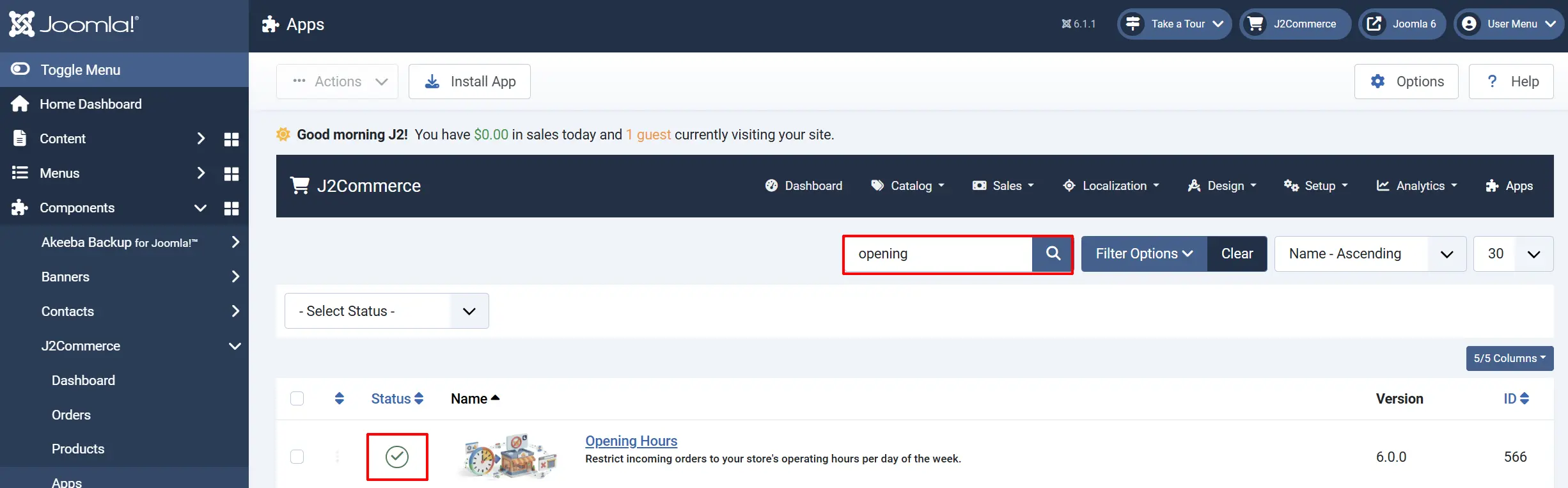
To help you narrow down the list, you can do a search for Opening Hours, click the X, and it will turn into a green checkmark. It is now enabled and ready for setup.
Configure the App
Click the Opening Hours title (next to the green checkmark) to open the settings screen.
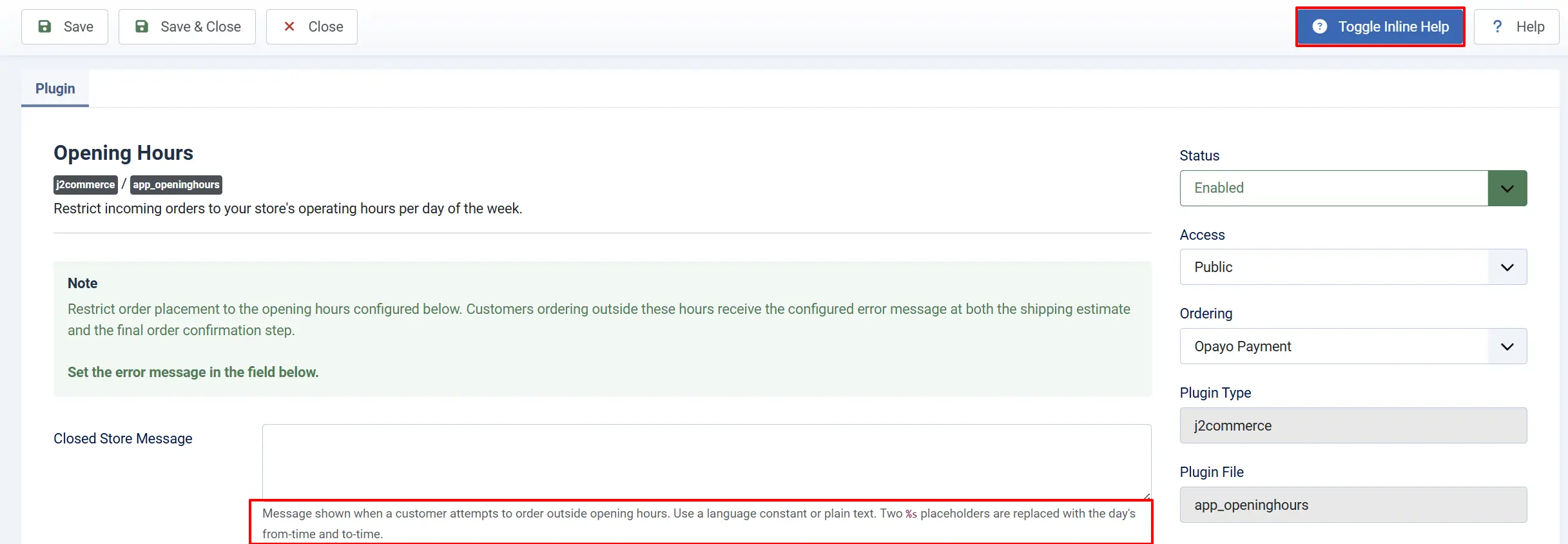
Click the Toggle Inline Help button on any app you install to see a description below each field directly in the admin panel.
Closed Store Message
The Closed Store Message field controls what customers read when they are blocked from ordering.
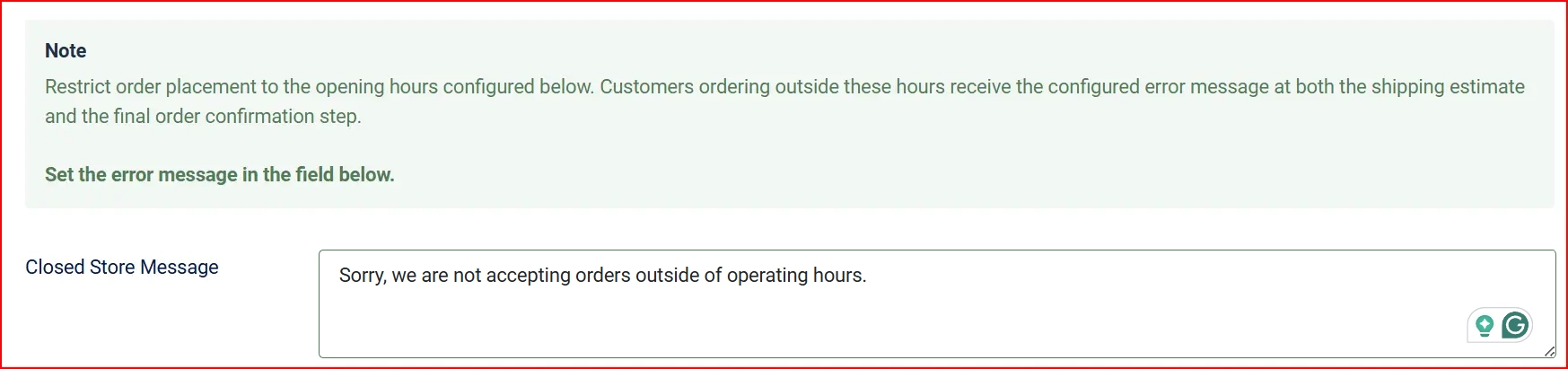
You can write this message as plain text:
Sorry, we are not accepting orders right now. We accept orders from %s to %s.
The two %s placeholders are automatically replaced with the From and To times for the current day. For example, if Monday is configured from 09:00 to 17:00, the customer sees:
Sorry, we are not accepting orders right now. We accept orders from 09:00 to 17:00.
You can also enter a Joomla language constant here if your site is multilingual and you have defined a translation key. Leave the field blank to use the built-in default message: "Store hours: [from] to [to]."
Available Store Times
This is the core of the app. The Available Store Times table shows one row for each day of the week, with a From and a To time field.
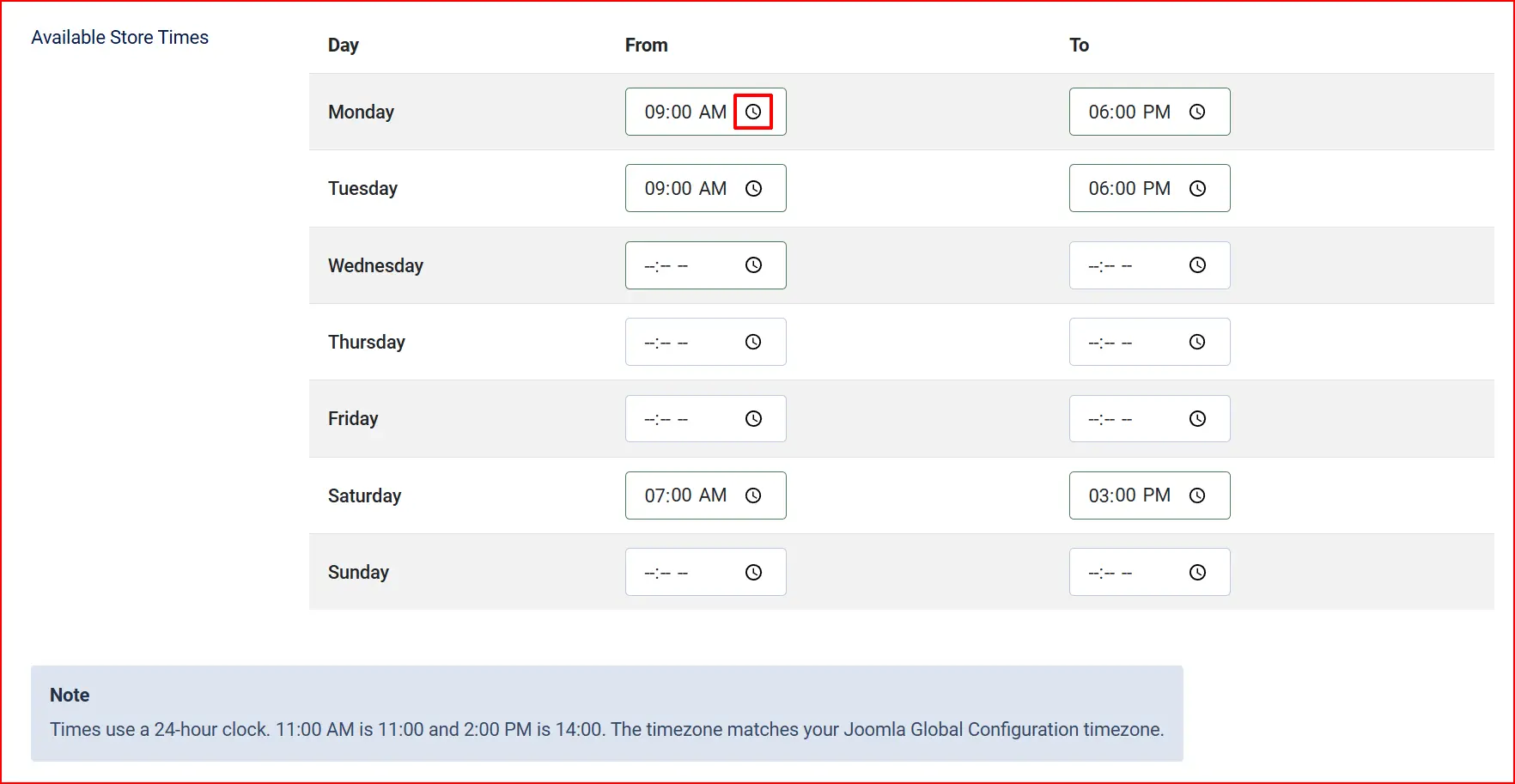
| Day | From field | To field | Result |
|---|---|---|---|
| Monday | 09:00 | 17:00 | Orders accepted 9 AM to 5 PM only |
| Saturday | (blank) | (blank) | No restriction — orders accepted all day |
How the fields work:
- Both fields filled: Orders are only accepted within that window on that day. Outside the window, checkout is blocked.
- Both fields blank: There is no restriction for that day — the store accepts orders 24 hours on that day.
- There is only one window per day. If your hours have a midday closure (for example, open 9 AM to noon and again from 1 PM to 6 PM), you cannot enter two separate windows for the same day with this app.
Time format: Enter times using a 24-hour clock. 9 AM is 09:00. 2 PM is 14:00. 11:30 PM is 23:30. Your browser's time picker enforces this format automatically.
Debug Mode
The Debug Mode toggle writes decision logs to your Joomla log directory every time the app checks the current time against your configured hours.
Debug Mode: No log file written. Recommended for live stores.
Debug Mode: Writes plg_j2commerce_app_openinghours.php to your Joomla logs folder.
Turn Debug Mode on temporarily while you test your configuration, then turn it off before the store goes live — the log file grows with every checkout attempt.
After adjusting any setting, click Save in the toolbar.
How It Works
Checking the Time
Every time a customer takes an action that could lead to an order, the app compares the current time to the window you configured for today's day of the week:
- If today has no configured window (both From and To are blank), the app allows the action — there is no restriction.
- If today has a window configured and the current time falls inside it, the app allows the action.
- If today has a window configured and the current time falls outside it, the app blocks the action and shows your Closed Store Message.
Where Customers See the Block
The app enforces this check at three points in the shopping flow, all using the same Closed Store Message:
Arriving at the checkout page. If a customer clicks through to checkout while the store is closed, they are sent back to their shopping cart with the closed-store message displayed as a warning. They never see the checkout form.
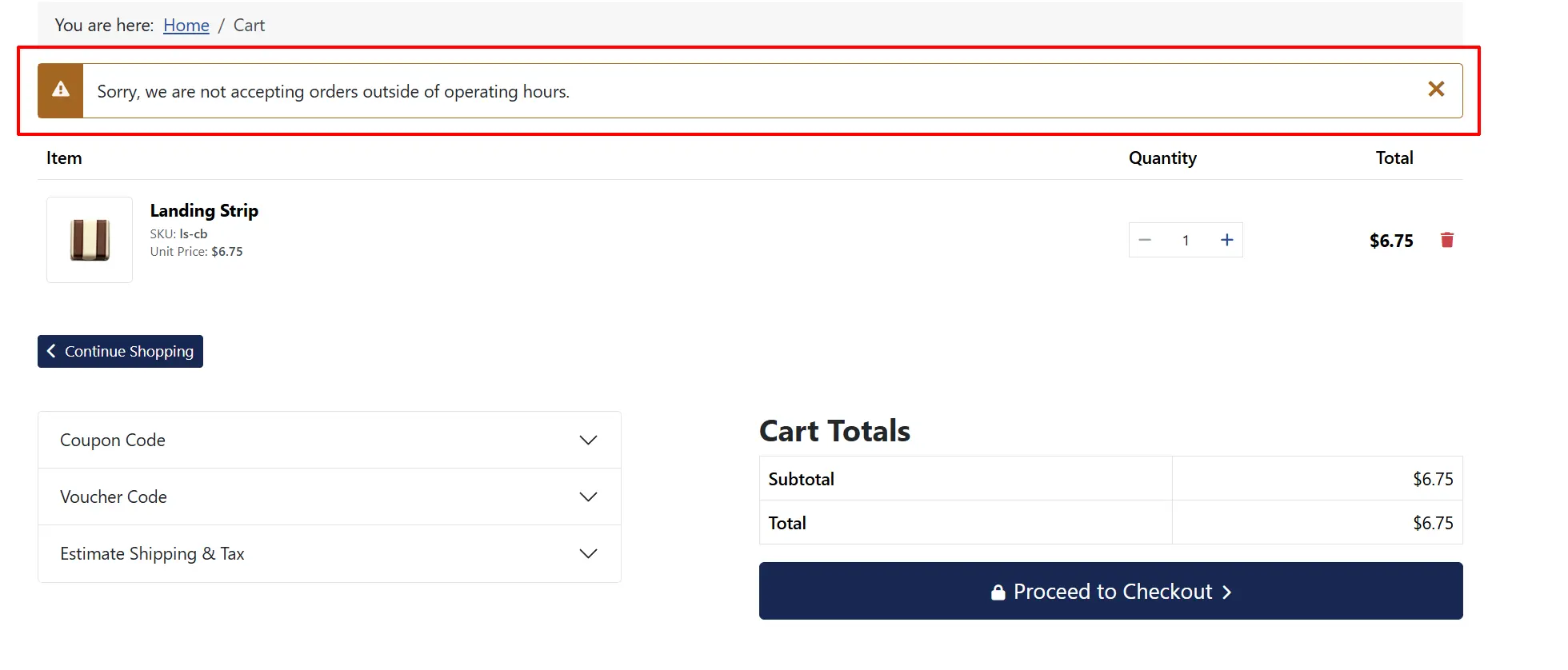
Confirming the order. If a customer reaches the final confirmation step while the store is closed — for example, they started checkout during open hours and the store closed before they clicked Confirm — the order is not created and the error message is shown instead.
The customer must wait until the store reopens and start checkout again.
Timezone
The app compares the current server time against your configured hours using the timezone set in Joomla Global Configuration — not the visitor's local time or browser time.
To check or change your Joomla timezone:
- Go to System -> Global Configuration.
- Click the Server tab.
- Find the Website Time Zone field and confirm it matches your store's operating timezone.
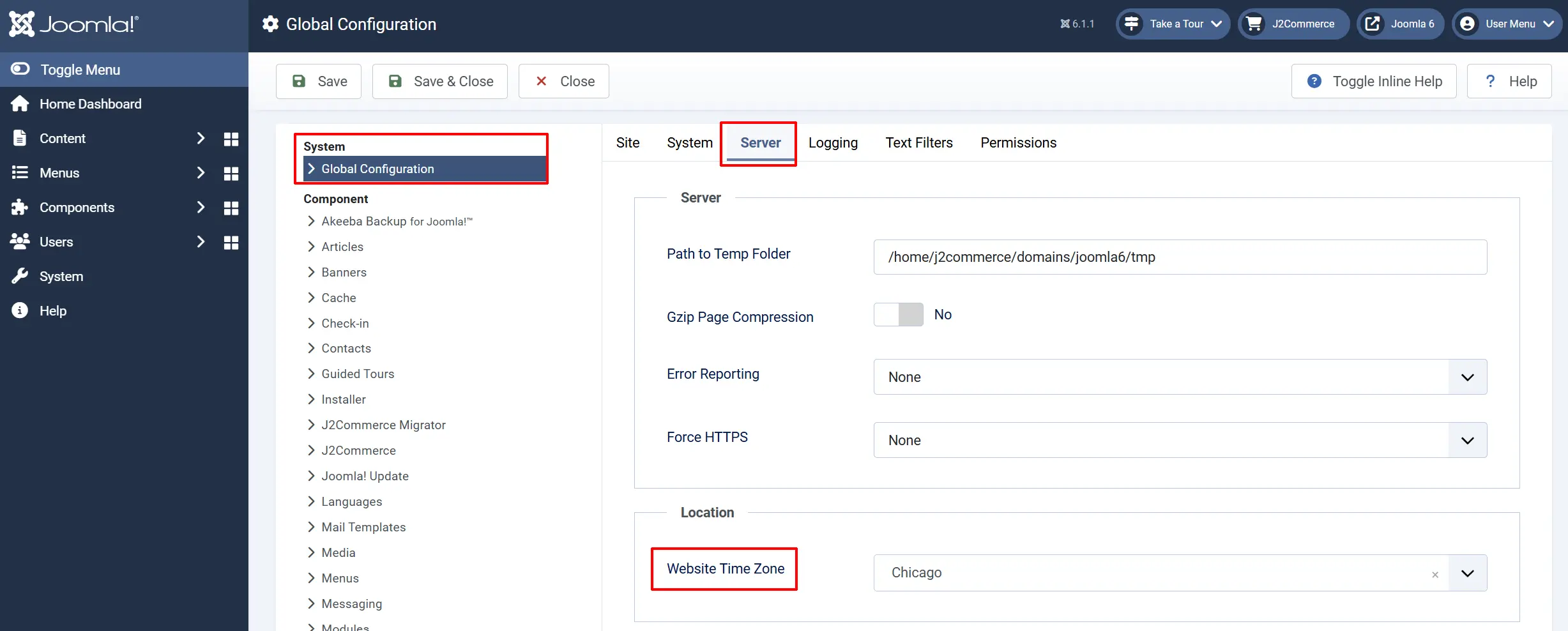
If your store is based in London and your Joomla timezone is set to UTC, orders placed at 1 PM London time (BST, which is UTC+1) will appear to the app as 12:00 PM UTC. Make sure the timezone matches where your staff actually work.
Tips
- Test with Debug Mode before going live. Enable it, place a few test orders at different times, then check the log file to confirm the app is reading the correct day and time.
- Leave weekend days blank if you want to accept orders every hour on those days — you do not need to enter
00:00to23:59; a blank row already means unrestricted. - Double-check your Joomla timezone first. Most "the block fires at the wrong time" issues trace back to a mismatched Server Time Zone, not a mistake in the hours you entered.
- Write a specific Closed Store Message. A message that includes your actual hours (using the
%splaceholders) helps customers know exactly when to come back.
Troubleshooting
Customers can still check out outside business hours
Cause: Either the app is not enabled, or today's day row in Available Store Times has both fields blank.
Solution:
- Go to J2Commerce -> Apps and confirm Opening Hours shows a green checkmark.
- Open the Opening Hours settings and check the Available Store Times table.
- Remember: a blank From/To row means that day has no restriction — orders are always accepted. If you want that day restricted, fill in both times.
- Click Save.
The block fires at the wrong hour
Cause: The Joomla Global Configuration timezone does not match your store's actual timezone.
Solution:
- Go to System -> Global Configuration -> Server tab.
- Check the Website Time Zone value.
- Correct it to match your store's local timezone (for example,
Europe/LondonorAmerica/New_York). - Click Save & Close.
The block fires on the wrong hour of the day
Cause: Times were entered in 12-hour format instead of 24-hour format.
Solution: All times use a 24-hour clock. 2:00 PM must be entered as 14:00, not 2:00. Entering 2:00 as the closing time means the store closes at 2 AM, not 2 PM. Review your From and To entries for any afternoon or evening hours and correct them.
The error message shows raw placeholder text (%s)
Cause: The Closed Store Message field contains a Joomla language constant that does not exist in your language file, or the field was accidentally cleared in a way that removed the placeholders.
Solution: Check the Closed Store Message field in the app settings. Either restore text with two %s placeholders for the times, or ensure the language constant you entered is defined in your active language file.