
The Gift Cards app lets your customers buy digital gift cards from your store and send them straight to a friend or family member's inbox. You choose which products are gift cards, how long a card stays valid, and which personal details a shopper can attach — sender name, recipient name, recipient email, and a short gift note. When a gift-card order is paid, the app automatically creates a unique redemption code, emails it to the recipient, and (optionally) sends the purchaser a confirmation. The recipient then enters that code at checkout to pay for their own order.
This app suits any store that wants to sell store credit — cafés, boutiques, subscription services, or any seller who wants an easy "buy for someone else" option at checkout.
Requirements
- PHP 8.3.0+
- Joomla! 6.x
- J2Commerce 6.x
Purchase and Download
The Gift Cards app is a premium add-on available from the J2Commerce extension directory.
Step 1: Go to the J2Commerce website -> Apps
Step 2: Locate Gift Cards -> click View Details -> Add to Cart -> Checkout
Step 3: Go to your My Downloads section under your profile button at the top right corner and search for the app. Click Available Versions -> View Files -> Download Now to save the ZIP file to your computer.
Install the App
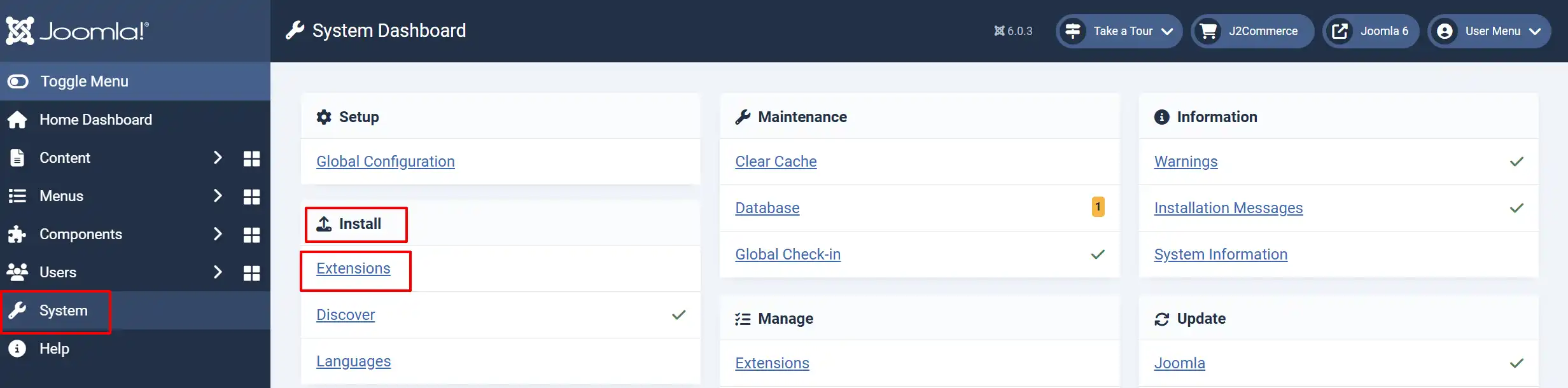
In the Joomla Administrator, go to System -> Install -> Extensions.
Upload the app_giftcertificate.zip file or use the Install from URL option.
Enable the App
Once you have installed the App, you will need to enable it. There are two ways you can access the App.
Option A: Go to the J2Commerce icon at the top right corner -> Apps
Option B: Go to Components on the left sidebar -> J2Commerce -> Apps
Search for Gift Card, click the X, and it will turn into a green checkmark. It is now enabled and ready for setup.
Configure the App
Click on the Gift Card title to open the settings.
Tip
Click the Toggle Inline Help button in the toolbar and the app will show a description below each field as you configure it.
Basic Settings tab
Validity Check: A repeatable set of store-wide expiration rules, used only for products that don't set their own expiration (see Adding Gift Cards to Products below).
| Setting | What it does | Default |
|---|---|---|
| Enable Expiration Date | Turns on an expiration date for every gift card issued by this fallback rule. Leave this No and cards never expire. | No |
| Validation Period (Years / Months / Days) | How far past the purchase date the card stays valid. Enter 0 in all three fields and the card is created already expired — this is deliberate, and some merchants use it as an "already used up" switch. | 0 |
PDF Preview: A tool for previewing a gift-card PDF from a past order.
Info
NOTE: PDF generation for gift cards is not active in this release. The PDF Preview, Attachment As PDF, PDF File Prefix, Add PDF Background Image, Background Image, and Custom CSS settings are reserved for a future update — leave them at their defaults for now. Gift cards are still delivered normally, by email.
PDF Library Check: Shows whether the optional DOMPDF library is installed on your server. This is informational only while PDF generation is inactive.
| Setting | What it does | Default |
|---|---|---|
| Allow purchasing multiple gift cards with different recipients | When Yes, two gift cards added to the same cart for different recipients stay on separate lines instead of merging into one line with a quantity of 2. Turn this on if you expect customers to buy several cards for different people in one order. | No |
| Send On Order Status | The order status (or statuses) that triggers gift card creation and delivery. Leave empty and the app uses your store's Confirmed status. Select All to issue on every status change. | Confirmed (when empty) |
| Gift Card Prefix | Text added to the front of every auto-generated code, e.g. GIFT-7K9QPT4XLM2A. | J2C- |
| Rounded Value | Number of decimal places used when calculating the card's face value. | 2 |
| Send Store Admins A Copy | When Yes, a blind copy of every gift card email is also sent to the addresses below. | No |
| Store Administrator Emails | Comma-separated list of addresses to receive the admin copy. Only used when Send Store Admins A Copy is Yes. | (empty) |
| Date Format | The date format used for the purchase date and expiration date shown inside the emails, e.g. Y-m-d shows 2026-09-07. | Y-m-d |
| Include Tax | Sets the card's face value. No issues the card at the amount the shopper paid before tax. Yes issues it at the tax-inclusive total, so the card is worth more than its stated price. | No |
| Debug Mode | Shows extra debug messages in the Joomla message queue. Leave off for normal use. | No |
Gift Form Settings tab
These settings control which fields a shopper sees on the product page when they buy a gift card, and whether each one is required.
| Setting | What it does | Default |
|---|---|---|
| Enable Sender Name | Shows a field for the buyer's own name. If left blank by the shopper, the app falls back to the name on the order's billing address. | No |
| Enable Recipient First Name | Shows a field for the recipient's first name. | No |
| Make First Name Required | Forces the shopper to fill in the recipient's first name. Only applies when the field above is Yes. | No |
| Enable Recipient Last Name | Shows a field for the recipient's last name. | No |
| Make Last Name Required | Forces the shopper to fill in the recipient's last name. Only applies when the field above is Yes. | No |
| Enable Recipient Email | Shows a field for the recipient's email address — this is where the gift card code is sent. If this is off, the code goes to the buyer's own account email instead. | No |
| Make Recipient Email Required | Forces the shopper to enter a recipient email. Only applies when the field above is Yes. | No |
| Enable Email Confirmation | Adds a second "confirm email" field so the shopper types the recipient's email twice. The two must match exactly. | No |
| Enable Recipient Note | Shows a text box where the shopper can write a short personal message. | No |
| Make Recipient Note Required | Forces the shopper to write a note. Only applies when the field above is Yes. | No |
Email Layout tab
| Setting | What it does |
|---|---|
| Gift Card Email Templates | Two buttons — Import for Joomla Editor and Import for Visual Editor — that create the bundled Gift Sent and Purchase Confirmation email templates in J2Commerce -> Email Templates, ready to edit in the editor you prefer. Re-importing overwrites any wording you've already customized on those two templates. |
Info
Gift card emails are managed centrally. After importing, go to Components -> J2Commerce -> Email Templates, filter by type Gift Certificate, and edit the wording, subject, and design for each language.
Adding Gift Cards to Products
After enabling the app, turn any product into a gift card from the product's own edit screen.
Option A: Go to the J2Commerce icon at the top right corner -> Catalog -> Products
Option B: Go to Components on the left sidebar -> J2Commerce -> Products
Open a product -> J2Commerce tab -> Apps tab, and find the Gift Card panel.
| Setting | What it does | Default |
|---|---|---|
| Enable Gift Card | Turns this product into a gift card. Once enabled, the gift fields configured above appear on this product's page. | No |
| Product Content Source | Where the message shown in the recipient's email comes from — either the Joomla article description on file for this product, or a Joomla custom field. | Joomla Article Description |
| Custom Field | The specific custom field to pull content from. Only shown when Product Content Source is set to Joomla Custom Field. | — |
| Enable Expiration Date | Sets an expiration date for cards created from this specific product, overriding the plugin-wide Validity Check rule. | No |
| Validation Period (Years / Months / Days) | How long a card from this product stays valid, once the setting above is Yes. | 0 |
A product can only be a normal purchasable product or a gift card, not both — turning on Enable Gift Card replaces the usual "buy this" flow with the gift-card fields on the storefront.
Worked Example
A boutique wants to sell a $50 digital gift card.
- The store owner creates a normal J2Commerce product called "Digital Gift Card — $50" priced at $50.00.
- On that product's J2Commerce -> Apps tab, they set Enable Gift Card to Yes and Enable Expiration Date to Yes, with a Validation Period (Years) of
1. - In the app's own settings, they set the Gift Card Prefix to
BOUTIQUE-, turn on Enable Recipient Email and Make Recipient Email Required, and turn on Enable Recipient Note. - A shopper buys the card as a gift, entering
This email address is being protected from spambots. You need JavaScript enabled to view it. - Once the order reaches the Confirmed status, the app mints a code like
BOUTIQUE-7K9QPT4XLM2Aworth $50.00, valid for one year, and emails it toThis email address is being protected from spambots. You need JavaScript enabled to view it. - The friend visits the store, adds items to their cart, and at checkout enters
BOUTIQUE-7K9QPT4XLM2Ain the Voucher Code box. The $50.00 is applied toward their order.
How Customers Use It
Buying a gift card:
- The shopper opens a product that has been set up as a gift card and fills in whichever fields you've enabled (sender name, recipient name, recipient email, gift note).
- They add it to the cart and check out and pay for it like any other product.
- If any required field is left blank, or the two email fields don't match, the shopper sees a message asking them to fix it before the item can be added to the cart.
Receiving the card:
- Once the order reaches the order status you configured (Confirmed by default), the app creates the code and emails it to the recipient address the shopper entered — or to the buyer's own account email if no recipient email field was shown.
- If the buyer and the recipient are different people, the buyer also receives a short confirmation email letting them know the gift was sent — never to the same address as the recipient.
- If a product's content source is set to an article or custom field, that content appears inside the recipient's email as the gift message.
Redeeming the card:
- The recipient shops normally and adds items to their cart.
- At checkout, they find the Voucher Code box (the same box used for discount vouchers) and enter their gift card code, then click Apply.
- The card's value is deducted from the order total. If the order costs less than the card's balance, the remaining balance stays on the card and can be used on a future order, right up until its expiration date (if one was set).
- If the card has expired, has already been fully spent, or the order was later canceled and the card revoked, the customer sees a message explaining the code can't be used.
Managing Gift Cards in the Admin
Go to J2Commerce -> Sales -> Vouchers to see every gift card that has been issued, along with its code, value, remaining balance, and status (Active, Fully Redeemed, Expired, Not Yet Valid, or Disabled). From here you can also create a gift card by hand, without an order.
Open any individual gift card and use the Send Gift Card Email button in the toolbar to (re)send it to its recipient — useful if the original email never arrived or bounced.
Gift Card Dashboard
Click the Gift Card title on the Apps screen (with a green checkmark) to open a dedicated dashboard for the app, showing:
- KPIs — cards issued, total face value issued, redemption rate, and outstanding balance for the selected date range.
- Charts — issued vs. redeemed value, number of cards issued per day, a breakdown by card value ("denominations"), and current card status across the whole store.
- Insights — plain-language call-outs such as cards expiring soon, expired cards that were never redeemed, and total unredeemed liability.
- Quick Links — jump straight to creating a new card, the full Vouchers list, Email Templates, or the app's own settings.
Viewing this dashboard, and seeing live card codes and customer addresses in it, requires both the View Reports and View Orders permissions.
Canceled and Reversed Orders
If an order that issued gift cards is later moved to Canceled or Failed, the app automatically disables every card that order created — the balance and history are kept, so you can manually re-enable a card from the Vouchers screen if it was canceled by mistake.
Tips
- Gift card codes deliberately skip ambiguous characters (no
0/Oor1/I/L), so they're easy to read off a printed receipt or read aloud over the phone. - Turn on Enable Recipient Email and Make Recipient Email Required together if you want to guarantee every gift card actually reaches someone.
- If you plan to sell several gift cards for different people in one cart, enable Allow purchasing multiple gift cards with different recipients — otherwise a quantity of 2 sent to two people is treated as a single combined line.
- Import the bundled email templates once from the Email Layout tab, then customize the wording from Email Templates rather than editing raw code — re-importing later will overwrite your changes.
Troubleshooting
The gift fields don't appear on the product page
Cause: The app isn't enabled, or the product hasn't been marked as a gift card.
Solution:
- Go to J2Commerce -> Apps and confirm Gift Card shows a green checkmark.
- Open the product -> J2Commerce tab -> Apps tab and confirm Enable Gift Card is set to Yes.
- Confirm at least one of the recipient fields (First Name, Last Name, Email, or Note) is enabled in the app's Gift Form Settings tab — if none are enabled, no fields are shown at all.
The recipient never received the email
Cause: The order hasn't reached the configured status yet, no recipient email was captured, or no email template is enabled.
Solution:
- Check the order's status matches what you selected under Send On Order Status (Confirmed, by default).
- Confirm Enable Recipient Email was turned on at the time of purchase, and that the shopper entered a valid address.
- Go to Components -> J2Commerce -> Email Templates, filter by type Gift Certificate, and make sure the Gift Sent template is enabled for the customer's language.
- Ask the customer to check their spam or junk folder.
- Open the gift card under J2Commerce -> Sales -> Vouchers and use the Send Gift Card Email button to resend it.
The gift card code isn't accepted at checkout
Cause: The code has expired, has already been fully redeemed, or belongs to a canceled order.
Solution:
- Open J2Commerce -> Sales -> Vouchers, find the code, and check its Status column.
- If it shows Expired, the card's validity window (set on the product or in the app's Validity Check) has passed.
- If it shows Fully Redeemed, there is no balance left to apply.
- If it shows Disabled, the order that created it was likely canceled — re-enable it manually if that was done in error.
- Double-check the customer typed the code correctly; the code field is not case-sensitive to the letters used, but stray spaces or missing prefix characters will cause a mismatch.
Two gift cards for different people merged into one cart line
Cause: The Allow purchasing multiple gift cards with different recipients setting is off.
Solution:
- Go to J2Commerce -> Apps -> Gift Card.
- Set Allow purchasing multiple gift cards with different recipients to Yes.
- Click Save.
PDF attachment or background image settings don't seem to do anything
Cause: PDF generation is not active in this version of the app.
Solution: This is expected for now — the Attachment As PDF, PDF File Prefix, Add PDF Background Image, Background Image, and Custom CSS settings are reserved for a future release. Gift cards are still fully functional; they are delivered by email only.
The purchaser also got the recipient's email (or vice versa)
Cause: This shouldn't happen — the app deliberately skips the purchaser confirmation when the buyer's account email matches the recipient email exactly.
Solution: If a customer reports getting a duplicate, confirm in Components -> J2Commerce -> Orders that the account email and the recipient email entered at checkout are genuinely different addresses (a typo that resolves to the same mailbox, for example) — this is a data issue with the addresses entered, not a setting to change.