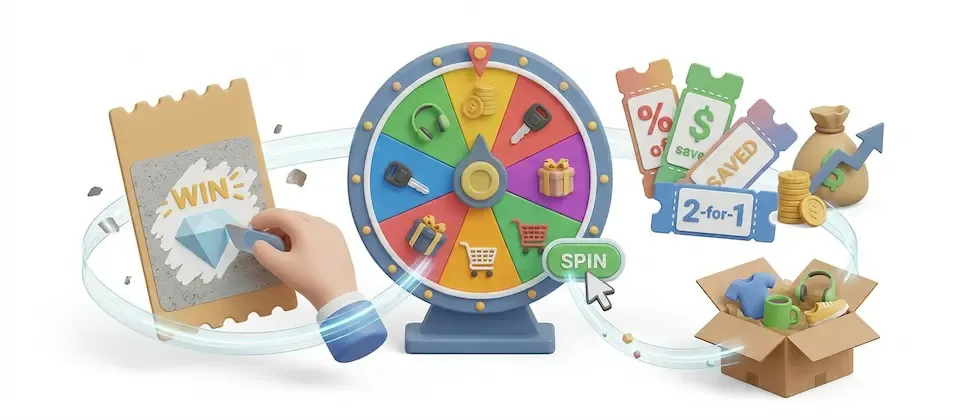

The Game Master app turns visitor engagement into a game. Shoppers play a spin wheel, scratch card, slot machine, pick-a-prize grid, or card-flip challenge in exchange for their email address, and a winner automatically receives a unique, single-use coupon cloned from a parent coupon you configure. Codes are delivered on-screen, by email, and can be auto-applied straight to the visitor's cart — all while you track impressions, spins, emails captured, and attributed revenue from a built-in dashboard.
Requirements
- PHP 8.3.0 +
- Joomla! 6.x
- J2Commerce 6.x
- At least one active J2Commerce coupon to use as a "parent" for each prize
Purchase and Download
Step 1: Go to our J2Commerce website -> Apps
Step 2: Locate the Game Master App -> click View Details -> Add to cart -> Checkout.
Step 3: Go to your My Downloads under your profile button at the top right corner and search for the app. Click Available Versions -> View Files -> Download Now
Install the App
You can install this Game Master App using the Joomla installer. The following steps help you with a successful installation.
In the Joomla admin, go to System -> Install -> Extensions
Upload the plugin ZIP file or use the Install from URL option.
Info
Game Master requires J2Commerce to already be installed. If it is not detected, installation stops with a message telling you to install J2Commerce first.
On a successful install, Joomla also creates an hourly scheduled task named J2Commerce scheduled tick under System -> Scheduled Tasks (if one covering Game Master does not already exist). This task drives coupon reminder emails and retires abandoned coupons — see How It Works.
Enable the App
Once you have installed the App, you will need to enable it. There are two ways you can access the extension.
Option A: Go to the J2Commerce icon at the top right corner -> Apps
Option B: Go to Components on the left sidebar -> J2Commerce -> Apps
Look for Game Master, click the X, and it will turn into a green checkmark. It is now enabled and ready for setup.
Configure the App
Once you click on the Game Master Title next to the green checkmark, you are ready to start setting up the parameters.
Tip
Click the Toggle Inline Help button in the toolbar and the app will show a description below each field as you configure it.
Settings tab
Layout Framework: Which CSS framework the game popup is rendered with. Auto follows the layout framework the active menu item is set to, falling back to Bootstrap 5. Choose Bootstrap 5 or UIkit directly to force one framework regardless of the menu item.
Info
If you pick the UIkit layout but the UIkit app is not enabled, the game simply will not appear on the frontend — no error, no fallback markup. Enable the UIkit app first, or switch this field back to Bootstrap 5 or Auto.
Frequency Cookie Name: Name of the first-party cookie used to suppress repeat popups. Leave the default unless it conflicts with another script on your site.
Default Frequency Cap (Days): Default number of days before a visitor can be shown a campaign again, unless a campaign overrides it in its own Frequency & Consent tab.
Debug Mode: Testing aid — shows a floating Reset Game Cookies button on the frontend that clears this browser's popup suppression (shown, declined, and won cookies, plus your own visitor record), so a campaign pops up again on every refresh. A suppressed campaign is also kept on the page while this is on, so the reset button stays available. Turn this off before going live.
Push Events to Google Tag Manager / GA4: Pushes shown, spin, win, claimed, and dismissed events to window.dataLayer when GTM or GA4 is already installed on your site. No extra script is injected by Game Master itself.
Coupon Reminders tab
Info
Reminders only go out when something drives the scheduled task. Nothing is sent on a normal page view. Installing this plugin adds the hourly J2Commerce scheduled tick task under System -> Scheduled Tasks, but Joomla still needs a scheduler trigger (lazy, web cron, or CLI) configured for it to actually fire.
Send Coupon Reminders: When enabled, an unredeemed coupon triggers one reminder email after the delay you set below.
Send After: How long to wait after the coupon is created before sending the reminder. The reminder is only sent while the coupon is still valid.
This only shows up when Send Coupon Reminders is enabled.
Delay Unit: Measure the delay above in hours or days.
This only shows up when Send Coupon Reminders is enabled.
Email Template: Import the coupon-reminder template into the Email Templates manager. Choose Import Joomla Editor Template for a WYSIWYG HTML template, or Import Visual Builder Template for the drag-and-drop visual editor. A Manage Templates link opens the Email Templates manager filtered to Game Master's reminder emails.
Create a Campaign
Everything a shopper actually plays is built as a Campaign — the plugin settings above only control site-wide behavior. To create your first game:
Option A: From the plugin's toolbar (while editing the Game Master plugin), click Manage Campaigns.
Option B: Go to the Plugins Manager row for Game Master and click the Manage Campaigns toolbar button that appears next to Save.
Click New Campaign to open the campaign editor, which is organized into tabs.
Details tab
Campaign Name: Internal name for this campaign — shoppers never see it.
Format: Choose how visitors win a prize:
- Spin Wheel — a spinning wheel with colored segments
- Scratch Card — scratch to reveal the prize underneath
- Slot Machine — match three symbols
- Pick a Prize — choose one closed box or tile from a grid
- Card Flip — flip one card from a grid to reveal the prize
Theme: Only shown for the Spin Wheel format. A preset color and background style: Classic Wheel, Aurora (Gradient Stage), Sunset (Warm Gradient), or Midnight (Dark Casino).
Wheel Segments: Only shown for the Spin Wheel format. Number of visual segments on the wheel (2–12), independent of how many prizes you configure below — prizes repeat around the wheel to fill the segments.
Wheel Rim Style: Only shown for the Spin Wheel format. Flat is a plain white ring. Raised (carnival) adds a colored outer ring in your primary color plus a light at each slice junction, for a carnival-wheel look.
Tile Icon: Only shown for Pick a Prize or Card Flip. Optional emoji shown on each closed tile before it is picked. Leave blank to use the default gift box.
Wheel Hub Icon: Only shown for the Spin Wheel format. Optional emoji or short text shown in a circle at the wheel's center. Leave blank for no hub.
Display Style: Only shown for the Spin Wheel format. How the popup is presented — a compact Modal, a larger Modal (Split Panel) showing the wheel and form side by side, or an Off-Canvas Drawer that docks to an edge of the screen and keeps the page visible.
Drawer Edge: Only shown when Display Style is Off-Canvas Drawer. Which side of the screen the drawer docks to — Right or Left.
Responsive Drawer Widths: Only shown when Display Style is Off-Canvas Drawer. A repeatable table setting the drawer's maximum width and the wheel's size at each Bootstrap 5 screen width (small through extra-extra-large). Each row applies from that screen width upward.
Headline / Subheadline: Text shown at the top of the popup. Leave blank to use a translated default that matches the campaign's format and the Message Voice you pick in the Style tab.
Button Label: Text on the play button (for example "SPIN NOW"). Leave blank for the default label.
Start Date / End Date: Optional. Leave blank for no restriction on either end.
Trigger & Targeting tab
Trigger: When the popup appears — Page Load (immediately), Time Delay, Exit Intent (when the visitor's cursor moves toward leaving the browser window), Scroll Depth, or Floating Tab (a persistent tab the visitor clicks to open the game).
Delay (Seconds): Only shown for the Time Delay trigger. How long to wait after page load before showing the popup.
Scroll Depth (%): Only shown for the Scroll Depth trigger. Show once the visitor has scrolled this far down the page.
Tab Label: Only shown for the Floating Tab trigger. Text shown on the persistent floating tab. Leave blank to use the default.
Targeting: Site-wide shows the campaign everywhere. Specific Pages restricts it to the menu items, products, or categories you choose below.
Menu Items / Products / Categories: Only shown when Targeting is Specific Pages. Choose which menu items, product pages, and/or category pages the campaign is allowed to appear on.
Exclude Checkout: When enabled (the default), the popup never appears during checkout.
Frequency & Consent tab
Frequency Cap (Days): Show this campaign to a given visitor at most once every X days.
Suppress After Win: When enabled (the default), the campaign stops showing to a visitor for the rest of their coupon's claim window after they win.
Suppress After Decline (Hours): Cooldown before re-showing the popup to a visitor who closed it without playing.
Require Consent Checkbox: When enabled, a consent checkbox must be ticked before the visitor can play.
Consent Text: Only shown when Require Consent Checkbox is enabled. The wording shown next to the checkbox.
Delivery tab
Claim Expires (Hours): How long a winning coupon stays valid after it is issued.
Collect Email Address: Show and require the email field before playing. Turn this off to let visitors play anonymously — no address is stored, coupon emails cannot be sent, and a scratch card opens ready to scratch immediately.
Show Code On-Screen: Display the winning coupon code directly in the popup.
Send Code By Email: Only shown when Collect Email Address is enabled. Email the winning coupon code to the address the visitor entered.
Auto-Apply To Cart: Automatically apply the winning coupon to the visitor's active cart.
Shop Now Button Target: Only shown when Auto-Apply To Cart is enabled. The menu item the winner's "Shop Now" button links to. Leave as None to hide the button.
Webhook URL: Optional. Receives a JSON notification every time a lead is captured (campaign name, email, prize, and whether it was a win). Only a public, resolvable web address is accepted — internal network addresses are rejected.
Style tab
Primary Color / Secondary Color: The main accent colors used throughout the popup and wheel.
Confetti On Win: Fire a celebratory confetti burst over the popup whenever a visitor wins a prize.
Message Voice: The default wording style for headlines and win/no-win messages — Friendly, Professional, or Witty. Any headline, subheadline, or message field you fill in yourself overrides this.
Enable Custom Style: Turn on to reveal advanced controls for the stage background, panel text, button, wheel, and backdrop, layered over the selected theme. Leave off to use the theme preset only.
The remaining Style fields below only appear when Enable Custom Style is enabled: stage background color and image, panel/headline/subheadline text colors, button text/background colors (with an optional gradient end color), button corner radius and text case, wheel ring/pointer/hub background colors, and modal backdrop opacity (0 = clear, 1 = solid black).
Prizes tab
Add 2–12 prize segments. Each discount segment clones its coupon rules from the parent coupon you select every time a visitor wins.
Each prize row has:
Color: The color swatch for this prize's segment on the wheel.
Label: What the visitor sees for this prize (for example "10% Off").
Type: Discount issues a coupon. No Win / Try Again gives nothing and is used to balance the odds.
Parent Coupon: Only shown for Discount prizes. Select an existing J2Commerce coupon to clone, or create/edit one inline without leaving the campaign screen.
Weight: Controls how often this prize is drawn relative to the others — higher numbers win more often.
Qty Left: Optional stock limit for this prize. Leave blank for unlimited.
Click Add Prize to add another row, and use the trash icon on a row to remove it.
Info
Pick a Prize and Card Flip present a grid the visitor chooses from, so if only one prize is configured you will see a warning after saving — add at least two so there is a real choice to make.
A/B Testing tab
Variant B Traffic Split (%): Percentage of visitors routed to Variant B; the rest see this campaign.
Save the campaign first, then click Create Variant B in the toolbar to clone it into a second, independently editable row. Once created, this tab shows a link to edit Variant B directly. A visitor is bucketed to one side per their browser and stays on that side for the suppression/win rules, so comparisons in Analytics stay fair.
Manage Campaigns
The campaign list at J2Commerce -> Apps -> Game Master -> Manage Campaigns shows every campaign with its status, name, trigger type, and start/end dates.
- Drag the ordering handle to reorder campaigns — the first eligible, active campaign matched for a page is the one shown.
- Click the green/red circle to publish or unpublish a campaign directly from the list.
- Use the Search Campaigns field and the Status filter to narrow the list.
- Select rows and use Change Status to publish, unpublish, or delete in bulk.
- Export CSV downloads captured leads (email, consent timestamp, prize won, coupon code, redeemed status, campaign, and date) for the selected campaigns, or all campaigns if none are selected. Live, unredeemed codes are shown masked to their last 4 characters.
Campaign Analytics
Go to J2Commerce -> Apps -> Game Master -> Manage Campaigns -> Analytics to see per-campaign performance: Impressions, Spins, Emails Captured, Wins, Coupons Issued, Coupons Redeemed, and Attributed Revenue.
Any campaign with a Variant B also shows a side-by-side A/B comparison, including an Engagement % (spins divided by impressions) for each side.
Dashboard
Go to J2Commerce -> Apps -> Game Master -> Manage Campaigns -> Dashboard for a store-wide overview with a date filter (Last 7/30/90 days, or a custom range):
- KPI cards for Impressions, Emails Captured, Attributed Revenue, and Coupons Redeemed
- A chart of impressions, emails, and attributed revenue over time
- A side chart splitting impressions by game format
- A Top Games table ranking campaigns by impressions and revenue
- An Average Order Value comparison between orders that used a Game Master coupon and orders that did not (shown once at least one coupon has been redeemed)
Frontend View
When the trigger fires, the popup opens showing the game (wheel, scratch card, slot machine, prize grid, or card grid) alongside a short form for the visitor's email (if required) and a consent checkbox (if required). After playing, a result panel shows whether they won, the coupon code (if configured to show on-screen), and a Copy Code button. A Shop Now button can also appear, linking to the menu item you chose in the Delivery tab.
How It Works
- On each storefront page view, Game Master checks every active campaign in order for one that is eligible: within its date range, matching the trigger's page-level targeting, and not suppressed for this visitor.
- If a match is found, the popup markup is injected into the page and fires according to its trigger (immediately, after a delay, on exit intent, on scroll, or via the floating tab).
- The visitor plays the game; on a win, a unique coupon is cloned from the prize's parent coupon and issued with a claim expiry.
- Depending on the Delivery settings, the code is shown on-screen, emailed to the visitor, and/or auto-applied to their cart, with an optional Shop Now link.
- Every impression, play, win, and redemption is logged for the Analytics and Dashboard views.
- If Coupon Reminders is enabled, the hourly scheduled task sends one reminder email for any unredeemed, still-valid coupon after the configured delay, and separately retires coupons whose visitor record has since been erased.
Display Conditions
A campaign appears when:
- The Game Master app is enabled in J2Commerce -> Apps
- The campaign itself is published (enabled)
- The current date falls within the campaign's Start Date / End Date (if set)
- The page matches the campaign's targeting (site-wide, or one of the chosen menu items, products, or categories)
- The visitor is not currently suppressed by the frequency cap, a recent decline, or a prior win (unless Debug Mode is on)
- Consent has not been explicitly refused, when Require Consent Checkbox is enabled and a consent-management tool is installed
- Exclude Checkout is respected — the popup never shows during checkout
A campaign will NOT appear when:
- The Layout Framework is set to UIkit but the UIkit app is disabled
- At least one prize has not been configured on the Prizes tab
- The visitor has already claimed a prize for this campaign within their current claim window
Tips
- Keep 2–5 prizes with a mix of weights so the odds feel exciting but stay affordable — heavier weight on smaller discounts, lighter weight on your best offer.
- Use No Win / Try Again as one of your segments if you don't want every spin to guarantee a discount.
- Turn on Debug Mode while designing a campaign so you can keep testing without waiting out the frequency cap, then turn it off before launch.
- Set a realistic Claim Expires window (24–72 hours is common) to create urgency without frustrating winners.
- Use the Export CSV button regularly to build your own marketing list from captured emails.
- Run an A/B test on your headline or display style before committing your best discount tier to the whole audience.
Troubleshooting
Popup Never Appears
Cause: The app is disabled, the campaign is unpublished, or no prizes are configured.
Solution:
- Go to J2Commerce -> Apps and confirm Game Master shows a green checkmark.
- Go to Manage Campaigns and confirm the campaign's status is a green checkmark, and that today falls within its Start/End Date.
- Open the campaign and check the Prizes tab has at least one prize row.
Popup Never Reappears While Testing
Cause: The frequency cap, a decline cooldown, or a post-win suppression is active for your browser.
Solution:
- Go to J2Commerce -> Apps -> Game Master and enable Debug Mode.
- Reload the storefront page — a Reset Game Cookies control appears; click it to clear your suppression state.
- Remember to disable Debug Mode again before launching to real visitors.
Nobody Ever Wins a Prize
Cause: The parent coupon behind a prize has been unpublished, deleted, or its own usage limit has been reached.
Solution:
- Open the campaign's Prizes tab and check each Discount prize's Parent Coupon is still valid.
- Go to J2Commerce -> Marketing -> Coupons and confirm the parent coupon is enabled and has remaining uses.
- If a prize has a Qty Left value, confirm it has not reached zero.
Coupon Reminder Emails Are Never Sent
Cause: Nothing is driving the scheduled task, or reminders are disabled in the plugin settings.
Solution:
- Go to J2Commerce -> Apps -> Game Master -> Coupon Reminders and confirm Send Coupon Reminders is set to Yes.
- Go to System -> Scheduled Tasks and confirm the J2Commerce scheduled tick task exists, is enabled, and has actually run recently.
- If it has never run, configure a scheduler trigger (web cron or CLI) as described on the task's own settings page.
Auto-Apply To Cart Does Nothing
Cause: Auto-Apply To Cart is disabled, or the coupon failed to apply silently.
Solution:
- Open the campaign's Delivery tab and confirm Auto-Apply To Cart is set to Yes.
- Confirm Show Code On-Screen is also enabled so the visitor has a fallback code to enter manually at checkout.
- Check the campaign's parent coupon restrictions (minimum order, product/category limits) are not preventing it from applying to the current cart contents.
Webhook Notifications Are Not Arriving
Cause: The Webhook URL is not a publicly reachable web address.
Solution:
- Open the campaign's Delivery tab and confirm the Webhook URL is a full
https://address on the public internet — internal, local, or private network addresses are rejected for security reasons. - Confirm the receiving endpoint accepts a JSON POST body and does not require authentication headers Game Master does not send.