Content Plugin Settings
To control the display in the cart section, to show or hide the images, enabling zoom effects etc., some settings have to be made in advance to achieve the desired results. The content plugin settings would also take effect when you have displayed your products using a short code on the Joomla layout. This section explains how the settings can be made.
Requirements
- with PHP 8.3.0 +
- Joomla! 6.x
- J2Commerce 6.x
Configure the Plugin
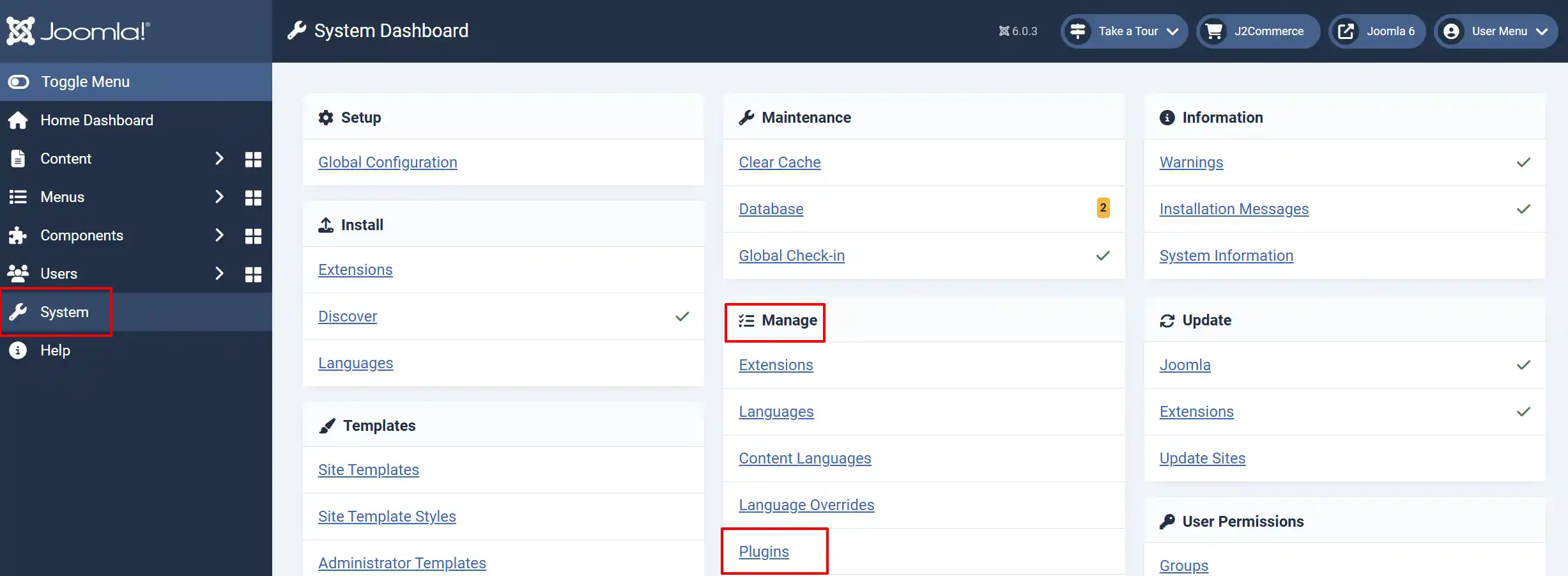
From the Joomla main menu, go to System -> Manage -> Plugins
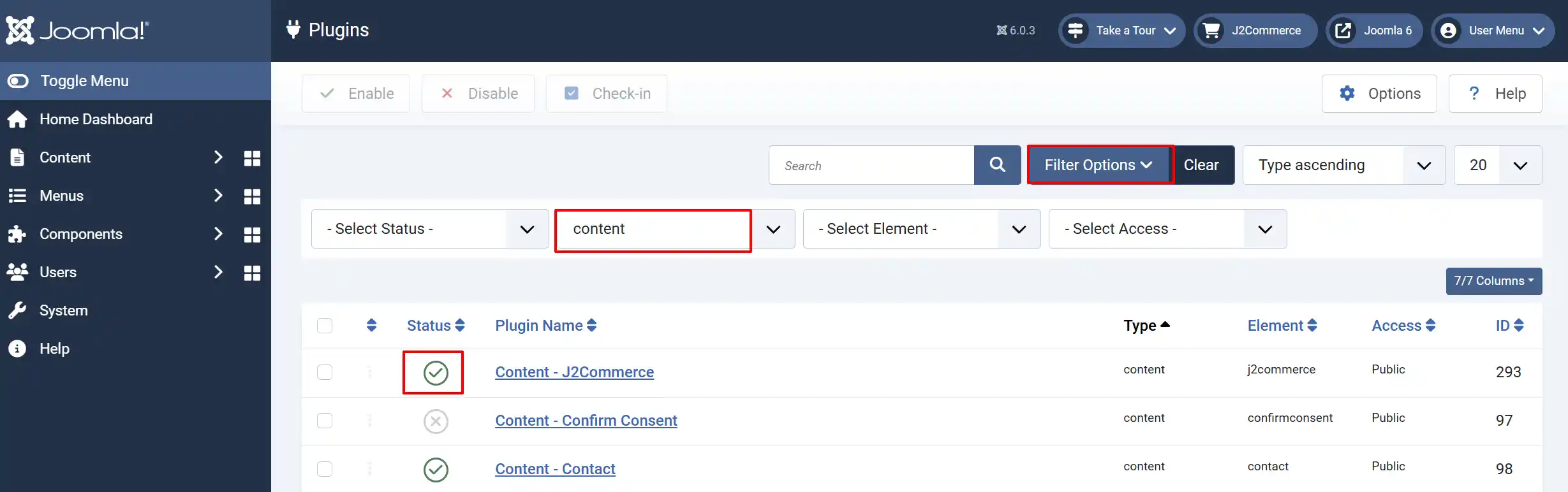
From the resulting window, select the Filter Options button. In the dropdown window, select Content. Select Content-J2Commerce from the list, as illustrated in the image below
Make sure there is a green checkmark and not an X. If there is an X, then click on it to switch it. It is now enabled and ready for setup.
Click on the Content-J2Commerce title to open it.
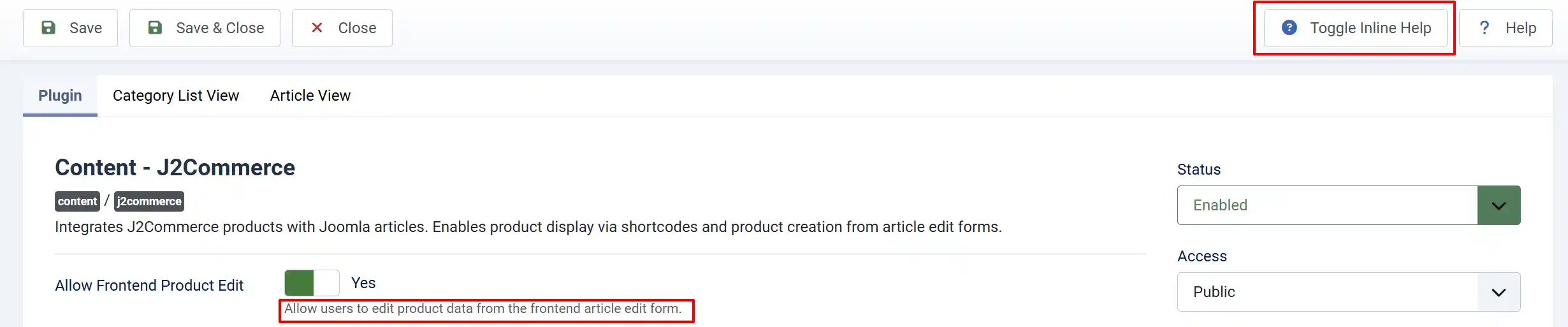
Helpful Tip: Click on the Toggle Inline Help button on any app/plugin you install and it will show a description below each section. See image below
Plugin tab
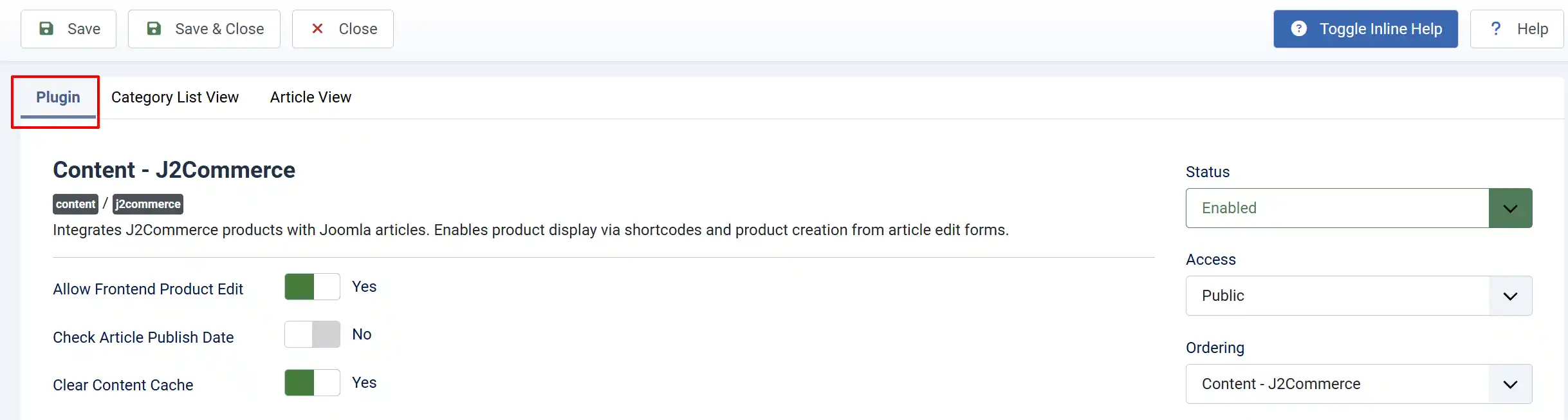
Allow Frontend Product Edit: When the option is set to 'Yes', the users with appropriate permissions would be able to view the J2Commerce tab on the product articles on the frontend.
Check Article Publish Date: Only display products for articles that are within their publish date range
Clear Content Cache: Automatically clear content and J2Commerce caches when displaying products
Category List View tab
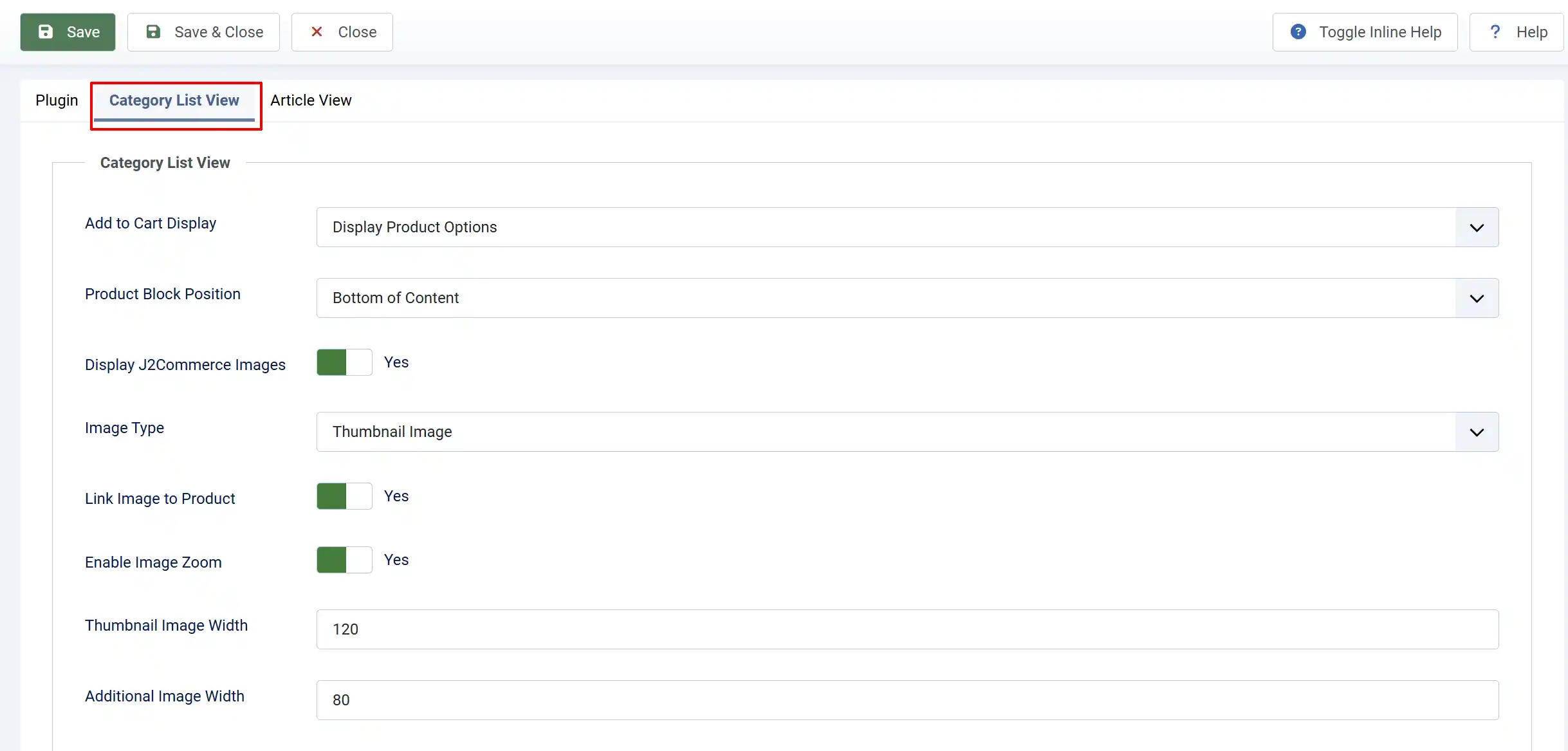
This is where you can find settings for controlling the behavior on the category view of products.
Add to Cart Display: How to display the add to cart block in category list views.
Product block position: Position of the product block (price, add to cart, etc.) relative to the article content.
-
Top of Content: This would display the add to cart, price, options above the description or other content of the product article.
-
Bottom of Content: This would display the add to cart, price, options below the description, or any other content of the product article.
-
After Display Content Event: This would display the product block in the place where the AfterDisplayContent event is used.
Display J2Commerce Images: Select 'Yes' to display the product images
Image Type: Which type of product images to display: Thumbnail, Main, Main and additional images
Link image to product: Select 'Yes' to make product images clickable links to the product detail page
Enable Image Zoom: Select 'Yes' to enable the zoom effect
Thumbnail Image Width: Width in pixels for thumbnail images in category list views
Additional Image Width: Width in pixels for additional product images
Article View tab
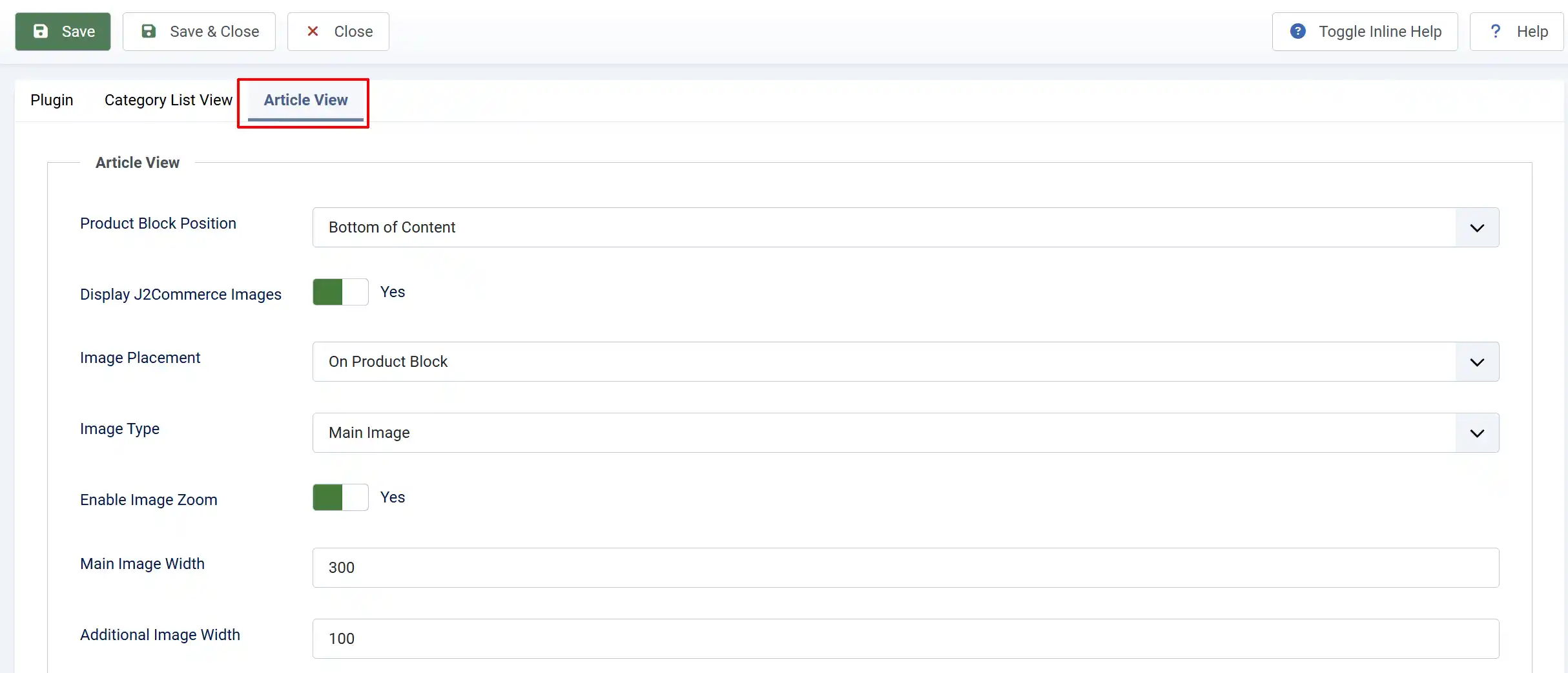
Product Block Position: Position of the product block (price, add to cart, etc.) relative to the article content.
-
Top of Content: This would display the add to cart, price, options above the description, or other content of the product article.
-
Bottom of Content: This would display the add to cart, price, options below the description, or any other content of the product article.
-
After Display Content Event: This would display the product block in the place where the AfterDisplayContent event is used.
Display J2Commerce Images: select 'Yes' to display the image
Image Placement: Where to display product images in article view.
Image Type: Select from the three options: Main, Main and additional images
Enable Image Zoom: Select 'Yes' to enable the zoom effect
Image width & Additional image width: Set the width of the image in pixels