Standard Shipping
The Standard Shipping plugin lets you create multiple shipping methods with flexible rate calculation. It supports 7 different calculation types — from simple flat rates to weight-based and percentage-based pricing — so you can match your real-world shipping costs as closely as possible.
Each shipping method can have its own rates per geographic zone (geozone), tax profile, and subtotal restrictions, giving you complete control over what customers are charged for delivery.
Requirements
- PHP 8.3.0+
- Joomla! 6.x
- J2Commerce 6.x
Purchase and Download the Plugin
Step 1: Go to our J2Commerce website > Extension
Step 2: Locate the Standard Shipping Extension -> click View Details -> Add to cart -> Checkout.
Step 3: Go to your My Downloads under your profile button at the top right corner and search for the app. Click Available Versions -> View Files -> Download
Install the Plugin
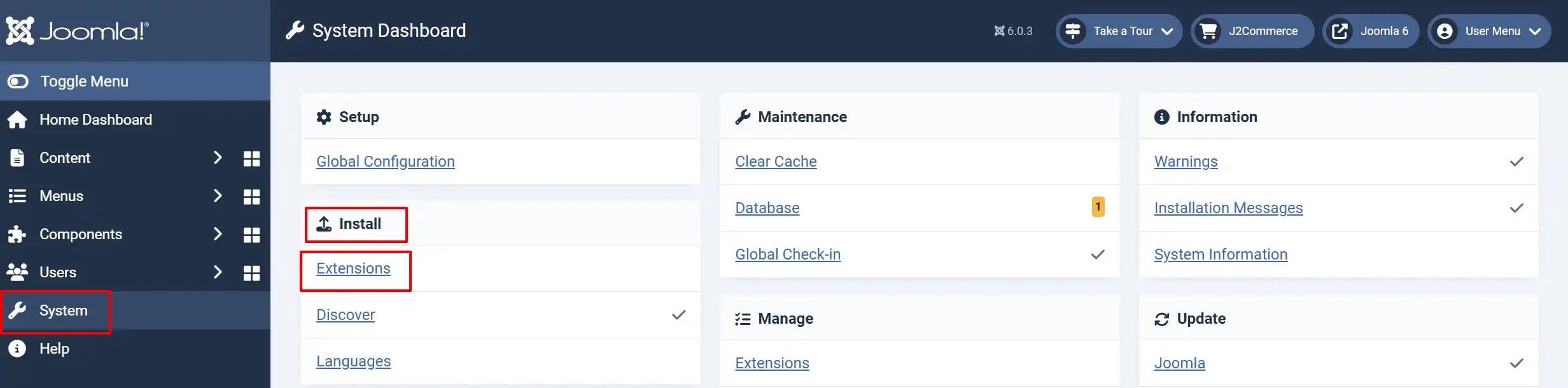
Go to System -> Install -> Extensions.
Upload the shipping_standard.zip package file
Enable the Plugin
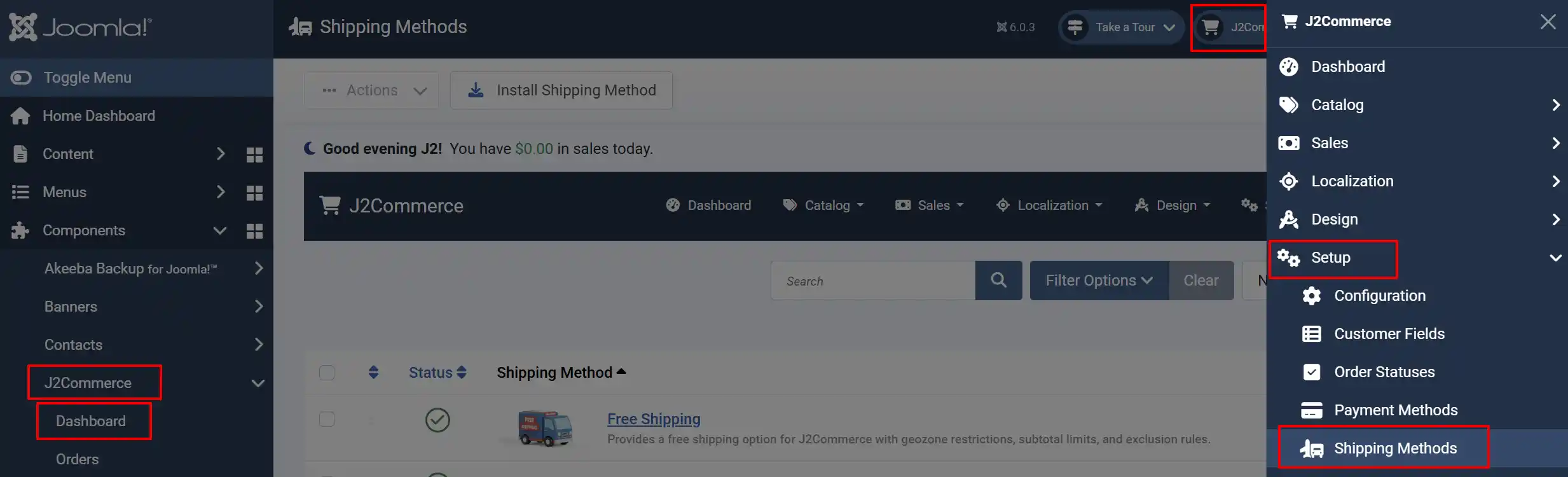
There are two ways you can access the Plugin.
Option A: Go to the J2Commerce icon at the top right corner -> Setup -> Shipping Methods
Option B: Go to Components on the left sidebar -> J2Commerce -> Dashboard -> Setup -> Shipping Methods
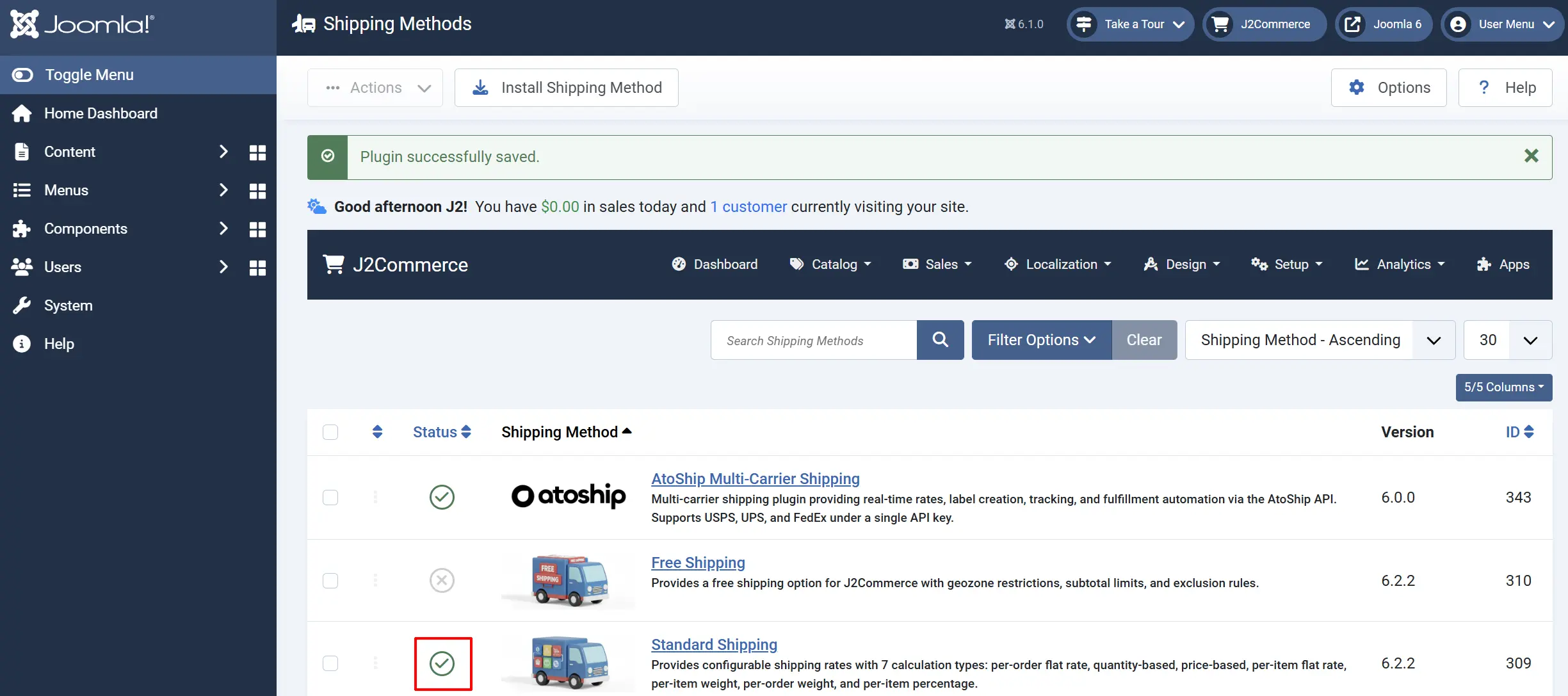
Look for Standard Shipping, click the X, and it will turn into a green checkmark. It is now enabled and ready for setup.
Understanding Calculation Types
Before creating shipping methods, choose the calculation type that best matches how your shipping carrier charges you.
| Type | Name | How It Works |
|---|---|---|
| 0 | Per Order Flat Rate | A single fixed shipping cost for the entire order, regardless of what is in the cart. |
| 1 | Per Order Quantity Based | The shipping cost is determined by the total number of items in the cart. You set price ranges based on quantity. |
| 2 | Per Order Price Based | The shipping cost is determined by the order subtotal. You set price ranges based on the cart's dollar amount. |
| 3 | Per Item Flat Rate | Each item in the cart is charged the same flat shipping fee, multiplied by its quantity. |
| 4 | Per Item Weight Based | Each item is charged based on its individual weight. You set price ranges for different weight brackets. |
| 5 | Per Order Weight Based | The shipping cost is determined by the total weight of all items combined. You set price ranges for different weight brackets. |
| 6 | Per Item Percentage | Each item's shipping cost is a percentage of its price. |
Which Type Should I Use?
- Flat rate (type 0): Best for stores that charge a single shipping fee (e.g., "$5.99 flat rate shipping").
- Quantity based (type 1): Best when your costs scale with the number of items (e.g., "$2 per item").
- Price based (type 2): Best for "free shipping over $50" scenarios — set a $0 rate for orders above a threshold.
- Weight based (types 4 or 5): Best for stores shipping physical goods where weight drives the carrier cost.
- Percentage (type 6): Best when shipping cost is proportional to product value (e.g., 5% of the item price).
Creating a Shipping Method
Step 1: Go to J2Commerce -> Shipping -> Shipping Methods.
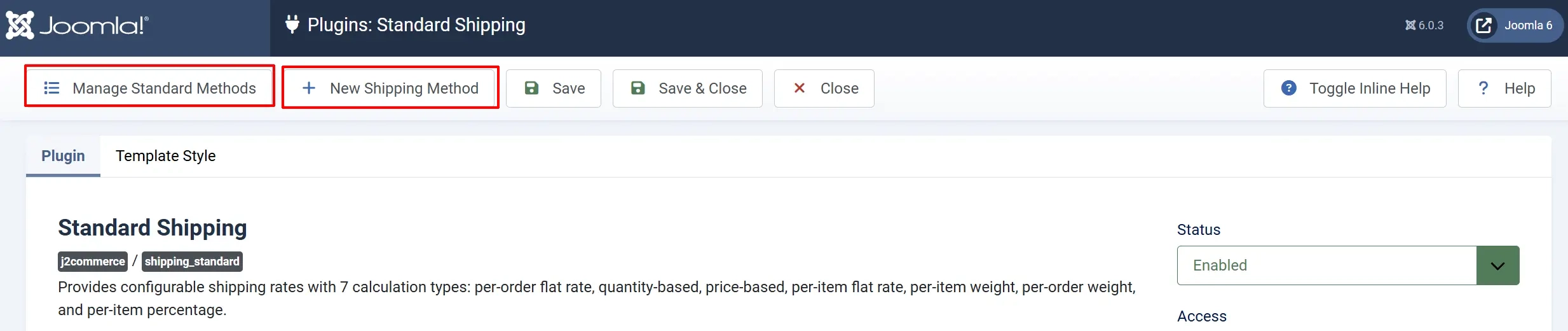
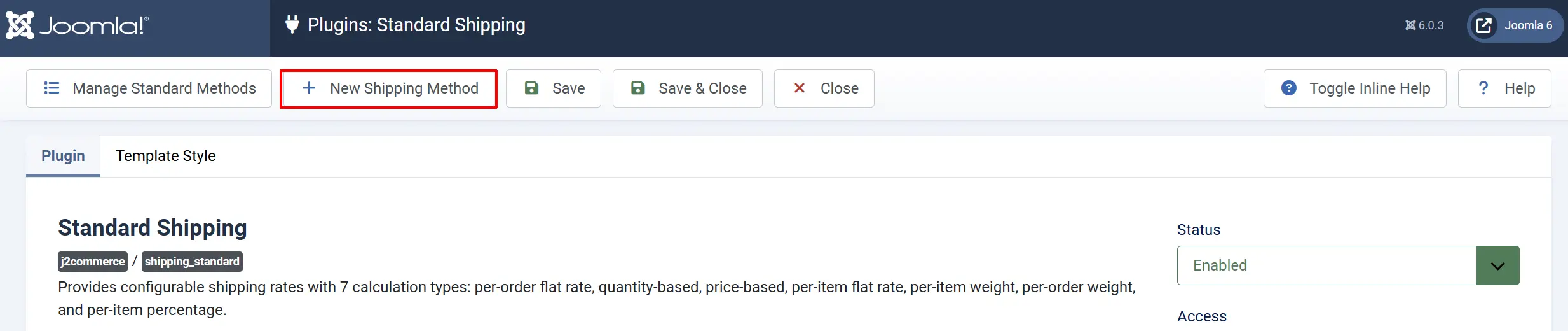
Step 2: Click the Standard Shipping plugin title to open it.
Step 3: Click the New Shipping Method button.
Basic Details tab:
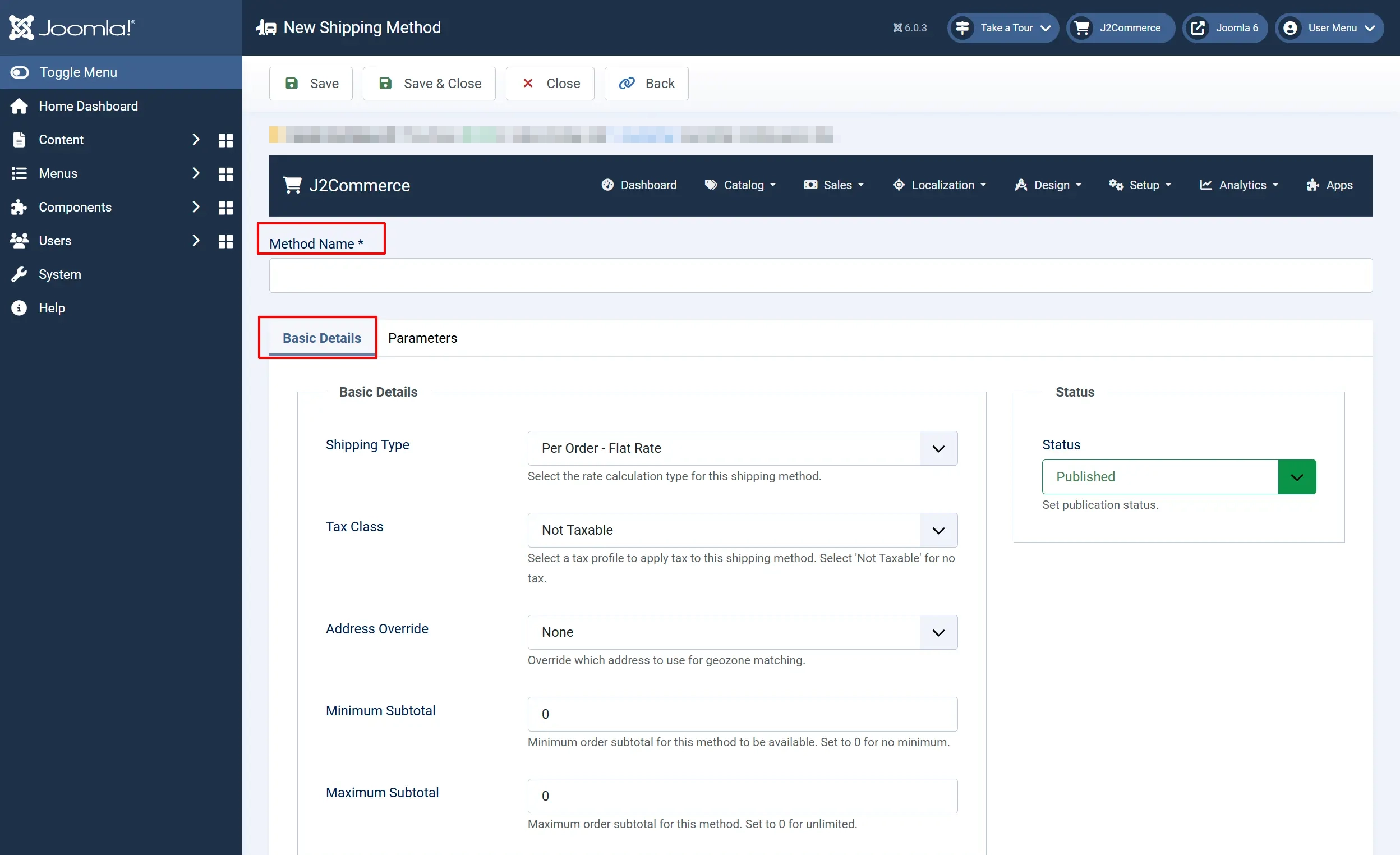
Shipping Method Name: The name shown to customers at checkout (e.g., "Ground Shipping").
Shipping Method Type: Choose one of the 7 calculation types described above.
Tax Class: Select a tax profile if shipping should be taxable. Choose Not Taxable if shipping is tax-free.
Address Override: Force rate calculation to use the billing or shipping address. Leave as None to use the default shipping address.
Subtotal Minimum: Only show this method when the cart subtotal is at or above this amount. Set to 0 for no minimum.
Subtotal Maximum: Only show this method when the cart subtotal is at or below this amount. Set to 0 for no maximum.
Status: Published to make it available at checkout, Unpublished to hide it.
Parameters Tab
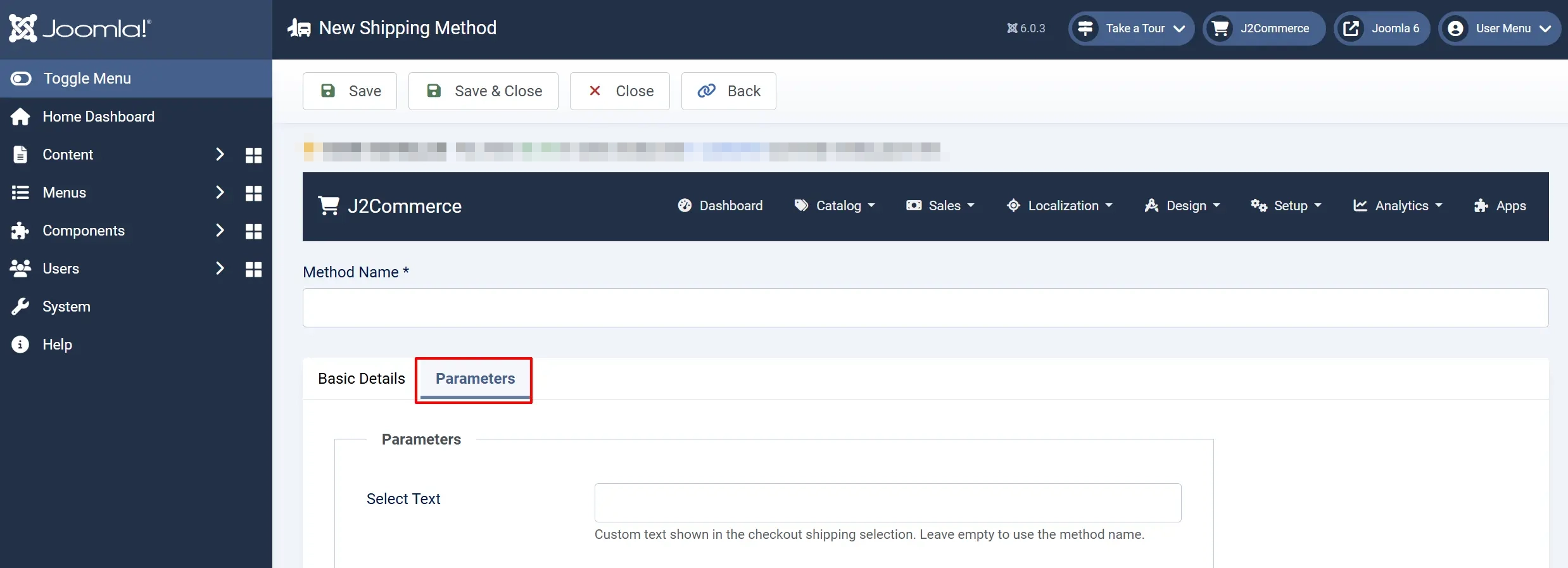
Select Text: Custom label shown at checkout instead of the method name. Leave blank to use the method name.
Click Save to create the method.
Setting Up Shipping Rates
After creating a shipping method, you need to add rates. Rates define how much to charge per geozone.
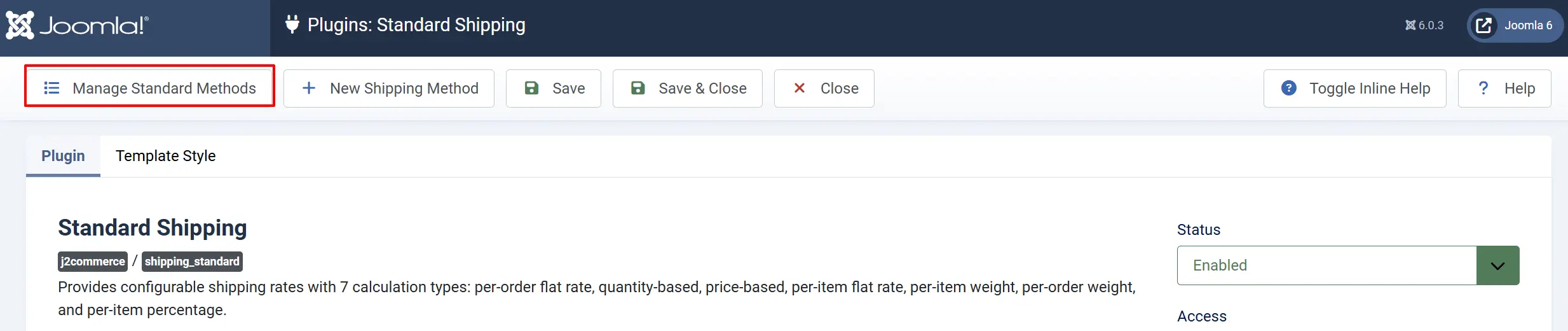
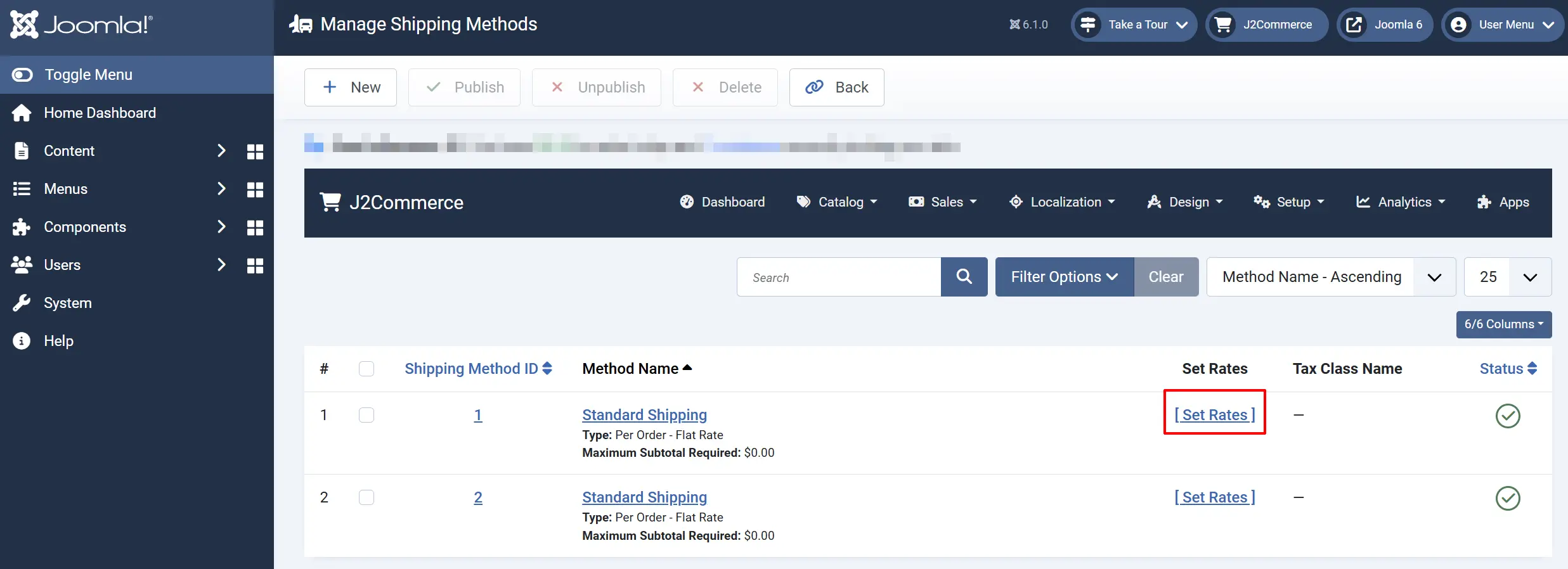
Click on Manage Standard Methods, click the Set Rates button next to your method.
- Fill in the rate fields:
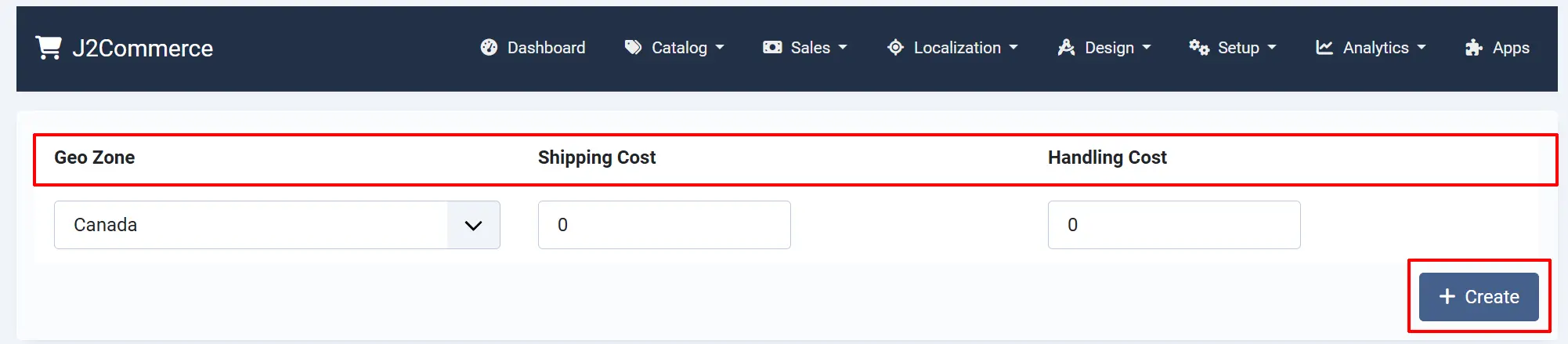
Geozone: The geographic zone this rate applies to (e.g., "United States", "EU Countries"). Geozones are configured under J2Commerce -> Localisation -> Geozones.
Shipping Cost: The shipping fee charged for this rate. For percentage type (6), this is the percentage value (e.g., 5 for 5%).
Handling Cost: An optional additional handling fee added on top of the shipping cost.
-
Click Create to add the rate.
-
Repeat for each geozone and rate bracket you need.
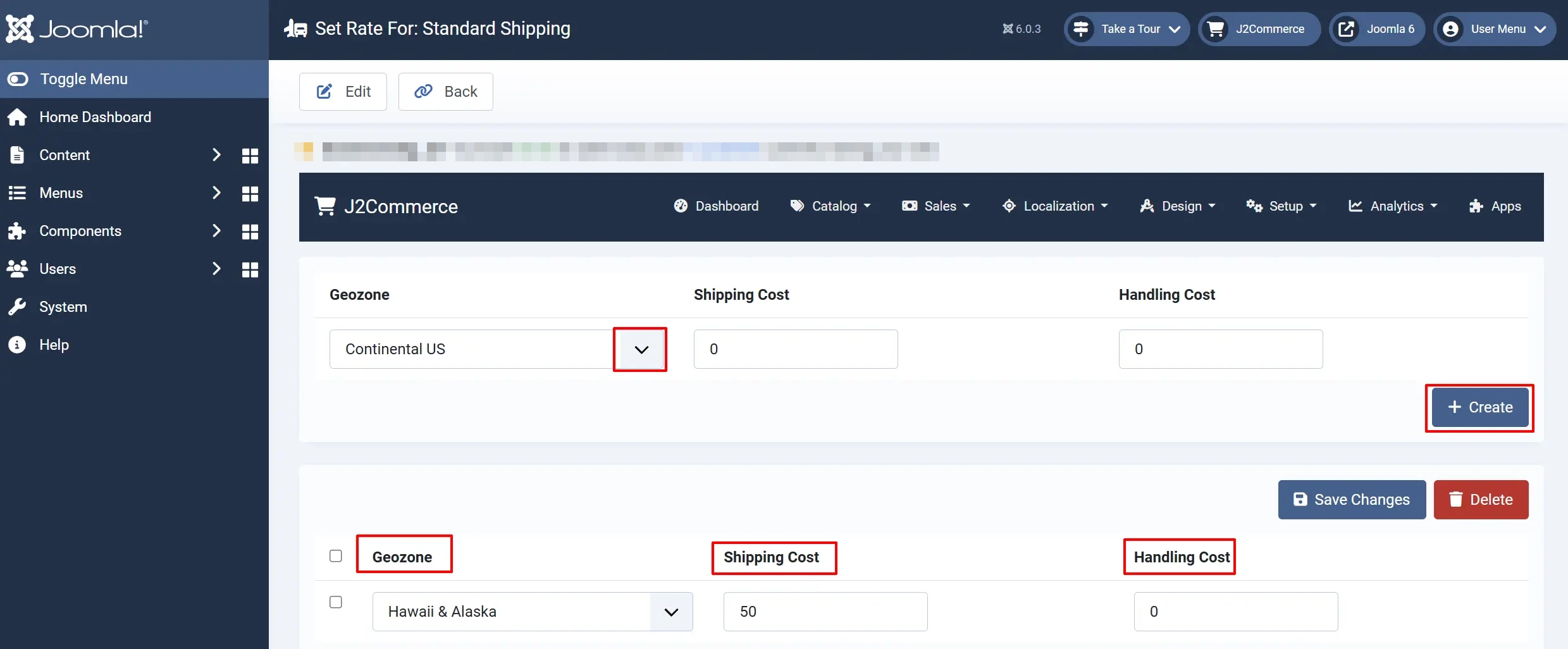
You can add multiple rate rows for the same geozone with different ranges. For example, for weight-based shipping to the US:
| Geozone | Range Start | Range End | Shipping Cost | Handling Cost |
|---|---|---|---|---|
| United States | 0 | 5 | 5.99 | 0 |
| United States | 5.001 | 10 | 9.99 | 0 |
| United States | 10.001 | 50 | 14.99 | 0 |
Editing Existing Rates
All existing rates appear in a table below the "Add New Rate" form. You can:
- Edit any field directly in the table.
- Save Changes to update all modified rates at once.
- Delete selected rates by checking their checkboxes and clicking the Delete button.
How Rates Are Calculated
When a customer reaches checkout, J2Commerce:
- Loads all published shipping methods that match the cart subtotal range (min/max).
- Determines the customer's shipping address and finds matching geozones.
- For each method, looks up rates matching the customer's geozone.
- Calculates the shipping cost based on the method's calculation type.
- Adds handling fees and tax (if a tax profile is assigned).
- Displays all available shipping options to the customer.
Range-Based Types (1, 2, 4, 5, 6)
For these types, J2Commerce matches the relevant value (quantity, price, or weight) against the Range Start and Range End values in your rate table. The first matching range is used.
If no range matches, the shipping method does not appear at checkout for that order.
Flat Rate Types (0, 3)
For flat rate types, the Range Start and Range End fields are not shown. The rate applies to all orders (type 0) or all items (type 3) in the matching geozone.
Example Configurations
Free Shipping Over $50
- Create a method named "Free Shipping" with type Per Order Price Based (type 2).
- Set Subtotal Minimum to
50. - Add a rate with Shipping Cost of
0and Handling Cost of0.
$5.99 Flat Rate Shipping
- Create a method named "Standard Delivery" with type Per Order Flat Rate (type 0).
- Add a rate for your geozone with Shipping Cost of
5.99.
Weight-Based Shipping
-
Create a method named "Ground Shipping" with type Per Order Weight Based (type 5).
-
Add rate rows for your geozone:
- Range 0 to 2 kg: $4.99
- Range 2.001 to 5 kg: $8.99
- Range 5.001 to 20 kg: $14.99
Make sure your products have weights configured under the J2Commerce tab -> Shipping tab in each product's edit screen.
Tips
- Create geozones first. Before setting up shipping methods, configure your geozones under J2Commerce -> Localisation -> Geozones. Each geozone groups countries and zones (states/provinces) together.
- Use subtotal min/max for tiered shipping. Create multiple methods with different subtotal ranges. For example, one method for orders under $50 that charges $5.99, and another for orders over $50 with free shipping.
- Set product weights. Weight-based calculation types (4 and 5) require that your products have a weight value configured. Products without weight are excluded from the calculation.
- Test with different cart contents. After setting up your methods, place test orders with varying quantities, weights, and totals to verify that the correct rates appear at checkout.
- Use handling costs for packaging. The handling fee is added on top of the shipping cost. Use it to cover packaging materials or other per-shipment expenses.
Troubleshooting
Shipping method does not appear at checkout
Cause: The customer's address does not match any geozone with a configured rate, the method is unpublished, or the cart subtotal falls outside the min/max range.
Solution:
- Verify the method is Published under J2Commerce -> Shipping -> Shipping Methods.
- Check that a rate exists for the customer's geozone. Open the method and click Set Rates to review.
- Confirm the cart subtotal is within the method's Subtotal Minimum and Subtotal Maximum values. Set both to
0to remove restrictions. - Go to J2Commerce -> Localisation -> Geozones and verify the customer's country and state/zone are included in at least one geozone.
Wrong shipping amount is calculated
Cause: The rate ranges may overlap or have gaps, or the wrong calculation type is selected.
Solution:
- Open the method and click Set Rates to review all rate rows.
- Check that range brackets do not overlap (e.g., 0-5 and 5-10 should be 0-5 and 5.001-10).
- Verify the Shipping Method Type matches your intended calculation.
- For weight-based types, check that your products have correct weights set.
Shipping tax is not applied
Cause: The shipping method's Tax Class is set to Not Taxable.
Solution:
- Edit the shipping method.
- Select the appropriate tax profile from the Tax Class dropdown.
- Click Save.
Rates panel shows "No matching results"
Cause: No rates have been created yet for this method.
Solution:
Use the Add New Rate form at the top of the Set Rates page to create your first rate. Select a geozone, enter the shipping cost, and click Create.