FedEx Shipping
The FedEx Shipping plugin fetches live carrier rates from FedEx and presents them to customers at checkout. Rates are calculated in real time based on the customer's destination, your origin address, and the weight and dimensions of the items in the cart.
FedEx requires OAuth 2.0 credentials. You need a Client ID, Client Secret, and your FedEx account number from the FedEx Developer Portal.
Prerequisites
- J2Commerce is installed and configured.
- At least one shipping zone is configured in J2Commerce -> Shipping -> Shipping Methods.
- Products must have weight values set. Dimensions are optional but improve box-packing accuracy.
- An active FedEx business account with REST API access.
Requirements
- PHP 8.3+
- Joomla 6.x
- J2Commerce 6.x
Getting Your FedEx API Credentials
FedEx uses OAuth 2.0 for all API access. You need a Client ID and Client Secret from the FedEx Developer Portal and your FedEx account number.
Step 1: Create a FedEx Developer Account
- Go to developer.fedex.com and click Log In (or create an account if you do not have one).
- Once logged in, navigate to My Projects.
Step 2: Create a New Project
- Click Create API Project.
- Enter a Project Name — for example,
J2Commerce Shipping. - Under Select APIs, choose Rating (required for rate quotes). You may also select Ship and Track for future use.
- Select your FedEx account number to associate with the project.
- Accept the terms and click Create.
Step 3: Copy Your Credentials
After saving, FedEx displays your project credentials:
- Client ID — a long alphanumeric string.
- Client Secret — click the reveal icon to view it.
Copy both values. You will paste them into the plugin settings in the next section.
Keep your Client Secret safe. Treat it like a password — do not share it publicly or commit it to version control.
Step 4: Find Your FedEx Account Number
Your FedEx account number appears on your FedEx invoices and in your FedEx profile. To find it:
- Log in to fedex.com.
- Go to your Account Management page.
- Your account number is listed under My Accounts — it is a nine-digit numeric code.
Purchase and Download
You can install this Fedex shipping plugin using the Joomla installer. The following steps help you with a successful installation.
Step 1: Go to our J2Commerce website -> Extensions -> Shipping Plugin
Step 2: Locate the FedEx plugin -> click View Details -> Add to cart -> Checkout.
Step 3: Go to your My Downloads under your profile button at the top right corner and search for the app. Click Available Versions -> View Files -> Download Now
Installation
This plugin is a separate add-on available from the J2Commerce Extensions Store. It is not included with the core J2Commerce 6 component.
Purchase and download the shipping_fedex.zip package from the J2Commerce website.
Go to System -> Install -> Extensions.
Upload the shipping_fedex.zip package file.
 (1)-a6689f12b23b8e992f5c2a169737672f.webp)
Enable the Plugin
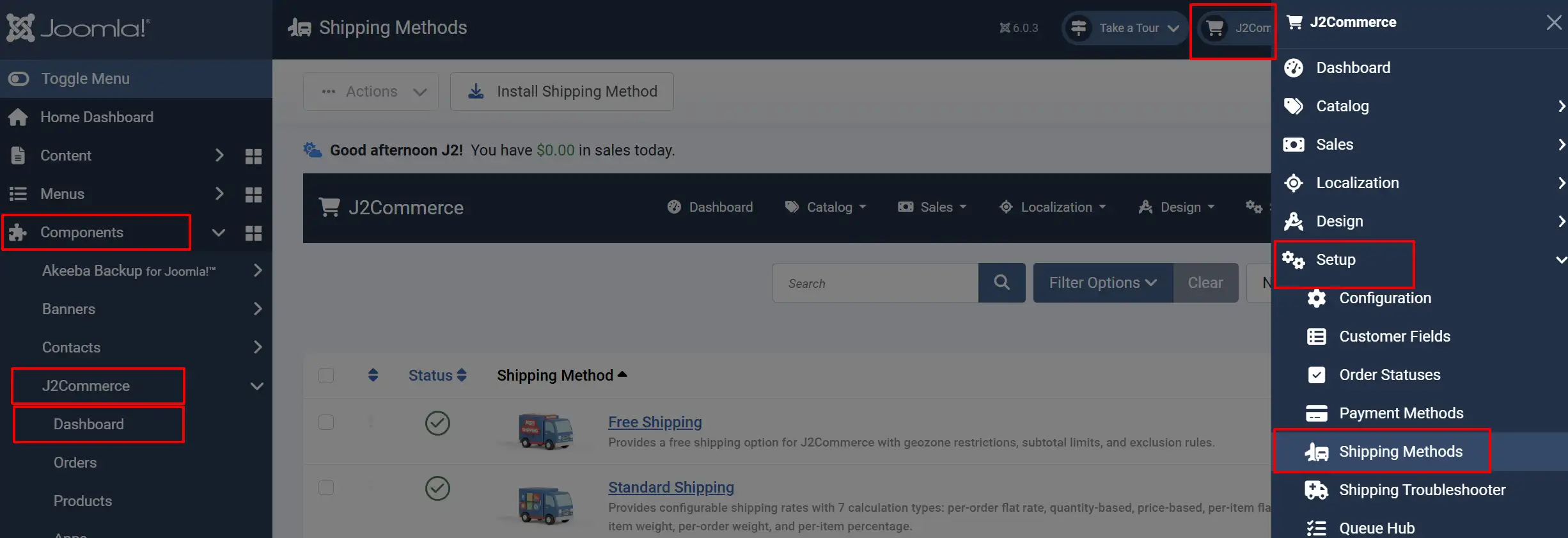
Once you have installed the extension, you will need to enable it. There are two ways you can access the extension.
Option A: Go to the J2Commerce icon at the top right corner -> Setup -> Shipping Methods
Option B: Go to Components on the left sidebar -> J2Commerce -> Dashboard -> Setup -> Shipping Methods
Look for Fedex Shipping, click the X, and it will turn into a green checkmark. It is now enabled and ready for setup.
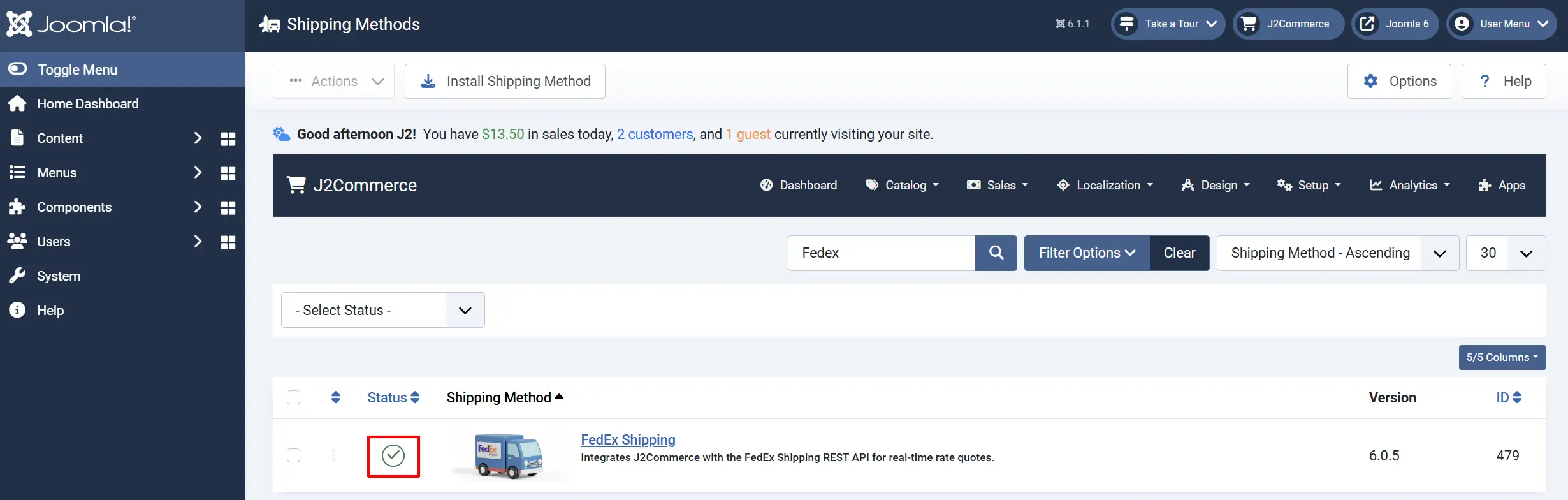
NOTE: Before you can start configuring the plugin, you will need your API Credentials from the Fedex website.
Configuration Reference
Click the Toggle Inline Help button in the plugin header to show field descriptions directly below each setting.

Basic Tab
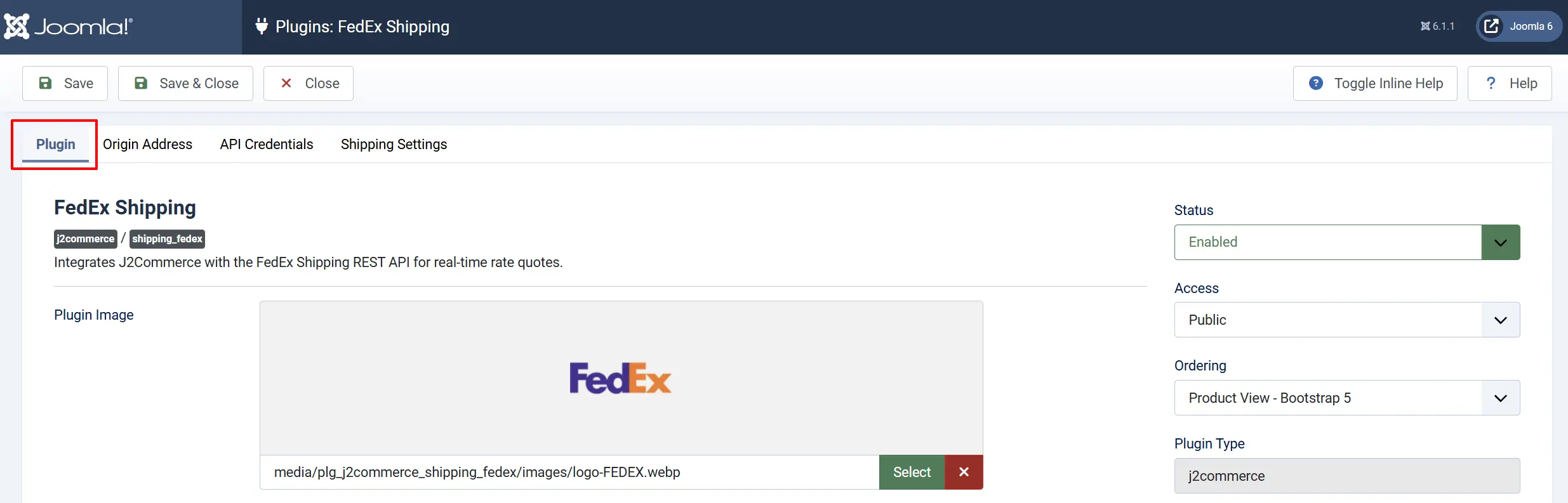
Display Name: The name shown to customers at checkout. Defaults to "FedEx Shipping". Customize if needed, e.g., "FedEx International".
Checkout Image: Logo displayed at checkout next to this shipping option. The FedEx logo is pre-loaded. Upload a custom image if required.
Origin Address Tab
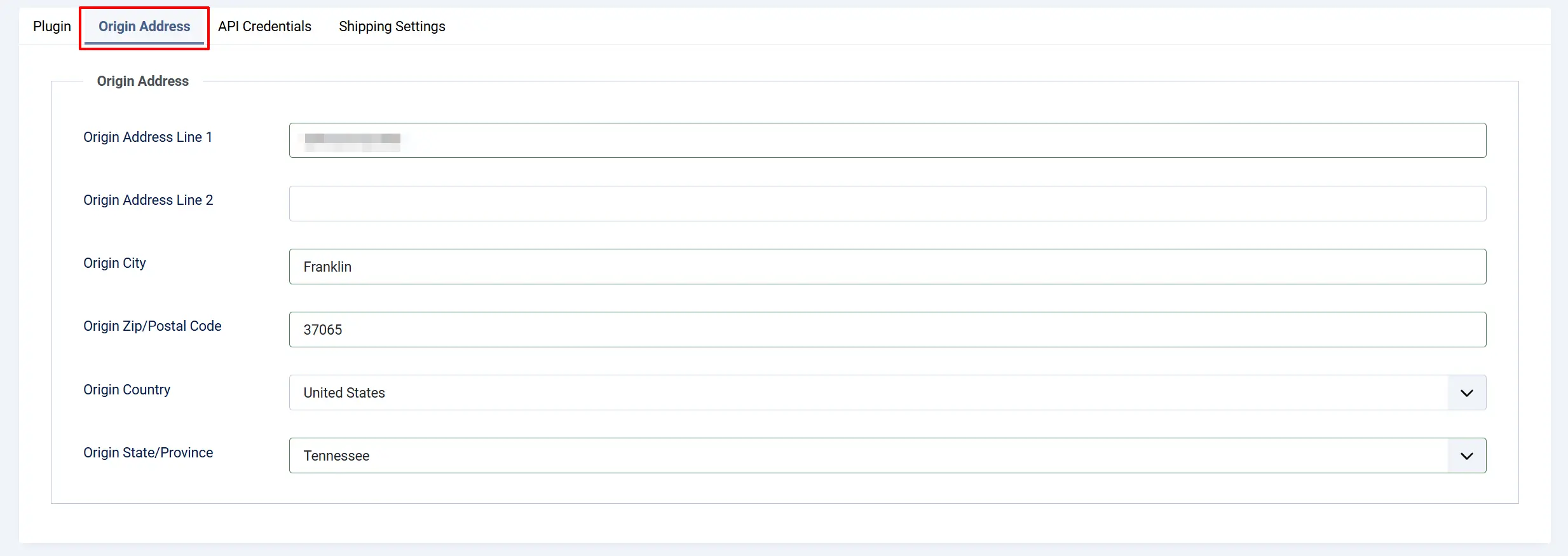
These fields tell FedEx where your shipments originate. The postal code is required; city and state improve rate accuracy.
Address Line 1: Street address of your warehouse or dispatch location.
Address Line 2: Optional second address line.
City: City of your shipping origin.
Zip/Postal Code: ZIP or postal code. Required for rate requests.
Country: Country where shipments originate. Defaults to United States.
State/Province: State or province. Populated from your country selection.
API Credentials Tab
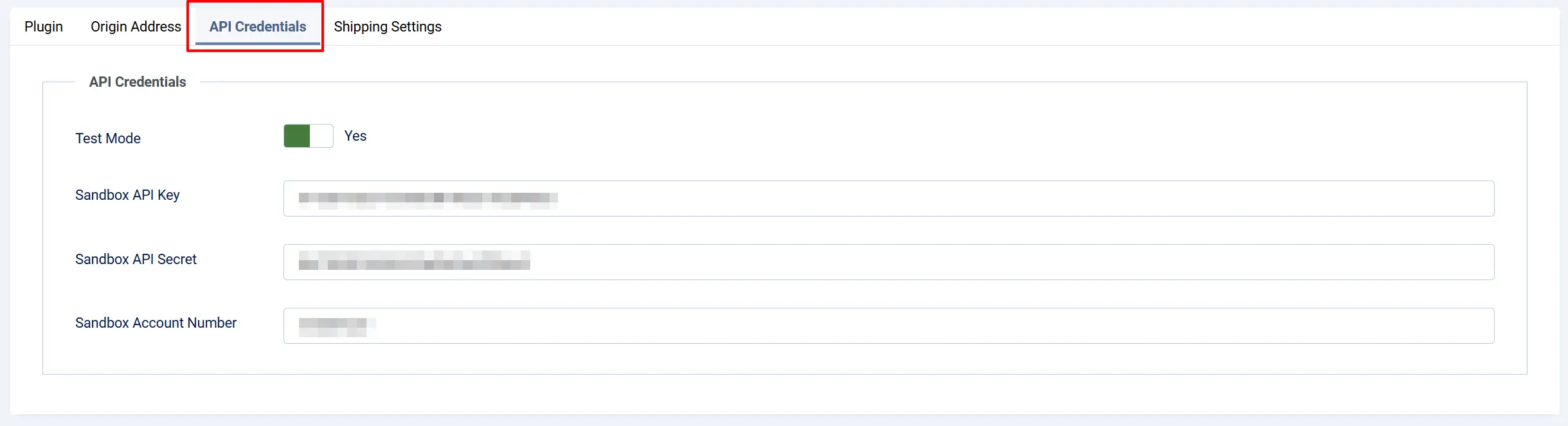
Test Mode: Enable to use the FedEx sandbox (testing) environment. Disable for live orders.
API Key: The Client ID from the FedEx Developer Portal.
API Secret: The Client Secret from the FedEx Developer Portal.
FedEx Account Number: Your nine-digit FedEx account number. Required for rate requests.
Sandbox credentials are separate from production credentials. Create a FedEx sandbox project at developer.fedex.com if you want to test without generating real rate requests.
Settings Tab
Handling
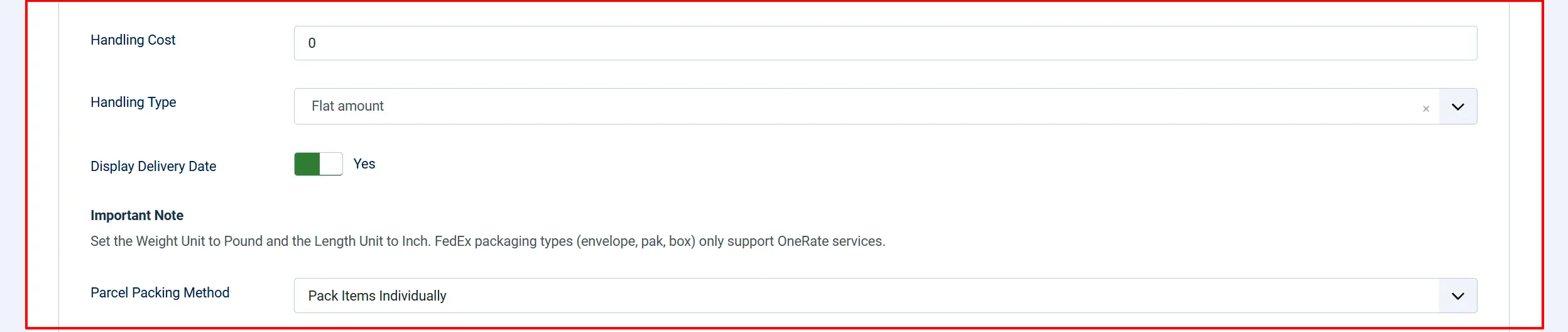
Handling Fee: A fixed amount added to every FedEx rate. Set to 0 for no handling fee.
Handling Type: Apply the handling cost as a flat amount or as a percentage of the FedEx rate.
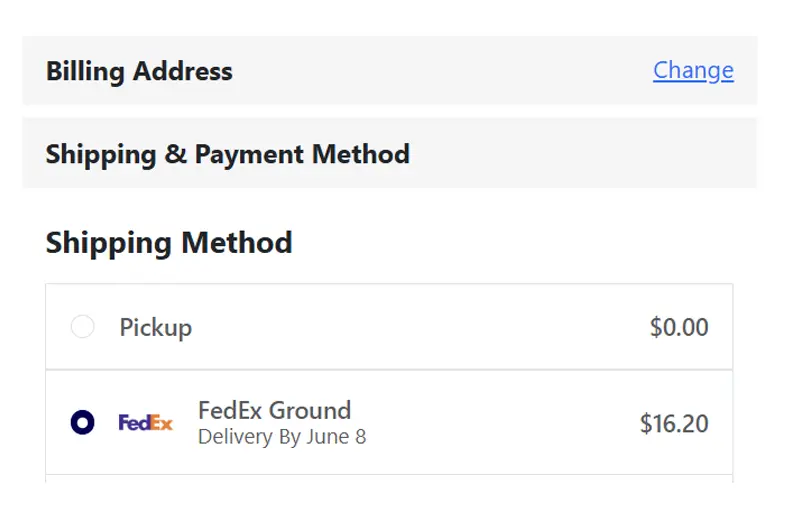
Display Delivery Date: Set to 'Yes' to show the estimated delivery date alongside the service name.
Parcel Packing Method:
-
Pack Items Individually sends one FedEx rate request per cart item.
-
Box Packing uses a 3D bin-packing algorithm to fit items into your configured boxes before requesting rates — gives more accurate rates for multi-item orders.
- Custom Box Sizes
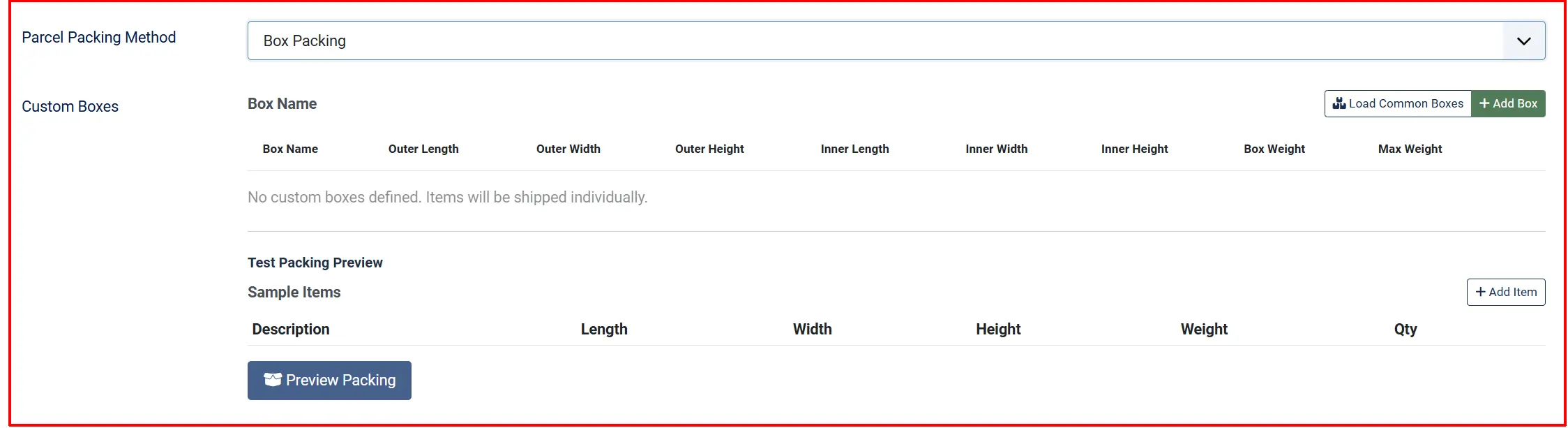
Visible when Box Packing is selected. Define the boxes available in your warehouse. For each box enter a name, length, width, and height. FedEx presets (Envelope, Pak, Box, Tube, 10 kg Box, 25 kg Box) are always available in addition to your custom boxes.
Pickup and Rates
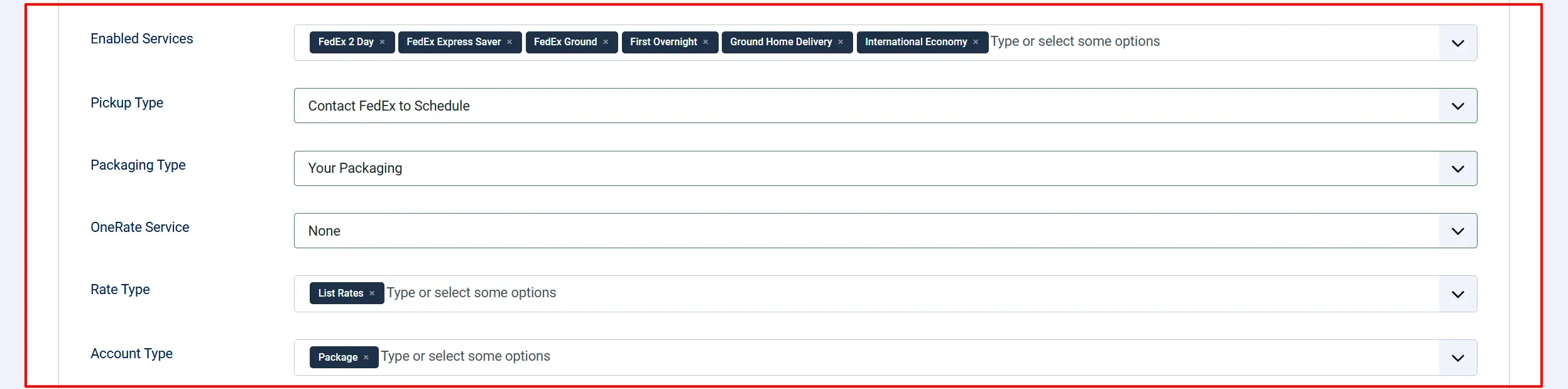
Enabled Services: Select which FedEx services to show at checkout. Only services that FedEx returns as available for the specific shipment will appear. Select multiple services to offer customers a choice.
Pickup Type: How FedEx collects packages from you. Contact FedEx to Schedule is for on-demand pickup. Drop Off at FedEx Location means you bring packages to a FedEx location. Use Scheduled Pickup is for accounts with a regular pickup time.
Packaging Type: The FedEx packaging type code sent in rate requests. Use Your Packaging for your own boxes. Use a FedEx preset only if you exclusively use FedEx-supplied packaging.
One Rate Service: Optionally request a FedEx One Rate quote for a single service. One Rate is a flat-rate pricing program available for select services. Leave as None to use standard pricing.
Rate Type: Select which rate types to request from FedEx: List (public rates), Account (your negotiated account rates), or Incentive (promotional rates). Select multiple to include all applicable types.
Account Type: Whether FedEx rates are shown Per Package or as a Shipment Total.
Units and Tax

Weight Unit: Weight unit your products use. Must match the unit set on your products in J2Commerce.
Length Unit: Dimension unit your products use. Must match the unit set on your products.
Tax Profile: Apply a tax profile to FedEx shipping costs. Select None for no shipping tax.
Restrictions and Display
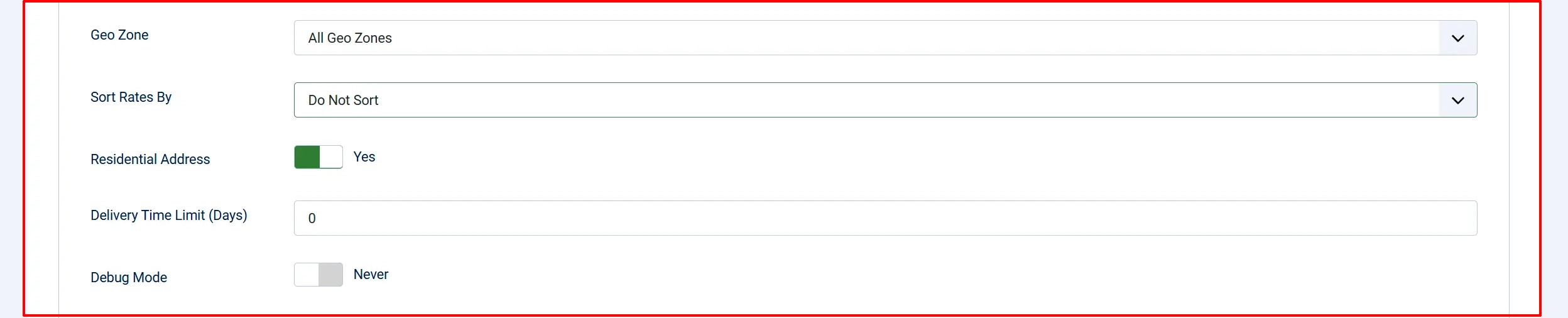
Geozone Restriction: Restrict FedEx to customers in a specific geozone. Leave as All Zones to show FedEx rates to all customers.
Sort Rates By: Order the FedEx options shown at checkout: None (FedEx API order), Price Ascending, or Price Descending.
Residential Address: Set to Yes if your typical delivery destination is a residential address. FedEx applies a residential surcharge.
Delivery Time Limit (max days): Maximum estimated transit days to allow. Rates with longer estimated delivery are hidden. Set to 0 to show all.
Debug Mode: Write API requests and responses to administrator/logs/shipping_fedex.php. Disable in production.
Frontend View
FedEx Services Reference
The following services are supported. Select any combination in the Enabled Services field.
| Service | Description |
|---|---|
| FEDEX_GROUND | Standard ground delivery, domestic. |
| GROUND_HOME_DELIVERY | Ground delivery to residential addresses. |
| FEDEX_EXPRESS_SAVER | Three-business-day express, domestic. |
| FEDEX_2_DAY | Two-business-day express, domestic. |
| PRIORITY_OVERNIGHT | Next-business-day morning delivery. |
| STANDARD_OVERNIGHT | Next-business-day afternoon delivery. |
| FIRST_OVERNIGHT | Next-business-day early morning delivery. |
| FEDEX_1_DAY_FREIGHT | Overnight freight for heavier shipments. |
| FEDEX_2_DAY_FREIGHT | Two-day freight for heavier shipments. |
| FEDEX_3_DAY_FREIGHT | Three-day freight for heavier shipments. |
| FEDEX_FREIGHT | LTL freight, domestic. |
| FEDEX_NATIONAL_FREIGHT | LTL freight across the US. |
| INTERNATIONAL_ECONOMY | Economy international delivery. |
| INTERNATIONAL_PRIORITY | Express international delivery. |
| INTERNATIONAL_FIRST | First-flight-out international delivery. |
| INTERNATIONAL_ECONOMY_FREIGHT | Economy international freight. |
| INTERNATIONAL_PRIORITY_FREIGHT | Priority international freight. |
| INTERNATIONAL_GROUND | Ground-based cross-border delivery (US/CA/MX). |
| EUROPE_FIRST_INTERNATIONAL_PRIORITY | Early morning delivery within Europe. |
| SMART_POST | Economy parcel delivery via USPS final mile (US only). |
Not all services are available for every origin-destination combination. FedEx returns only eligible services for each shipment, so customers will only ever see rates for services FedEx can actually fulfil.
Tips
- Test in sandbox first. Enable Test Mode and Debug Mode, then place a test order to confirm rates appear before switching to production credentials.
- Set weight on all products. Products with no weight value will use the FedEx minimum, which may produce inaccurate rates. Set real weights on every product.
- Use Box Packing for multi-item stores. Pack Individually can overestimate costs when several small items would fit in one box. Box Packing gives FedEx the actual package dimensions.
- Account rates require your account number. If you have a FedEx account with negotiated discounts, enter your account number and select Account in the Rate Type field.
- Restrict by geozone. If you only ship to specific regions, create a geozone in J2Commerce -> Shipping -> Geo Zones and select it in the Geozone Restriction field. This prevents the plugin from requesting rates for unsupported destinations.
- Residential vs commercial. If most of your customers are consumers at home addresses, set Residential Delivery to Yes so the rate FedEx returns matches what you will actually be charged. Commercial addresses should use No.
Troubleshooting
No FedEx rates appear at checkout
Cause: Several issues can prevent rates from showing.
Solution:
- Enable Debug Mode and place a test order. Check
administrator/logs/shipping_fedex.phpfor error messages. - Confirm Test Mode matches the credentials you entered. Sandbox credentials do not work against the production endpoint and vice versa.
- Verify your Client ID and API Secret are correct — copy them directly from the FedEx Developer Portal.
- Make sure at least one Enabled Service is selected. If the field is empty, no rates will appear even if FedEx returns them.
- Check that your Zip/Postal Code and Country are filled in on the Origin Address tab — both are required.
- Confirm the products in the test cart have a weight set. FedEx rejects rate requests for zero-weight packages.
FedEx returns a 401 authentication error
Cause: The Client ID or Client Secret is wrong, or the FedEx project does not include the Rating API.
Solution:
- Log in to developer.fedex.com and open your project.
- Confirm the project includes the Rating API. If it does not, edit the project and add it.
- Re-copy the Client ID and Client Secret — if you regenerated the secret, the old one is invalidated.
- Paste the updated credentials into the plugin and save.
Account rates are not showing
Cause: Account rates require a valid FedEx account number and the Account rate type selected.
Solution:
- Confirm your FedEx Account Number is entered correctly.
- Check that Account is selected in the Rate Type field.
- Contact FedEx to verify that your account has negotiated rates activated.
Box Packing produces unexpected package counts
Cause: Some items may be larger than all configured boxes and fall back to individual packing.
Solution:
- Enable Debug Mode — the log reports when items cannot be packed and which fallback was used.
- Add larger custom box sizes in the Custom Box Sizes field to accommodate oversized items.
- For items that must never be combined, consider configuring them with their own shipping handling in J2Commerce.
Transit times are not showing
Cause: The Show Transit Time setting is disabled, or FedEx did not return transit data for those service codes.
Solution:
- Enable Show Transit Time on the Settings tab.
- FedEx does not return transit data for all services or all routes. If times still do not appear after enabling this, the service code for that route does not include transit information in the FedEx API response.