Categories Module
The Categories module gives your store a visual category browser that fits anywhere you have a Joomla module position — a sidebar, a homepage banner row, a full-width strip above the product list. Drop it in, pick a parent category, and it pulls in the direct children automatically as a card grid or a Swiper carousel.
What makes it practical for most stores is the Category Builder — a drag-and-drop admin tool that lets you reorder category cards and assign custom images to each one, all without editing any template files.
Prerequisites
- J2Commerce 6 is installed and active
- At least one Joomla category containing J2Commerce products
- A J2Commerce menu item published on your site (required for the Dynamic mode)
Purchase and Download
Step 1: Go to the J2Commerce website
Step 2: Locate the Categories module -> click View Details -> Add to cart -> Checkout.
Step 3: Go to My Downloads under your profile menu at the top right corner and search for the app. Click Available Versions -> View Files -> Download.
Install the App
You can install this Categories module using the Joomla installer. The following steps help you with a successful installation.
In the Joomla admin, go to System -> Install -> Extensions
Upload the mod_j2commerce_categories.zipfile or use the Install from URL option.
 (1)-a6689f12b23b8e992f5c2a169737672f.webp)
Adding the Module to a Page
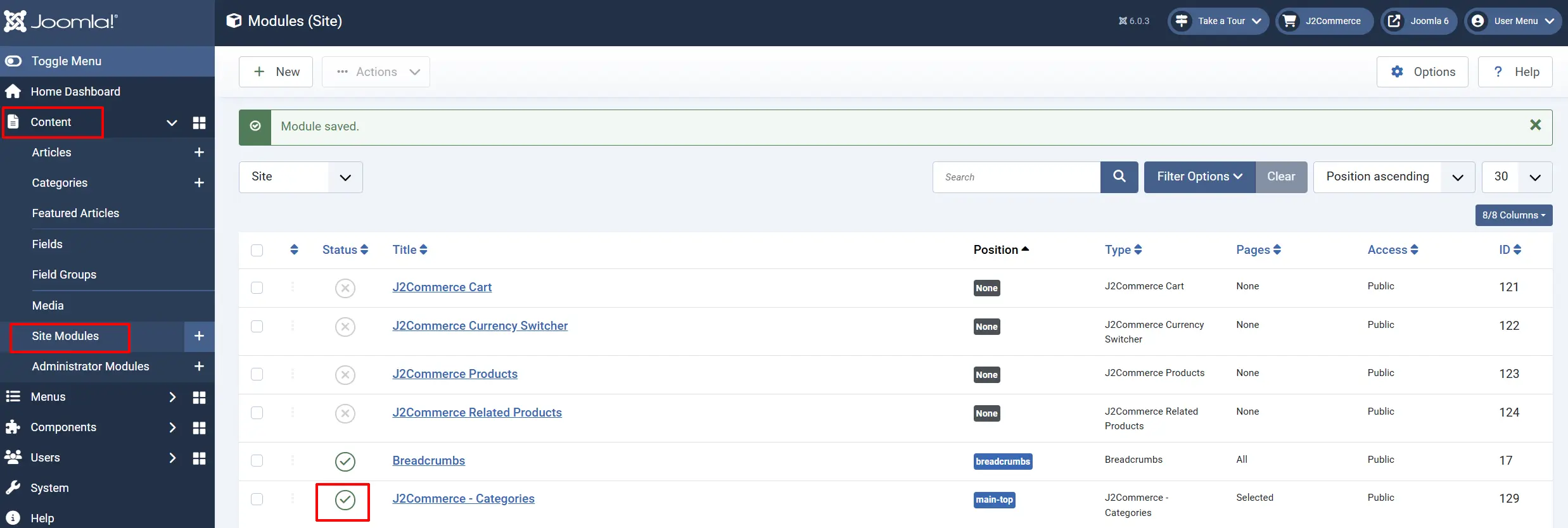
Go to Content -> Site Modules
The J2Commerce Categories module should already exist and needs to be enabled.
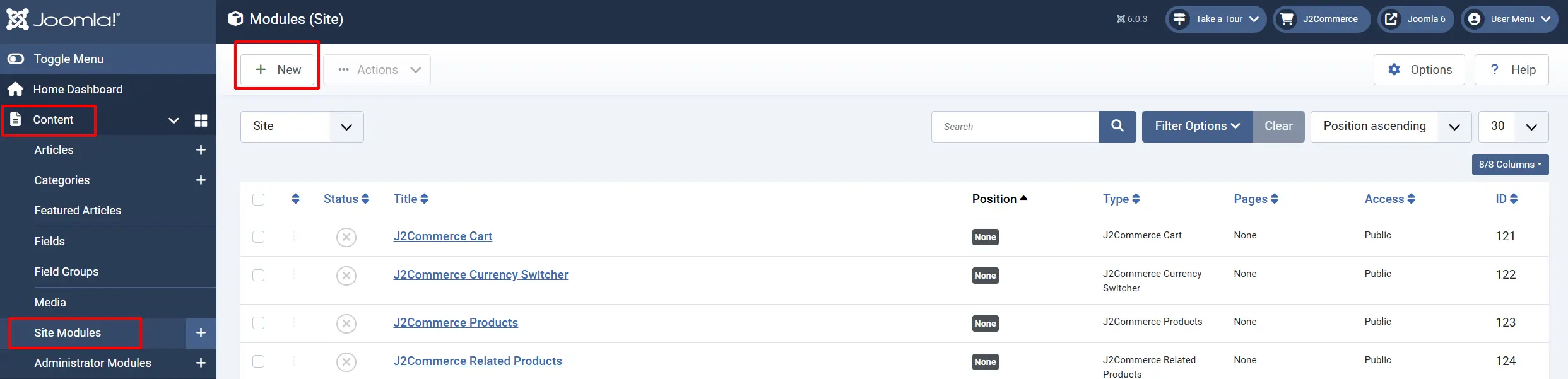
If you don't see it, then select 'New' and follow the following steps.
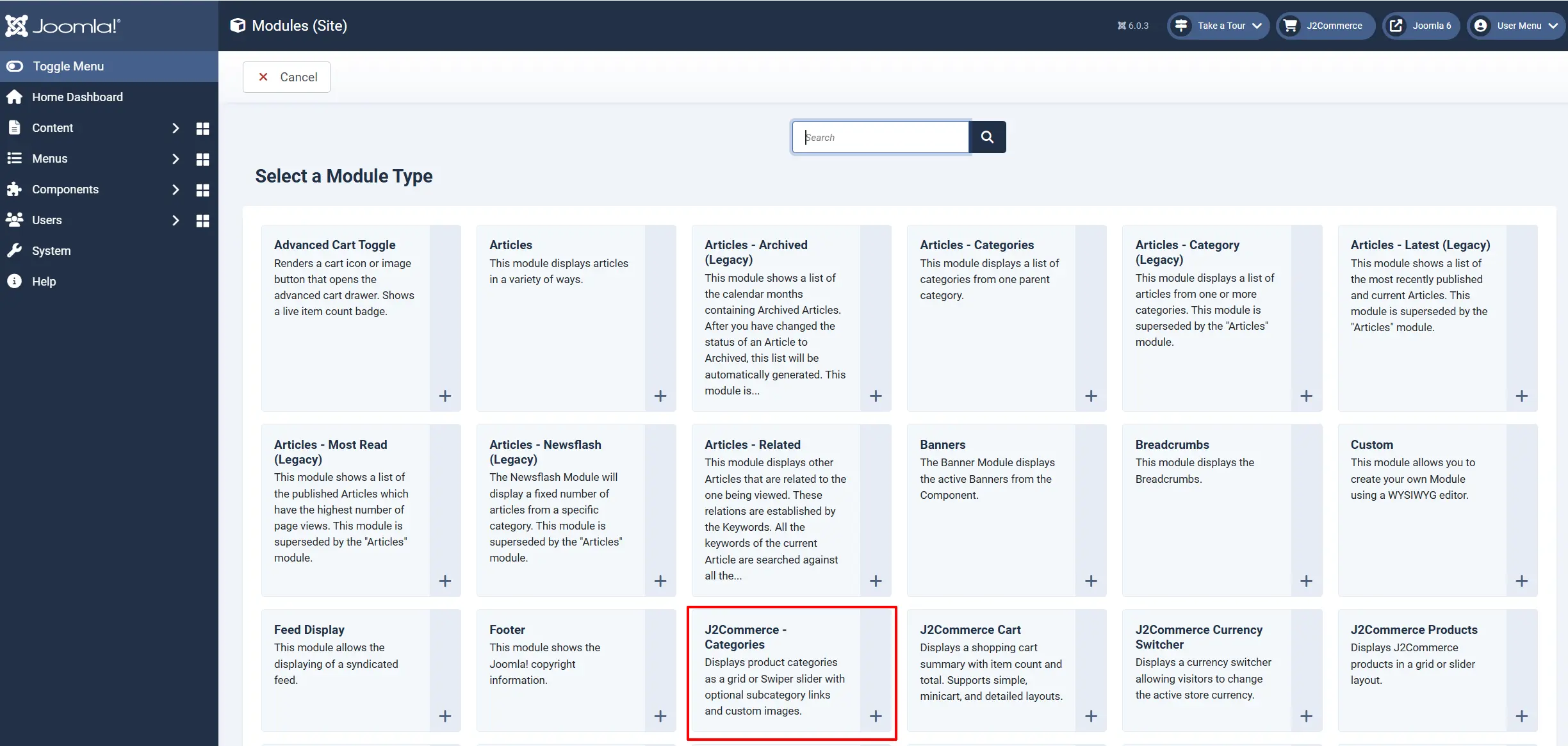
Select J2Commerce - Categories from the module type list.
Configuration
Basic Settings tab
These settings control which categories are shown and how the module determines its source.
Title: Give it a catchy title. The title will show up above the category items
Position: Set the position of where you want the module to be displayed. In this example we have set it as 'Main-bottom'
Mode: How the module selects which categories to show.
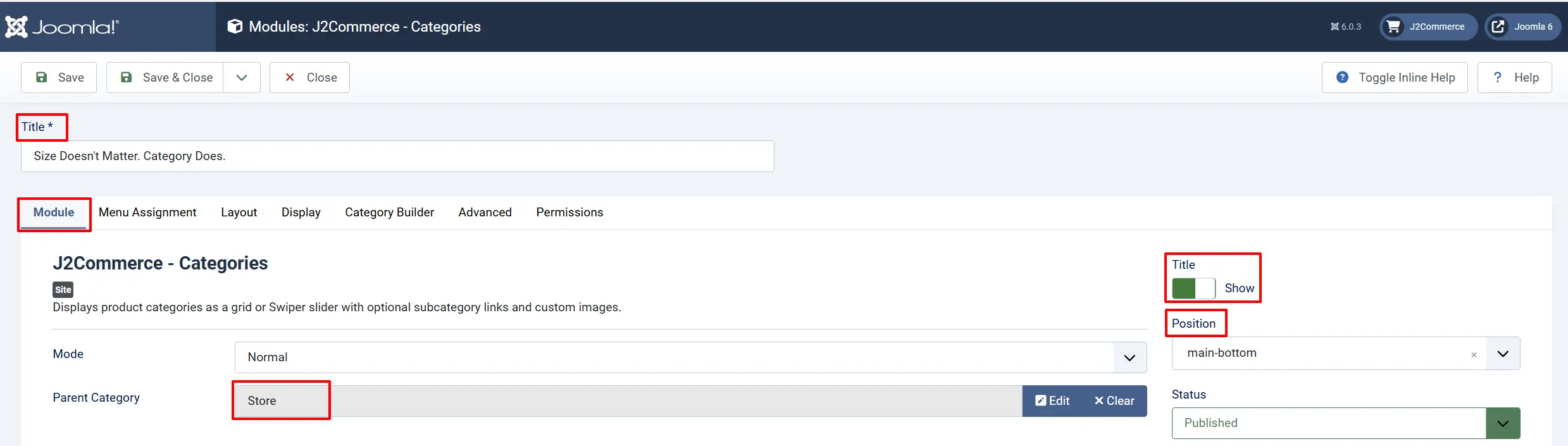
- Normal Mode: You pick a parent category once in the module settings. Every visitor sees the same child categories no matter what page they are on. Good for a homepage banner or a sidebar promoting a fixed set of categories.
Parent Category: (Normal mode only) The parent category whose direct children are displayed. Click the field to open the category picker.
- Dynamic Mode: The module reads the current URL and figures out the context on its own. On a category page, it shows that category's children/sub-categories. On a product page, it can optionally show sibling categories — other children of the same parent. The moment a visitor leaves J2Commerce pages the module goes quiet, so you can assign it globally and it will not show up on ordinary articles or blog posts. If there are no children/sub-categories to display then nothing will show

Show on Product Page: (Dynamic mode only) When enabled, the module also shows sibling categories when a visitor is viewing a product detail page.
Menu Assignment tab
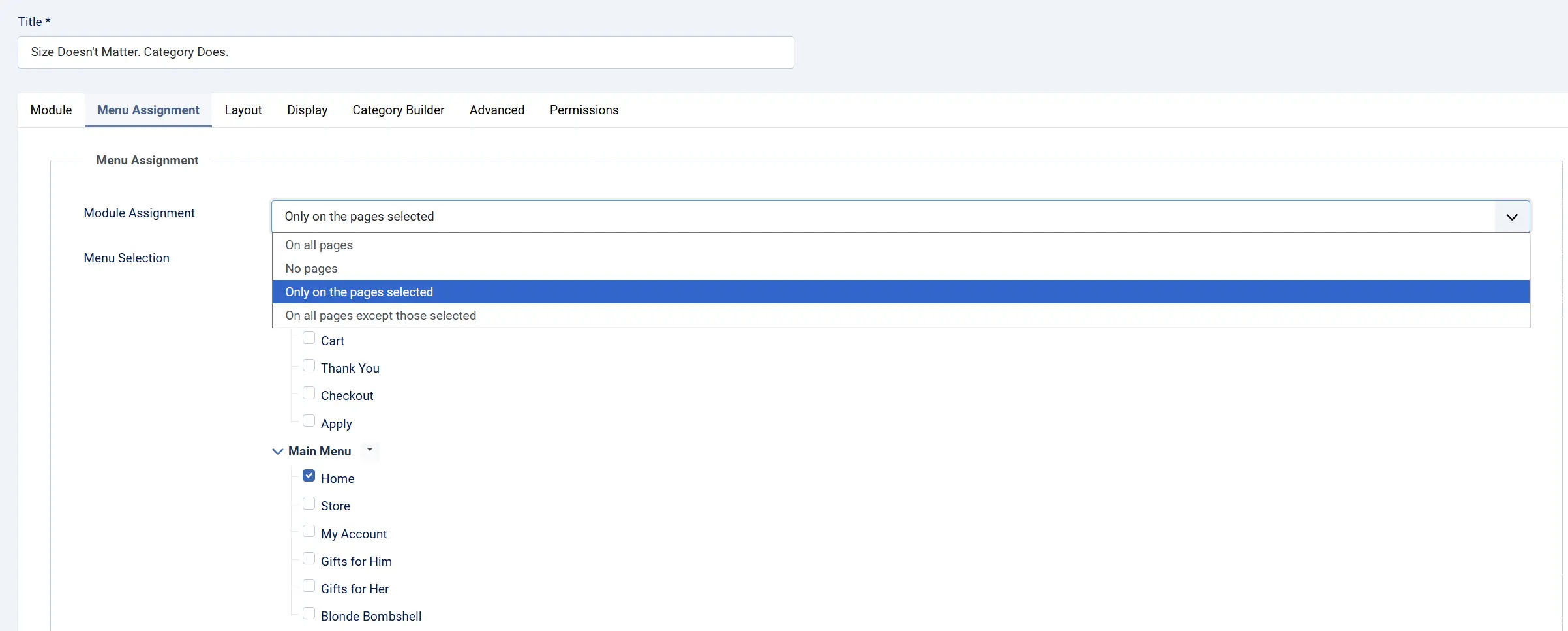
Module Assignment: Set where you want the category module to be displayed.
-
On all pages
-
No Pages
-
Only on the pages selected
-
On all pages except those selected
Menu Selection: Select which pages go with the assignment you chose
Layout Settings tab
These settings control the visual presentation of the category list.
Layout Type: Grid displays categories as a responsive card layout. Slider displays them in a horizontal Swiper carousel.
Grid Layout
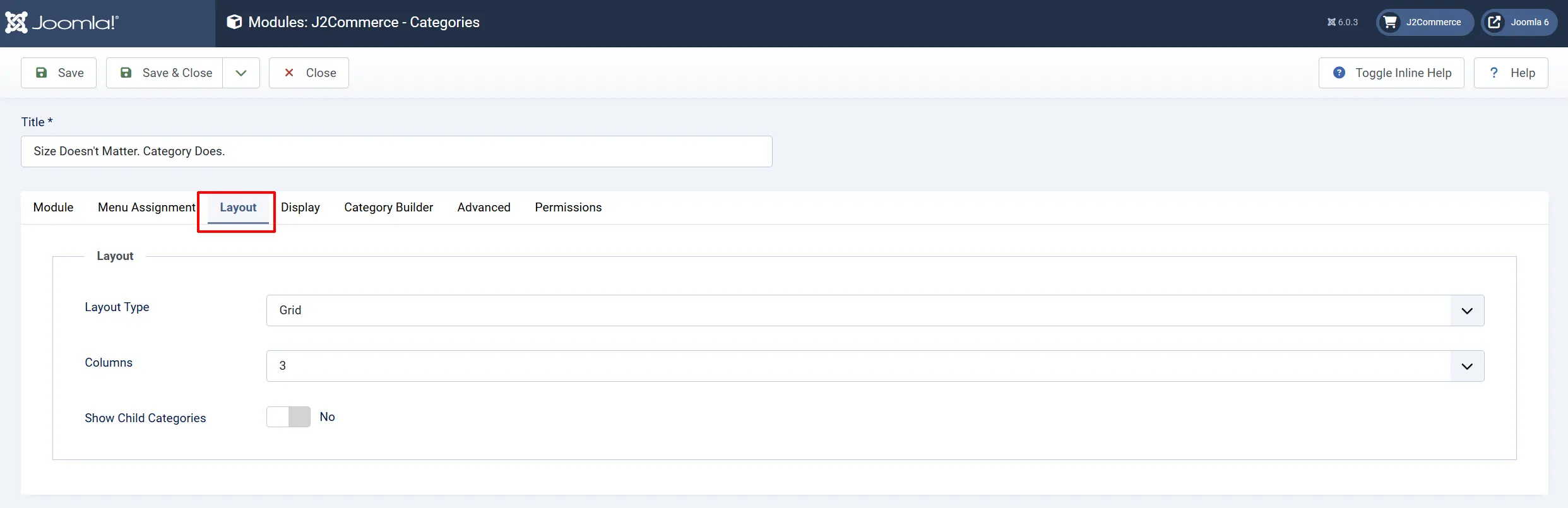
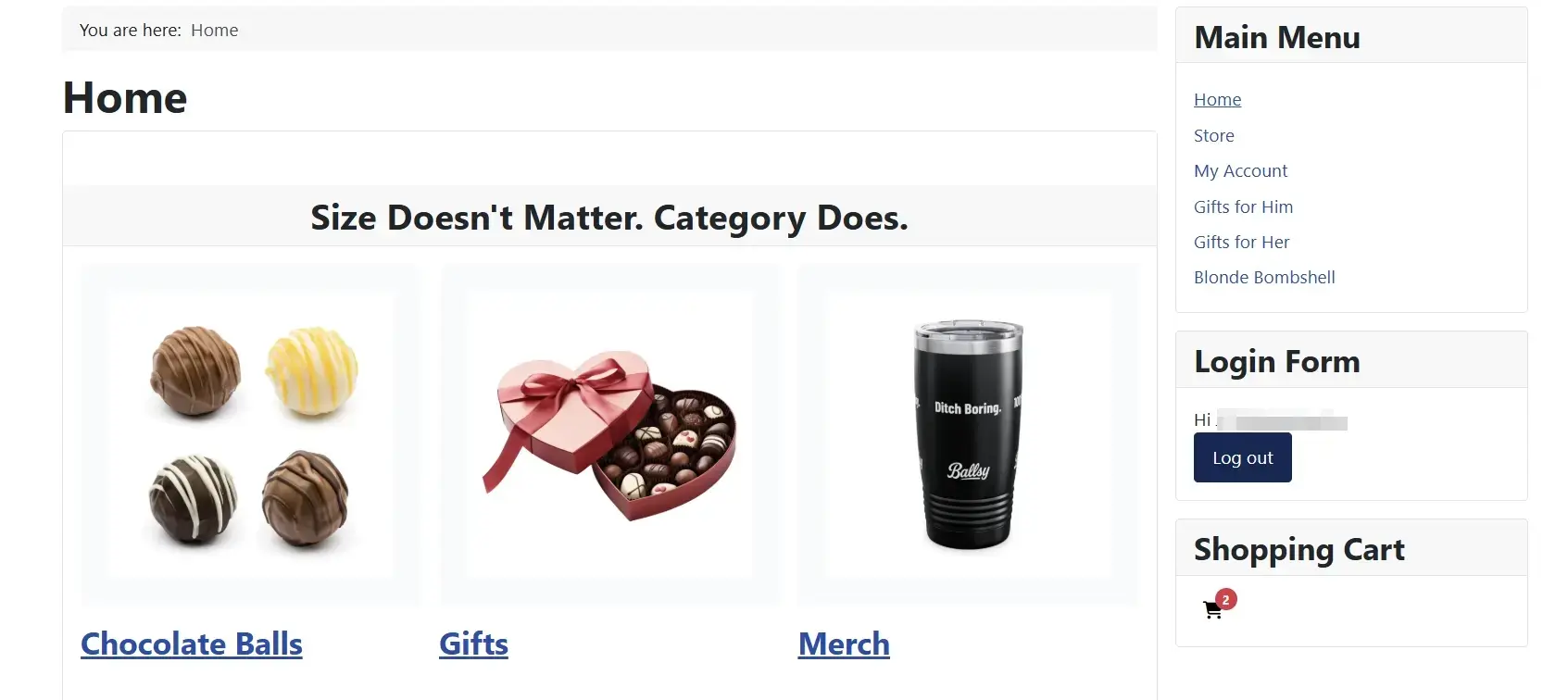
Columns: (Grid only) Number of columns on large screens. On small and medium screens the layout adjusts automatically.
Show Child Categories: (Grid only) Display subcategories nested within each parent category card.
Subcategory Depth: (Grid, Show Child Categories = 'Yes') How many levels of subcategories to load and display.
Grid Column Responsiveness
The grid layout automatically adjusts for smaller screens:
| Setting | Mobile (xs) | Tablet (sm/md) | Desktop (lg) |
|---|---|---|---|
| 2 columns | 1 column | 2 columns | 2 columns |
| 3 columns | 1 column | 2 columns | 3 columns |
| 4 columns | 1 column | 3 columns | 4 columns |
| 6 columns | 1 column | 3 columns | 6 columns |
Frontend View (3 Columns)
Slider Layout
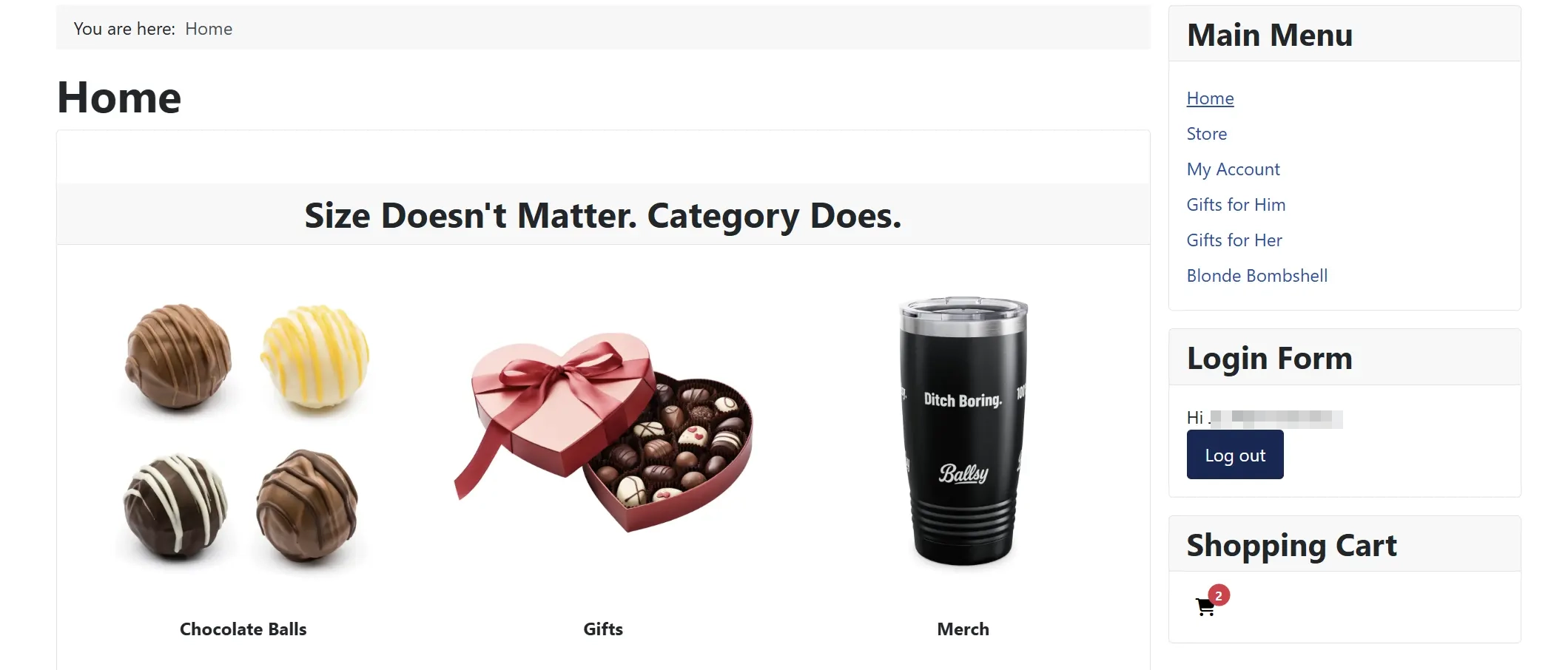
Slider displays them as a horizontal Swiper carousel.
Slides Per View: (Slider only) Number of category slides visible at once on large screens. The slider responds automatically on smaller screens. Number of category slides visible at once on large screens.
Space Between Slides: (Slider only) Gap in pixels between slides.
Autoplay: (Slider only) Automatically advance slides without user interaction.
Autoplay Delay: (Slider, Autoplay = 'Yes') Seconds to wait before advancing to the next slide.
Loop: (Slider only) When the slider reaches the last slide, wrap around to the first. Loop only activates when there are more categories than slides visible.
Navigation Arrows: (Slider only) Show previous/next arrow buttons on the slider.
Pagination Dots: (Slider only) Show clickable dot indicators below the slider.
Slider Breakpoints
The slider also responds to screen size:
| Screen | Slides Visible |
|---|---|
| Mobile | 1 slide |
| Tablet (768px) | Approximately half of Slides Per View |
| Desktop (992px+) | Configured Slides Per View |
Frontend View
Display Settings tab
These settings control what information appears on each category card.
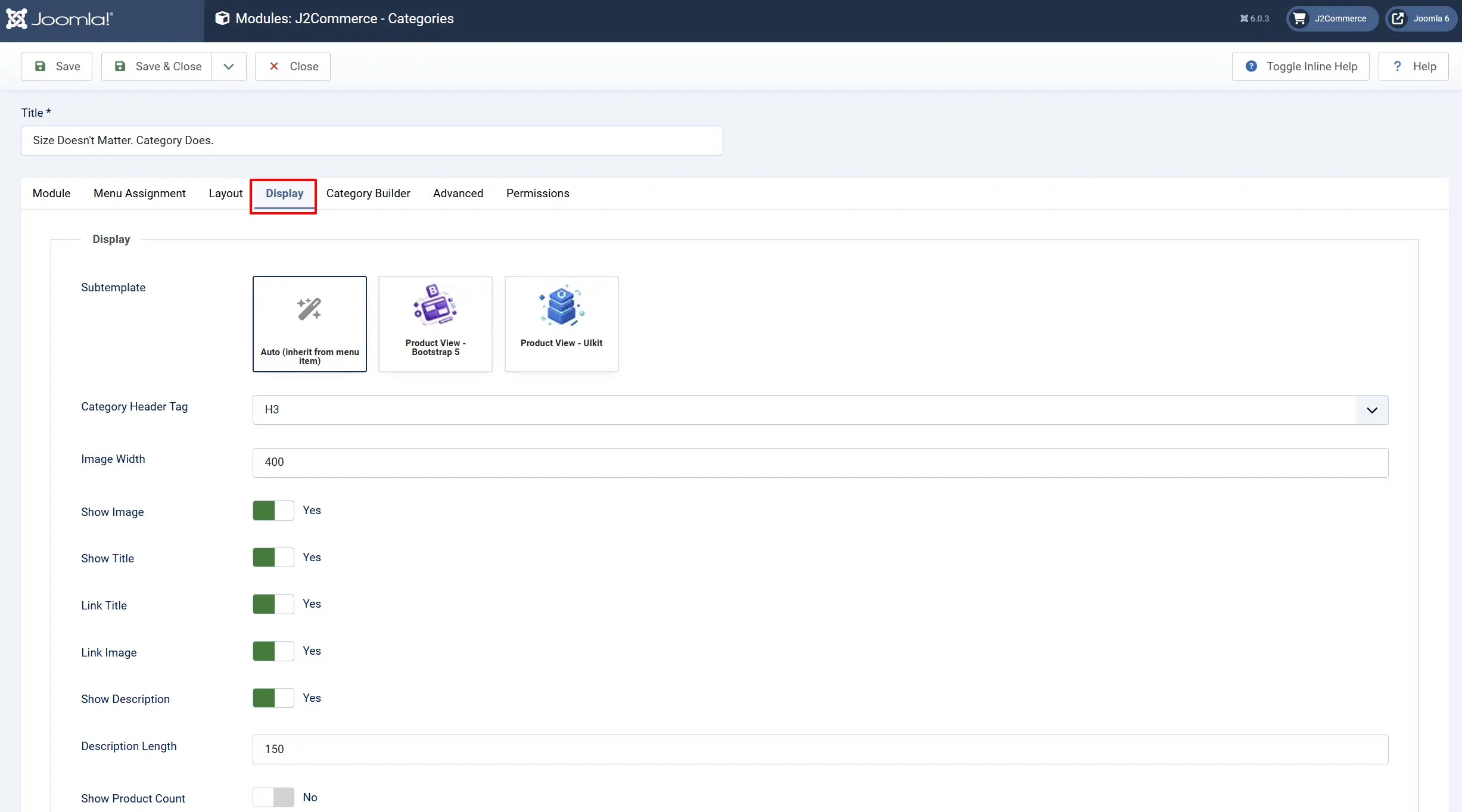
Subtemplate: The visual theme used for category cards. Auto inherits the subtemplate from the active menu item (recommended). You can override to force a specific theme.
- When Subtemplate is set to Auto, the module reads the active menu item's subtemplate parameter and matches it. This means a Bootstrap 5 template site automatically uses the Bootstrap 5 category cards, and a UIkit site uses UIkit cards.
| Subtemplate | Layout Classes Used | Slider Library |
|---|---|---|
| Bootstrap 5 | Bootstrap 5 grid, card, badge classes | Swiper.js |
| UIkit | UIkit grid, card, badge, slider classes | UIkit slider |
Category Header Tag: HTML heading element used for the category name. Subcategory names automatically use the next level down (e.g., H3 → H4 → H5). Setting this to DIV makes all levels use a <div> instead.
Image Width: Width in pixels used in the image width attribute. This controls intrinsic size for layout purposes, not CSS scaling.
Show Image: Display the category image on each card.
Show Title: Display the category name on each card.
Link Title: Make the category title a clickable link to the category page.
Link Image: Make the category image a clickable link to the category page.
Show Description: Display the category description text on each card.
Description Length: (Show Description = 'Yes') Maximum number of characters to display. Text longer than this is truncated with an ellipsis. Set to 0 to show the full description.
Show Product Count: Display a badge showing how many active J2Commerce products are in each category.
Show Child Category Links: (Grid, Show Child Categories = Yes) Show child category names as clickable links below each parent card.
Max Child Links: (Grid, Show Child Categories = Yes, Show Child Category Links = Yes) Maximum number of child links to show per parent.
Category Builder tab
The Category Builder is a powerful tool available in Normal mode that lets you customise the image and display order for each category card without editing code. If Dynamic Mode is set, then Category Builder is disabled.
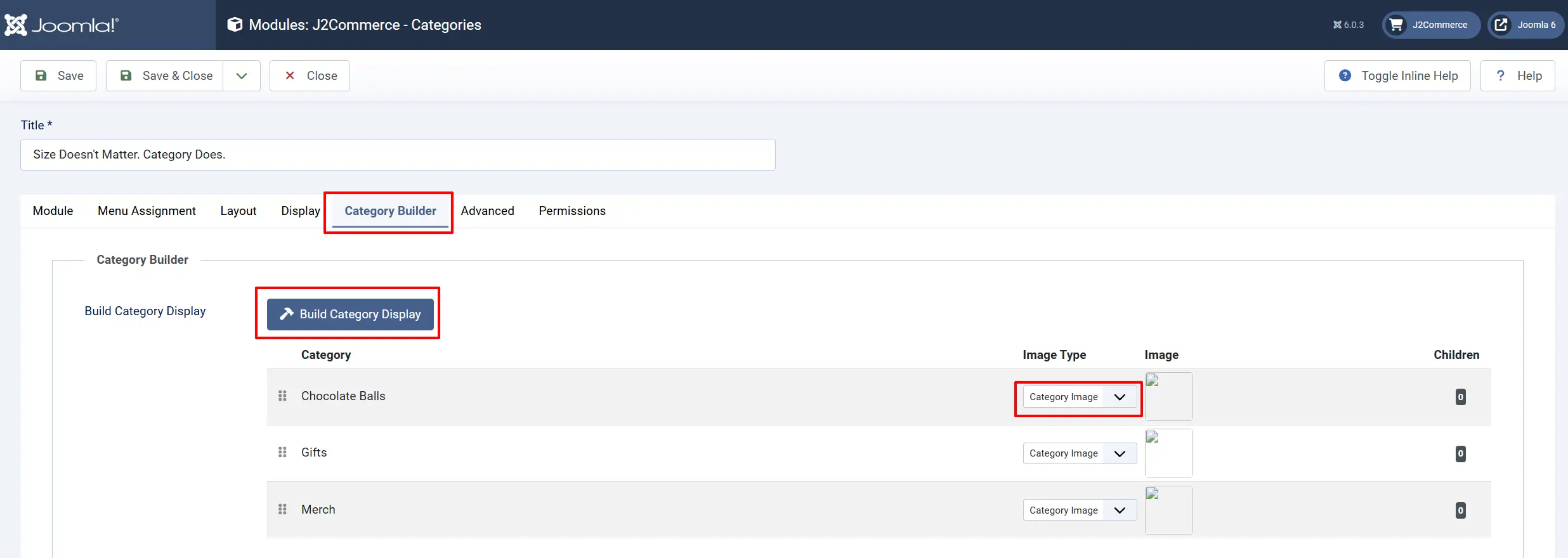
How to use the Category Builder:
-
Set Mode to Normal and select a Parent Category in the Basic fieldset.
-
Click Save to preserve your parent category selection.
-
Switch to the Category Builder tab.
-
Click the Build Category Display button. The module fetches the child categories of your selected parent and displays them in a table.
-
For each category row you can:
-
Drag and drop rows using the grip handle on the left to reorder how categories appear on the frontend.
-
Choose an Image Type for each category:
- No Image — No image is displayed for this category.
- Category Image — Uses the image set on the category in Joomla's category manager. This option is disabled if the category has no image.
- Custom Image — Opens Joomla's media picker so you can choose any image from your site's media library.
-
Preview — A thumbnail preview appears after selecting an image.
-
-
Click Save or Save & Close on the module form to save your builder settings.
The builder saves its data as JSON in the module parameters. When you return to the module later, clicking Build Category Display again restores your saved settings so you can continue adjusting.
Tip: If you add new child categories in the Joomla category manager after setting up the builder, click Build Category Display again to load the new categories into the table. Your existing settings for other categories are preserved.
Advanced Settings tab
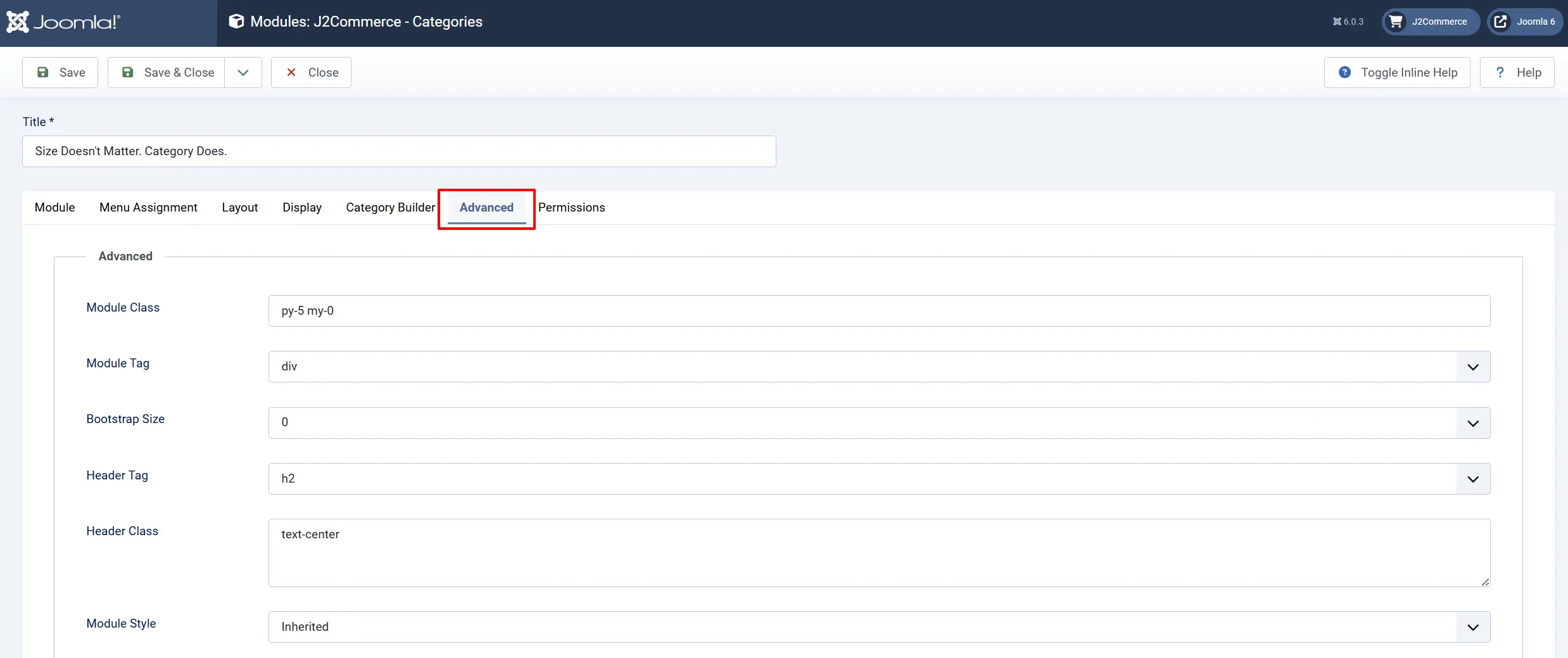
Module Class Suffix: An optional CSS class name appended to the module's wrapping element. Use this to apply custom styles to a specific module instance.
Template Overrides
You can customise the module's HTML output using Joomla's standard template override system.
- Go to System -> Site Templates -> [Your Template] -> Create Overrides.
- Find mod_j2commerce_categories in the modules list and click it to create the override files.
- Joomla copies the template files to your template's
html/mod_j2commerce_categories/directory.
The layout files are:
| File | Purpose |
|---|---|
default.php | Entry point — detects subtemplate and routes to the correct layout file |
bootstrap5/grid.php | Bootstrap 5 grid card layout |
bootstrap5/slider.php | Bootstrap 5 Swiper slider layout |
uikit/grid.php | UIkit grid card layout |
uikit/slider.php | UIkit slider layout |
Edit only the file matching your site's theme and layout choice.
Use Cases
Homepage Category Showcase (Normal Mode, Grid)
Put the module in a full-width homepage position and point it at your top-level store category. Use the Category Builder to give each child category a bold banner image and drag them into the order that reflects your marketing priorities — best-sellers first, seasonal categories up front.
Recommended settings:
- Mode: Normal
- Parent Category: Your top-level store category
- Layout Type: Grid
- Columns: 4
- Show Image: Yes
- Show Title: Yes
- Show Description: Yes, Description Length: 100
- Show Product Count: Yes
Sidebar Category Browser (Dynamic Mode, Grid)
Assign the module to a sidebar position, switch to Dynamic mode, and leave the rest to the module. When a visitor lands on a category page, the sidebar automatically shows that category's children. They drill into a subcategory and the sidebar updates again. No manual wiring needed — it just follows the browsing session.
Recommended settings:
- Mode: Dynamic
- Show on Product Page: Yes
- Layout Type: Grid
- Columns: 2
- Show Child Categories: No
- Show Image: No
- Show Title: Yes
Category Carousel (Normal Mode, Slider)
Switch to the Slider layout and you get a smooth, touch-friendly Swiper carousel instead of a grid. This is a good choice when you have many categories to show but limited vertical space — a fashion store with a dozen departments, for example, or a home-goods store showing product types along a wide banner.
Recommended settings:
- Mode: Normal
- Parent Category: Your main categories parent
- Layout Type: Slider
- Slides Per View: 5
- Space Between Slides: 20
- Autoplay: Yes, Autoplay Delay: 4
- Loop: Yes
- Navigation Arrows: Yes
- Show Image: Yes
- Show Title: Yes
Troubleshooting
Module Shows Nothing
Cause: No categories are available for the configured parent, or Dynamic mode found no relevant context.
Solution:
- In Normal mode: verify the Parent Category field is set and that the selected category has published child categories in Joomla.
- In Dynamic mode: the module only outputs content on J2Commerce category or product pages. Verify you are viewing such a page and that the current category has child categories.
- Check that the child categories are published in Content -> Categories.
- Enable Joomla debug mode (System -> Global Configuration -> Debug System) to see if any warning messages appear from the module.
Category Builder Shows "Please Select a Parent Category First"
Cause: The Parent Category field in the Basic fieldset is empty when you click Build Category Display.
Solution:
- Go to the Basic tab and select a parent category in the Parent Category field.
- Click Save (not Save & Close) to preserve the selection.
- Return to the Category Builder tab and click Build Category Display again.
Category Builder Shows "No Child Categories Found"
Cause: The selected parent category has no published direct child categories.
Solution:
- Go to Content -> Categories.
- Check that child categories exist under the selected parent and that they are published (green checkmark).
- If categories exist but are unpublished, publish them and try the builder again.
Slider Does Not Animate
Cause: Swiper.js is not loading, or there are fewer categories than the Slides Per View setting.
Solution:
- Open browser Developer Tools (F12) and check the Console tab for JavaScript errors.
- Check the Network tab and confirm
swiper-bundle.min.jsis loading (status 200). - If using a caching extension, clear the cache and try again.
- If Loop is enabled but there are fewer categories than Slides Per View, looping is automatically disabled. Add more categories or reduce Slides Per View.
Category Images Are Not Displaying
Cause: No image is configured for the category, or the image path is incorrect.
Solution:
- In Normal mode with the Category Builder: open the builder, check that the Image Type is set to Category Image or Custom Image (not No Image), and verify the image path in the preview thumbnail.
- In Dynamic mode: go to Content -> Categories, edit the category, and verify an image is set in the Options tab under the Category Image field.
- Check that Show Image is set to Yes in the Display fieldset.
Product Count Shows 0 for All Categories
Cause: Products are not linked to their categories via J2Commerce, or products are not enabled.
Solution:
- Go to J2Commerce -> Catalog -> Products and verify that products exist and are enabled.
- Confirm that each product is assigned to a Joomla article that belongs to the expected category.
- Check that Show Product Count is set to Yes in the Display fieldset.
Subtemplate Mismatch (Cards Look Unstyled)
Cause: The module is set to a subtemplate that does not match your site's template framework.
Solution:
- In the Display fieldset, set Subtemplate to Auto. This inherits the subtemplate from the active J2Commerce menu item.
- If your site uses Bootstrap 5, explicitly set Subtemplate to Bootstrap 5.
- If your site uses UIkit, set Subtemplate to UIkit.