Advanced Cart Drawer
The Advanced Cart Drawer app replaces the traditional redirect-to-cart experience with a slide-out panel that appears on the right side of your storefront. When a customer adds a product, the drawer opens immediately so they can review their cart without leaving the page they're on.
The app works alongside a companion Advanced Cart Toggle module, which places a cart icon button in any module position so customers can open and close the drawer on demand.
Requirements
- PHP 8.3+
- Joomla! 6.x
- J2Commerce 6.x
- A Bootstrap 5 or UIkit front-end template
Purchase and Download
The Advanced Cart Drawer app is a separate add-on available from the J2Commerce Extensions Store. It is not included with the core J2Commerce 6 component.
Step 1: Go to the J2Commerce website -> Apps.
Step 2: Locate the Advanced Cart Drawer app -> click View Details -> Add to cart -> Checkout.
Step 3: Go to My Downloads under your profile menu and search for the app. Click Available Versions -> View Files -> Download.
Install the App
You can install this app using the Joomla installer.
In the Joomla admin, go to System -> Install -> Extensions.
Upload the plugin ZIP file or use the Install from URL option.
 (1)-a6689f12b23b8e992f5c2a169737672f.webp)
The package includes both the Advanced Cart Drawer plugin and the Advanced Cart Toggle module. Both are installed in one step.
Enable the App
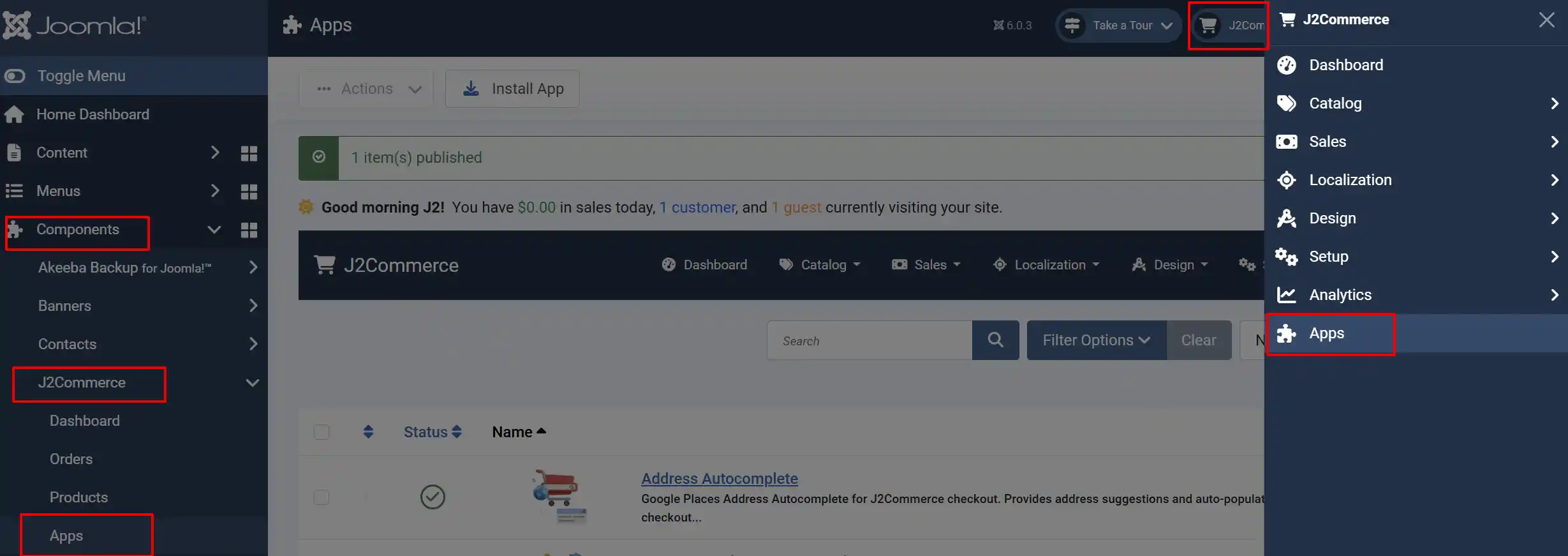
Once installed, you must enable the app. There are two ways to access it:
Option A: Click the J2Commerce icon at the top right corner -> Apps.
Option B: Go to the left sidebar -> Components -> J2Commerce -> Apps.
Look for Advanced Cart Drawer, click the X, and it will turn into a green checkmark. It is now enabled and ready for setup.
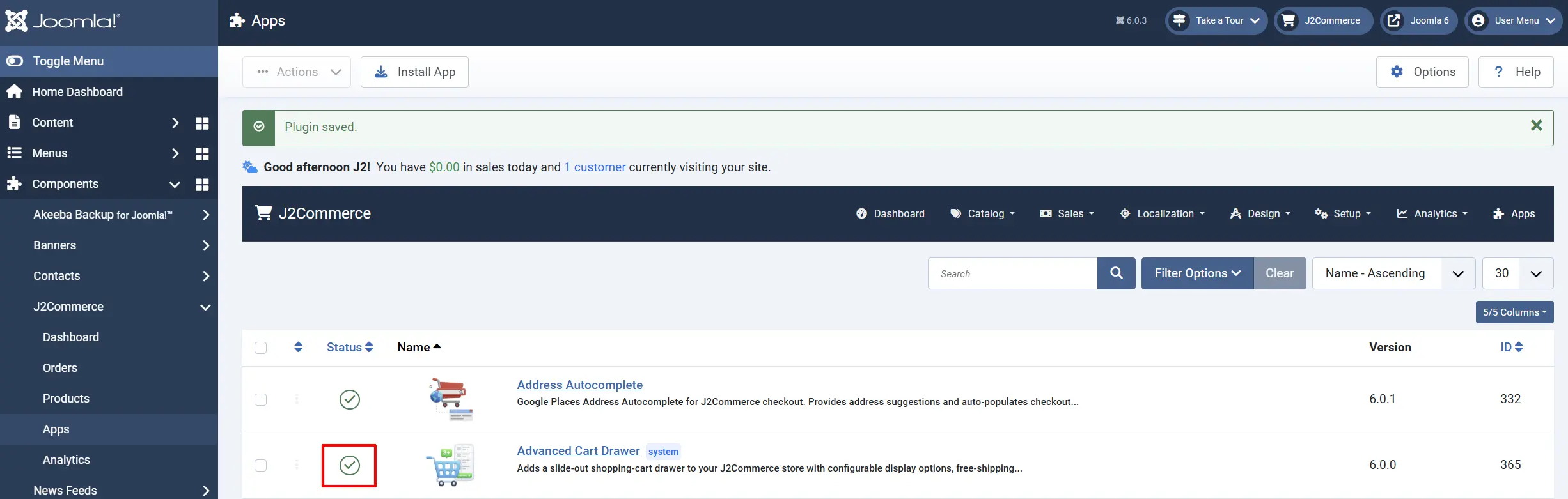
Once the plugin is enabled, the drawer is immediately active on your site. The recommended next step is to place the Toggle module so customers have a persistent way to open the drawer.
Place the Toggle Module
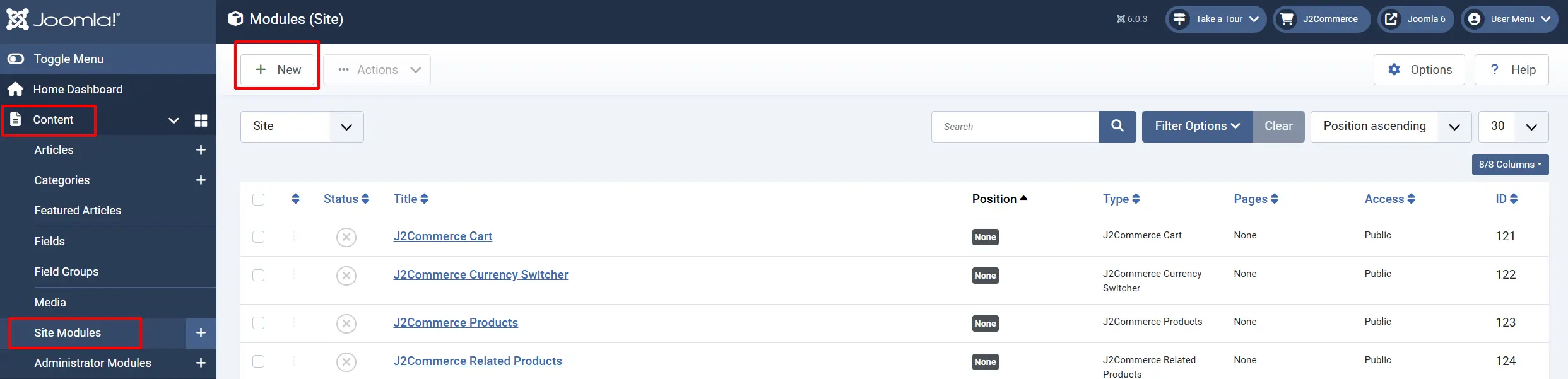
Go to Content -> Site Modules -> New.
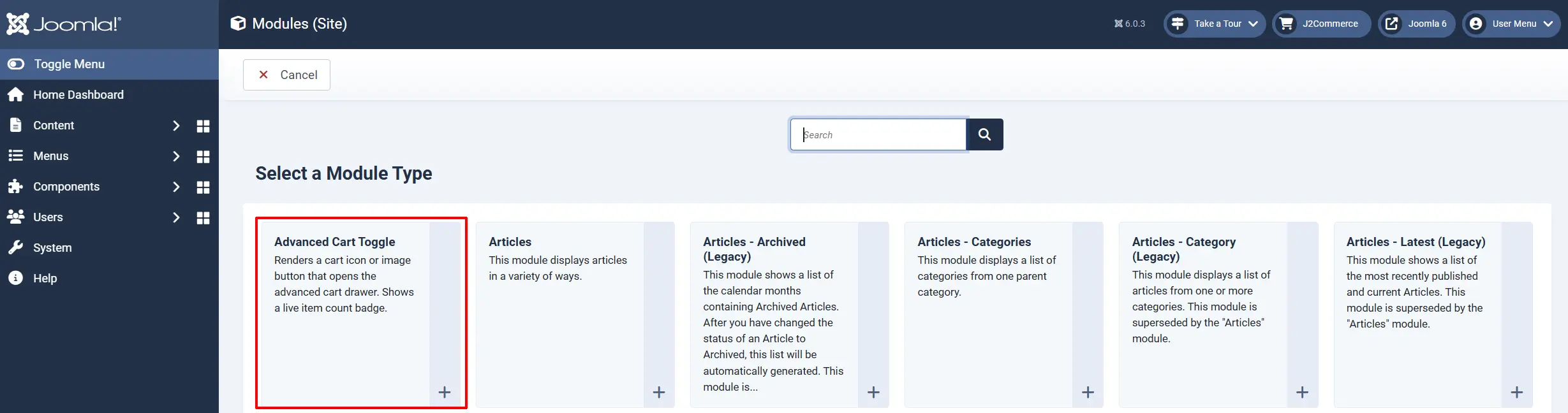
Select Advanced Cart Toggle from the module type list.
Give it a Title and assign it to a module position in your template — typically the header or navigation area. Hide the title by setting Show Title to Hide for a clean icon-only button.
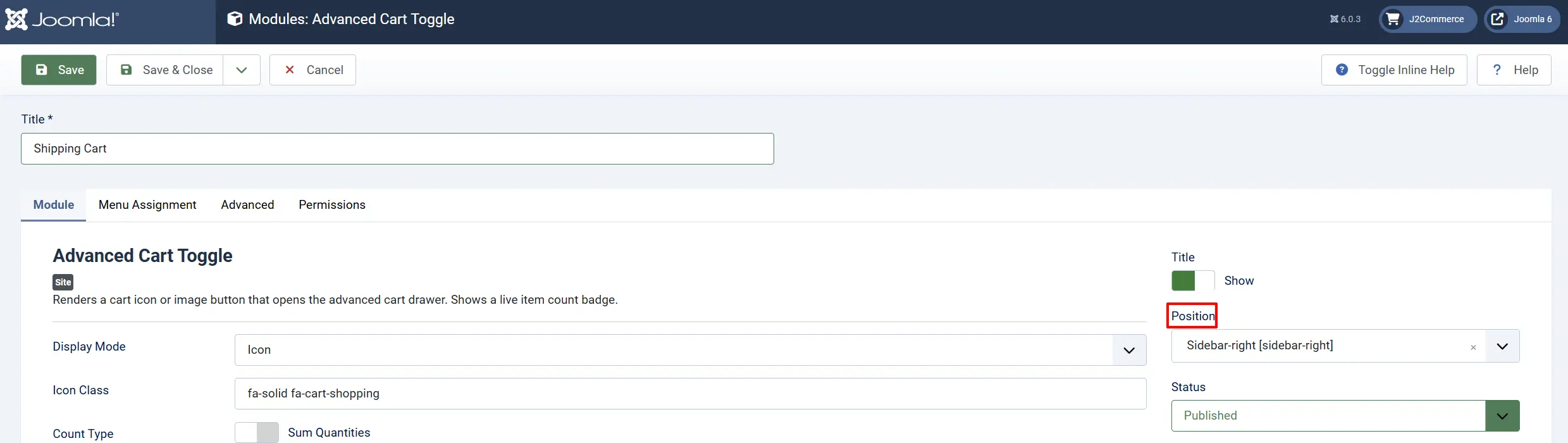
The drawer itself does not require a menu item. It is injected automatically into every page of your site, except any URLs you specify in the Exclusions settings.
Configuring the App
Click the Toggle Inline Help button in the toolbar and the app will show a description below each field as you configure it.

Display Settings
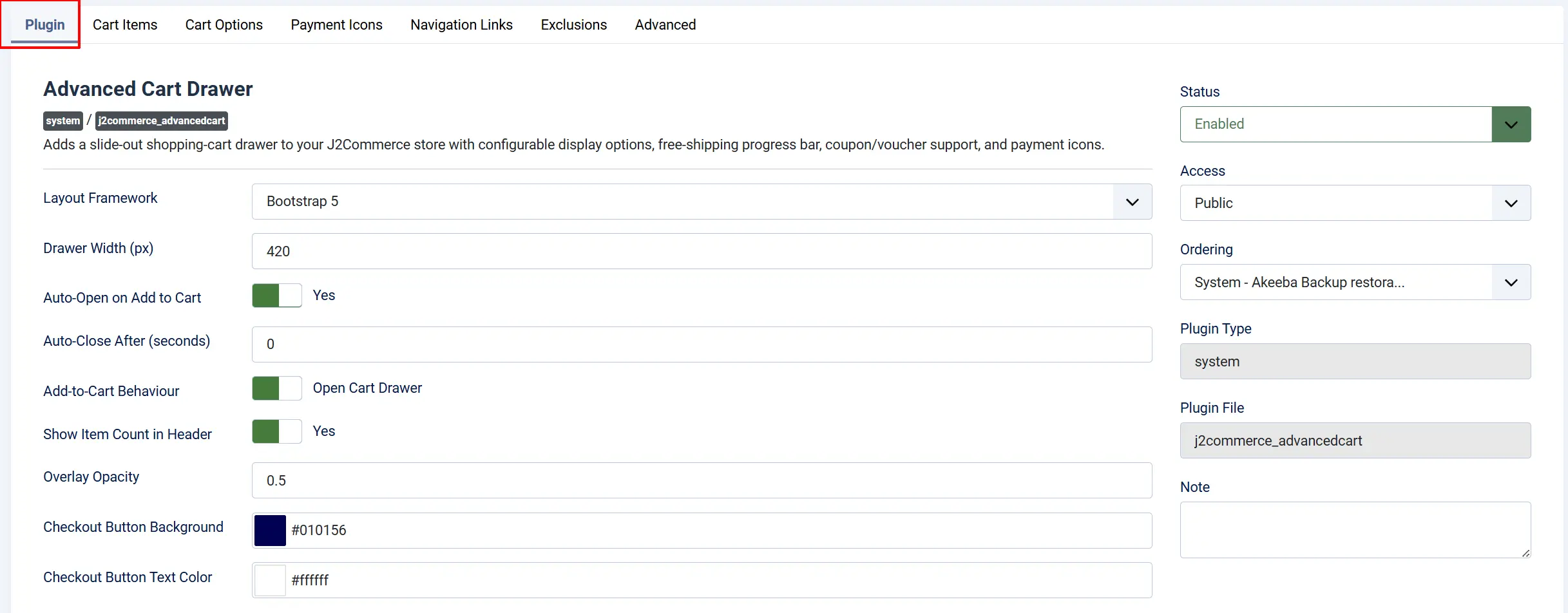
These settings control the overall appearance and behavior of the drawer.
Layout Framework: CSS framework for the drawer templates. Choose Bootstrap 5 or UIkit to match your front-end template. Template overrides are also detected automatically.
Drawer Width (px): Width of the cart drawer in pixels. Accepted range: 300–600.
Auto-Open on Add to Cart: When enabled, the drawer slides open automatically each time a product is added to the cart.
Auto-Close After (seconds): Automatically closes the drawer after this many seconds. Set to 0 to keep it open until the customer closes it manually.
Add-to-Cart Behavior: Controls what happens when a product is added. Open Cart Drawer keeps the customer on the page; Redirect to Cart Page sends them to the full cart.
Show Item Count in Header: Displays the number of items in parentheses next to the "Your Cart" heading inside the drawer header.
Overlay Opacity: How dark the page dimming is when the drawer is open. 0.0 is fully transparent; 1.0 is fully opaque.
Checkout Button Background: Background and border color for the checkout button. A 15% darker shade is applied automatically on hover and focus.
Checkout Button Text Color: Text color for the checkout button.
Cart Items
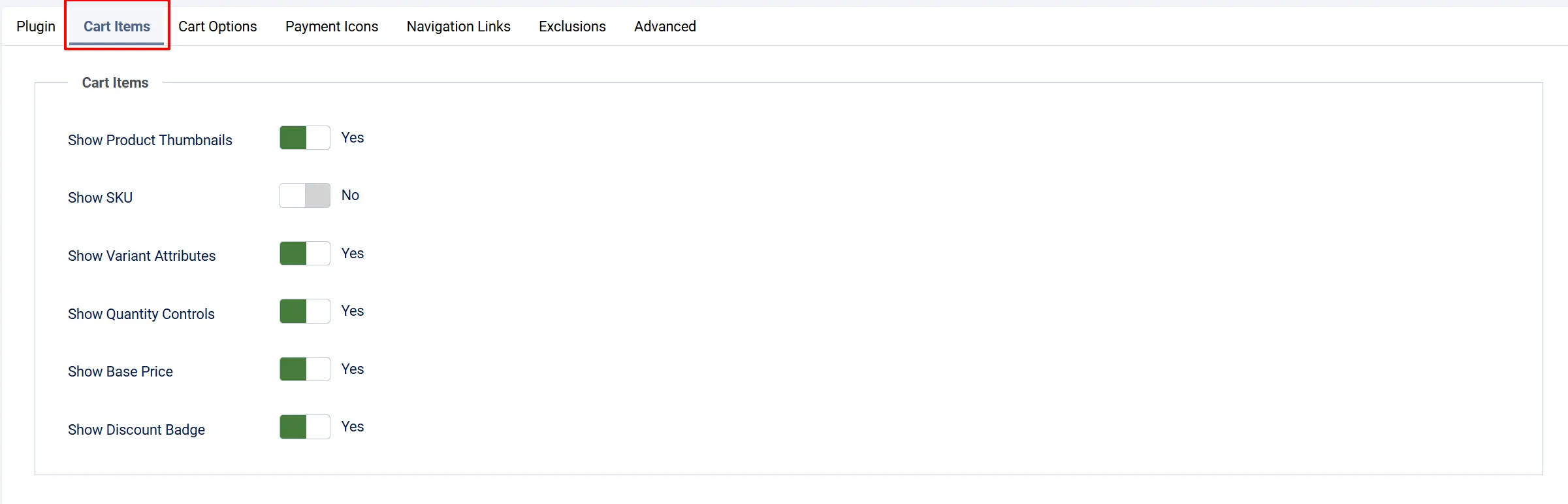
These settings control which information is shown for each line item in the drawer.
Show Product Thumbnails: Displays a 64×64 product thumbnail image beside each cart item.
Show SKU: Shows the product SKU code below the item name.
Show Variant Attributes: Shows the selected variant options (for example, Size: Large, Color: Blue) below the item name.
Show Quantity Controls: Displays +/- buttons and an editable quantity field. Customers can update quantities directly from the drawer.
Show Base Price: When a discount applies, shows the original price with a strikethrough alongside the discounted price.
Show Discount Badge: Displays a discount badge on items that have a reduced price.
Cart Options
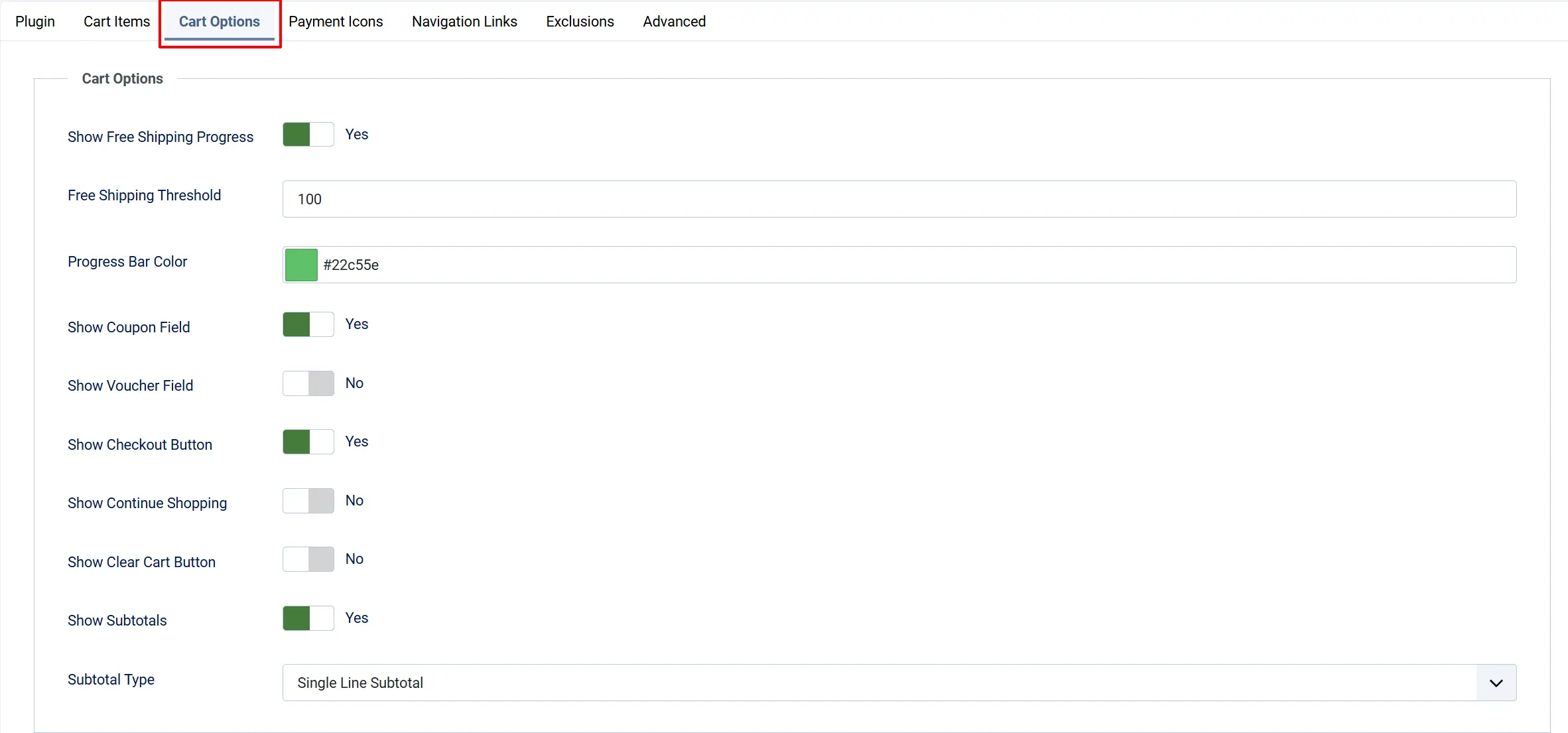
These settings control the interactive elements inside the drawer body.
Show Free Shipping Progress: Displays a progress bar showing how close the customer is to the free-shipping threshold.
Free Shipping Threshold: The cart subtotal (in your store's base currency) required to unlock free shipping. Set to 0 to hide the bar even when the progress option is on. Only visible when Show Free Shipping Progress is enabled.
Progress Bar Color: Fill color of the free-shipping progress bar. Only visible when Show Free Shipping Progress is enabled.
Show Coupon Field: Allows customers to apply a coupon code directly from the drawer. The field is hidden behind a "Have a coupon?" toggle link and expands when clicked.
Show Voucher Field: Allows customers to apply a gift voucher code directly from the drawer. Shown behind a "Have a voucher?" toggle link.
Show Checkout Button: Displays the primary checkout button in the drawer footer.
Show Continue Shopping: Displays a "Continue Shopping" link in the drawer footer. If a Continue Shopping Link is configured in the Navigation tab, it links there; otherwise it simply closes the drawer.
Show Clear Cart Button: Displays a "Clear All" button that empties the entire cart in one click. Disabled by default to prevent accidental deletions.
Show Subtotals: Displays order total information at the bottom of the item list.
Subtotal Type: Controls how totals are displayed when Show Subtotals is on.
-
Full Subtotals shows a breakdown including shipping, taxes, discounts, and grand total.
-
Single Line Subtotal shows only one line with the cart total.
Payment Icons

Show accepted payment method logos at the bottom of the drawer footer to build buyer confidence.
Show Payment Method Icons: Enables the payment icon row in the drawer footer.
- Payment Icons to Display: Multi-select list of icons to show. Only visible when Show Payment Method Icons is enabled. Available options: Visa, MasterCard, American Express, Discover, Maestro, PayPal, Apple Pay, Google Pay.
Navigation Links
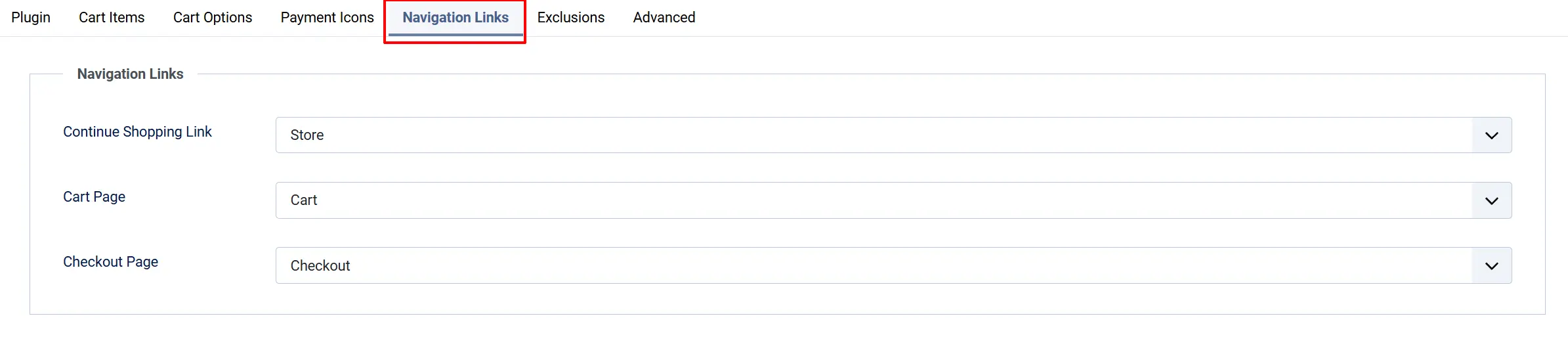
These settings control where the drawer's buttons link to. All three fields use the Joomla menu item picker.
Continue Shopping Link: Menu item the Continue Shopping button links to. Leave blank to use the browser back action (the drawer simply closes).
Cart Page: Menu item for the full cart page. Used when building the fallback cart URL.
Checkout Page: Menu item for the checkout page. Used as the target URL for the Checkout button.
Setting these explicitly is recommended on sites with multiple menus or complex navigation structures to ensure the correct pages are used.
Exclusions

Exclude URLs: One URL fragment per line. The drawer will not be injected on any page whose URL contains one of these strings.
Example exclusions:
/checkout
/cart
/confirmation
Advanced
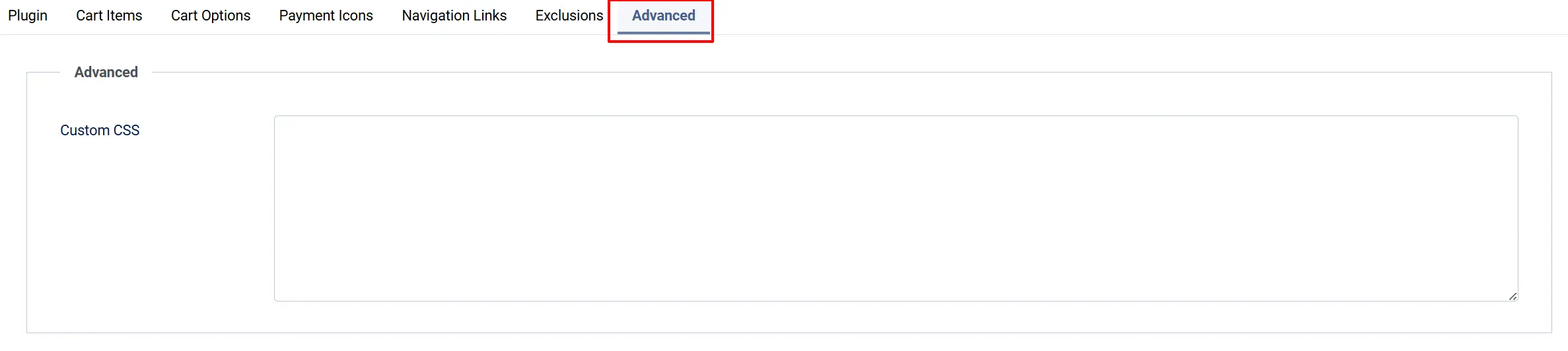
Custom CSS: Additional CSS rules applied after the plugin's own stylesheet. Use .j2commerce-advanced-cart as the root selector to target drawer elements.
See the CSS Custom Properties section below for a list of variables you can override.
Configuring the Toggle Module
The Advanced Cart Toggle module renders the cart icon button that customers click to open the drawer. Go to Content -> Site Modules, find the Advanced Cart Toggle module, and click its name.
Module Settings
Display Mode: Whether to show a font icon or a custom image.
Icon Class: CSS class for the cart icon. Only visible when Display Mode is Icon. The field accepts any CSS class your template already loads. Common examples: fa-solid fa-cart-shopping (Font Awesome 6), bi bi-cart3 (Bootstrap Icons).
Cart Image: Image to display when Display Mode is Image. Selected using the Joomla media picker.
Count Type: Controls what number appears on the badge. Sum Quantities adds up the total quantity of all items (3 units + 2 units = 5). Line Items counts the number of distinct product lines.
Hide Badge When Empty: Hides the count badge entirely when the cart is empty instead of showing zero.
Badge Background Color: Background color of the item count bubble.
Caching is set to No Caching by default in the module's Advanced tab. This ensures the item count always reflects the live cart.
Frontend View
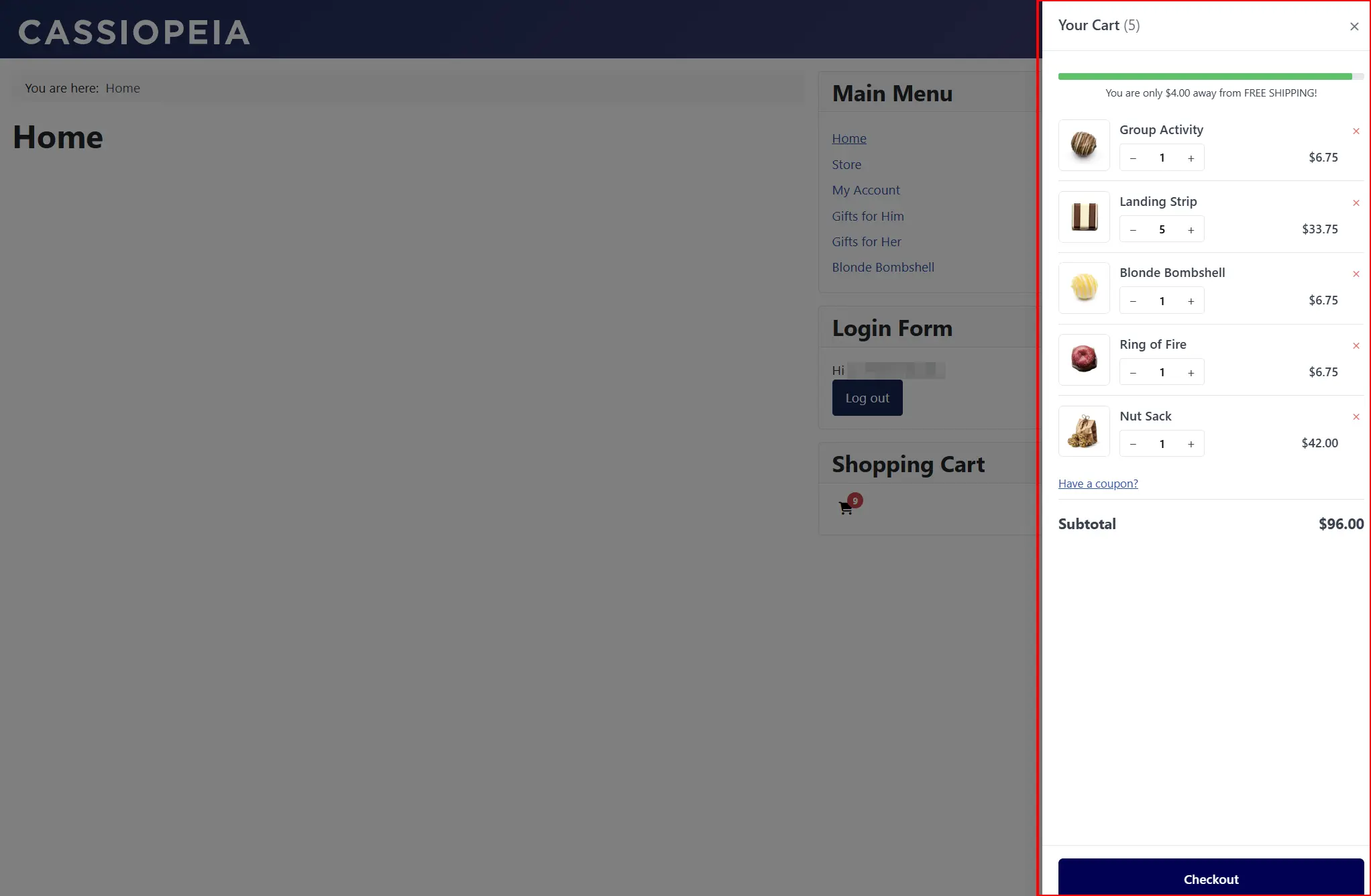
How It Works
When the page loads, the module queries the current visitor's cart on the server and renders the badge with the live item count. After the page loads, the Advanced Cart Drawer plugin takes over: any time the cart changes (add, remove, quantity update), the plugin updates all elements with the class j2commerce-cart-badge — including the module badge — instantly, with no page reload.
Clicking the toggle button calls AdvancedCart.open(), which slides the cart drawer into view.
Drawer Lifecycle
When a page loads:
- The plugin injects the drawer HTML at the end of the
<body>tag on every page (except excluded URLs and admin pages). - The cart icon button from the Toggle module has a
data-j2c-toggle="drawer"attribute that the JavaScript listens for. - Clicking the button opens the panel and dims the page.
The drawer can be closed by:
- Clicking the × button in the drawer header
- Clicking the dimmed page overlay
- Pressing Escape
- Clicking the Continue Shopping button (when no URL is configured)
Automatic Refresh
The drawer content refreshes automatically when:
- A product is added to the cart (the
j2commerce:afterAddingToCartevent fires) - Any other part of the page changes the cart (the
j2commerce:cart:updatedevent fires)
The refresh fetches only the inner drawer content via AJAX, so the full page never reloads. The item count badge on the Toggle module button updates at the same time.
Quantity Updates and Item Removal
Quantity changes inside the drawer are debounced by 300 ms and sent to the server via AJAX. If the server rejects a quantity (for example, due to stock limits), the input reverts to the original value. Removing an item triggers an optimistic fade-out animation before the request is confirmed.
Coupon and Voucher Codes
The coupon and voucher fields are collapsed behind toggle links by default. When a customer clicks "Have a coupon?" or "Have a voucher?", the form expands inline. Applied discounts are shown immediately and reflected in the totals.
Placing the Button in a Navbar
Most templates expose a module position inside the navbar — commonly named nav-right, header-right, navbar-search, or similar. Assign the Toggle module to that position with Show Title set to Hide for a clean icon-only button.
If your template does not have a suitable built-in position, you can use the {loadmodule} content plugin syntax in a Custom HTML module, or ask your template developer to expose an appropriate position.
Template Overrides
The drawer uses two PHP layout files:
drawer.php— the outer shell (header, body wrapper, footer)drawer_content.php— the scrollable inner content (items, coupons, totals)
To override either file, create the override path in your template:
templates/[your-template]/html/plg_j2commerce_app_advancedcart/bootstrap5/drawer.php
templates/[your-template]/html/plg_j2commerce_app_advancedcart/bootstrap5/drawer_content.php
For UIkit templates, replace bootstrap5 with uikit in the path.
The plugin checks for the override before loading the default layout, so your custom file takes full precedence.
CSS Custom Properties
The following CSS custom properties are defined on .j2c-drawer and can be overridden in the Custom CSS field or in your template stylesheet:
| Property | Default | Controls |
|---|---|---|
--j2c-drawer-width | 420px | Panel width (also set by the Drawer Width parameter) |
--j2c-drawer-bg | #fff | Panel background color |
--j2c-drawer-text | #374151 | Primary text color |
--j2c-drawer-border | #e5e7eb | Border and divider color |
--j2c-drawer-muted | #6b7280 | Secondary text color |
--j2c-drawer-hover-bg | #f3f4f6 | Hover background on quantity buttons |
--j2c-progress-fill | #22c55e | Progress bar fill color (also set by the Progress Bar Color parameter) |
Dark mode is supported automatically. When the site uses data-color-scheme="dark", the drawer switches to a dark color scheme without any additional configuration.
RTL layouts are also supported. On right-to-left pages, the drawer slides in from the left side instead of the right.
JavaScript Events
The plugin dispatches custom events on document that other scripts can listen for:
| Event | When It Fires | Detail Properties |
|---|---|---|
j2commerce:drawer:opened | The drawer slides open | — |
j2commerce:drawer:closed | The drawer closes | — |
j2commerce:drawer:refreshed | The drawer content reloads via AJAX | itemCount |
j2commerce:drawer:quantityUpdated | A quantity is changed successfully | cartitemId, qty |
j2commerce:drawer:itemRemoved | An item is removed successfully | cartitemId |
j2commerce:drawer:cartCleared | The cart is emptied | — |
j2commerce:cart:updated | Re-dispatched after any cart change so other components can sync | — |
Listening example:
document.addEventListener('j2commerce:drawer:refreshed', (e) => {
    console.log('Cart now has', e.detail.itemCount, 'items');
});
Troubleshooting
A previous shopping cart still appears on screen
Cause: A module belonging to a different cart is still enabled.
Solution: Go to Content -> Site Modules and disable the module for the other cart.
The drawer does not appear on the page
Cause: The plugin may not be enabled, or the current page URL matches an exclusion rule.
Solution:
- Go to J2Commerce -> Apps and confirm Advanced Cart Drawer shows as enabled.
- Open the plugin settings and check the Exclusions tab. Remove any pattern that matches the current page URL.
- Clear the Joomla cache: Home Dashboard -> Cache -> Delete All.
The drawer opens but shows an empty cart even though items were added
Cause: The AJAX refresh request may be failing, or the session is not carrying over correctly.
Solution:
- Open the plugin settings and confirm Add-to-Cart Behavior is set to Open Cart Drawer, not Redirect to Cart Page.
- Open your browser's developer console and check for network errors on the AJAX refresh request — the URL contains
j2commerce_advancedcart_ajax=1. - Confirm the J2Commerce system plugin is enabled under System -> Manage -> Plugins (search for
plg_system_j2commerce).
The Toggle module button shows but clicking it does nothing
Cause: The plugin's JavaScript has not loaded, or there is a JavaScript conflict with another extension.
Solution:
- Confirm the Advanced Cart Drawer plugin is enabled. The JavaScript only loads when the plugin is active.
- Open your browser's developer console and look for errors. If
AdvancedCart is not definedappears, the script has not loaded. - Check whether another plugin or template is blocking deferred scripts. The plugin loads its JavaScript with
defer, so it executes after the page HTML has been parsed.
Coupon or voucher codes are not applying from the drawer
Cause: The coupon or voucher fields may be disabled in the plugin settings, or coupons/vouchers are not created in J2Commerce.
Solution:
- Go to J2Commerce -> Apps -> click Advanced Cart Drawer -> Cart Options tab. Confirm Show Coupon Field and Show Voucher Field are set to Yes.
- Verify coupons are created and published under J2Commerce -> Sales -> Coupons.
The free-shipping progress bar does not appear
Cause: The progress bar requires both Show Free Shipping Progress enabled and a Free Shipping Threshold greater than 0.
Solution:
- Open the plugin settings and go to the Cart Options tab.
- Set Show Free Shipping Progress to Yes.
- Enter a value greater than
0in Free Shipping Threshold (for example,50for free shipping on orders over $50).