Geozones
Geozones are geographic zones created by grouping countries and their zones together. They are essential for configuring shipping rates, tax rules, and payment method restrictions based on customer location. Instead of applying rules to individual countries, you create a geozone that includes all the regions you want to target.
Requirements
- PHP 8.3.0+
- Joomla 6.x
- J2Commerce 6.x
Locating Countries
Geozones are managed from the J2Commerce Dashboard.
There are two ways you can access the Geozones.
Option A: Go to the J2Commerce icon at the top right corner -> Localization -> Geozones
Option B: Go to Components on the left sidebar -> J2Commerce -> Dashboard -> Localization -> Geozones
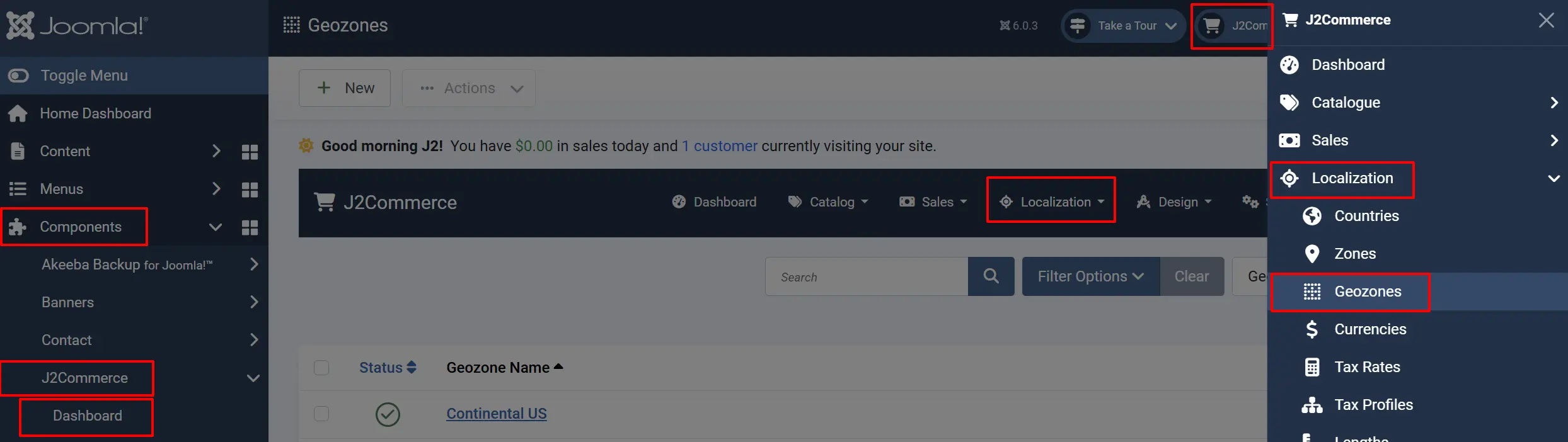
Geozone List
The Geozones list displays all geozones configured in your store. Each geozone shows:
Checkbox: Select geozones for batch actions.
Geozone Name: The display name of the geozone.
Status: Published (green check) or Unpublished (red X).
Ordering: Drag-and-drop to reorder the display sequence.
Adding a New Geozone
- Click the New button in the toolbar.
- Enter a Geozone Name (e.g., "UK & Ireland", "EU Member States", "North America").
- Set the Status to Published.
- In the Geozone Rules section, click Add Country/Zone.
- Select a Country from the dropdown.
- Select a Zone from the dropdown, or select "All Zones" to include the entire country.
- Click Save to add the rule.
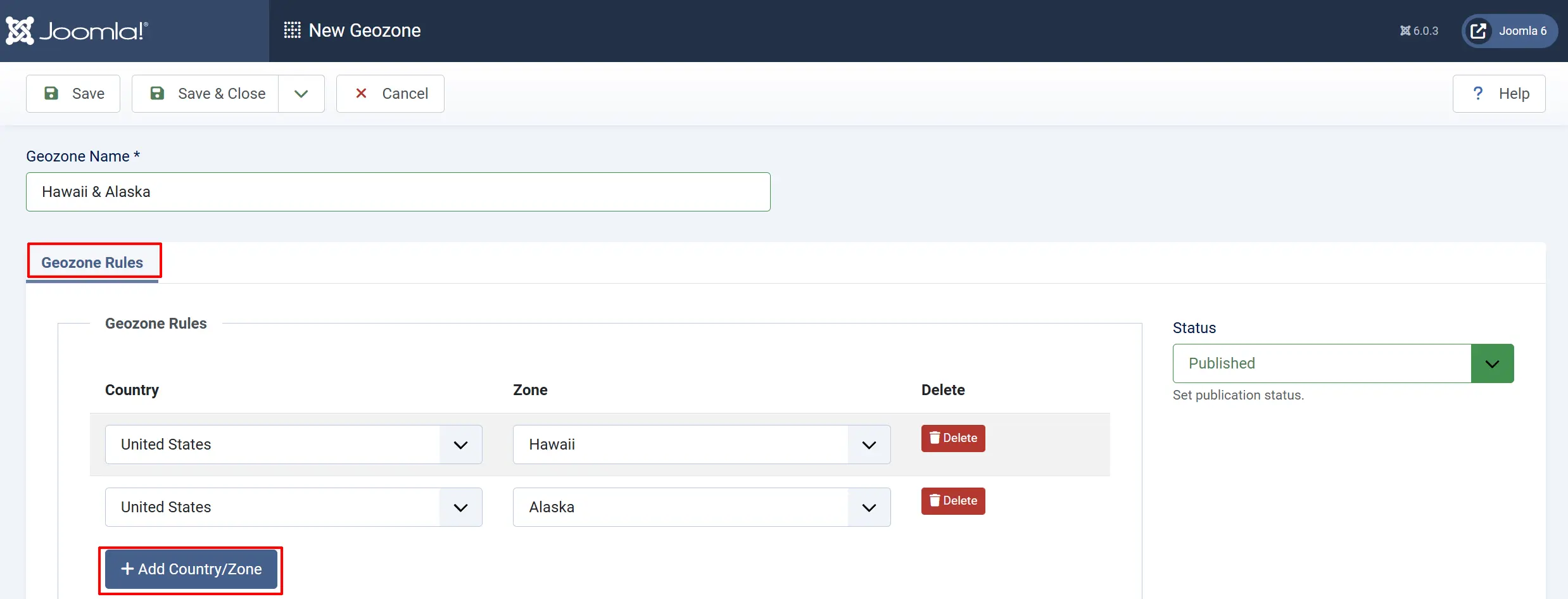
Geozone Rules
After creating a geozone, you add rules to define which countries and zones are included. Each rule specifies:
- Country — A country to include in the geozone. Example: United Kingdom
- Zone — A specific zone within that country, or "All Zones" to include the entire country. Example: All Zones
This rule includes all zones within the UK in the geozone.
Hawaii & Alaska:
- Country: United States
- Zone: Select Hawaii and Alaska
This rule includes only Hawaii and Alaska, not other US states.
European Union: Create multiple rules, one for each EU member country, or create a single rule per country:
| Rule | Country | Zone |
|---|---|---|
| 1 | Germany | All Zones |
| 2 | France | All Zones |
| 3 | Italy | All Zones |
| 4 | Spain | All Zones |
| ... | ... | ... |
How Geozones Are Used
Geozones are referenced throughout J2Commerce for location-based rules:
Tax Rates
Tax rates are linked to geozones for location-based tax calculation:
Go to J2Commerce -> Localization -> Tax Rates & Tax Profiles
- Create a geozone for each tax jurisdiction (e.g., "UK", "EU", "California").
- Create tax profiles for different product types.
- Add tax rates to tax profiles for each geozone.
- During checkout, taxes are calculated based on the customer's billing/shipping address and the product's tax profile.
Shipping Rates
Shipping methods can be configured to apply only to specific geozones: Go to J2Commerce -> Setup -> Shipping Methods -> Standard Shipping.
- Manage existing Geozones or create a new geozone for each shipping region (e.g., "Domestic", "Europe", "Rest of World").
- Configure shipping rates for each geozone.
- During checkout, customers are quoted shipping rates based on their shipping address geozone.
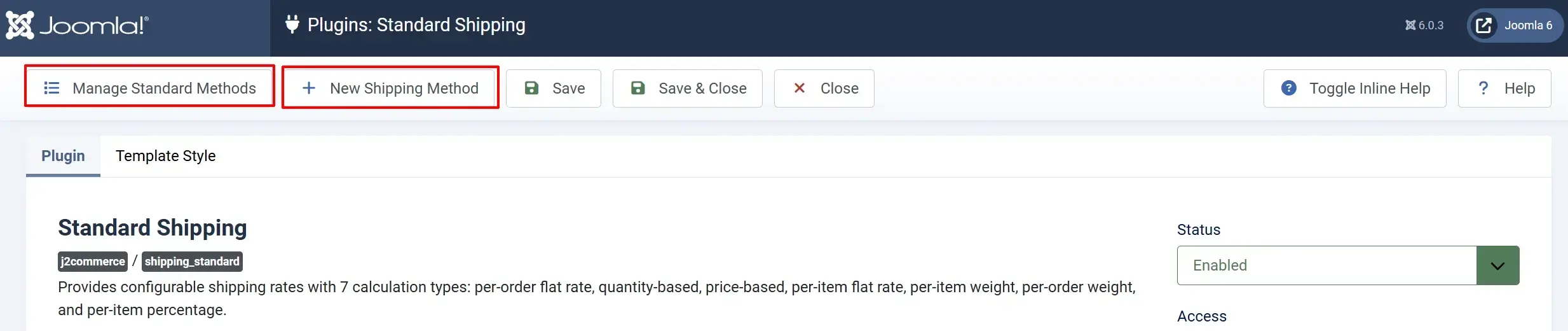
Shipping Method Restrictions
Shipping methods can be restricted to specific geozones:
Go to J2Commerce -> Setup -> Shipping Methods. Select the shipping method that you want to add a Geozone Restriction to. Most people do it for each method
-
Create a geozone for regions where a shipping method is available.
-
Configure the shipping method to only appear for customers in that geozone.
-
Customers outside the geozone will not see that shipping option.
Payment Method Restrictions
Payment methods can be restricted to specific geozones:
Go to J2Commerce -> Setup -> Payment Methods. Select the payment method that you want to add a Geozone Restriction to. Most people do it for each one
- Create a geozone for regions where a payment method is available.
- Configure the payment method to only appear for customers in that geozone.
- Customers outside the geozone will not see that payment option.
Common Geozone Configurations
Domestic Shipping Zone
A geozone for your store's home country:
United Kingdom: All Zones
European Union
A geozone for all EU member states:
| Country | Zone |
|---|---|
| Austria | All Zones |
| Belgium | All Zones |
| Bulgaria | All Zones |
| Croatia | All Zones |
| Cyprus | All Zones |
| Czech Republic | All Zones |
| Denmark | All Zones |
| Estonia | All Zones |
| Finland | All Zones |
| France | All Zones |
| Germany | All Zones |
| Greece | All Zones |
| Hungary | All Zones |
| Ireland | All Zones |
| Italy | All Zones |
| Latvia | All Zones |
| Lithuania | All Zones |
| Luxembourg | All Zones |
| Malta | All Zones |
| Netherlands | All Zones |
| Poland | All Zones |
| Portugal | All Zones |
| Romania | All Zones |
| Slovakia | All Zones |
| Slovenia | All Zones |
| Spain | All Zones |
| Sweden | All Zones |
US Tax Nexus States
A geozone for states where you have tax nexus:
| Country | Zone |
|---|---|
| United States | California |
| United States | New York |
| United States | Texas |
Tips
- Create geozones before tax rates — Geozones must exist before you can create tax rates linked to them.
- Use descriptive names — Name geozones clearly for easy identification (e.g., "UK", "EU Member States", "North America").
- Group logically — Create geozones based on your business needs: shipping zones, tax jurisdictions, or payment method availability.
- Test coverage — Ensure your geozones cover all countries you ship to. Customers outside all geozones may have no shipping options.
- Avoid overlap — When using geozones for tax rates, be careful with overlapping rules. A customer in multiple tax geozones may trigger multiple tax calculations.
Troubleshooting
Geozone Not Applied During Checkout
Cause: The customer's address does not match any geozone rules.
Solution:
- Go to J2Commerce -> Localisation -> Geozones.
- Edit the geozone and review the rules.
- Ensure the country and zone are correctly added.
- For countries, verify you selected "All Zones" or the specific zone.
- Check that the geozone is Published.
Customer Shows Wrong Tax Rate
Cause: Multiple geozones with overlapping rules, or incorrect geozone assignment.
Solution:
- Review your geozone configuration to check for overlapping rules.
- Verify the tax rates are linked to the correct geozones.
- Check that the customer's country and zone are correctly configured in the Countries and Zones lists.
Cannot Add Zone to Geozone Rule
Cause: No zones are published for the selected country.
Solution:
- Go to J2Commerce -> Localisation -> Zones.
- Filter by the country you want to add.
- Verify zones exist and are published.
- If no zones exist, create zones for that country first.
Shipping Method Not Available
Cause: The shipping method's geozone does not include the customer's location.
Solution:
- Check the shipping method configuration.
- Verify the geozone assigned to the shipping method includes the customer's country/zone.
- Create a new geozone or modify the existing one to include the missing locations.