Pickup Options
The Pickup Options plugin adds a local pickup choice to your checkout shipping step. When a customer selects it, they are shown a list of pickup locations or time slots you have configured — such as store branches, drop-off points, or collection windows. Their choice is stored on the order so you know exactly which option they selected.
This plugin works equally well for physical store pickups ("Downtown Branch", "Westside Store") and time-based pickups ("Morning 9am–12pm", "Afternoon 1pm–5pm"). You can add images and descriptions to each option to help customers choose.
Requirements
- PHP 8.3.0+
- Joomla! 6.x
- J2Commerce 6.x
Purchase and Download
You can install the Pickup Options shipping plugin using the Joomla installer. The following steps help you with a successful installation.
Step 1: Go to our J2Commerce website -> Extensions -> Shipping Plugin
Step 2: Locate the Pickup Plugin -> click View Details -> Add to cart -> Checkout.
Step 3: Go to your My Downloads under your profile button at the top right corner and search for the app. Click Available Versions -> View Files -> Download Now
Install the Plugin
This plugin is a separate add-on available from the J2Commerce Extensions Store. It is not included with the core J2Commerce 6 component.
Purchase and download the shipping_pickup.zip package from the J2Commerce website.
Go to System -> Install -> Extensions.
Upload the shipping_pickup.zip package file.
 (1)-a6689f12b23b8e992f5c2a169737672f.webp)
Enable the Plugin
There are two ways to reach the shipping methods screen.
Option A: Click the J2Commerce icon at the top right corner -> Setup -> Shipping Methods.
Option B: Go to Components on the left sidebar -> J2Commerce -> Dashboard -> Setup -> Shipping Methods.
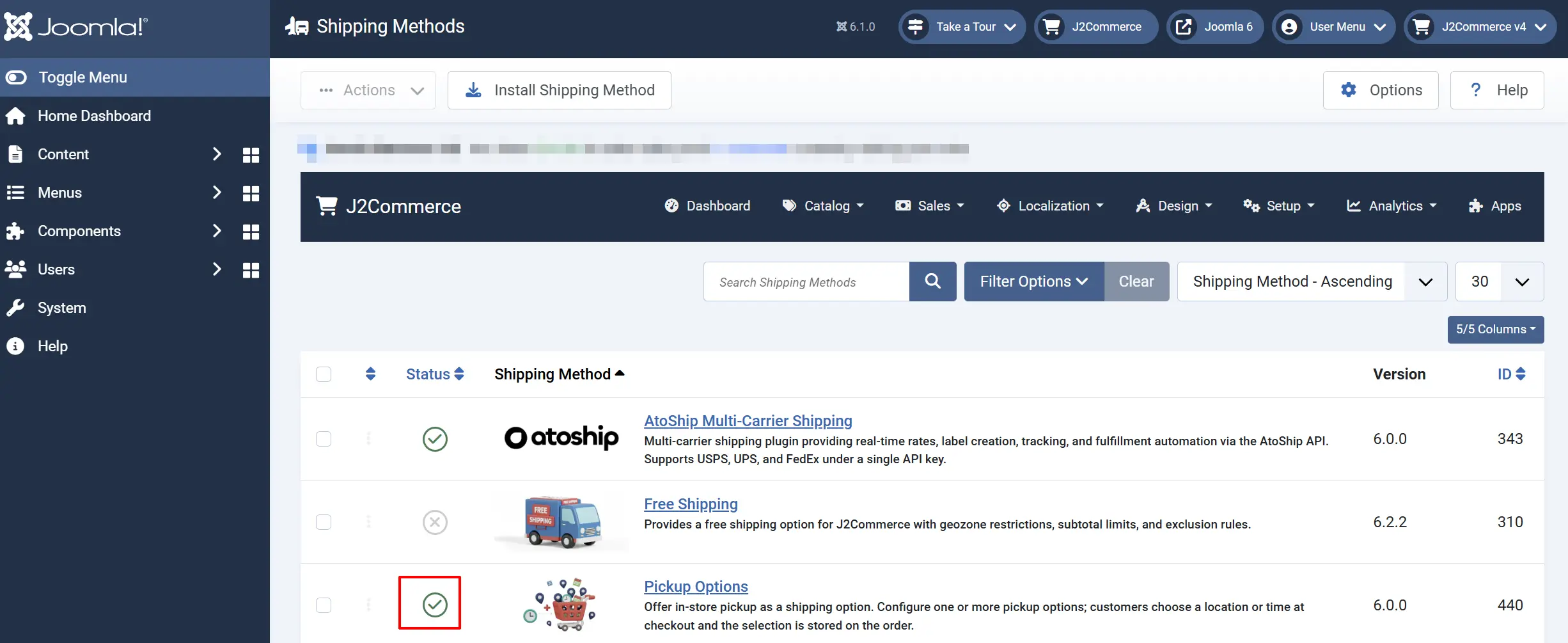
Find Pickup Options in the list, click the X icon, and it will turn into a green checkmark. The plugin is now enabled and ready to configure.
Configure the Plugin
Click the Pickup Options title (next to the green checkmark) to open the settings. The settings are split into two tabs: General Settings and Pickup Options.
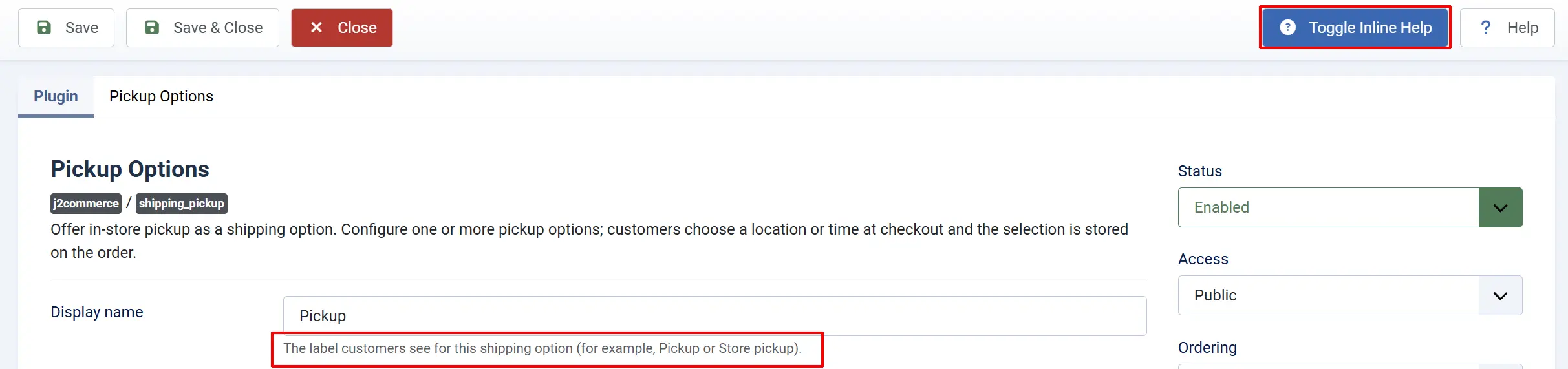
Click the Toggle Inline Help button at the top of the settings page to show a short description beneath each field.
General Settings Tab
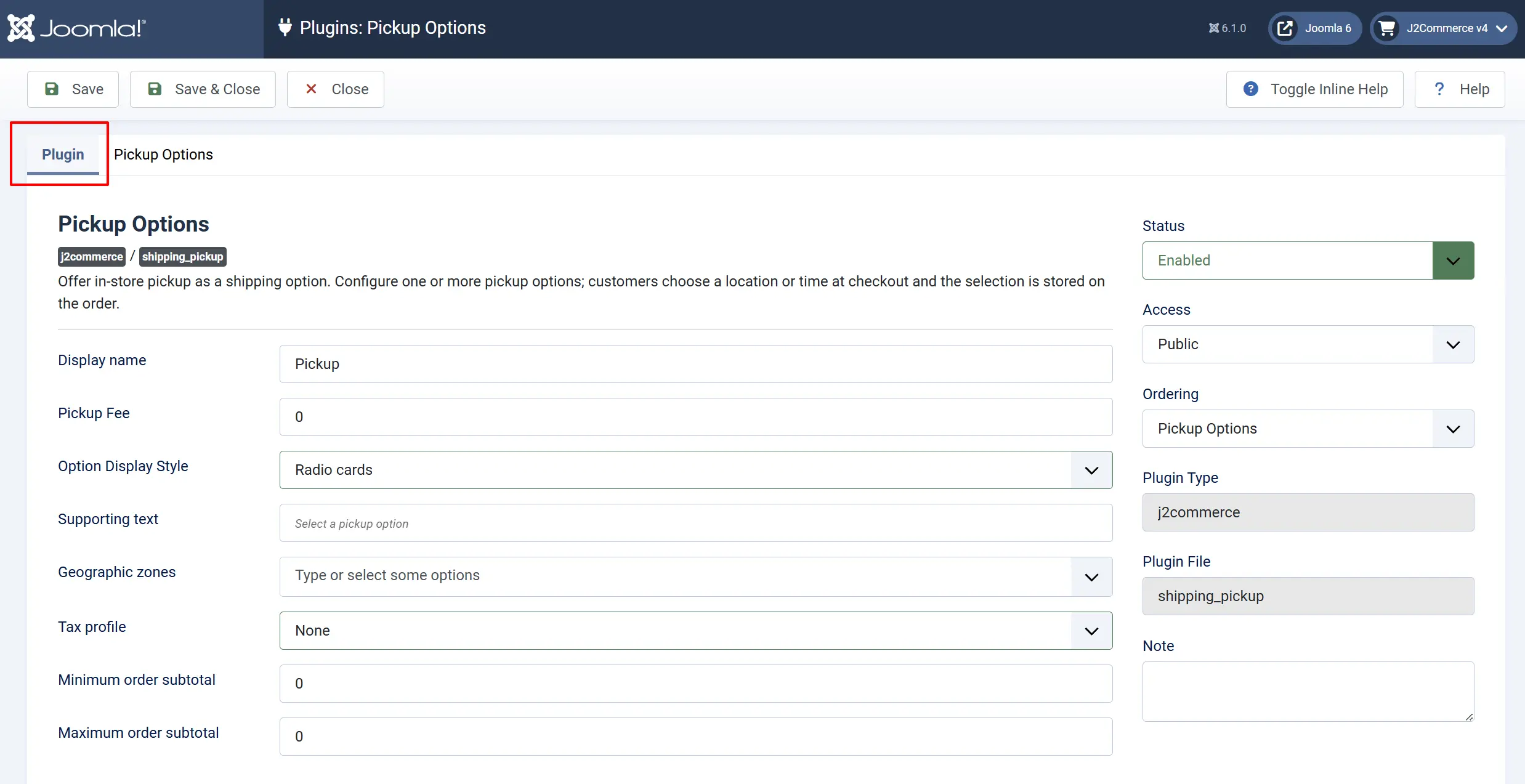
Display Name — The shipping option label shown to customers at checkout. The default is Pickup. You can change this to anything that suits your store, such as "Store Pickup", "Click & Collect", or "In-Store Collection".
Pickup Fee — An optional flat charge added to the order when pickup is chosen. Enter 0 for free pickup.
Option Display Style — Controls how the list of pickup options appears after a customer selects Pickup:
- Radio cards (default) — Each option is shown as a card with an image, name, and description. Best for a small number of clearly differentiated locations or time slots.
- Dropdown — A compact dropdown list. Best when you have many options or limited screen space.
Supporting Text — A short line of text shown above the options list (for example, "Select a pickup location" or "Choose your collection time"). Leave blank to use the default prompt.
Geographic Zones — Restrict pickup availability to customers whose shipping address falls inside one or more of the selected geozones. Select All geozones (the default) to offer pickup to everyone regardless of location.
Geozones are configured under J2Commerce -> Setup -> Geozones. If a customer's shipping address does not match any of the selected geozones, the Pickup Options method will not appear at checkout.
Tax Profile — Applies an optional tax to the pickup fee. Leave as None if you do not charge tax on the pickup fee or if the pickup fee is zero.
Minimum Order Subtotal — Hide the Pickup option if the cart subtotal is below this amount. Set to 0 to disable this check.
Maximum Order Subtotal — Hide the Pickup option if the cart subtotal is above this amount. Set to 0 to disable this check.
Pickup Options Tab
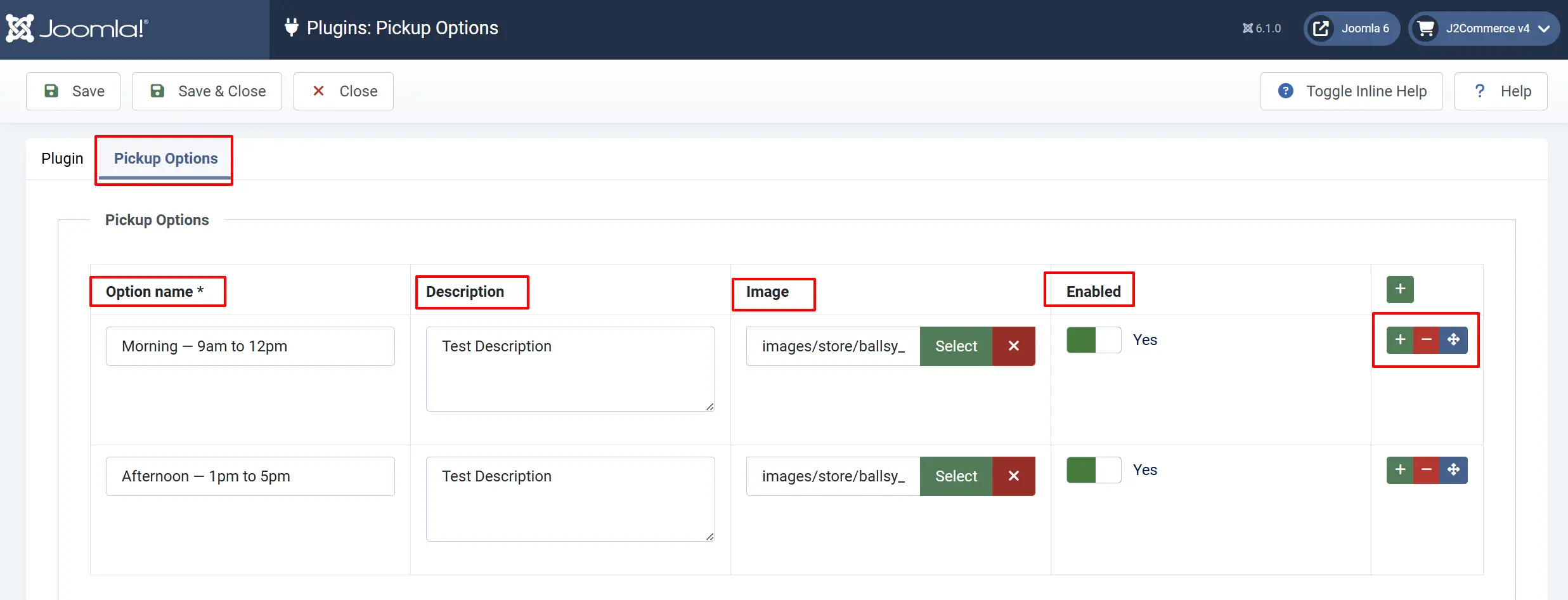
This is where you define each pickup option that customers can choose from. You must add at least one option before the plugin will appear at checkout.
Each row in the table represents one option. Click Add item to add a new row.
| Field | Description |
|---|---|
| Option Name | The name customers see, e.g. "Main Street Store" or "Saturday 10am–2pm". Required. |
| Description | A short description shown below the option name, e.g. an address or extra details. |
| Image | An optional photo or icon for this option, shown in radio-card style. |
| Enabled | Toggle individual options on or off without deleting them. |
To reorder options, drag the rows into the order you want. Click Save or Save & Close when done.
Frontend Checkout View
How It Works at Checkout
When a customer reaches the shipping step, J2Commerce checks whether Pickup Options should appear:
- Geographic Zones — If specific geozones are selected, the customer's shipping address must match at least one. If not, Pickup is skipped.
- Subtotal Limits — If minimum or maximum subtotals are set, the cart must be within range.
- Pickup appears — If all checks pass, Pickup Options is listed as a selectable shipping method alongside any other enabled methods.
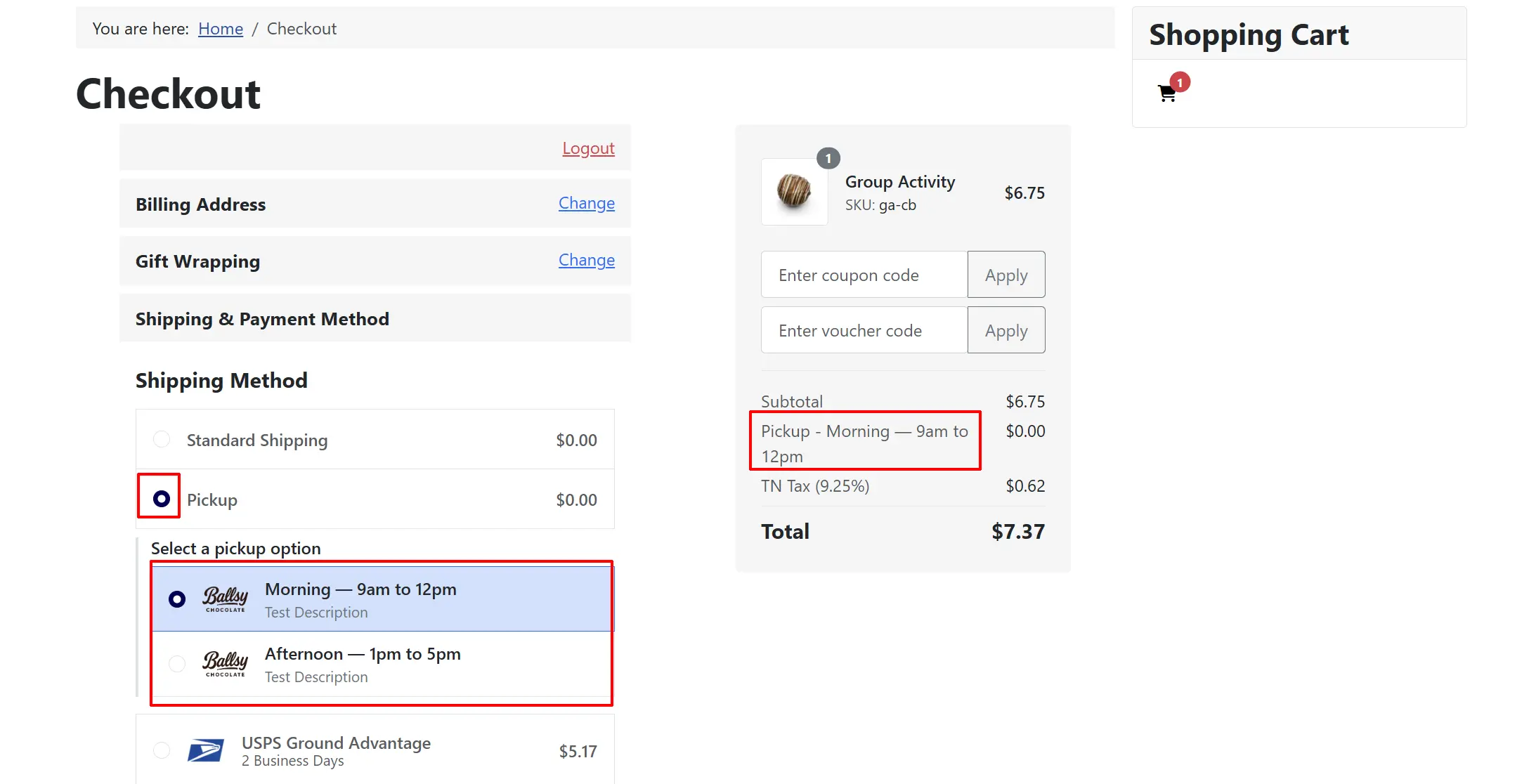
When the customer selects Pickup, a second panel appears immediately below showing their available options.
In Radio cards mode, each option shows its name, description, and image.
In Dropdown mode, it is a compact list.
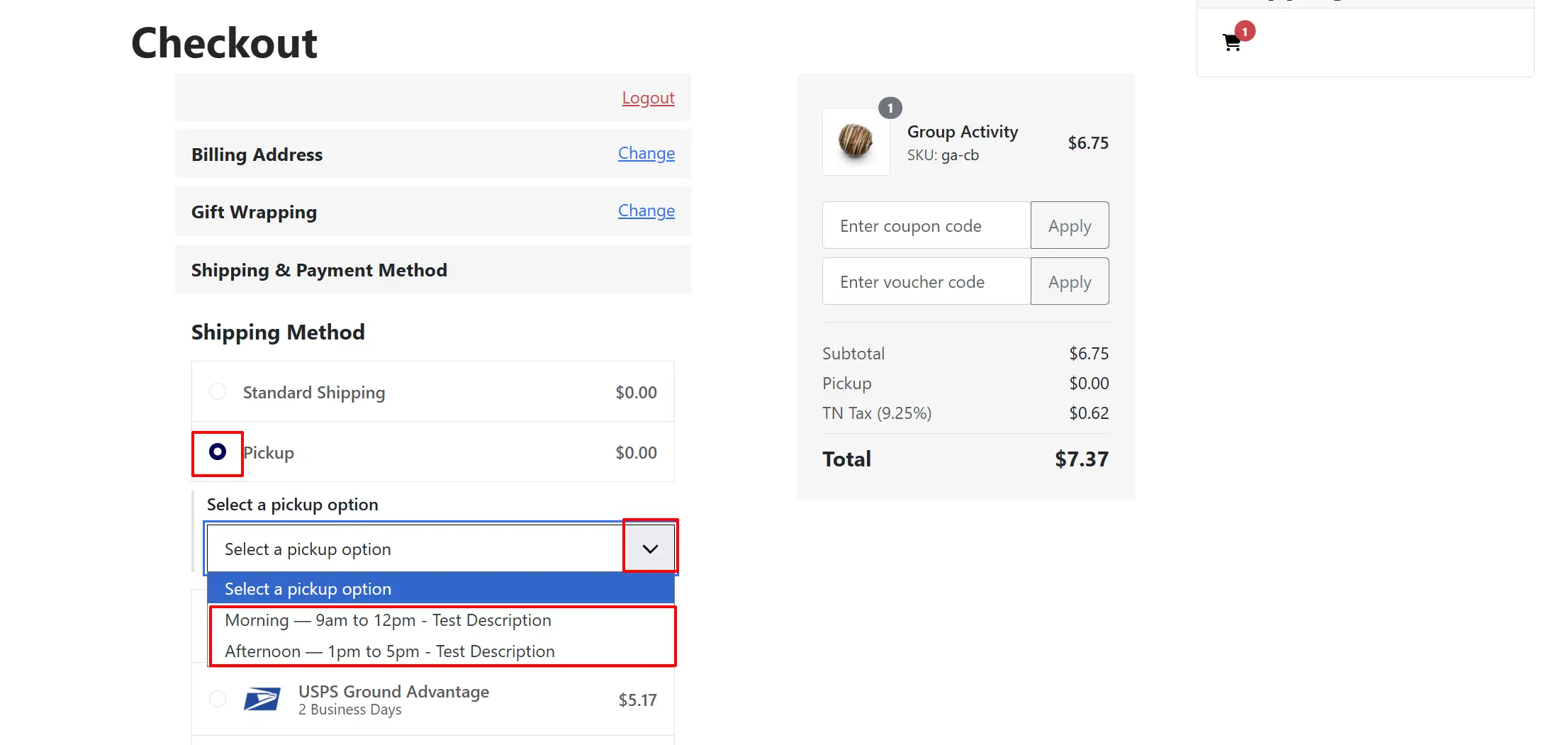
The customer must select one option before they can continue to the next checkout step. Their chosen option name is saved to the order.
Common Setups
Multiple store locations
Add one row per branch in the Pickup Options tab. For each row, set the Option Name to the branch name (e.g. "North Melbourne Store") and the Description to the street address and opening hours. Upload a photo of the storefront as the Image.
Collection time slots
Use option names for time windows instead of locations, e.g. "Morning — 9am to 12pm" and "Afternoon — 1pm to 5pm". Leave the Image field blank if you prefer a cleaner list. Switch Option Display Style to Dropdown if you have many slots.
Single-location free pickup
Add one row with your store name and address. Leave Pickup Fee at 0 and Option Display Style at Radio cards. This gives customers a clear confirmation of where to collect their order without any extra charge.
Restrict pickup to local customers only
Create a geozone for your city or region under J2Commerce -> Setup -> Geozones. Select that geozone in the Geographic Zones field. Customers with a shipping address outside the zone will not see the Pickup option.
Tips
- Add a Description to each option — a full address for locations, or additional instructions for time slots.
- Use images for location options so customers can visually confirm the right store.
- Use Dropdown display when you have more than five or six options to keep the panel compact.
- Seasonal or limited-availability options can be disabled temporarily using the Enabled toggle on each row rather than deleting them.
- The Pickup Fee applies to the entire order, not per item. For free pickup, leave it at
0.
Troubleshooting
Pickup Options does not appear at checkout
Cause: A restriction is hiding the method, or no pickup options are configured.
Solution:
- Confirm the plugin is enabled. Go to J2Commerce -> Setup -> Shipping Methods and check for the green checkmark next to Pickup Options.
- Open the plugin settings and go to the Pickup Options tab. Ensure at least one row exists and its Enabled toggle is set to Yes.
- Check Geographic Zones. If specific zones are selected, verify that the customer's shipping address falls within one of them.
- Check Minimum Order Subtotal. If set, the cart total must meet or exceed that amount.
- Check Maximum Order Subtotal. If set, the cart total must not exceed that amount.
The options panel does not appear after selecting Pickup
Cause: All pickup options may be disabled, or the plugin has no options configured.
Solution:
- Go to J2Commerce -> Setup -> Shipping Methods -> Pickup Options.
- Open the Pickup Options tab and verify that at least one row has Enabled set to Yes.
- Click Save and test checkout again.
Option images are not loading
Cause: The image path is incorrect, or the file was not uploaded to the correct location.
Solution:
- Go to Content -> Media.
- Navigate to the
com_j2commerce/shipping_pickupfolder to verify the image files are present. - Re-open the plugin settings and re-select the images using the media picker in the Pickup Options tab.
- Click Save.
Customer cannot proceed past the shipping step
Cause: The customer has selected Pickup but has not chosen a specific pickup option from the panel.
Solution:
The plugin requires customers to select one pickup option before continuing. This is by design — the selection is stored on the order. Ask the customer to scroll down to the pickup panel and select an option before clicking Next.