Template Overrides
The Template Overrides manager allows you to customize the HTML and PHP output of J2Commerce without modifying the core component files. By creating overrides, your customizations are preserved during system updates.
Prerequisites
- Administrator account with Super User permissions.
- A Joomla template is installed and set as the default.
Accessing Template Overrides
There are two ways you can access the templates.
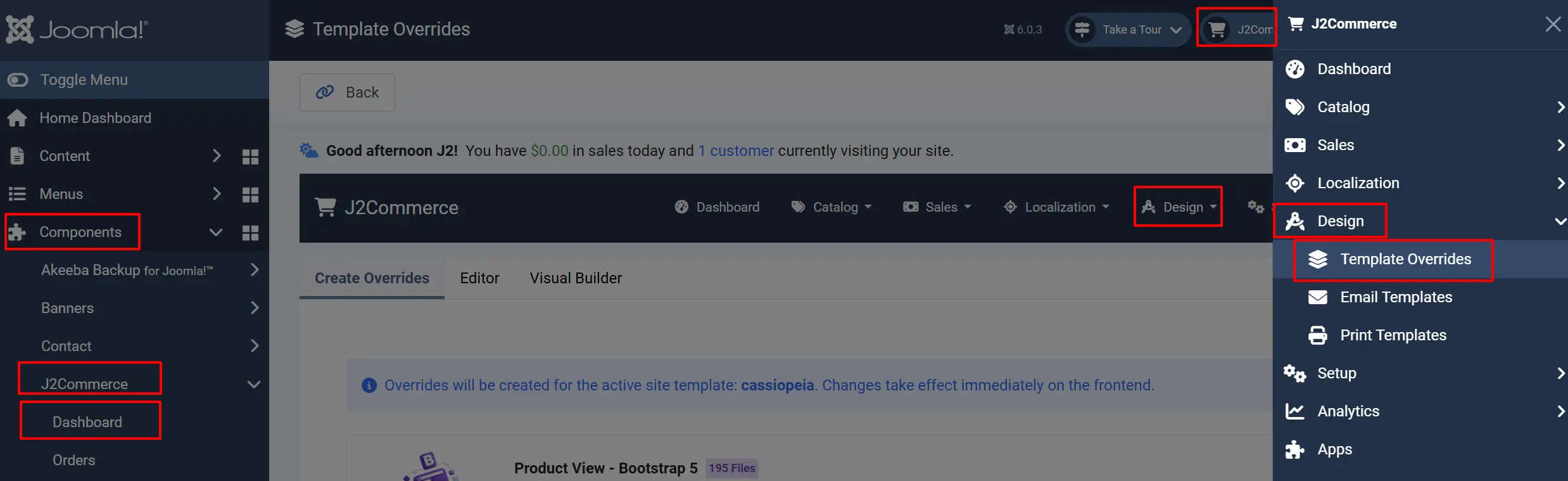
Option A: Go to the J2Commerce icon at the top right corner -> Design -> Template Overrides
Option B: Go to Components on the left sidebar -> J2Commerce -> Dashboard -> Design -> Template Overrides
How It Works
J2Commerce uses a layout system that can be overridden in your active Joomla template. The manager provides a visual way to identify which files can be overridden and an editor to modify them.
Creating an Override tab
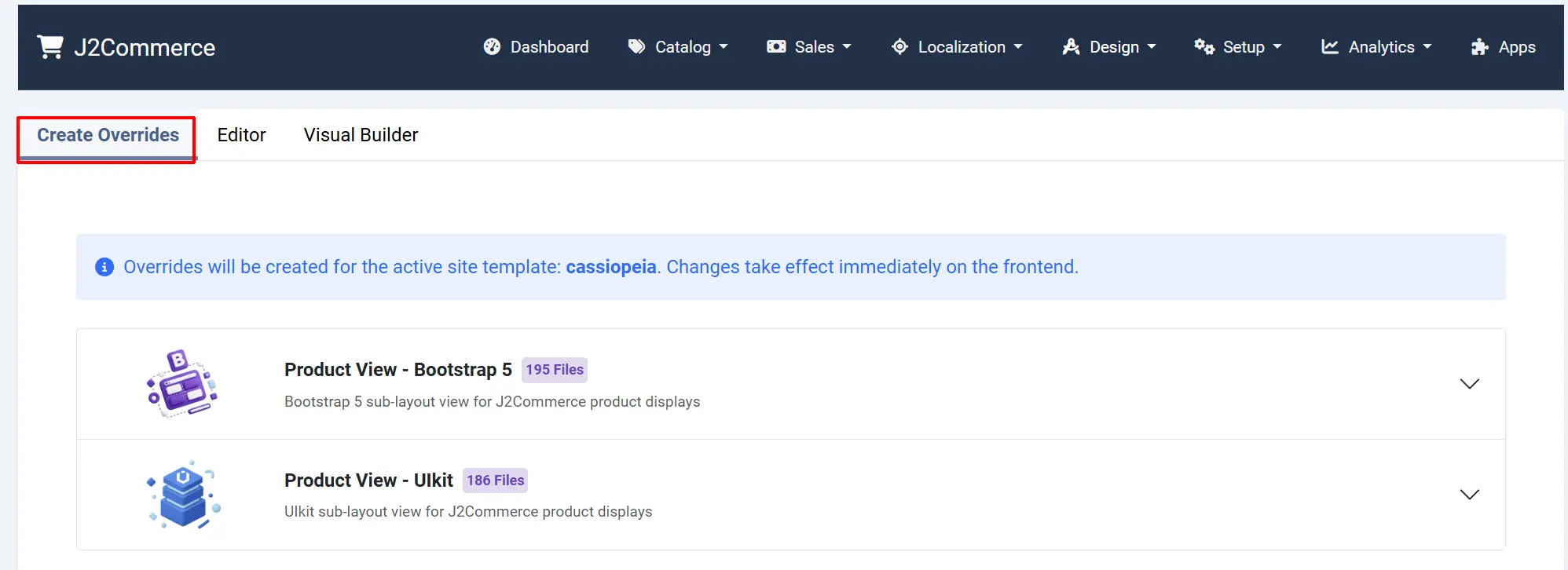
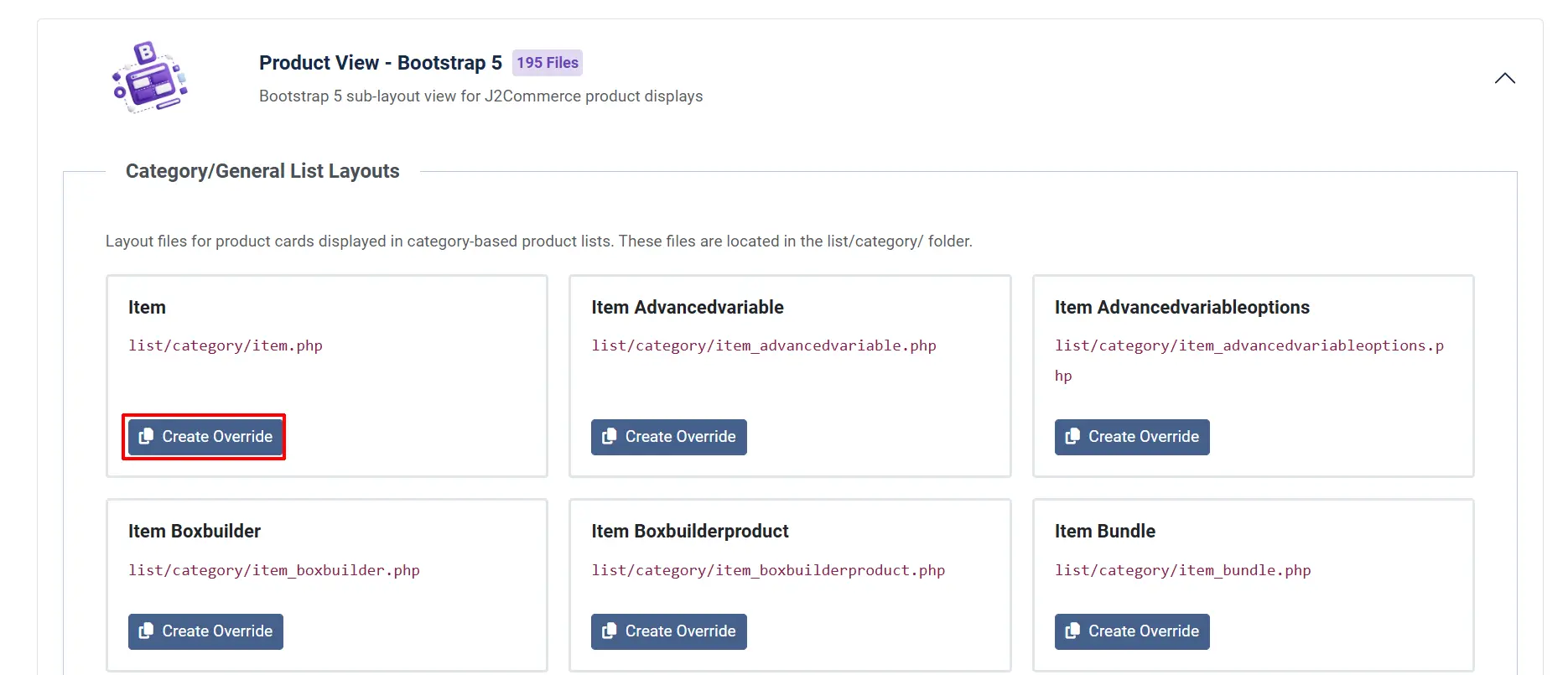
- Select a subtemplate from the list.
- Find the specific layout file you wish to customize.
- Click the Create Override button.
- J2Commerce will copy the core file to your template's override folder.
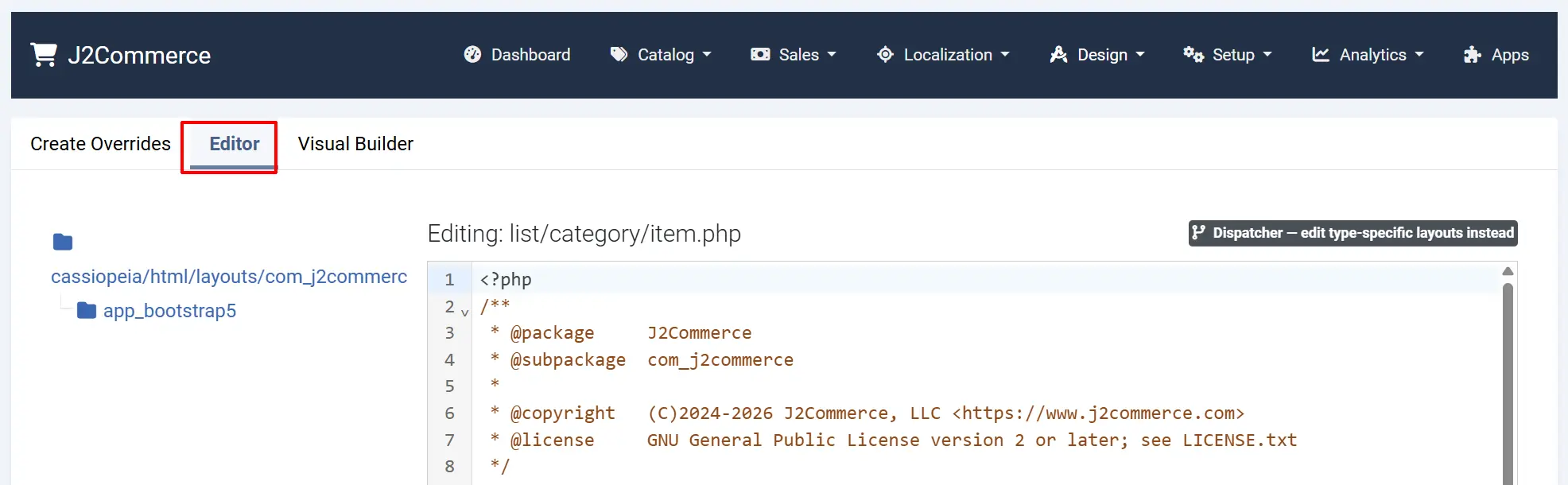
Editing an Override
- Once an override exists, you can click on the file to open the editor.
- Modify the PHP/HTML code in the editor.
- Click Save in the toolbar to apply changes.
Reverting an Override
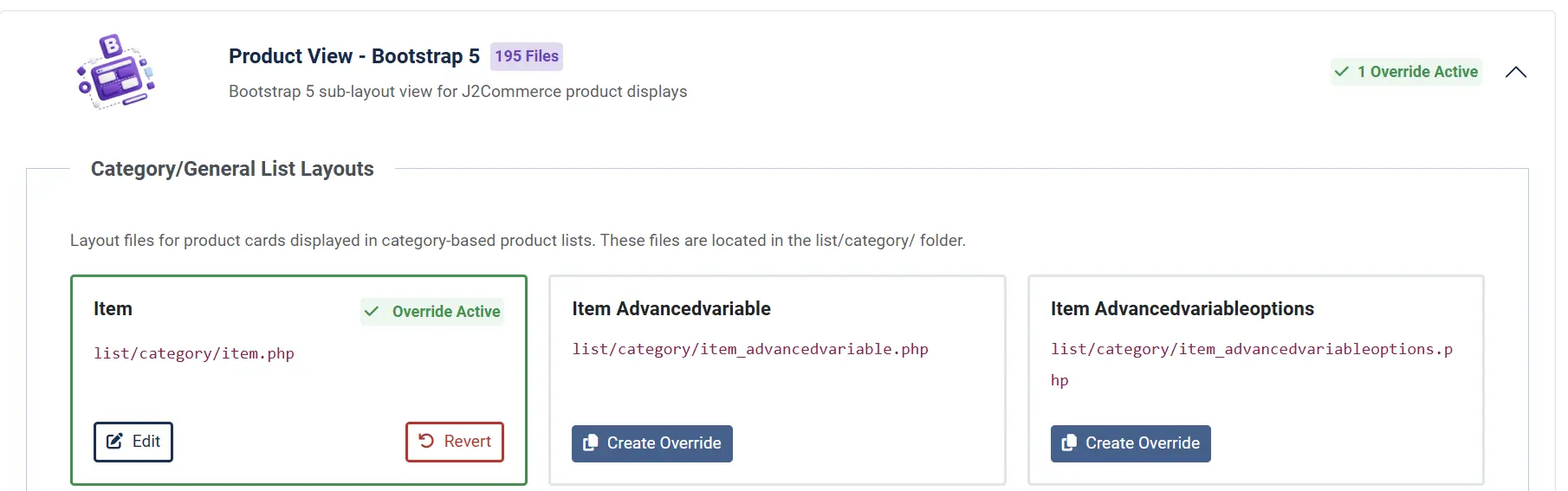
If you want to return to the default J2Commerce layout:
- Select the overridden file.
- Click the Revert (or Trash/Delete) button in the toolbar.
- This removes the file from your template folder, and J2Commerce will resume using the core file.
Advanced Customization: The Visual Builder
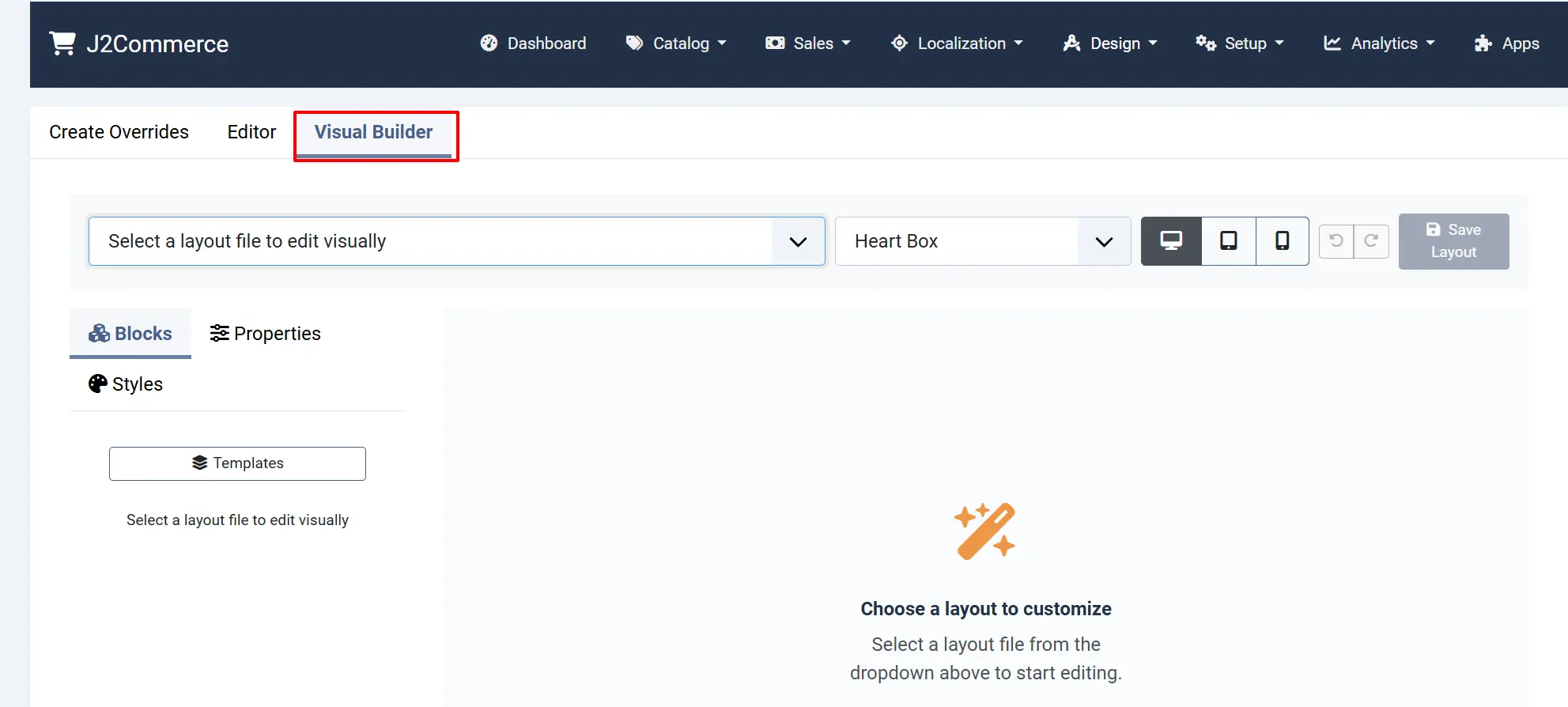
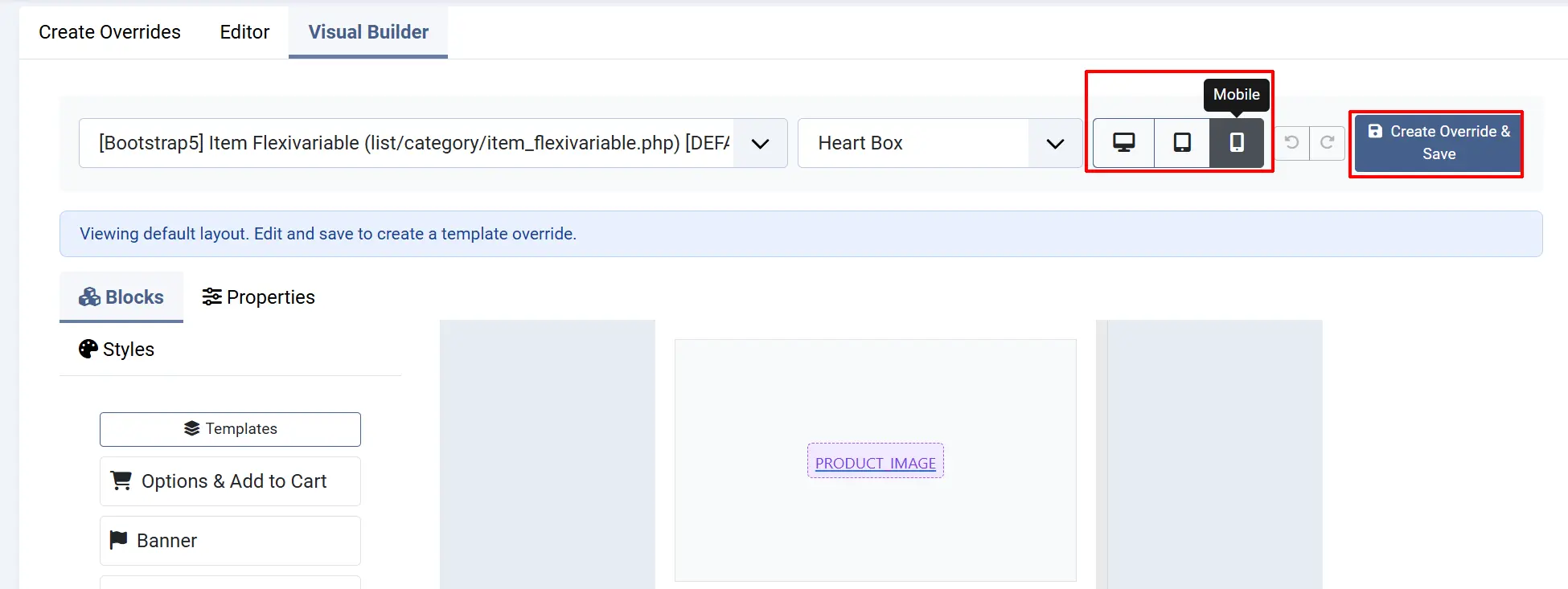
For specific block layouts, J2Commerce provides a Visual Builder. This drag-and-drop interface allows you to design layouts without writing code.
- Click the Visual Builder tab in the Overrides manager.
- Select a block-layout file from the dropdown.
- Use the visual editor to adjust the design.
- The changes are saved directly to the override file in your template.
Using the Visual Builder
The Visual Builder consists of a central canvas and several tool panels.
Adding Elements
To add content to your layout:
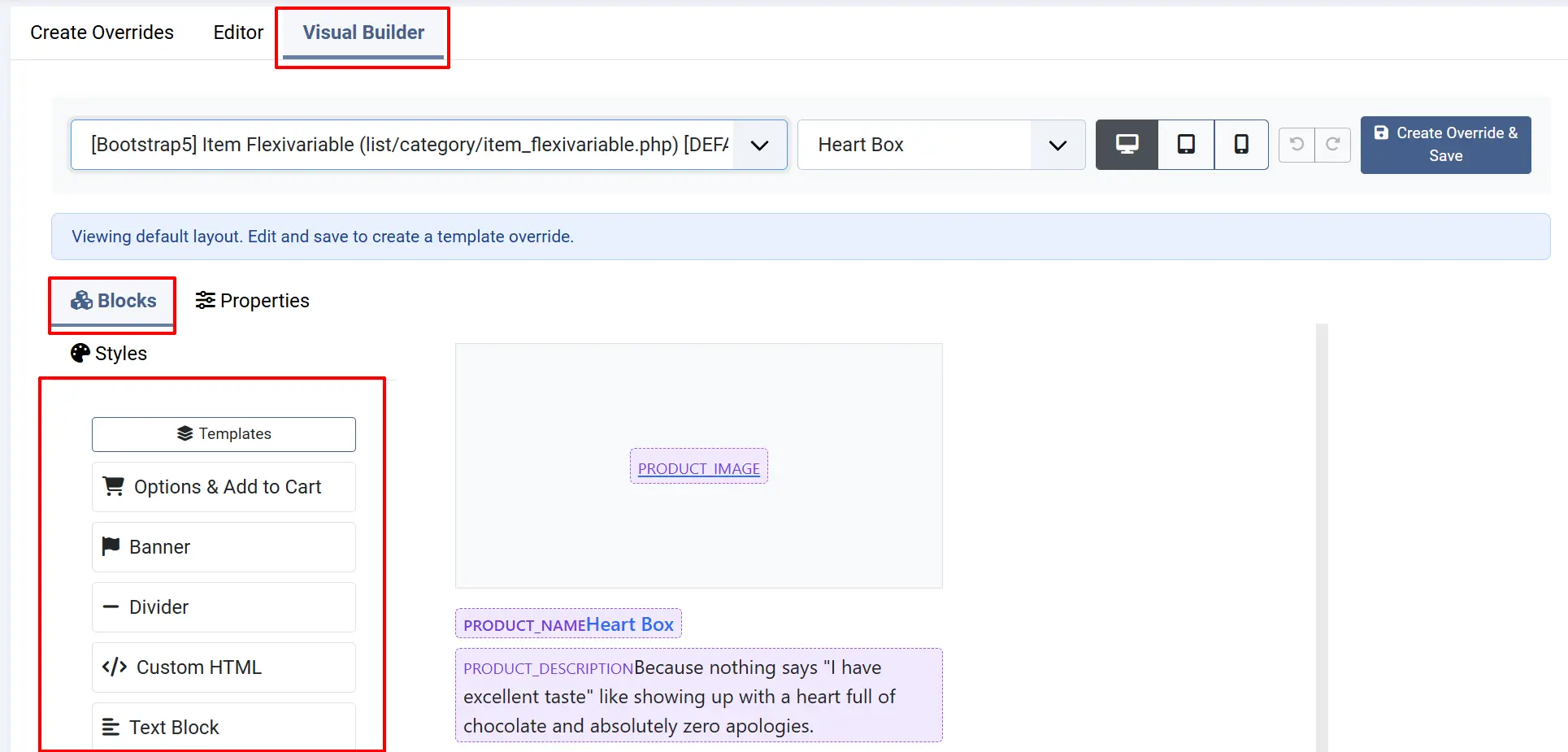
- Open the Components panel (usually located on the left or right sidebar).
- Browse the available elements (e.g., Text, Images, Containers).
- Click and drag an element from the panel and drop it directly onto the canvas where you want it to appear.
Editing Element Properties
Once an element is on the canvas, you can customize its appearance and behavior:
-
Click on the element within the canvas to select it.
-
Use the Settings/Style panel to modify properties:
- Content: Change text, links, or image sources.
- Styling: Adjust margins, padding, colors, and alignment.
- Advanced: Set custom CSS classes or IDs.
Arranging Elements
You can easily reorganize your layout:
- Click and hold an element on the canvas.
- Drag and drop it to a new position. The editor will show a guideline to help you place the element accurately.
Previewing and Saving
- Preview: Use the preview toggle to see how your layout will look on different screen sizes (Desktop, Tablet, Mobile).
- Save: Click the Save button in the toolbar to commit your changes to the template override file.
Tips
- Backup First: Always back up your template folder before making significant manual changes to overrides.
- Check Core Files: When editing, refer to the original core file to understand the available variables and logic.
- Clean Paths: Overrides are stored in
templates/[your-template]/html/layouts/com_j2commerceortemplates/[your-template]/html/com_j2commerce/templates.
Troubleshooting
Changes are not appearing on the frontend
Cause: The Joomla template cache or a browser cache may be showing an older version of the page.
Solution:
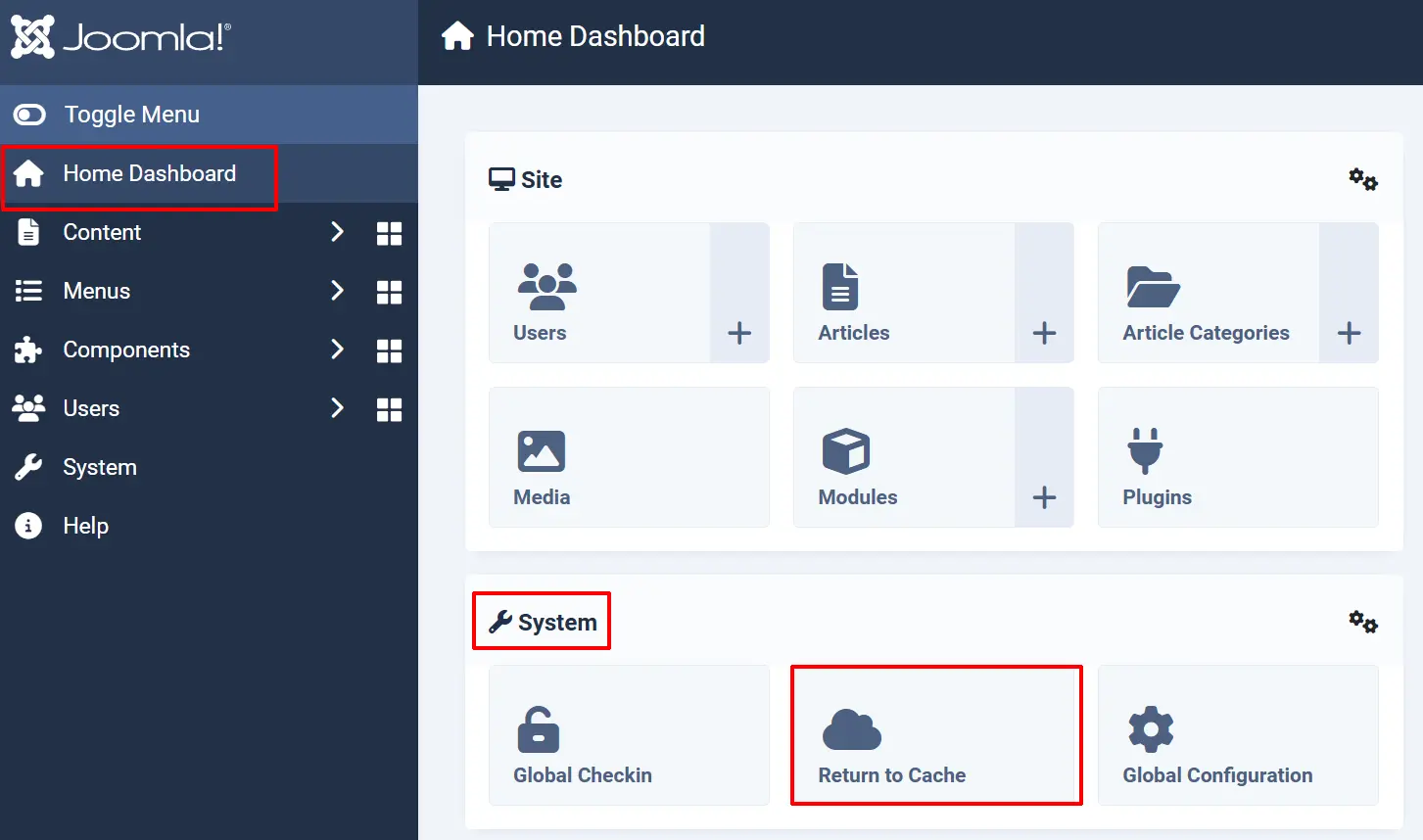
- Clear the Joomla cache via Home Dashboard -> System -> Cache -> Delete All
- Hard-refresh your browser (Ctrl+F5 or Cmd+Shift+R).
- Verify that you are editing the override for the currently active template.