Trustpilot Integration
The Trustpilot Integration app connects your J2Commerce store to your Trustpilot Business account. After a customer's order reaches a status you choose, the app automatically invites them to leave a review — for your store (a service review) and, if you like, for the products they bought. It can also sync your product catalog to Trustpilot, show your live TrustScore and star rating on your storefront through TrustBox widgets, and display real Trustpilot product reviews right on your product pages.
The companion Trustpilot module (mod_j2commerce_trustpilot) lets you drop a TrustBox widget — a badge, product stars, or a review carousel — into any module position on your site.
Requirements
- PHP 8.3.0 or later
- Joomla! 6.x
- J2Commerce 6.x
- A Trustpilot Business account with API access (API Key, API Secret, and Business Unit ID)
Purchase and Download
Step 1: Go to our J2Commerce website -> Apps
Step 2: Locate the Trustpilot app -> click View Details -> Add to cart -> Checkout.
Step 3: Go to My Downloads under your profile button in the top-right corner and search for the app. Click Available Versions -> View Files -> Download Now.
The Trustpilot Integration is a separate add-on and is not included with the core J2Commerce 6 component.
Install the App
You can install the Trustpilot app using the Joomla installer.
In the Joomla admin, go to System -> Install -> Extensions.
Upload the plugin ZIP file, or use the Install from URL option.
The Trustpilot module (mod_j2commerce_trustpilot) is included in the same package and installs at the same time.

Enable the App
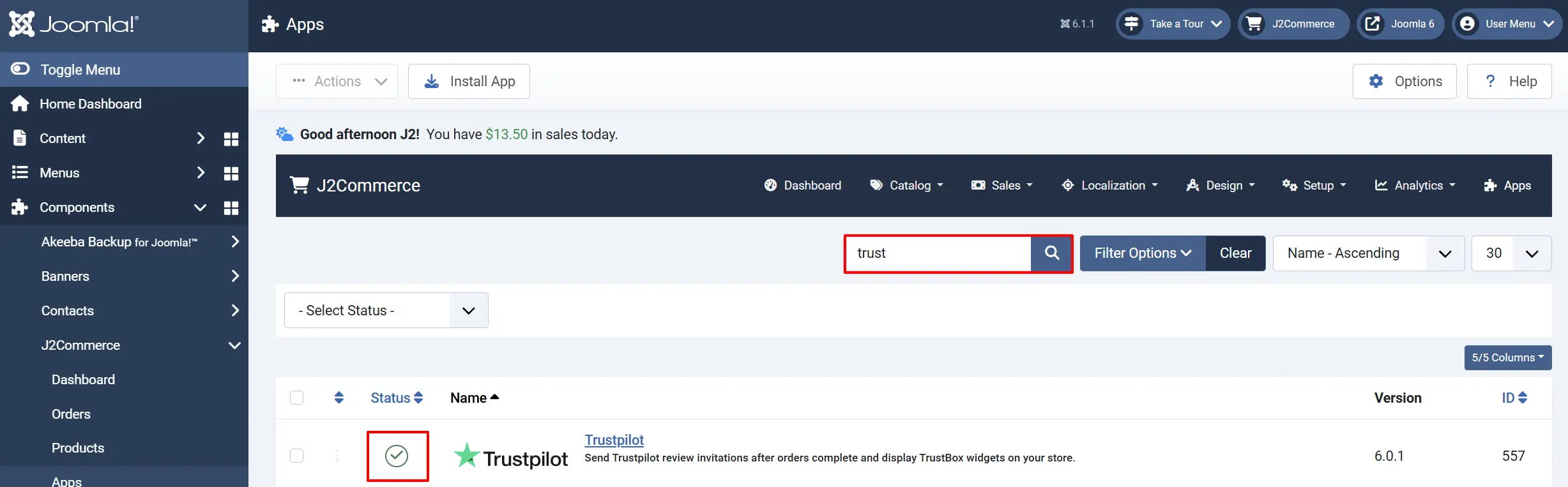
Once installed, you need to enable the app. There are two ways to reach it.
Option A: Go to the J2Commerce icon in the top-right corner -> Apps
Option B: Go to Components on the left sidebar -> J2Commerce -> Apps

Look for Trustpilot, click the X, and it turns into a green checkmark. The app is now enabled and ready for setup.
Configure the App
Click the Trustpilot title next to the green checkmark to open the settings.
Click the Toggle Inline Help button in the toolbar and the app shows a description below each field as you configure it.
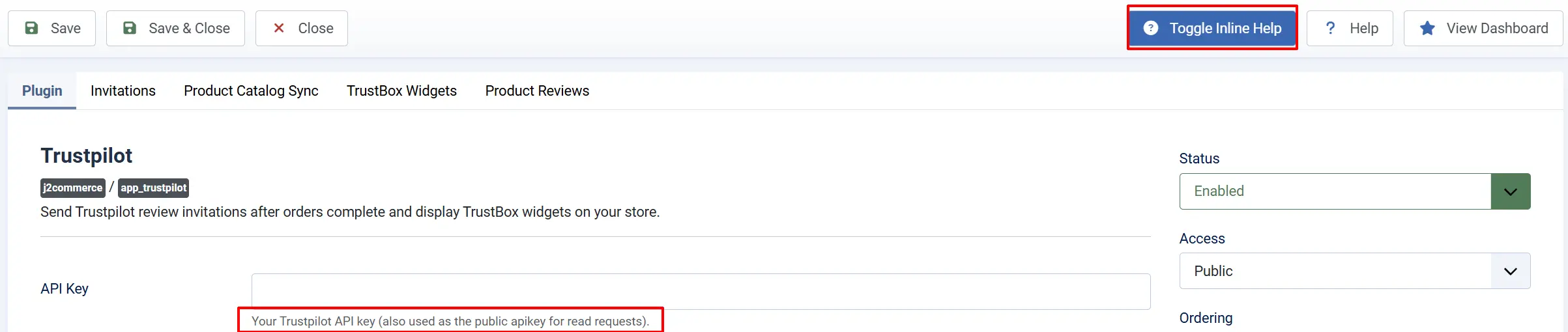
The settings are split into tabs. Start with API Credentials, then enable only the features you need.
API Credentials tab
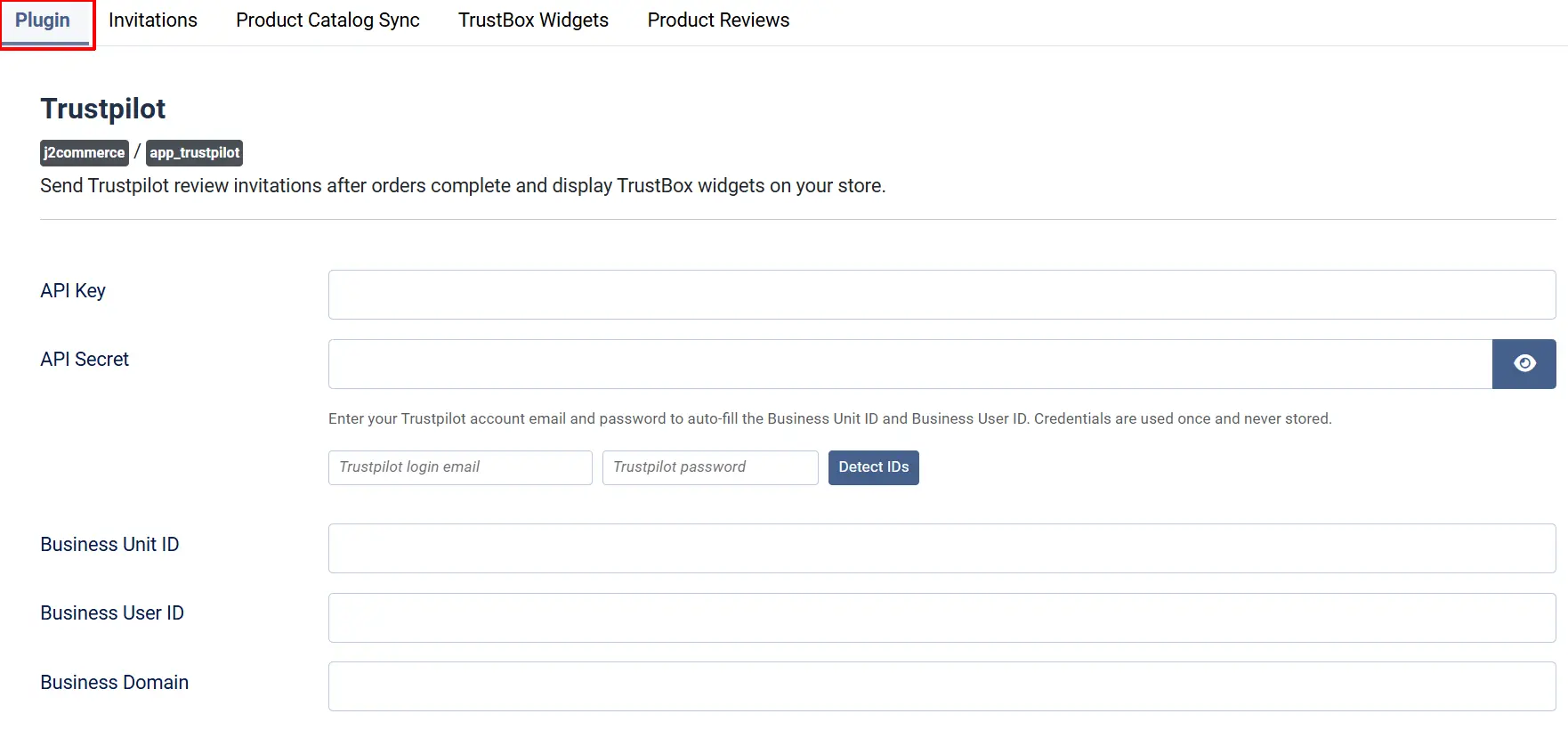
This tab connects the app to your Trustpilot Business account. Everything else depends on it.
API Key: Your Trustpilot API key. Also used for public read requests (score and reviews).
API Secret: Your Trustpilot API secret, used to sign in for sending invitations and syncing the catalog.
Business Unit ID: Your Trustpilot Business Unit ID (found in your Trustpilot Business account).
Business User ID: Required for sending invitations (the x-business-user-id value). Must be an Admin or Manager user.
Business Domain: Your store domain as registered on Trustpilot.
Don't know your Business Unit ID or Business User ID? Enter your API Key and API Secret, then use the Detect IDs helper. Enter your Trustpilot login email and password, click Detect IDs, and the app fills both fields for you. Your login is used once and never stored.
After entering your credentials, use the Test Connection button. A green success message confirms the app can reach your Trustpilot account.

Show Dashboard Messages: Show your TrustScore in the J2Commerce dashboard message carousel.
Show Quick Icon: Show the Trustpilot score icon on the J2Commerce dashboard.
Show Dashboard Stats Tab: Add a Trustpilot stats tab to the J2Commerce dashboard.
Score Cache TTL (hours): How long to keep the cached TrustScore before refreshing (5–1440).
Debug Logging: Write detailed logs for troubleshooting. Leave off unless asked by support.
Invitations tab
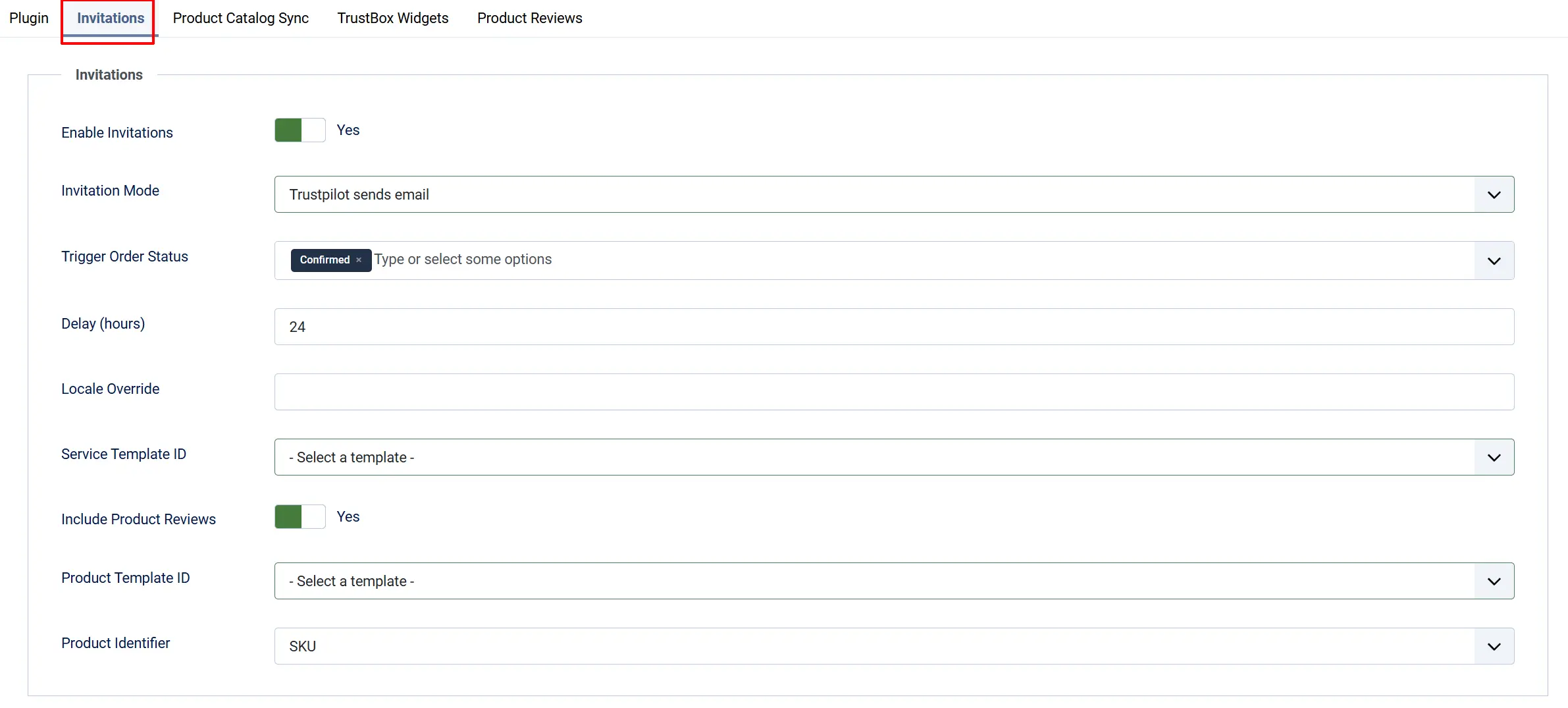
This tab controls the review invitations sent to customers after they order.
Enable Invitations: Turn automatic review invitations on or off.
Invitation Mode: Trustpilot sends email (Trustpilot emails the customer) or J2Commerce sends email (your store emails the customer a review link).
Trigger Order Status: The order status(es) that trigger an invitation, e.g. Shipped or Completed.
Delay (hours): How long to wait after the trigger status before the invitation is sent (0–8760).
Locale Override: Leave blank to use the customer's language from the order, or force one language such as en_US.
- When Invitation Mode is "Trustpilot sends email":
Service Template ID: The Trustpilot email template for store (service) reviews. Templates load from your connected account.
Include Product Reviews: Also ask customers to review the products they bought.
Product Template ID: The Trustpilot email template for product reviews (shown when product reviews are included).
Product Identifier: Whether products are identified by SKU or Product ID in the invitation.
- When Invitation Mode is "J2Commerce sends email":
Redirect After Review: A URL customers return to after leaving a review.
J2C Email Subject: The subject line for the invitation email your store sends.
J2C Email Body: The email content. You can use the placeholders {NAME}, {STORE}, and {LINK}.
Product Catalog Sync tab
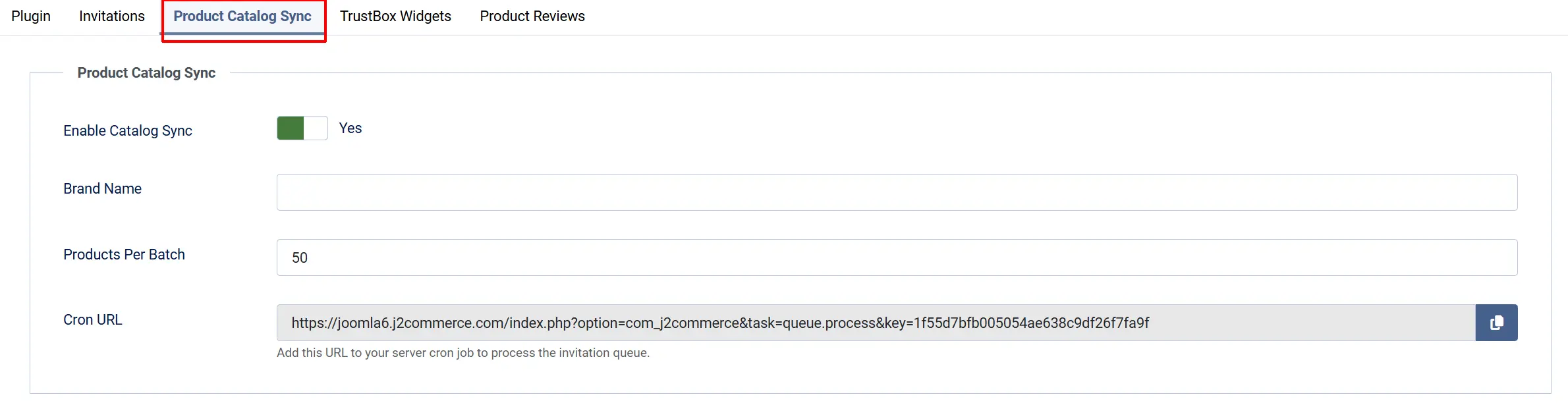
Uploading your catalog to Trustpilot lets Trustpilot match reviews to specific products by SKU.
Enable Catalog Sync: Turn catalog syncing on or off.
Brand Name: An optional brand name included with each product in the upload.
Products Per Batch: How many products to upload at a time (10–200).
Cron URL: Add this URL to a server cron job to process the sync (and invitation) queue automatically.
The Cron URL lets your server process the queue on a schedule without anyone being logged in. Copy it into your hosting control panel's cron job manager. You can also click Sync Product Catalog on the dashboard to queue a full sync manually.
TrustBox Widgets tab
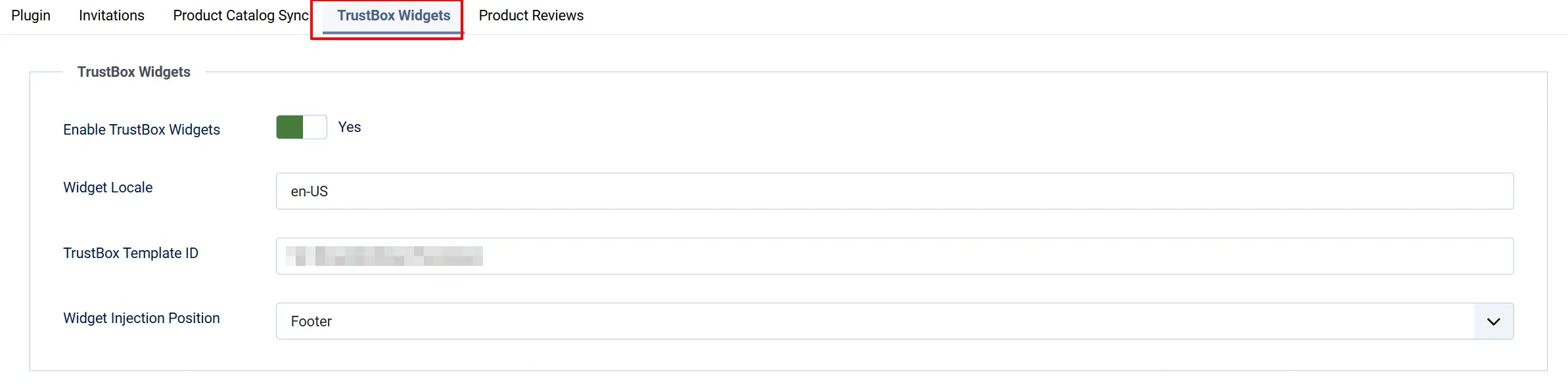
TrustBox widgets are the Trustpilot star/score boxes rendered by Trustpilot. This tab injects the widget code into your storefront automatically.
Enable TrustBox Widgets: Load the Trustpilot widget script on your storefront pages.
Widget Locale: The language for the widget, e.g. en-US.
TrustBox Template ID: The widget template ID from your Trustpilot account.
Widget Injection Position: Footer places the widget automatically in the page footer. Manual lets you place the widget markup yourself (for example, via the Trustpilot module).
Product Reviews tab
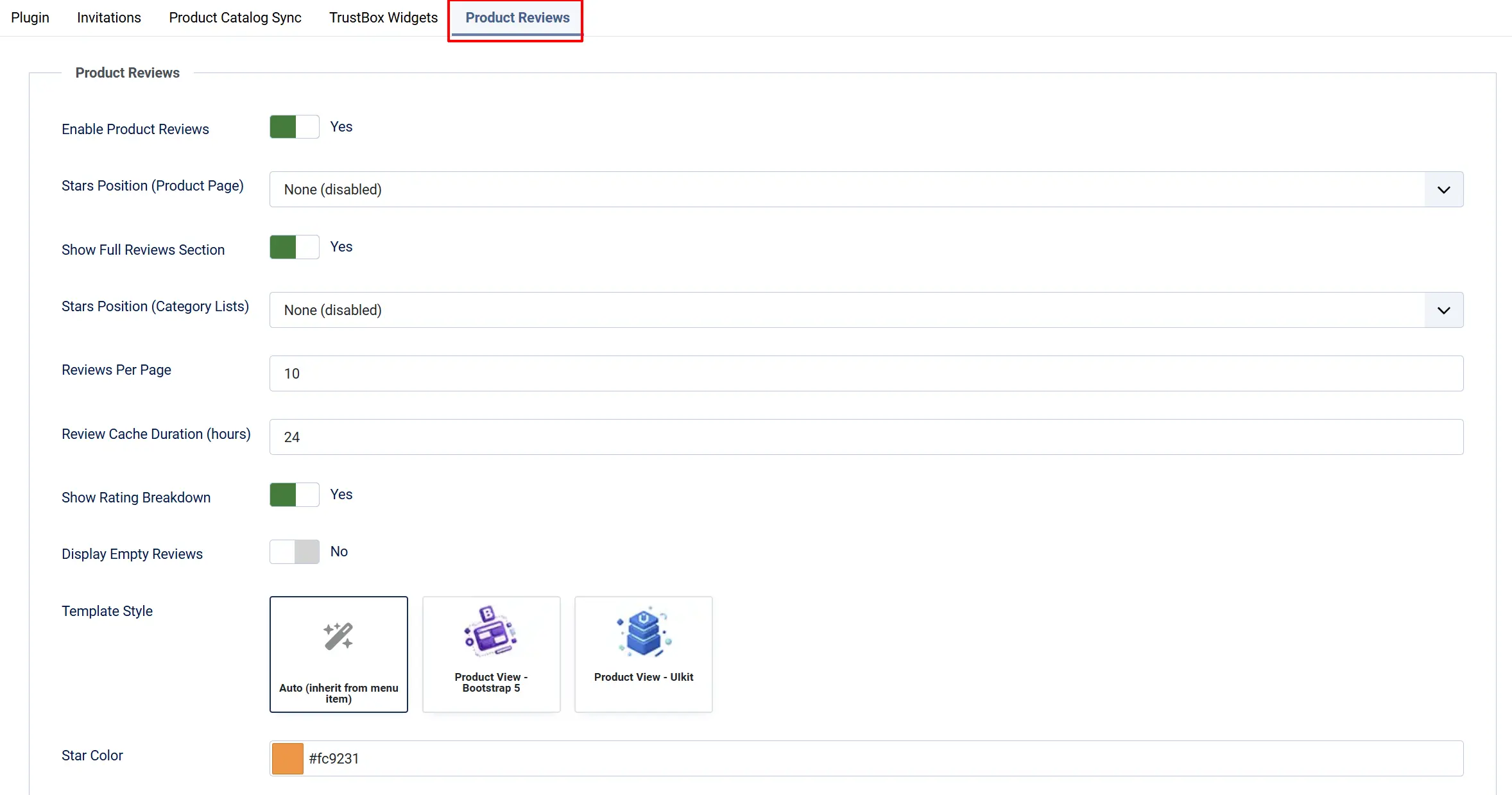
This tab shows real Trustpilot product reviews on your product pages.
Enable Product Reviews: Fetch and display Trustpilot product reviews on the storefront.
Stars Position (Product Page): Where the compact star summary appears on a product detail page (after the title, near the price, or by the Add to Cart button).
Show Full Reviews Section: Add the full reviews block at the bottom of each product page.
Stars Position (Category Lists): Where the star summary appears in category/product-list views.
Reviews Per Page: How many reviews to fetch and display (1–100).
Review Cache Duration (hours): How long to cache review data before refreshing (1–720).
Show Rating Breakdown: Show the 5-to-1 star distribution chart in the reviews section.
Display Empty Reviews: Show the stars/reviews area even when a product has no reviews yet.
Template Style: The frontend template style (Bootstrap 5 or UIkit). Auto matches your active menu item.
Star Color: The color of the filled star glyphs.
The Trustpilot Module
The Trustpilot module (mod_j2commerce_trustpilot) displays a TrustBox widget in any module position — a homepage badge, product stars, or a review carousel.
Publish the Module
- Go to Content -> Site Modules -> New.
- Select Trustpilot from the module list.
- Give it a title, choose a Position, and set Menu Assignment (which pages show it).
- Configure the options below, then click Save.
The module relies on the Trustpilot app plugin for your Business Unit ID and cached score. Make sure the app is installed and enabled first, or the module has nothing to display.
Module Options
Display Mode: Badge (your TrustScore), Product Stars, Carousel (recent reviews), or Custom Template.
Template ID: A specific TrustBox template ID (only needed for Custom mode).
Widget Locale: The widget language, e.g. en-US, de-DE, fr-FR.
Widget Height: CSS height such as 150px. Leave blank for the template default.
Widget Width: CSS width such as 100% or 400px.
Theme: Light or Dark to match your site.
Filter by Star Rating: Show only reviews with the selected ratings (applies to review-list and carousel modes). Leave empty to show all.
Show Cached Score Fallback: Show a simple review-count link if the Trustpilot script hasn't loaded. Requires a cached score from the app.
Template Style: Bootstrap 5, UIkit, or Auto to match the active menu item.
How It Works
- A customer places an order and it moves through your normal statuses.
- When the order reaches your Trigger Order Status, the app queues a review invitation.
- After the configured Delay, the invitation is sent — either by Trustpilot or by your store, depending on the Invitation Mode.
- The customer leaves a review on Trustpilot.
- Your storefront shows the results: TrustBox widgets display your TrustScore, and (if enabled) product pages show product star ratings and reviews pulled from Trustpilot.
- Score and review data are cached for the durations you set, so your pages stay fast and you stay within Trustpilot's rate limits.
Display Conditions
Review invitations are sent when:
- The app is enabled in J2Commerce -> Apps -> Trustpilot.
- Enable Invitations is set to Yes.
- Valid API Credentials and Business User ID are configured.
- An order reaches one of the selected Trigger Order Status values.
TrustBox widgets appear when:
- Enable TrustBox Widgets is Yes (for automatic footer injection), or the Trustpilot module is published to a position.
- A valid Business Unit ID is configured.
Product star ratings and reviews appear when:
- Enable Product Reviews is Yes.
- A Stars Position and/or Show Full Reviews Section is selected.
- The product has matching reviews on Trustpilot (unless Display Empty Reviews is enabled).
Tips
- Connect first, then enable features. Fill in your API Credentials and click Test Connection before turning on invitations, catalog sync, or reviews.
- Set a sensible delay. A 24–48 hour delay after shipping usually lands the invitation when the customer has received their order.
- Sync your catalog for product reviews. Product-level reviews match by SKU, so keep Product Catalog Sync enabled if you want per-product ratings.
- Cache generously. Longer cache durations reduce API calls and keep pages fast; you rarely need reviews updated more than once a day.
- Match your theme. Use the module Theme and Template Style options so the widget blends into your site.
Troubleshooting
Test Connection Fails
Cause: Incorrect API credentials or Business Unit ID.
Solution:
- Go to J2Commerce -> Apps -> Trustpilot -> API Credentials.
- Re-enter your API Key, API Secret, and Business Unit ID exactly as they appear in your Trustpilot Business account.
- Click Test Connection again.
- If you're unsure of your IDs, use the Detect IDs helper.
Invitations Are Not Being Sent
Cause: Invitations are disabled, no trigger status is matched, or the queue isn't being processed.
Solution:
- Confirm Enable Invitations is set to Yes.
- Check that your Trigger Order Status matches a status your orders actually reach.
- Make sure a Business User ID is set (required for sending invitations).
- Confirm the Cron URL is added to a working server cron job so the queue is processed.
- Turn on Debug Logging temporarily and check
plg_j2commerce_app_trustpilot.log.phpfor errors.
TrustBox Widget Is Blank
Cause: Missing Business Unit ID or template ID, or the widget script hasn't loaded.
Solution:
- Verify a valid Business Unit ID is set in the app.
- Check the TrustBox Template ID (app) or Template ID (module) is correct for the display mode.
- If using automatic injection, confirm Enable TrustBox Widgets is Yes.
- Clear cache: go to Home Dashboard -> Cache -> Delete All.
Product Reviews Do Not Appear
Cause: Product reviews are disabled, the product has no reviews yet, or the catalog isn't synced.
Solution:
- Set Enable Product Reviews to Yes and choose a Stars Position or enable Show Full Reviews Section.
- Make sure Product Catalog Sync is enabled so Trustpilot can match reviews by SKU.
- If a product genuinely has no reviews, enable Display Empty Reviews to show the empty state, or wait for reviews to arrive.
- Reviews are cached — after a change, wait for the cache to expire or clear the Joomla cache.
Module Shows Nothing
Cause: The Trustpilot app plugin is not installed/enabled, or the module isn't assigned to the current page.
Solution:
- Confirm the Trustpilot app is installed and enabled in J2Commerce -> Apps.
- Edit the module and check its Position and Menu Assignment.
- Verify a Business Unit ID is configured in the app.