Products Module
The J2Commerce Products Module displays products from your catalog in a flexible grid or slider carousel. You can showcase the latest products, featured items, best sellers, products from specific categories or tags, or hand-picked selections.
Installation
This module ships with J2Commerce 6 and is available immediately after installation.
To create a new module instance:
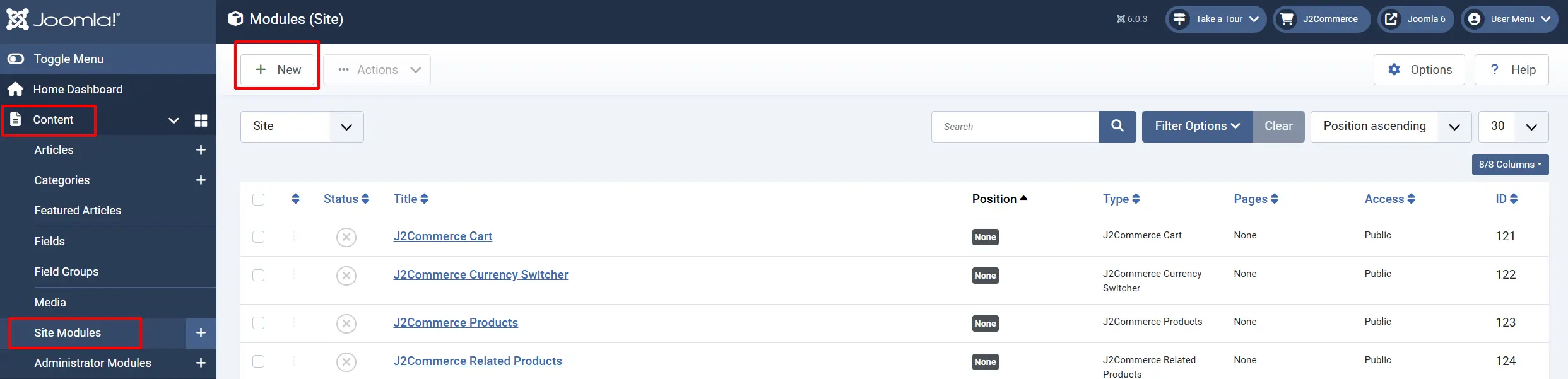
- Go to Content -> Site Modules.
- Click New in the toolbar.
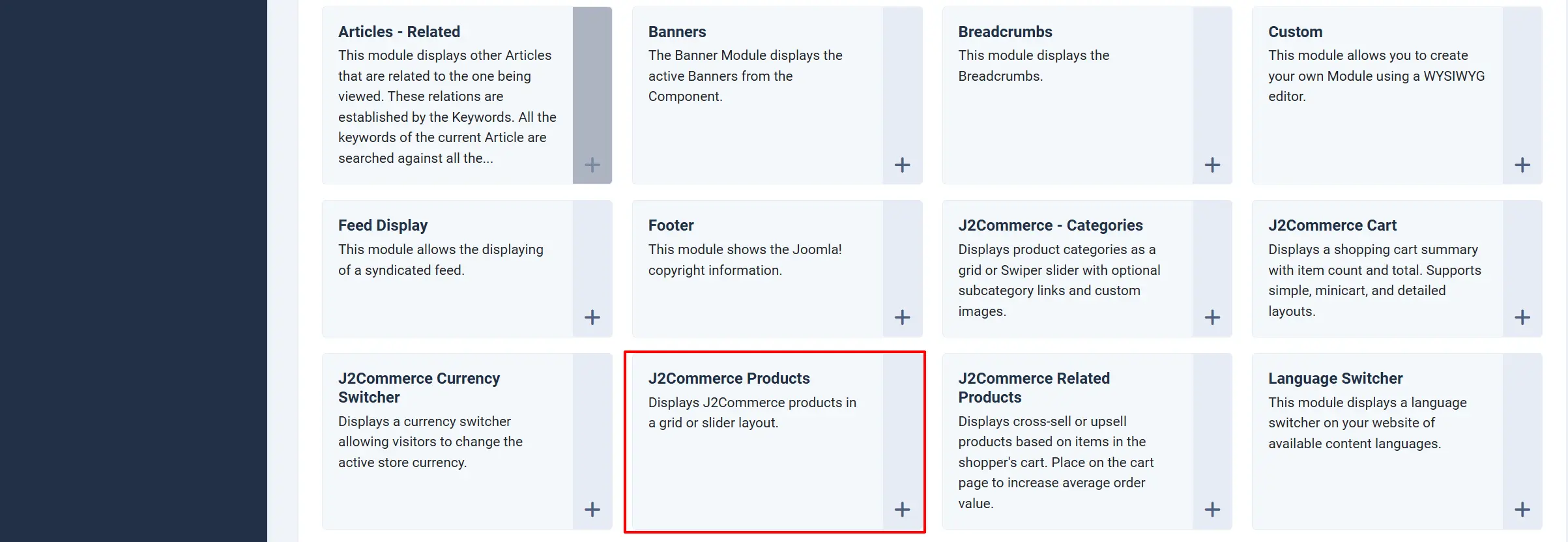
- Select J2Commerce Products from the list.
- Configure the module settings (see below).
- Assign to a template position and menu pages.
- Click Save.
Adding the Module to a Page
Go to Content -> Site Modules
The J2Commerce Categories module should already exist and needs to be enabled.
Tip: If you use the existing one, you should rename it because the title will show up on the frontend
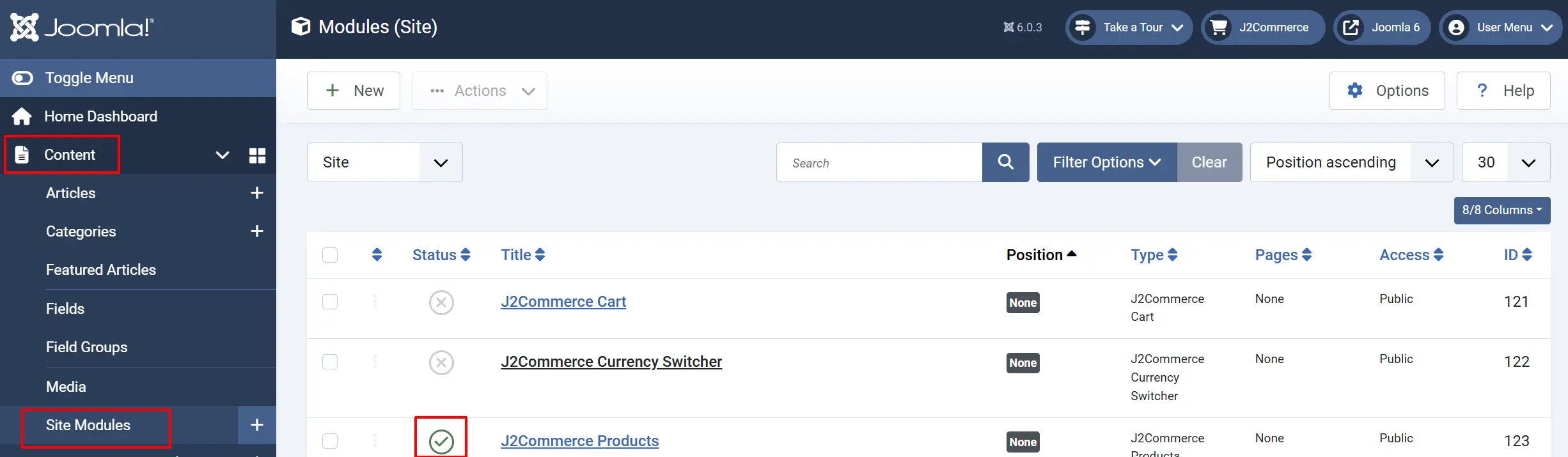
If you don't see it, then select 'New' and follow the steps below.
Select J2Commerce - Categories from the module type list.
Configuration
Basic Settings tab
These settings control which categories are shown and how the module determines its source.
Title: Give it a catchy title. The title will show up above the category items
Position: Set the position of where you want the module to be displayed. In this example we have set it as 'Main-bottom'
Mode: How the module selects which categories to show.
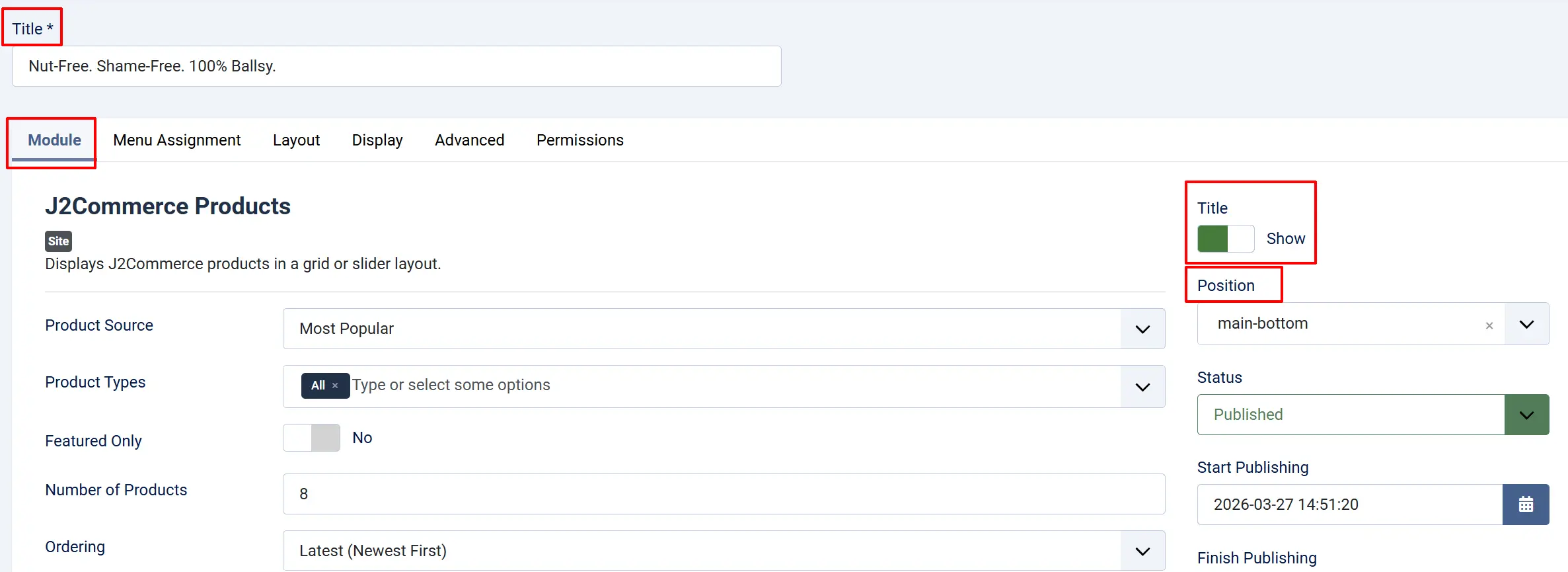
Product Source: Determines which products are displayed.
-
Latest: Shows the most recently created products (newest first).
-
Featured: Shows products marked as featured in their article settings.
-
By Category: Shows products from selected Joomla categories.
-
By Tag: Shows products linked to articles with selected tags.
-
Best Selling: Shows products with the highest sales count (based on completed orders).
-
Most Popular: Shows products with the most page views (based on hit count).
-
Selected Products: Shows only the products you manually select in the picker.
Categories: Filter by one or more Joomla categories. Only shown when Product Source is "By Category".
Select Products: Choose specific products to display. Only shown when Product Source is "Selected Products".
Tags: Filter by one or more Joomla tags. Only shown when Product Source is "By Tag"
Product Types: Restrict to specific product types (simple, variable, configurable, etc.). Leave empty for all types.
Featured Only: Show only featured products. Can be combined with any product source except "Featured".
Number of Products: Maximum number of products to display.
Ordering: How products are sorted. Source-driven options (Best Selling, Most Popular) override this setting.
- Ordering Options: Latest, Title A-Z, Title Z-A, Article Ordering, Random, Most Popular, Best Selling
Menu Assignment tab
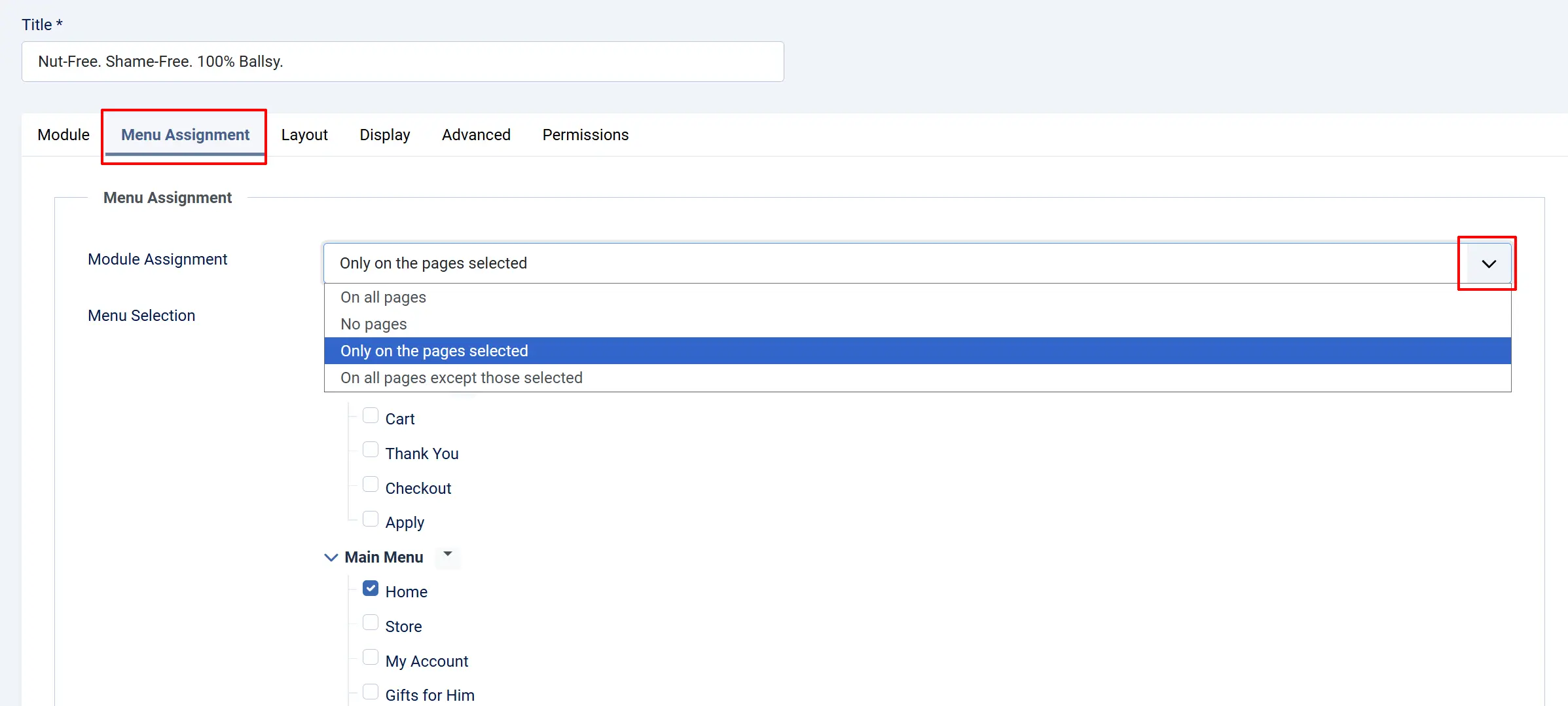
Module Assignment: Set where you want the category module to be displayed.
-
On all pages
-
No Pages
-
Only on the pages selected
-
On all pages except those selected
Menu Selection: Select which pages go with the assignment you chose
Layout Settings tab
These settings control the visual presentation of the category list.
Layout Type: Grid displays categories as a responsive card layout. Slider displays them in a horizontal Swiper carousel.
Grid Layout
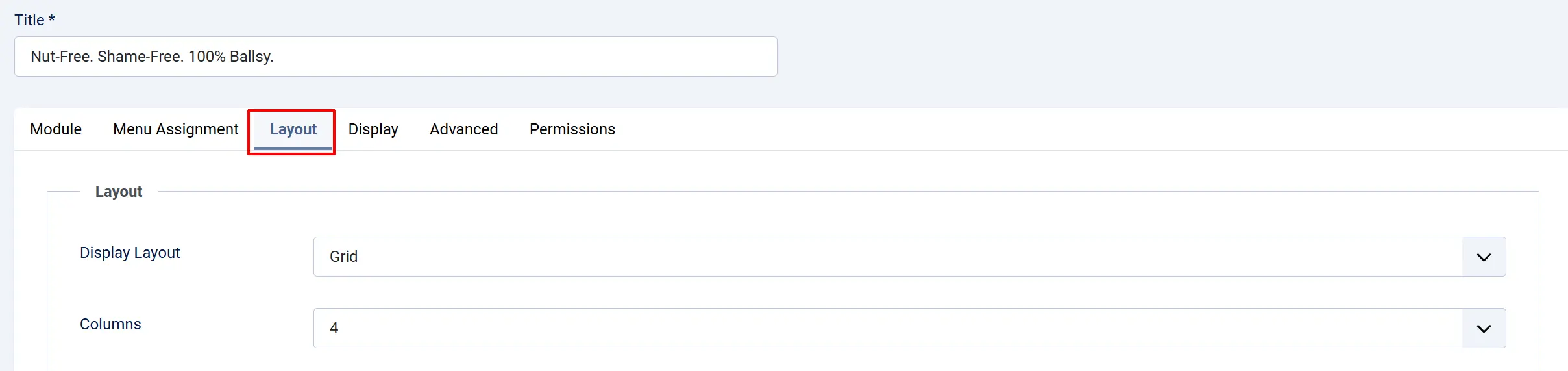
Display Layout: Visual presentation style.
Columns: Number of columns in grid layout. Only shown for Grid layout.
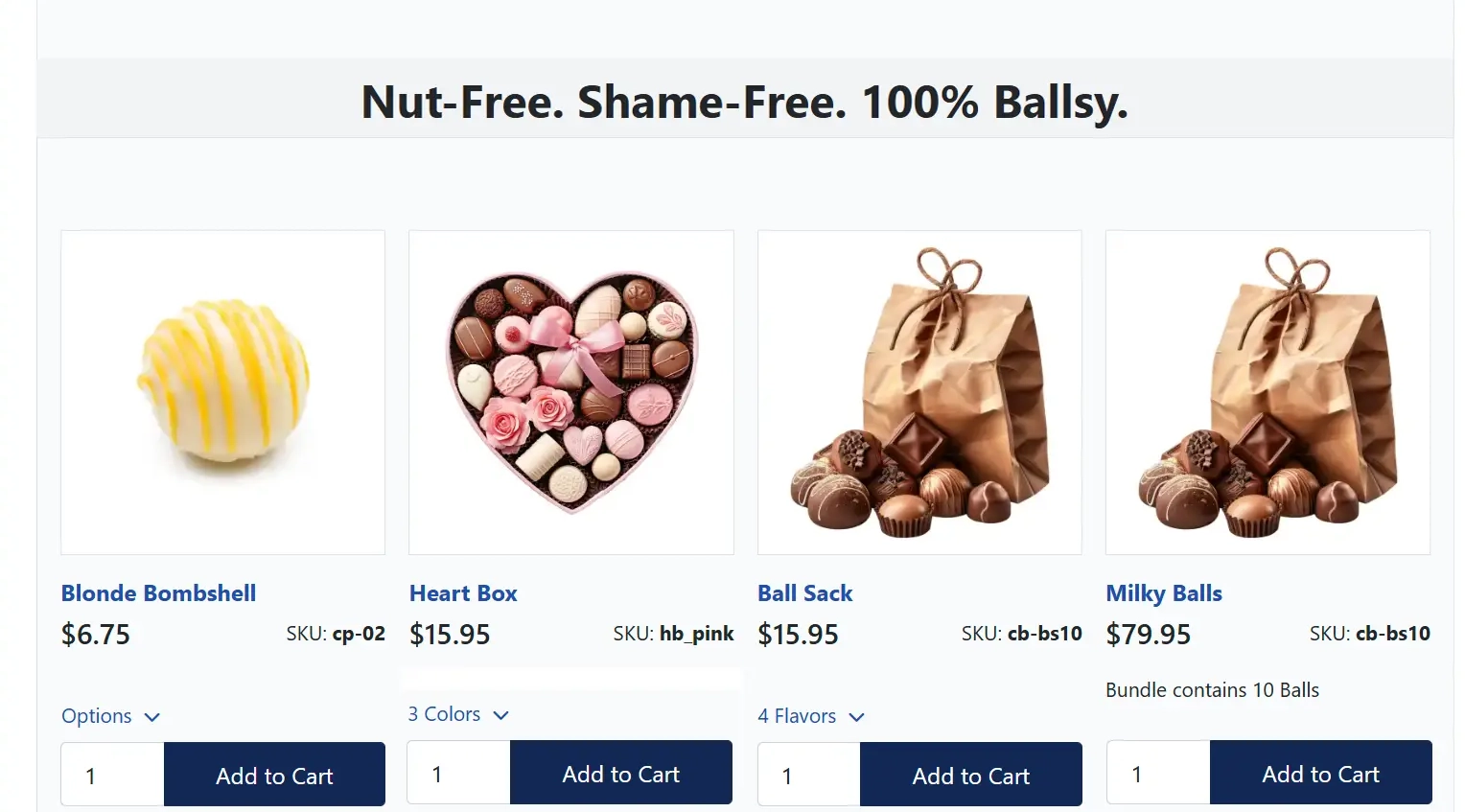
The grid layout displays products in a responsive row/column structure. On mobile devices, the grid automatically adjusts to 2 columns for optimal viewing.
| Columns | Desktop Class | Mobile Class |
|---|---|---|
| 2 | col-6 col-md-6 | col-6 |
| 3 | col-6 col-md-4 | col-6 |
| 4 | col-6 col-md-3 | col-6 |
| 6 | col-6 col-md-2 | col-6 |
Frontend View - Grid Layout
Slider Layout
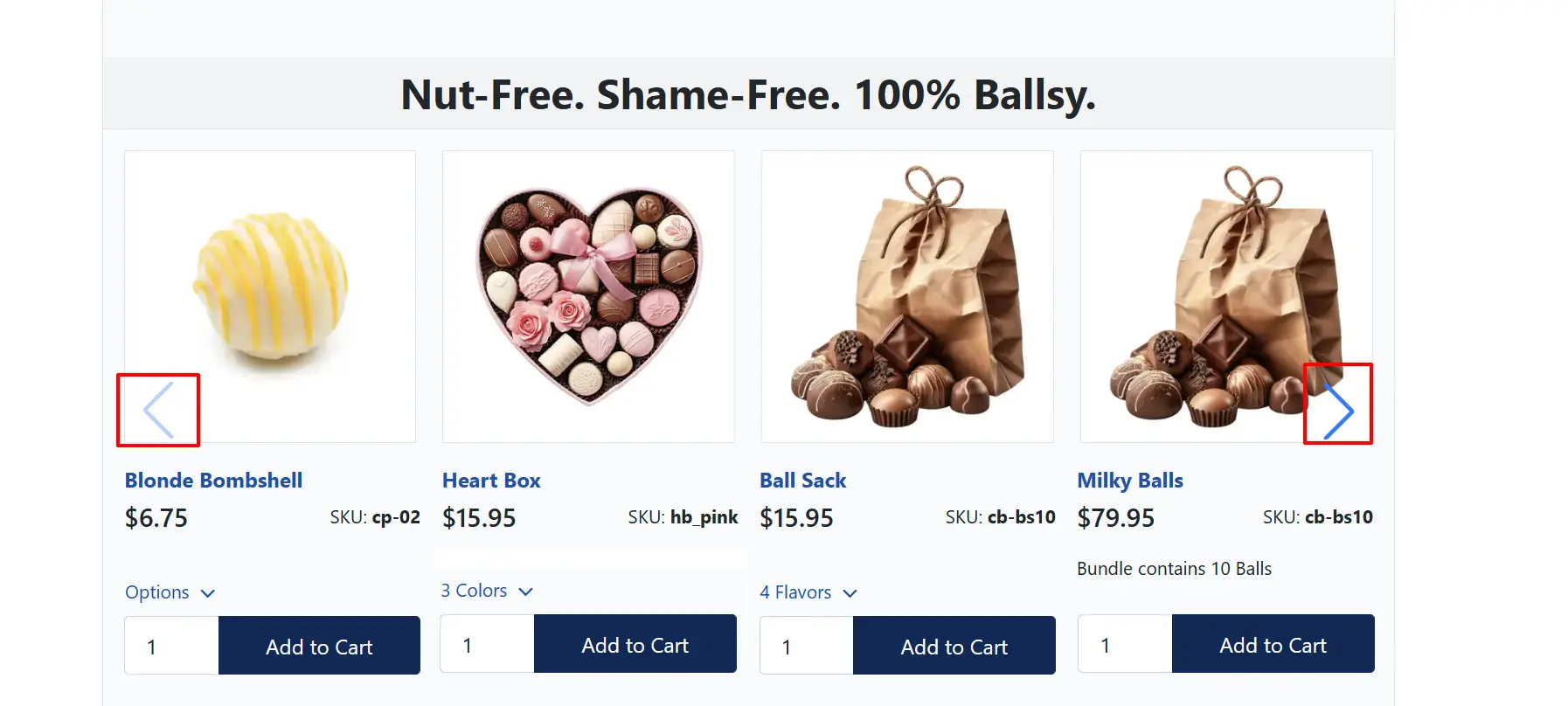
The slider layout uses Swiper.js to create a touch-friendly carousel with responsive breakpoints:
- Mobile (< 576px): 1 slide visible
- Tablet (576px - 768px): Approximately 1/3 of configured slides
- Small desktop (768px - 992px): Approximately 1/2 of configured slides
- Desktop (992px+): Full configured slides per view
Slides Per View: Number of product cards visible at once in slider. Only shown for Slider layout.
Space Between Slides: Gap in pixels between slides. Only shown for Slider layout.
Autoplay: Automatically advance slides. Only shown for Slider layout.
Autoplay Delay: Seconds between automatic slide transitions. Only shown when Autoplay is enabled.
Loop: Continuously loop through slides. Requires more slides than Slides Per View. Only shown for Slider layout.
Navigation Arrows: Show previous/next navigation arrows. Only shown for Slider layout.
Pagination Dots: Show clickable pagination dots. Only shown for Slider layout.
Frontend View - Slider Layout
Display Settings tab
Control what product information appears and how it looks.
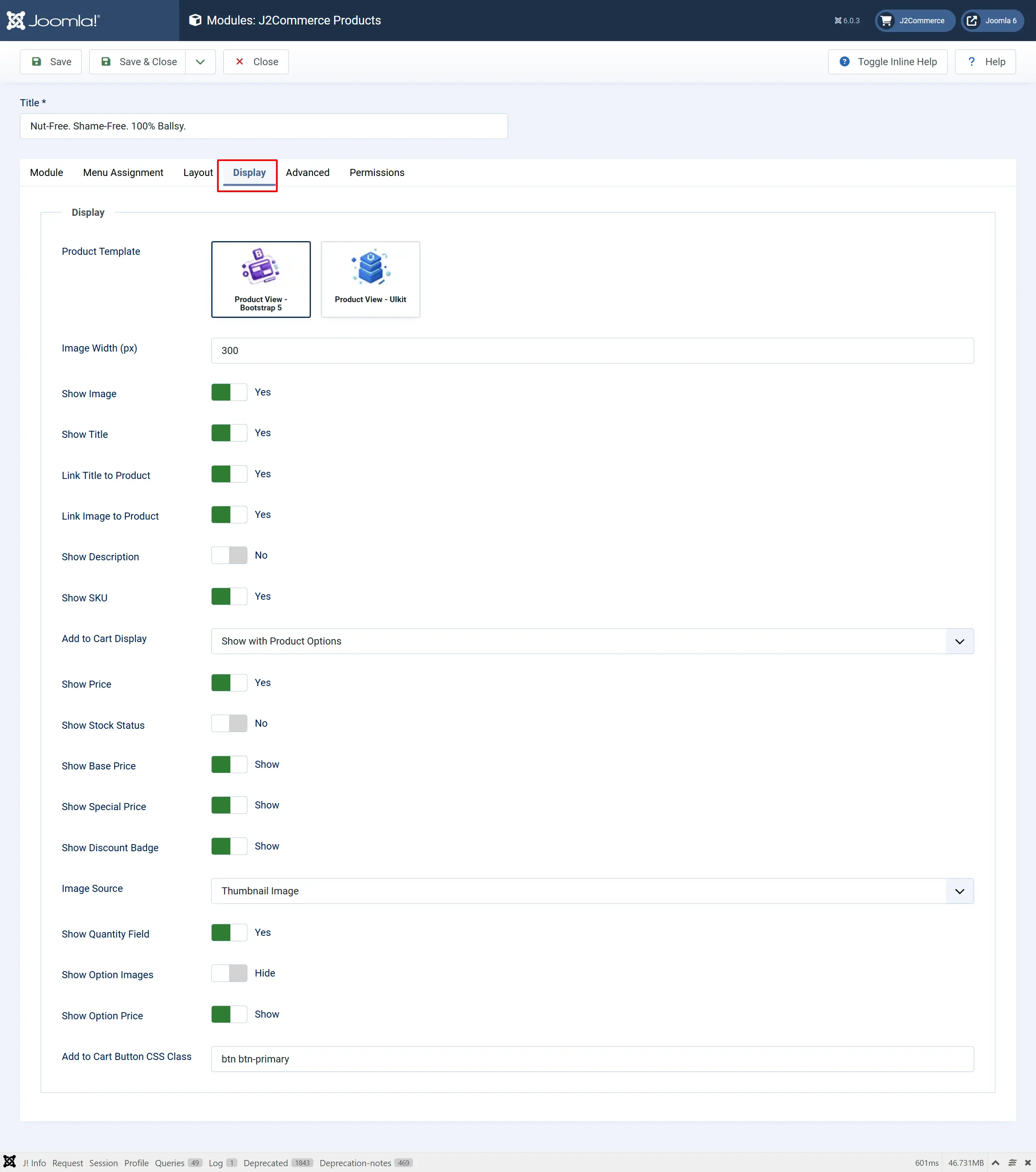
Product Template: Select which subtemplate plugin renders product cards (Bootstrap 5, UIkit, etc.).
The module uses subtemplate plugins to render product cards. Available subtemplates depend on which app plugins are installed and enabled:
- Bootstrap 5 (
app_bootstrap5) - Modern Bootstrap 5 styling with responsive grid - UIkit (
app_uikit) - UIkit 3 framework styling
Each subtemplate provides consistent styling that matches your site's design framework. The module inherits your J2Commerce global configuration by default, then applies module-specific overrides.
Image Width (px): Width in pixels for product thumbnail images.
Show Image: Display the product image.
Show Title: Display the product title.
Link Title to Product: Make the title clickable, linking to the product detail page.
Link Image to Product: Display the product's short description.
Show Description: Display the product description
Show SKU: Display the product SKU
Add to Cart Display: Control how the Add to Cart button appears.
| Option | Behavior |
|---|---|
| Hide | No Add to Cart button is shown. |
| Show with Product Options | Displays Add to Cart with product variant/option selectors inline. |
| Show without Options | Displays a simple Add to Cart button without variant selectors. |
| Link to Detail Page Only | Shows a "View Product" button linking to the product page instead of Add to Cart. |
Show Price: Display the product price
Show Stock Status: Display availability information (In Stock, Out of Stock).
Show Base Price: Display the original price (for products with special pricing)
Show Special Price: Display the discounted price.
Show Discount Badge: Display a percentage discount badge when special pricing is active.
Image Source: Choose to display either the thumbnail or the large main image
Show Quantity Field: Display a quantity input field next to Add to Cart.
Show Option Images: Display images for product options (color swatches, etc.).
Show Option Price: Display price adjustments for product options.
Add to Cart Button CSS Class: CSS classes for the Add to Cart button.
Advanced Settings tab
Module Class Suffix: CSS class suffix to apply custom styling to this module instance.
Usage Examples
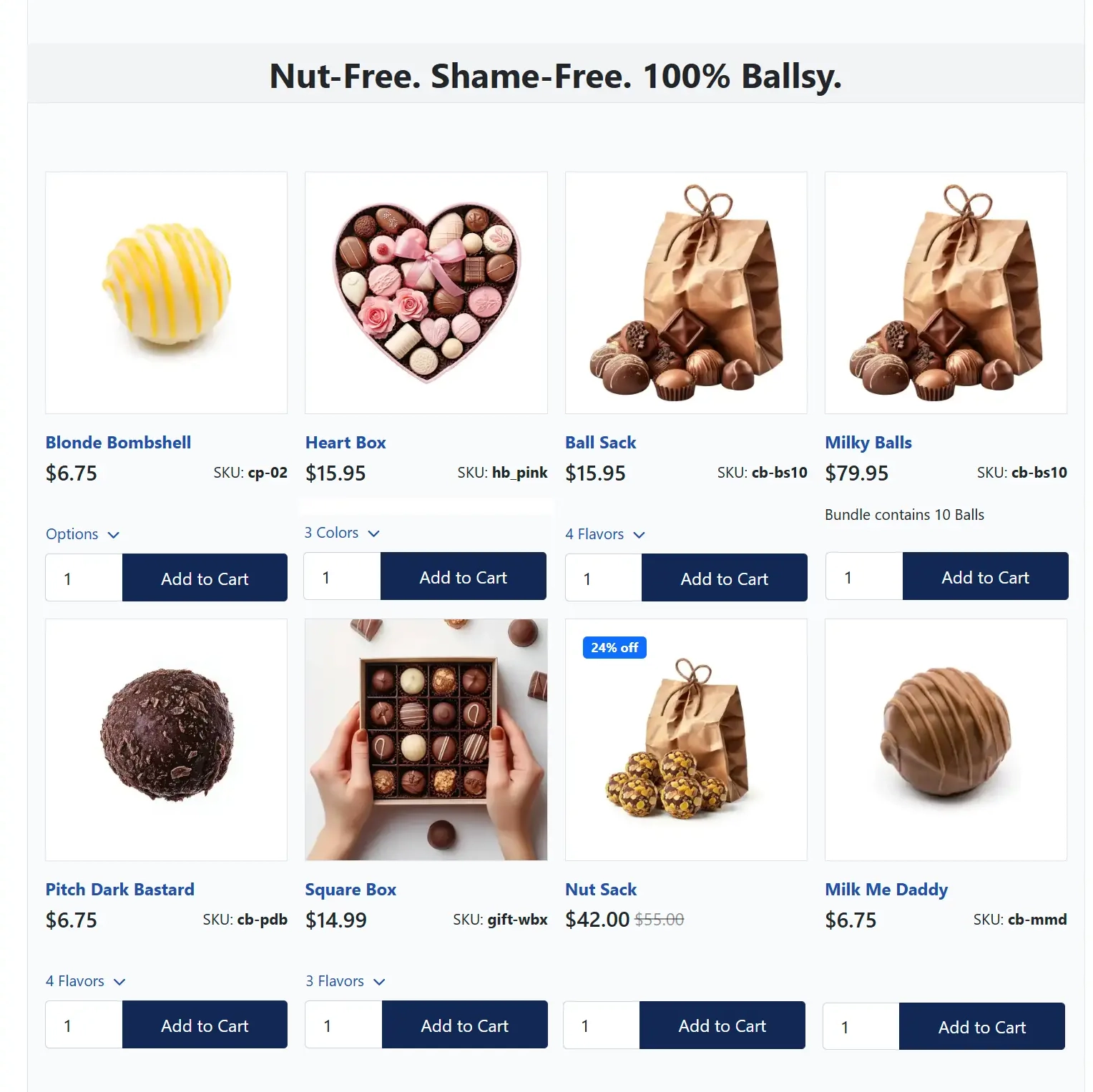
New Arrivals Section
Create a "New Arrivals" section on your homepage.
- Set Product Source to Latest.
- Set the number of Products to 8.
- Set Display Layout to Grid with 4 Columns.
- Enable Show Image, Show Title, and Show Price.
- Set Add to Cart Display to Show with Product Options.
Frontend View
Featured Products Slider
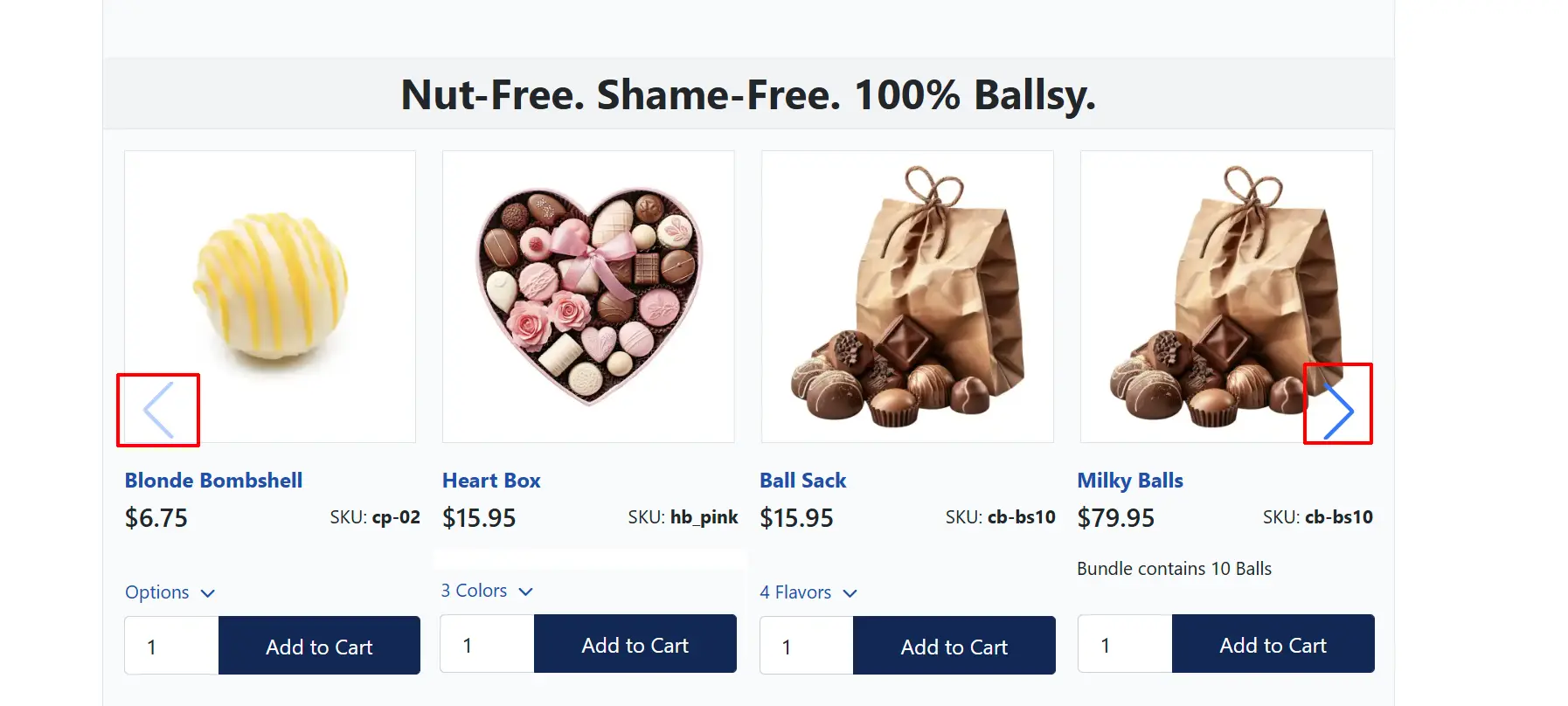
Create an eye-catching featured products carousel.
- Set Product Source to Featured.
- Set the number of Products to 10.
- Set Display Layout to Slider.
- Set Slides Per View to 4.
- Enable Autoplay with a 3-second delay.
- Enable Navigation Arrows and Pagination Dots.
- Enable Loop for continuous scrolling.
Frontend View
Category Spotlight
Display products from a specific category.
- Set Product Source to By Category.
- Select one or more categories in the Categories field.
- Set Ordering to Article Ordering to respect the category's sort order.
- Configure layout and display options as desired.
Best Sellers Widget
Showcase your top-selling products in a sidebar.
- Set Product Source to Best Selling.
- Set the number of Products to 5.
- Set Display Layout to Grid with 1 Column (for vertical stacking).
- Enable Show Price and Show Discount Badge.
- Set Add to Cart Display to Link to Detail Page Only (compact view).
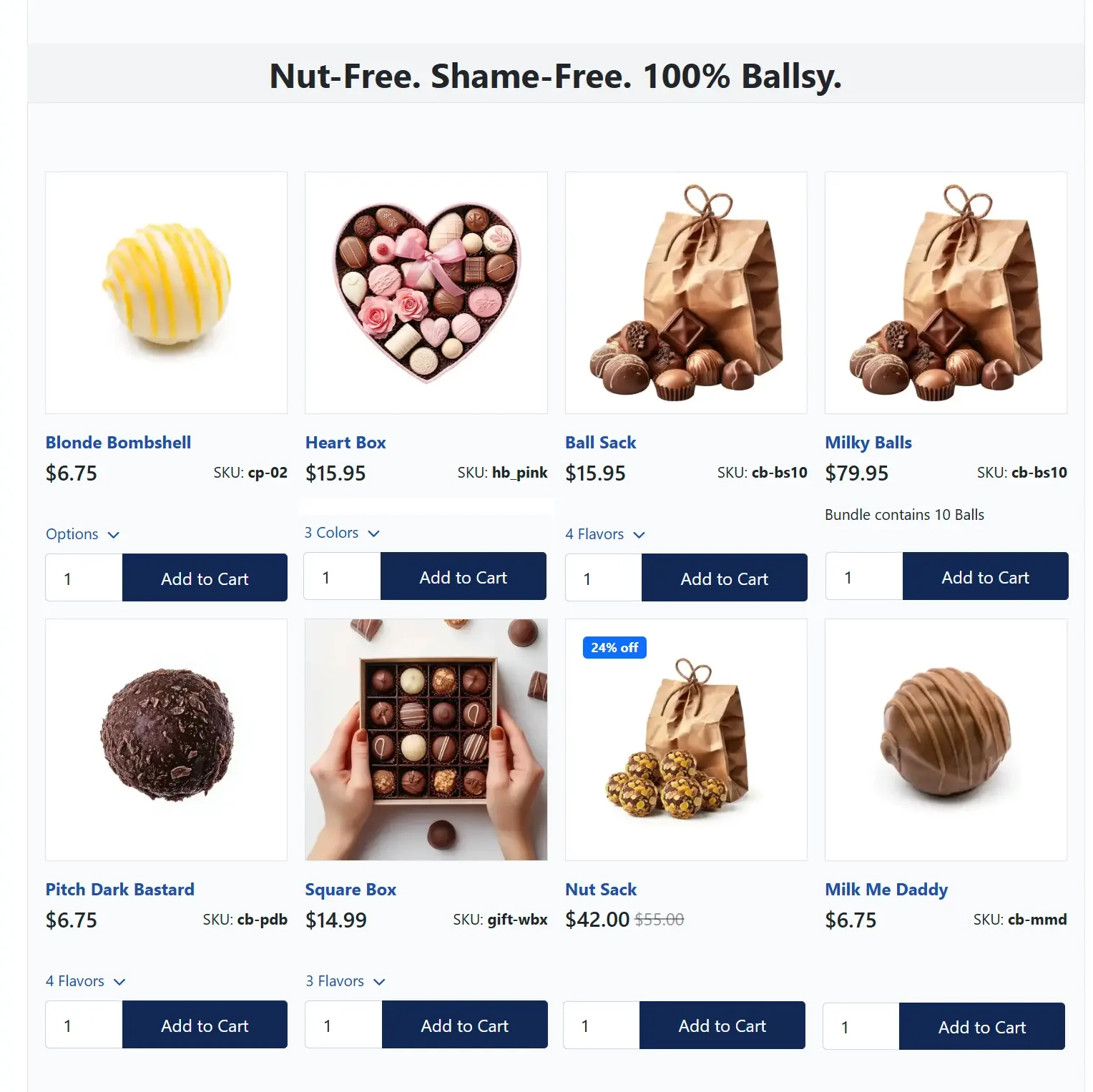
Hand-Picked Product Showcase
Display specific products in a promotional banner area.
- Set Product Source to Selected Products.
- Click Select Products and choose the products to feature.
- Products appear in the order you selected them.
- Configure remaining options for your design.
Frontend View
Custom CSS Styling
Use the Module Class Suffix field to apply custom styling:
- Add a unique suffix like
-featured-products(note the leading space). - Create custom CSS in your template:
.j2commerce-products-module.featured-products .product-card {
    border: 2px solid #your-brand-color;
}
The module also generates a unique class based on the module ID: mod-j2commerce-products-{moduleId} for targeted styling.
Responsive Behavior
Grid Layout
- Desktop (768px+): Uses configured column count (2, 3, 4, or 6 columns)
- Mobile (< 768px): Automatically collapses to 2 columns for touch-friendly browsing
Slider Layout
The Swiper carousel automatically adjusts based on the viewport:
| Viewport | Slides Visible |
|---|---|
| < 576px (mobile) | 1 |
| 576px - 768px (tablet) | ~1/3 of configured |
| 768px - 992px (small desktop) | ~1/2 of configured |
| 992px+ (desktop) | Full configured amount |
Troubleshooting
No Products Appear
Cause: Products may not meet the filter criteria or the J2Commerce component may be disabled.
Solution:
- Verify J2Commerce is enabled: Go to System -> Manage -> Extensions and ensure J2Commerce is published.
- Check that products exist matching your filters (category, tag, product type).
- Ensure products are enabled and have visibility set to "Visible" in J2Commerce.
- For category/tag sources, verify the selected categories/tags contain published products.
Slider Not Initializing
Cause: JavaScript conflict or Swiper library not loading.
Solution:
- Open browser developer tools (F12) and check the Console for JavaScript errors.
- Ensure the Bootstrap 5 or UIkit app plugin is enabled: Go to J2Commerce -> Apps.
- Clear Joomla cache: Home Dashboard -> Cache -> Delete All
- Check for template JavaScript conflicts with Swiper.
Images Not Displaying
Cause: Missing product images or incorrect image source setting.
Solution:
- Verify products have images assigned in their J2Commerce settings.
- Check Image Source setting: "Thumbnail Image" uses the product thumbnail; "Main Image" uses the full-size image.
- Adjust Image Width if images appear too small or are being scaled incorrectly.
Add to Cart Button Not Working
Cause: AJAX handler not loaded or CSRF token issue.
Solution:
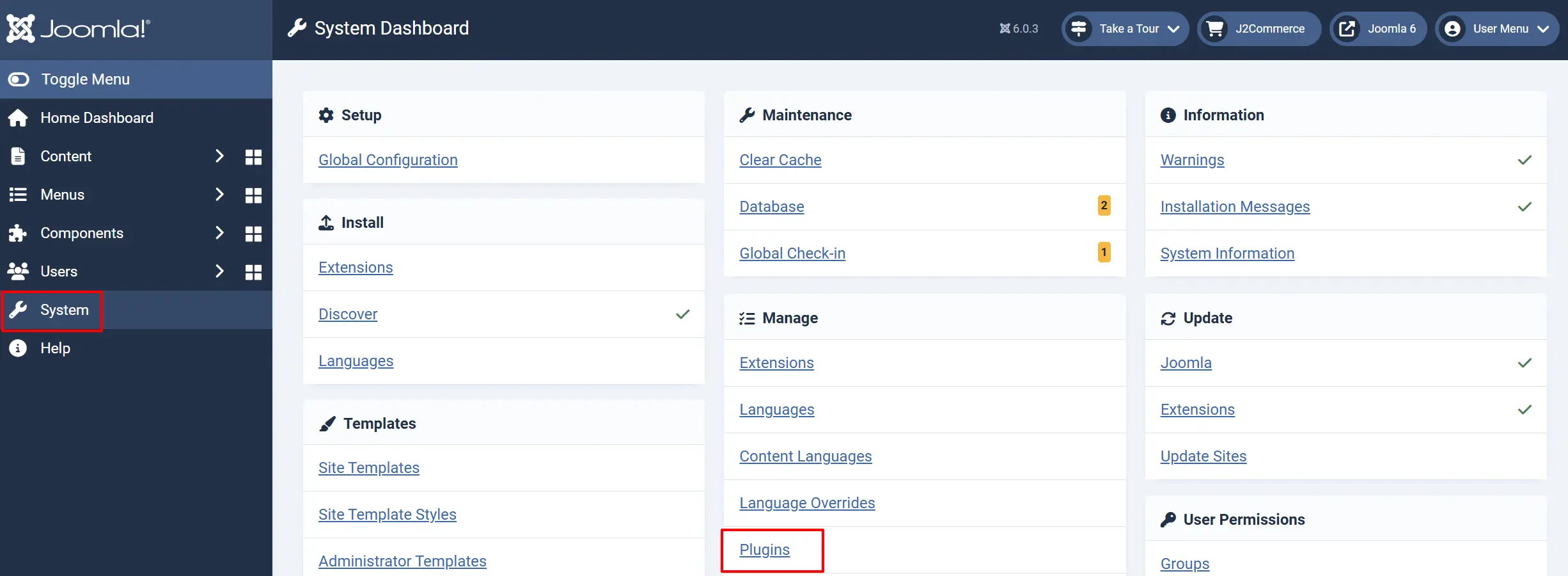
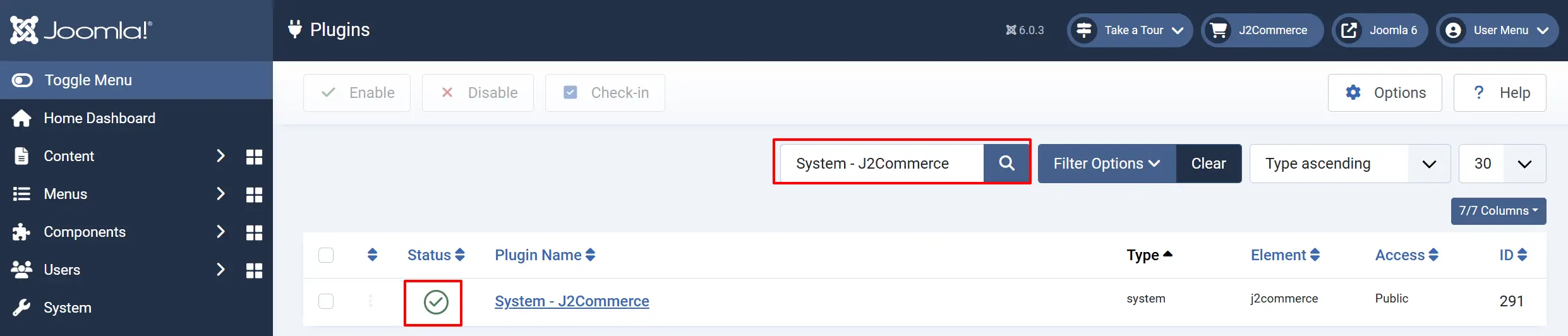
Go to System -> Manage -> Plugins
Search for the System - J2Commerce plugin and ensure it is enabled.
Clear the browser cache and reload the page.
Check the browser console for AJAX errors.
For variable/configurable products, ensure variants are properly configured with pricing.
Wrong Products Displayed
Cause: Caching or incorrect filter settings.
Solution:
- Clear Joomla cache: Home Dashboard -> Cache -> Delete All
- Review all filter settings in the module configuration.
- For the "Selected Products" source, verify that the correct products are selected in the picker.
- Check if "Featured Only" is accidentally enabled when you want all products.