Stripe Payment
The Stripe plugin lets your customers pay using credit cards, digital wallets, bank transfers, and buy-now-pay-later options — all processed securely through Stripe's payment platform.
Choose between two checkout experiences: Embedded (payment form displayed directly on your checkout page) or Hosted (redirect to a Stripe-hosted payment page). Both support refunds, webhooks for automatic order updates, and saved cards for returning customers.
Prerequisites
- J2Commerce is installed and active on your Joomla site
- A Stripe account (see the setup steps below)
- API keys from your Stripe Dashboard (Publishable Key and Secret Key)
Set Up a Stripe Account
If you already have a Stripe account and API keys, skip ahead to Installation & Enabling.
Create a Stripe Account
- Go to stripe.com and click Sign up.
- Enter your email address and create a password.
- Verify your email address when Stripe sends you a confirmation email.
- Complete the identity verification steps Stripe requires (this varies by country).
- Activate your account by providing business details and bank account information.
Get Your API Keys
After your account is active:
- Log in to the Stripe Dashboard.
- Click Developers in the left sidebar, then API Keys.
- You will see your Publishable key and Secret key.
- Copy both keys and keep them somewhere safe.
IMPORTANT: Use Sandbox (Test Mode): Toggle the Test mode switch at the top of the Stripe Dashboard. The API keys shown will be for testing — no real money is processed. Copy the test Publishable key and test Secret key separately.
Purchase and Download
This plugin is a separate add-on available from the J2Commerce Extensions Store. It does not come with the core J2Commerce 6 component.
Step 1: Go to our J2Commerce website -> Payment Plugin
Step 2: Locate the Payment_Stripe Plugin -> click View Details -> Add to cart -> Checkout.
Step 3: Go to your My Downloads under your profile button at the top right corner and search for the app. Click Available Versions -> View Files -> Download Now
Installing the Plugin
You can install the Stripe Payment plugin using the Joomla installer. The following steps help you with a successful installation.
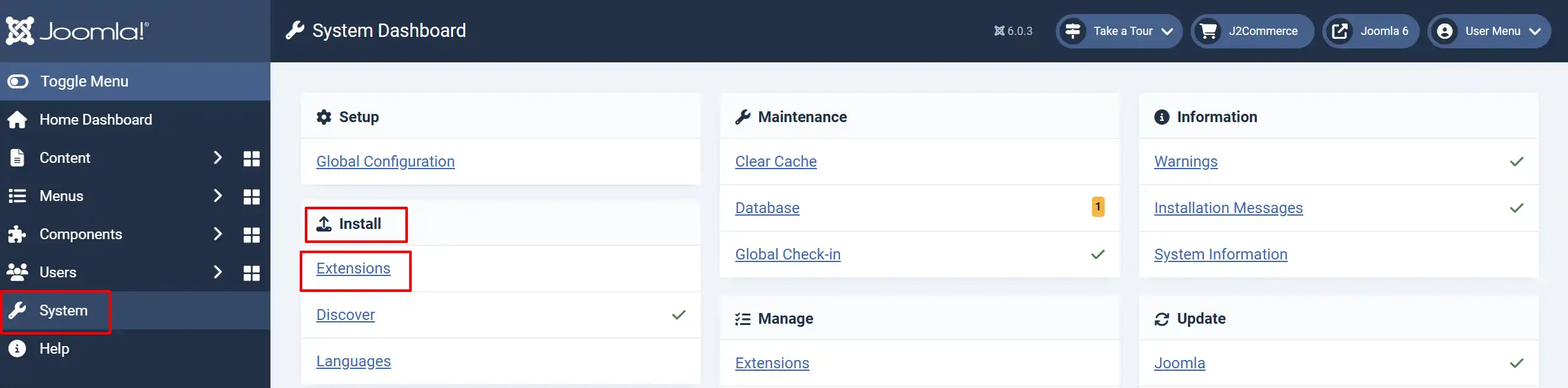
In the Joomla admin, go to System -> Install -> Extensions
-
Upload the Payment_Stripe ZIP file or use the Install from URL option.
Enable the Plugin
Once you have installed the extension, you will need to enable it. There are two ways you can access the extension.
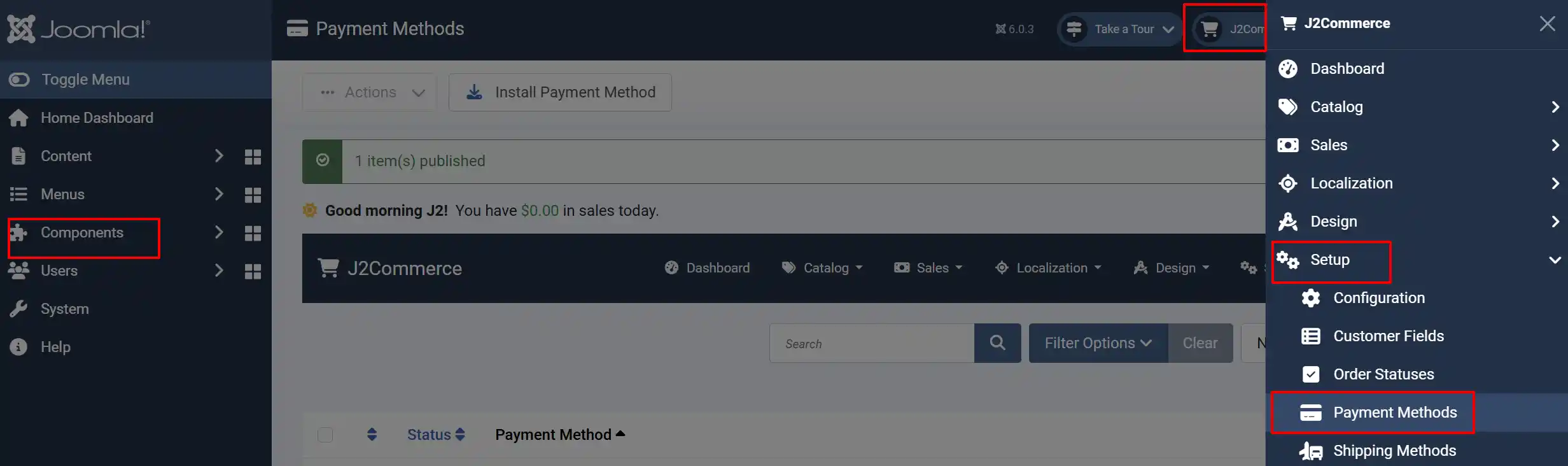
Option A: Go to the J2Commerce icon at the top right corner -> Setup -> Payment Methods
Option B: Go to Components on the left sidebar -> J2Commerce -> Dashboard -> Setup -> Payment Methods
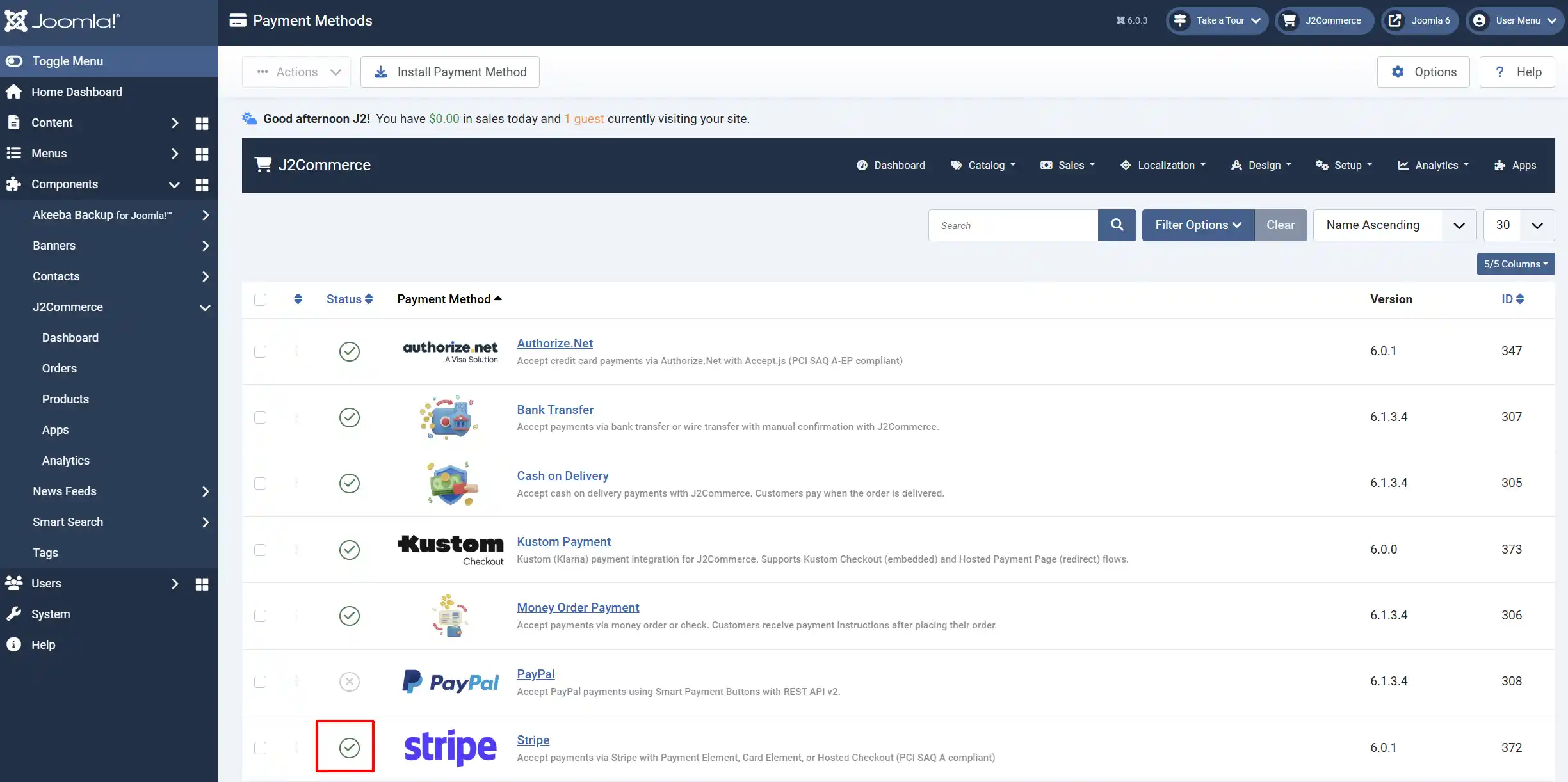
Look for Stripe, click the X, and it will turn into a green checkmark. It is now enabled and ready for setup.
Configuring the Plugin
After enabling the plugin, click the Stripe Payment title to open the settings.
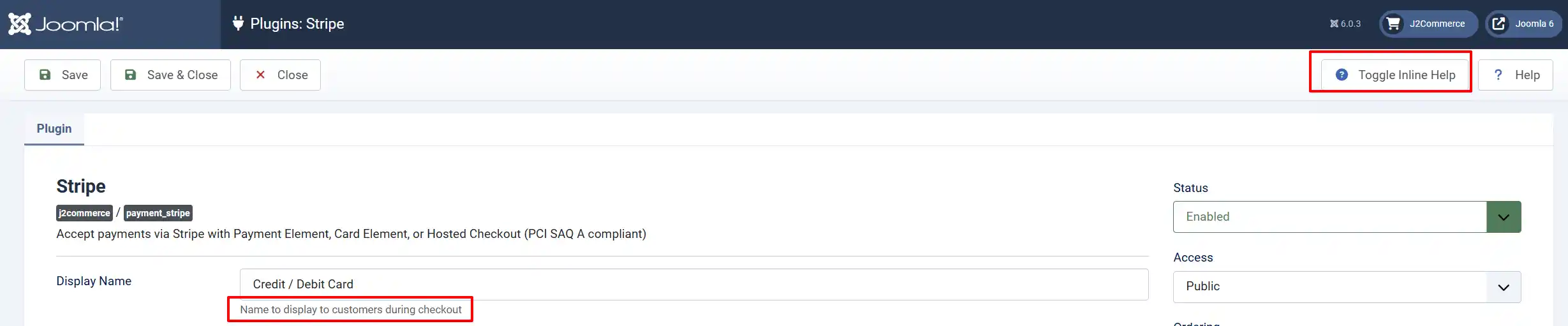
Tip: Click on the Toggle Inline Help button on any app/plugin you install and it will show a description below each section. See image below
Display Settings
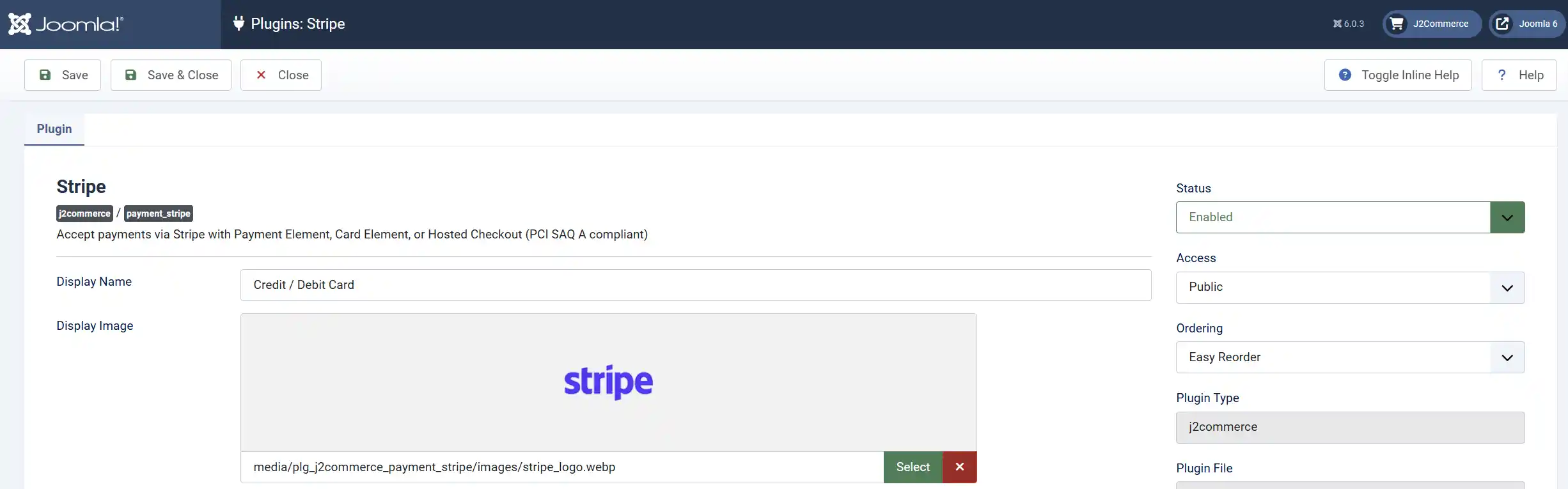
Display Name: The label shown to customers at checkout
Display Image: Optional logo or image shown next to the payment option at checkout
Checkout Mode

Choose how customers interact with the payment form:
Checkout Mode: How the payment form is displayed
-
Embedded: Payment form loads directly on your checkout page. Customers never leave your site. Choose between Payment Element (recommended) or Card Element.
-
Hosted: Customers are redirected to a Stripe-hosted payment page. After completing payment, they are redirected back to your site.
Element Type (Embedded Mode Only)
This setting appears when Checkout Mode is set to Embedded.
Element Type: Which Stripe UI element to use
-
Payment Element: Full payment method selection. Stripe shows relevant payment methods based on the customer's location. Recommended.
-
Card Element: Simple card form. Use this if you want a minimalist credit card input without additional payment method options.
Payment Methods (Card Element Only)
When Element Type is set to Card, you can enable additional payment methods beyond credit cards:
Note: Some payment methods require activation in your Stripe Dashboard. See Enable Payment Methods in Stripe below.
| Payment Method | Description |
|---|---|
| Card | Credit and debit cards (Visa, Mastercard, Amex, etc.) |
| Amazon Pay | Pay with Amazon account |
| PayPal | Pay with PayPal |
| Link | Stripe Link one-click checkout |
| Cash App | Pay with Cash App |
| Affirm | Buy now, pay later (US) |
| Afterpay/Clearpay | Buy now, pay later (varies by region) |
| Klarna | Buy now, pay later |
| Zip | Buy now, pay later |
| Revolut Pay | Pay with Revolut |
| iDEAL | Bank transfer (Netherlands) |
| Bancontact | Bank transfer (Belgium) |
| SEPA Direct Debit | Bank transfer (Europe) |
| giropay | Bank transfer (Germany) |
| Sofort | Bank transfer (Europe) |
| EPS | Bank transfer (Austria) |
| Przelewy24 (P24) | Bank transfer (Poland) |
| BLIK | Mobile payment (Poland) |
| GrabPay | Mobile wallet (Southeast Asia) |
| FPX | Bank transfer (Malaysia) |
| Alipay | Mobile wallet (China) |
| WeChat Pay | Mobile wallet (China) |
| Pix | Bank transfer (Brazil) |
| Boleto | Bank transfer (Brazil) |
| OXXO | Cash payment (Mexico) |
| ACH Direct Debit | Bank transfer (US) |
Capture Method
Choose when to capture payment:
Capture Method: When payment is captured from the customer's account
Automatic: Payment is captured immediately when the customer completes checkout. The order status updates to Confirmed right away.
Manual: Payment is authorized but not captured. You must manually capture the payment from the order admin page. Use this for pre-orders, backorders, or when you need to verify stock before charging.
Sandbox Mode
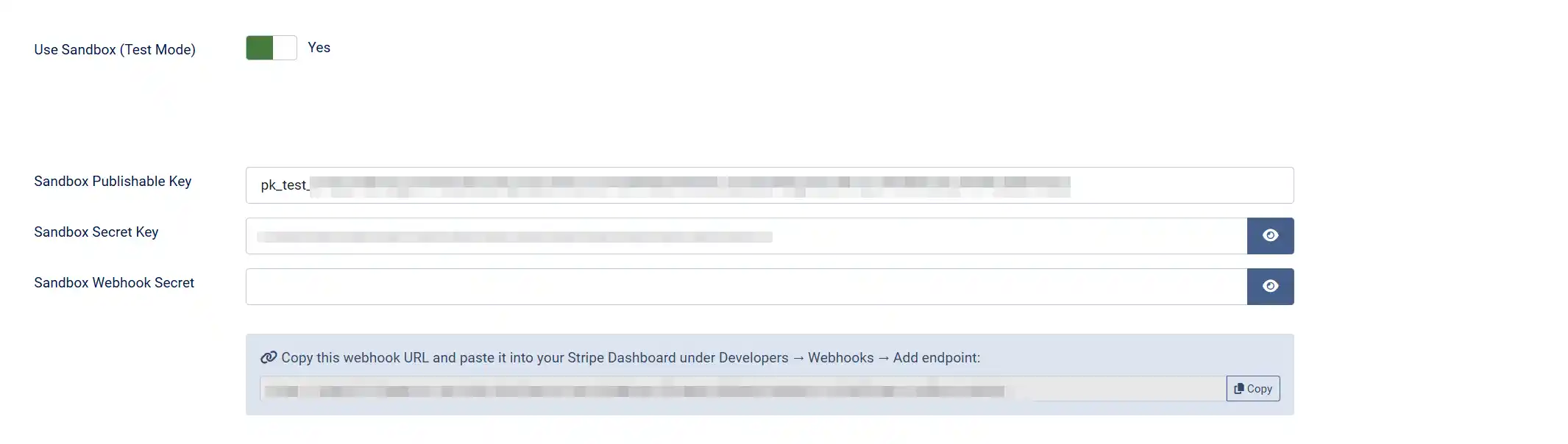
Sandbox: Switch on to use Stripe's test environment. No real money is processed.
Turn sandbox mode on while you are setting up and testing. Turn it off before you go live.
Note: When sandbox mode is active, a warning banner appears on the J2Commerce dashboard so you cannot accidentally forget.
Live API Credentials
These are used when Sandbox is set to No.
Publishable Key: Your live Publishable key from the Stripe Dashboard
Secret Key: Your live Secret key from the Stripe Dashboard
Webhook Secret: Your live Webhook signing secret (see Webhooks below)
Sandbox API Credentials
These are used when Sandbox is set to Yes.
Sandbox Publishable Key: Your test Publishable key
Sandbox Secret Key: Your test Secret key
Sandbox Webhook Secret: Your test Webhook signing secret
Webhooks
Webhooks allow Stripe to notify your store automatically when payment events occur — captures, refunds, disputes, and more. Without webhooks, order status updates only happen during the normal checkout flow.
A Webhook URL field is displayed in the plugin settings — copy this URL and register it in your Stripe Dashboard.
Webhook URL (Live): The URL to register in your live Stripe Dashboard
Webhook URL (Sandbox): The URL to register in your test Stripe Dashboard
How to create a webhook in Stripe:
- In the Stripe Dashboard, go to Developers -> Webhooks.
- Click Add endpoint.
- Paste the Webhook URL from the J2Commerce plugin settings.
- Select the events to listen for. Recommended events:
| Event | What happens in J2Commerce |
|---|---|
payment_intent.succeeded | Order status updated to Confirmed |
payment_intent.payment_failed | Order status updated to Failed |
payment_intent.canceled | Order status updated to Canceled |
charge.refunded | Order status updated to Refunded |
charge.dispute.created | Warning logged for review |
checkout.session.completed | Order status updated (for Hosted mode) |
- Click Add endpoint.
- On the next page, click Reveal next to Signing secret.
- Copy the signing secret (starts with
whsec_...). - Paste it into the Webhook Secret field in the J2Commerce plugin settings.
Saved Cards

Allow Saved Cards: Let logged-in customers save cards for faster checkout on future orders
When enabled, customers see a Save card for future purchases checkbox at checkout. Saved cards appear in the customer's profile under My Account -> Payment Methods.
Enable Link: Enable Stripe Link (one-click checkout with saved addresses/payment methods). Only available with Payment Element.
Stripe Link lets customers who have saved payment details with Stripe Link pay with a single click using their email address. This requires Allow Saved Cards to be enabled.
Template Style: Choose the frontend template layout for checkout forms and saved card displays. Options depend on your site's template framework.
Available subtemplates: Bootstrap 5 and UIkit. Leave blank to use the default layout. If your Joomla template is UIkit-based (e.g., YOOtheme Pro), select the UIkit subtemplate for consistent styling.
Order Status

Order Status: The order status applied after a successful payment
Choose the status that fits your workflow. Most stores use Confirmed or Processing for paid orders.
NOTE: If the status you want isn't listed in the dropdown menu, you can create a new one by going to J2Commerce -> Setup -> Order Statuses

Refund Settings
Order Status on Refund:
-
When set to 'No', the order status is automatically changed when a refund is processed.
-
When set to 'Yes', the order status to set when a refund is processed. A common choice is Refunded or Cancelled.
Refund Order Status: The status to set when a full refund is processed (shown when Change Status on Refund is )
Partial Refund Order Status: The status to set when a partial refund is processed (shown when Change Status on Refund is 'Yes')
Void Settings
Change Status on Void: Automatically change the order status when an authorised payment is voided
Void Order Status: The status to set when a void is processed (shown when Change Status on Void is 'Yes')
Order Status View
Note: The order status will only change to Refunded if it is a Full refund. If it is a Partial Refund, the status will stay the same

Surcharge

Add an optional surcharge to orders paid via Stripe. This is useful if you want to pass on Stripe's processing fee to customers (check your local laws and Stripe's terms before doing this).
Surcharge Name: Label shown to customers for the surcharge (e.g., "Processing Fee")
Surcharge Percent: Percentage of the order subtotal added as a surcharge
Surcharge Fixed: Fixed amount added as a surcharge
Surcharge Tax Class: Tax profile to apply to the surcharge amount
You can combine a percentage and a fixed amount — both will be added together.
Geo-Zone Restriction & Subtotals

Geo-Zone Restriction: Limit Stripe availability to customers in a specific geo-zone
Note: Leave this empty to show Stripe to all customers regardless of location.
Minimum Subtotal: Hide Stripe if the cart subtotal is below this amount. Leave empty for no minimum.
Maximum Subtotal: Hide Stripe if the cart subtotal exceeds this amount. Leave empty for -1 for no maximum.
Statement Descriptor: Text that appears on your customers' bank statements (max 22 characters)
If empty, Stripe uses your account's default statement descriptor.
Thank You Page & Custom Messages
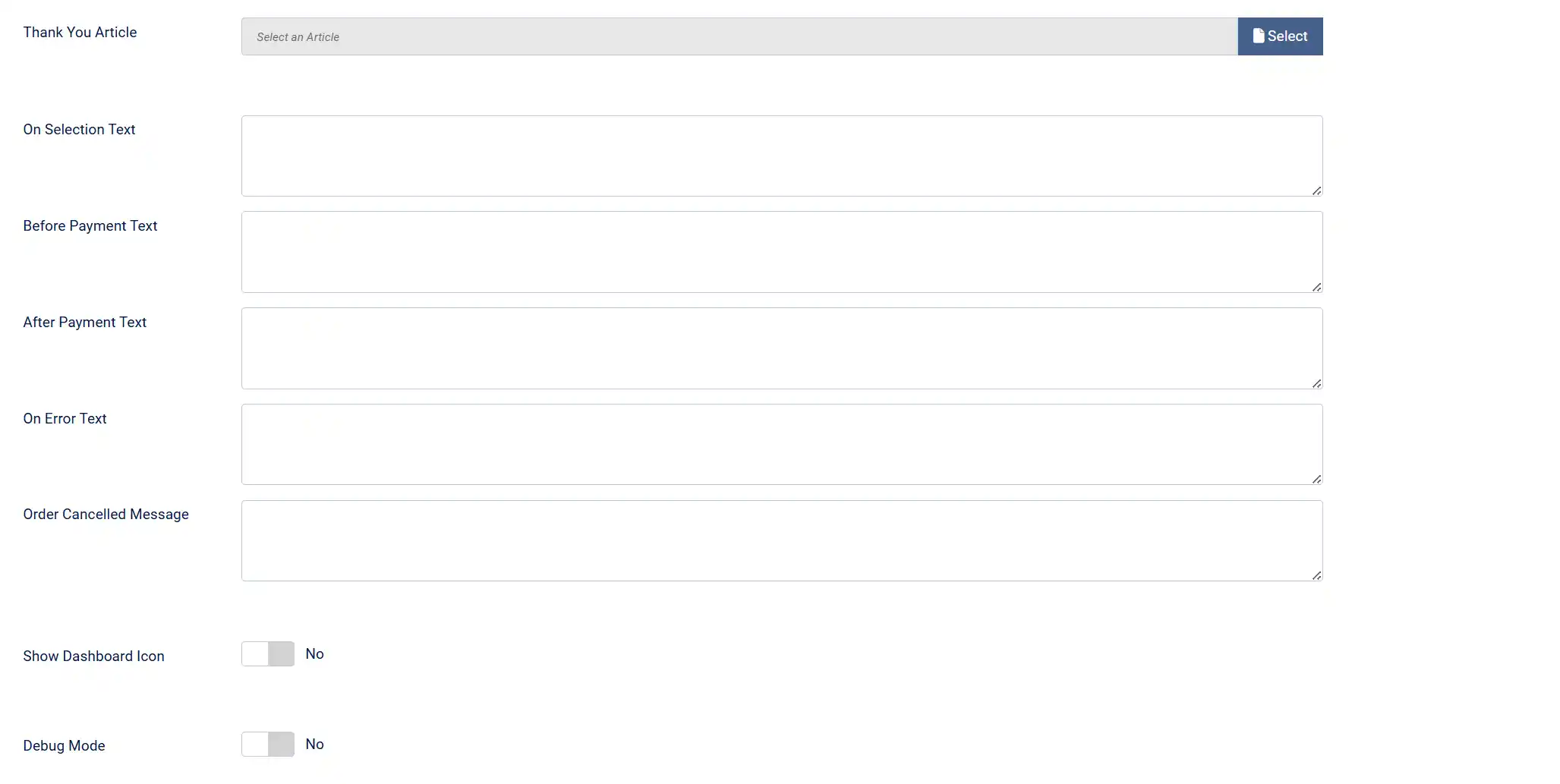
Thank You Article: Select a Joomla article to display after a successful payment. This is shown on the confirmation page in addition to the standard confirmation message.
Custom Messages
These text fields let you customize messages shown to customers at different points in the payment process.
On Selection: It displays when the customer selects Stripe as their payment method
On Before Payment: It displays on the payment page before the customer clicks Pay
On After Payment: It displays on the confirmation page after a successful payment
On Error Payment: It displays when a payment error occurs
On Cancel Payment: It displays when the customer cancels payment and returns to the cart
Dashboard Icon
Show Dashboard Icon: When enabled, this plugin adds an icon tile to the J2Commerce dashboard and the J2Commerce quick icons module.
Icon Label: Label for the dashboard icon (only visible when Show Dashboard Icon is 'Yes')
Debug Mode: Write detailed Stripe API activity to administrator/logs/payment_stripe.php and the browser console
Tip: Enable debug mode only while troubleshooting. Disable it in production — logs can grow large quickly.
Enable Payment Methods in Stripe Dashboard
Some payment methods in Stripe require activation before they appear at checkout:
-
Log in to the Stripe Dashboard.
-
Go to Settings -> Payment methods.
-
Click Add payment methods or enable individual methods.
-
For each payment method you want to use:
- Click the method name (e.g., Klarna, Affirm).
- Toggle On to enable it.
- Some methods require additional verification or configuration — follow the prompts.
Important: Payment methods are shown based on the customer's location and currency. A customer in the US won't see iDEAL (Netherlands-only) even if it's enabled.

Checkout Experience
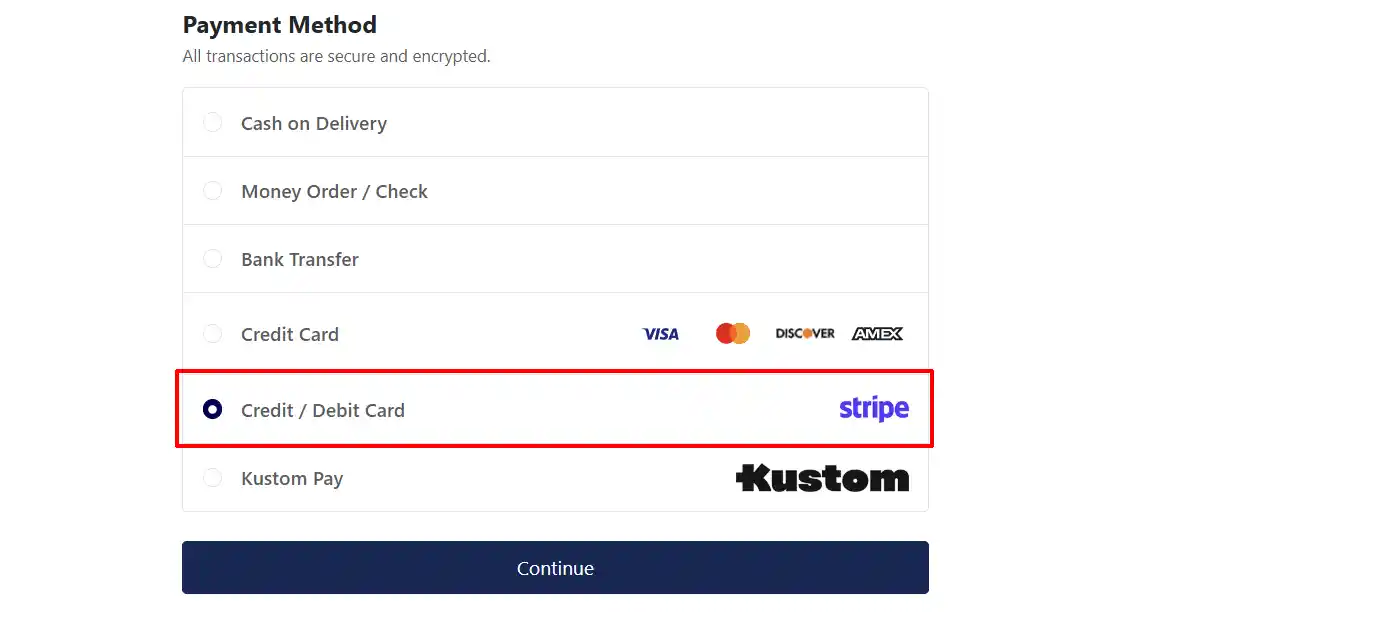
Embedded Mode (Payment Element)

When a customer selects Stripe at checkout:
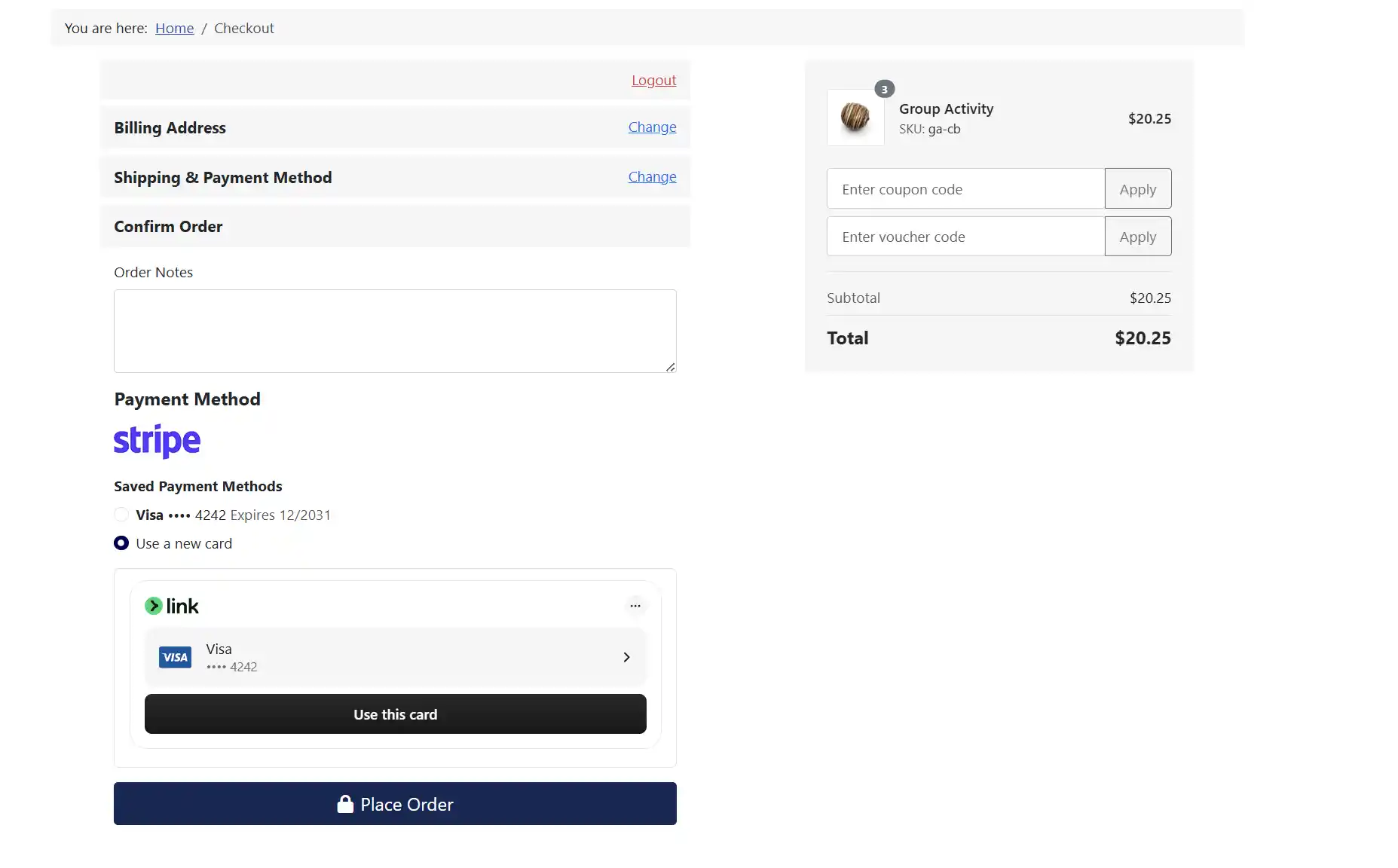
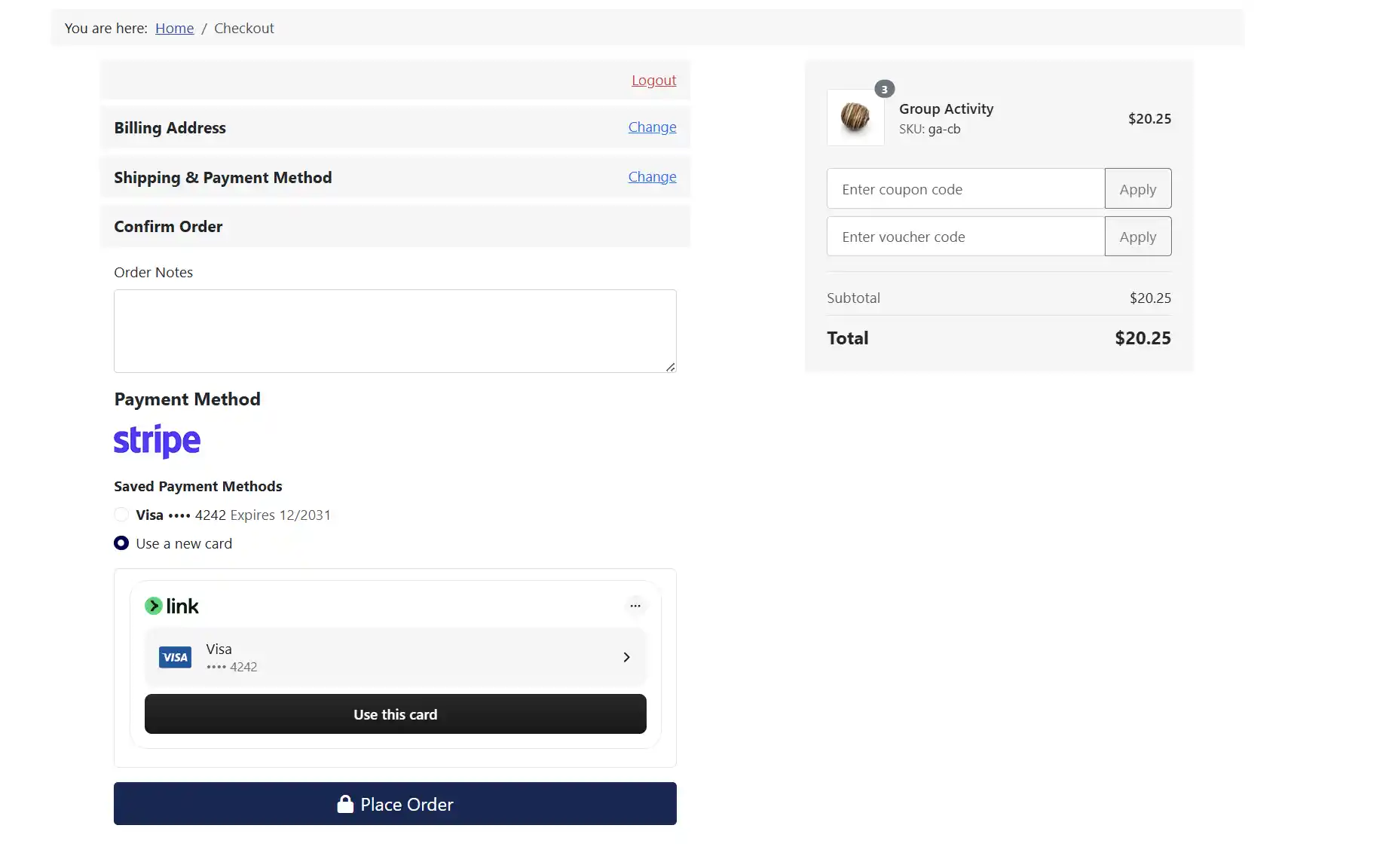
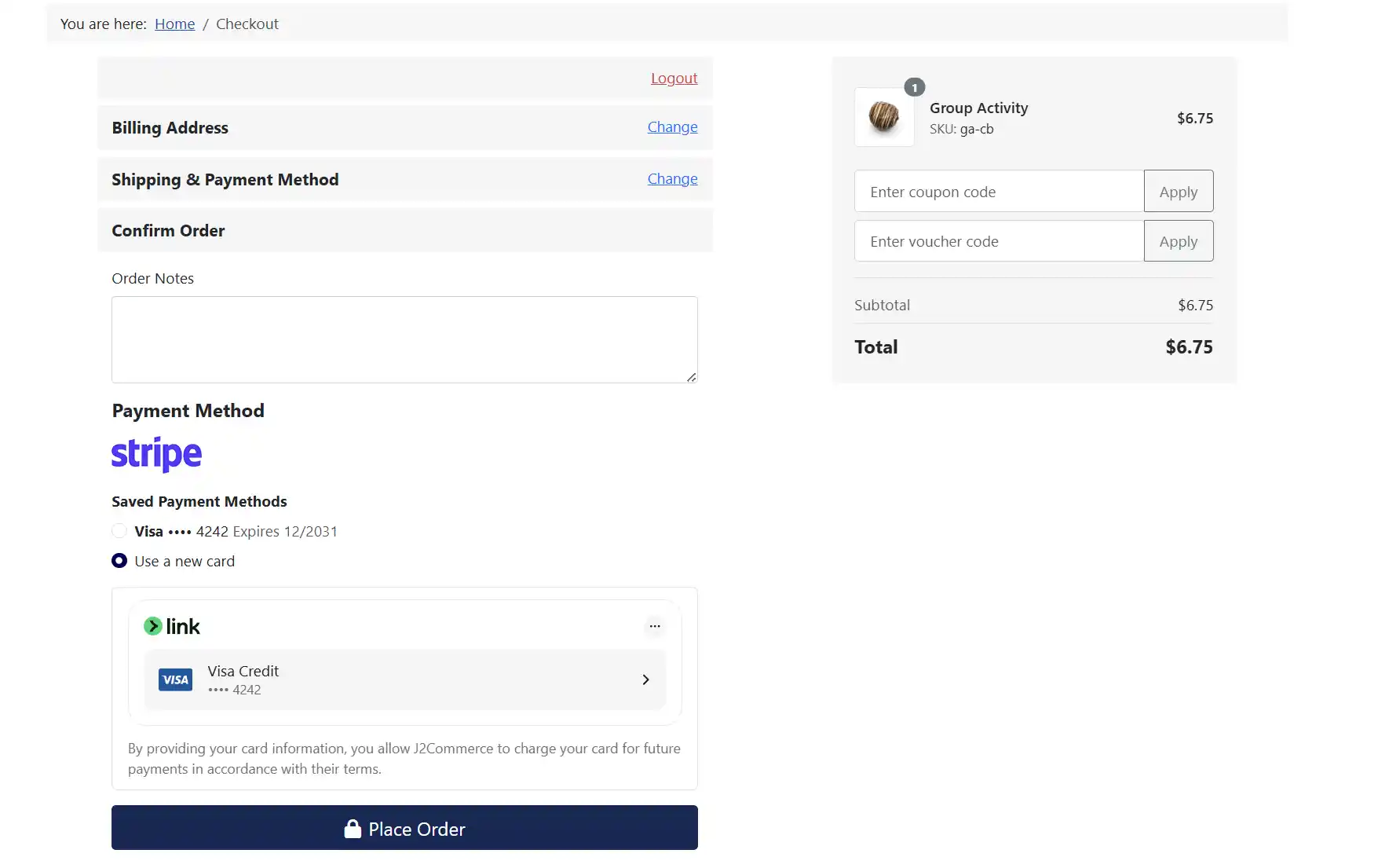
- The Payment Element loads directly on your checkout page.
- The customer sees payment methods relevant to their location and currency.
- They enter payment details and click Pay. or Use This Card, if they have a card saved.
- The payment is processed without leaving your site.
- The customer sees the confirmation page.
Checkout View
Embedded Mode (Card Element)
When Element Type is set to Card:
-
A simple card form appears with optional payment method buttons.
-
The customer enters card details or clicks an alternative payment method.
-
Payment is processed without leaving your site.
Frontend View for each Checkout option (Embedded)
Embedded -> Card Element -> Manual
Plugin Settings

Frontend View
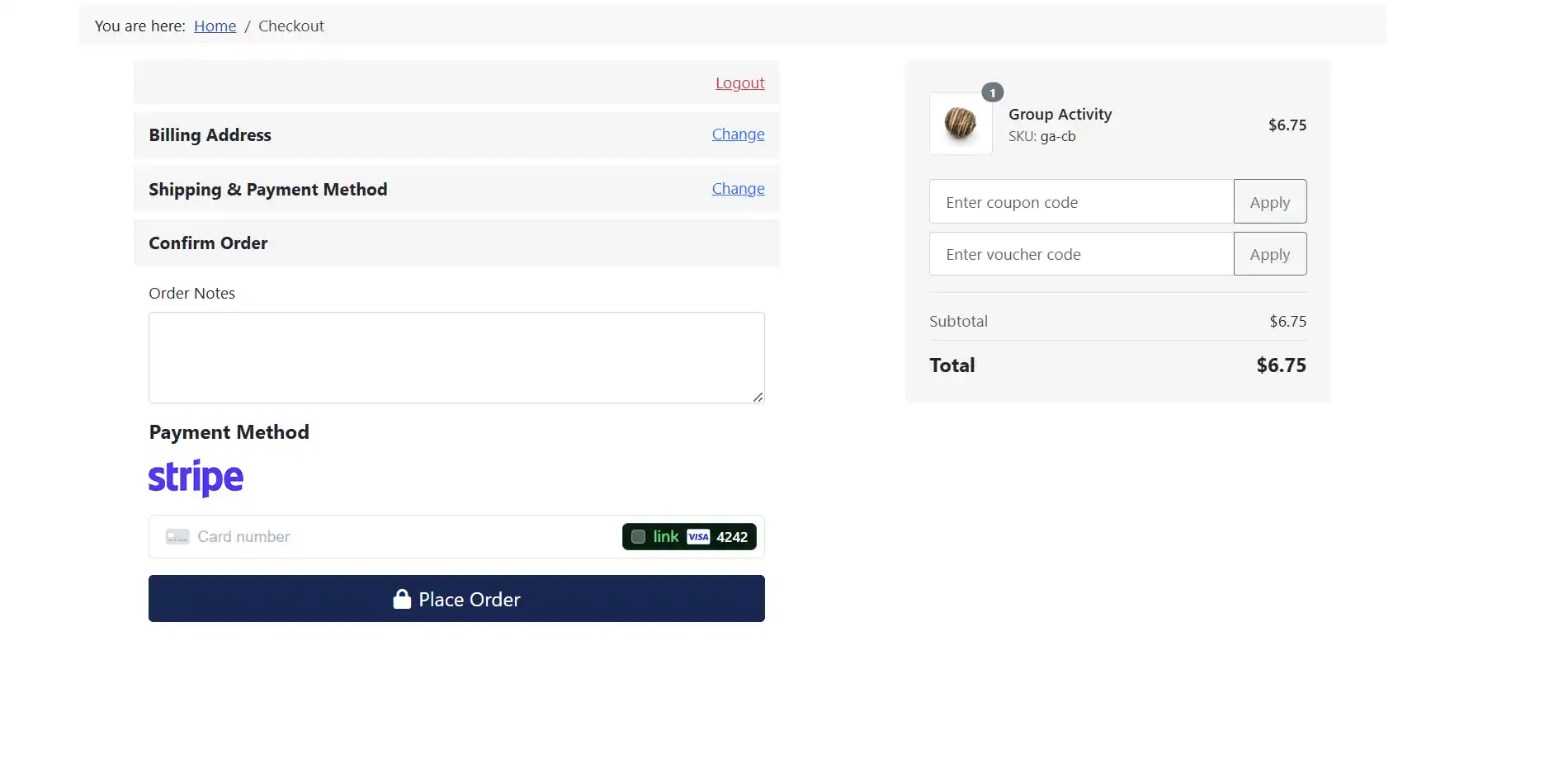
Embedded -> Card Element -> Automatic
Plugin Settings
Frontend View
Embedded -> Payment Element -> Automatic
Plugin Settings

Frontend View
Embedded -> Payment Element -> Manual
Plugin Settings

Frontend View
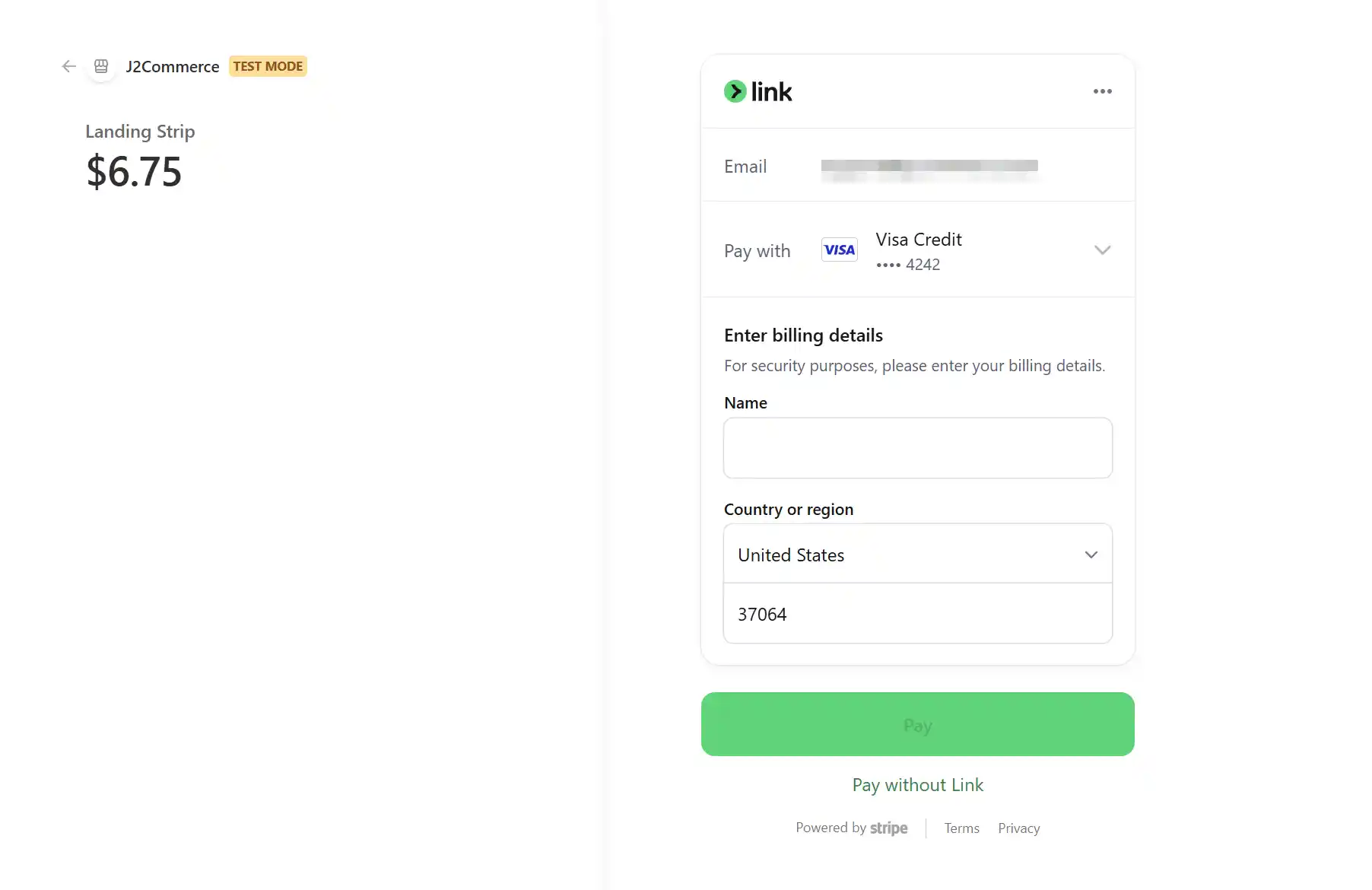
Hosted Mode
When Checkout Mode is set to Hosted:
- The customer is redirected to a Stripe-hosted payment page.
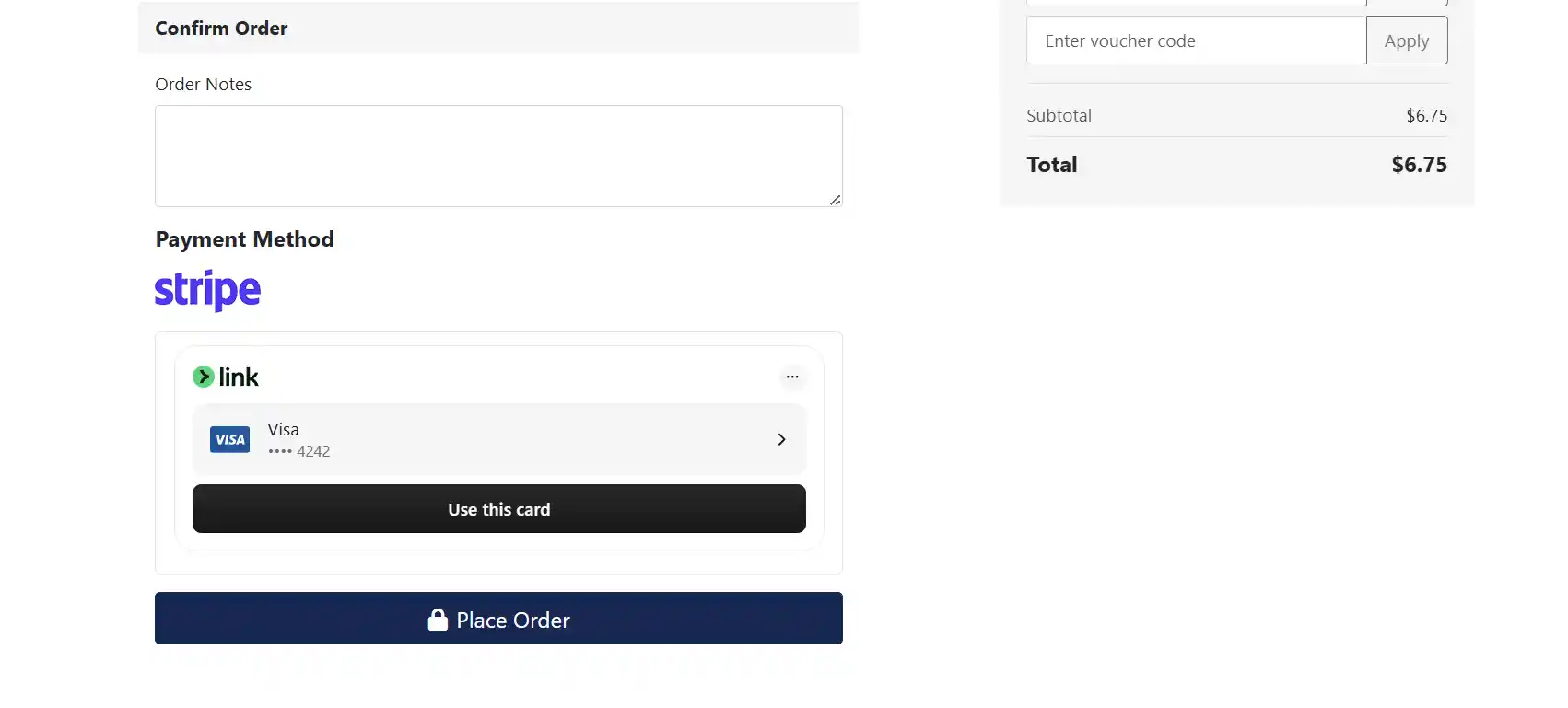
- They complete payment on Stripe's secure servers.
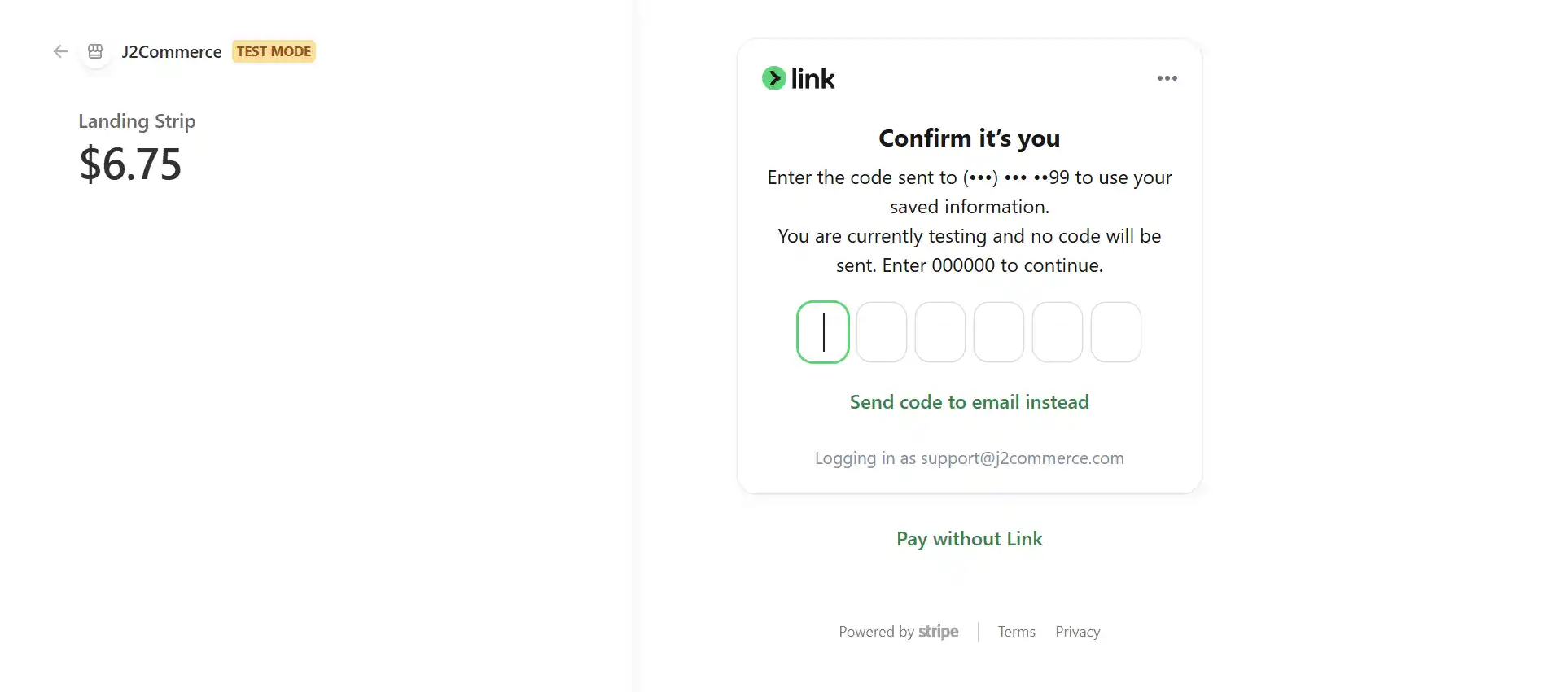
-
After payment, they are redirected back to your confirmation page
Order Management
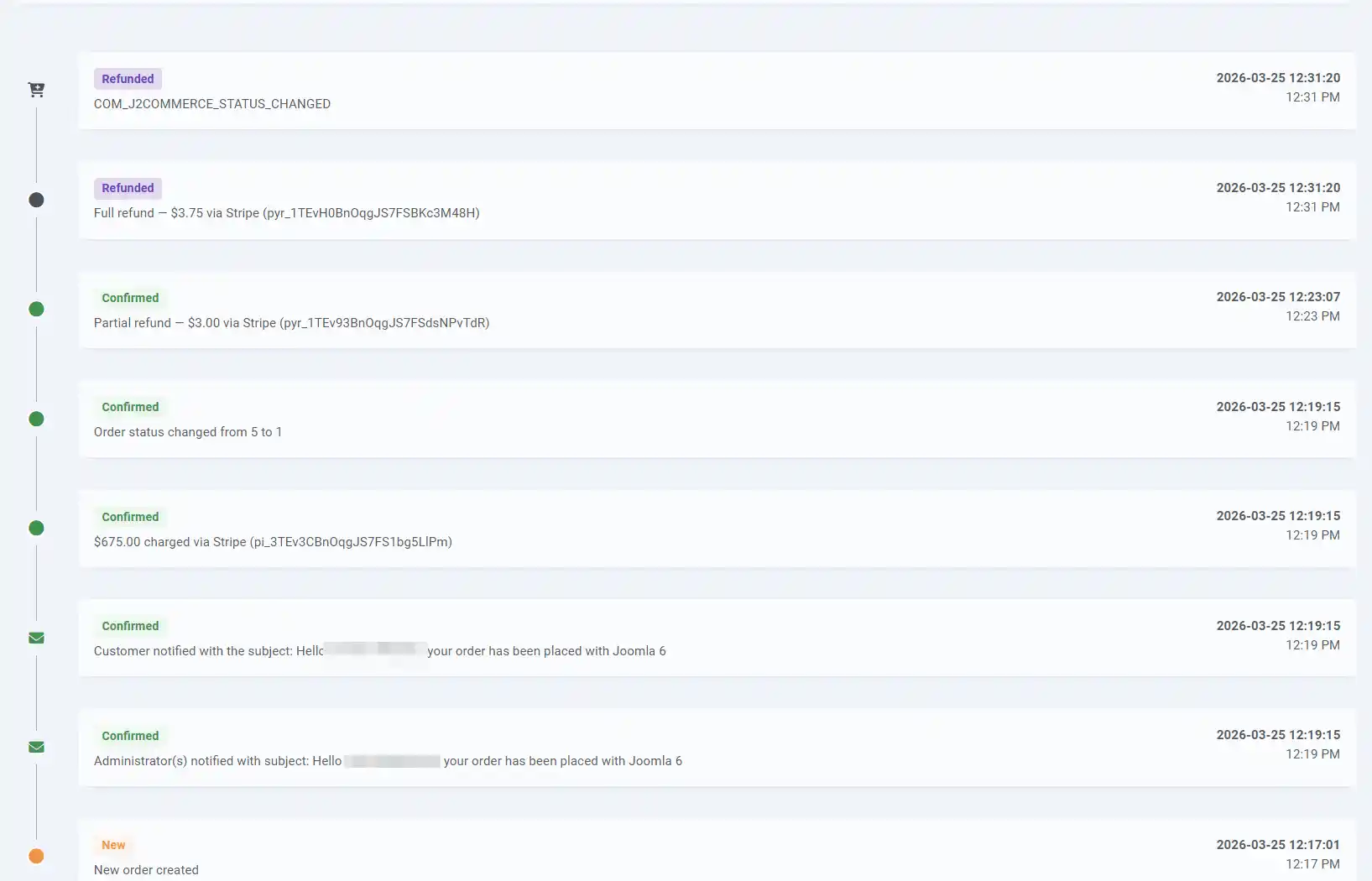
Once a customer pays, J2Commerce records the transaction details:
- Order status is updated to the status you configured (default: Confirmed).
- Transaction ID — the Stripe Payment Intent ID — is stored with the order.
- Transaction status — Completed, Authorized, or Partially Refunded — is tracked.
- Order history is updated with a "Payment received via Stripe" note.
Capture Authorized Payments (Manual Capture)
If you set Capture Method to Manual, payments are authorized but not captured. To capture:
- Go to J2Commerce -> Orders and open the order.
- Look for the Payment section on the order view page.
- Click Capture to capture the authorized amount.
- The order status updates to Confirmed.
You can also Void an authorization to cancel it without charging the customer.
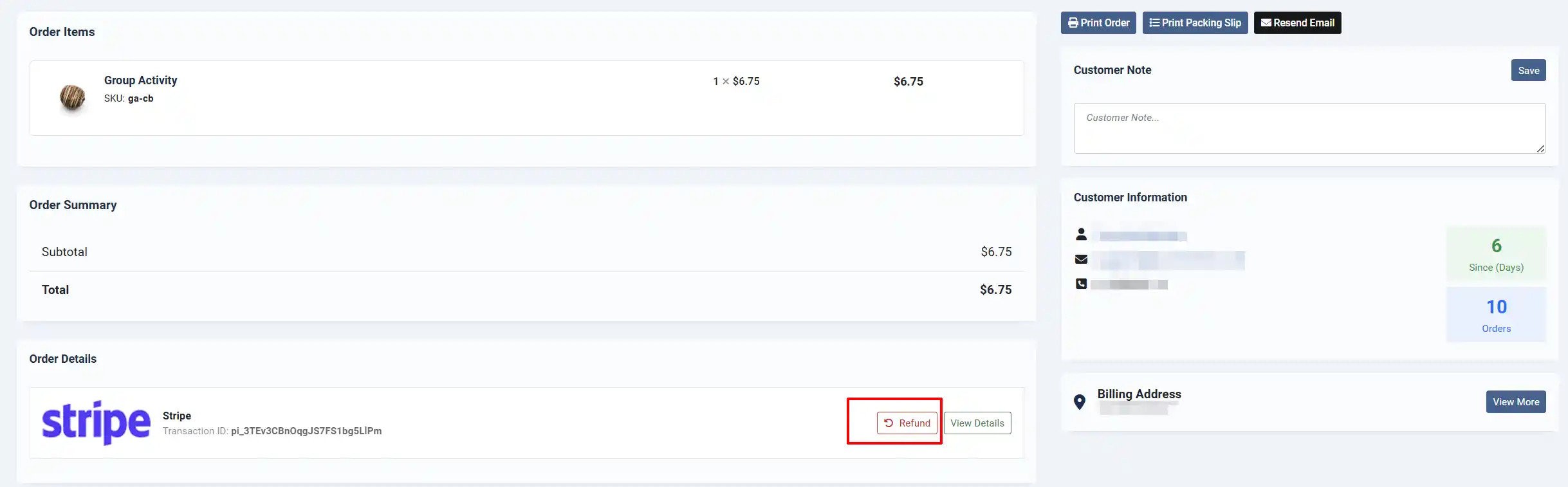
Refunds
You can issue a refund directly from the order in the J2Commerce admin:
-
Go to J2Commerce -> Orders and open the order.
-
Look for the Payment section.
-
Click Refund.
-
Enter the amount to refund (leave blank to refund the full amount).
-
Confirm the refund.
The refund is sent to Stripe via the API. If you enabled Change Status on Refund, the order status updates automatically.

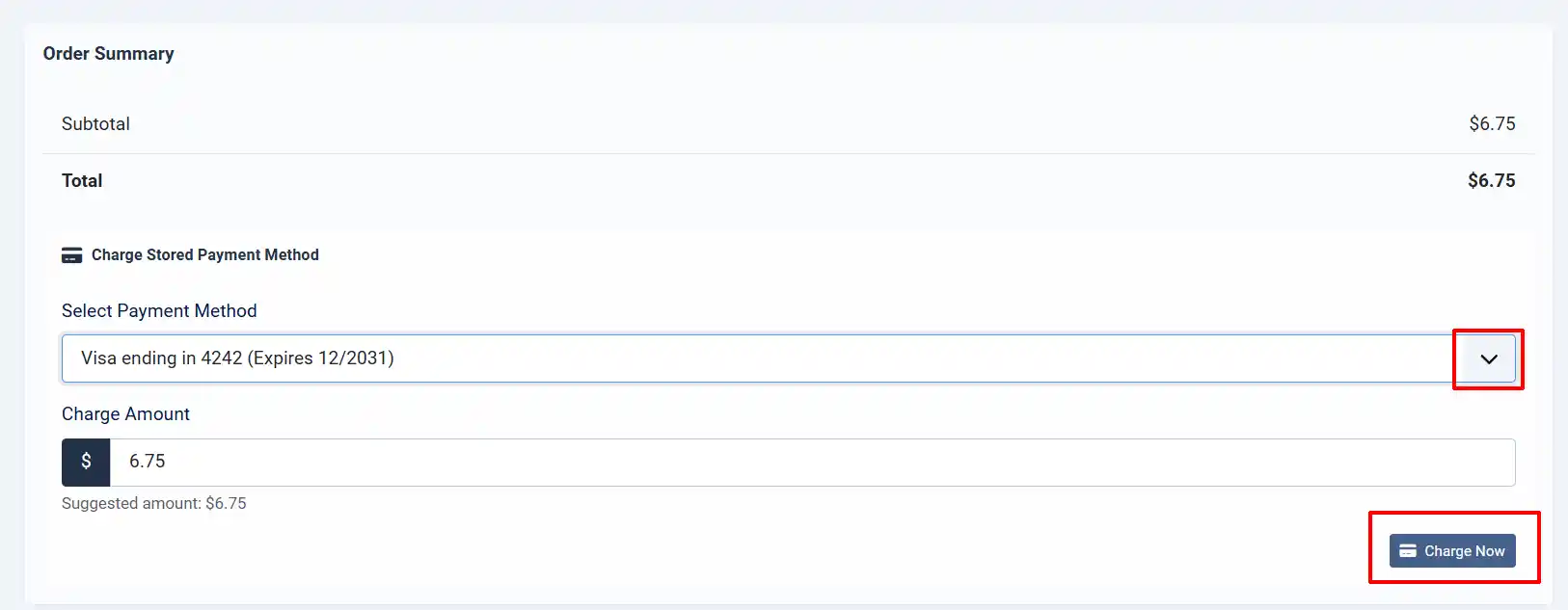
Charge a Saved Card
For orders placed by returning customers who have saved cards:
-
Go to J2Commerce -> Orders and open the order.
-
If the customer has saved cards, a Charge Card section appears below the order summary.
-
Select a card from the dropdown.
-
Enter the amount to charge (defaults to the order total).
-
Click Charge.
This is useful for manual reorders, phone orders, or collecting additional payment for shipping adjustments.
Webhook-Triggered Updates
If webhooks are configured, Stripe can update order statuses automatically:
| Stripe Event | What happens in J2Commerce |
|---|---|
payment_intent.succeeded | Order status updated to Confirmed |
payment_intent.payment_failed | Order status updated to Failed |
payment_intent.canceled | Order status updated to Canceled |
charge.refunded | Order status updated to Refunded (if enabled) |
charge.dispute.created | Warning logged in the application log |
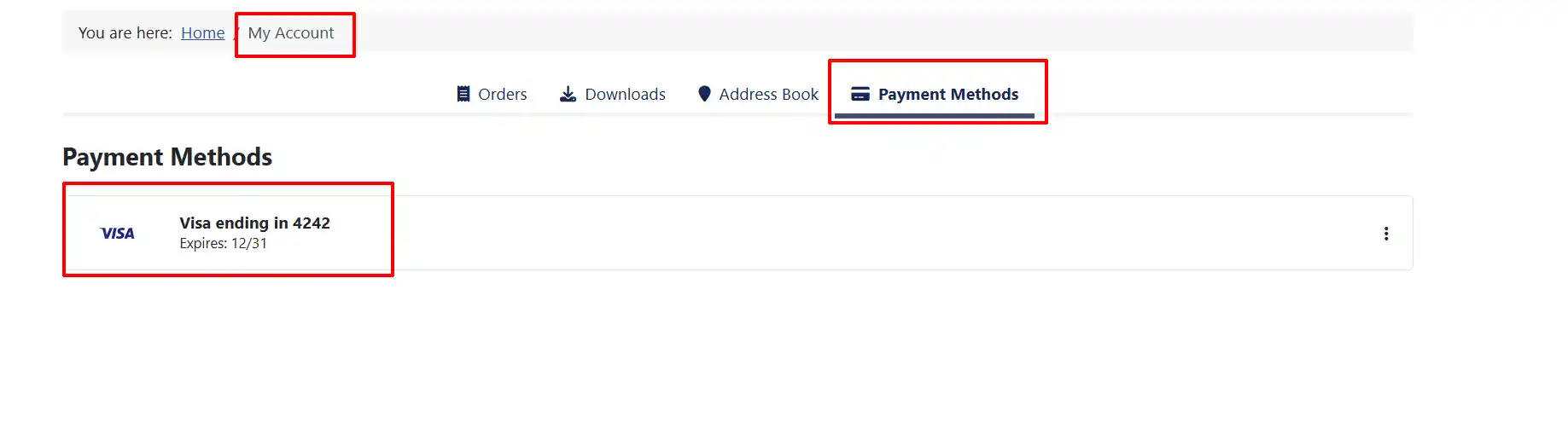
Saved Cards (Customer Profile)
When Allow Saved Cards is enabled, customers can manage their saved cards:
-
Log in to the frontend.
-
Go to My Account -> Payment Methods
-
View all saved cards with last 4 digits and expiry.
-
Delete cards they no longer want stored.
Going Live Checklist
Before accepting real payments, confirm the following:
- Sandbox is set to No
- Your live Publishable Key and Secret Key are entered
- The webhook URL is registered in your live Stripe Dashboard
- The Webhook Secret (signing secret) is saved in the plugin settings
- You have placed a test order using a real card with a small amount and then refunded it
- Debug Mode is set to No
- Payment methods you want to use are enabled in your Stripe Dashboard
Troubleshooting
"No such payment intent" error at checkout
Cause: The Payment Intent was not created correctly, or the API keys are mismatched.
Solution:
- Verify that your Publishable Key and Secret Key are from the same Stripe account (both live or both test).
- Check that you are using live keys when Sandbox is No, and test keys when Sandbox is Yes.
- Enable Debug Mode and check
administrator/logs/payment_stripe.phpfor the full error.
Payment succeeds but order stays Pending
Cause: Webhooks are not configured, so J2Commerce does not receive the payment confirmation from Stripe.
Solution:
- Register the webhook URL in your Stripe Dashboard (see Webhooks above).
- Enter the Webhook Secret (signing secret) in the plugin settings.
- For Hosted mode, the order status is also updated during the redirect — check if the customer completed the redirect.
"Currency not supported" error
Cause: Your store's active currency is not supported by the selected payment method.
Solution:
- Stripe supports 135+ currencies, but some payment methods have restrictions.
- Check the Stripe documentation for your payment method's supported currencies.
- Consider using a currency switcher plugin to offer multiple currencies.
Credit card form does not appear at checkout
Cause: The Publishable Key is missing, incorrect, or the plugin is not enabled.
Solution:
- Go to J2Commerce -> Payments -> Payment Methods and confirm Stripe is enabled.
- Check that a Publishable Key (or Sandbox Publishable Key if in sandbox mode) is entered.
- Enable Debug Mode and check the browser console for JavaScript errors.
Refund fails with an error
Cause: The Payment Intent ID is missing from the order, or the charge has already been fully refunded.
Solution:
- Open the order and check that a Transaction ID is recorded.
- If the Transaction ID is empty, the payment may not have been captured correctly. Check the debug log.
- Log in to your Stripe Dashboard and verify the payment status there.
Dashboard shows "Stripe is in Sandbox mode" warning
Cause: Sandbox is set to Yes.
Solution: If you are ready to go live, open the Stripe plugin settings and switch Sandbox to No, then enter your live credentials.
Saved cards not showing at checkout
Cause: Allow Saved Cards is disabled, or the customer is not logged in.
Solution:
- Verify Allow Saved Cards is set to Yes in the plugin settings.
- Saved cards require a logged-in customer with a Stripe customer ID.
- Check that the customer has previously saved a card in their profile.
Stripe Link not appearing
Cause: Enable Link is disabled, or the customer doesn't have Link enabled in their Stripe account.
Solution:
- Verify Enable Link is set to Yes in the plugin settings.
- Stripe Link requires the customer to have previously used Link with their email address on any Stripe-powered site.
Support
For help with the Stripe plugin:
- J2Commerce documentation: docs.j2commerce.com
- J2Commerce support: www.j2commerce.com
- Stripe Dashboard: dashboard.stripe.com
- Stripe documentation: stripe.com/docs
- Stripe support: support.stripe.com