Products Report
The Products Report provides a financial overview of your product sales. It shows how much revenue each product has generated, how much tax was collected, and the impact of any discounts applied. Use it to understand which products drive the most income for your store.
Requirements
- PHP 8.3.0+
- Joomla! 6.x
- J2Commerce 6.x
Accessing the Report
There are two ways you can access the Reports.
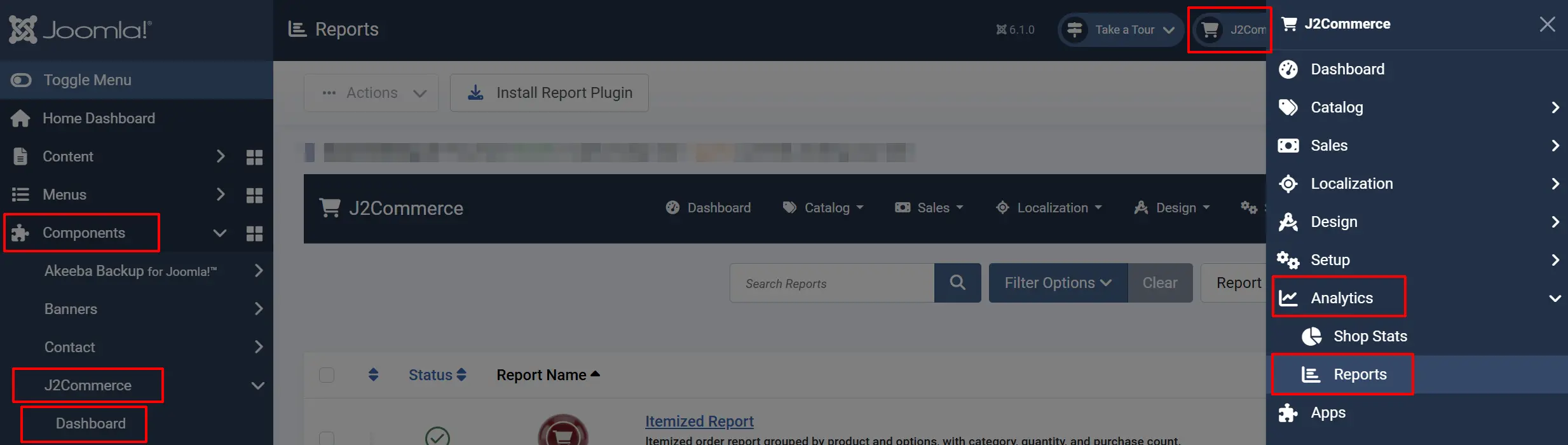
Option A: Go to the J2Commerce icon at the top right corner -> Analytics -> Reports
Option B: Go to Components on the left sidebar -> J2Commerce -> Dashboard -> Analytics -> Reports
-
Click Products Report from the list.
-
Click View Report

The report loads with a bar chart at the top and a data table below.
Understanding the Report
Bar Chart
The bar chart displays the total revenue (price with tax) for each product. The tallest bar represents your highest-earning product. This gives you a quick visual comparison of product performance by revenue.
Data Table
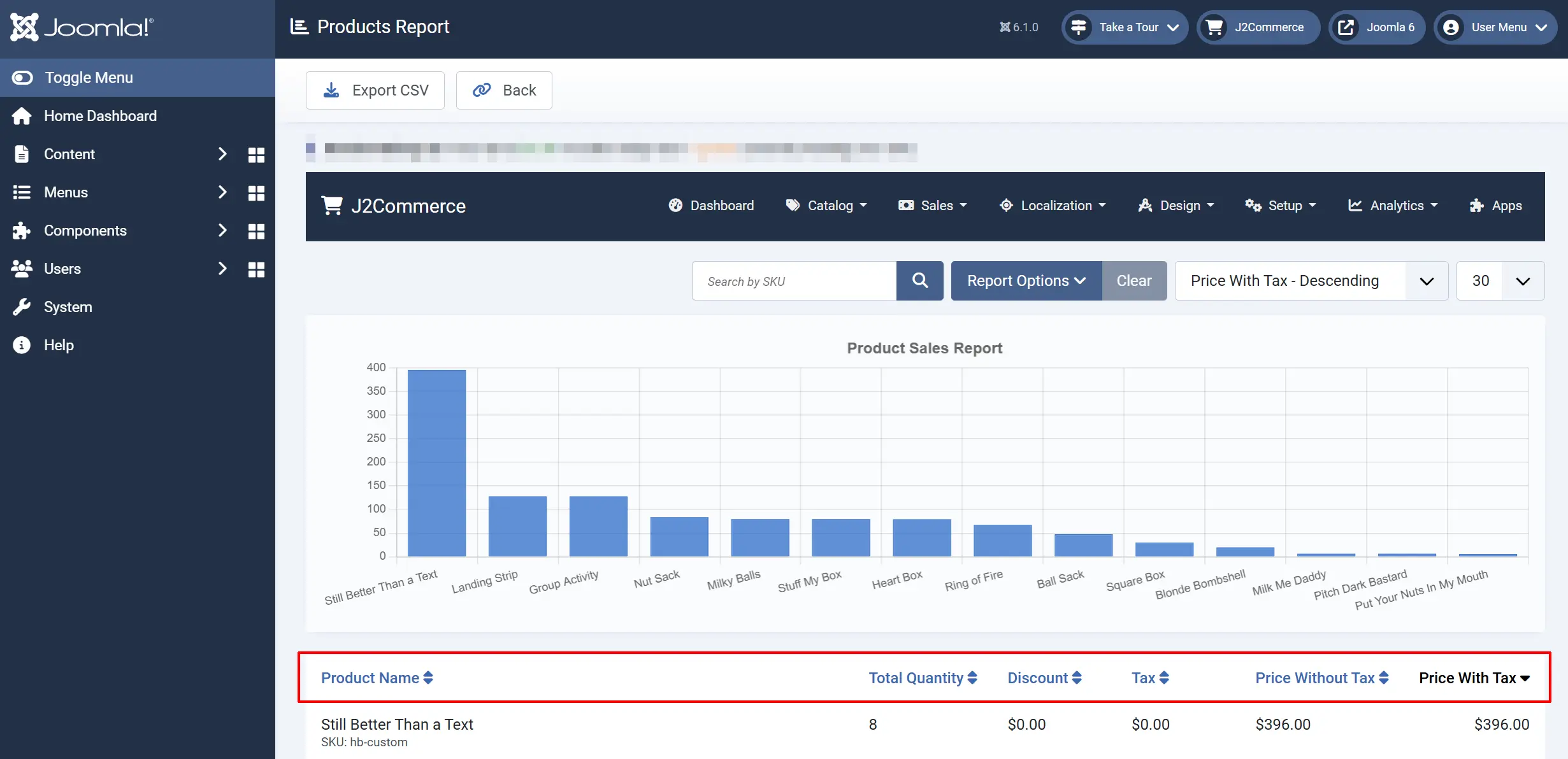
Each row represents a unique product variant. The table provides a complete financial breakdown of sales.
Product Name: The name of the product, with SKU shown below it
Total Quantity: Total number of units sold
Discount: Total discount amount applied to this product across all orders
Tax: Total tax collected on this product
Price Without Tax: Total revenue before tax
Price With Tax: Total revenue including tax (the final amount collected)
A Total row at the bottom sums up all financial columns, giving you a store-wide snapshot.
Filtering Your Data
Use the filter toolbar above the table to narrow down the results.
Search
Type a SKU into the search box and press Enter. The report updates to show only products matching that SKU.
Order Status
Select an order status from the dropdown to include only orders with that status. For example, select Confirmed to focus on completed sales only.
Duration
Choose a preset time period or set a custom date range:
Today: Orders placed today
This Week: Orders from the current week
This Month: Orders from the current month
This Year: Orders from the current year
Last 7 Days: Orders from the past 7 days
Last Month: Orders from the previous calendar month
Last Year: Orders from the previous calendar year
Custom: Enter a specific From Date and To Date
When you select Custom, two date picker fields appear. Choose your start and end dates to define the exact range.
Sorting
Click any column header to sort the table by that column. Click again to reverse the sort direction. You can also use the Sort By dropdown to choose from:
- Product Name (ascending or descending)
- Total Quantity (ascending or descending)
- Discount (ascending or descending)
- Tax (ascending or descending)
- Price Without Tax (ascending or descending)
- Price With Tax (ascending or descending)
By default, the report sorts by Price With Tax in descending order, showing your highest-revenue products first.
Exporting to CSV

Click the Export CSV button in the toolbar to download the full report as a CSV file. The export includes all filtered results (not just the current page) with these columns:
- Product Name (with SKU)
- Total Quantity
- Discount
- Tax
- Price Without Tax
- Price With Tax
A totals row is included at the bottom of the exported file. All monetary values are formatted in your store's default currency.
Tips
- Compare revenue vs. quantity. A product with fewer sales but higher revenue may be more profitable than a high-volume, low-price item. Sort by different columns to see both perspectives.
- Monitor discounts. If the Discount column shows large amounts for certain products, review whether those promotions are generating enough additional volume to justify the price reduction.
- Track tax collection. Use this report alongside your accounting records to verify that the correct tax amounts were collected per product.
- Export monthly. Download a CSV at the end of each month for your financial records or to share with your accountant.
Troubleshooting
Report shows no data
Cause: No orders match the current filter criteria, or the plugin is disabled.
Solution:
- Clear all filters by resetting the search box, order status, and duration dropdowns.
- Verify that you have completed orders in the system by checking J2Commerce -> Sales -> Orders.
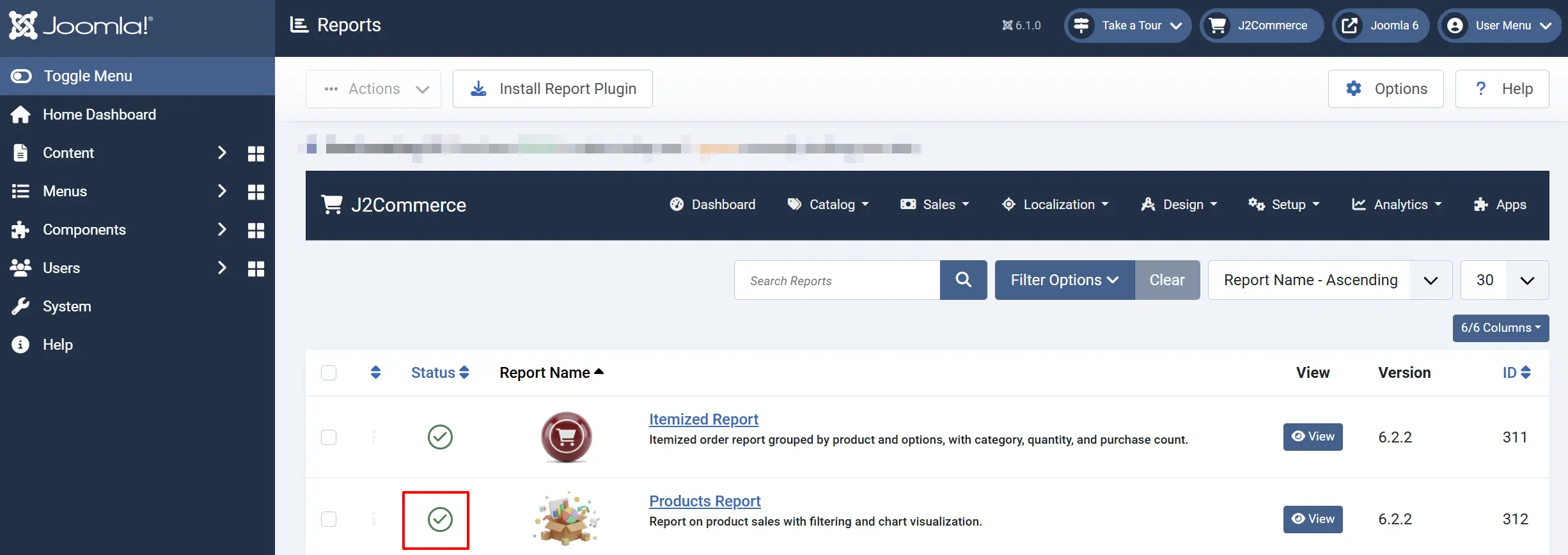
- Go to the J2Commerce icon at the top right corner -> Analytics -> Reports and confirm the Itemized Report plugin is enabled.
Revenue numbers seem incorrect
Cause: The report includes orders in all statuses by default, which may include cancelled or refunded orders.
Solution:
- Set the Order Status filter to Confirmed (or your equivalent completed status).
- Compare the filtered totals with your payment processor records.
- Remember that the report shows the amounts at the time of order, not after any manual adjustments.
Discount column shows zero for all products
Cause: No discounts or coupons were applied to the orders in the selected time period.
Solution:
This is normal if your store did not run any promotions during the filtered period. The Discount column only reflects coupon codes and cart-level discounts that were applied at checkout.