J2Commerce MCP Server
The J2Commerce MCP Server plugin connects AI assistants directly to your store. Once installed and configured, tools like Claude Desktop, Cursor, Windsurf, and ChatGPT can read your products, orders, customers, analytics, coupons, shipping methods, and more — without you having to export data or write queries yourself.
The plugin implements the Model Context Protocol (MCP), an open standard that lets AI applications communicate with external services in a structured, secure way.
Prerequisites
- J2Commerce is installed and activated
- A Joomla API token for the user account that will be used by the AI assistant (see Authentication below)
- For the STDIO transport: PHP CLI access to the server
Purchase and Download
The J2Commerce MCP plugin is a separate add-on available from the J2Commerce Extensions Store. It is not included with the core J2Commerce 6 component.
Step 1: Go to the J2Commerce website -> Plugin.
Step 2: Locate the J2Commerce MCP plugin -> click View Details -> Add to cart -> Checkout.
Step 3: Go to My Downloads under your profile menu at the top right corner and search for the app. Click Available Versions -> View Files -> Download.
Install the App
You can install this J2Commerce MCP plugin using the Joomla installer. The following steps help you with a successful installation.
In the Joomla admin, go to System -> Install -> Extensions
Upload the plugin plg_system_j2commercemcp.zip file or use the Install from URL option.
 (1)-a6689f12b23b8e992f5c2a169737672f.webp)
Enable the App
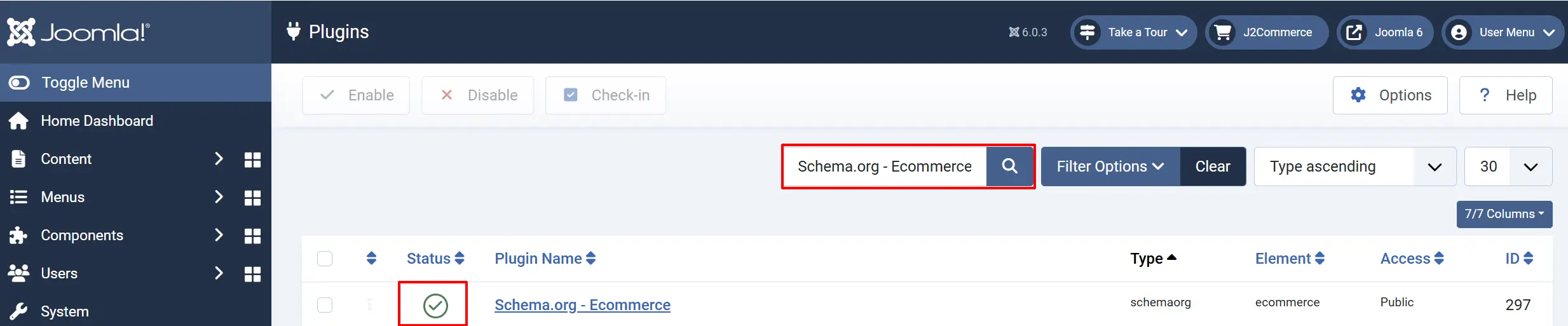
- Go to System -> Manage -> Plugins
- Search for J2Commerce MCP.
- Verify it shows a green checkmark (enabled). If not, click the status icon to enable it.
Configure the Plugin
Click on the J2Commerce MCP title
Helpful tip: If you click on the Toggle Inline Help icon, it will explain each section
Basic Settings tab
Enabled Tool Groups: Checkboxes to select which groups of MCP tools are available to AI assistants. Disable groups you do not need to reduce the attack surface.
Enable Write Operations: Allow AI assistants to modify data (update stock, change order status, load/remove sample data, scaffold plugins). Disabled by default for safety.
Rate Limit (requests/hour): Maximum number of MCP requests each client can make per hour. Between 10 and 1000.
Audit Log Retention (days): Number of days to keep MCP request audit logs. Between 1 and 365.
Allowed Transports: Select which communication methods are available. HTTP uses Joomla's com_ajax endpoint. STDIO uses a CLI script for local desktop AI tools.
Debug Mode: Write detailed debug information to the Joomla log. Useful when troubleshooting connection problems.
Joomla Root Path: Absolute path to the Joomla root directory (for example /var/www/html). Leave empty for auto-detection. Only needed when running the CLI script from a non-standard location.
Tool Groups
Each tool group can be independently enabled or disabled. Disabling a group removes those tools from the MCP tool list entirely, so the AI assistant never sees or calls them.
Products: List products, get product details, list variants
Orders: List orders, get order detail, list orders for a customer
Customers: List customers, get customer details
Analytics: Store stats, top products, sales report, customer report, inventory report
Coupons: List coupons, get a coupon, validate a coupon code
Shipping & Payment: List shipping methods, list payment gateways, list inventory
Reference Data: Countries, zones, currencies, tax profiles, tax rates, vouchers, order statuses, store config
Scaffold: Generate boilerplate for new payment and shipping plugins. Requires Write Operations enabled.
Sample Data: Load or remove test store data. Requires Write Operations enabled.
Authentication
The plugin uses Joomla API tokens for authentication. You need to generate a token for the user account the AI assistant will use.
- Go to Users -> Manage Users.
- Click the user account you want to use for MCP access.
- Click the Joomla API Token tab.
- Click Generate Token (or enable the token if one already exists).
- Copy the token — you will paste it into your AI assistant's MCP configuration.
The token is passed in every request using one of two HTTP headers:
Authorization: Bearer <your-token>
or
X-J2Commerce-Api-Key: <your-token>
The plugin validates the token against the Joomla user profile database. It checks that the token is enabled, the HMAC is correct, and that the user account is not blocked or pending activation.
Connecting an AI Assistant
HTTP Transport (Claude.ai, remote tools)
The HTTP endpoint is:
https://yoursite.com/index.php?option=com_ajax&plugin=j2commercemcp&format=raw
Add this as an MCP server in your AI assistant's settings. The exact configuration format depends on which tool you are using.
Example: Claude MCP configuration (claude_desktop_config.json)
{
  "mcpServers": {
    "j2commerce": {
      "url": "https://yoursite.com/index.php?option=com_ajax&plugin=j2commercemcp&format=raw",
      "headers": {
        "Authorization": "Bearer YOUR_TOKEN_HERE"
      }
    }
  }
}
STDIO Transport (Claude Desktop, Cursor, Windsurf)
The STDIO transport runs a PHP CLI script directly on your server. The AI tool communicates with it over standard input and output, which avoids any HTTP overhead and works even without a public-facing URL.
The CLI script is located at:
plugins/system/j2commercemcp/cli/j2commercemcp.php
Example: Claude Desktop configuration (claude_desktop_config.json)
{
  "mcpServers": {
    "j2commerce": {
      "command": "php",
      "args": ["/var/www/html/plugins/system/j2commercemcp/cli/j2commercemcp.php"],
      "env": {
        "JOOMLA_ROOT": "/var/www/html"
      }
    }
  }
}
If your Joomla root is correctly auto-detected, the JOOMLA_ROOT environment variable is optional. Set it explicitly if the CLI script cannot find your Joomla installation.
MCP Tool Reference
The following tables describe every tool the plugin exposes. Tools appear only when their group is enabled in the plugin settings.
Products
j2c_list_products
List products with optional filters.
| Parameter | Type | Description |
|---|---|---|
search | string | Search term matched against product name |
category_id | integer | Filter by Joomla category ID |
manufacturer_id | integer | Filter by manufacturer ID |
product_type | string | Filter by type: simple, variable, downloadable, etc. |
sku | string | Filter by exact variant SKU |
visibility | integer | 1 = everywhere, 2 = search only, 3 = catalog only |
enabled | integer | 1 = enabled only (default), 0 = disabled only, -1 = all |
min_price | number | Minimum variant price |
max_price | number | Maximum variant price |
in_stock | boolean | When true, return only products that have stock available |
limit | integer | Results per page (default: 20) |
offset | integer | Pagination offset (default: 0) |
Example use case: Ask the AI to "show me all enabled T-shirt products under $30 that are in stock" and it will call j2c_list_products with search=T-shirt, max_price=30, and in_stock=true.
j2c_get_product
Get full details for a single product, including all variants, prices, and attributes.
| Parameter | Type | Required | Description |
|---|---|---|---|
product_id | integer | Yes | The product's numeric ID |
Example use case: After listing products, ask "give me the full details for product 42" to see all variants, stock levels, and description.
j2c_list_product_variants
List all variants for a specific product with SKU, price, and stock information.
| Parameter | Type | Required | Description |
|---|---|---|---|
product_id | integer | Yes | The product's numeric ID |
limit | integer | No | Results per page (default: 50) |
offset | integer | No | Pagination offset (default: 0) |
Example use case: Ask "what SKUs and prices exist for the Blue Widget product?" to see every size and colour variant with its individual price.
Orders
j2c_get_orders
List orders with optional filters. Returns the most recent orders first.
| Parameter | Type | Description |
|---|---|---|
status_id | integer | Filter by order status ID |
date_from | string | Start date in YYYY-MM-DD format |
date_to | string | End date in YYYY-MM-DD format |
customer_id | integer | Filter by customer user ID |
payment_type | string | Filter by payment plugin name (e.g. payment_stripe) |
min_total | number | Minimum order total |
max_total | number | Maximum order total |
limit | integer | Results per page (default: 20) |
offset | integer | Pagination offset (default: 0) |
Example use case: Ask "show me all Stripe orders over $200 placed in January 2026" to identify your highest-value card payments for a specific month.
j2c_get_order
Get the complete details for one order, including all line items and the status change history.
| Parameter | Type | Required | Description |
|---|---|---|---|
order_id | integer | Yes | The order's numeric ID |
Example use case: A customer emails asking about order #1042. Ask the AI to "look up order 1042 and summarise what they ordered and what the current status is."
j2c_list_customer_orders
List all orders placed by a specific customer.
| Parameter | Type | Required | Description |
|---|---|---|---|
customer_id | integer | Yes | The customer's Joomla user ID |
status_id | integer | No | Filter by order status ID |
limit | integer | No | Results per page (default: 20) |
offset | integer | No | Pagination offset (default: 0) |
Example use case: Ask "has customer 58 ordered from us before, and if so, how many times?" to understand a customer's purchase history before a support call.
Customers
j2c_get_customers
List registered customers with optional filters.
| Parameter | Type | Description |
|---|---|---|
search | string | Search by name or email address |
date_from | string | Registration date from YYYY-MM-DD |
date_to | string | Registration date to YYYY-MM-DD |
min_orders | integer | Only return customers who have placed at least this many orders |
country_id | integer | Filter by country ID from the address book |
limit | integer | Results per page (default: 20) |
offset | integer | Pagination offset (default: 0) |
Example use case: Ask "find all customers from Germany who have placed at least 3 orders" to build a list for a loyalty email campaign.
j2c_get_customer
Get the full profile for one customer, including their address book and order statistics (total orders and total amount spent).
| Parameter | Type | Required | Description |
|---|---|---|---|
customer_id | integer | Yes | The customer's Joomla user ID |
Example use case: Ask "pull up the profile for customer ID 88, including how much they've spent in total" before a customer service interaction.
Analytics
j2c_get_store_stats
Return a revenue summary: total order count, total revenue, and average order value. Optionally filtered to a date range.
| Parameter | Type | Description |
|---|---|---|
date_from | string | Start date in YYYY-MM-DD format |
date_to | string | End date in YYYY-MM-DD format |
Example use case: Ask "what was our total revenue and average order value last month?" for a quick performance snapshot.
j2c_get_top_products
Return the best-selling products ranked by revenue or quantity sold.
| Parameter | Type | Description |
|---|---|---|
date_from | string | Start date in YYYY-MM-DD format |
date_to | string | End date in YYYY-MM-DD format |
sort_by | string | revenue (default) or quantity |
limit | integer | Number of products to return (default: 10) |
Example use case: Ask "which 5 products generated the most revenue this quarter?" to focus your marketing efforts.
j2c_get_sales_report
Return aggregated sales data grouped by a time period. Each row includes order count, total revenue, and average order value for that period.
| Parameter | Type | Description |
|---|---|---|
period | string | day, week, month (default), or year |
date_from | string | Start date in YYYY-MM-DD format |
date_to | string | End date in YYYY-MM-DD format |
Example use case: Ask "show me weekly sales figures for the past 12 weeks so I can spot trends" to identify your best and worst trading weeks.
j2c_get_customer_report
Return a customer spending leaderboard — each customer's total orders, total spent, average order value, and first and last order dates. Ordered by total spent descending.
| Parameter | Type | Description |
|---|---|---|
date_from | string | Filter orders from this date |
date_to | string | Filter orders to this date |
limit | integer | Results per page (default: 20) |
offset | integer | Pagination offset (default: 0) |
Example use case: Ask "who are our top 10 customers by total spend this year?" to identify VIP customers for a loyalty reward.
j2c_get_inventory_report
Return a low-stock and out-of-stock report for all tracked variants. Results are sorted by quantity ascending so the most urgent items appear first.
| Parameter | Type | Description |
|---|---|---|
low_stock_threshold | integer | Variants at or below this quantity are flagged as low stock (default: 10) |
out_of_stock_only | boolean | When true, only return variants with zero quantity (default: false) |
limit | integer | Results per page (default: 50) |
offset | integer | Pagination offset (default: 0) |
Example use case: Ask "give me all variants that have run out of stock" to create an urgent reorder list.
Coupons
j2c_list_coupons
List discount coupons with usage statistics and expiry information.
| Parameter | Type | Description |
|---|---|---|
search | string | Search by coupon name or code |
active_only | boolean | When true, only show enabled coupons within their validity dates (default: true) |
limit | integer | Results per page (default: 20) |
Example use case: Ask "list all active coupons so I can see which promotions are currently running."
j2c_get_coupon
Get the full details for a single coupon by its numeric ID.
| Parameter | Type | Required | Description |
|---|---|---|---|
coupon_id | integer | Yes | The coupon's numeric ID |
Example use case: Ask "get the full details for coupon 7 so I can check its usage limits and discount type."
j2c_apply_coupon
Validate a coupon code and return whether it is currently usable. Optionally checks the cart total against the coupon's minimum subtotal requirement.
| Parameter | Type | Required | Description |
|---|---|---|---|
code | string | Yes | The coupon code to validate |
cart_total | number | No | Cart total for minimum subtotal validation |
Returns valid (boolean), message (explanation), and the full coupon record if found.
Example use case: A customer claims a coupon code is not working. Ask the AI to "validate coupon code SUMMER20 for a cart worth $45" to see whether it is active, expired, or failing a minimum subtotal check.
Shipping and Payment
j2c_get_shipping_methods
List all published shipping methods configured in the store.
No parameters required.
Example use case: Ask "what shipping methods do we currently have set up?" to audit your shipping configuration.
j2c_get_payment_methods
List all enabled J2Commerce payment plugins.
No parameters required.
Example use case: Ask "which payment gateways are currently active on the store?"
j2c_list_inventory
List variant stock levels for all stock-tracked variants. Supports filtering by product, low stock threshold, or out-of-stock only.
| Parameter | Type | Description |
|---|---|---|
product_id | integer | Filter by product ID |
low_stock_threshold | integer | Show variants at or below this quantity |
out_of_stock_only | boolean | Show only variants with zero or null quantity |
limit | integer | Results per page (default: 50) |
offset | integer | Pagination offset (default: 0) |
Example use case: Ask "show me all stock-tracked variants for product 15 and their current quantities."
Reference Data
These tools return configuration and reference data that is useful for filtering and interpreting results from other tools.
j2c_list_manufacturers
List product manufacturers (brands).
| Parameter | Type | Description |
|---|---|---|
search | string | Search by name |
enabled | integer | 1 = enabled only, 0 = disabled only |
limit | integer | Results per page (default: 50) |
offset | integer | Pagination offset (default: 0) |
j2c_list_currencies
List configured currencies with exchange rates and number formatting settings.
| Parameter | Type | Description |
|---|---|---|
enabled | integer | 1 = enabled only, 0 = disabled only |
j2c_list_countries
List countries with ISO codes. Returns up to 300 results by default.
| Parameter | Type | Description |
|---|---|---|
enabled | integer | 1 = enabled only, 0 = disabled only |
search | string | Search by country name or ISO code |
limit | integer | Results per page (default: 300) |
offset | integer | Pagination offset (default: 0) |
j2c_list_zones
List zones (states, provinces, regions) with optional country filter.
| Parameter | Type | Description |
|---|---|---|
country_id | integer | Filter by country ID |
enabled | integer | 1 = enabled only, 0 = disabled only |
limit | integer | Results per page (default: 200) |
offset | integer | Pagination offset (default: 0) |
j2c_list_taxprofiles
List tax profiles configured in the store.
| Parameter | Type | Description |
|---|---|---|
enabled | integer | 1 = enabled only, 0 = disabled only |
j2c_list_taxrates
List tax rates with their associated geozone names.
| Parameter | Type | Description |
|---|---|---|
enabled | integer | 1 = enabled only, 0 = disabled only |
geozone_id | integer | Filter by geozone ID |
j2c_list_vouchers
List gift vouchers with value, validity, and recipient information.
| Parameter | Type | Description |
|---|---|---|
search | string | Search by voucher code or recipient email |
enabled | integer | 1 = enabled only, 0 = disabled only |
limit | integer | Results per page (default: 20) |
offset | integer | Pagination offset (default: 0) |
j2c_list_orderstatuses
List all defined order status labels and their CSS classes.
| Parameter | Type | Description |
|---|---|---|
enabled | integer | 1 = enabled only, 0 = disabled only |
j2c_get_config
Return the full J2Commerce component configuration as a key-value object. Useful for giving the AI context about your store settings such as default currency, tax display mode, and weight units.
No parameters required.
Scaffold (write operations required)
The Scaffold group is only visible when Enable Write Operations is set to Yes.
j2c_scaffold_plugin
Generate boilerplate files for a new J2Commerce payment or shipping plugin. Creates the full Joomla 6 MVC structure including namespace declaration, service provider, event class, XML manifest, and language files.
| Parameter | Type | Required | Description |
|---|---|---|---|
type | string | Yes | payment or shipping |
name | string | Yes | Plugin element name (lowercase letters, digits, underscores). For example: stripe, fedex_rates |
display_name | string | No | Human-readable name. For example: Stripe Payments |
options.sandbox | boolean | No | Include sandbox/test mode toggle (default: true) |
options.webhook | boolean | No | Include webhook handler stub (default: false) |
options.surcharge | boolean | No | Include surcharge/fee field (default: true) |
options.geozone | boolean | No | Include geozone restriction field (default: true) |
options.debug | boolean | No | Include debug logging toggle (default: true) |
options.api_credentials | boolean | No | Include API key/secret fields (default: true) |
options.shipping_tax | boolean | No | Include shipping tax field (default: true, shipping only) |
output_path | string | No | Output directory. Defaults to plugins/j2commerce/ inside the Joomla root |
Returns the plugin directory path, a list of all created files, and the next steps to complete the plugin (which event methods to implement and how to register the plugin with Joomla).
Example use case: Ask the AI assistant to "scaffold a new payment plugin called my_gateway with webhook support and API credentials" to get a working plugin skeleton ready for your custom API logic in under a minute.
Sample Data (write operations required)
The Sample Data group is only visible when Enable Write Operations is set to Yes.
j2c_load_sample_data
Load test data into the store. Creates products (simple and variable), customers, orders, categories, product options, manufacturers, and coupons. Spreads order dates realistically across the past period.
| Parameter | Type | Description |
|---|---|---|
profile | string | minimal (5 products / 10 orders), standard (25 products / 50 orders), or full (100 products / 500 orders). Default: standard |
clean_first | boolean | Remove existing sample data before loading new data. Default: false |
categories | integer | Override the number of categories to create |
simple | integer | Override the number of simple products |
variable | integer | Override the number of variable products |
customers | integer | Override the number of customer accounts |
orders | integer | Override the number of orders |
manufacturers | integer | Override the number of manufacturers |
coupons | integer | Override the number of coupons |
date_range_days | integer | Spread orders across this many past days |
Example use case: When setting up a demo or testing environment, ask the AI to "load the standard sample data profile" to populate the store with realistic products and orders instantly.
j2c_remove_sample_data
Remove all data that was previously created by j2c_load_sample_data. This does not affect real store data.
No parameters required.
Example use case: After finishing a demo, ask the AI to "remove the sample data" to restore the store to a clean state.
MCP Resources
In addition to callable tools, the MCP server exposes four read-only resources. AI assistants can retrieve these at any point to gain context about your store without consuming a tool call.
| Resource URI | Name | Description |
|---|---|---|
j2commerce://config | Store Configuration | Full store configuration including currency, tax settings, and enabled payment and shipping methods |
j2commerce://categories | Product Categories | Complete product category tree |
j2commerce://zones | Shipping Zones | All configured shipping zones and regions |
j2commerce://order-statuses | Order Statuses | All order status definitions and their labels |
MCP Prompts
The plugin also provides ready-made prompt templates. When you select a prompt in your AI assistant, it automatically calls the right tools and structures the output. These prompts are a shortcut for common store tasks.
| Prompt | Arguments | What it does |
|---|---|---|
j2c/analyze-sales | date_from, date_to | Analyses revenue, average order value, and top products for a date range |
j2c/handle-support-request | order_id, issue | Looks up order and customer details, then drafts a support reply |
j2c/inventory-audit | threshold | Lists low-stock products and suggests reorder quantities |
j2c/product-catalog-review | (none) | Finds products with missing descriptions, zero prices, out-of-stock visibility, and category issues |
j2c/order-fulfillment | (none) | Builds a prioritised fulfillment list with urgent order flags, shipping groupings, and consolidation opportunities |
j2c/revenue-forecast | (none) | Analyses 90 days of sales data and projects 30/60/90-day revenue with methodology notes |
Tips
- Start with only the tool groups you actually need. Fewer tools mean a smaller surface area and faster AI tool discovery.
- Leave Enable Write Operations disabled until you have a specific reason to allow writes. All read tools work without it.
- Use the Rate Limit setting to prevent runaway automation from hammering the database. The default of 100 requests per hour is generous for interactive use.
- The Audit Log Retention setting controls how long MCP request logs are kept. Increase it if you need a longer audit trail for compliance reasons.
- If you are using Claude Desktop or Cursor, the STDIO transport is generally faster than HTTP because it avoids authentication headers and network overhead.
Troubleshooting
The AI tool says "Authentication required" or "Authentication failed"
Cause: The Joomla API token is missing, expired, or the token is disabled in the user profile.
Solution:
- Go to Users -> Manage Users and open the user account.
- Click the Joomla API Token tab.
- Confirm the token is enabled (the toggle should be on).
- If needed, click Invalidate Token and then generate a new one.
- Update the token in your AI assistant's MCP configuration.
The AI tool says "HTTP transport not enabled" or "STDIO transport is not enabled"
Cause: The transport you are using is not checked in the Allowed Transports plugin setting.
Solution:
- Open the plugin settings at System -> Manage -> Plugins -> J2Commerce MCP.
- Check both HTTP and STDIO under Allowed Transports, or at least the one you need.
- Click Save.
Tool calls succeed but return no results
Cause: The tool group for those tools is not enabled in the plugin settings.
Solution:
- Open the plugin settings.
- Check the required group under Enabled Tool Groups.
- Save and reconnect your AI assistant.
The CLI script cannot find the Joomla installation
Cause: The JPATH_BASE auto-detection assumes the script is four directory levels inside the Joomla root (plugins/system/j2commercemcp/cli/), but your installation path is different.
Solution: Set the JOOMLA_ROOT environment variable in your AI tool's MCP configuration to the absolute path of your Joomla installation root, for example /var/www/html.
Write tools (scaffold, sample data) return an error
Cause: Write operations are disabled by default.
Solution:
- Open the plugin settings.
- Set Enable Write Operations to Yes.
- Save, then retry the tool call.