Currency Exchange Rates Updater
The Currency Updater app keeps your store's exchange rates current by fetching live rates from trusted financial data providers. When you sell in multiple currencies, accurate exchange rates ensure customers see correct prices — whether you update rates manually or on a schedule.
Requirements
- PHP 8.3+
- Joomla! 6.x
- J2Commerce 6.x
- At least one currency enabled in addition to your store's base currency
Purchase and Download
Step 1: Go to our J2Commerce website -> Apps
Step 2: Locate the Currency Exchange Updater App -> click View Details -> Add to cart -> Checkout.
Step 3: Go to your My Downloads under your profile button at the top right corner and search for the app. Click Available Versions -> View Files -> Download
Install the App
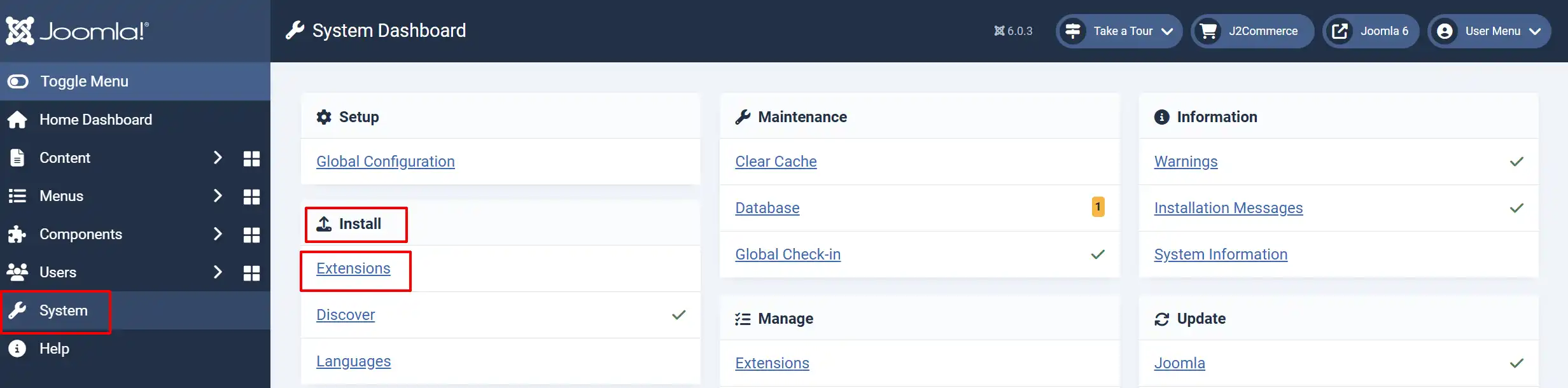
Go to System -> Install -> Extensions
Upload the plugin ZIP file or use the Install from URL option.
Enable the App
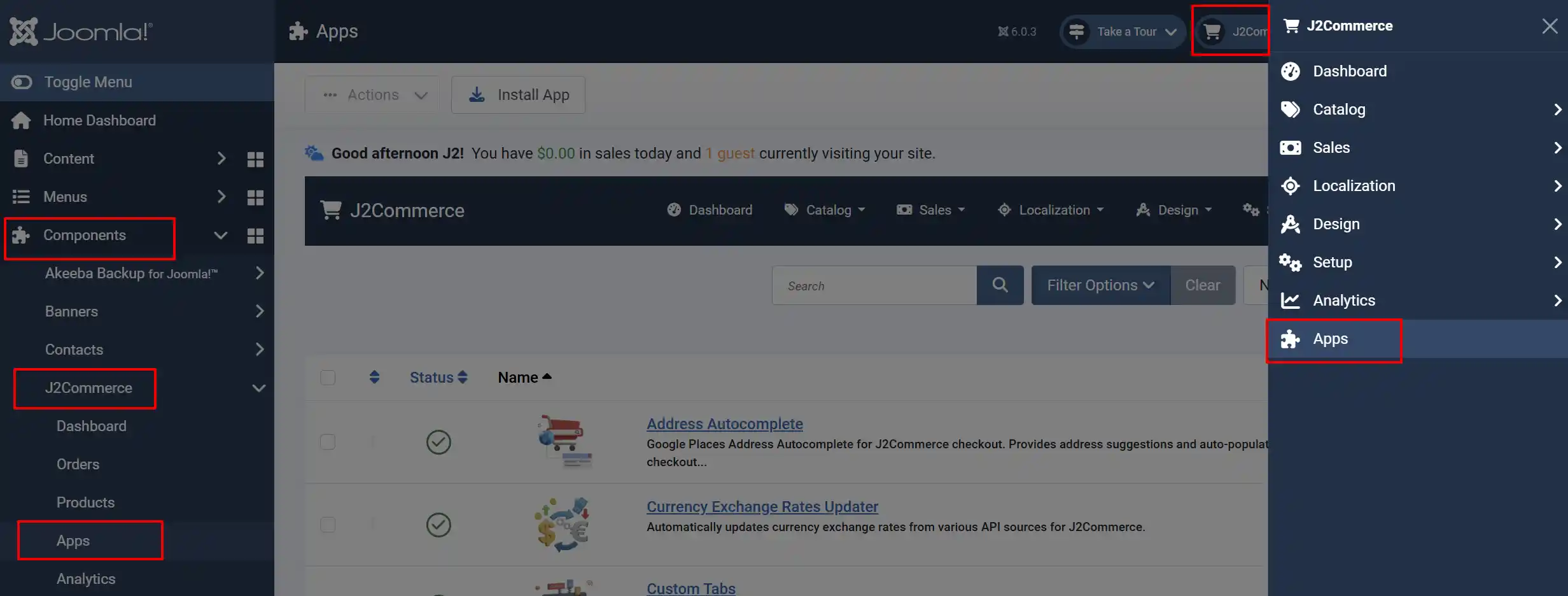
Once you have installed the App, you will need to enable it. There are two ways you can access the App.
Option A: Go to the J2Commerce icon at the top right corner -> Apps
Option B: Go to Components on the left sidebar -> J2Commerce -> Apps
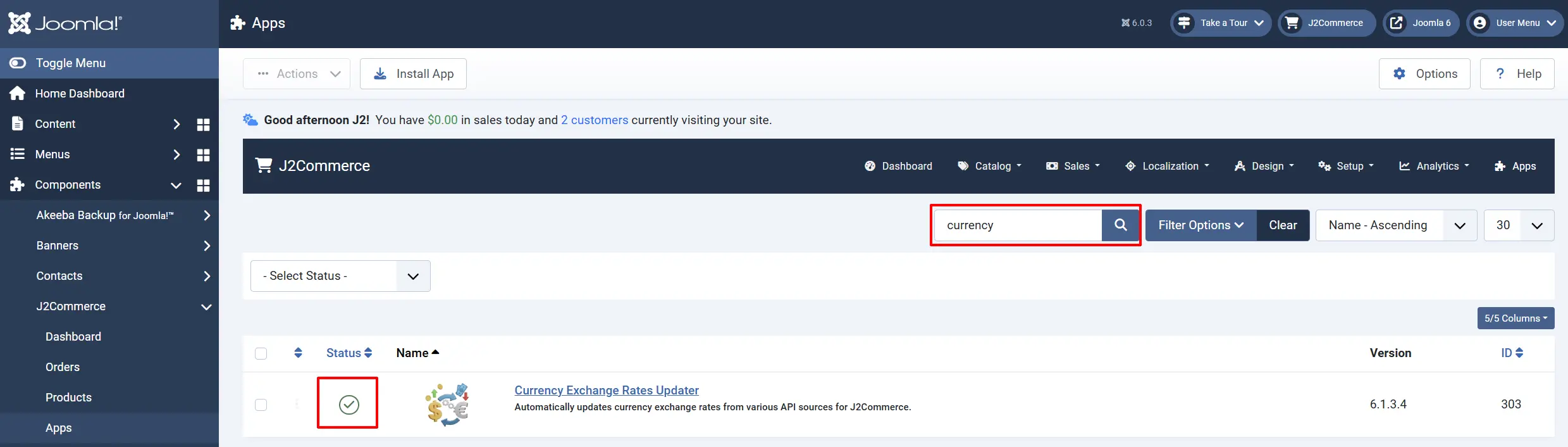
To help you narrow down the list, you can do a search for the Currency Exchange Updater app, click the X, and it will turn into a green checkmark. It is now enabled and ready for setup.
Choose an API Provider
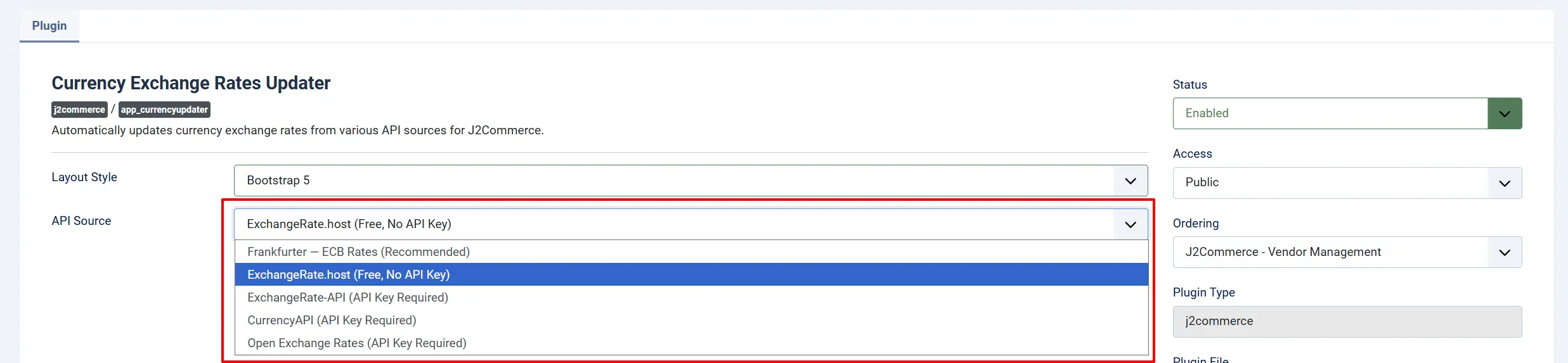
Click on Currency Exchange Rates Updater to open the configuration screen. The most important setting is the API Source, which determines where exchange rates come from.
API Source Comparison
| Provider | API Key Required | Free Tier | Best For |
|---|---|---|---|
| Frankfurter | No | Unlimited | Stores using major world currencies (EUR-based rates from ECB) |
| ExchangeRate.host | No | Unlimited | Stores needing broader currency coverage without API registration |
| ExchangeRate-API | Yes | 1,500 requests/month | Stores wanting rate limit alerts and usage tracking |
| CurrencyAPI | Yes | 300 requests/month | Stores needing real-time rates for many currencies |
| Open Exchange Rates | Yes | 1,000 requests/month | Stores needing 170+ currencies including cryptocurrency. |
Get API Keys (4 Providers Require Keys)
ExchangeRate-API
Free tier: 1,500 requests per month (plenty for hourly updates)
- Go to https://www.exchangerate-api.com/
- Click Get Free Key or sign up for an account.
- Enter your email address and create a password.
- Check your email for a verification link and click it.
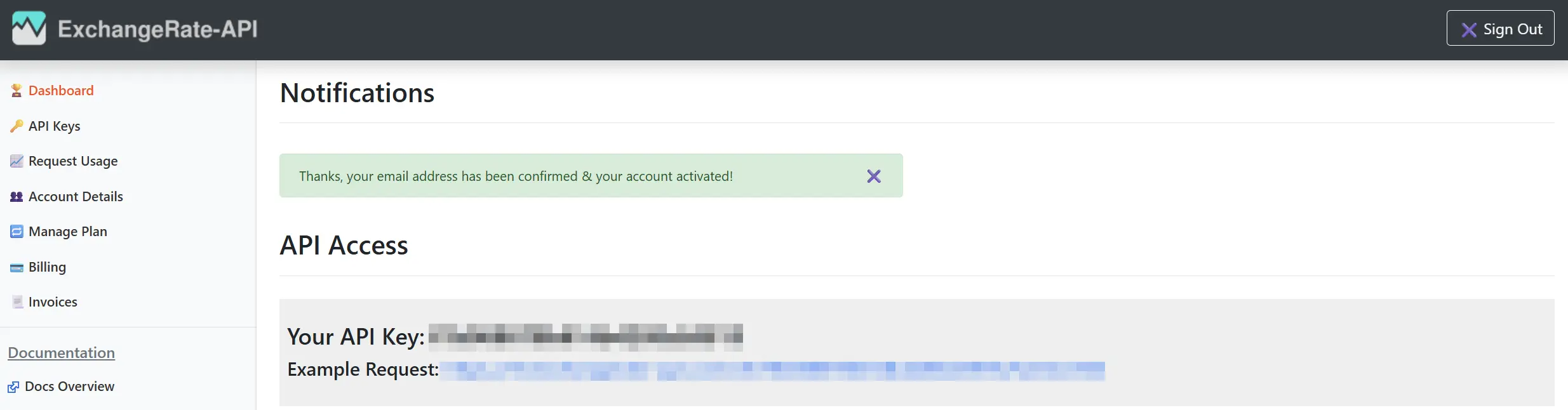
- After verification, you'll see your API key on the dashboard.
- Copy the API key.
Configure in J2Commerce:
-
In the Currency Updater settings, select ExchangeRate-API as the API Source.
-
Paste your key into the ExchangeRate-API Key field.
-
Click Save.

CurrencyAPI
Free tier: 300 requests per month (good for daily updates)
- Go to https://currencyapi.com/
- Click Sign Up Free or Get API Key.
- Create an account with your email and password.
- Verify your email address.
- Navigate to API Keys in your dashboard.
- Click Create New API Key if one isn't already generated.
- Copy the API key.
Configure in J2Commerce:
- In the Currency Updater settings, select CurrencyAPI as the API Source.
- Paste your key into the CurrencyAPI Key field.
- Click Save.

Open Exchange Rates
Free tier: 1,000 requests per month with USD as base currency only
- Go to https://openexchangerates.org/signup/free
- Fill in your details and create a free account.
- After logging in, go to App IDs in your dashboard.
- Copy your App ID (this is your API key).
Important: The free tier only returns rates with USD as the base currency. If your store's base currency is not USD, J2Commerce will automatically recalculate rates based on your base currency.
Configure in J2Commerce:
- In the Currency Updater settings, select Open Exchange Rates as the API Source.
- Paste your App ID into the Open Exchange Rates App ID field.
- Click Save.

Frankfurter (No API Key Needed)
Free, unlimited, no registration required.
Frankfurter is an open-source API that pulls exchange rates directly from the European Central Bank. It's the recommended choice for most stores.
- No signup required
- Supports approximately 30 major world currencies
- Rates update daily (ECB publishes new rates around 16:00 CET on business days)
- No rate limits
Configure in J2Commerce:
- Select Frankfurter — ECB Rates as the API Source.
- No key needed — just click Save.
ExchangeRate.host (No API Key Needed)
Free, no registration required.
ExchangeRate.host is a free alternative with broader currency coverage than Frankfurter.
- No signup required
- Wide currency coverage
- No rate limits for latest rates endpoint
- Good fallback if Frankfurter doesn't support your currencies
Configure in J2Commerce:
- Select ExchangeRate.host as the API Source.
- No key needed — just click Save.
Manually Update Exchange Rates
You can update rates on demand from the Currencies management screen.
Navigate to Currencies
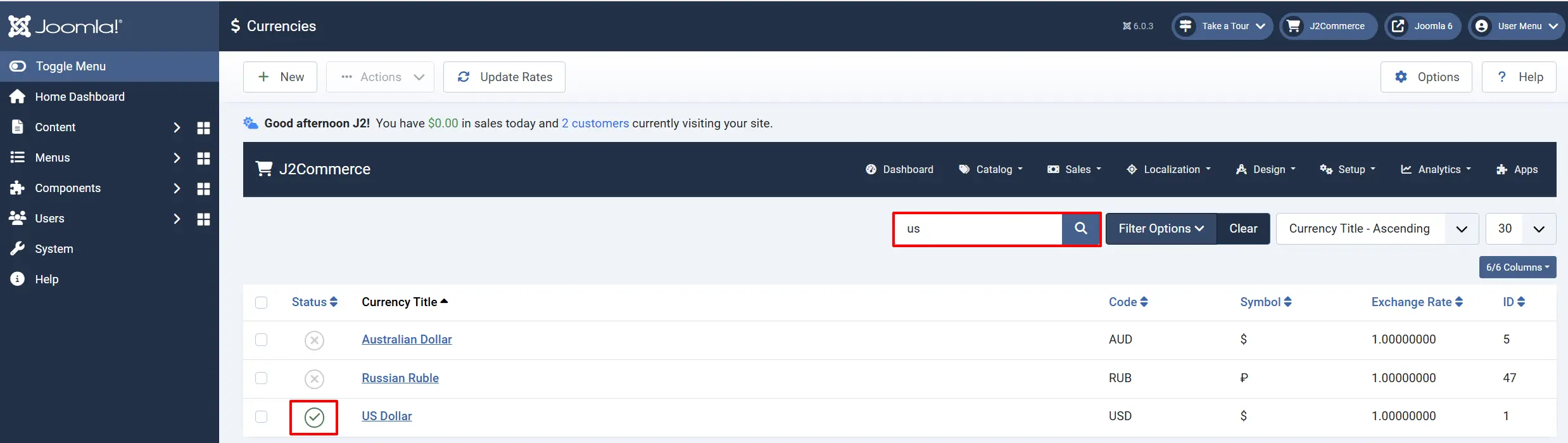
Go to Components -> J2Commerce -> Currencies. Search for your Currency
Make sure the currencies you want to update have a green checkmark in the Enabled column. Rates are only fetched for enabled currencies.
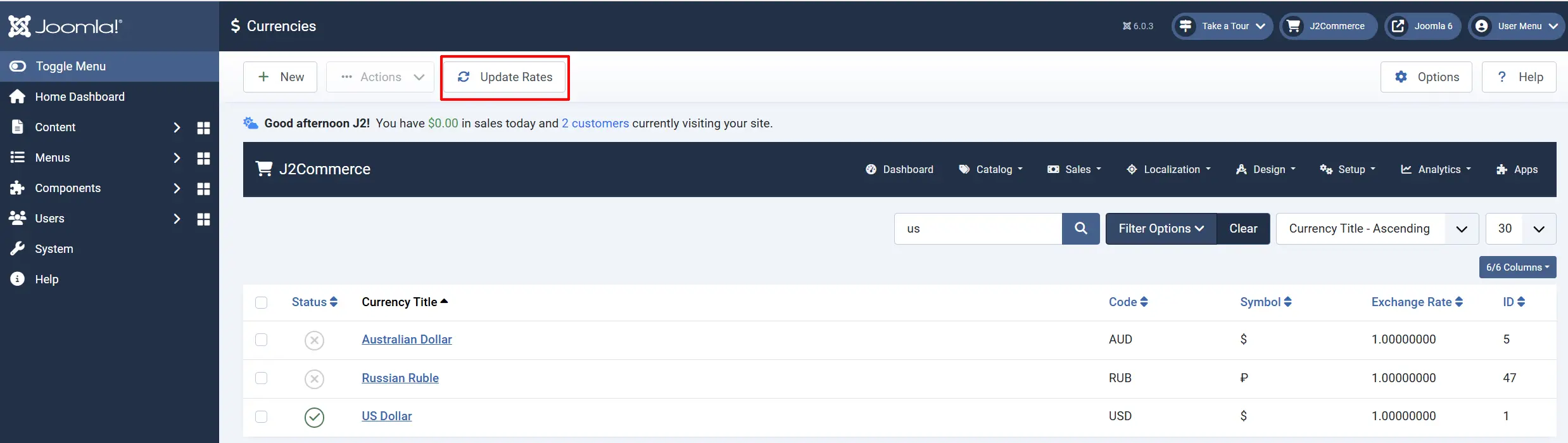
Click Update Rates
Click the Update Rates button in the toolbar. J2Commerce contacts your configured API provider and updates the exchange rate values for all enabled currencies.
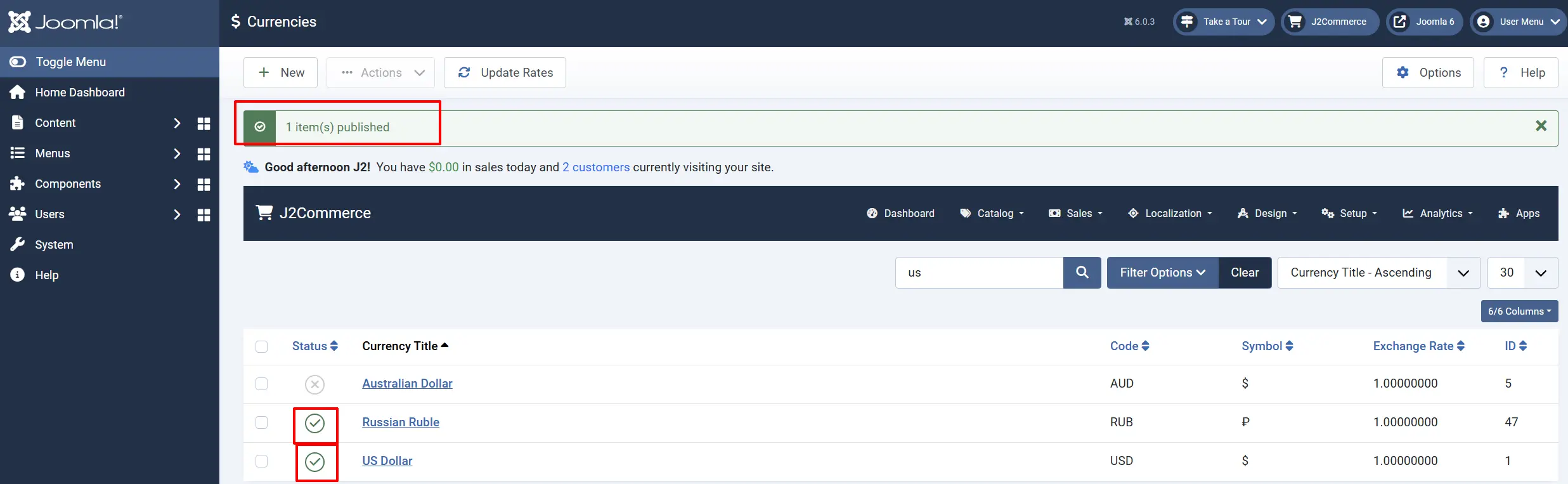
After a successful update, you'll see a success message:
Note: You will only see a success message if you have more than one currency enabled.
Note: You will receive an error message if you only have the default currency enabled because it automatically updates the default, so you don't need to click on Update Rates
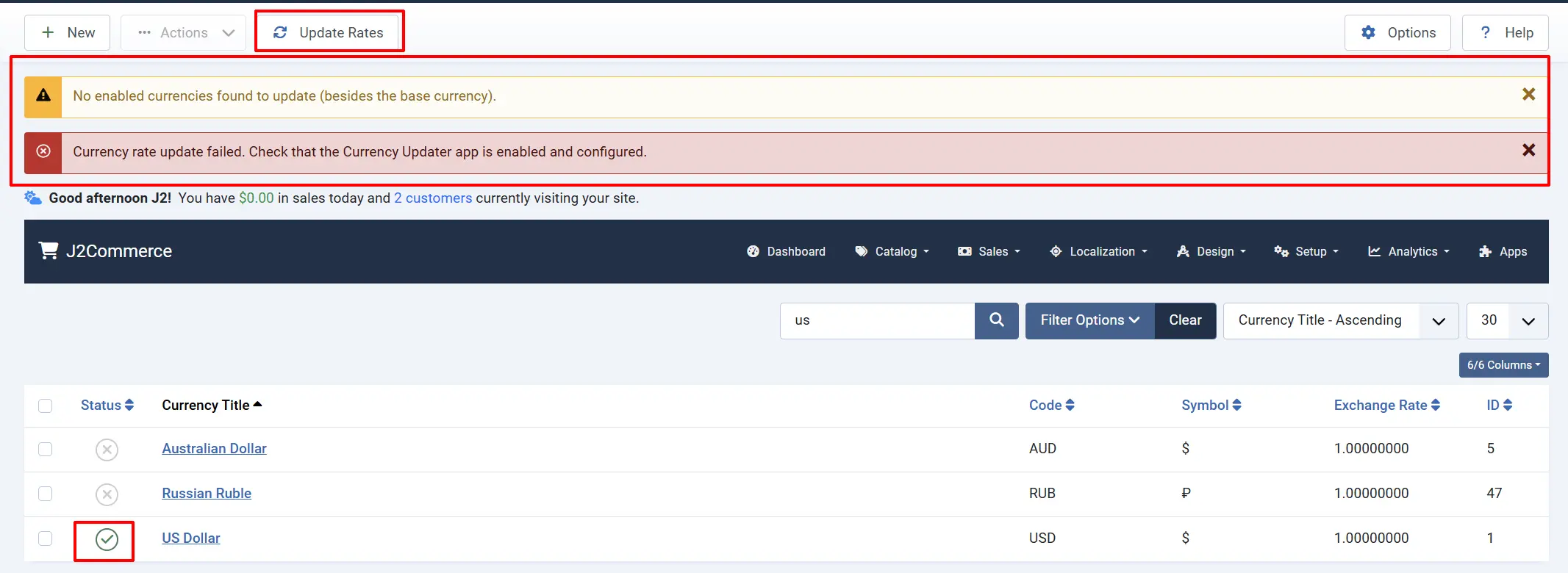
The Modified date column will show the current timestamp for each updated currency.
Set Up Automatic Rate Updates
Instead of manually clicking Update Rates, you can schedule automatic updates using Joomla's Task Scheduler. This keeps your rates current without any intervention.
Enable the Currency Updater Scheduled Task
- Go to System -> Scheduled Tasks.
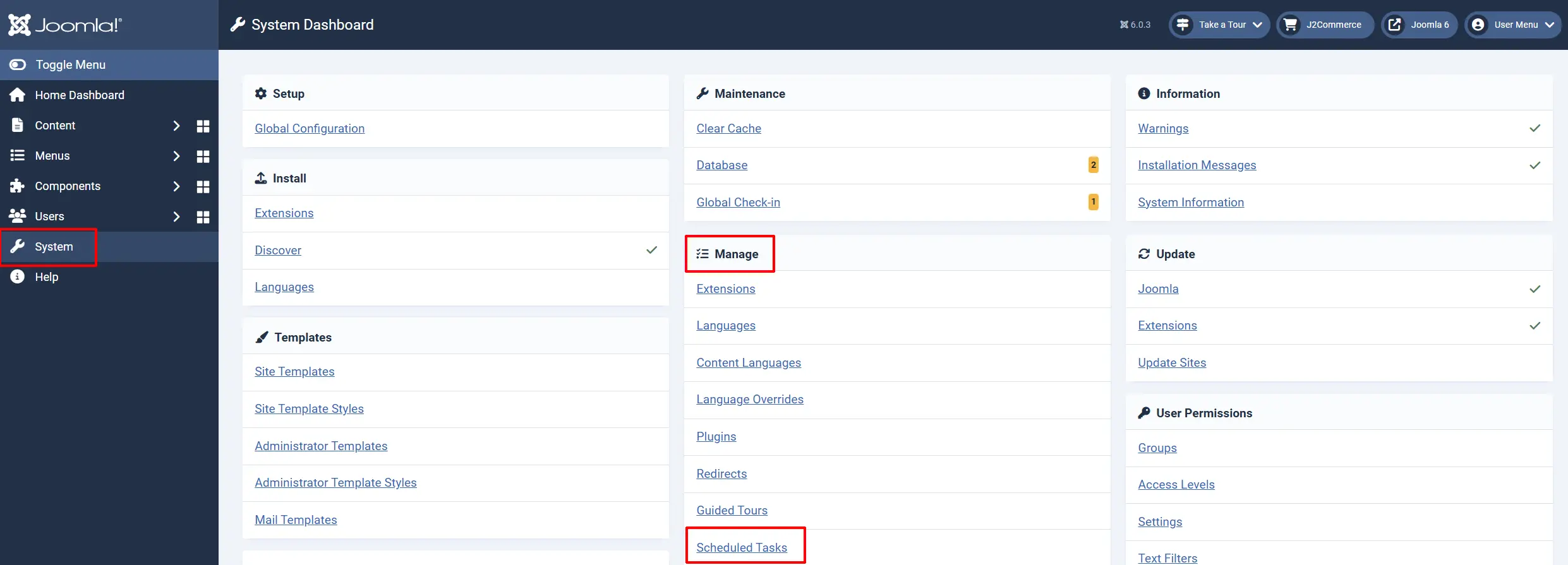
-
Click New to create a new scheduled task.
-
Search for and select J2Commerce: Update Currency Rates.
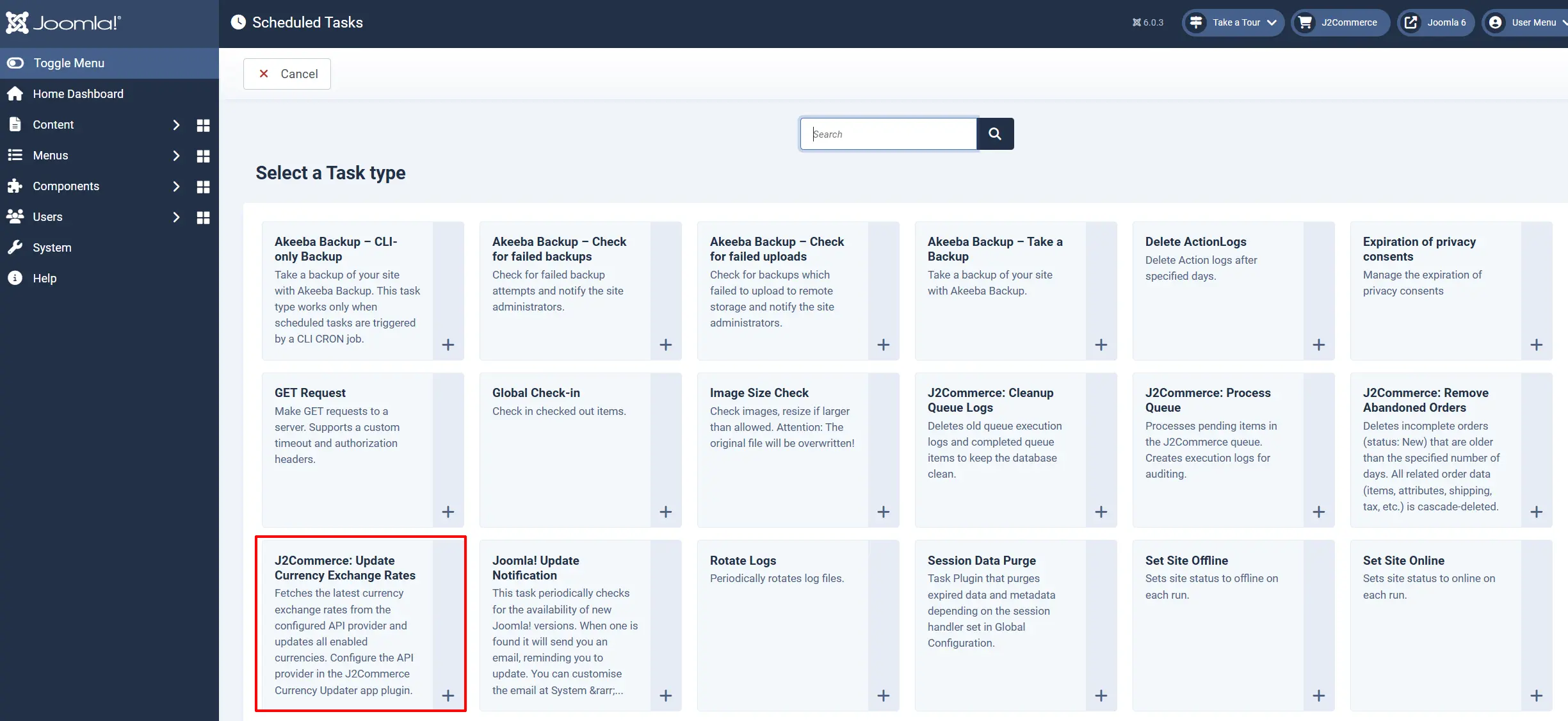
Configure the New Task
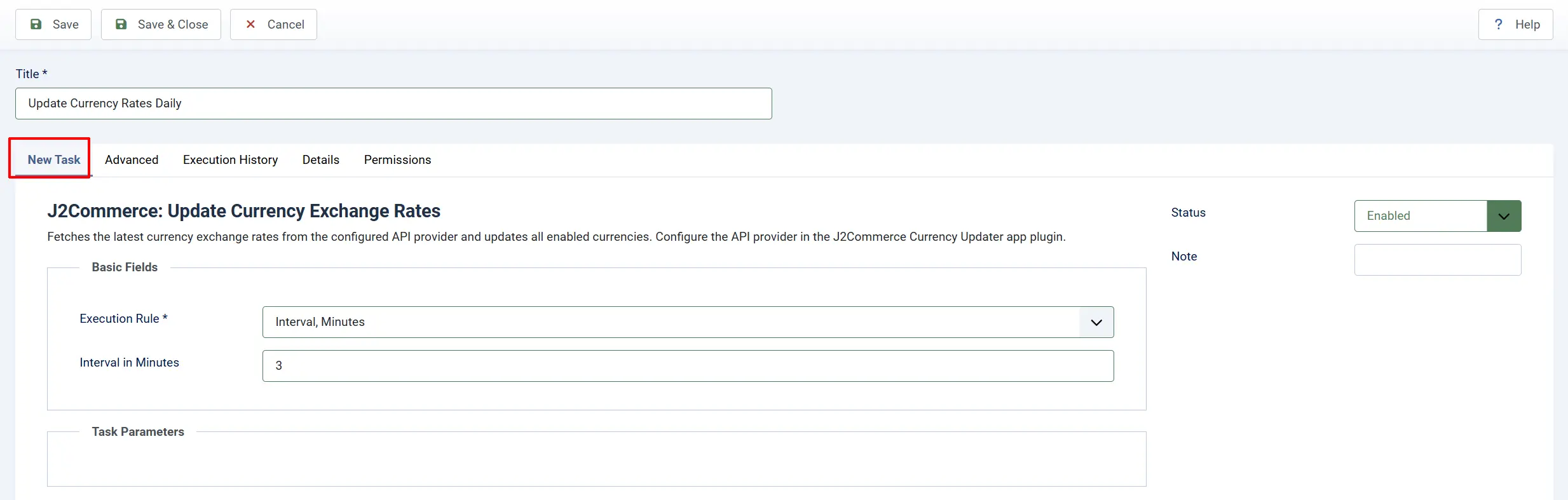
Title: Update Currency Rates Daily
Execution Rules: Leave default unless you need specific constraints
Interval in Minutes: 0 3 * * * (daily at 3:00 AM) — adjust based on your needs
For stores that need more frequent updates (e.g., volatile markets), use:
- Every hour:
0 * * * * - Every 6 hours:
0 */6 * * * - Twice daily:
0 6,18 * * *
Verify the Scheduler Is Running
Joomla's Task Scheduler requires a trigger to execute scheduled tasks. You have two options:
Option A: Server Cron Job (Recommended)
Add this to your server's crontab:
*/5 * * * * php /path/to/your/site/cli/joomla.php scheduler:run
This checks for pending tasks every 5 minutes.
Option B: Lazy Scheduler (Easier Setup)
Go to System -> Scheduled Tasks.
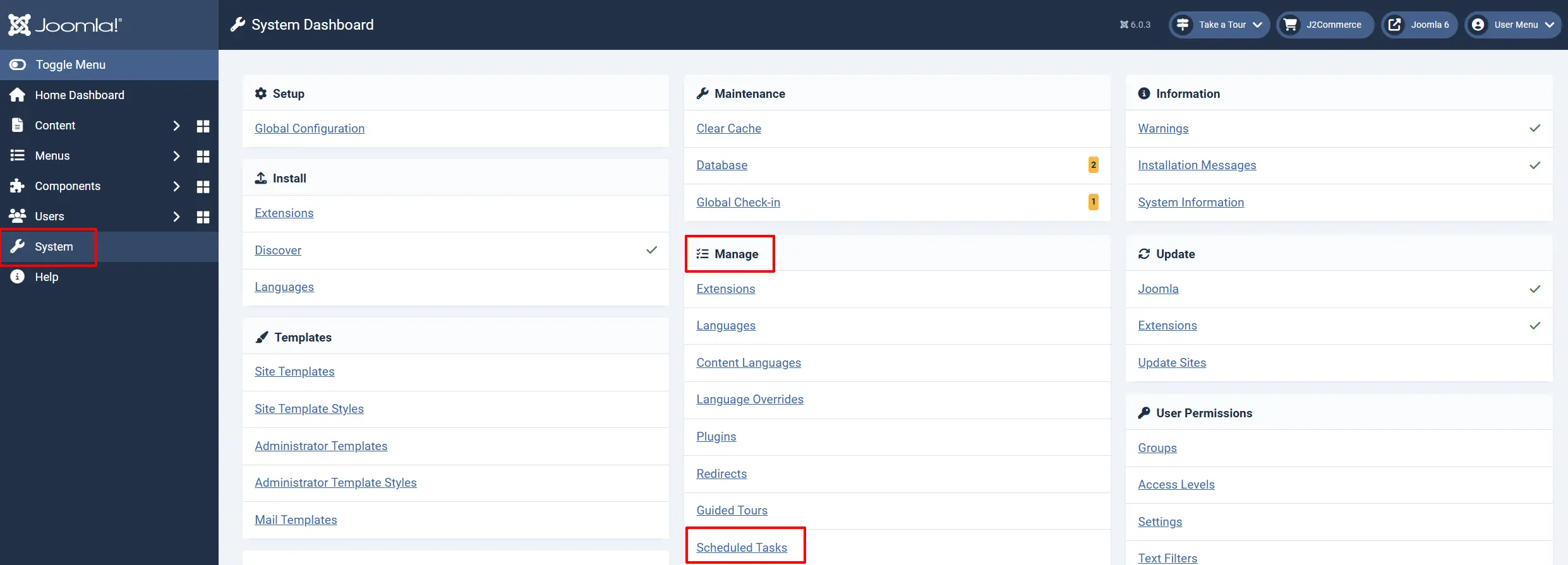
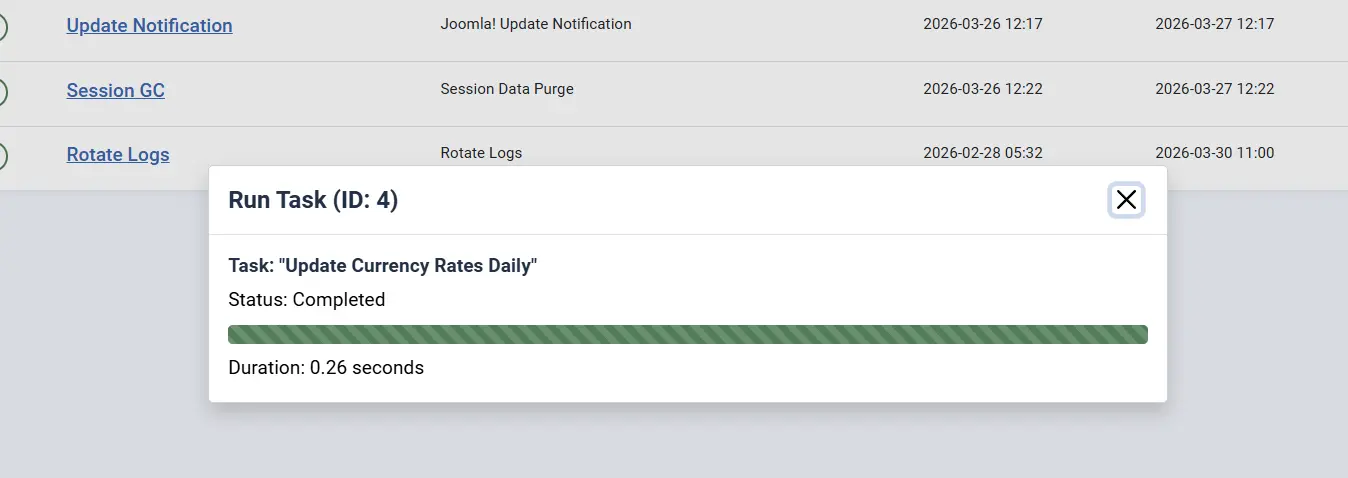
Click the Run Task button
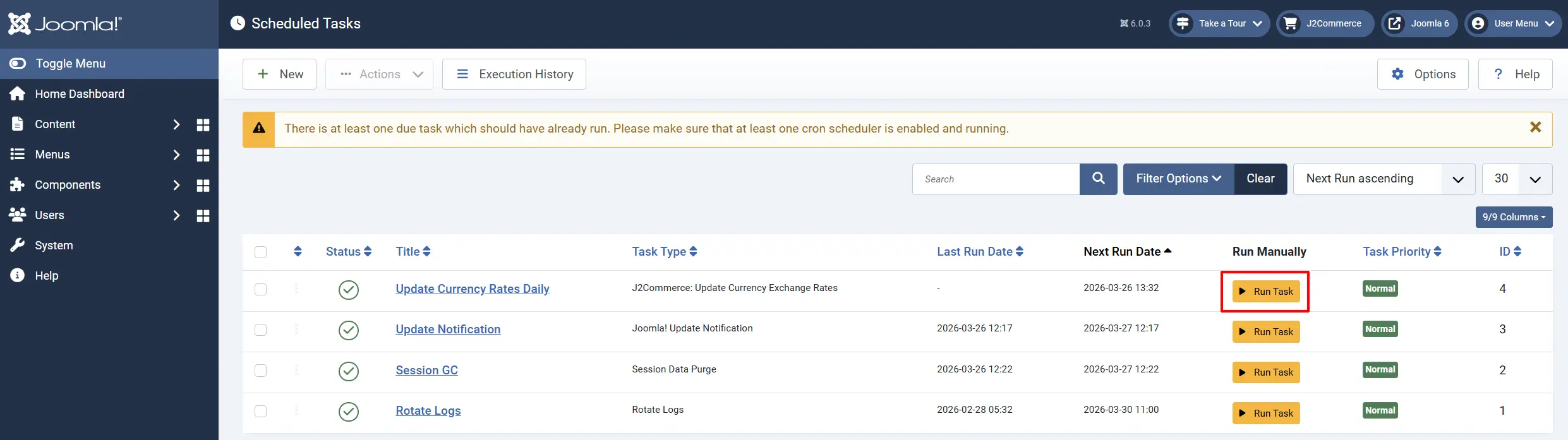
The lazy scheduler triggers scheduled tasks when someone visits your site. It's simpler but less reliable than a real cron job.
Troubleshooting
"An API key is required for [Provider]"
Cause: You selected an API provider that requires authentication but didn't enter the key.
Solution:
- Open the Currency Updater settings.
- Enter the API key in the appropriate field.
- Click Save.
If you don't have a key yet, see the "Get API Keys" section above, or switch to a provider that doesn't require a key (Frankfurter or ExchangeRate.host).
"No enabled currencies found to update"
Cause: All currencies except your store's base currency are disabled.
Solution:
- Go to Components -> J2Commerce -> Currencies.
- Enable at least one currency besides your base currency.
- Return to the Currencies view and click Update Rates again.
"Your store base currency is not available from [Provider]"
Cause: The selected API provider doesn't support your store's base currency in its response.
Solution:
- Switch to a different API provider that supports more currencies (Frankfurter and ExchangeRate.host support ~30 major currencies; Open Exchange Rates supports 170+).
- If using Open Exchange Rates free tier, be aware it only returns USD-based rates. J2Commerce automatically recalculates from USD to your base currency, but your base currency must be in the supported list.
Rates haven't updated even though cron ran
Possible causes:
-
The Currency Updater plugin is disabled. Go to J2Commerce -> Apps and verify the plugin has a green checkmark.
-
No currencies are enabled. Go to Currencies and enable at least one currency besides your base currency.
-
API key is invalid or expired. Test by clicking Update Rates manually in the Currencies view. If it fails, check your API key.
-
API provider is down. Try switching to a different provider temporarily.
-
Your base currency isn't set. Go to J2Commerce -> Setup -> Store and verify Store Currency is configured.
ExchangeRate-API shows "HTTP 403" error
Cause: Your API key is invalid, revoked, or has exceeded its request limit.
Solution:
- Log into your ExchangeRate-API account.
- Check your usage and key status.
- If the key is invalid, generate a new key.
- Update the key in J2Commerce Currency Updater settings.
CurrencyAPI shows "HTTP 401" error
Cause: Your API key is missing from the request or is invalid.
Solution:
- Verify you copied the entire API key (no extra spaces).
- Log into your CurrencyAPI account and check your key status.
- If the key is revoked, generate a new key.
Best Practices
Choose the Right Update Frequency
- Daily updates are sufficient for most stores. Exchange rates fluctuate, but daily updates keep prices reasonably accurate.
- Hourly updates may be needed if you sell in volatile markets or cryptocurrencies, or if your margins are tight.
- Avoid updating more than once per hour — most free API tiers have monthly limits, and rates don't change that fast.
Monitor Your API Usage
If you use ExchangeRate-API, CurrencyAPI, or Open Exchange Rates:
- Log into your provider's dashboard monthly to check usage.
- A daily update uses ~30 requests per month.
- An hourly update uses ~720 requests per month.
- If you're approaching your limit, reduce update frequency or upgrade your plan.
Test After Configuration
After setting up automatic updates:
- Go to System -> Scheduled Tasks.
- Find your Currency Updater task.
- Click the task title to view its history.
- Verify the last execution shows "Success" status.