Findbar
Findbar gives your store a fast, modern search experience and shows you what your customers are actually looking for. It comes in two parts that work together:
- Findbar Complete Search (a module) — a live search box for your site header. Results appear instantly as the shopper types, drawn from your products, articles, categories, and any other indexed content.
- Findbar Insights (a plugin) — records every search and turns it into easy-to-read analytics cards, plus it adds a full Search Results page so shoppers can browse everything that matched their search.
Together they help shoppers find more, so you sell more — and they reveal the searches that came up empty so you know exactly which products or synonyms to add.
Requirements
- PHP 8.3.0 +
- Joomla! 6.x
- J2Commerce 6.x
- Joomla Smart Search (also called Finder) — Findbar searches the Smart Search index, so this built-in Joomla feature must be enabled and your content indexed (covered in the steps below).
Purchase and Download
Step 1: Go to our J2Commerce website -> Apps
Step 2: Locate the Findbar app -> click View Details -> Add to cart -> Checkout.
Step 3: Go to your My Downloads under your profile button at the top right corner and search for the app. Click Available Versions -> View Files -> Download Now
Install the App
In the Joomla Administrator, go to System -> Install -> Extensions.
Upload the app_findbar.zip file or use the Install from URL option.

Enable the App
Once you have installed the app, you will need to enable it. There are two ways you can access the extension.
Option A: Go to the J2Commerce icon at the top right corner -> Apps
Option B: Go to Components on the left sidebar -> J2Commerce -> Apps

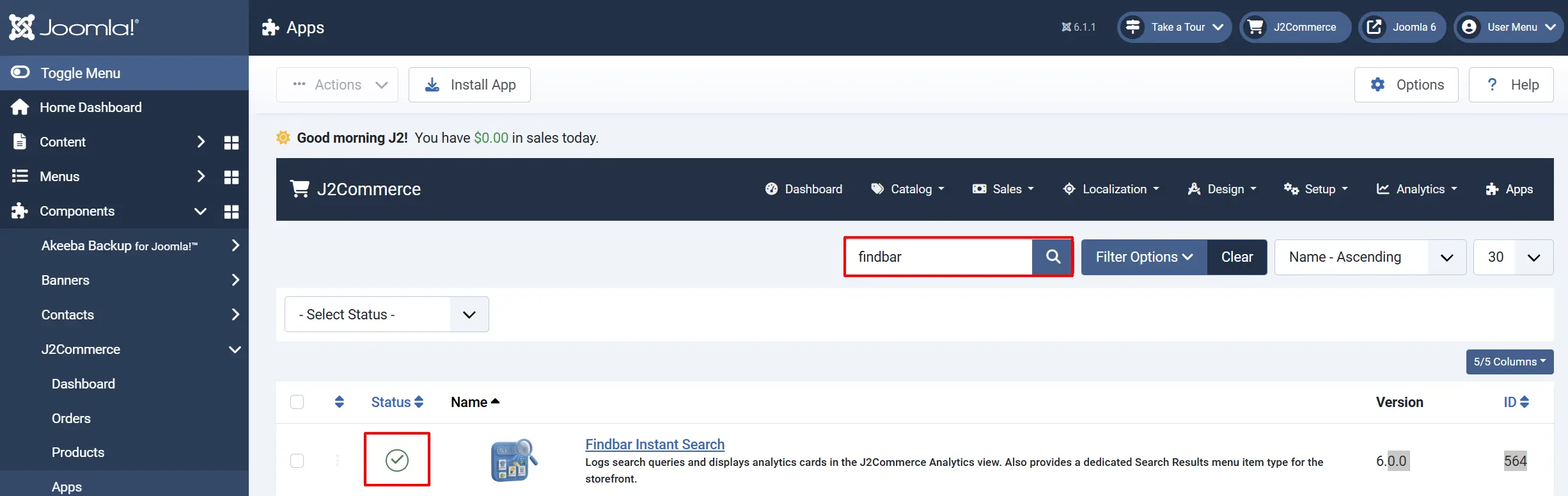
Look for Findbar , click the X, and it will turn into a green checkmark. It is now enabled and ready for setup.
Add the Search Box to Your Site
The search box itself is a Joomla module, so you publish it like any other module.
- Go to Content -> Site Modules -> New.
- Choose Findbar Complete Search from the list of module types.
- Give it a Title (or hide the title if you only want the search box).
- Set the Position to a spot in your template — usually a header or search position.
- On the Menu Assignment tab, choose On all pages (or pick specific pages).
- Click Save.
The search box now appears on your storefront in the position you chose.
Build the Search Index
Findbar shows results from Joomla Smart Search. If the index is empty, searches return nothing — so build it once after install:
- Go to Components -> Smart Search.
- Click Index (or Index All) in the toolbar to index your existing content.
After the first build, Smart Search keeps itself up to date as you add or edit products. You only need to rebuild manually if you change which content types are indexed.
Configure the Search Box
Open the Findbar Complete Search module (Content -> Site Modules -> Findbar Complete Search). Its settings are grouped into three tabs.
Hover over any setting's label to read a short description of what it does.
Click the Toggle Inline Help button on any app you install to see a description below each field directly in the admin panel.

Basic tab
These settings control how the search behaves and how results are presented.
Result Layout: The visual style of the result list: Simple List, Card Grid, Two-Column with Type Rail, or Compact Suggestions.
Display Mode: Where results appear: Dropdown (under the box), Modal (a popup), Top Offcanvas (a slide-down launcher), or Redirect to Search Page (sends shoppers straight to the full results page).
Content Types: Limit the search to specific types (for example, products only). Leave empty to search everything in the index.
Product Search Fields: Which product fields are given the most weight in ranking — Title, SKU, UPC / Barcode, Description.
Minimum Characters: How many characters a shopper types before the search runs.
Debounce (ms): The short pause after typing before results load. Higher values reduce server load.
Maximum Results: The most results to show per search.
Paginate Results: Show results one page at a time with Previous / Next controls inside the panel.
Results Per Page: How many results per page when pagination is on.
Results Navigation: How shoppers reach the full list: Ajax (Inline Pager) pages inside the panel, or View All Results shows a direct link to the search results page.
Word Match: How the search term matches text: Exact, Begins With, or Contains.
Placeholder Text: The greyed-out hint inside the empty search box. Leave blank to use the default.
Display tab
These settings control what each result shows.
Framework: The CSS framework template to match your site theme. Auto inherits it from the active menu item.
Show Type Badge: Show a small label telling shoppers whether a result is a product, article, category, and so on.
Show Image: Show a thumbnail next to each result.
Crop Images: Crop thumbnails to a consistent shape.
Image Width (px): The width of the result thumbnail in pixels.
Aspect Ratio: The thumbnail shape, such as 1:1 or 16:9.
Show Price: Show the price on product results only.
Show Availability: Show In Stock / Out of Stock on product results only.
Show Description: Show a short snippet of each result's description.
Description Length: The maximum number of characters in the description snippet.
Show Date: Show the result's date.
Show URL: Show the result's web address.
Highlight Matched Terms: Visually highlight the words the shopper searched for.
Open Results in New Tab: Open a clicked result in a new browser tab.
Behavior tab
These settings fine-tune ordering and the popup/launcher button.
Sort Order: How results are ordered: Relevance, Date, Title, or Price.
Sort Direction: Ascending or Descending.
Show Autosuggest: Add a query-suggestions block to the two-column layout.
Empty Search Content: Optional content (for example, popular links) shown when a shopper clicks the empty box.
Modal Trigger Label: The text on the button that opens the popup. Used with Modal and Top Offcanvas display modes.
Modal Trigger Icon Class: The Font Awesome icon for the popup button, for example fa-solid fa-magnifying-glass.
Set Up the Search Results Page
When a shopper clicks View all results — or when you use the Redirect to Search Page display mode — they need somewhere to land. The Findbar Insights plugin adds a dedicated Search Results page for exactly this.
The easiest way to create it is the one-click prompt on your J2Commerce dashboard:
- Go to J2Commerce -> Dashboard.
- If no search results page exists yet, you will see a notice. Click Create Search Results menu item.
That's it — the page is created and published automatically.
NOTE: Prefer to do it by hand? Go to Menus -> [your J2Commerce menu] -> New, choose the J2Commerce -> Search Results menu item type, and save it as a published item.
View Search Analytics
Once shoppers start searching, the Findbar Insights plugin records every query and presents it as analytics in your admin.
Go to J2Commerce -> Analytics and choose a date range. Findbar adds these cards:
| Card | What it tells you |
|---|---|
| Total Searches | The number of searches in the period, with the percentage change versus the previous period. |
| Zero-Result Searches | Searches that returned nothing — your most important signal for missing products. |
| Avg Results Per Search | The average number of results shoppers see per search. |
| Top Search Terms | The 10 most popular searches that returned results. |
| Top Zero-Result Terms | The 10 most popular searches that returned nothing — an exact to-do list of products or synonyms to add. |
| Search Volume Over Time | A daily line chart of search activity across the selected range. |
You can turn any card on or off in the plugin settings (J2Commerce -> Apps -> Findbar Insights).
How It Works
- A shopper starts typing in the Findbar search box on your storefront.
- After the minimum number of characters, Findbar searches the Joomla Smart Search index and shows matching results in the chosen layout and display mode.
- The shopper can click a result to go straight to it, or click View all results to open the full Search Results page.
- Behind the scenes, Findbar Insights records the search term and how many results it returned.
- In your admin, the Analytics view turns those records into the cards and chart above.
Tips
- Lead with zero-result terms. The Top Zero-Result Terms card is the fastest way to grow sales — each term is a product or synonym a customer wanted but couldn't find.
- Keep the box on every page. Assign the module to all pages so shoppers can search from anywhere.
- Match your theme. Leave Framework on Auto unless you specifically need Bootstrap 5 or UIkit styling.
- Tune the minimum characters. Raising Minimum Characters to 3 or more avoids noisy results on very short terms.
- Show prices for shoppable results. Turn on Show Price and Show Availability so product results read like a mini storefront.
Troubleshooting
The Search Box Does Not Appear
Cause: The module is unpublished, has no position, or isn't assigned to the current page.
Solution:
- Go to Content -> Site Modules and confirm Findbar Complete Search shows a green published checkmark.
- Open the module and check that Position is set to a real position in your template.
- On the Menu Assignment tab, confirm the page you are viewing is included.
Searches Return No Results
Cause: The Smart Search index is empty, or the relevant Finder plugins are disabled.
Solution:
- Go to Components -> Smart Search and click Index to build the index.
- Go to System -> Manage -> Plugins, search for Smart Search, and make sure the content-type plugins you need (for example Smart Search - J2Commerce Products) are enabled.
- Run the index again after enabling any plugin.
"View All Results" Goes Nowhere
Cause: No published Search Results page exists.
Solution:
- Go to J2Commerce -> Dashboard.
- Click Create Search Results menu item in the notice, or create the page manually under Menus.
- Confirm the menu item is published.
Analytics Cards Are Empty
Cause: No searches have been recorded yet, or the date range has no activity.
Solution:
- Make sure the Findbar Insights plugin shows a green checkmark in J2Commerce -> Apps.
- Run a few test searches on the storefront.
- In J2Commerce -> Analytics, widen the date range to include those searches.
A Card Is Missing From Analytics
Cause: That card is switched off in the plugin settings.
Solution:
- Go to J2Commerce -> Apps -> Findbar Insights.
- Set the matching card (for example Top Search Terms) to Yes.
- Save and reopen the Analytics view.
Results Look Unstyled or Mismatched
Cause: The wrong CSS framework template is selected for your theme.
Solution:
- Open the Findbar Complete Search module and go to the Display tab.
- Set Framework back to Auto, or pick the framework your template uses.
- Save and refresh the storefront.