Quantity Dropdown
This app allows your store to update the price of a product based on quantity on the product page itself. Your product page normally displays the price for a unit quantity of a product. When a customer selects a higher quantity of the product, he can view the total price of the product only in his cart. But with this app, he can automatically view the updated price for a higher quantity of the product on the same product page.
Requirements
- PHP 8.1.0 +
- Joomla! 4.x/ Joomla! 5.x +
- J2Commerce / J2Store 4.x +
Purchase the App
Step 1: Go to our J2Commerce website > Extensions > Apps
Step 2: Locate the Quantity Dropdown App > click View Details > Add to cart > Checkout.
Step 3: Go to your My Downloads under your profile button at the top right corner and search for the app. Click Available Versions > View Files > Download Now
Install the App
Go to System > Install > Extensions > Install the app
-e0515ef561b368cb4d5a053cacb4c525.webp)
Enable the App
Go to J2Commerce > Apps > search for the Quantity Dropdown app
Click on the 'X' under Status to enable it.
Click on "Open App" or the Title to start setting up the app
Setting up the Parameters
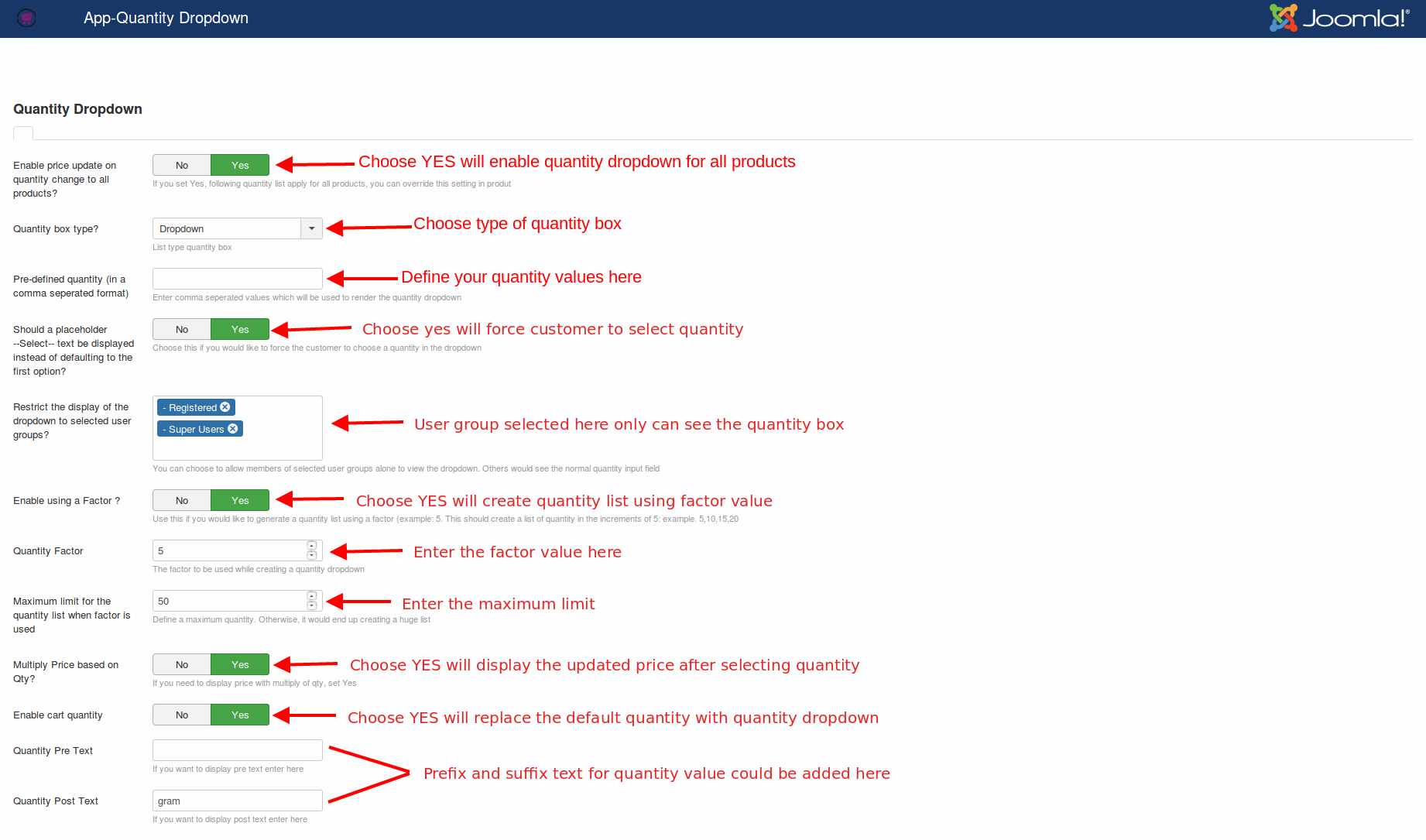
Enable price update on quantity change to all products? Setting this option to 'YES' will enable the dropdown quantity box for all products.
Quantity box type? Choose the type of quantity box to be displayed. There are two types of quantity boxes offered by this app: Dropdown and Default. The Dropdown type would display the quantity box in a dropdown format, and the Default type would display the quantity box in J2Commerce’s normal quantity field format.
Pre-defined quantity (in a comma-separated format): The quantity dropdown would render the quantity values entered here. You could enter the values in a comma (,) separated format. For example: 10,20,30,40,50
Should a placeholder--Select--text be displayed instead of defaulting to the first option? Choose this if you would like to force the customer to choose a quantity in the dropdown.
Restrict the display of the dropdown to selected user groups? You could restrict the display of the quantity box based on user groups. The quantity box would be visible to the users who belong to the user group selected here.
Enable using a Factor? Set this option to 'YES' if you would like to generate a quantity list using a factor (example: 5. This should create a list of quantities in increments of 5: example. 5,10,15,20)
Quantity Factor: If you have enabled the above option, then you will have to mention the factor here. For example: Enter 5.
Maximum limit for the quantity list when the factor is used: The maximum quantity should be mentioned here. For example: Enter 50. Now the quantity list will be 5, 10, 15, 20, 25, 30, 35, 40, 45, 50.
**Multiply Price based on Qty? ** Setting this option to 'YES' would display the price multiplied by the quantity. For example, consider the price of the product is 12. So when you change the quantity to 5, then it would display 60.
**Enable cart quantity ** If you would like to replace the quantity box in the items table on the cart page with a quantity dropdown, set this option to 'YES'.
**Quantity pre-text and post-text ** Text entered here will be added as a prefix and suffix to the quantity number. For example, if you entered Gram in the Post text box, then the quantity will appear like 5 grams, 10 grams, 15 grams, etc..
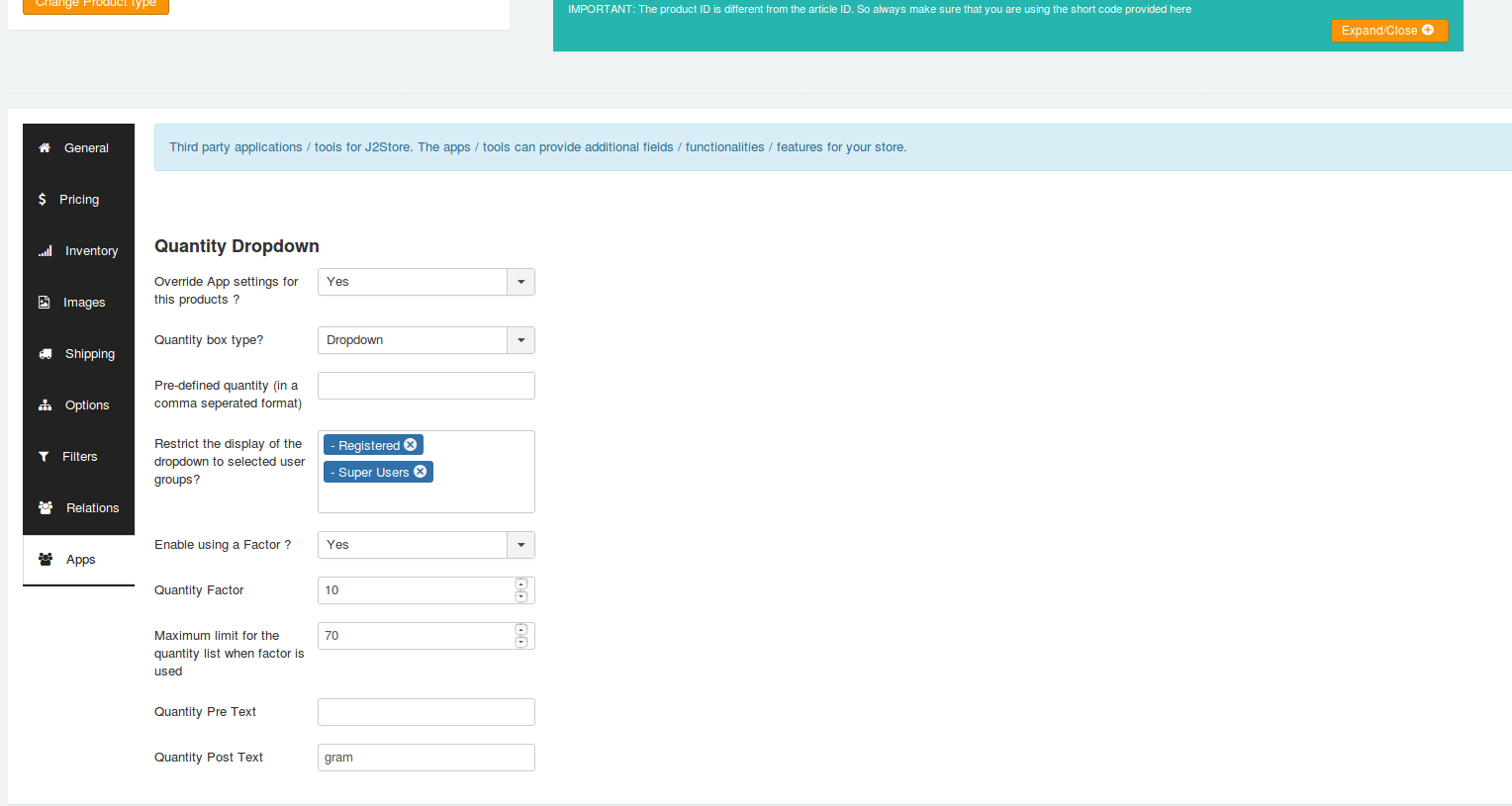
Configuring the Quantity dropdown at the product level: To configure the quantity dropdown at the product level, go to Article manager > Open the product > J2Commerce (or J2Store cart) tab > Apps, where you should enable the Product quantity drop-down.
**Override App settings for this product? ** If you want the specific product not to use the app’s global settings, then set YES to this option. Choosing YES would not take the settings you configured in the app. It would consider the settings configured at the product.
Quantity box type? Choose the Quantity box display type from the options(Dropbox, Default) available.
Dropbox: Choosing this option will display qa quantity box in a dropdown type. Default: Choosing this option will display the default quantity box.
Pre-defined quantity (in a comma-separated format): The quantity dropdown would render the quantity values entered here. You could enter the values in a comma (,) separated format. For example: 10,20,30,40,50
Restrict the display of the dropdown to selected user groups? You could restrict the display of the quantity box based on user groups. The quantity box would be visible to the users who belong to the user group selected here.
Enable using a Factor? Set this option to 'YES' if you would like to generate a quantity list using a factor (example: 5. This should create a list of quantities in increments of 5: example. 5,10,15,20)
Quantity Factor: If you have enabled the above option, then you will have to mention the factor here. For example: Enter 5.
Maximum limit for the quantity list when the factor is used: The maximum quantity should be mentioned here. For example: Enter 50. Now the quantity list will be 5, 10, 15, 20, 25, 30, 35, 40, 45, 50.
**Quantity pre-text and post-text ** Text entered here will be added as a prefix and suffix to the quantity number. For example, if you entered Gram in the Post text box, then the quantity will appear like 5 grams, 10 grams, 15 grams, etc..
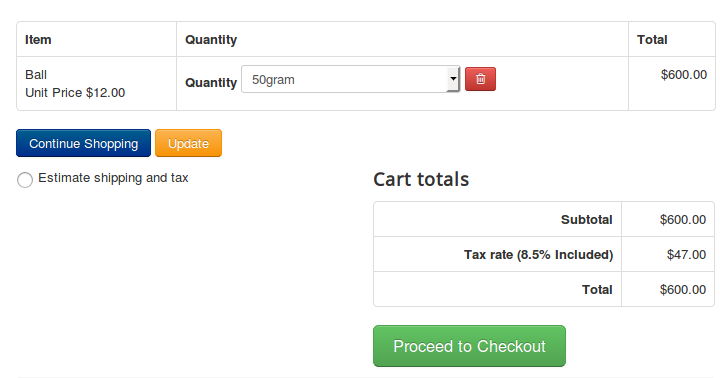
Frontend Demo Screenshots
Support
Still have questions? You can contact support: Click here
Thank you for using our extension.