J2Commerce Detailed Cart
Introduction
With the J2Commerce Detailed cart module, you could display a miniature view of the cart page anywhere you wish. Provisions are available to display the product images, shipping and tax estimator, quantity, options and so on. This saves the user’s time and allows them to have a look at the cart page anywhere on the site.
Download App:
Step 1: Go to our J2Commerce website > Extensions > Modules
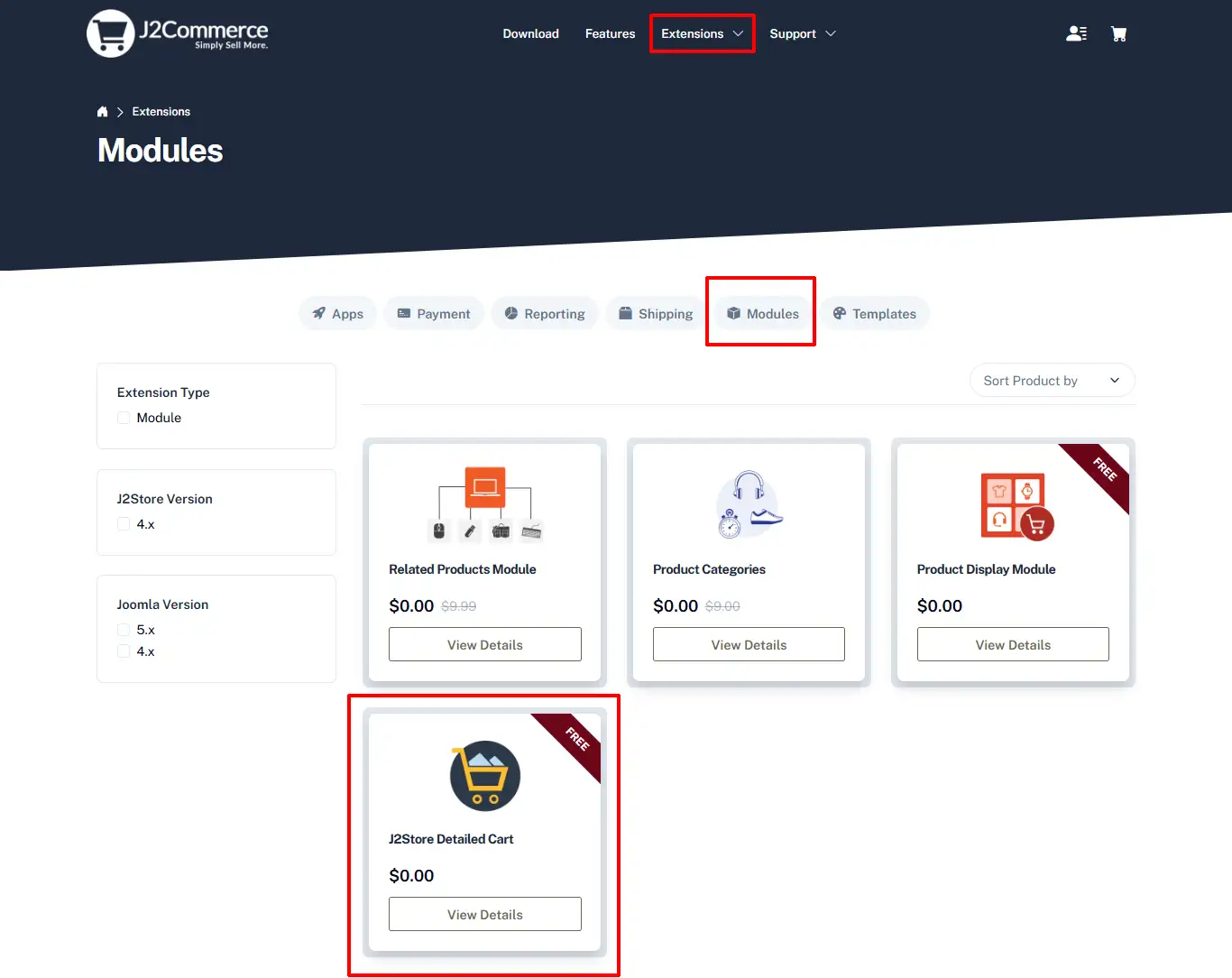
Step 2: Locate the 'J2Commerce (J2Store) Detailed Cart' Module > click "View Details"> Add to cart > Proceed to Checkout.
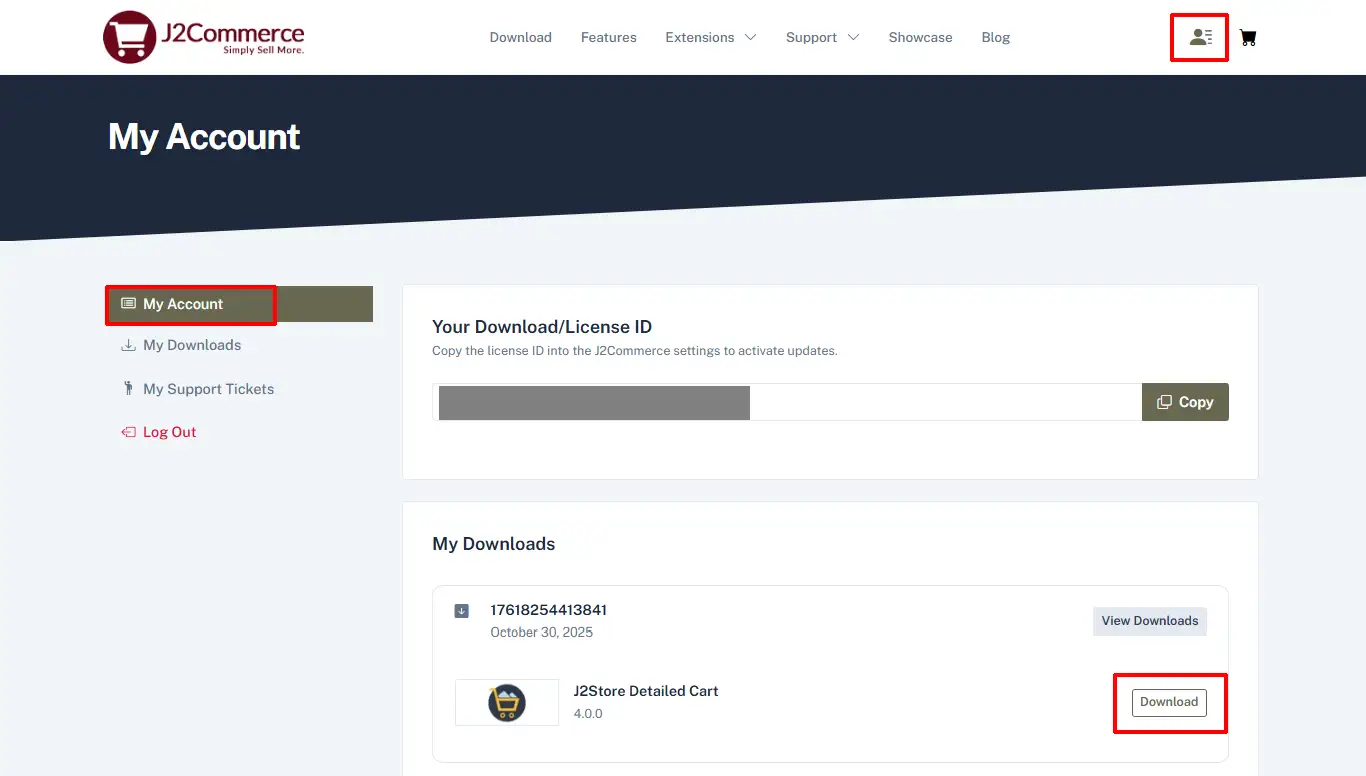
Step 3: Go to your 'My Download' or 'My account' under your profile button at the top right corner and search for the app. Click Available Versions > View Files > Download
Installation: You can install this Detailed Cart module using the Joomla installer. The following steps help you with a successful installation.
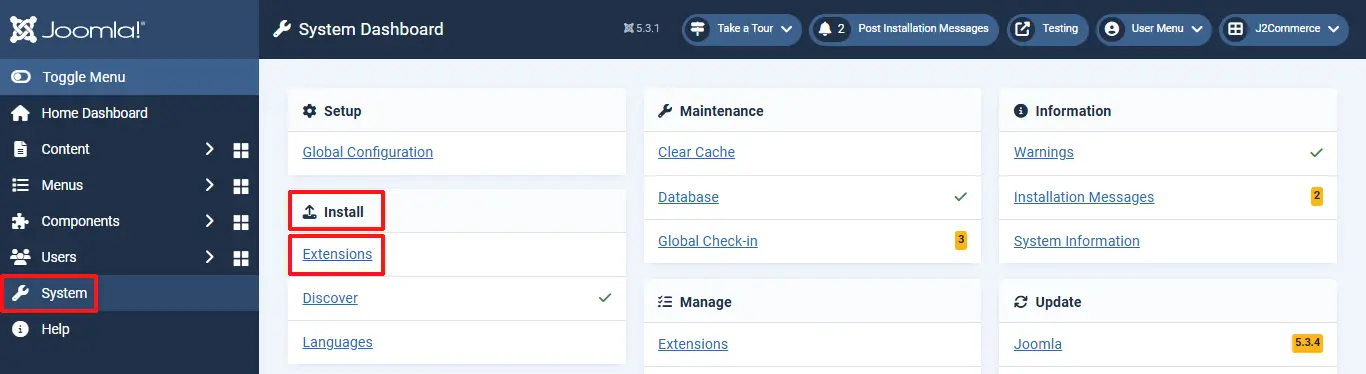
Step 1: In the Joomla admin, go to System > Install > Extensions
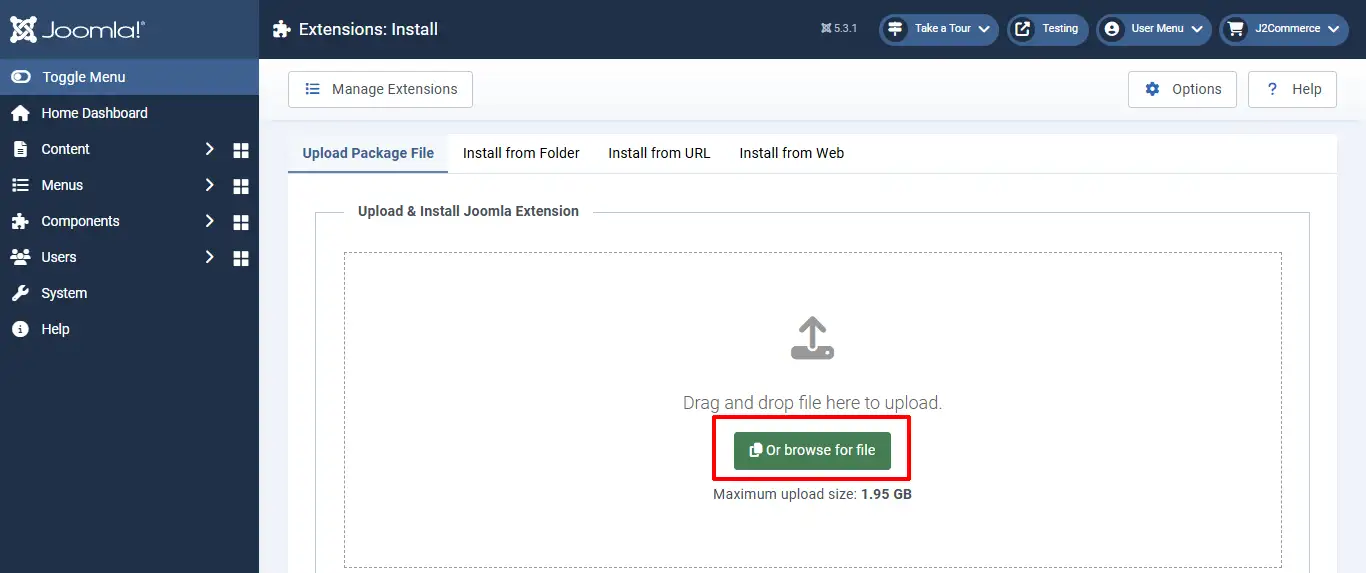
Step 2: Click on the Browse button and select the Detailed Cart zip file
Step 3: In the Joomla admin, go to Content > Site Modules. Search for the module Detail Cart Advanced J2Commerce (J2Store) and enable it.
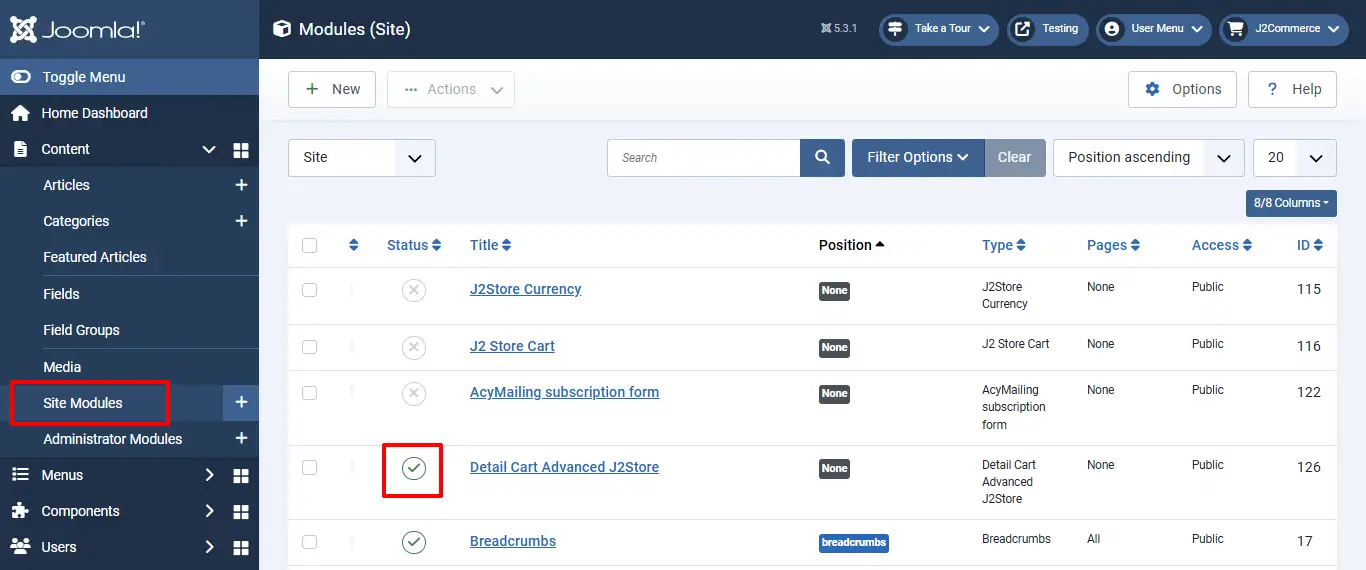
Module Setup:
Open the module in Site Module
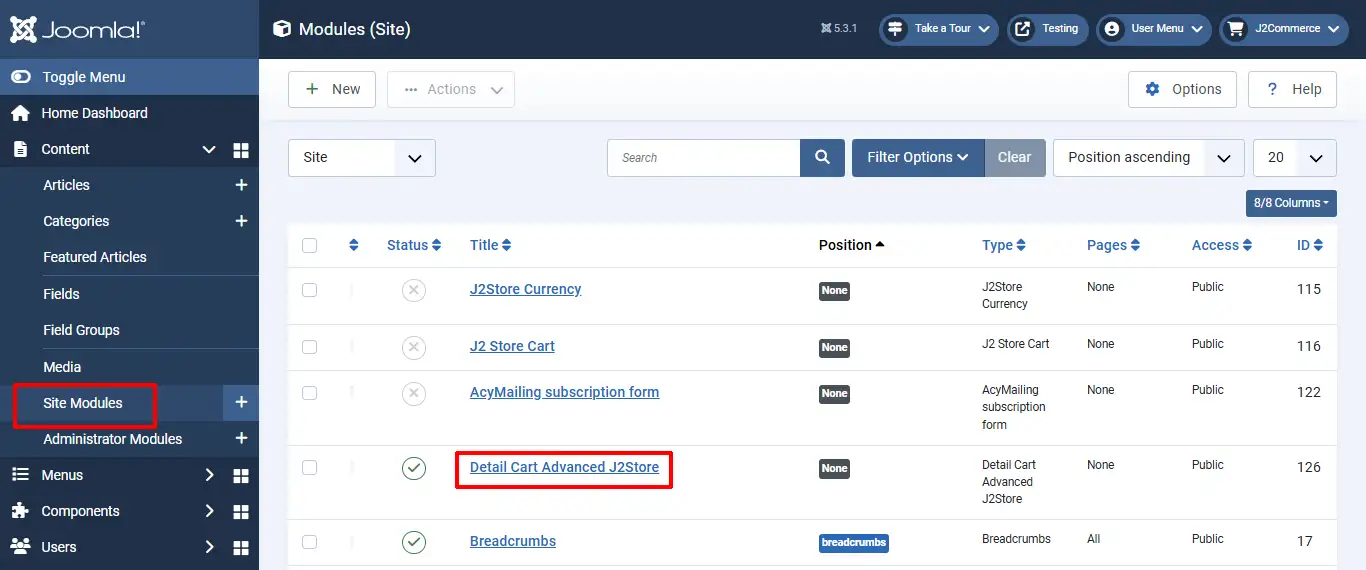
Settings
Click on the Cartitem settings tab
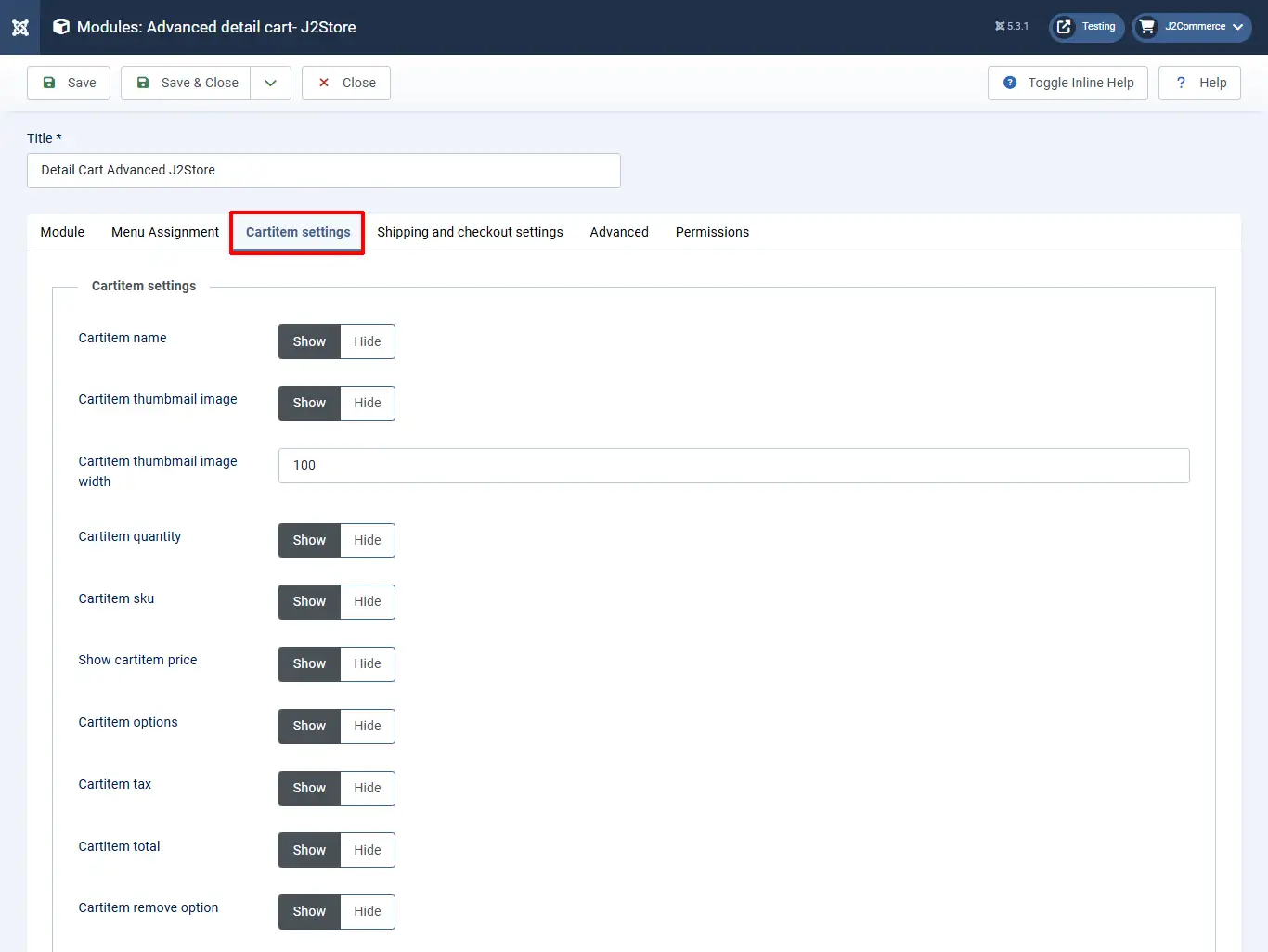
Cartitem name: Set this option to Show when you wish to show the names of the items in the cart.
Cartitem thumbnail Image: Setting this option to Show would display the product image of the items in the cart.
Cartitem thumbnail image width: This allows you to set up the width for the product’s thumbnail image of the line items in cart.
Cartitem quantity: This option allows you to choose if you wish to show the number of items of a particular line item that is in the cart.
Cartitem sku: Enabling this option would display the SKU of the line items available on the cart.
Show Cartitem price: Set this option to Show if you wish to show the price of the line items available on the cart.
Cartitem options: Set this option to Show if you wish to show the options chosen by the users if the products on the cart have options associated with them.
Cartitem tax: This setting should be set to Show if the tax of the items in the cart should be displayed.
Cartitem total: When this option is enabled, the total of the order is displayed in the module.
Cartitem remove option: Setting this option to Show would show the option(trash icon) to remove items that have been added to the cart in the module.
Shipping and checkout settings:
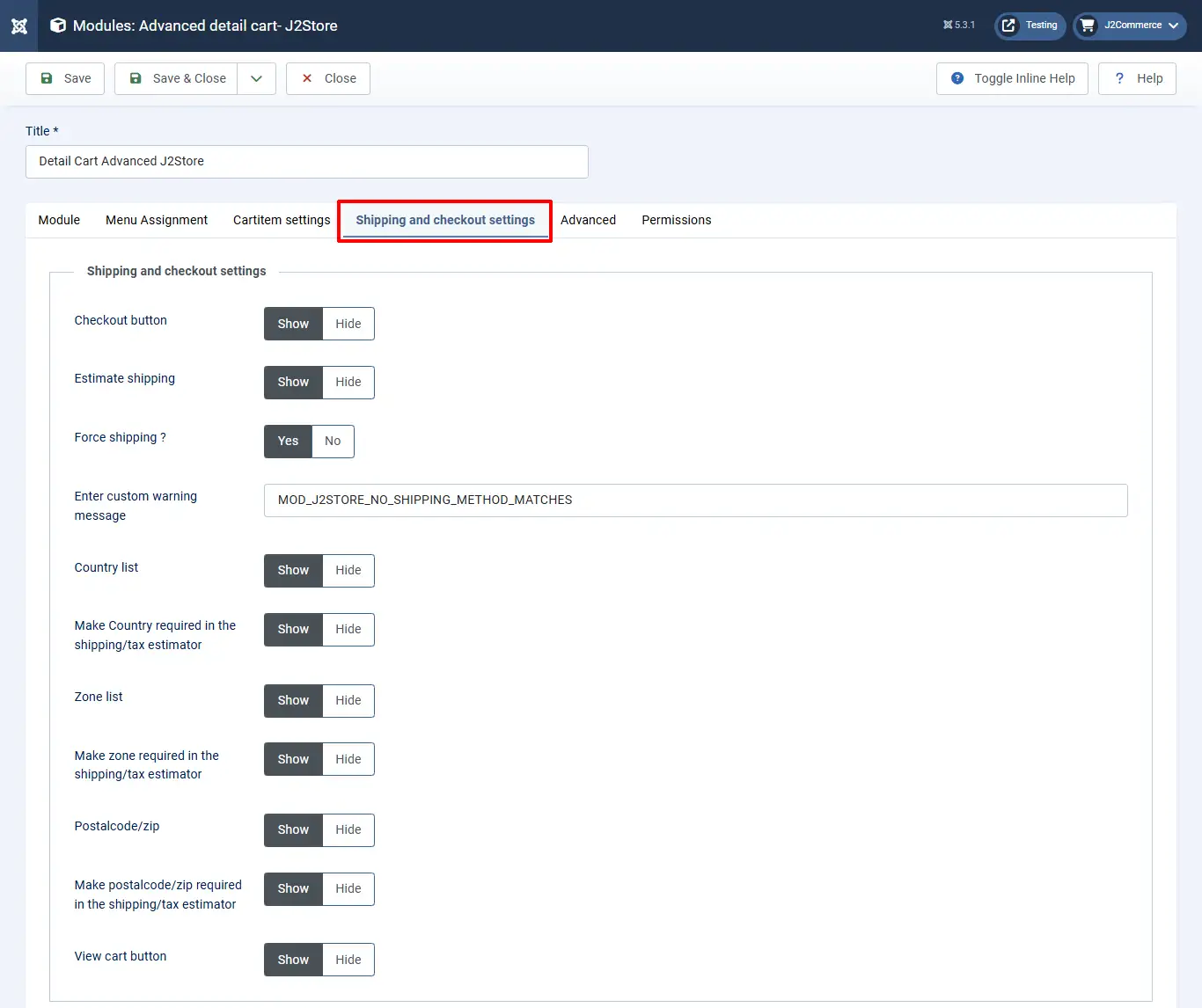
Checkout button: Set this option to Show to show the checkout button in the module. Estimate shipping: If you wish to see the estimator tool on the module, set this option to Show.
Force shipping? If you wish to prevent users from checking out without choosing the shipping methods, set this option to Yes.
Enter custom warning message: Enter the message you wish to show when a user tries to checkout without choosing the shipping. A language override could be created for multi-lingual sites for the constant mentioned in the textbox there.
Country list: Choose Show to display the countries list on the module.
Make Country required in the shipping/tax estimator: Setting this option to Show would make the country selection option as a required field on the estimator displayed on the module.
Zone list: The list of zones would be displayed on the shipping and tax estimator in the module when this option is set to Show.
Make zone required in the shipping/tax estimator: Setting this option to Show would make the zone selection mandatory in the module before checking out.
Postal code/zip: Setting this option to Show would display the textbox to enter zip code in the module.
Makepostal code/zip required in the shipping/tax estimator: Setting this option to Show would make the postal code selection mandatory.
View cart button: Setting this option to Show would display a link to the cart view.